About Two Factor Authentication
2FA, or Two-Factor Authentication, is a security process in which a user is required to provide two different forms of authentication in order to access an account or system. The goal of 2FA is to make it harder for unauthorized individuals to gain access to an account, even if they have obtained the user's password or other credentials.
The two factors of authentication typically used in 2FA are:
- Something the user knows, such as a password, PIN, or answer to a security question.
- Something the user has, such as a physical token, a one-time code generated by an authentication app, or an SMS code sent to their phone.
When 2FA is enabled for an account, the user must provide both factors of authentication to gain access. For example, they might enter their password as the first factor, and then enter a one-time code generated by an authentication app as the second factor.
By requiring two different factors of authentication, 2FA makes it much more difficult for attackers to gain access to an account. Even if an attacker manages to obtain the user's password, they will still need the second factor of authentication to gain access. This makes it much less likely that an attacker will be able to successfully compromise the account.
How to enable / disable Two Factor Authentication?
Super Admin or Admin must login to Smart School to enable or disable Two Factor Authentication. After login, go to the Two Factor Authentication module, which is shown in the left side bar. Now click on Two Factor Authentication > Settings. The settings page will open. Here you can enable and disable the two-factor authentication of for your Smart School.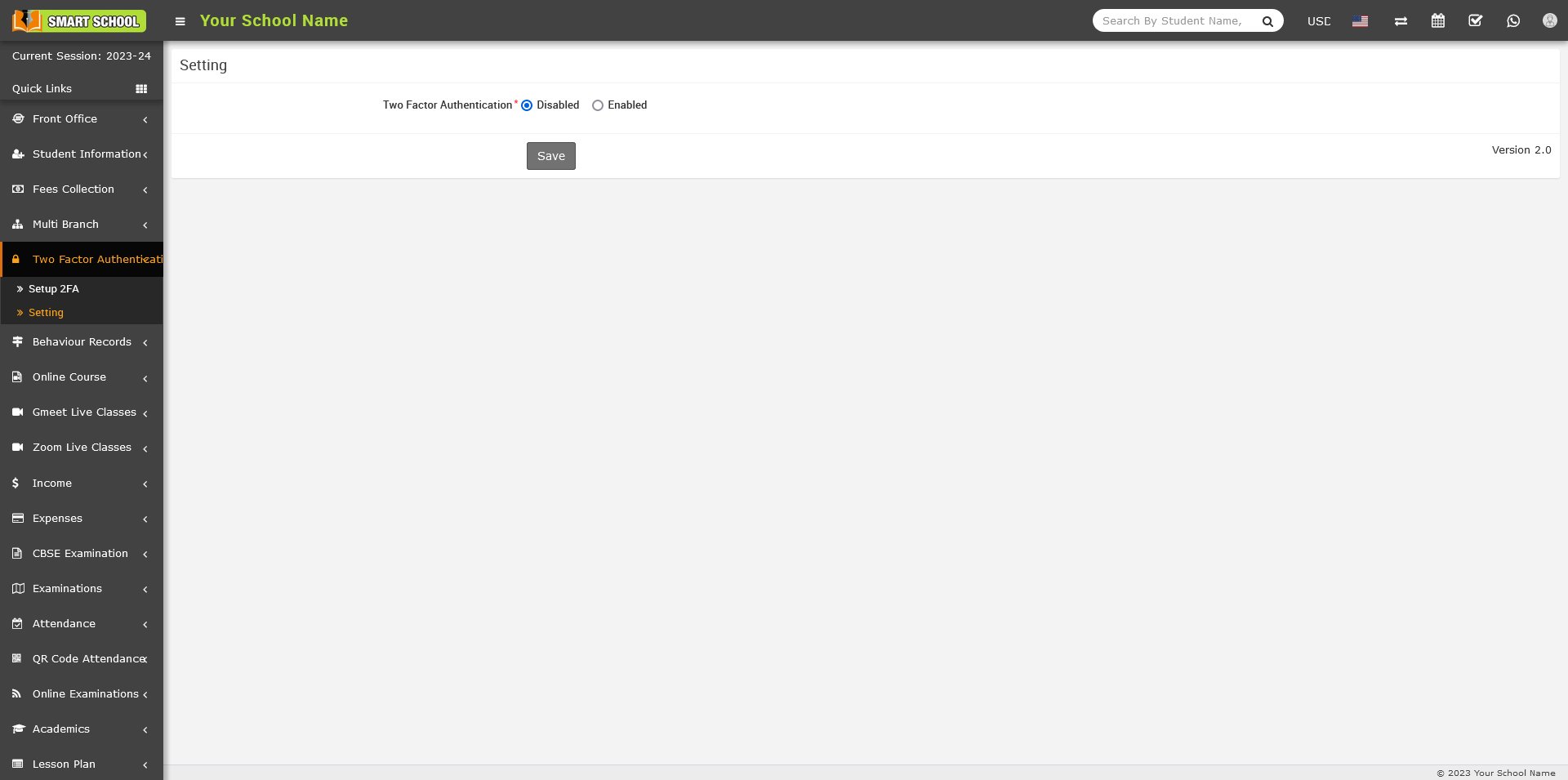
Now, click the Save button, and the message Record Update Successfully will appear. 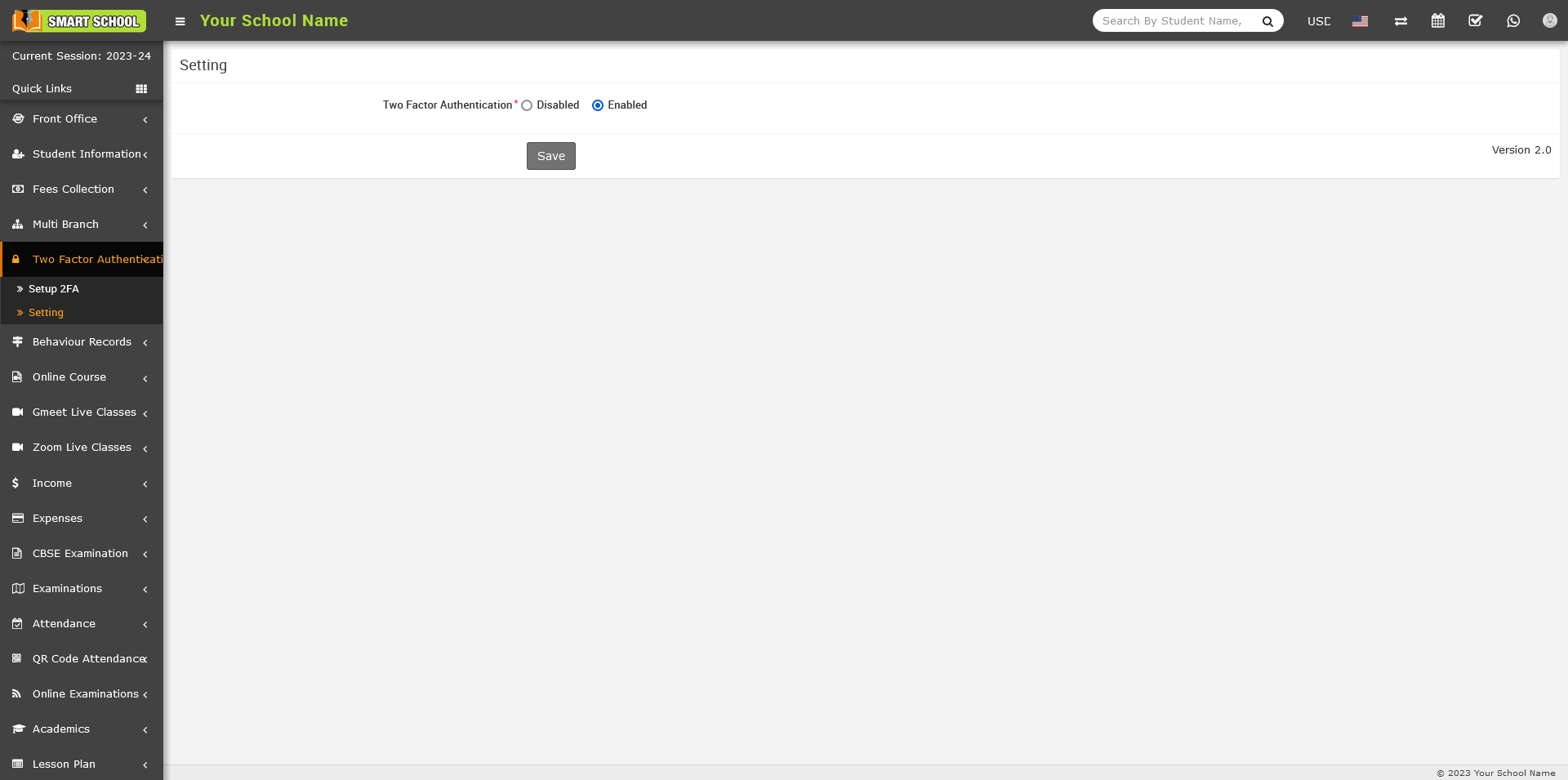
Note: When you install Two Factor Authentication in your Smart School, it will show you default disabled, for using you have to enabled it.
How to Setup 2FA?
Go to the your Smart School to configure 2FA of Two Factor Authentication, two-step verification. For setup 2FA, go to the Two Factor Authentication module, which is shown in the left side bar. Now click on Setup 2FA, the Setup 2FA page will open.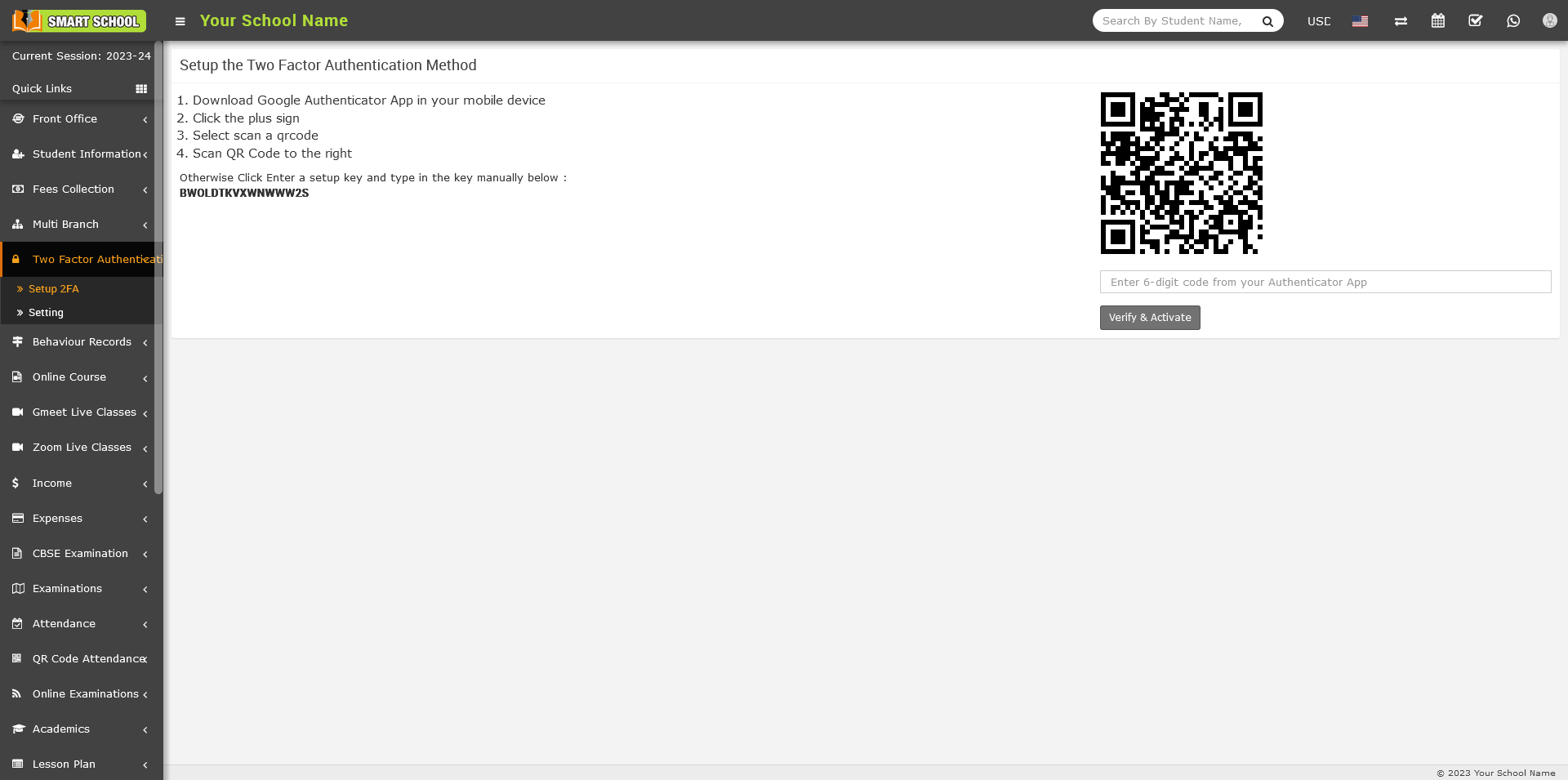
Note: For further processing, you need to set up Google Authenticator on your mobile device.
How to Install the Google Authenticator app on a mobile device?
- On your mobile device, go to Play Store / IOS.
- Download the Google Authenticator app.
- After downloading the app, install in your device.
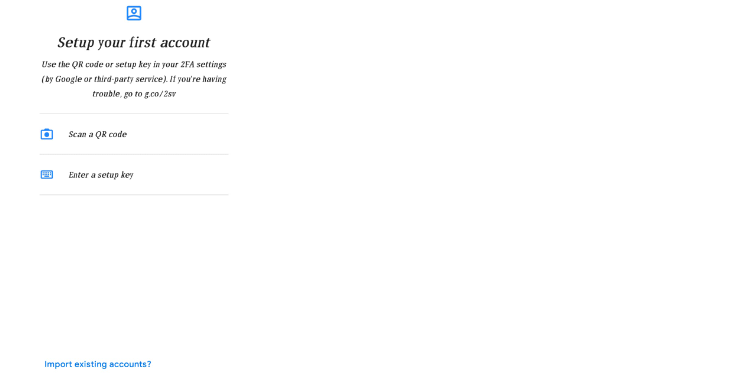
- Now open the Google Authenticator app and setup your first account.
- Use the QR code or setup key in your 2FA settings (by Google or third-party service). If you’re having trouble, go to g.co/2sv
- Now click on Scan a QR code from your mobile.
- Now, scan the QR code, which is available on your Smart School Two Factor Authentication > Setup 2FA page.
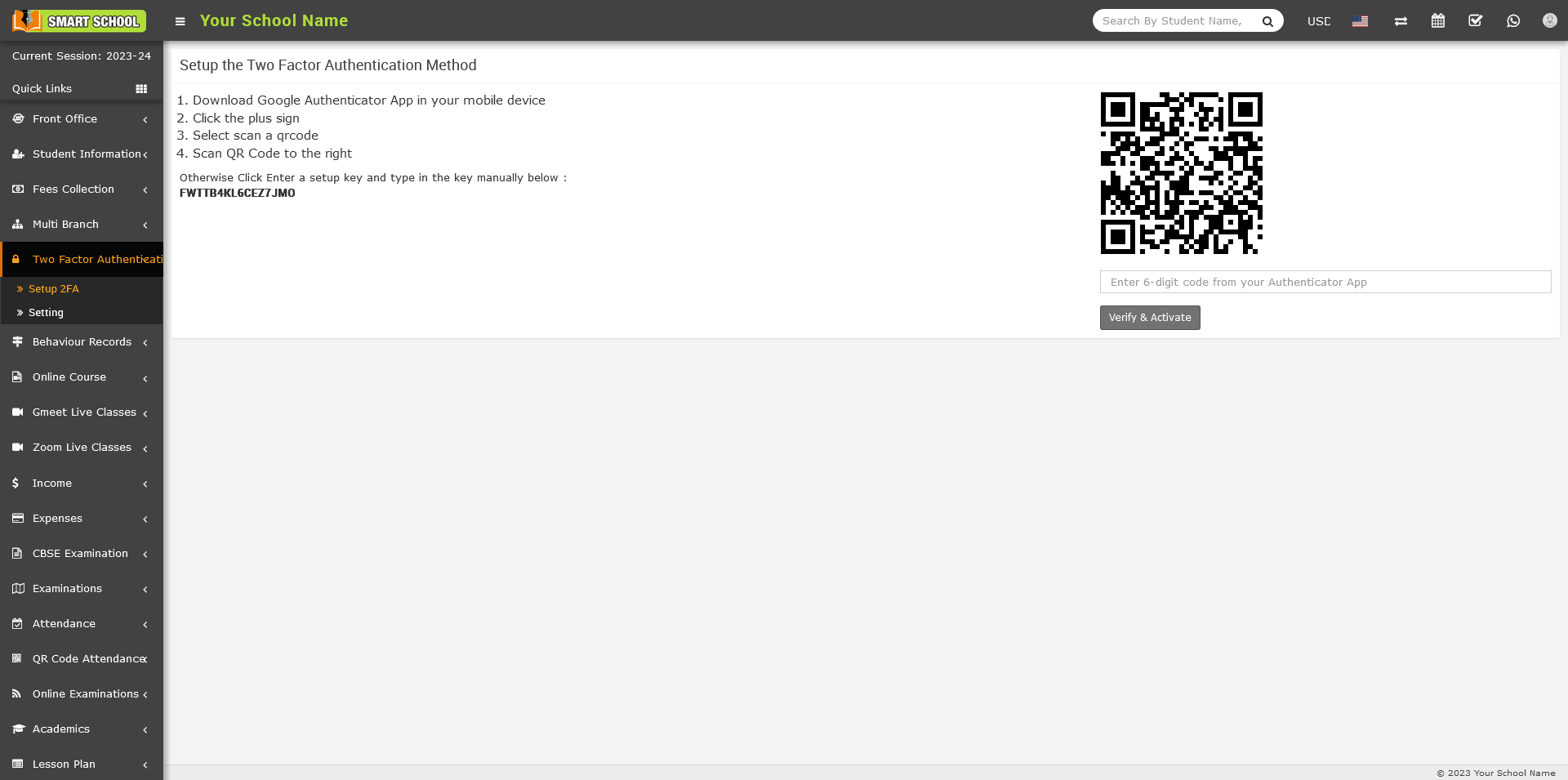
- You will receive the six-digit verification code, which will show up in the Google Authenticator
- Now fill in the six-digit verification code below the QR code and click on "Verify and Activate."
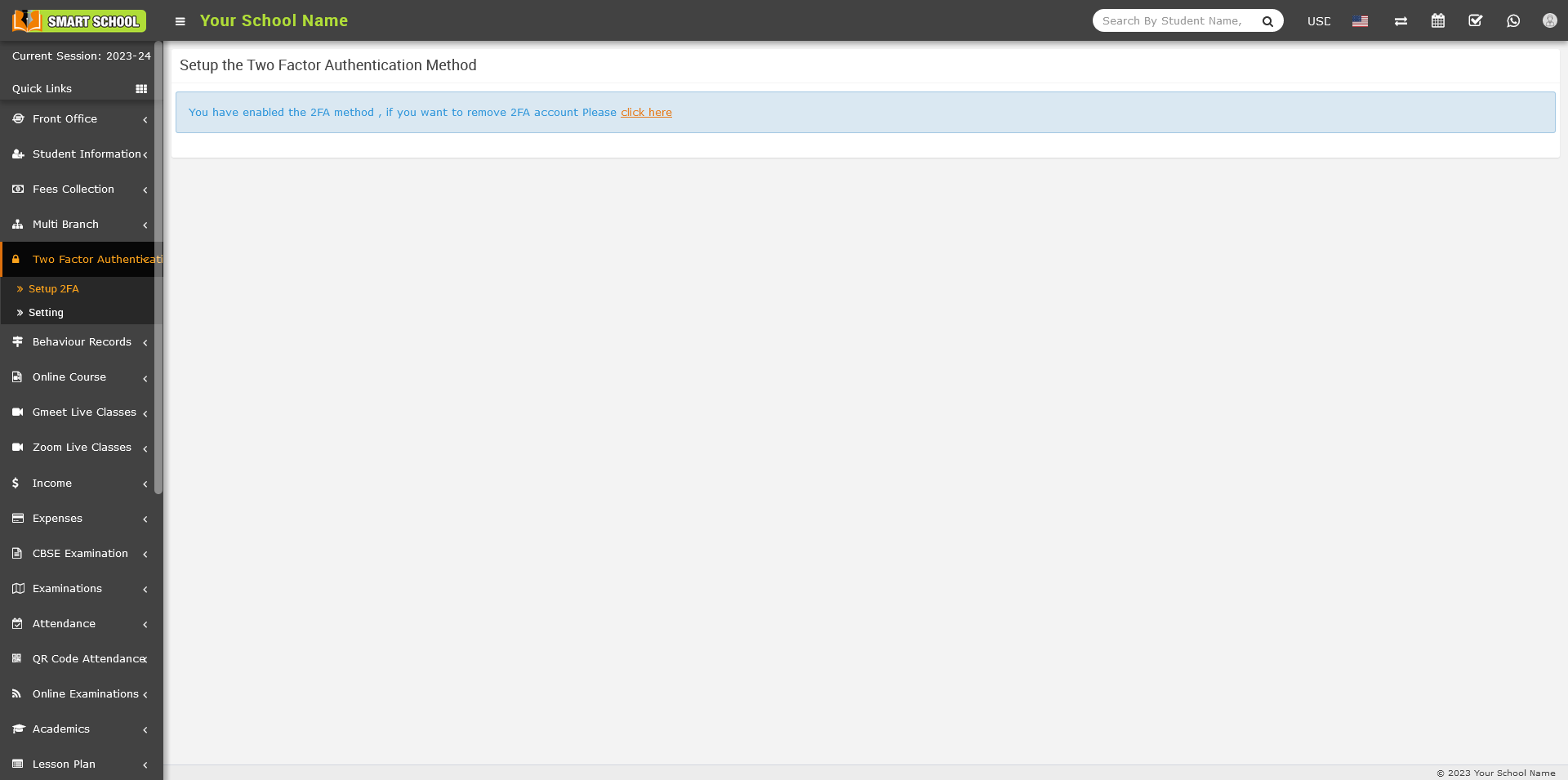
- You have successfully enabled the 2FA method in your Smart School, and a message will be shown on screen.
How to delete the 2FA account for superadmin or staff?
To delete the 2FA account, Super Admin or Staff, go to login in your Smart School. After the login, go to the Two Factor Authentication module, which is shown in the left side bar. Now click on Two Factor Authentication > Setup 2FA. A new page will open, and a message will show, "You have enabled the 2FA method. If you want to remove your 2FA account, please "click here".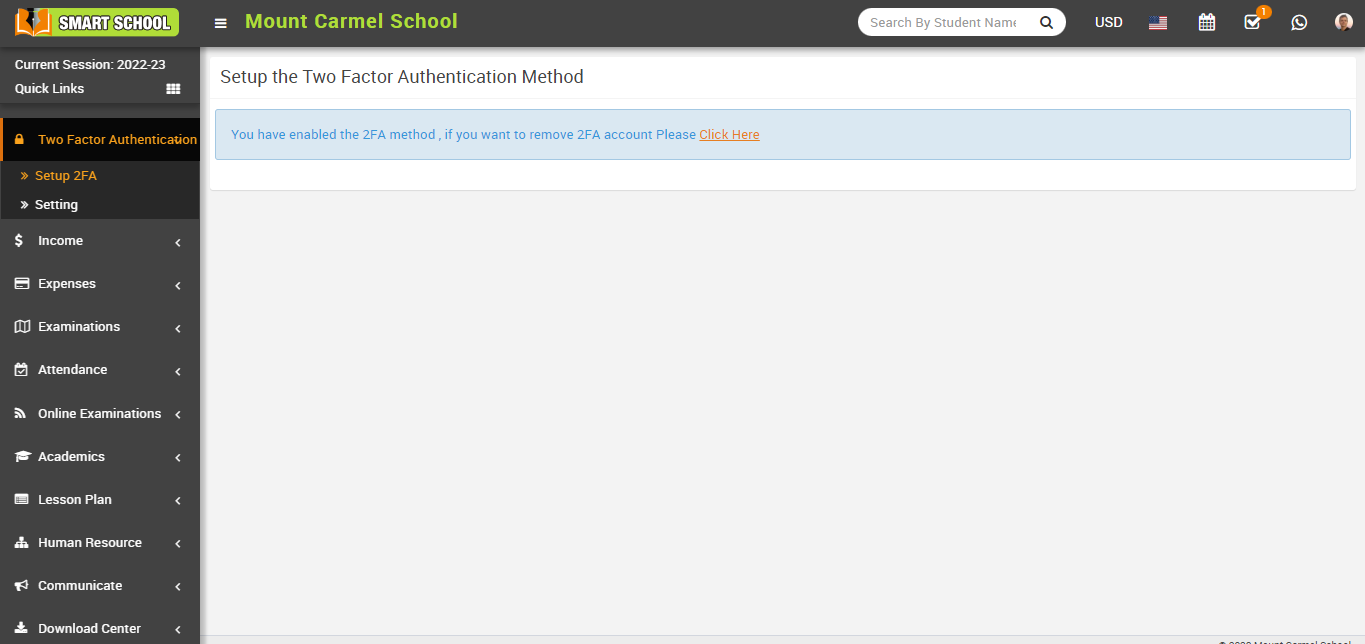
After clicking here, a delete confirmation message will appear on the screen. Now you can delete the account by clicking on the Delete button, which is showing in the right-bottom corner.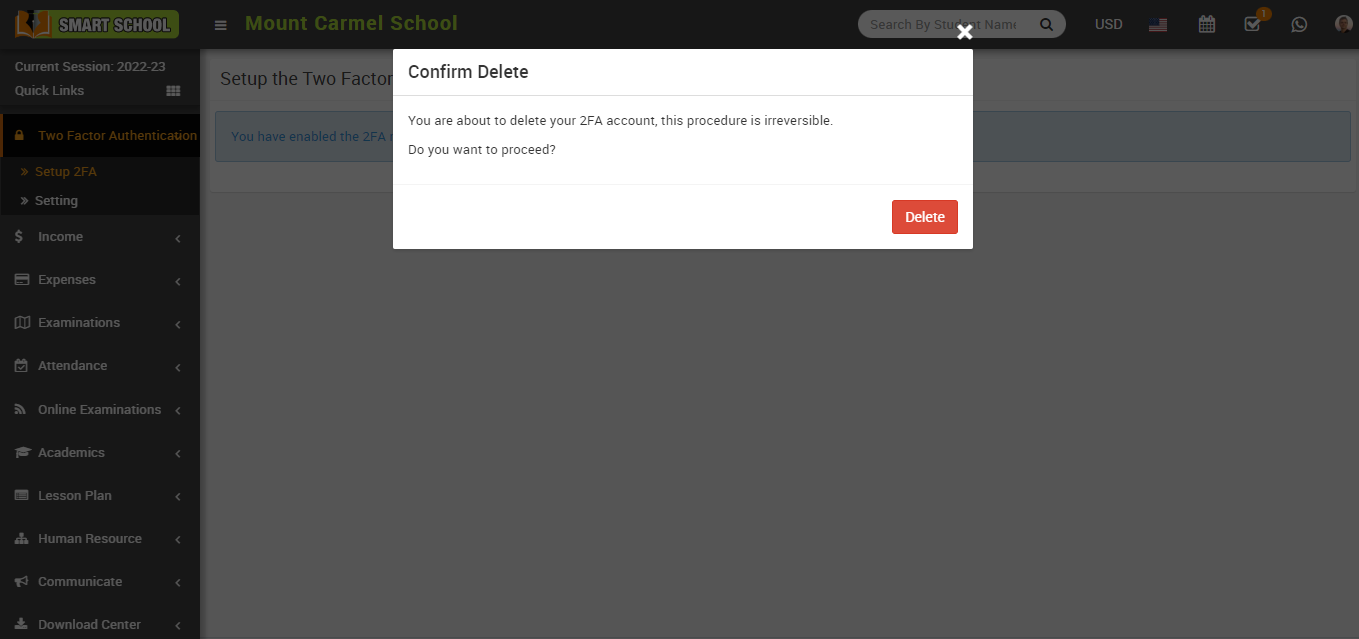
How to manually configure the key for superadmin and staff?
To setup the key manually, Superadmin, go to the login in your Smart School. After login the superadmin, go to the Two Factor Authentication module which is showing in left side bar. Now click on Two Factor Authentication > Setup 2FA, now page will open, here in left below setup key will be show.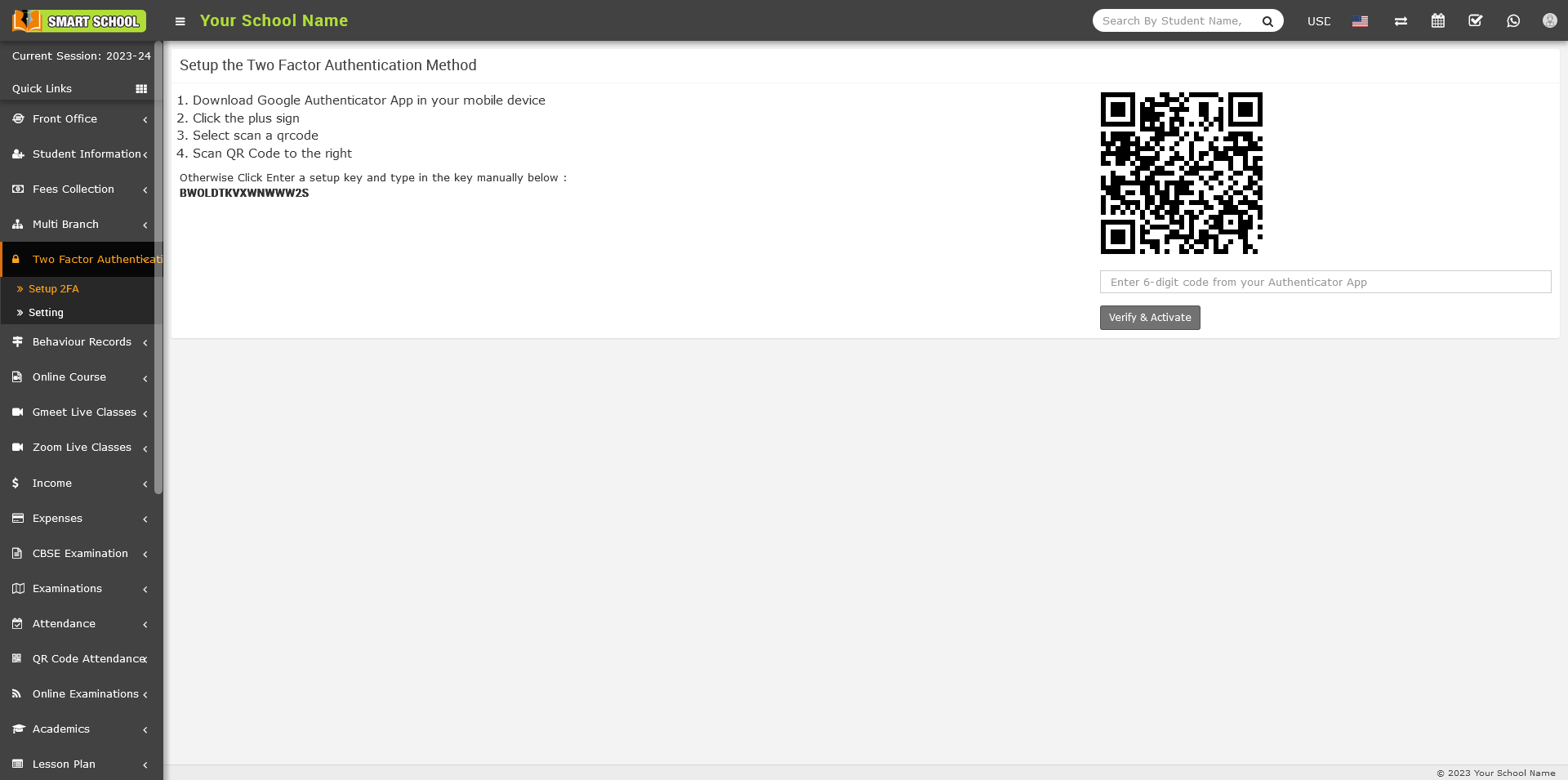
Now open the Google Authenticator app on your mobile device and setup your first account page by clicking on Enter a setup key.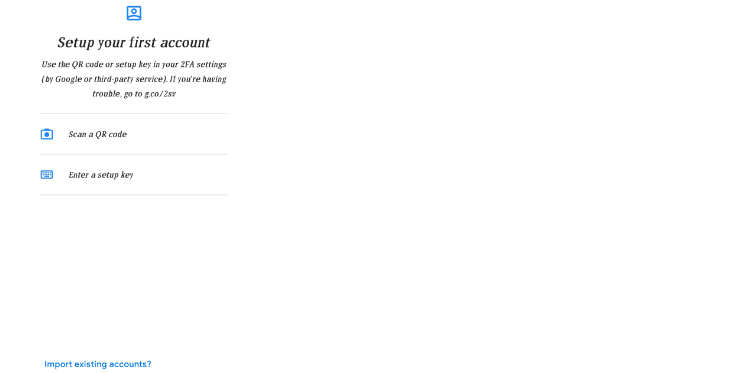
After clicking on Enter setup key, the account details form will open, and then enter Account name, Your key and Type of key and click on the Add button. Now click on Add Account in your mobile device, your account has been successfully added, and you will receive the six-digit verification code.
Now open the your Smart School, go to Two Factor Authentication > Setup 2FA and fill the six digit verification code which is showing in your mobile device in right below of QR code and click on Verify & Activate.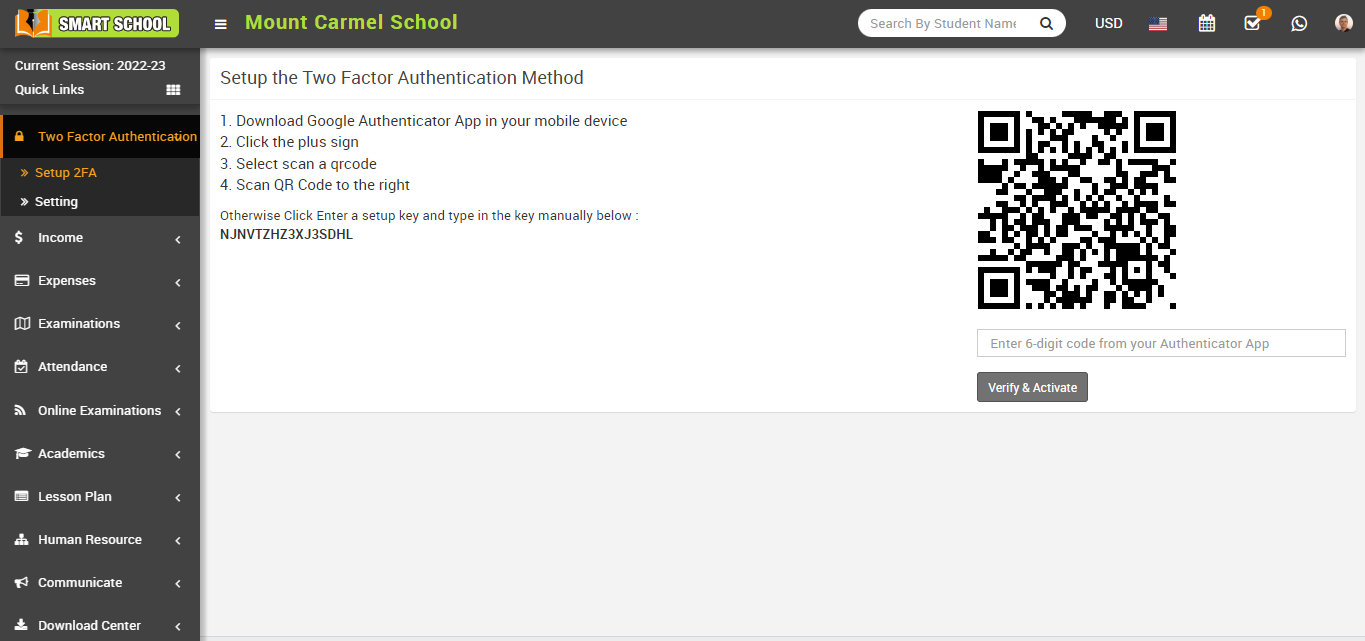
Your 2FA account will be activated after you click the Verify and Activate button, and a message will appear on your screen. 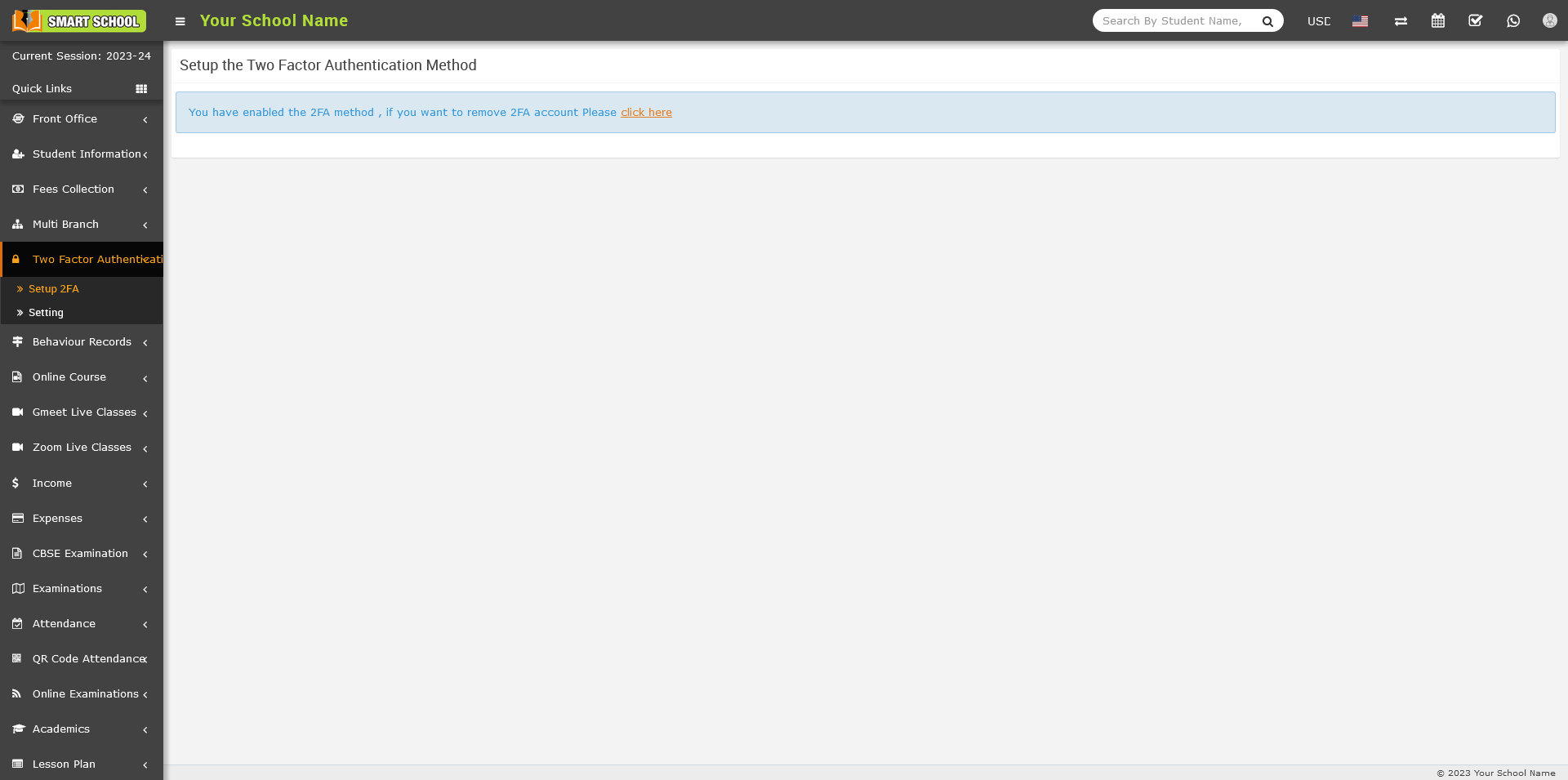
How to check Two Factor Authentication working for superadmin in your smart school?
After you've enabled and configured a 2FA account in your Smart School, navigate to the login page, enter your username and password, and click Sign In.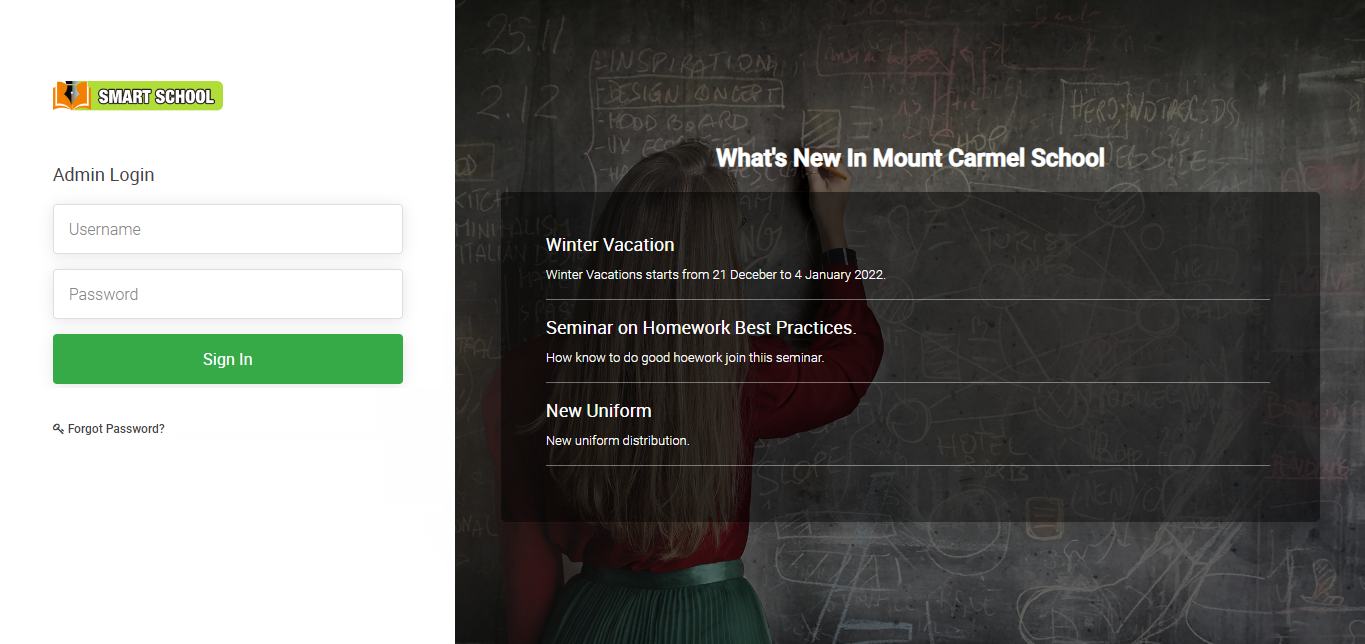
After clicking Sign In, a verification window will appear on your screen, enter the six-digit verification code displayed in the Google Authenticator app, and then click Verify & Login.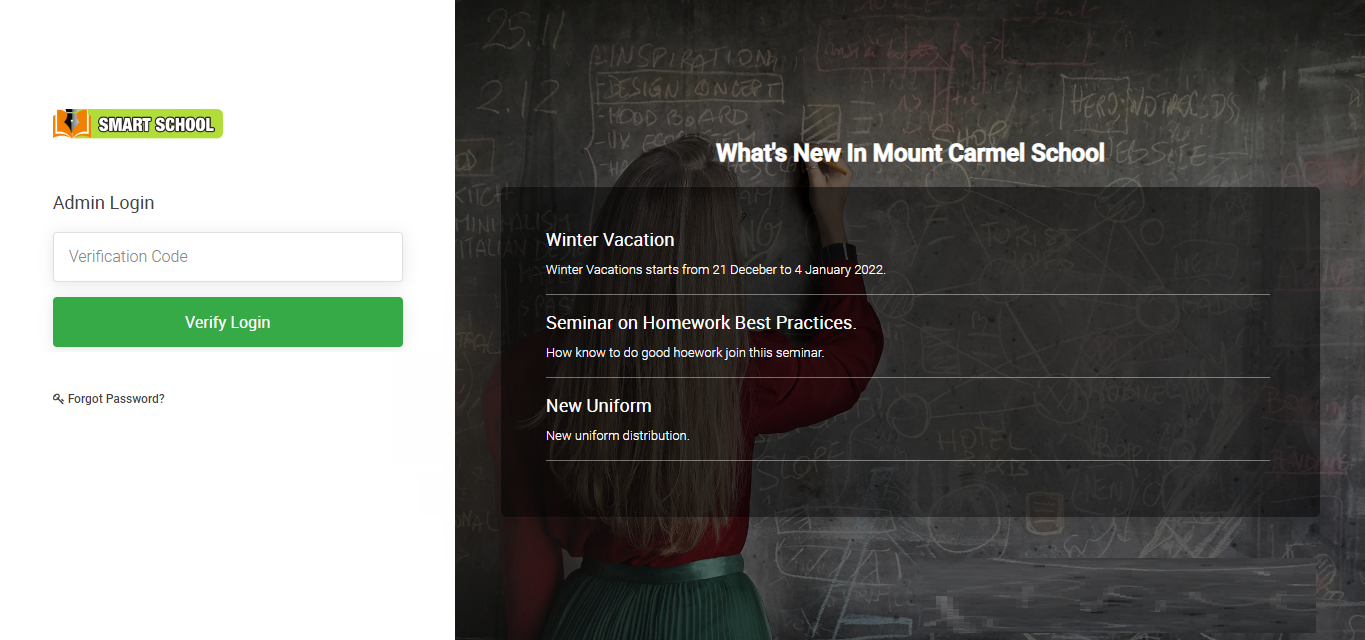
You have now successfully logged into your Smart School. 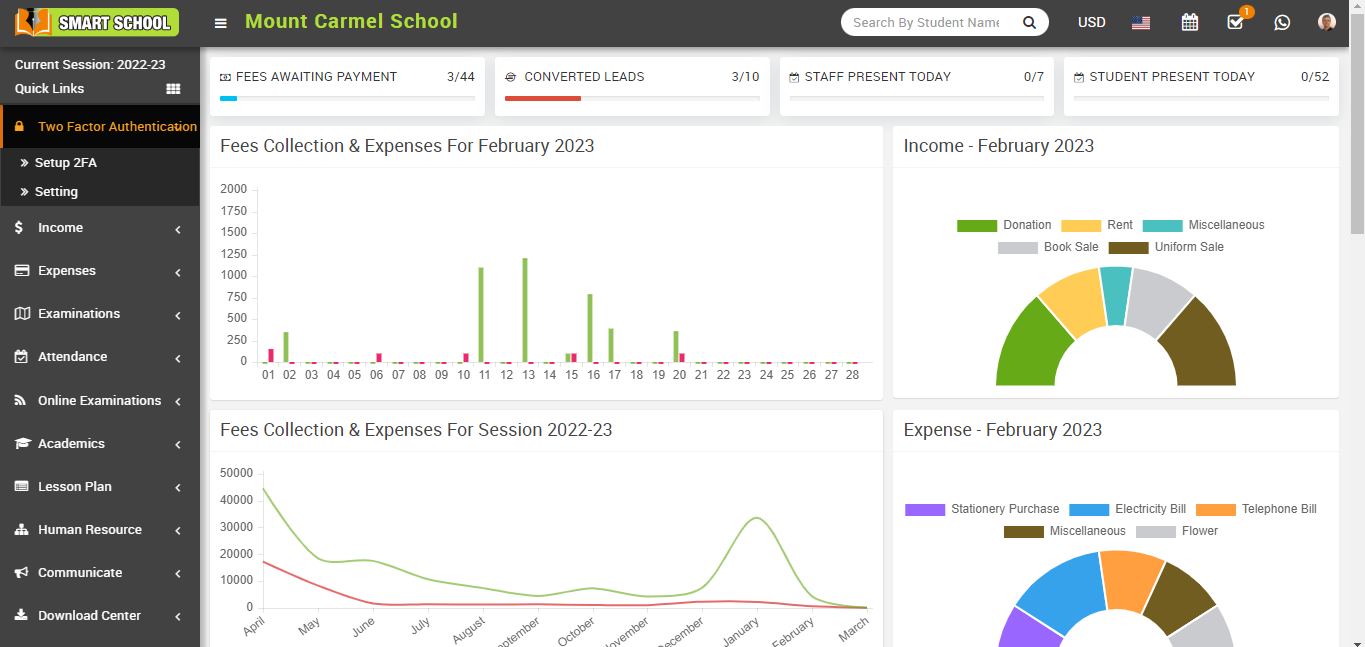
How to check Two Factor Authentication working for staff in your smart school?
The first step in determining whether Two Factor Authentication is working for staff is to determine whether Two Factor Authentication is enabled. If you have not enabled it, go to Two Factor Authentication > Settings in your smart school and click on Enable. Now setup 2FA, as explained above, and open your Smart School for staff.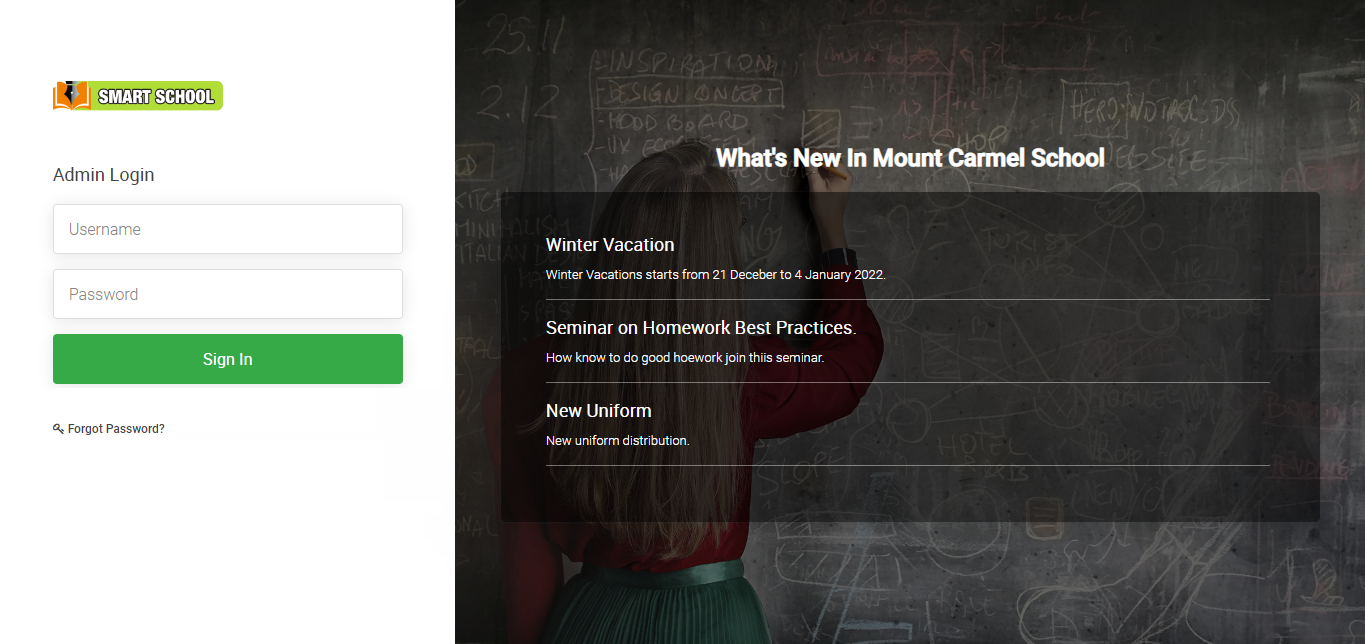
Log in with your staff username and password, then click on Sign in. A verification window will open, now fill in the six-digit verification code that is showing in your Google Authenticator mobile app.
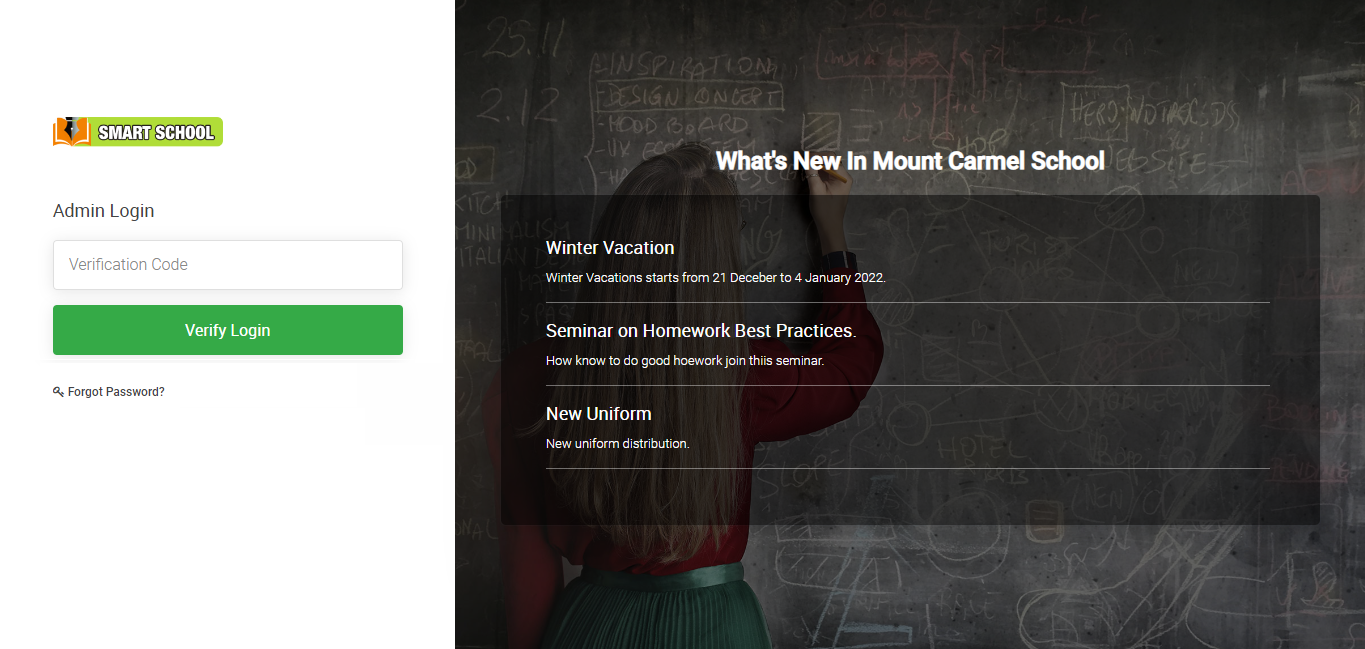
Now, click Verify and Login, and your Smart School staff will be successfully logged in. 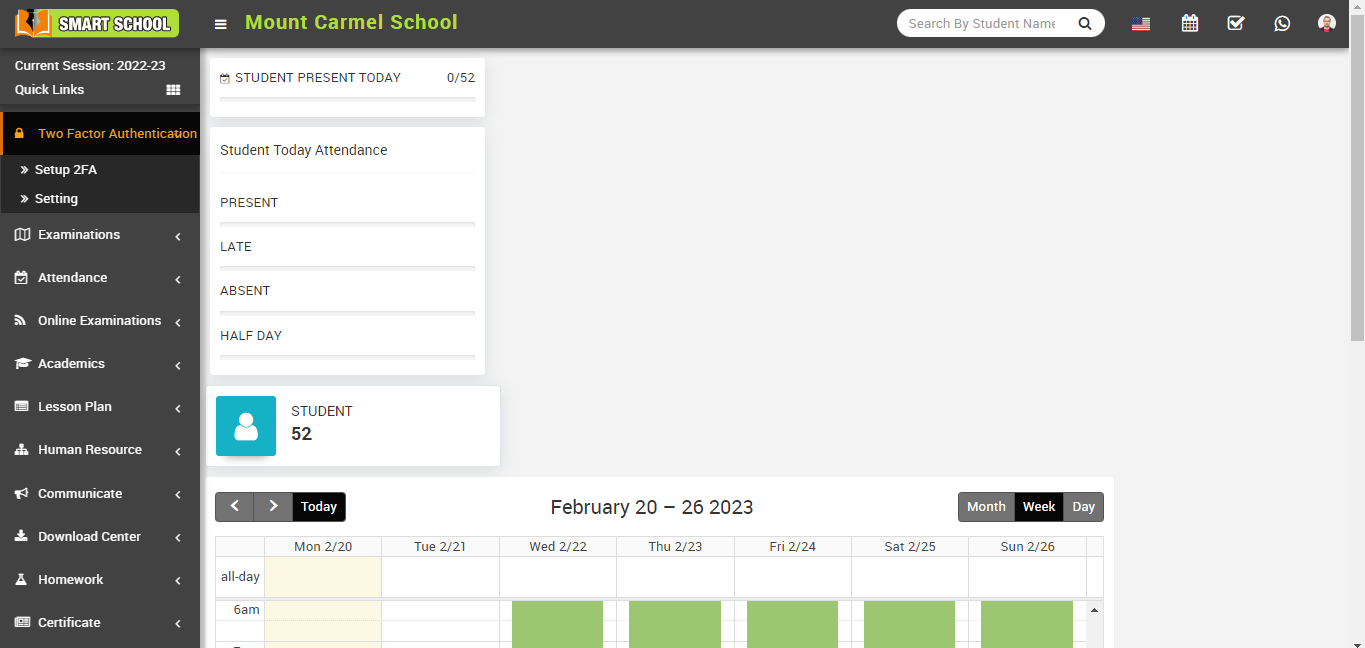
How to configure Two Factor Authentication in your smart school for users (students and parents)?
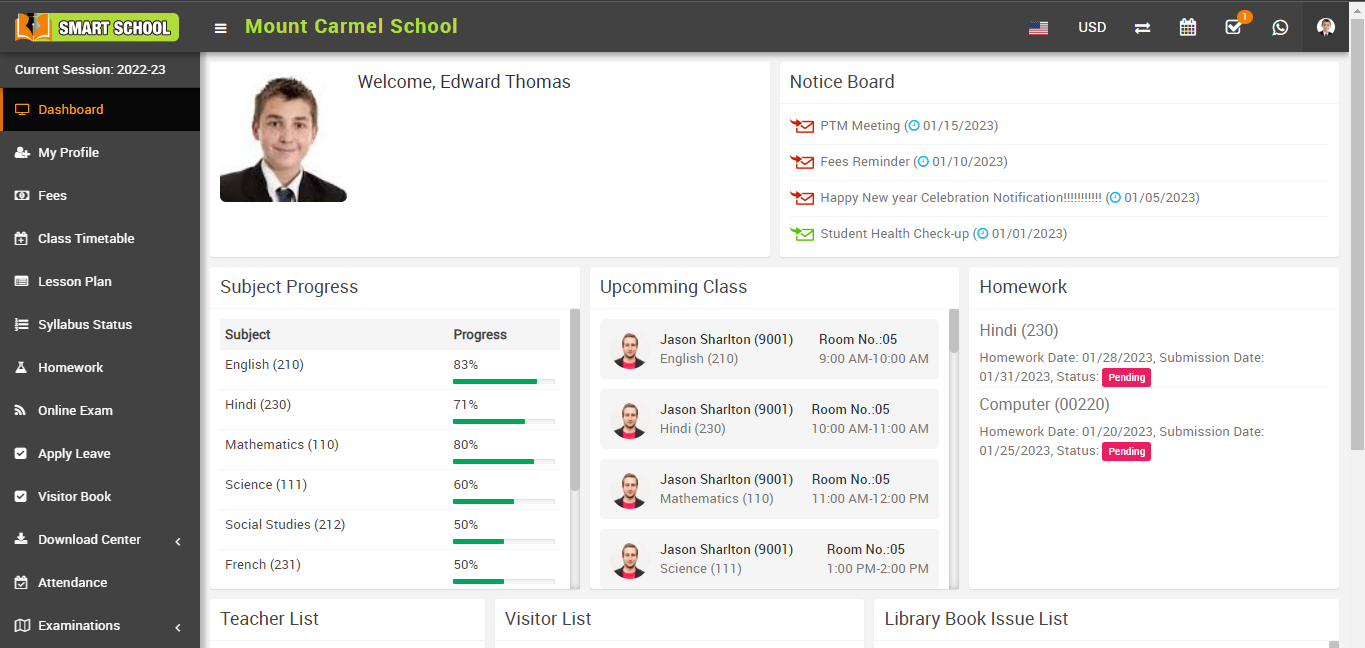
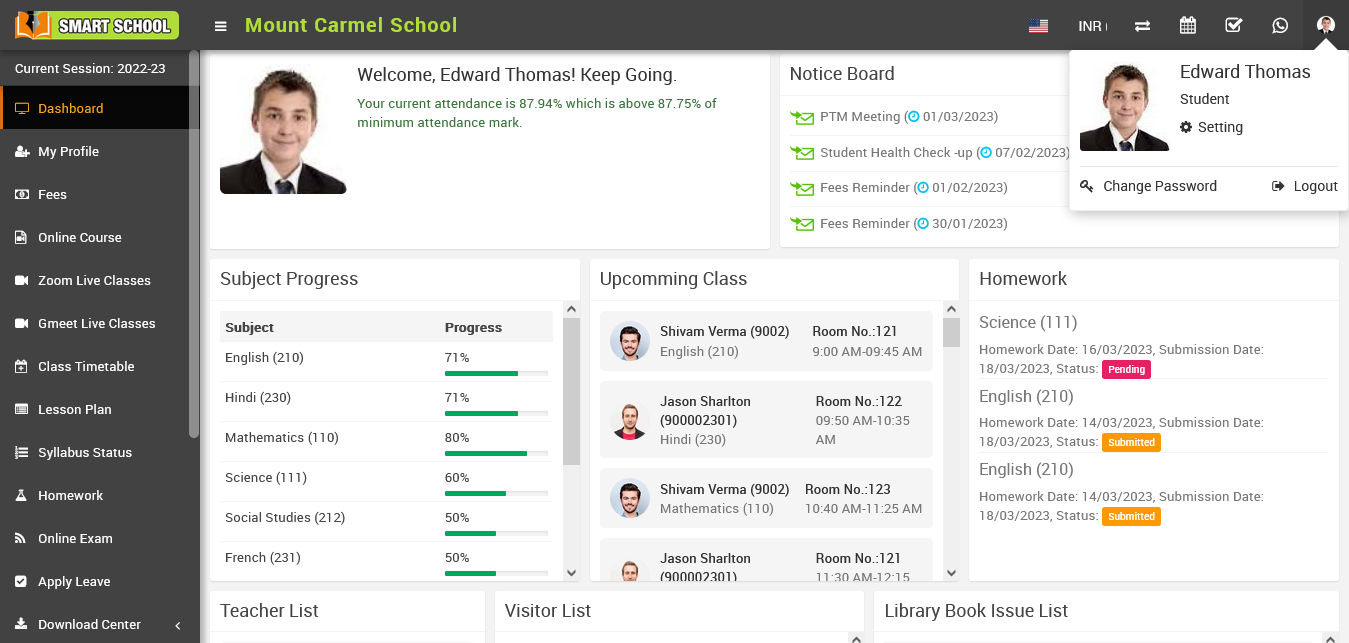
A small popup window will be opened, now click on Setting.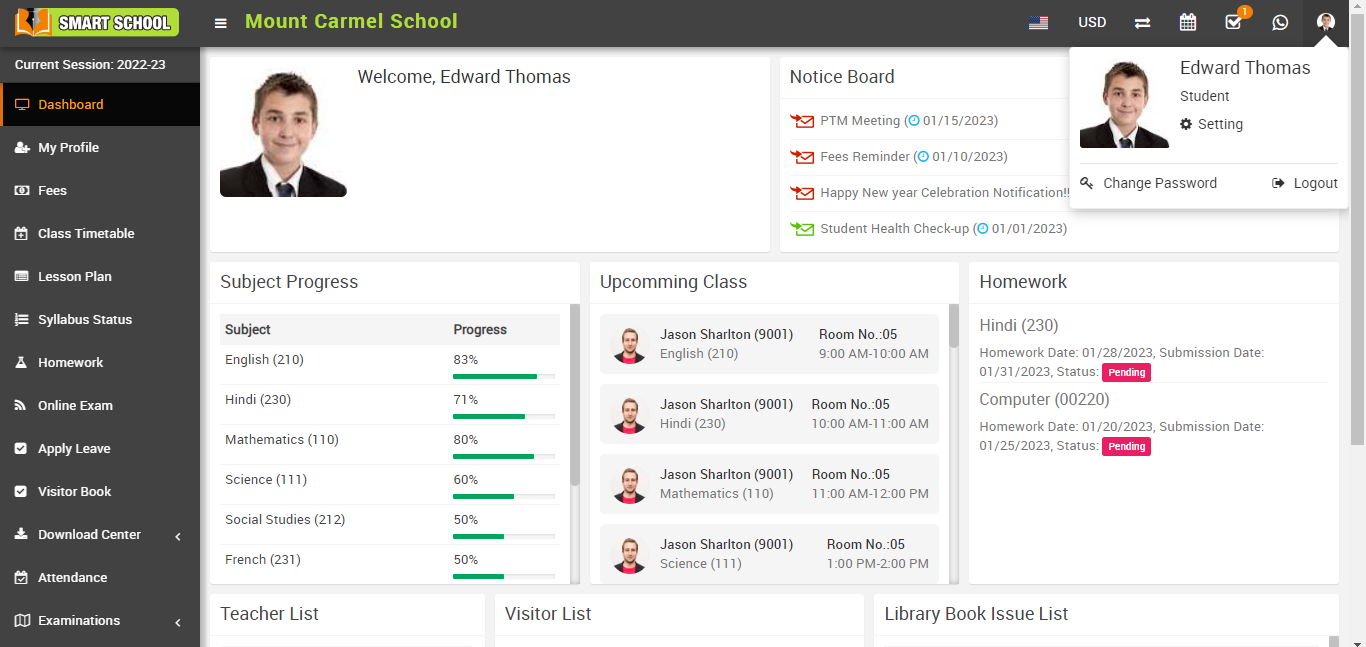
After clicking Setting, the Two Factor Authentication Setup 2FA page will appear. 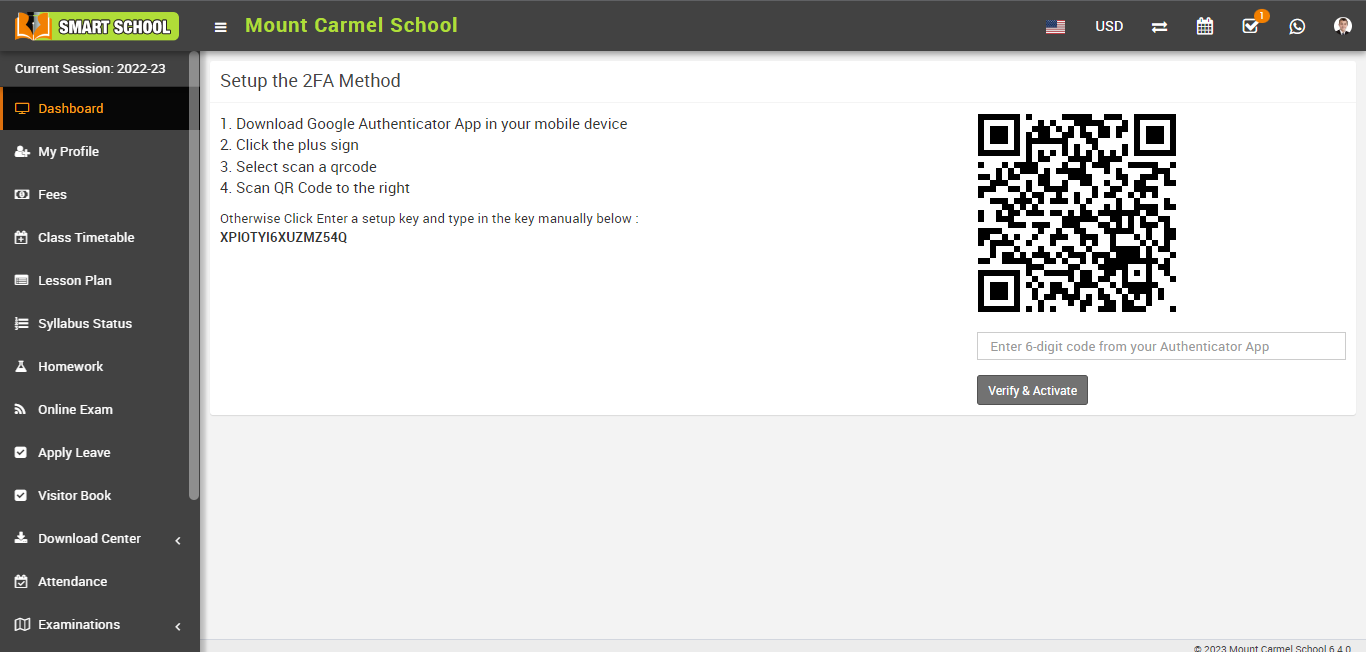
First, check whether the Google Authenticator app is available on your mobile device or not. If not, then download Google Authenticator.
- On your mobile device, go to Play Store / IOS Store.
- Download the Google Authenticator and install in your device.
- Now open the Google Authenticator app and setup your first account.
- Use the QR code or setup key in your 2FA settings (by Google or third-party service). If you’re having trouble, go to g.co/2sv
- Now click on Scan a QR code from your mobile.
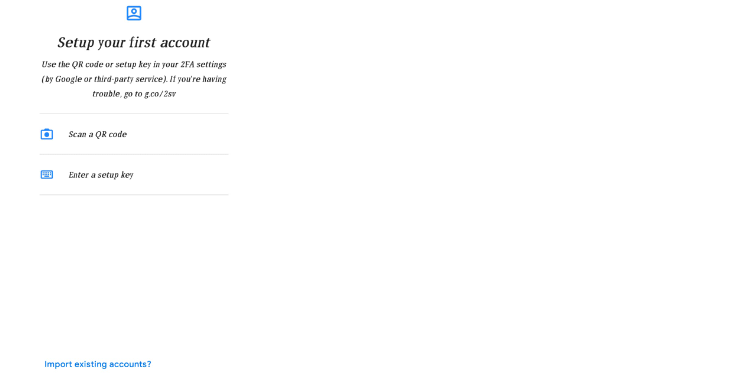
7. Now, open the Setup 2FA page, which is available in User Login (students or parents) > Smart School Top Right Corner Profile Image > Setting.
8. The Setup the 2FA method page will now be displayed.
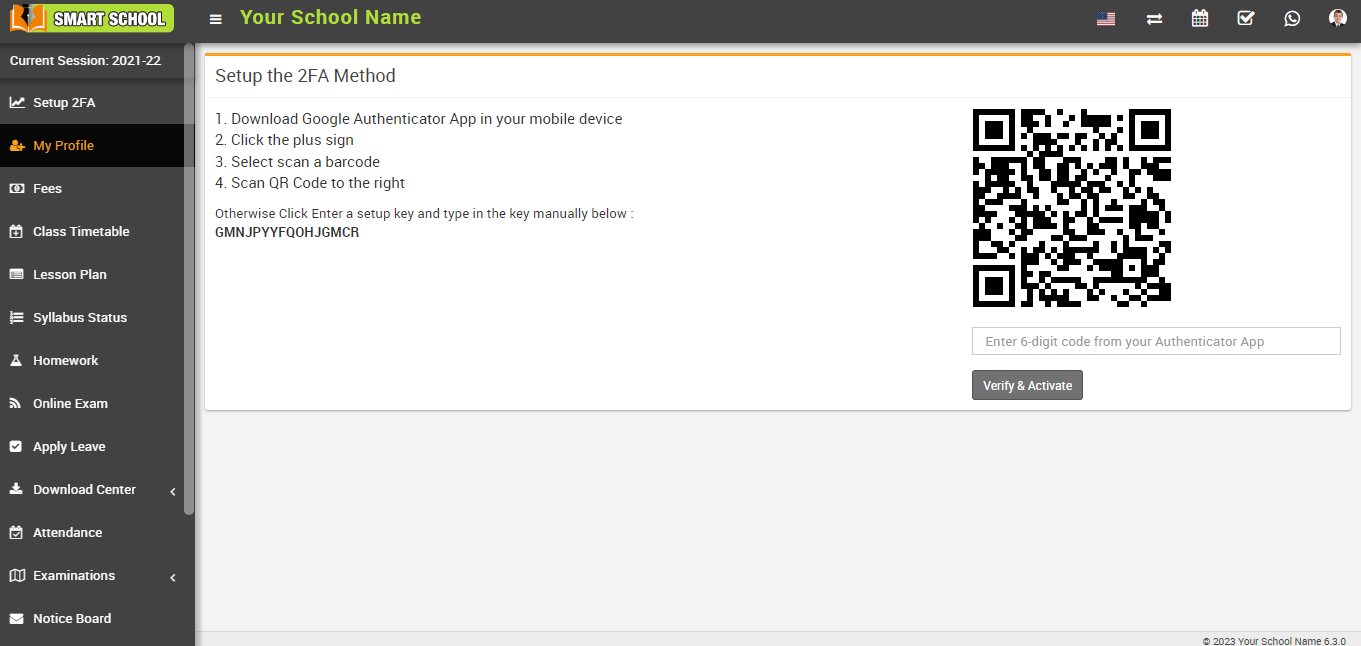
- Now scan the QR code, and you will get the six-digit verification code, which will show up in your Google Authenticator app on your mobile device.
- Now fill in the six-digit verification code below the QR code and click on Verify and Activate.
- After filling out the six-digit verification code, you have enabled the 2FA method in your Smart School.
How to delete the 2FA account for user login (students or parents)?
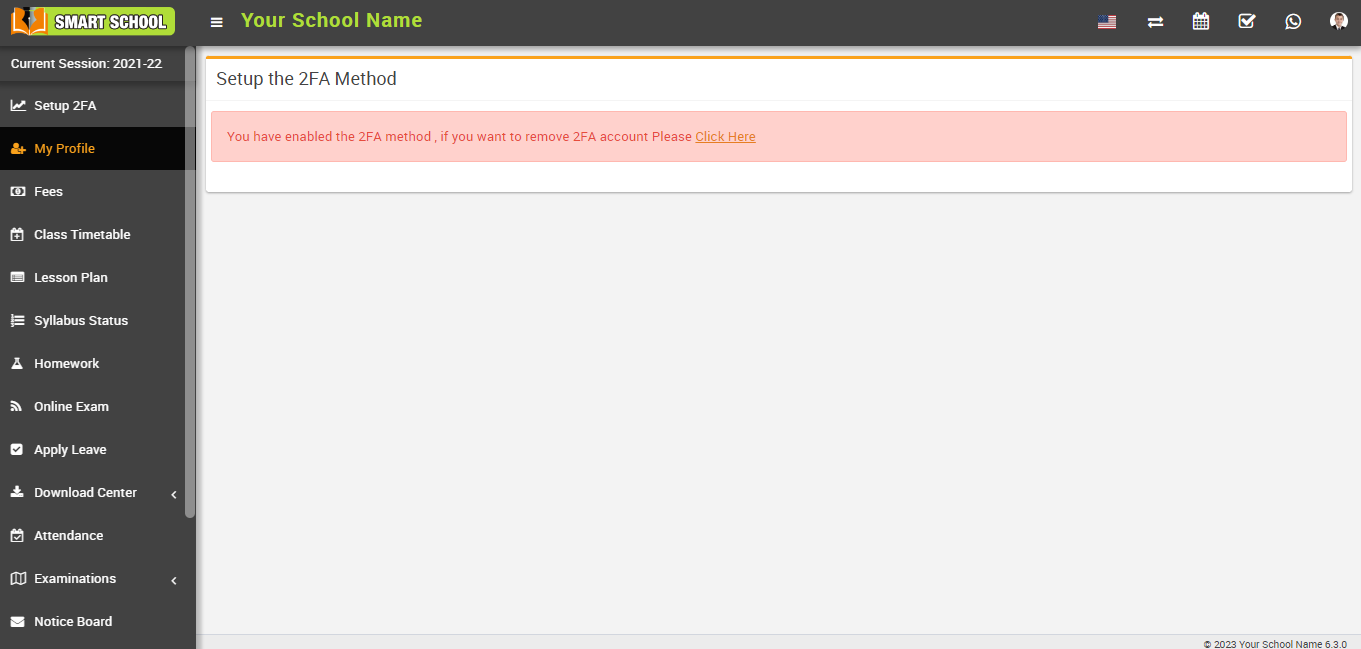
The user (student or parent) must log in to Smart School to delete the 2FA account. After the user has logged in, navigate to the user profile image in the top right corner. Now click on User image > Settings. The Setup 2FA page will now be open. Here the message will show, You have enabled the 2FA method. If you want to delete your 2FA account, please "Click Here."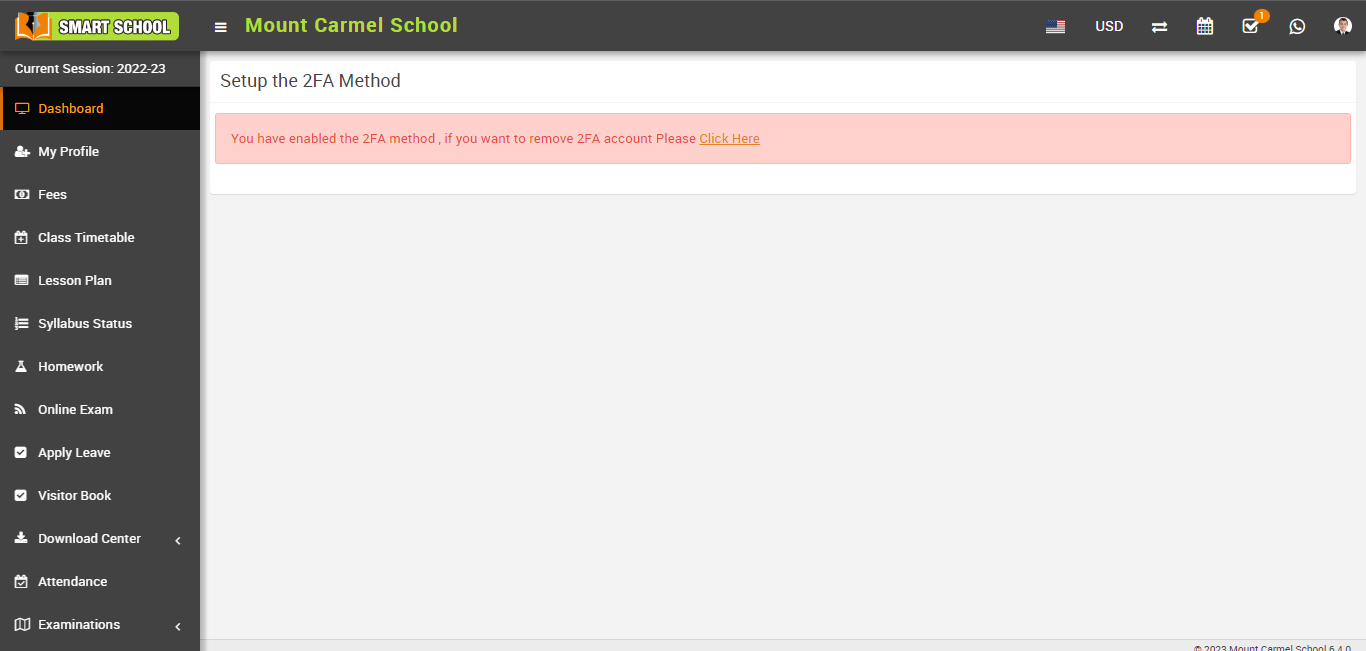
A delete confirmation model will be open, now click on the Delete button, which is showing in the lower right corner.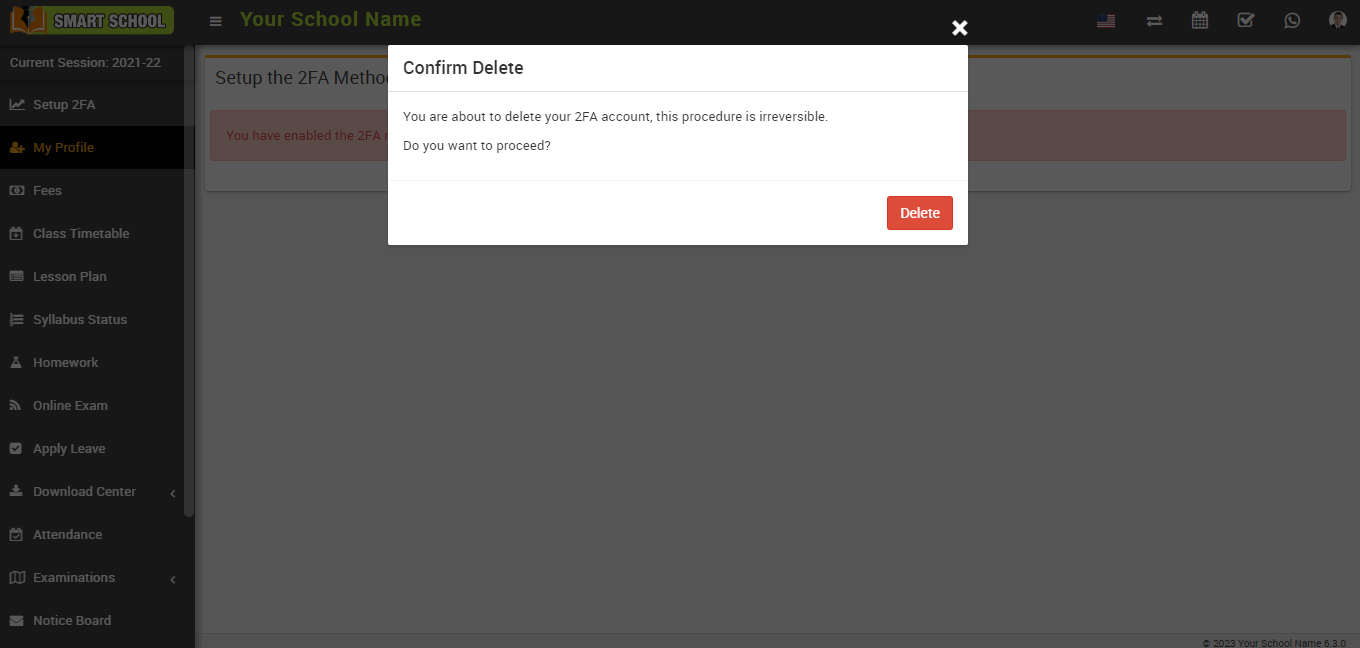
Your 2FA account will be deleted successfully.
How to manually set up the key for user login (student or parent)?
To setup the key manually, users need to log in to Smart School. After the user has logged in, navigate to the user profile image in the top right corner. Now, click Settings to open the Setup 2FA page, where the setup key will be displayed on the left. 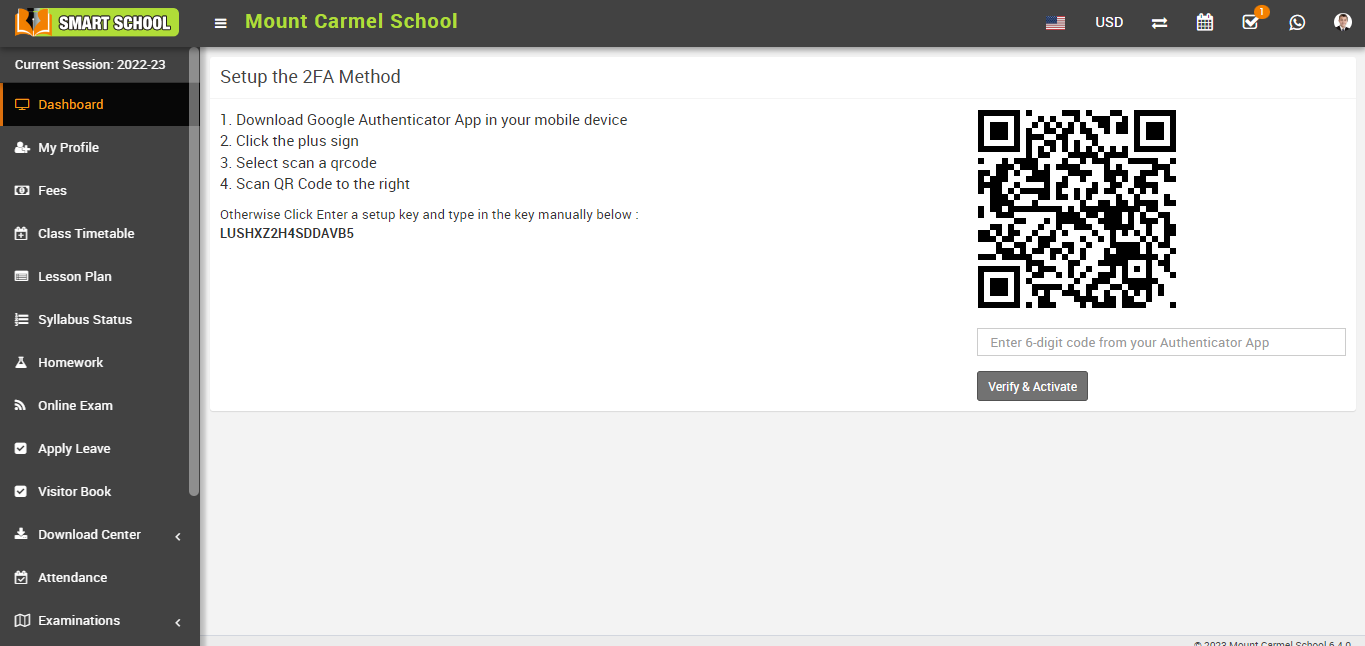
Now open the Google Authenticator app on your mobile device and setup your first account. Click on Enter a setup key.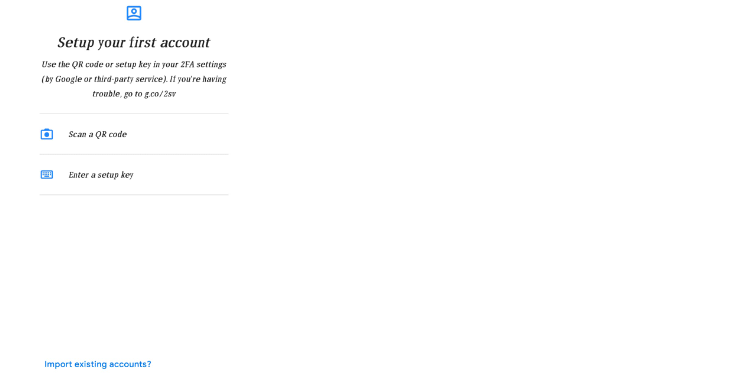
After clicking on Enter setup key, enter account detail will open fill in the Account name > Your key > Type of key and click on Add button, now click on ADD ACCOUNT in your mobile device, your account has been added successfully, and a six-digit verification code will receive on your device.
Now, open the Smart School user login, navigate to the User Profile Image in the top right corner, and then click on Settings. The Setup 2FA page will now open; please fill in the six-digit verification code that receive on your mobile device in the left column, below the QR code, and click on Verify & Activate. 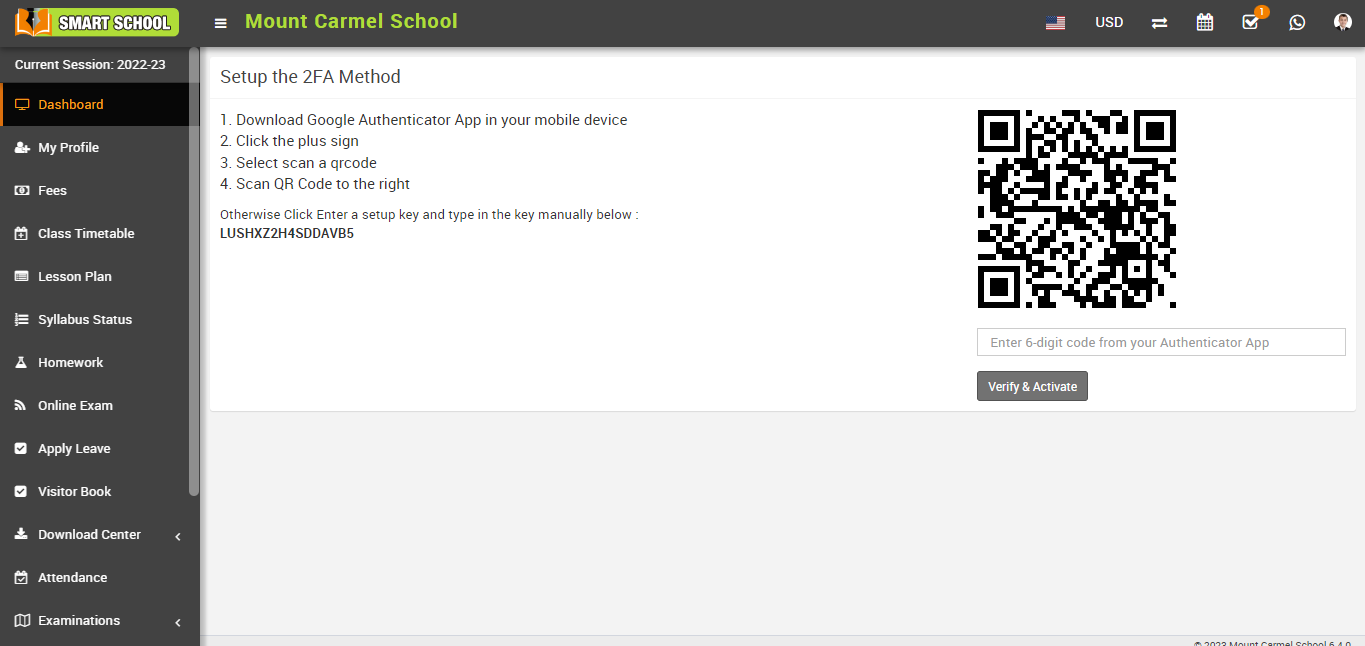
Your 2FA account will be activated after you click "Verify and Activate," and a message will appear on the screen. 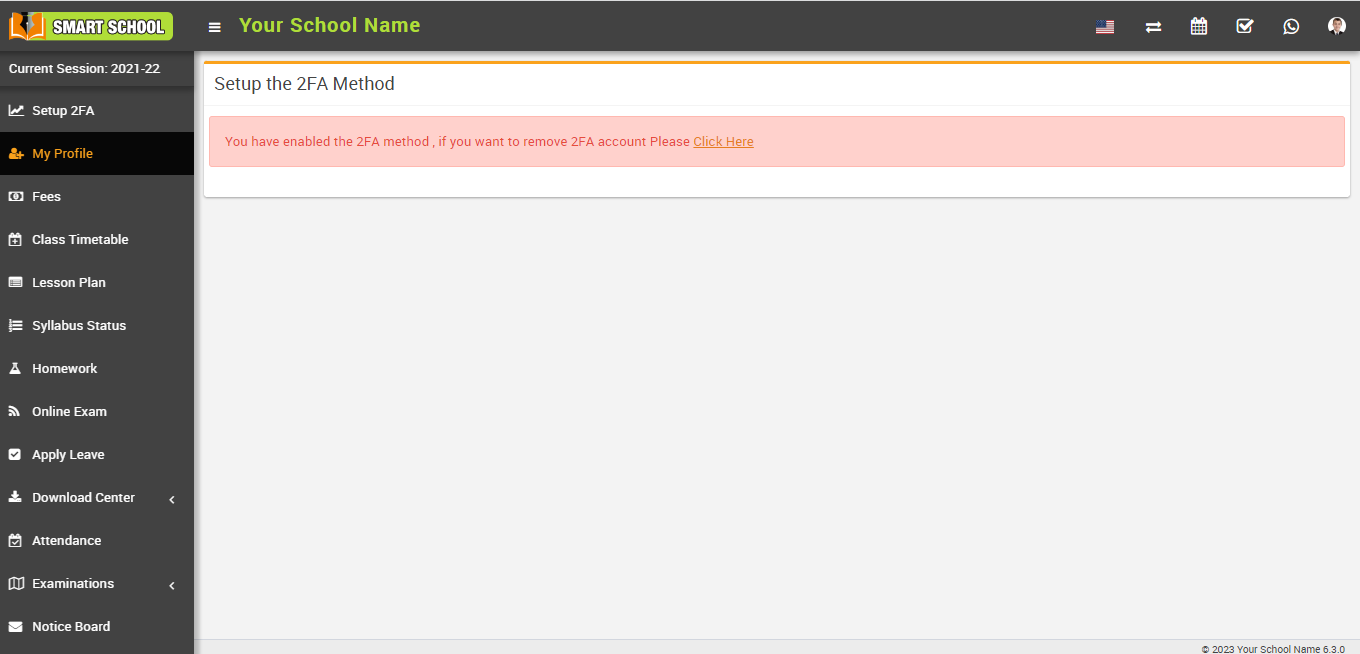
How to check if Two Factor Authentication is working for users (students or parents) in your smart school?
To see if Two Factor Authentication is working for the user (student or parent), go to the user's login page in your Smart School, enter the username and password, and click sign in. 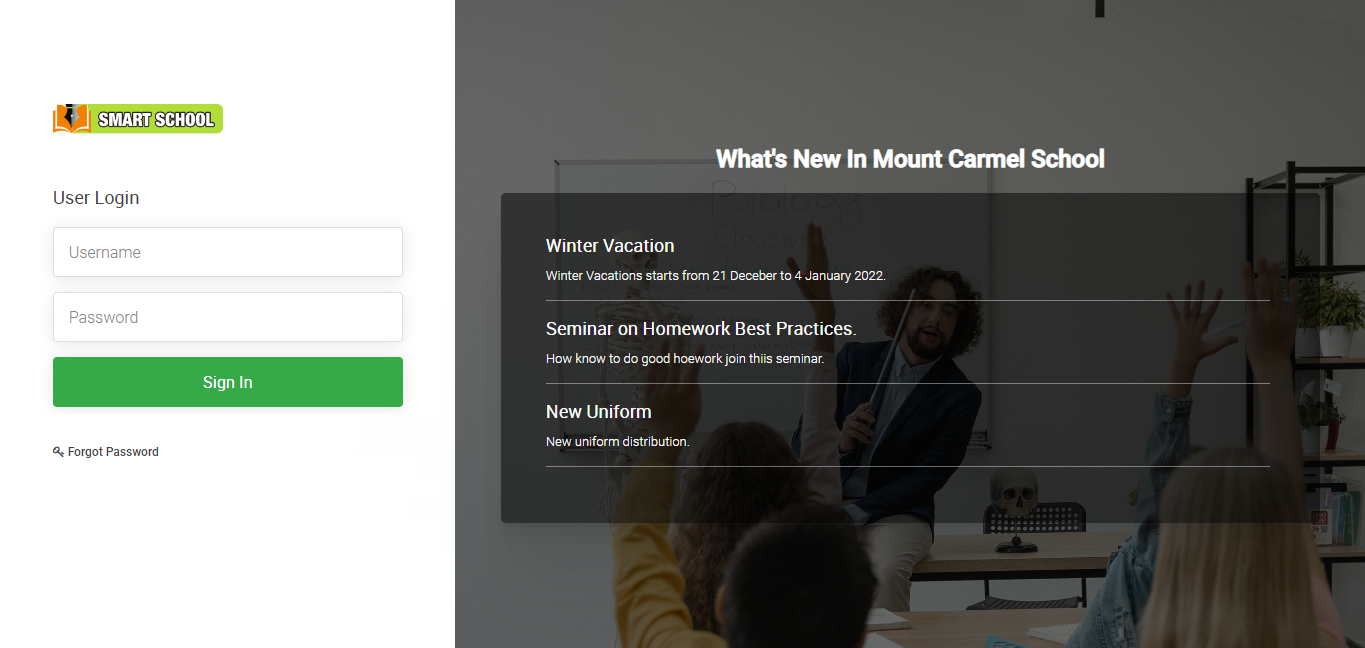
After clicking Sign In, a verification window will appear on your screen; enter the six-digit verification code displayed in the Google Authenticator app on the user's mobile device, and then click Verify Login. 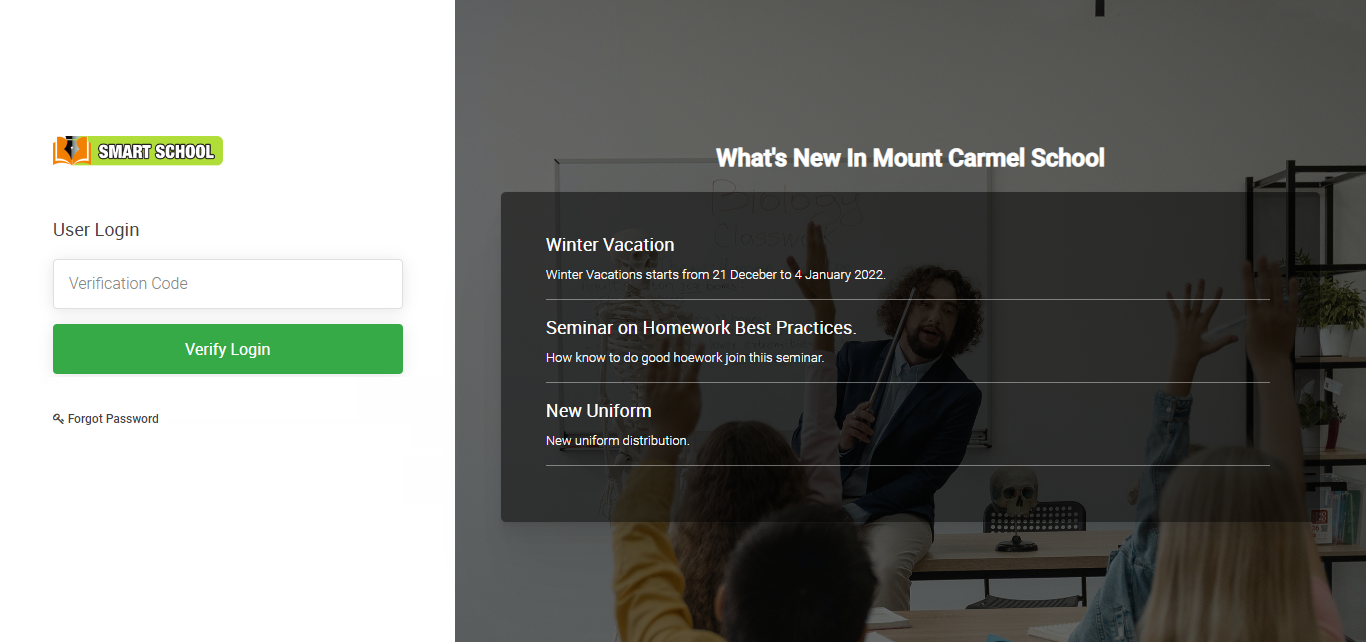
You have now successfully logged into your Smart School.