Miscellaneous

About Chat


In Chat System, staff can chat with other staff members and student can also chat with other staff members. Before starting chat we have to add member to our chat list.

About chat image

About Calendar


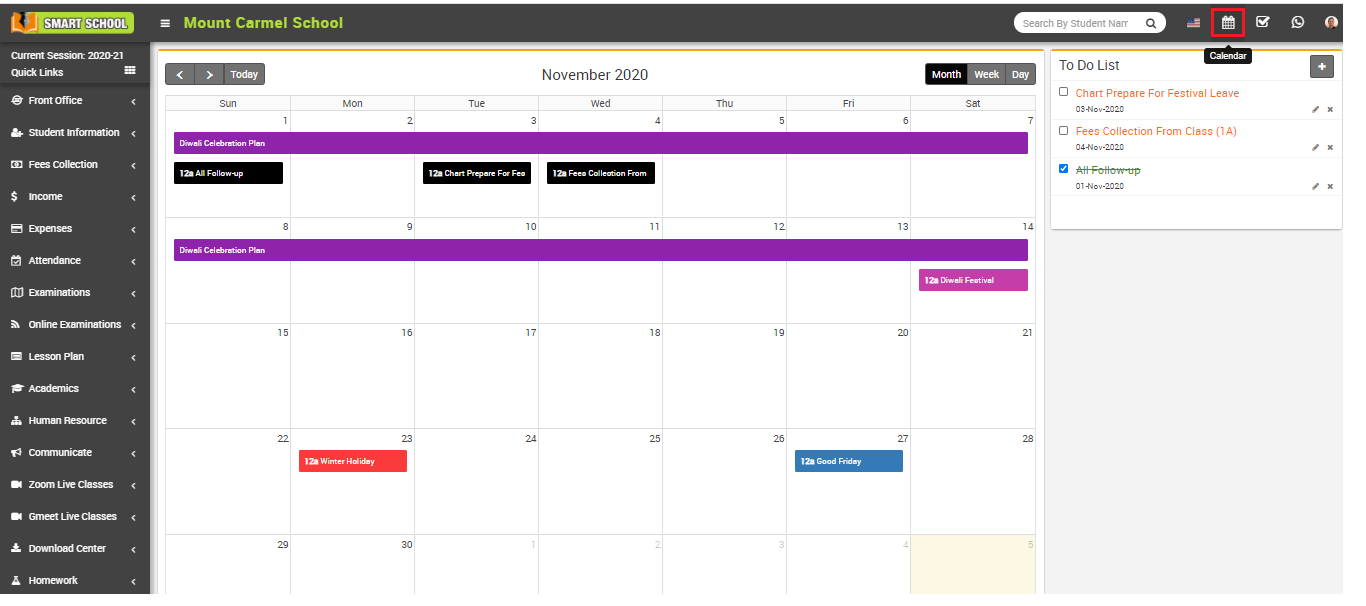
The primary reason for having a calendar is to organize the days, weeks, months and years.

Calendar & To Do List Workflow- first we will add personal and public event and then we will add to do list personal task.

How to add new event in calendar?


To add event in calendar, Superadmin /Admin user need to login in Smart School, then click on Calendar icon present at top right corner in the header, this will redirect you in the calendar page, then click on the date you want to add the event, Add New Event model will be open, now enter Event Title, Description, Event Date, Event Color and select Event Type (Public is visible to all, Private is only you can see this event, All <your role> is this event will be visible to all users of your role, Protected that means it is visible to all staff members but not student or parent) and then click on Save button.

While adding a new event on any particular date using the calendar module, an email will be sent to the staff member and the student at their registered email addresses. However, this email will not be sent to the guardian
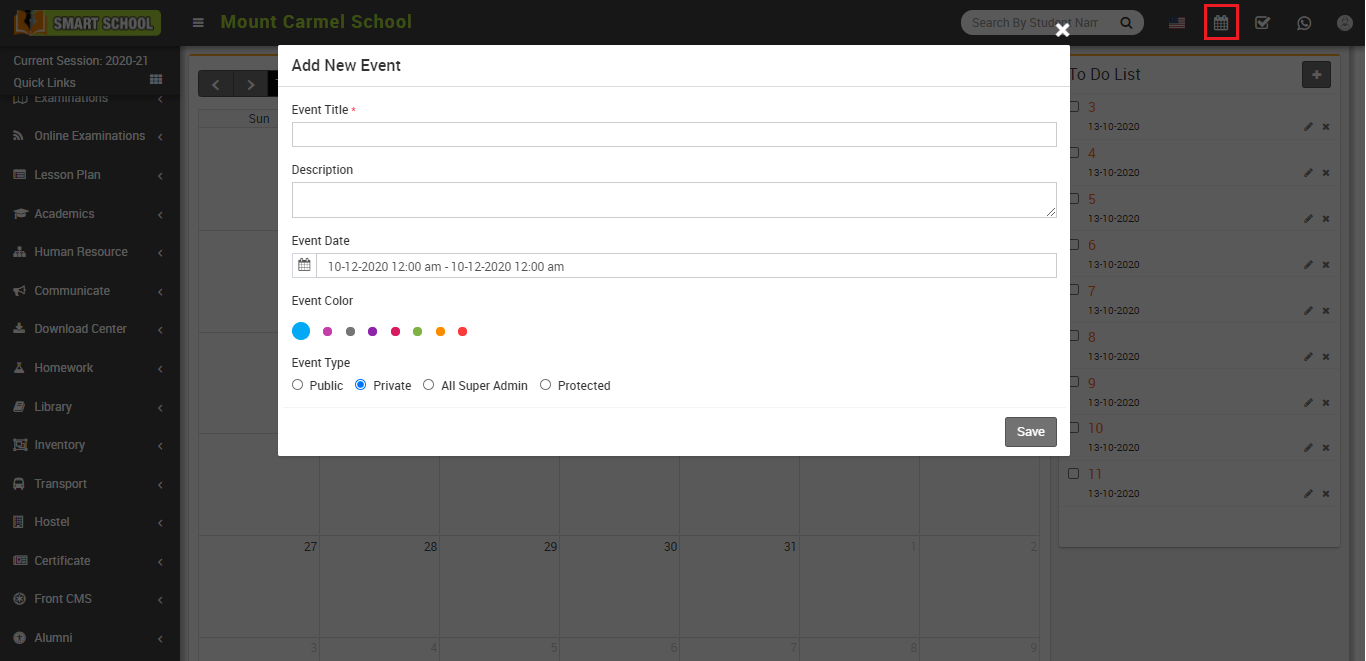
Add event image

Event image

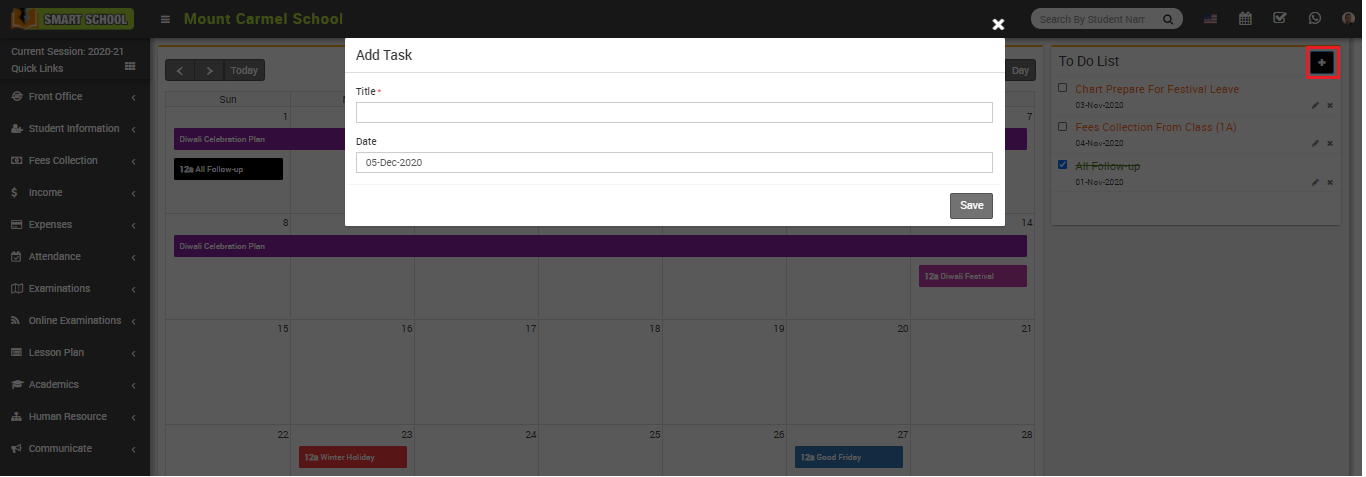
How to add To Do List?


To add to do list, click on the Calendar icon present on the top right corner of the header, it will redirect you in the calendar page, here click on Add icon present at the right side of the page, then enter Title, Date and then click on Save button. Once record is added you can see it in the To Do List.

Add to do list image

How to add contact in chat?


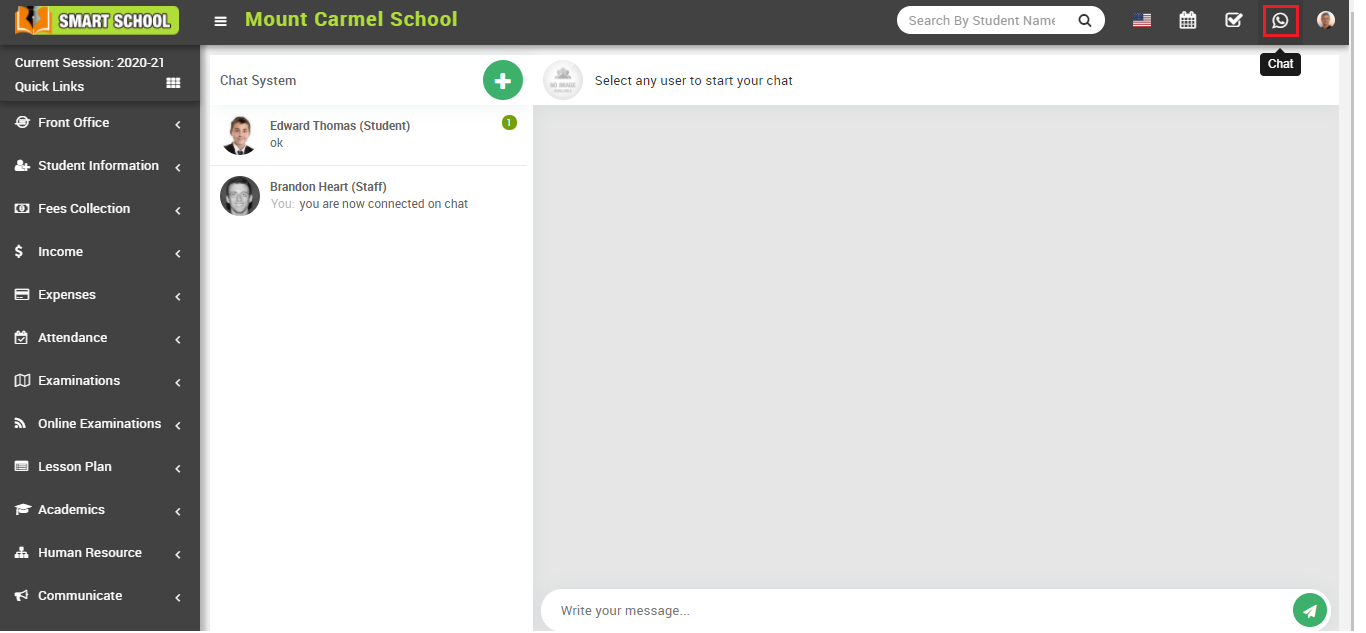
To add contact in chat, Superadmin/ Admin user need to login in Smart School, then click on Chat icon present at top right corner in the header, at click of this icon add chat page will be open.

Chat system image

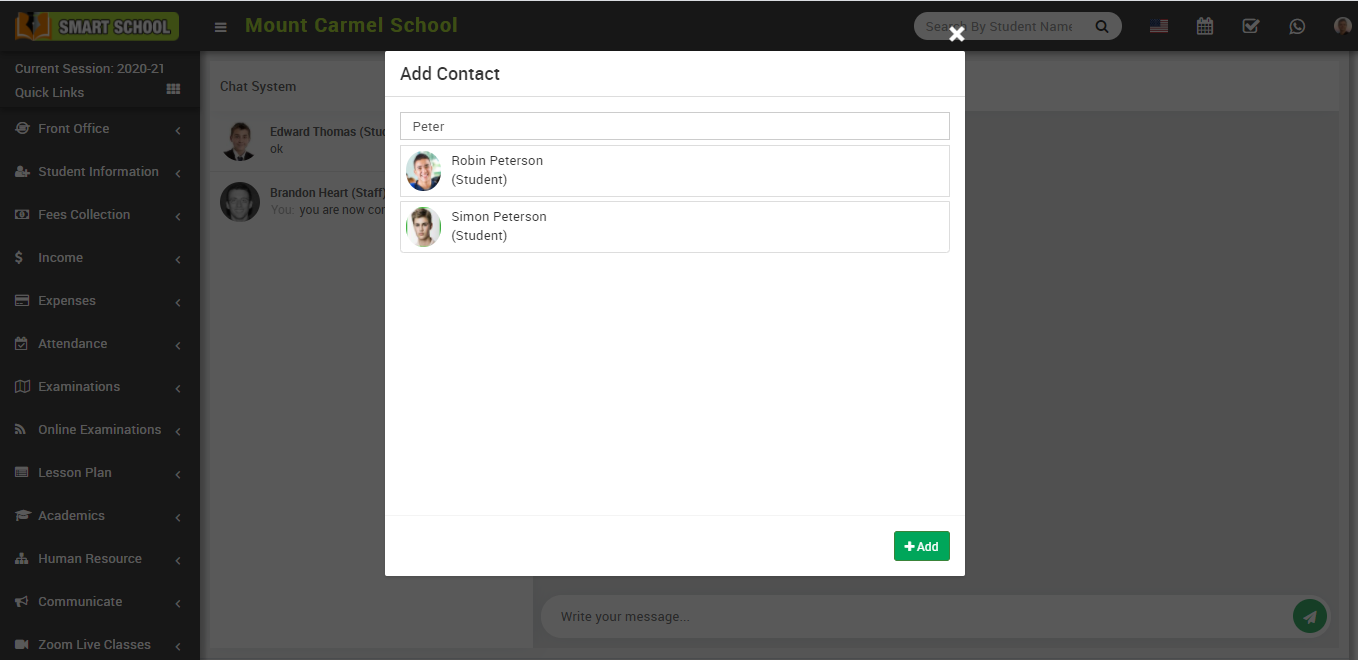
Now click on + icon present in the chat system page, at click of this icon Add Contact modal will be open. Here search the student whom you want to add and then click on Add button. You can view this added student on the chat system page.
Add contact image

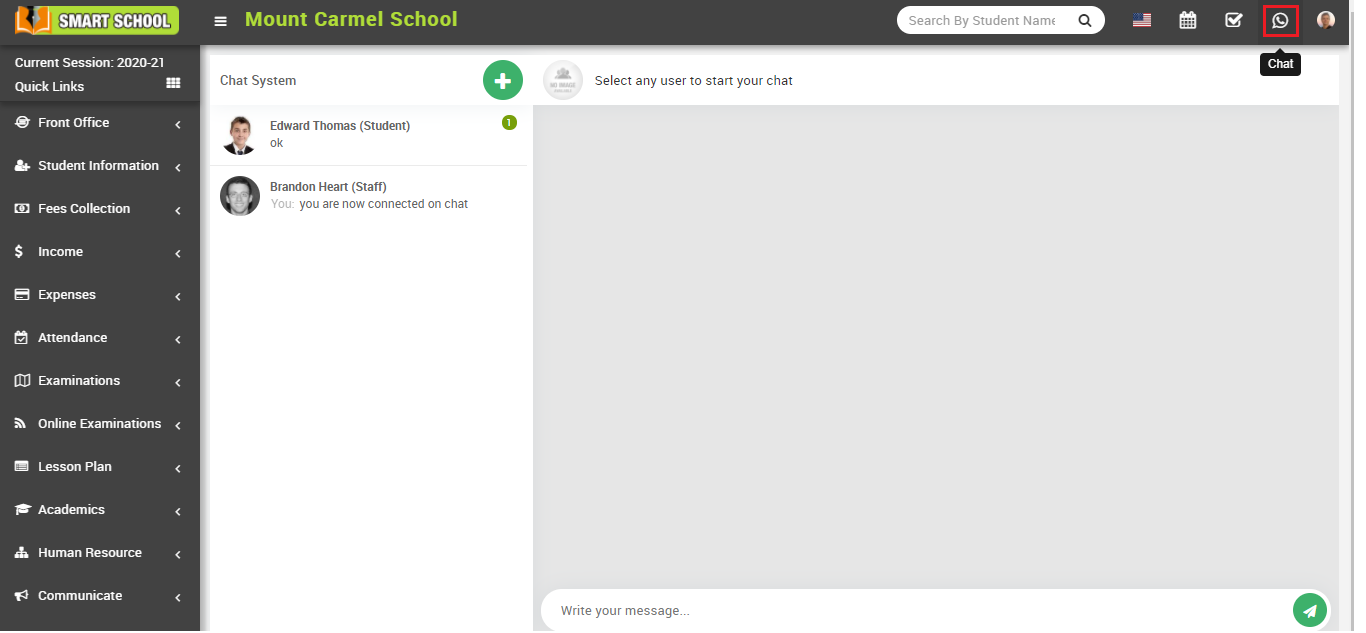
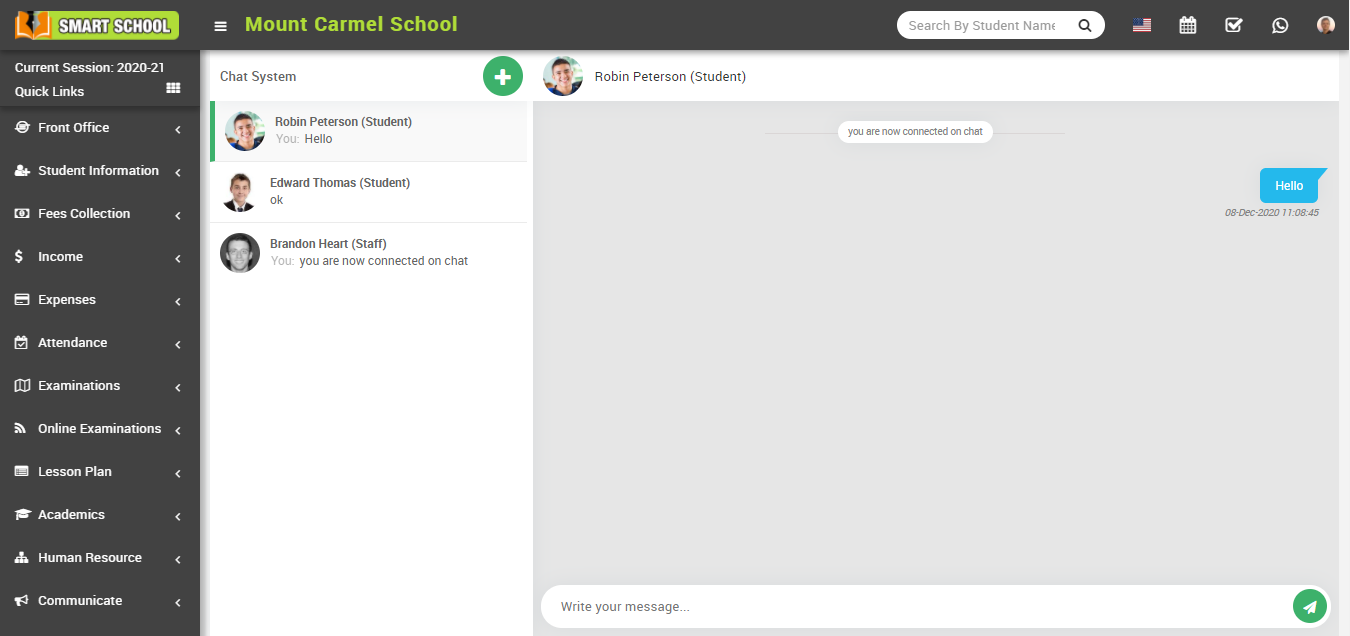
Now to start chat click on the member name (staff, student) from chat system, at click of the name a member's chat window will open, here enter the message and click to Send button. You can also check new messages in the chat system.
Chat window image

Did you find this article useful?

  • General Overview

    Before start using Smart School consider a general scenario of typical school of class 1 to 12th, ea...
  • System Settings

    How to add the addons on Smart School?  Sun, 23 Mar, 2025 ArticlesSystem Settings Addons Ma...
  • Academics

    About Academics This module is used to maintain entire class timetable and teacher timetable.A...
  • CBSE Examination

    About CBSE Examination This examination adopts a distinct approach to assessing students, encomp...
  • Online Admission

    About Online Admission? The Online Admission module offers Smart School applicants a uniform ...