About Student/Parent panel
The Parent login is nothing but the login of the person whom we have made guardian at the time of student admission, so we can say it Guardian panel also. The Login credencial will generate for the guardian. the Student/Parent's module feature are same but only difference between these module is, after login from parent panel you can see all the classes list of your all children and login from student panel You can only see the classes of the student whose account you have logged into.
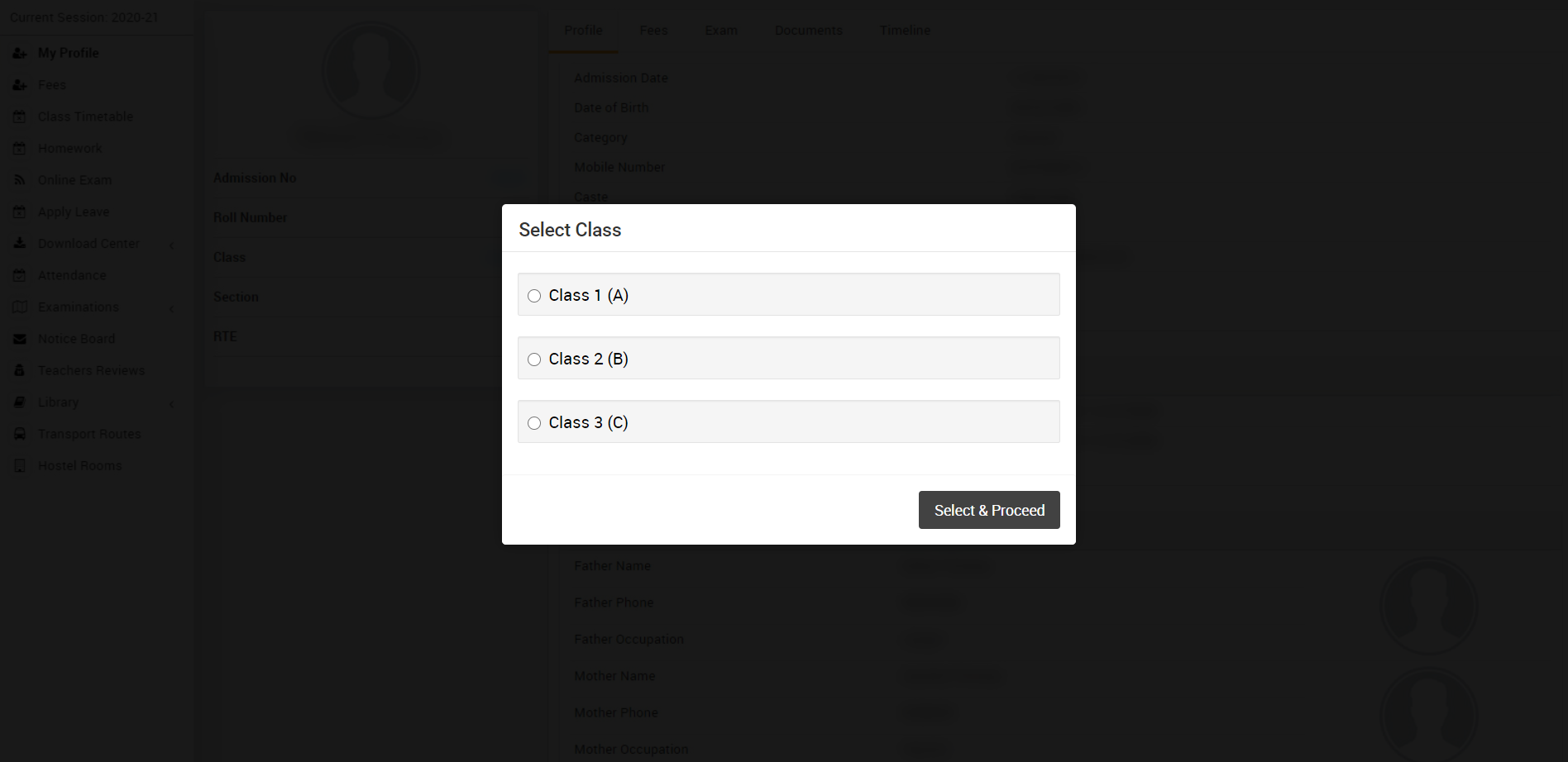
If student belongs to multiple classes then you need to choose your class (If you are login as Parent and you have more than one child then it will show you all the classes of all children) from the given modal, system will store your selected class as your default class (when you login next time it will process with this default class), Later on you can switch your class from the Class Switcher present at the top right corner.
By login to student/parent module they can check the details of the following sections -
- My Profile
- Fees
- Class Timetable
- Lesson Plan
- Syllabus Status
- Homework
- Online Exam
- Apply Leave
- Download Center
- Attendance
- Examination
- Notice Board
- Teacher's Review
- Library
- Transport Route
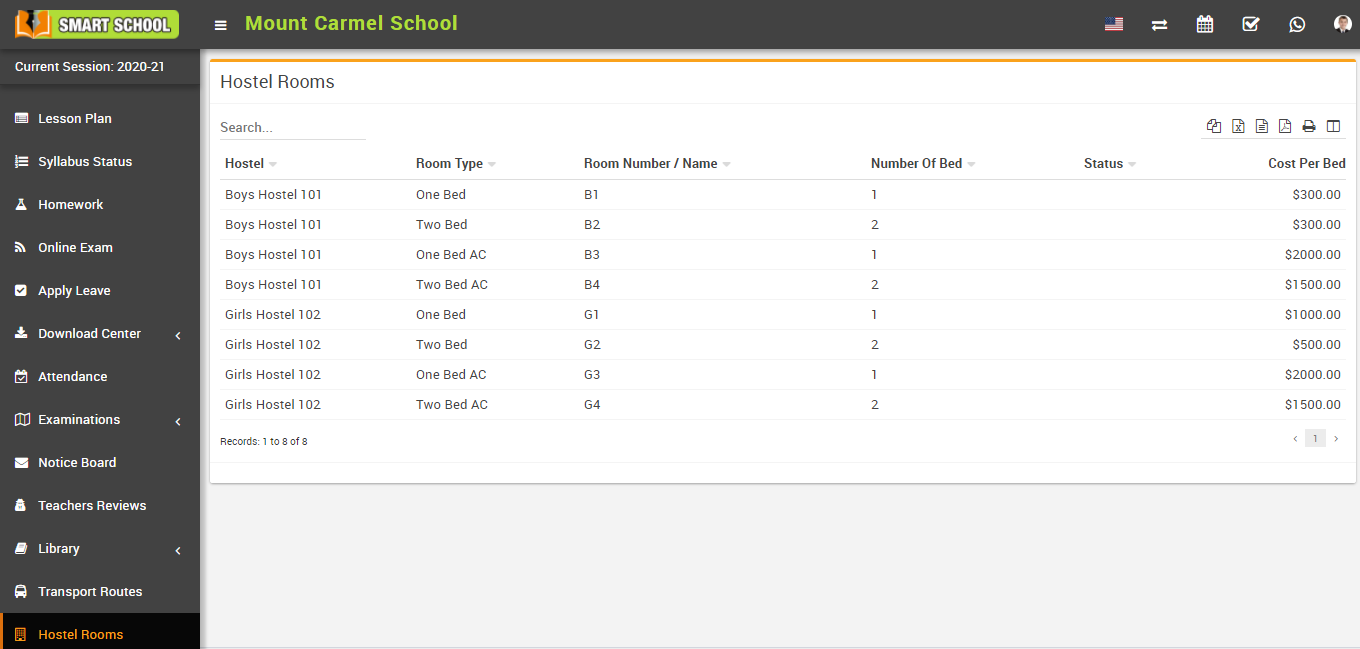
- Hostel Rooms
How to view video tutorial from student site?
To view video tutorial in student site, go to Download Centre > Video Tutorial. Here student can view the video link in Video Tutorial List.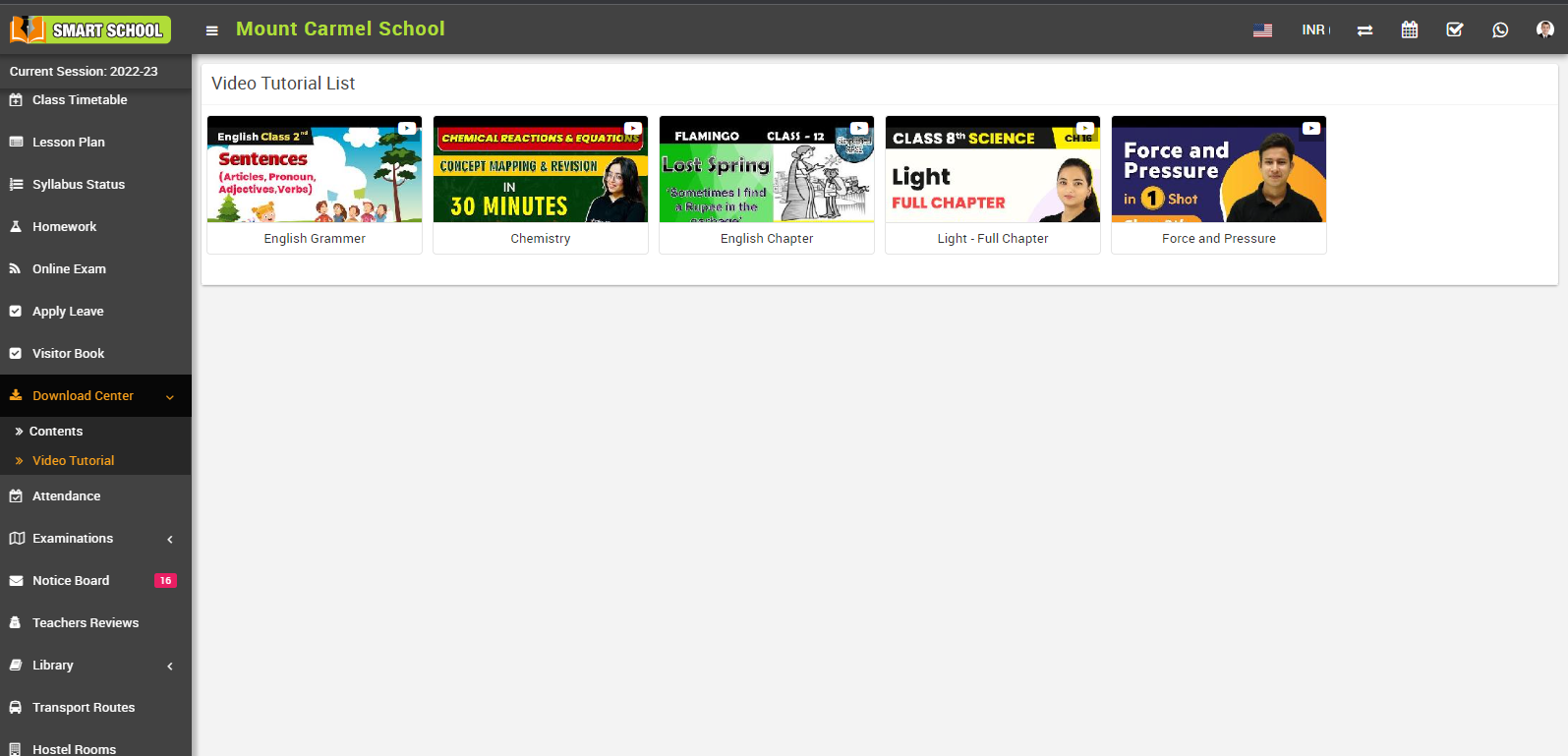
Now, hovering the mouse over the video link and simply click on view icon, video link detail model will be open, here student can see the details as Title, Description and Created By.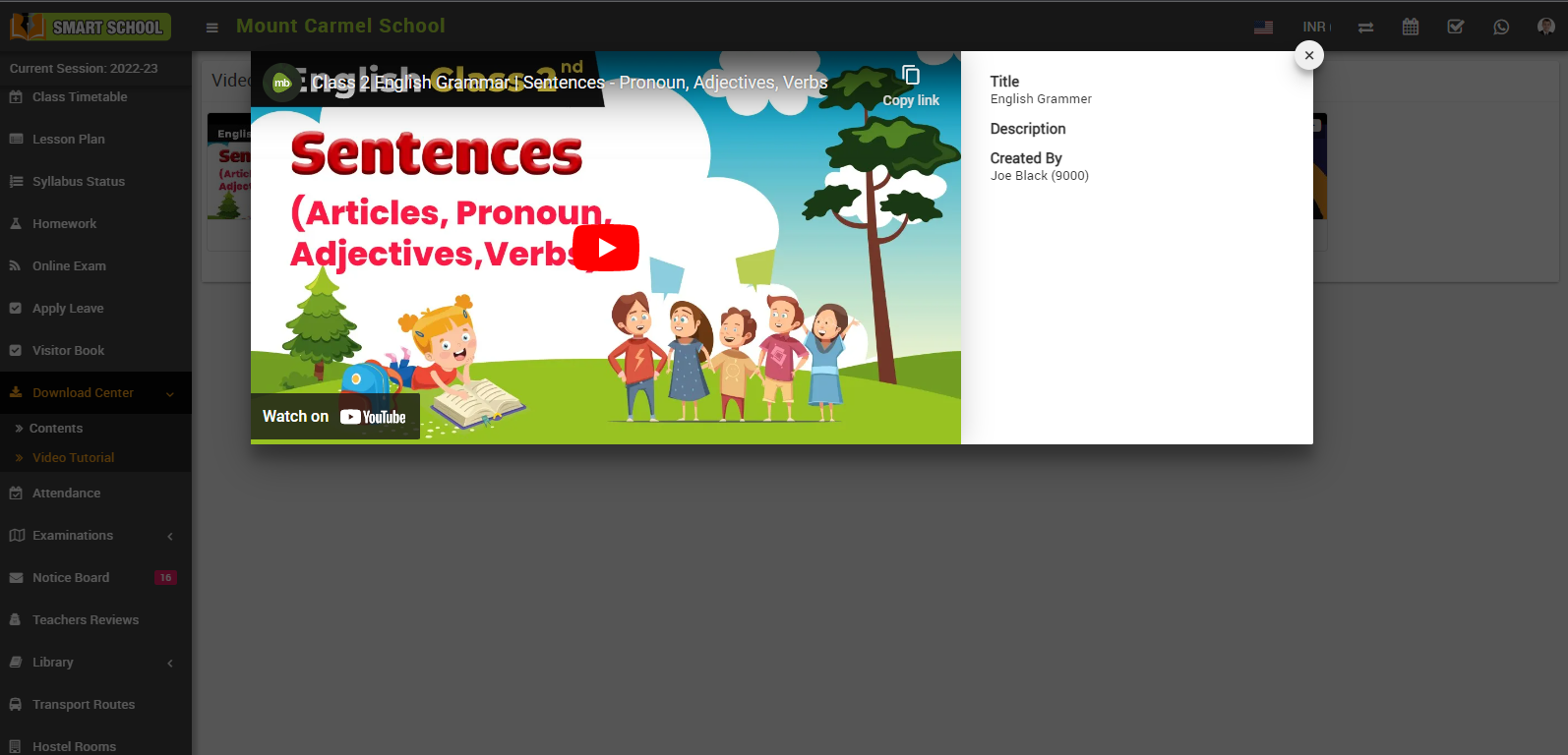
How to add daily assignment from the student side?
To add Daily Assignment, go to the Student Login > Homework.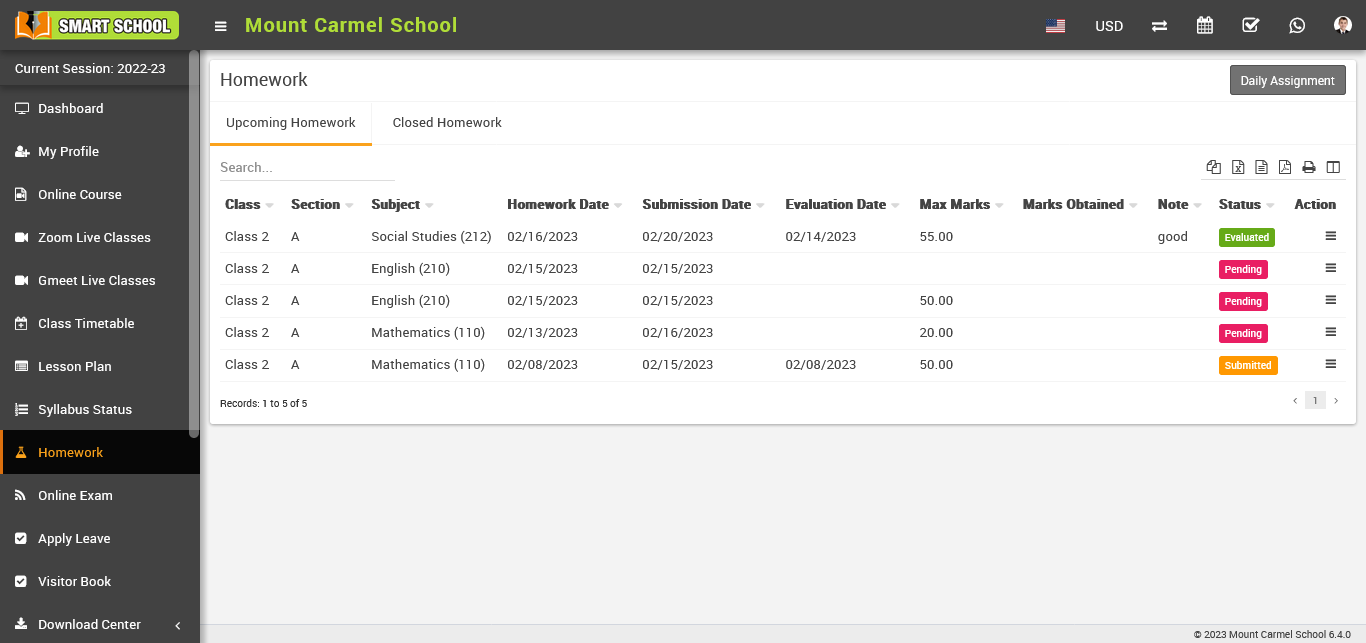
Now click on the Daily Assignment in the top right corner to open the daily assignment list.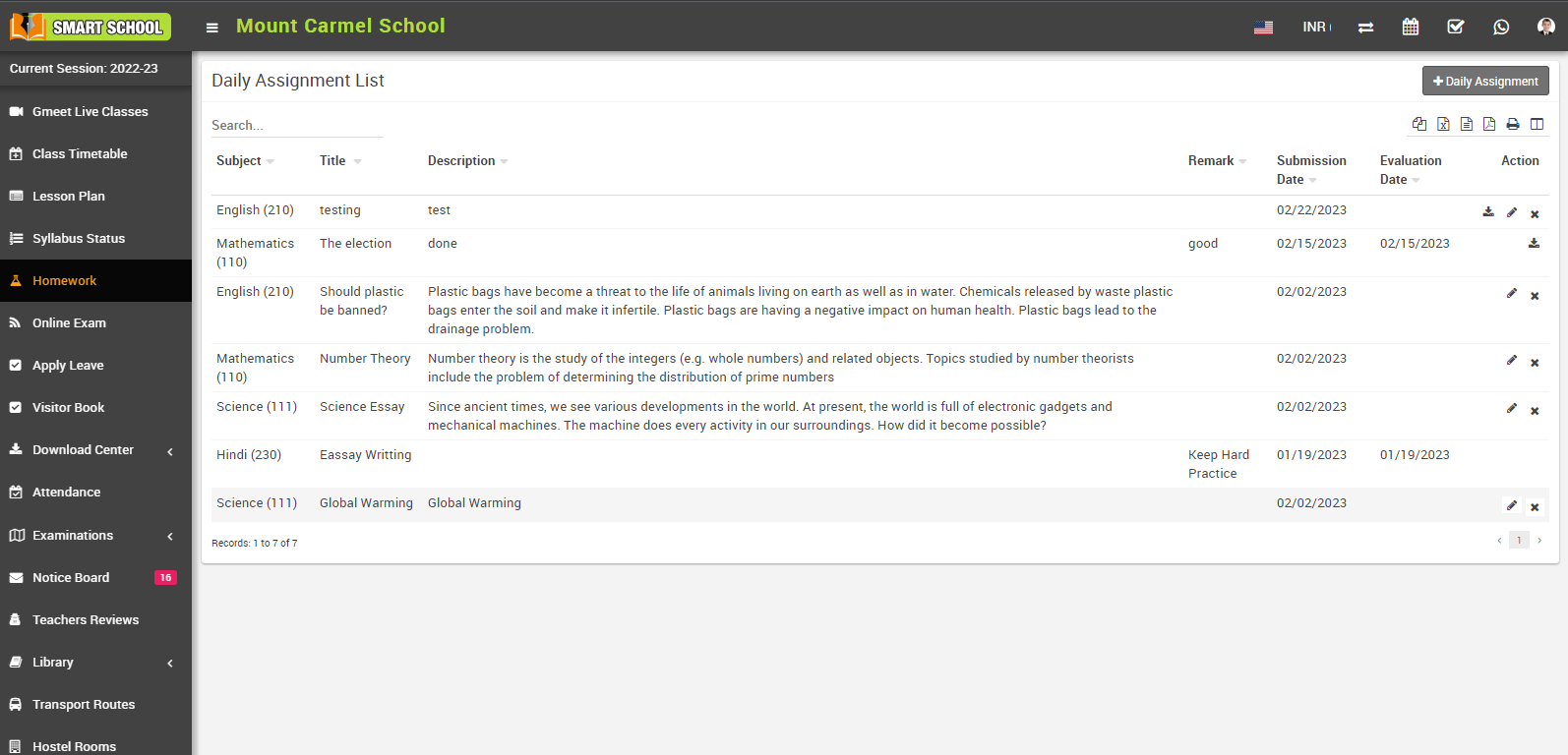
Next, click on the '+ Daily Assignment' button in the top right corner to open the 'Add Daily Assignment' model.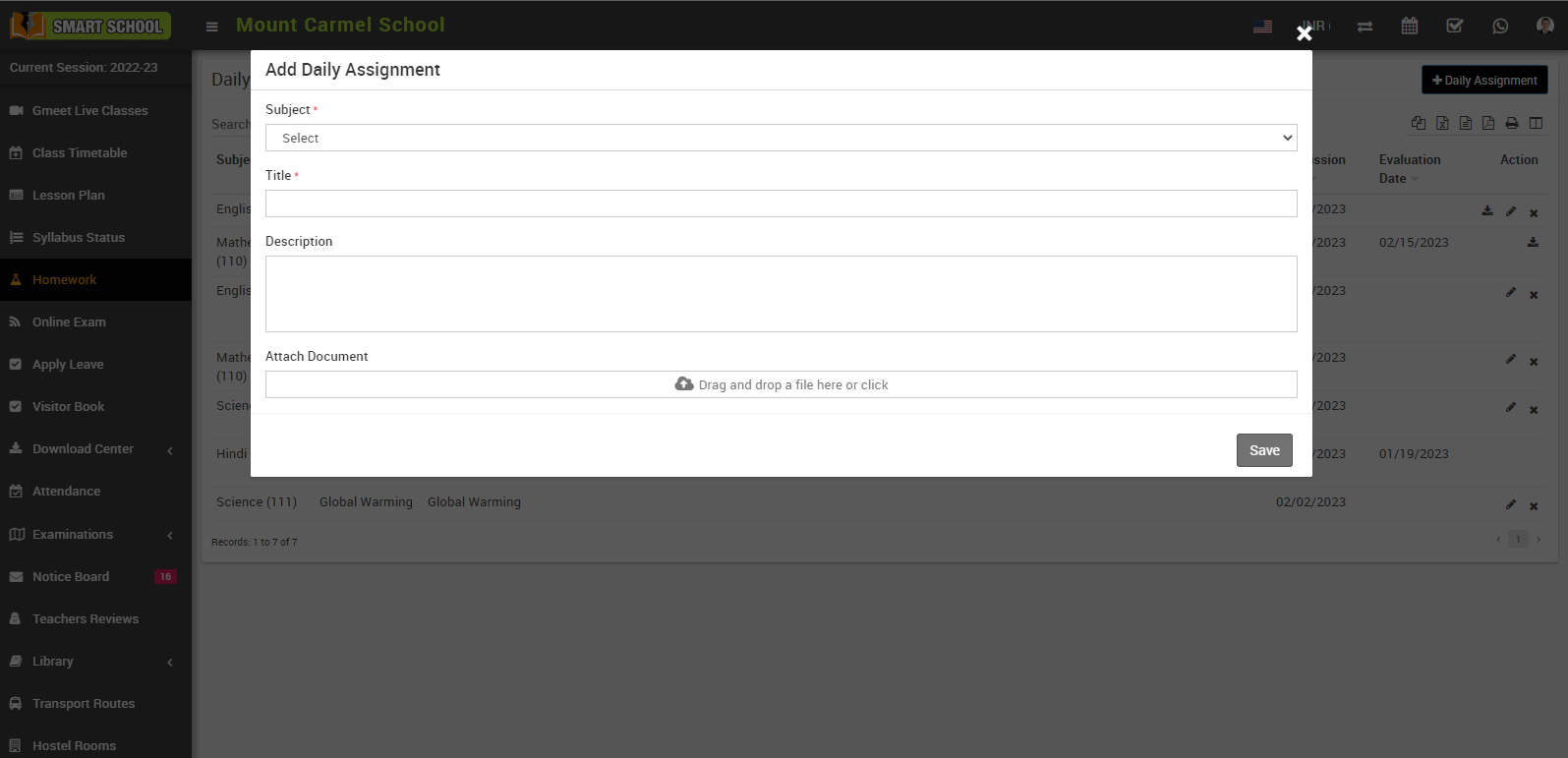
In this model, first select the subject of the assignment and then fill in the title and description of the assignment. You can also attach files related to the assignment. Finally, click on the 'Save' button to create the assignment.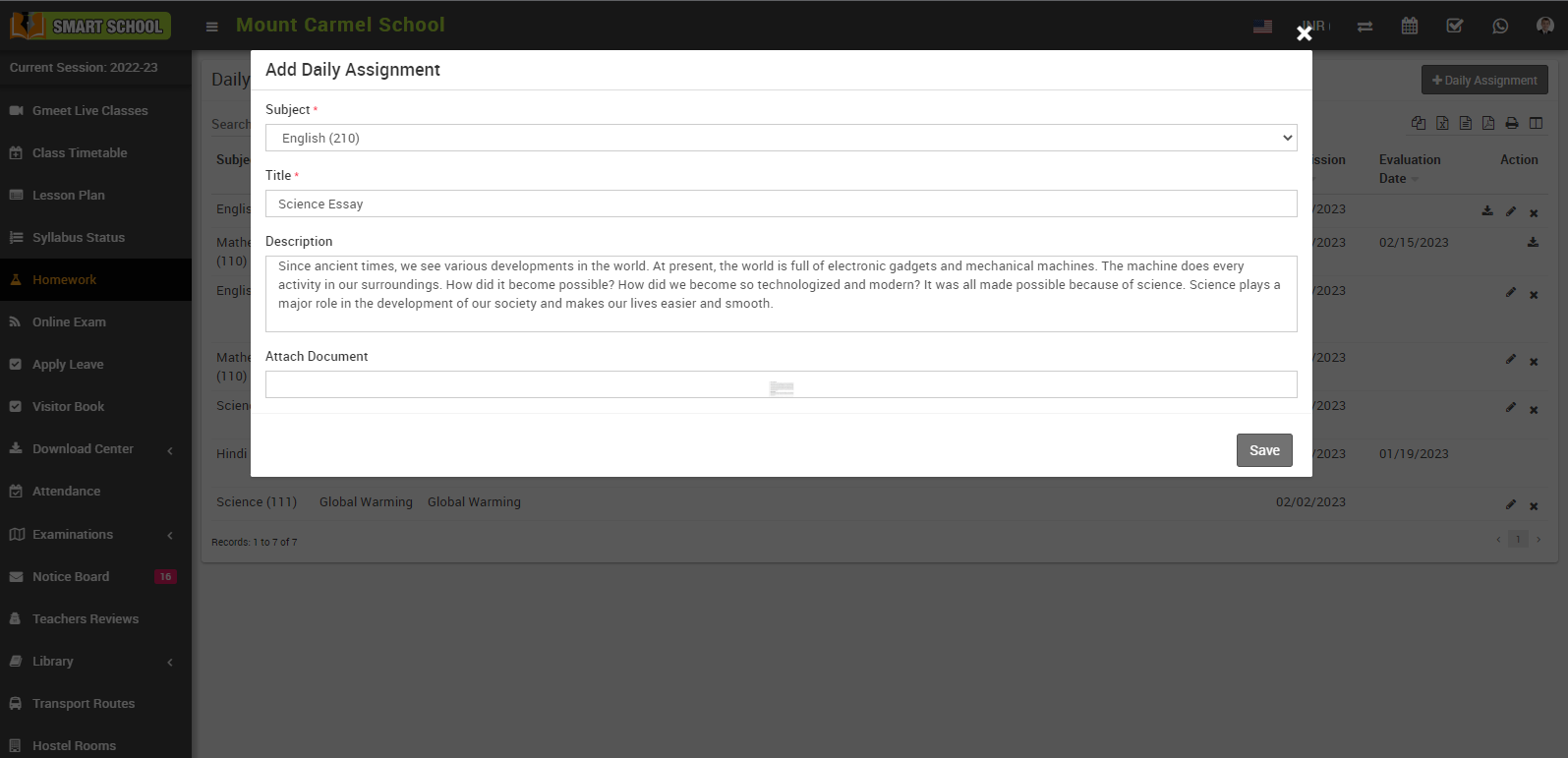
Once you have successfully created the assignment, it will appear in the daily assignment list.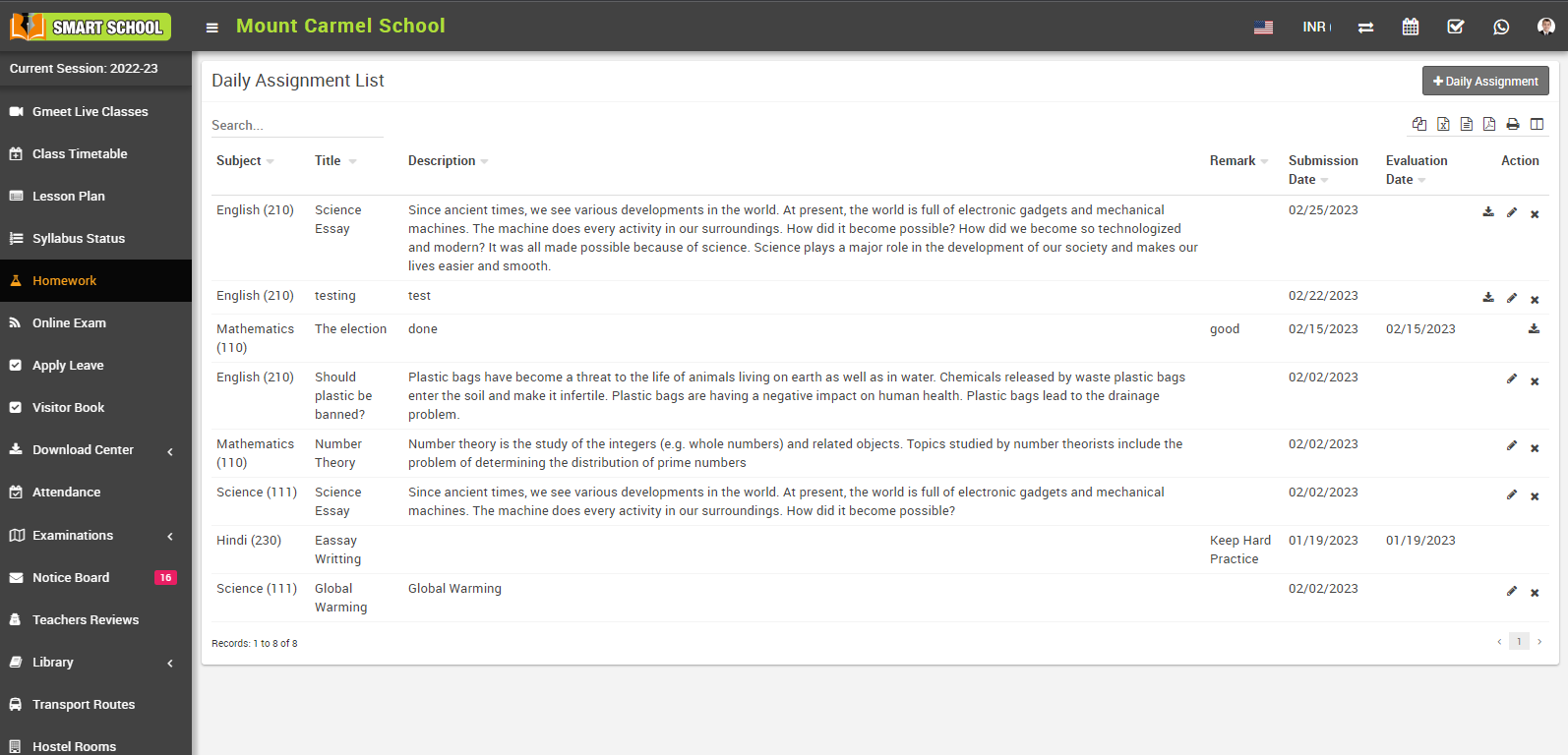
Here you can view the Daily Assignment List, which includes the subject, title, description, remark, title, submission date, evaluation date, and an action column. The action column includes a download icon for accessing the attached file uploaded by you with their assignment, now click on edit icon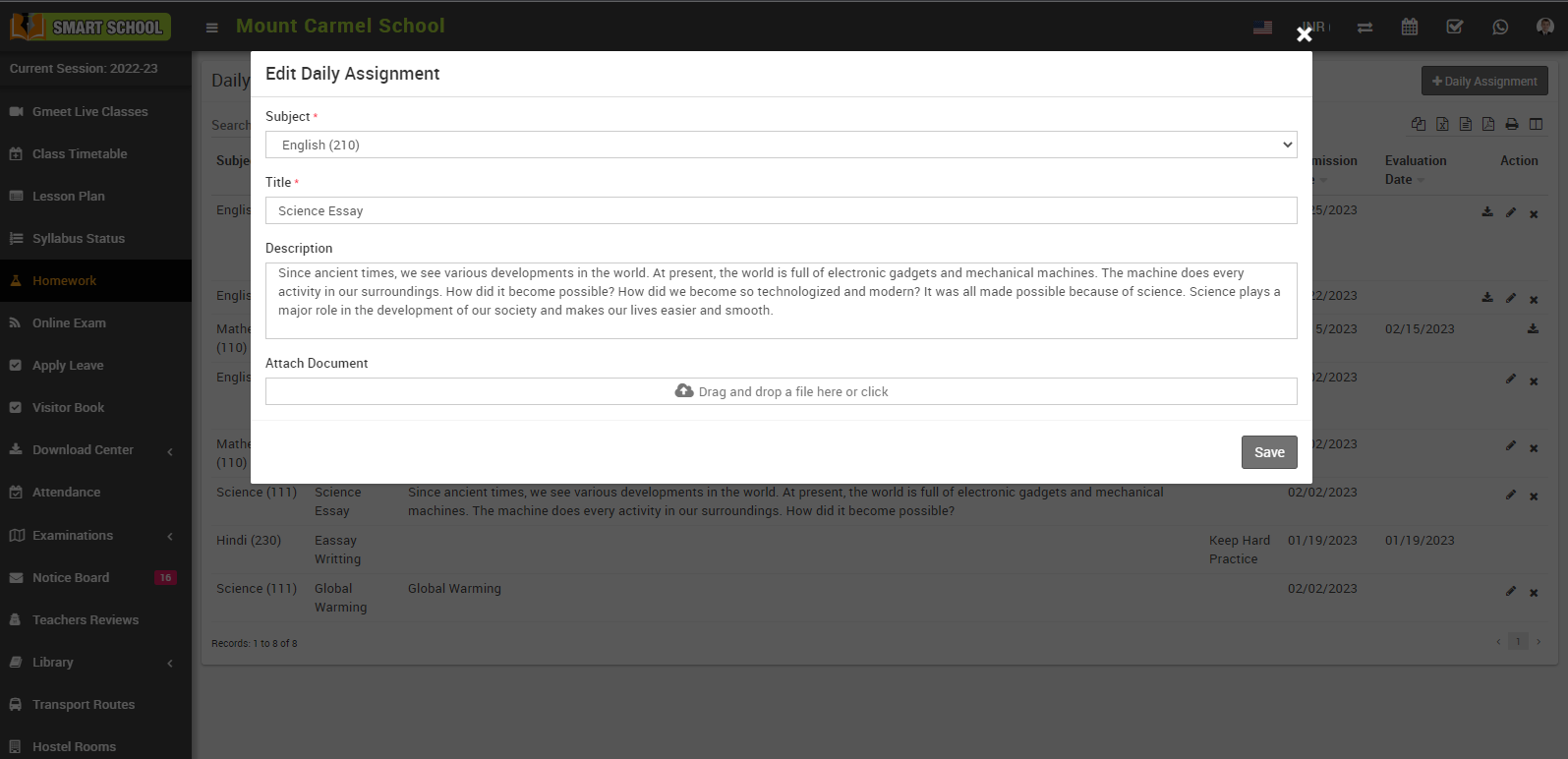
Edit daily assignment will be open, here you can update the details and click on save button your assignment will be update successfully.
And if you want delete your assignment, simply click on the delete (cross) icon, confirmation message will show.
Now click on OK button your assignment will be deleted successfully.
To view the assignments in superadmin / staff panel, you need to login superadmin / Staff login, go to Homework > Daily Assignment. Now Select Class, Section, Subject Group, Subject, Date then click on Search button.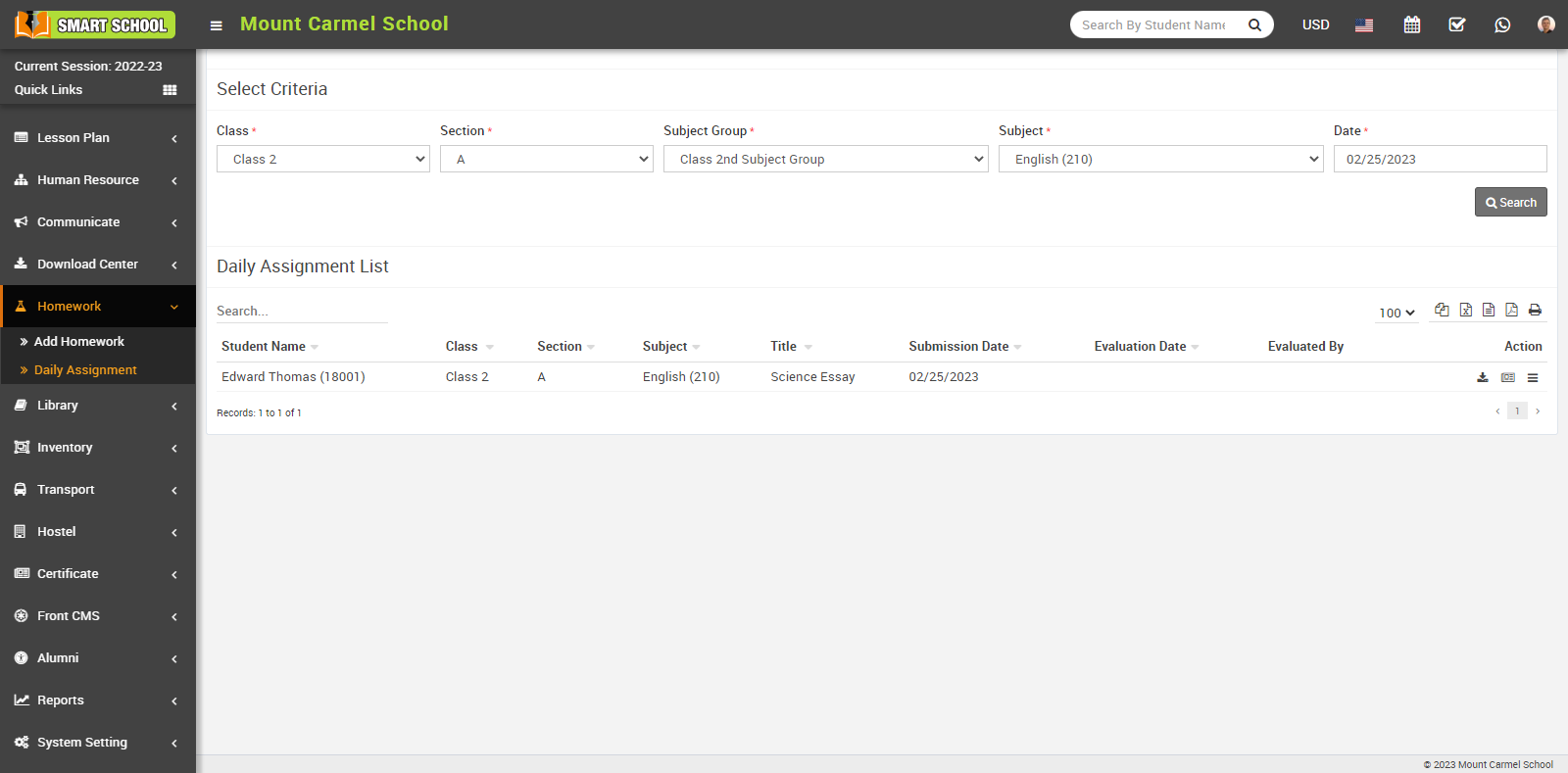
Here you can view the Daily Assignment List, which includes the student's name, class, section, subject, title, submission date, evaluation date, evaluated by, and an action column. The action column includes a download icon for accessing the attached file uploaded by the student with their assignment, as well as an evaluate and view icon. To download the attached file, simply click on the download icon. To evaluate the assignment, click on the evaluate icon to open the daily assignment evaluation model.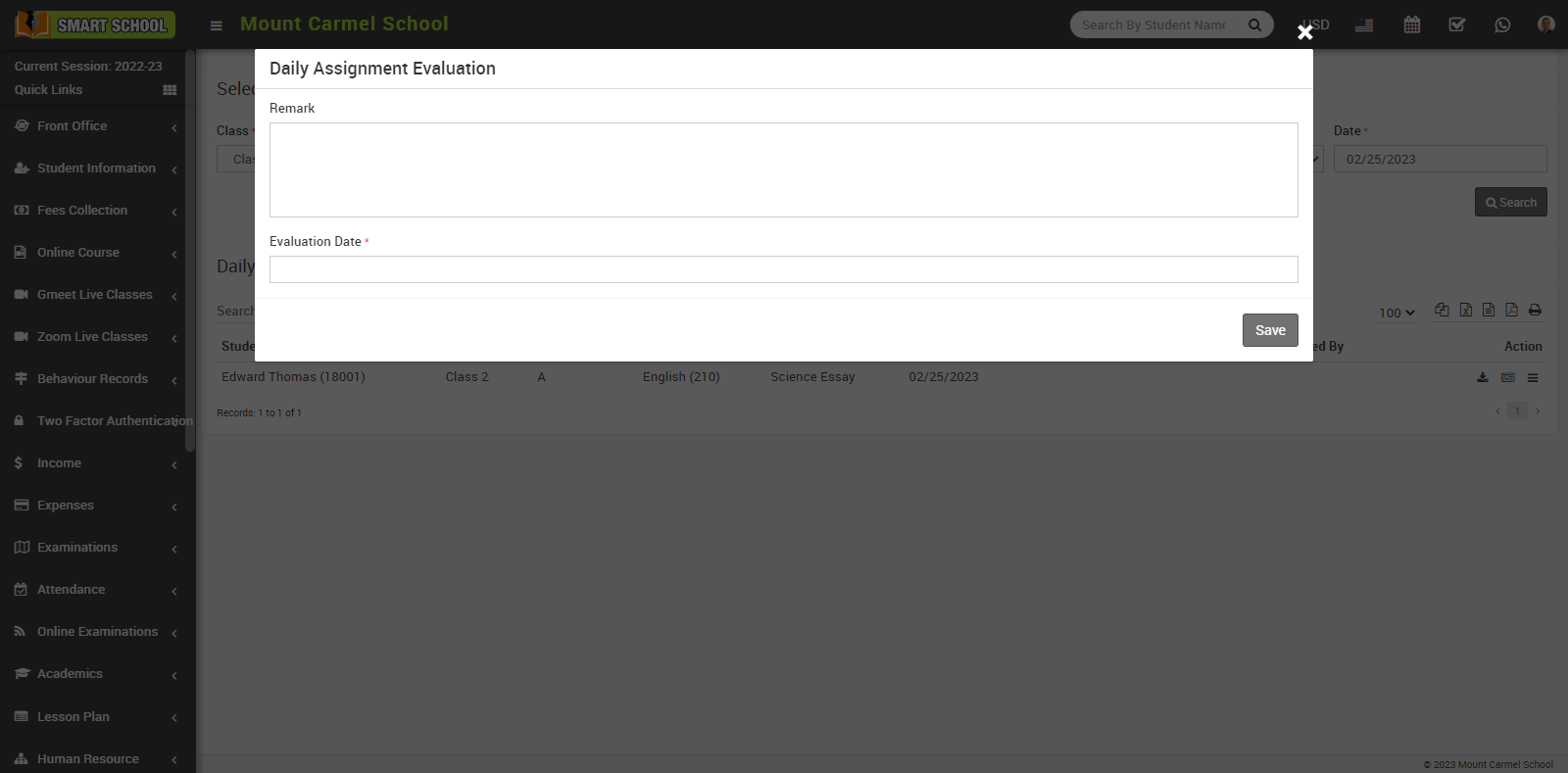
In this model, you can enter remarks about the assignment, select a date, and then click on the save button. Once the assignment has been evaluated, you can view it in the Daily Assignment List.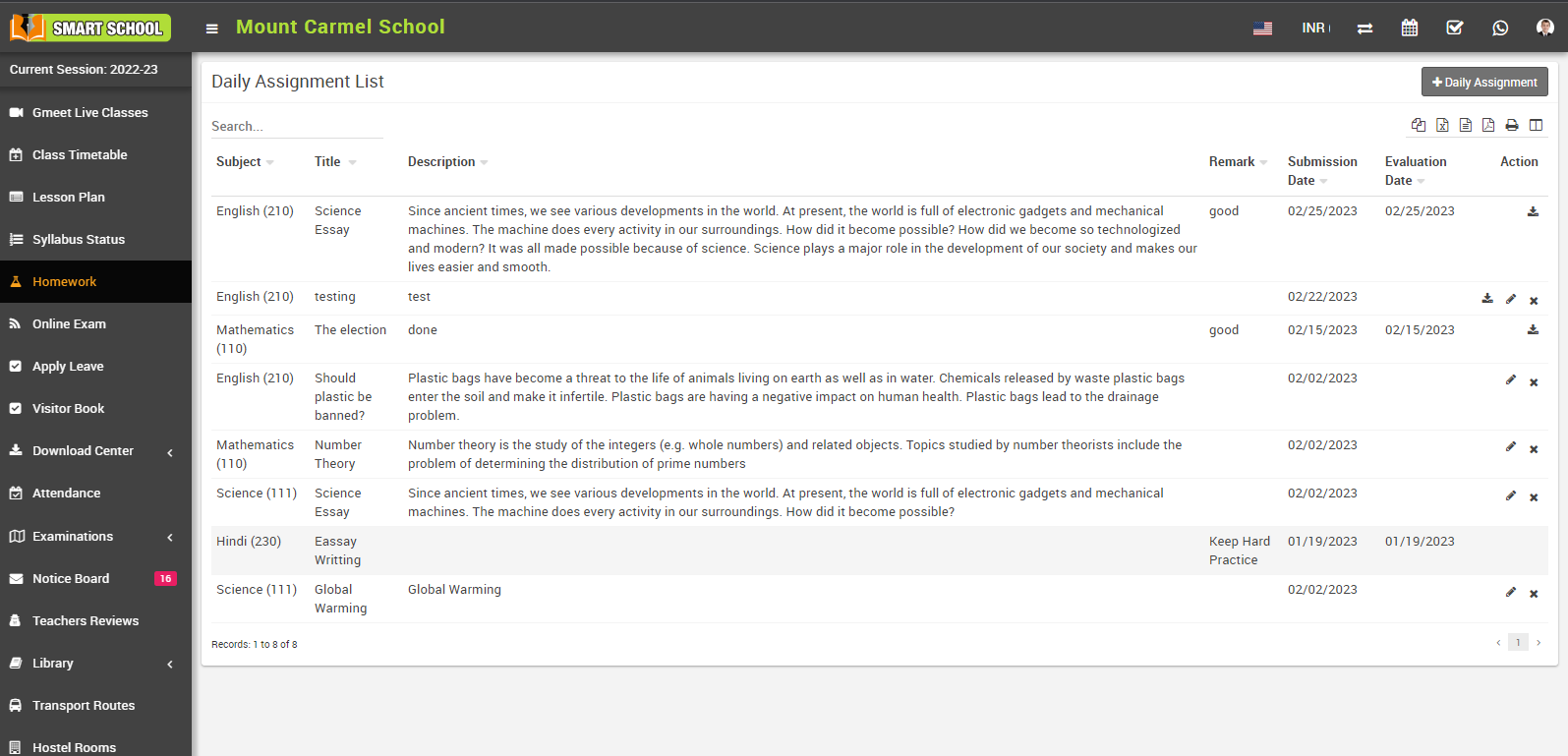
Student can also view the evaluated assignment, simply go to login student panel > Homework, now click on daily assignment which is showing in top right corner, daily assignment list will be open.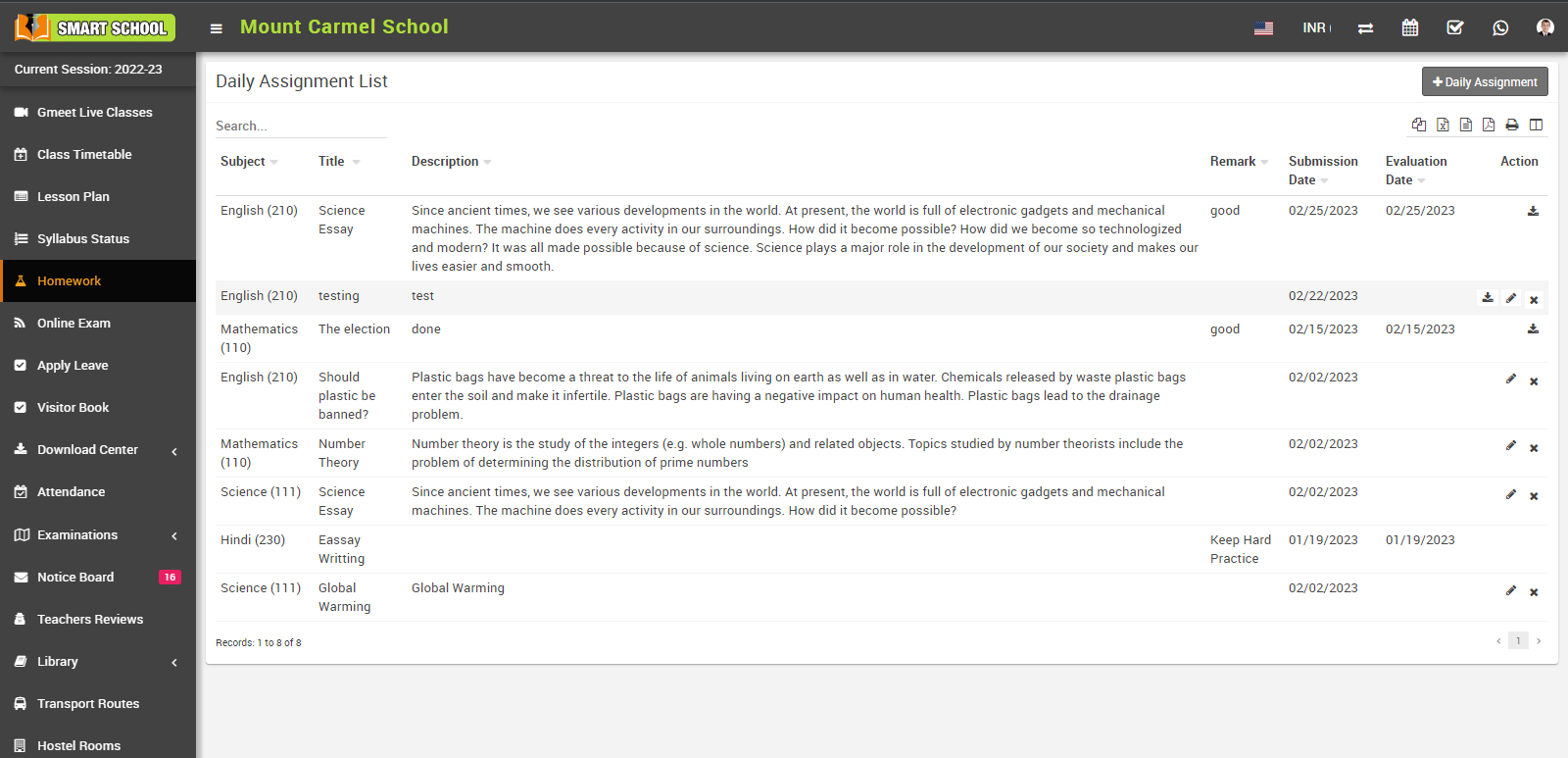
In this list, student can see his evaluated assignment.
How student can view their yearly (session) Attendance from student panel?
To check session attendance, go to Student Login > My Profile > Attendance. The attendance details for that student will be displayed here. The student can view his total session attendance by Total Present, Total Late, Total Absent, Total Half Day, Total Holiday and the student can also see the list of yearly session attendance with the date and months. You can also see the abbreviation of "attendance type as." P is for present, A is for absent, H is for holiday, E is late with an excuse, and F is for half day.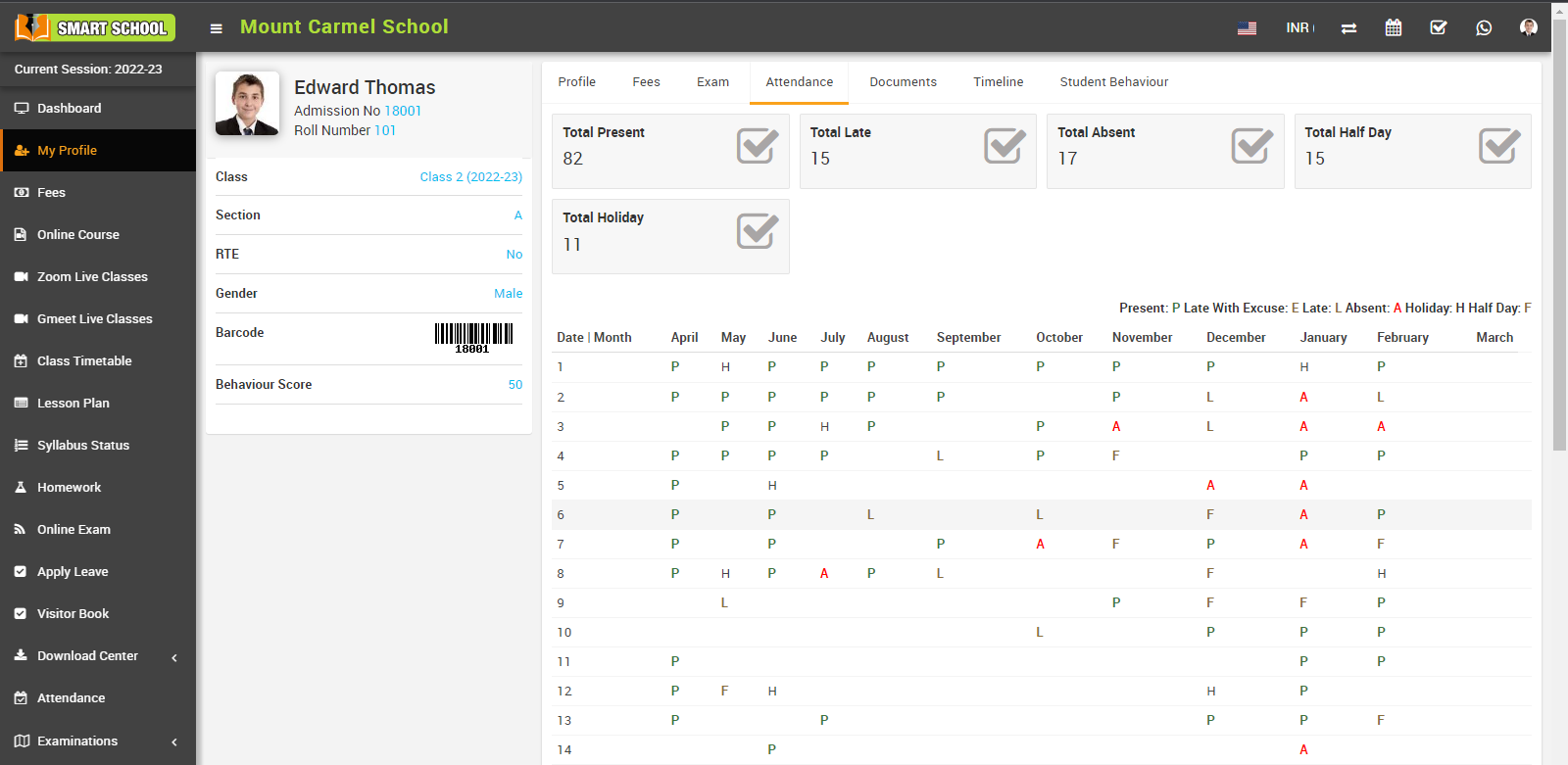
How to see student dashboard?
On the Dashboard, accessed through the Student Panel after logging in, deshboard will be appear, here you can view various student related details, such as the Student Name with greeting as well as his image, Attendance Remark, Notice Board, Subject Progress, Upcoming Classes, Homework, Teacher List, Visitor List, and Library Book Issue List.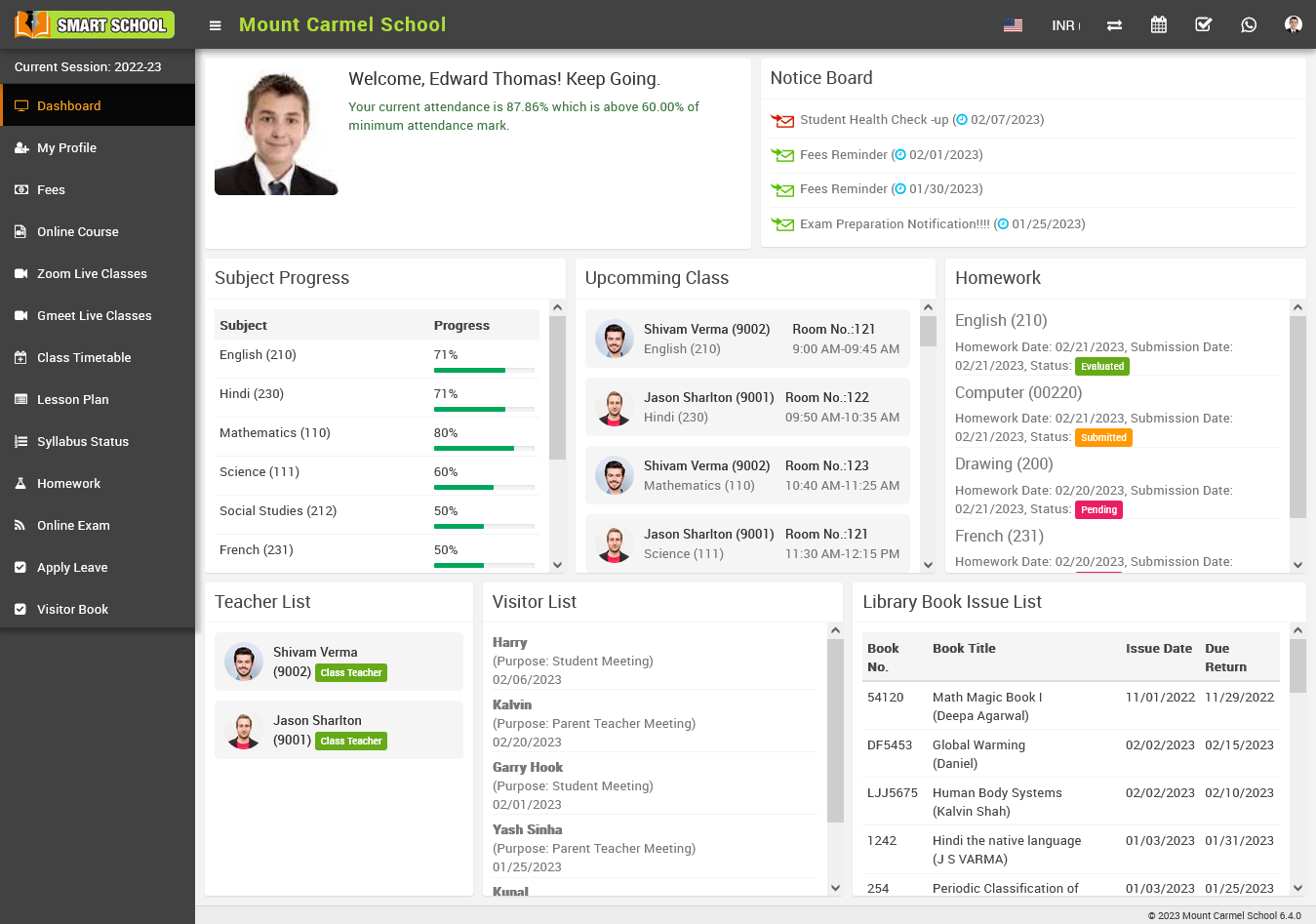
The Notice Board, located on the right side and that keeps students up-to-date with the latest news and announcements which is uploaded by the superadmin / staff.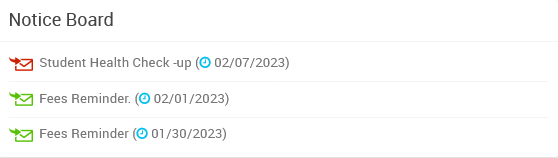
In the Subject Progress Section, students can view the progress of each subject as uploaded by their teachers, including how much of the syllabus has been completed and how much remains.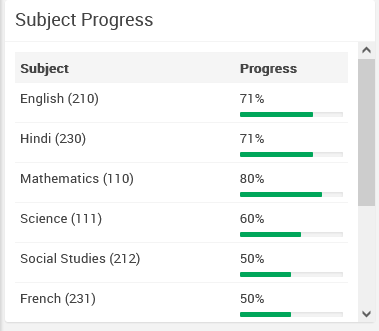
The Upcoming Class section displays details about the student's upcoming classes, including the timing, subject, teacher, and classroom number.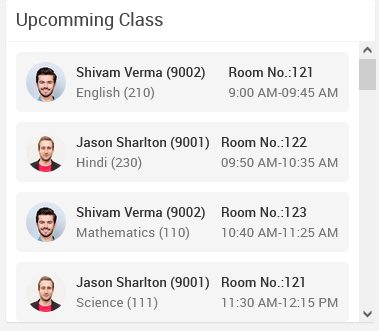
The Homework section shows homework assigned by teachers, including the due date, submission date, and status (evaluated, submitted, or pending).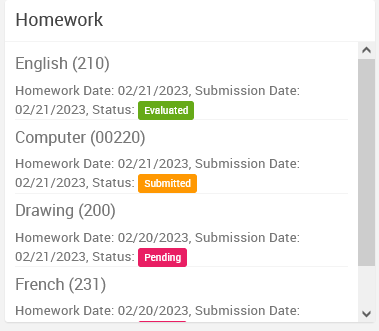
The Teacher List section shows students to view their class teacher and other teachers.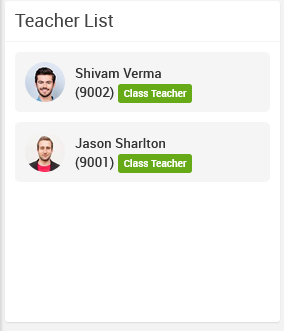
The Visitor List shows the names of recent visitors along with their meeting purpose and date of visit.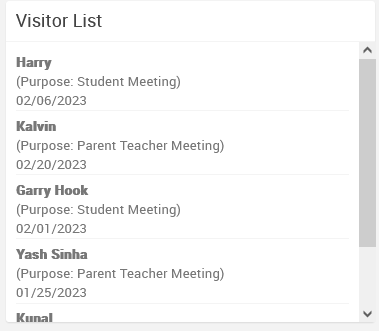
The Library Book Issue List displays the book number, book title, issue date, and due return date for any books issued to the student.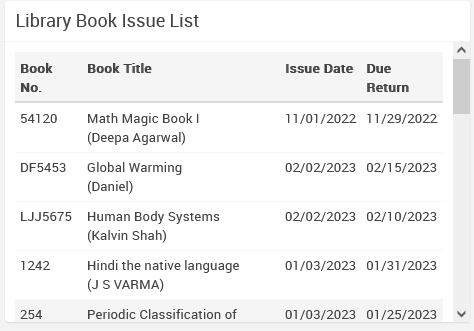
How to pay fees?
To pay fees, go to sidebar menu and click on the Fees link. Here you can see your balance fees, To pay single fees, select record and click on the Pay button present in the Action column.
If you want to pay multiple fees at a time then check records and then click on the Collect button present in the top of the page.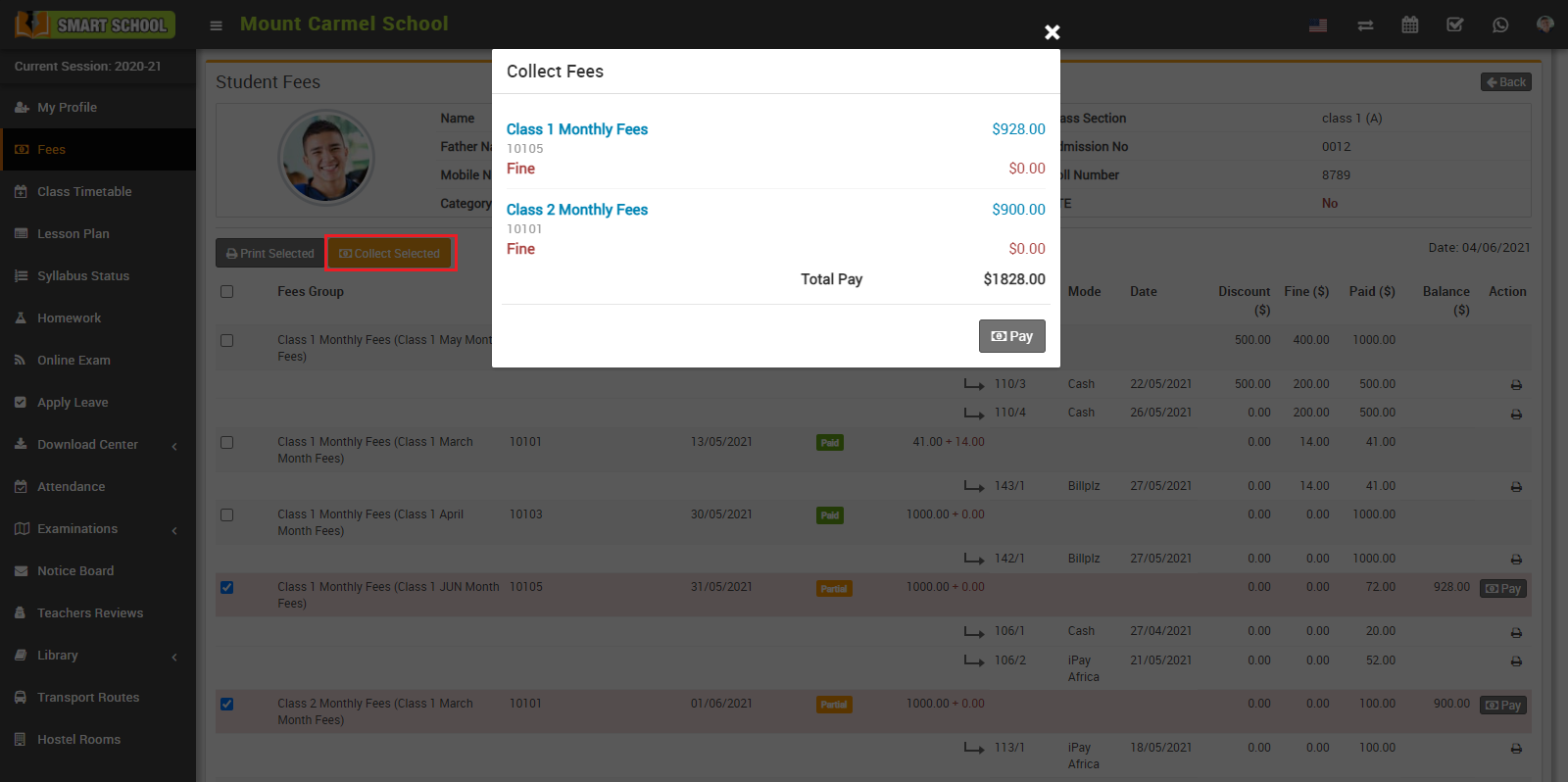
Now click on the Pay button this will redirect you on payment page from where you can pay fees by filling all the necessary details.
To print single fees click on the Print icon present in the Action column and if you want to print fees for multiple record then you can select records and then click on Print Selected button present on the top of the page.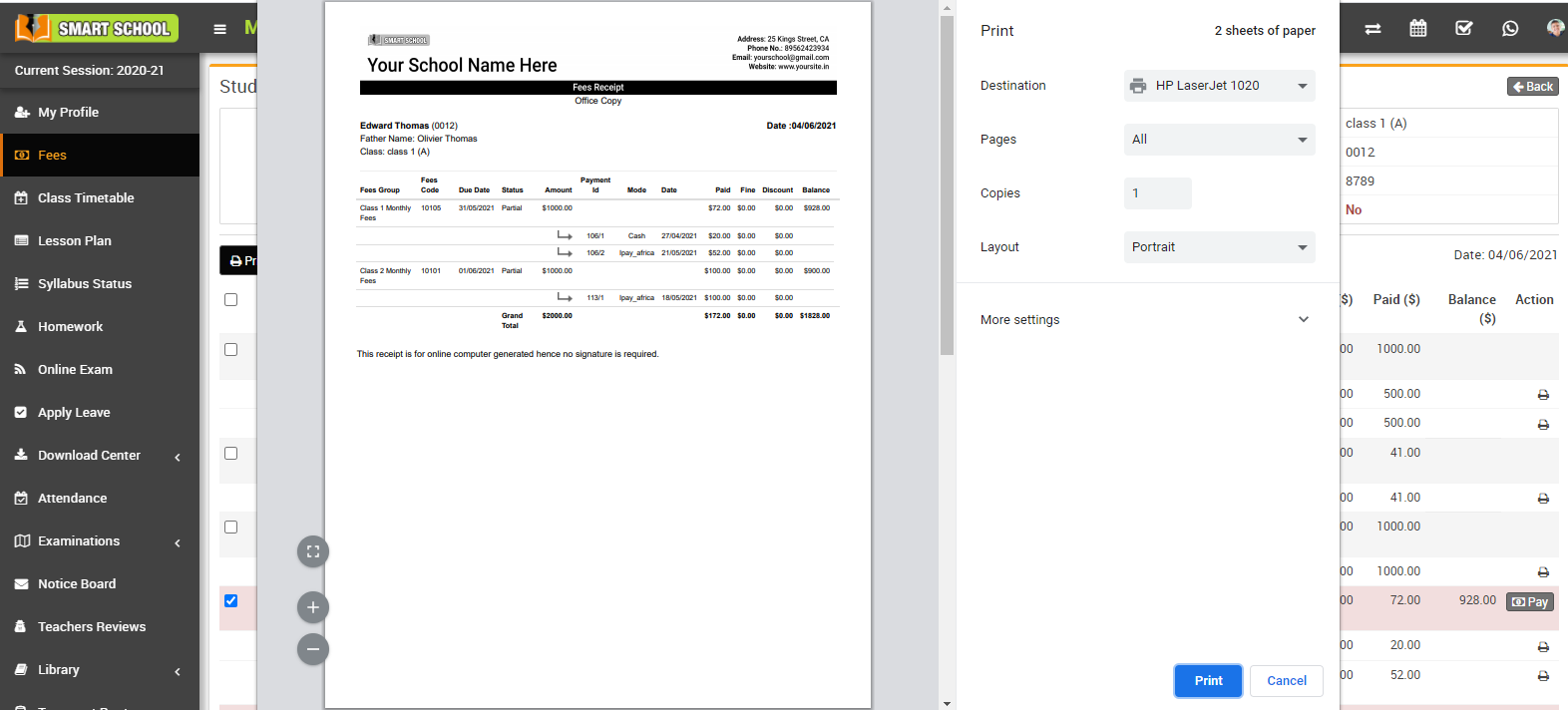
How to login Student/Parent panel?
How to view profile?
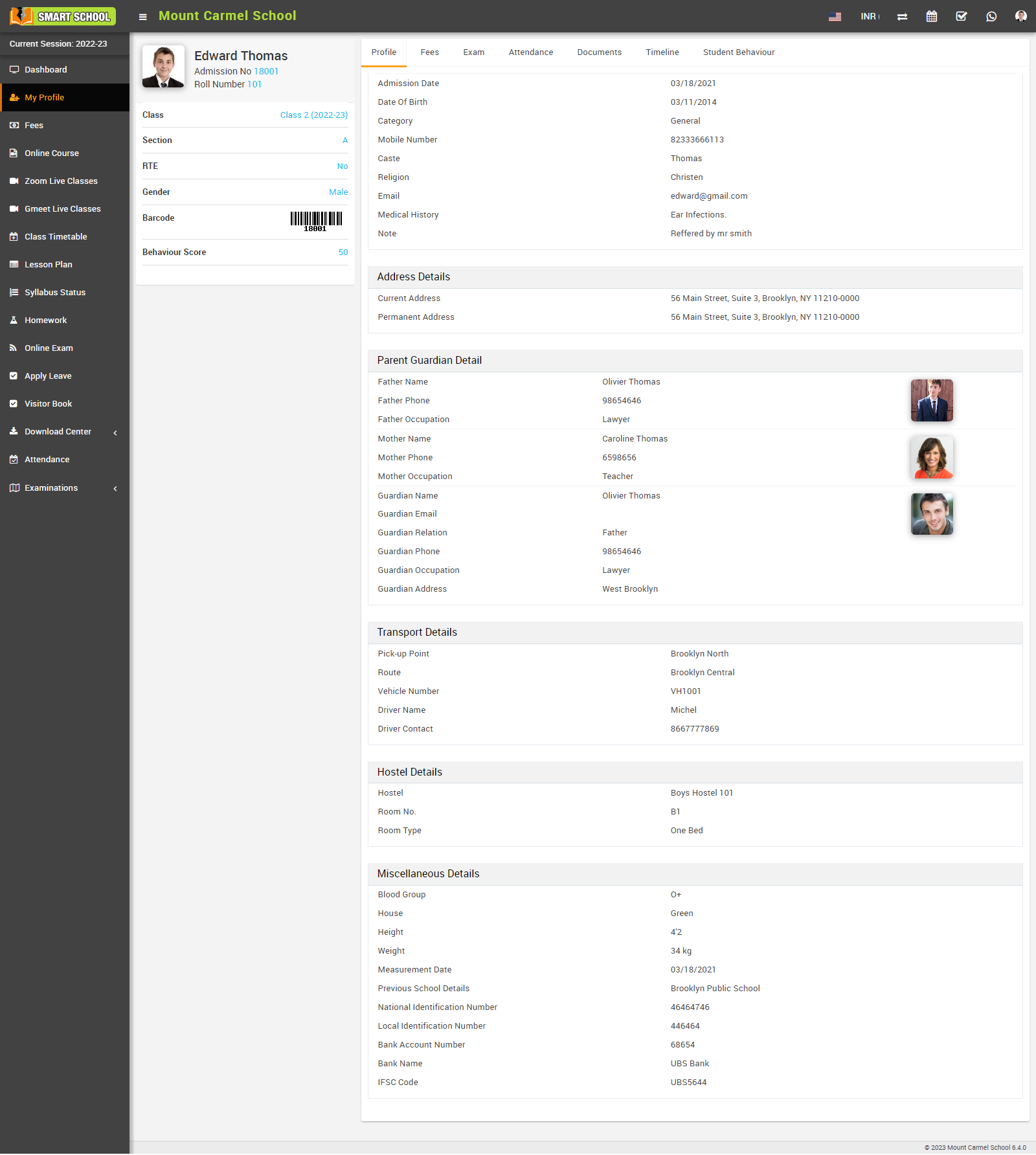
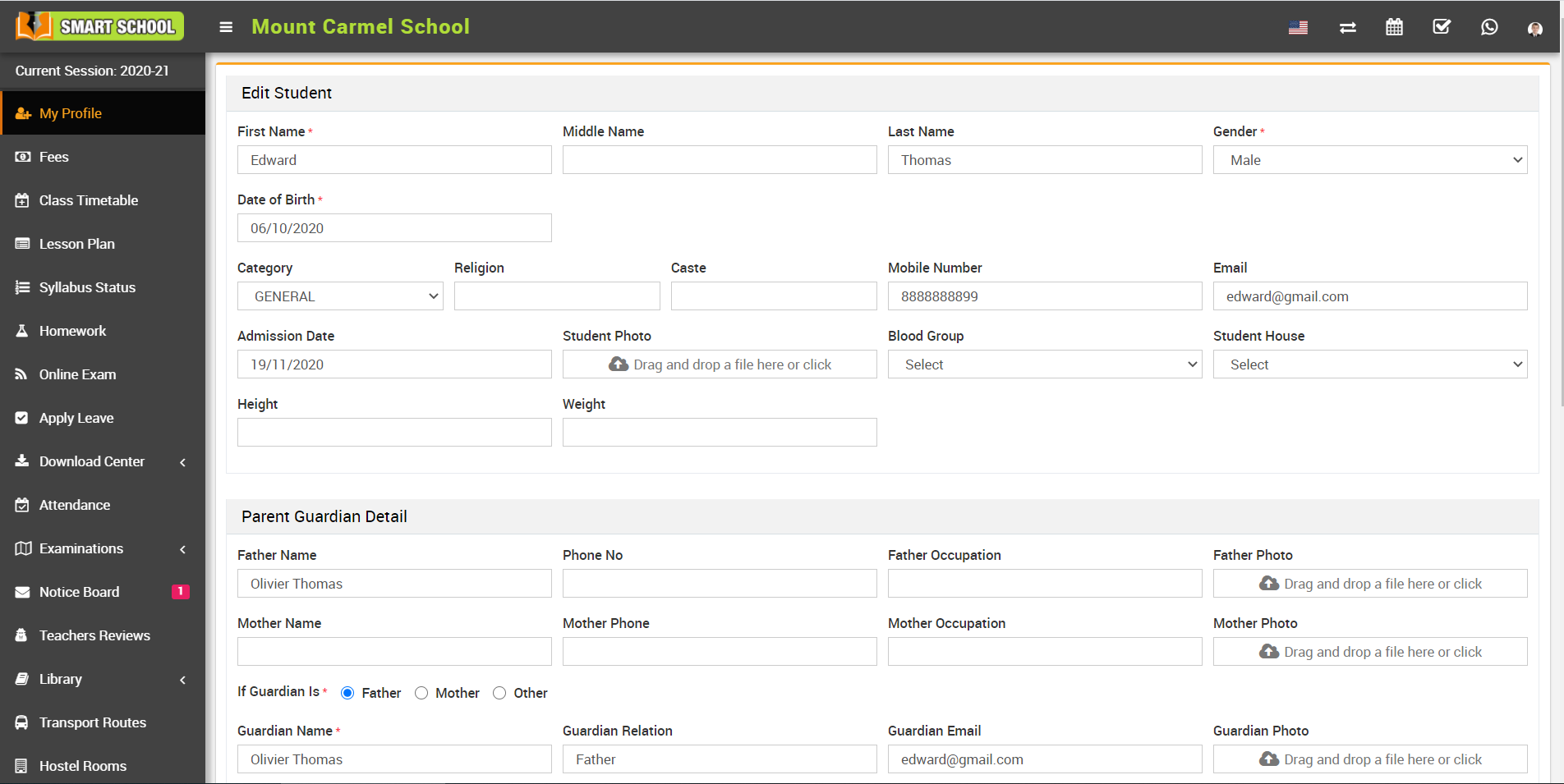
Profile: In the Profile section, you can view all the relevant details of the student.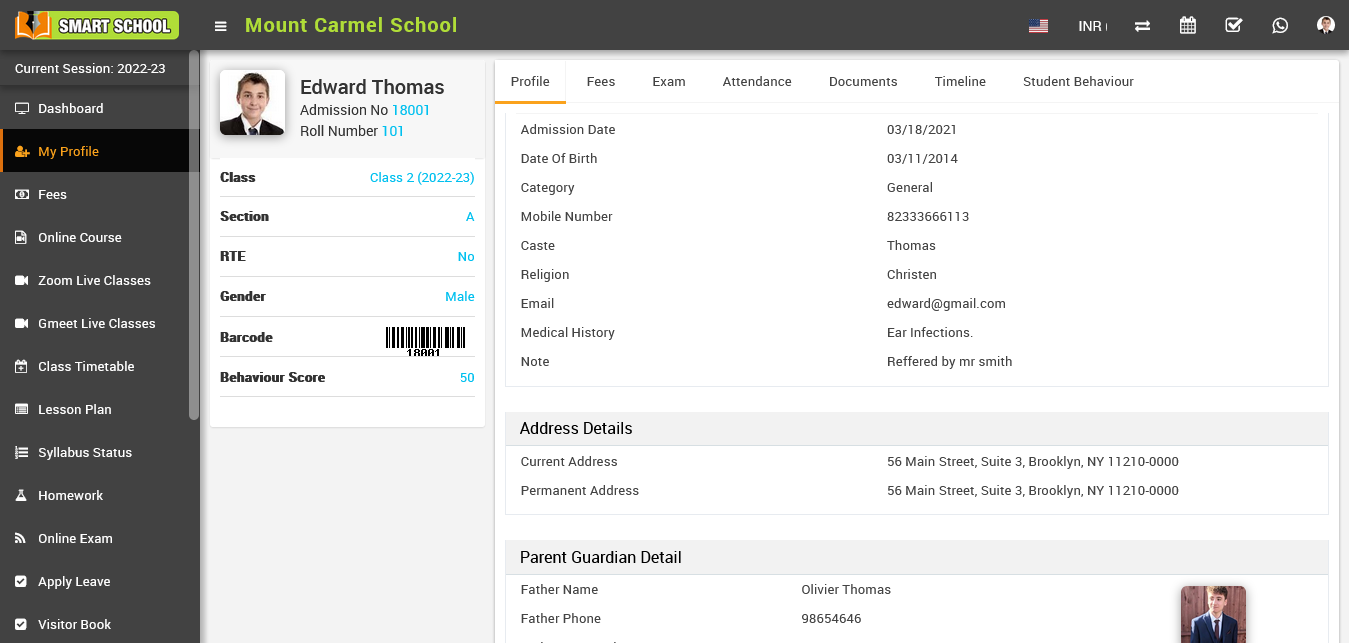
Fees: In the Fees section, you can view the student's fees including transport fees, and their payment status which can be paid, unpaid, or partial.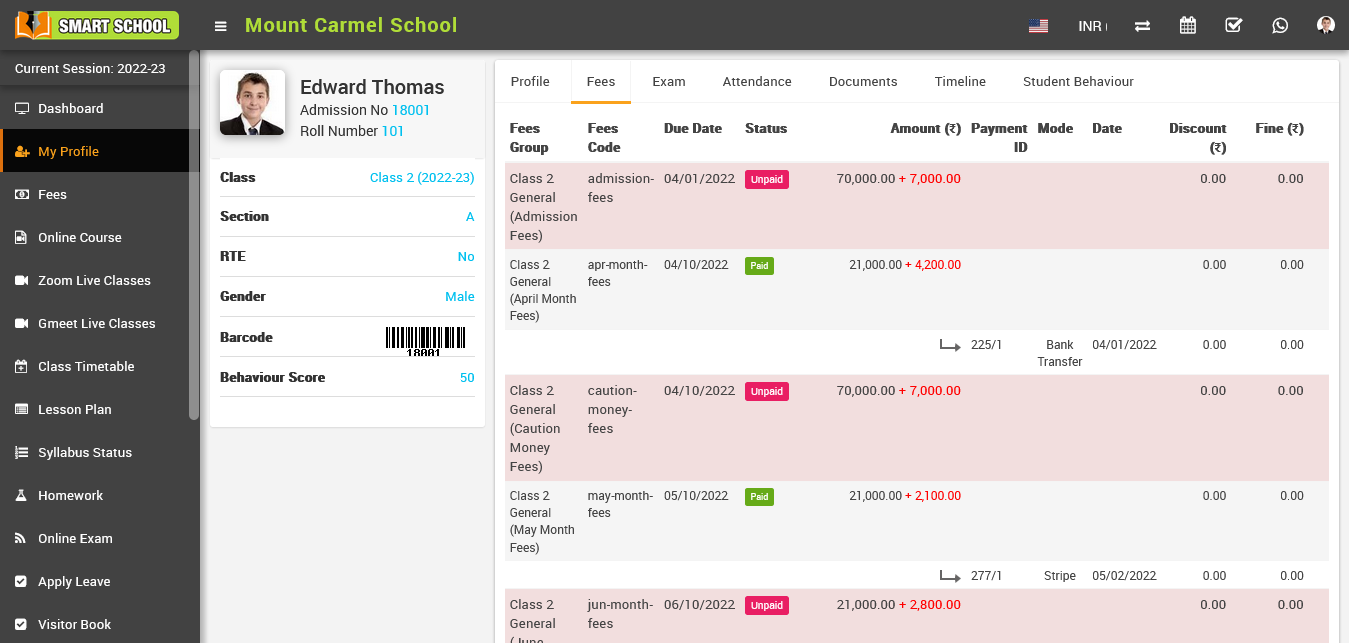
Exam: In the Exam section, you can view the list of exams assigned to the student, their pass or fail status, percentage, rank, result, division, grand total, and total obtain marks.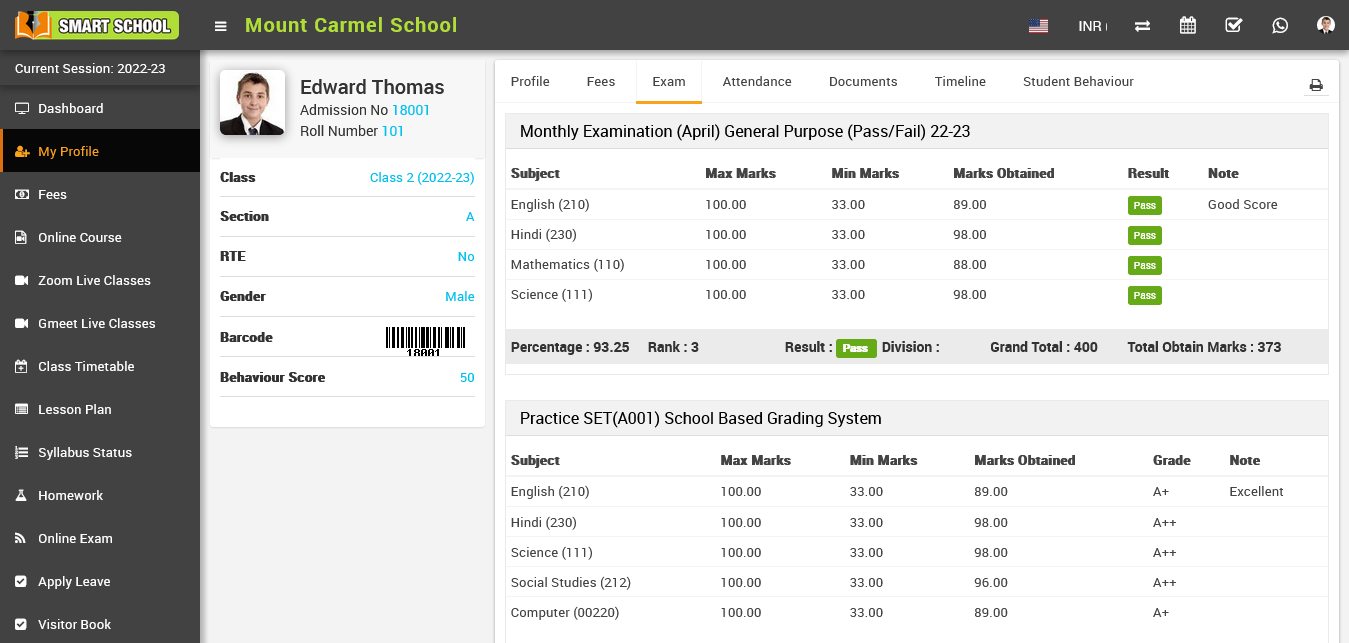
Attendance: In the Attendance section, you can view the student's attendance for the current session.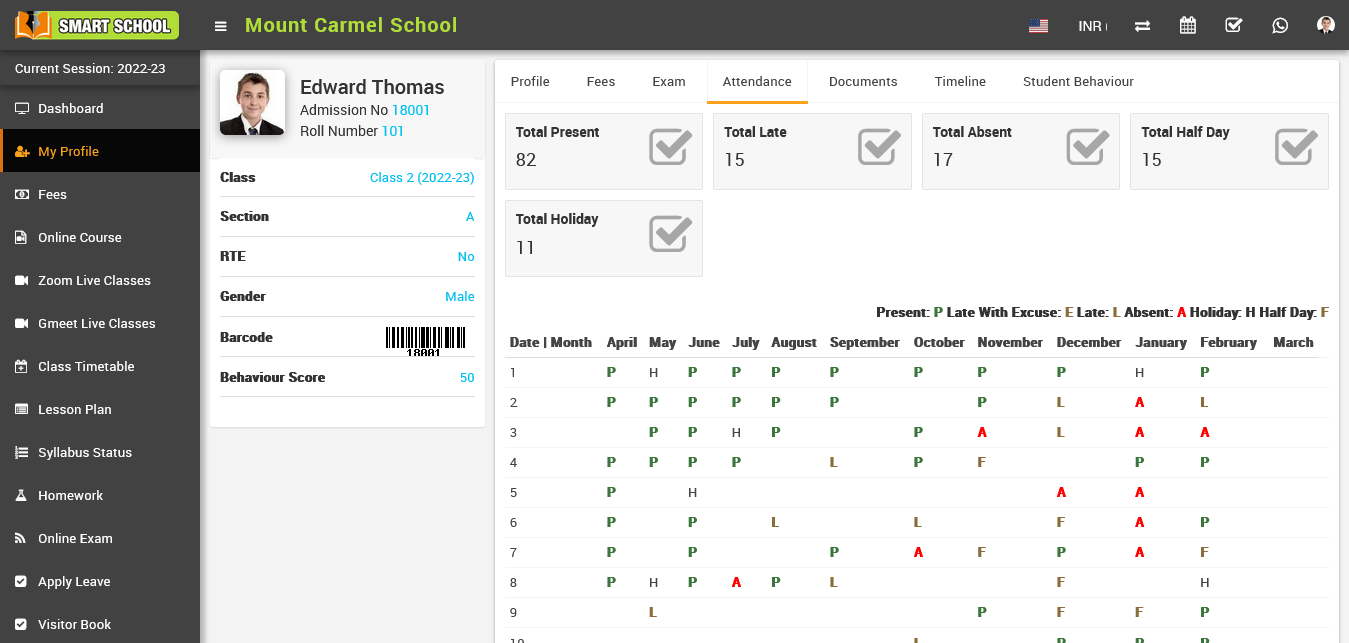
Documents: In the Documents section, you can view the documents uploaded by the superadmin and the documents uploaded by the student.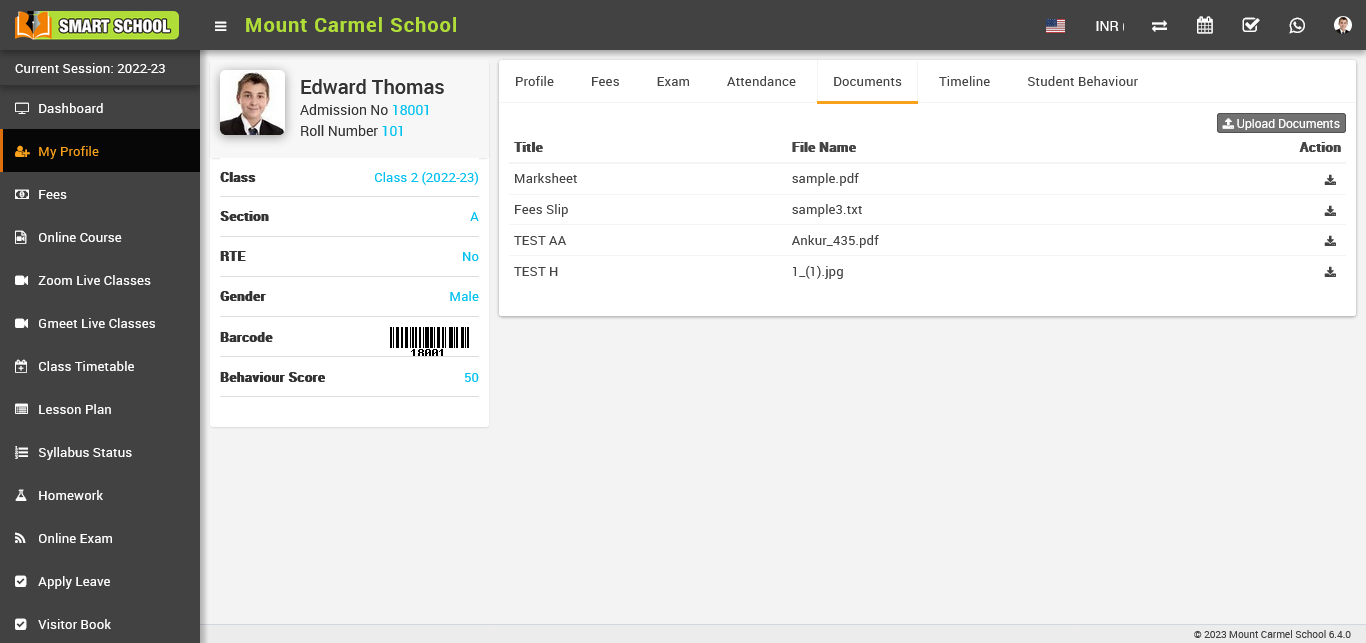
Timeline: In the Timeline section, you can view the timeline added by the superadmin, and the student can also add their own timeline.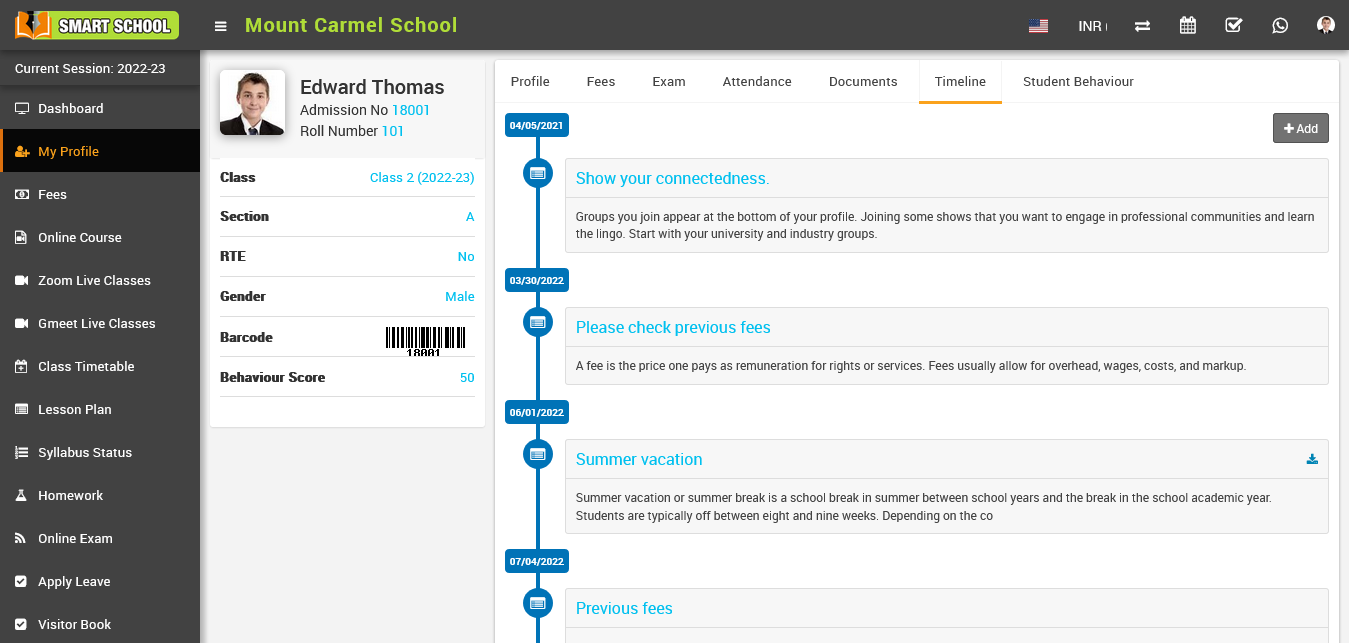
Student Behaviour: In the Student Behaviour section, you can view the assigned incidents.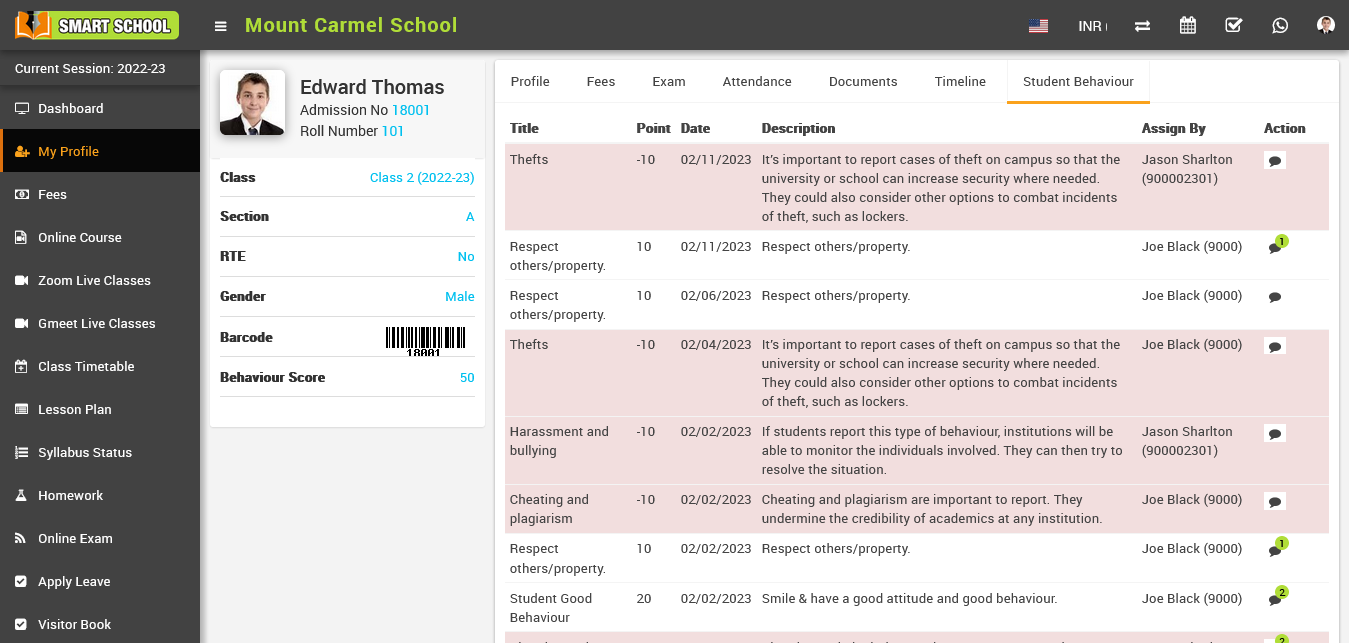
Note -
- You can update your profile only when Allow Editable Form Fields option is Enabled from the admin side (System Settings >>Student Profile Update).
- You can update those fields only which are checked in Allowed edit form fields on student profile option in admin side (System Settings >>Student Profile Update).
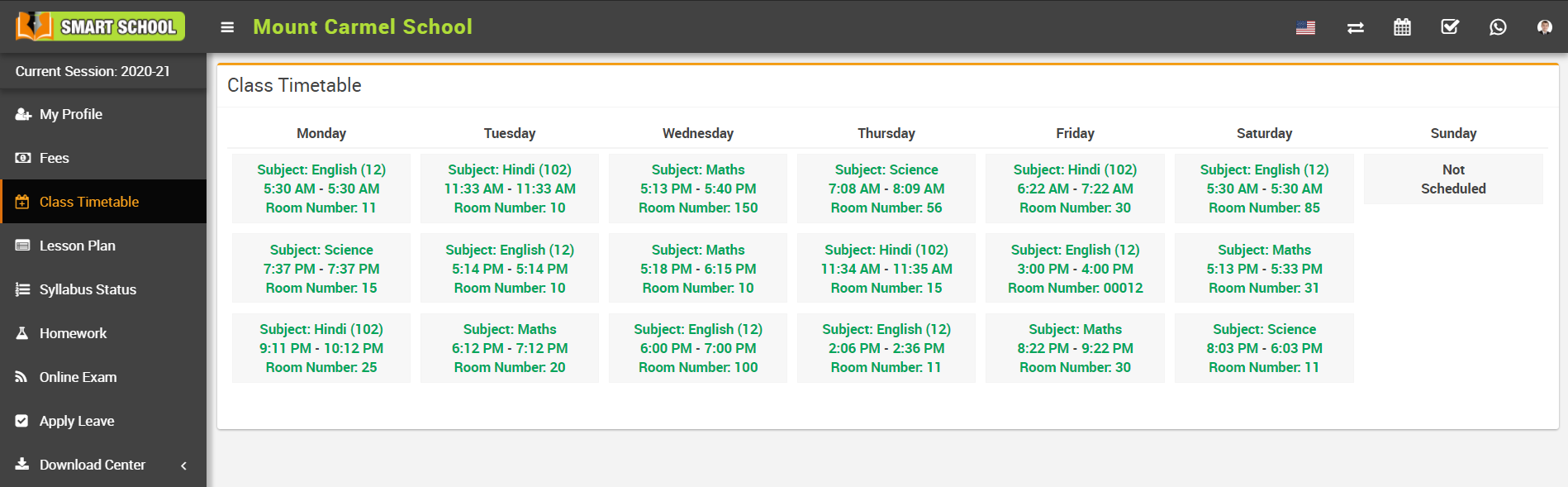
How to view class timetable
How to check Lesson Plan schedule?
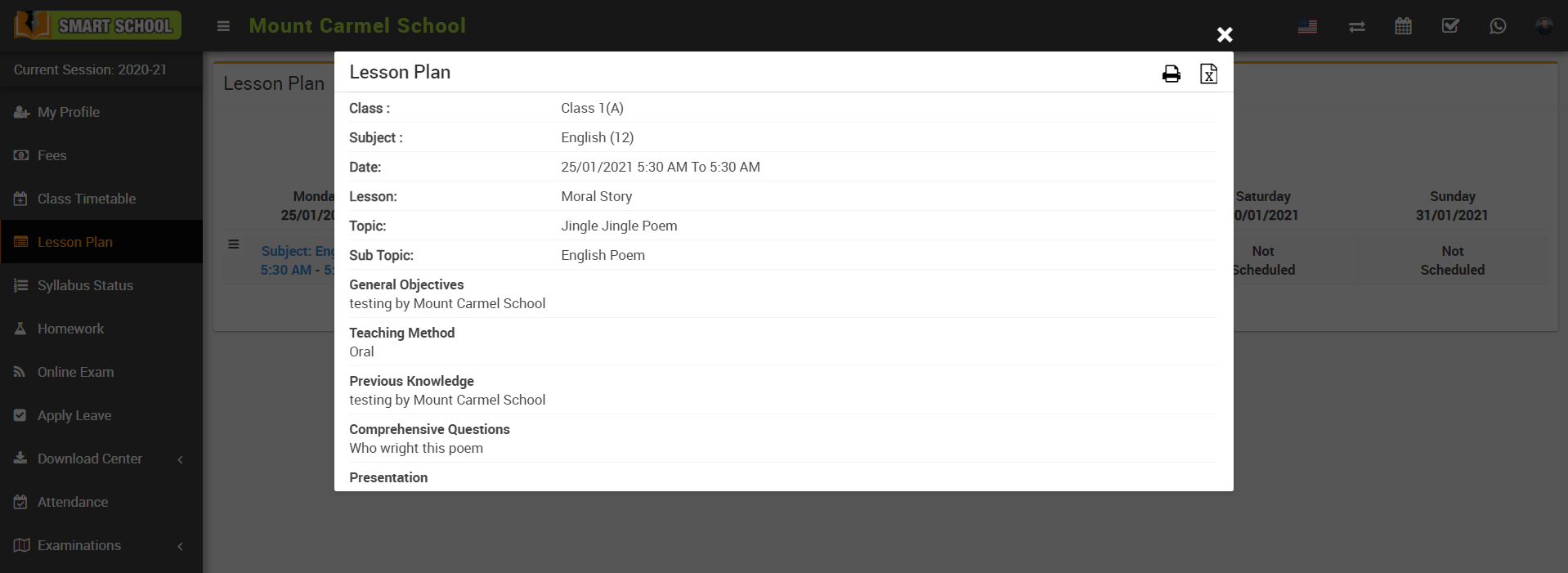
To view schedule, click on View icon present in lesson plan page, at click of this icon Lesson Plan modal will be open.
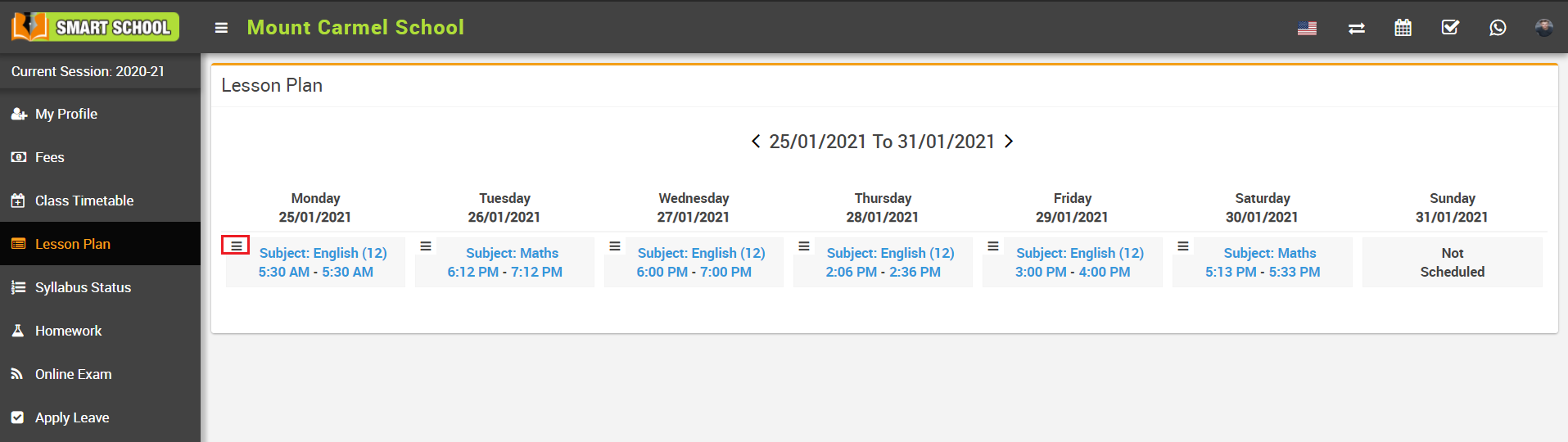
Here you can see lesson plan schedule like Class, Subject, Date, Lesson, Topic, Sub Topic etc.
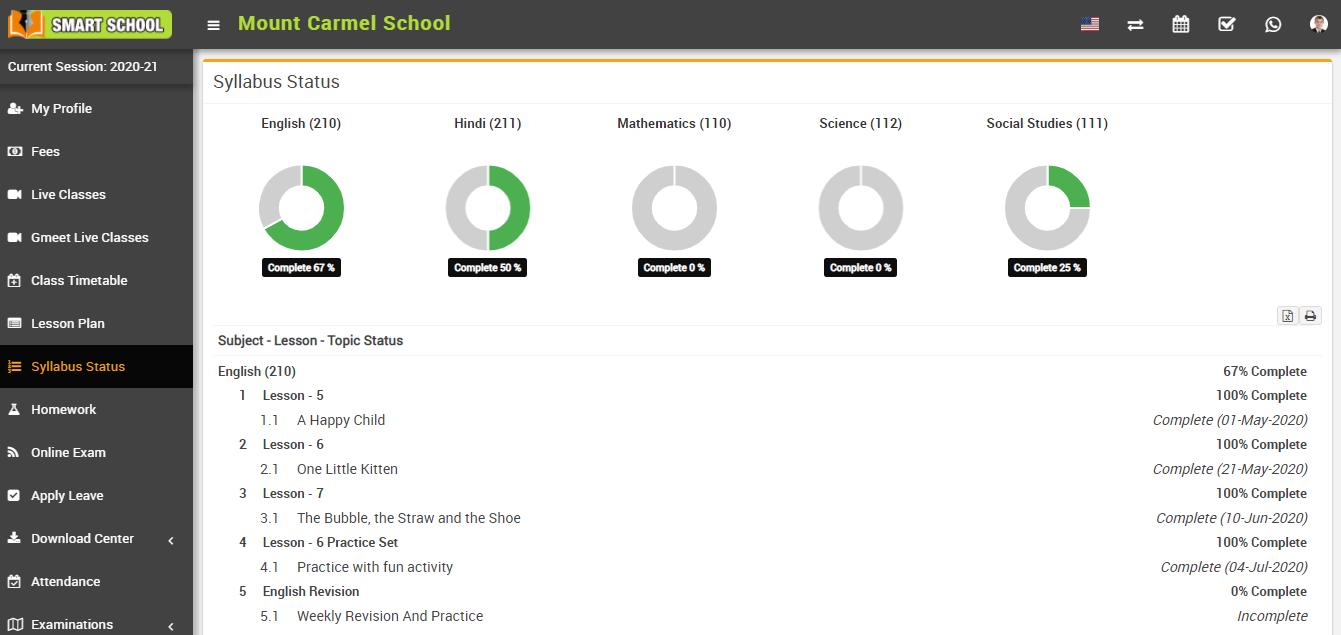
How to check Syllabus Status?
How student can view homework list?
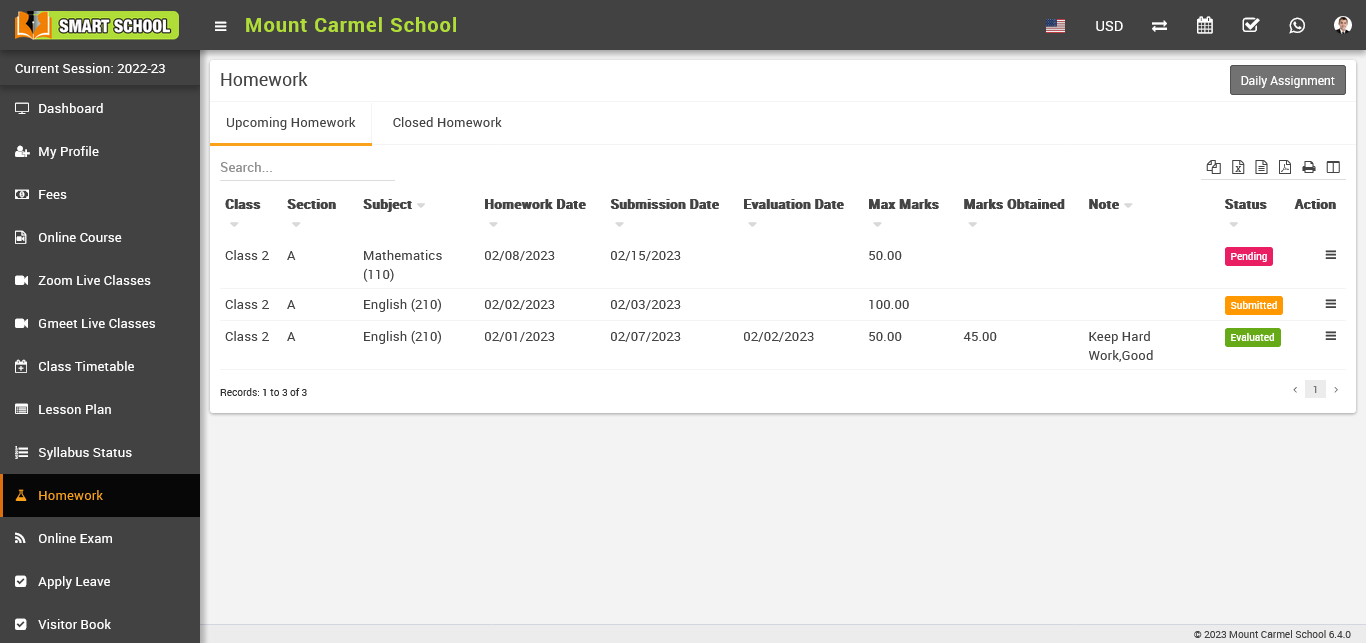
In the student panel, go to the sidebar menu, click on "Homework," and the homework page will now be open, with the "Upcoming Homework" and "Closed Homework" tabs available to see the upcoming homework list and the closed homework list.
In Upcoming Homework, You can view upcoming homework whose date would be current date and whose submission date is determined by the teacher when he wants to keep the submission date.
In closed homework, you can view those homework, whose Present Date and Submission Date has been passed out, submission date means as If student fails to meet the submission deadline and the homework due date has been passed, the homework would displayed in Closed Homework and another condition, if teacher does not keep Submission Date and homework present date has been passed so homework would be show in Closed Homework.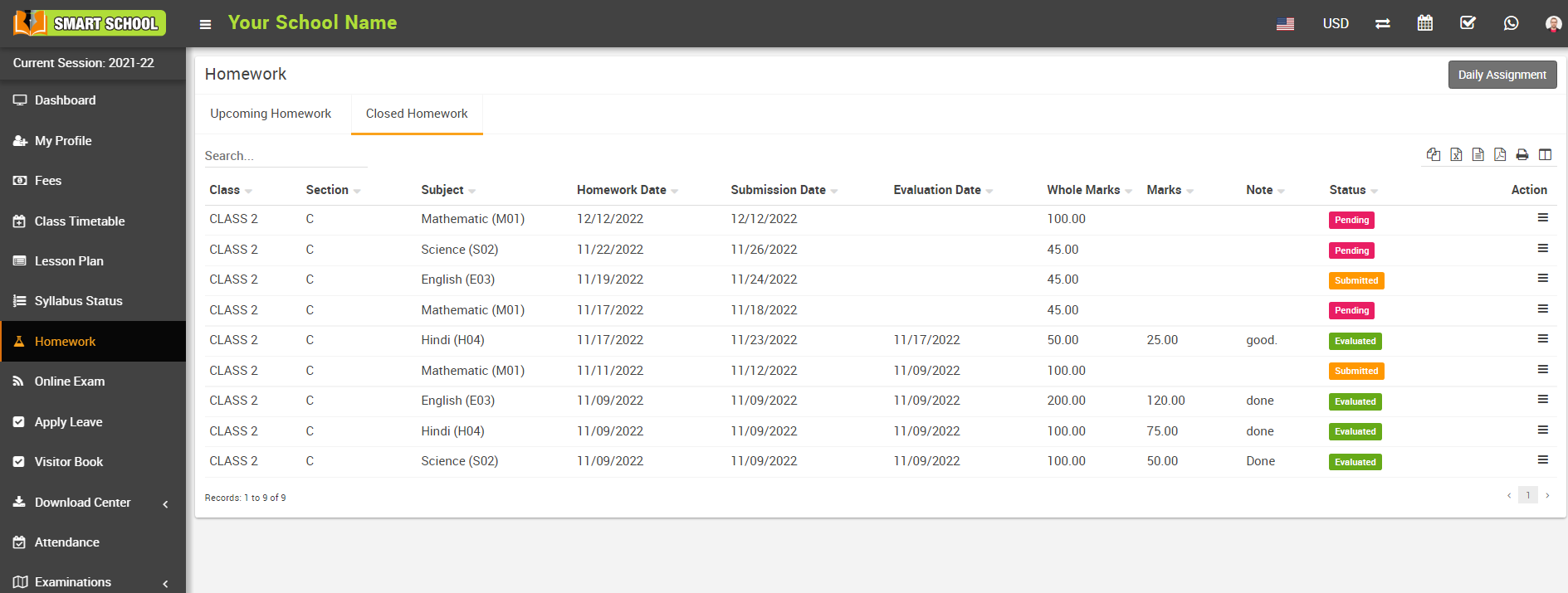
To view homework details, click on the "View" icon present in the "Action column in the homework page. The Homework Details modal will open when you click this icon; here you can see Description, Message, Attach Document, and Homework Summary such as Homework Date, Submission Date, Evaluation Date, Created By, Evaluated By, Class, Section, Subject, Status, and Homework Documents.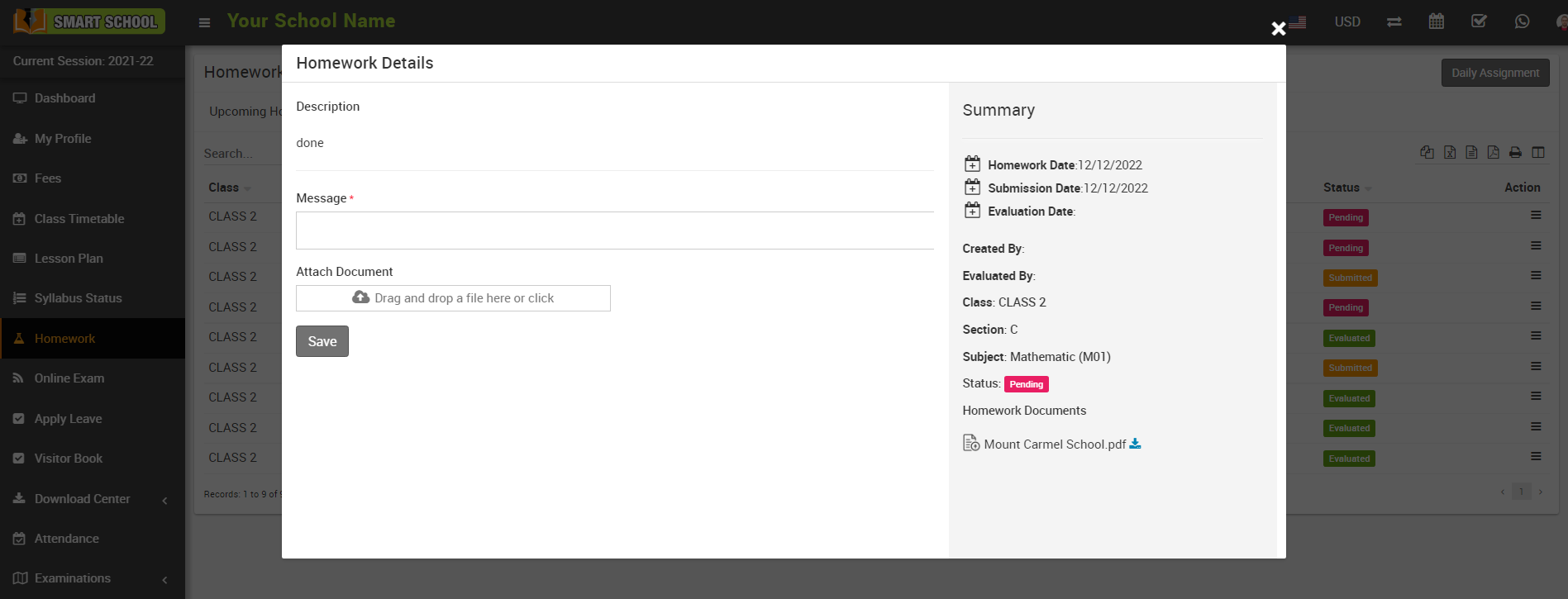
In the "Message" section, you can write the answer. To upload homework, click on Attach Document (drag and drop a file here or click) or select the document, then click on the Save button. Homework will be submitted.
How to attempt Online Exam?
To attempt exam, go to sidebar menu and click on Online Exam. Here student can see all the available online exam. In online exam you can see Upcoming Exam and Closed Exam section are available. 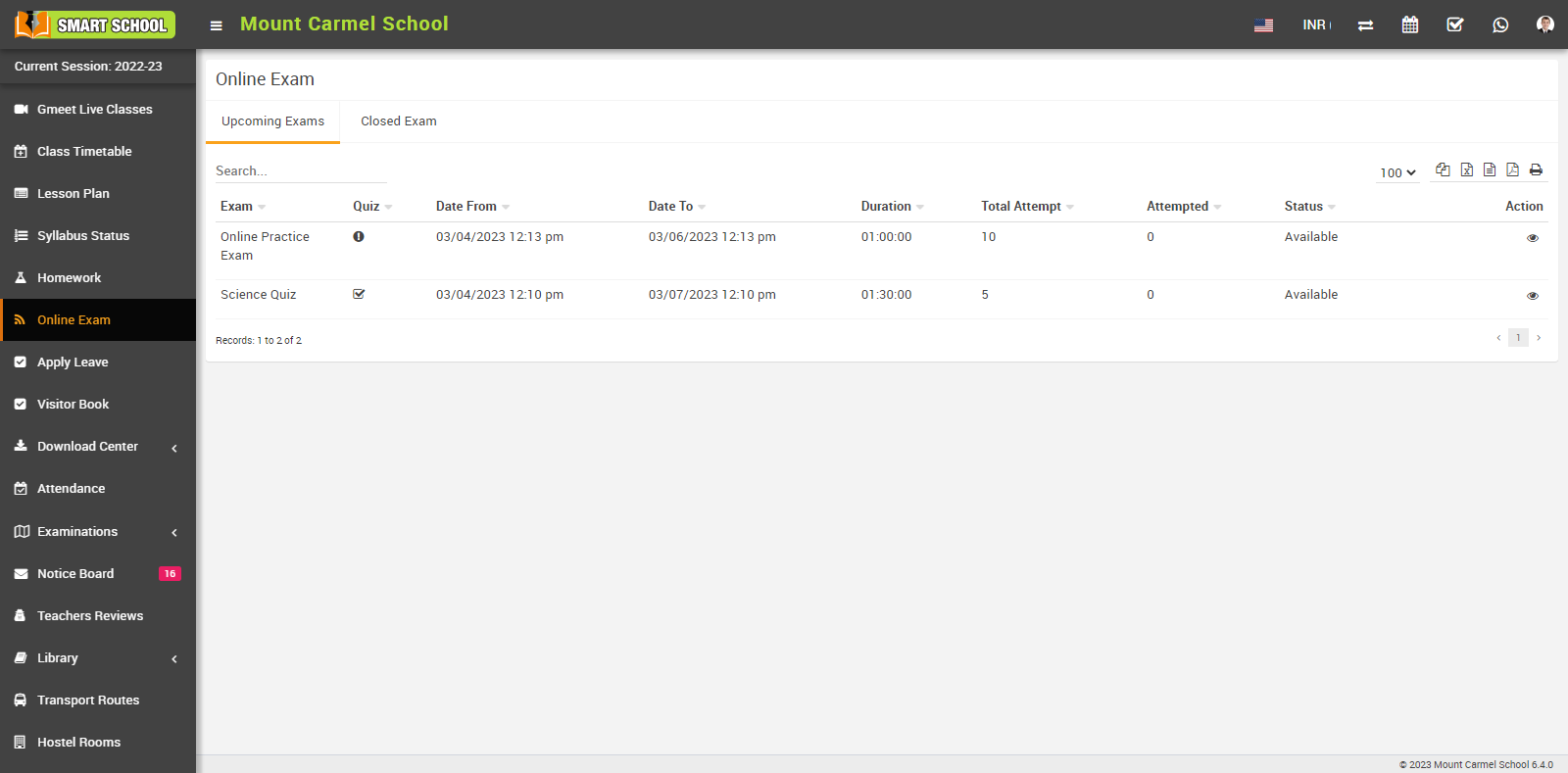
In Upcoming Exams, students will be able to view the exam dates of those whose dates are currently available until the exam due date.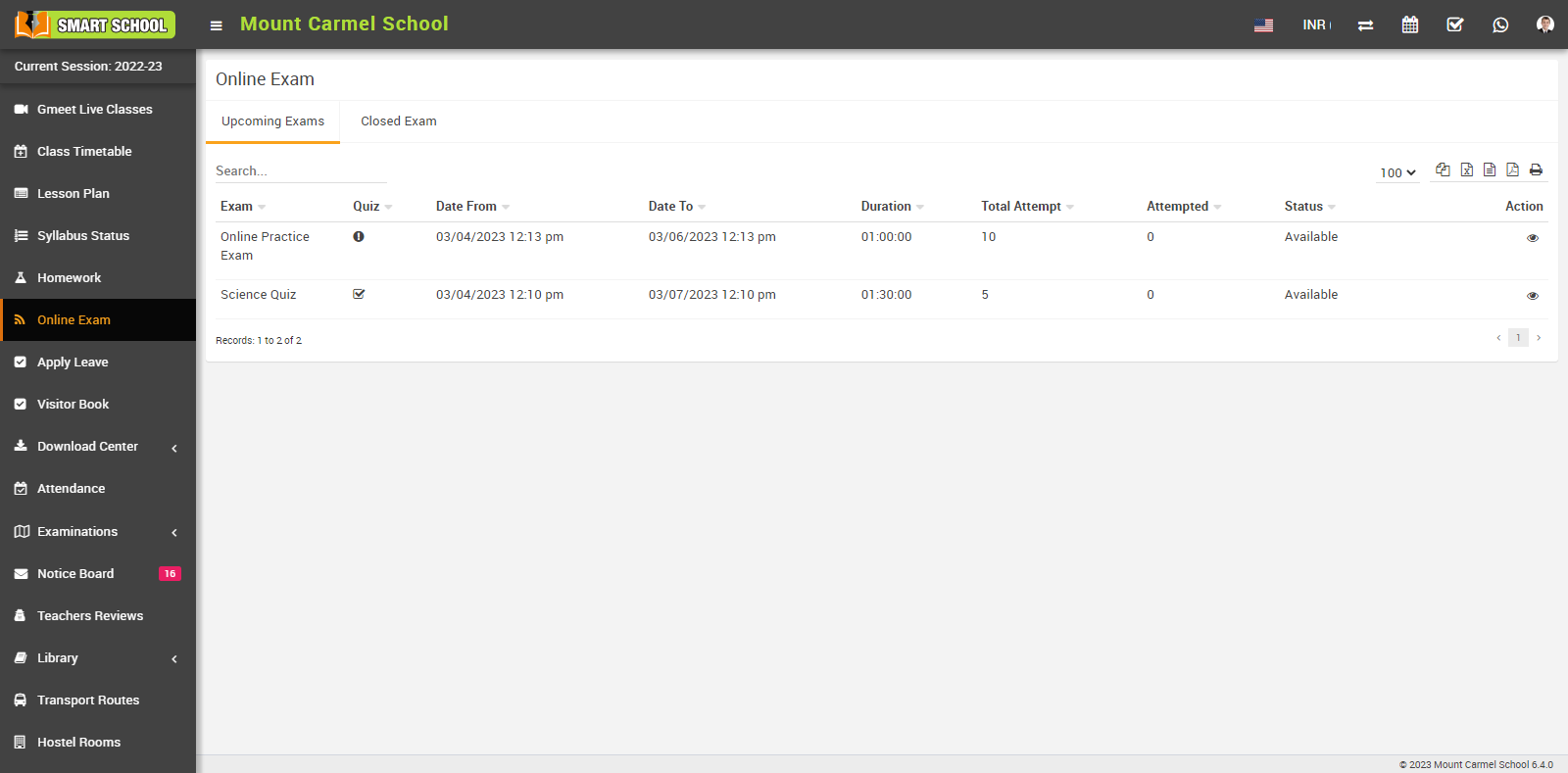
In Upcoming Exam, you can see exam details as Exam Name, Quiz (In quiz result will be display to student immediately just after exam submission (descriptive question type will be disabled), Date From, Date To, Duration, Total Attempt, Attempt, Status and Action.
In Action column you can see view icon showing, simply click on view icon, online exam page will be open.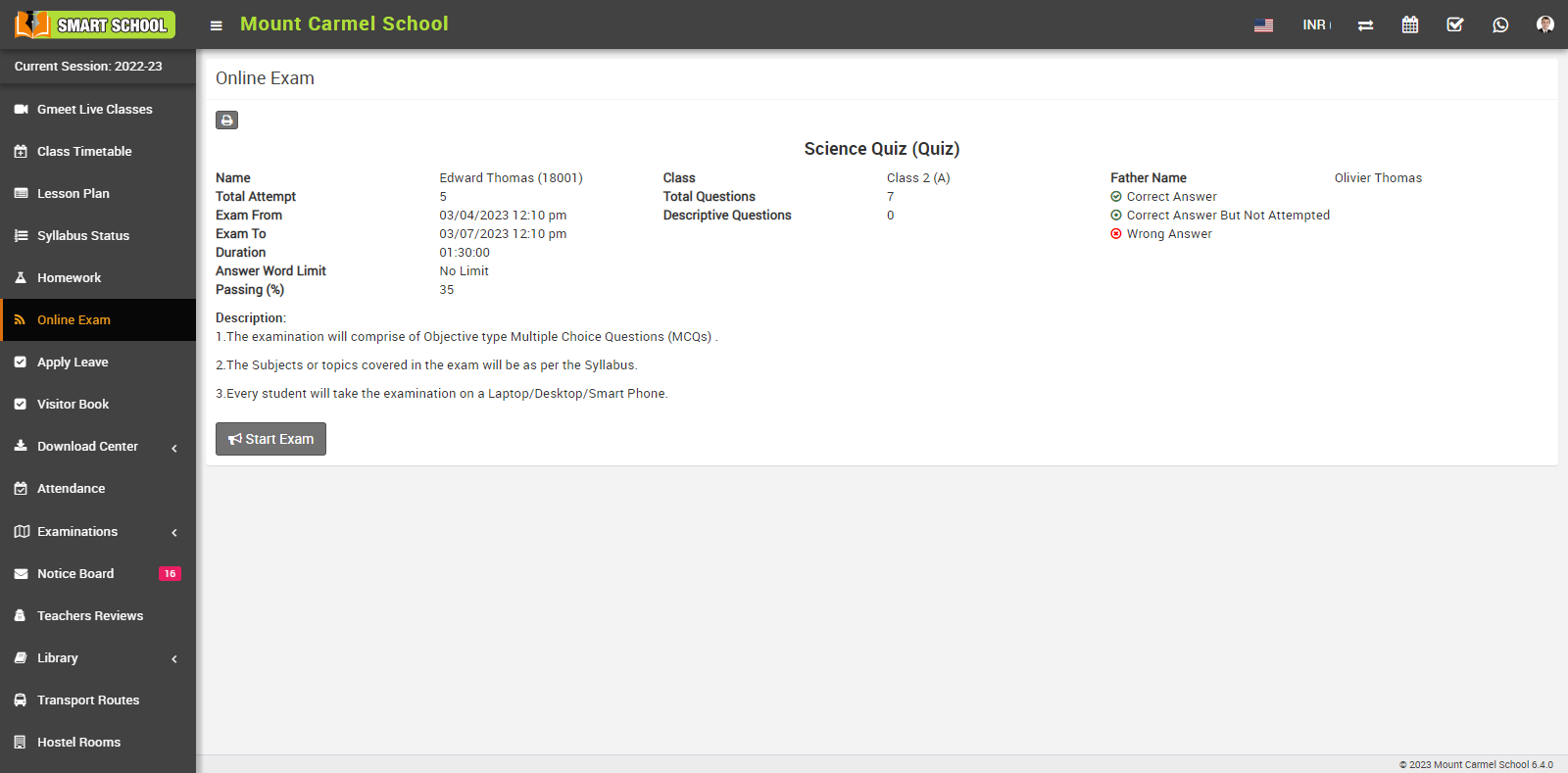
After varifying all the details and instruction, click on the Start Exam button which is showing below of the details. Exam will be start with new page.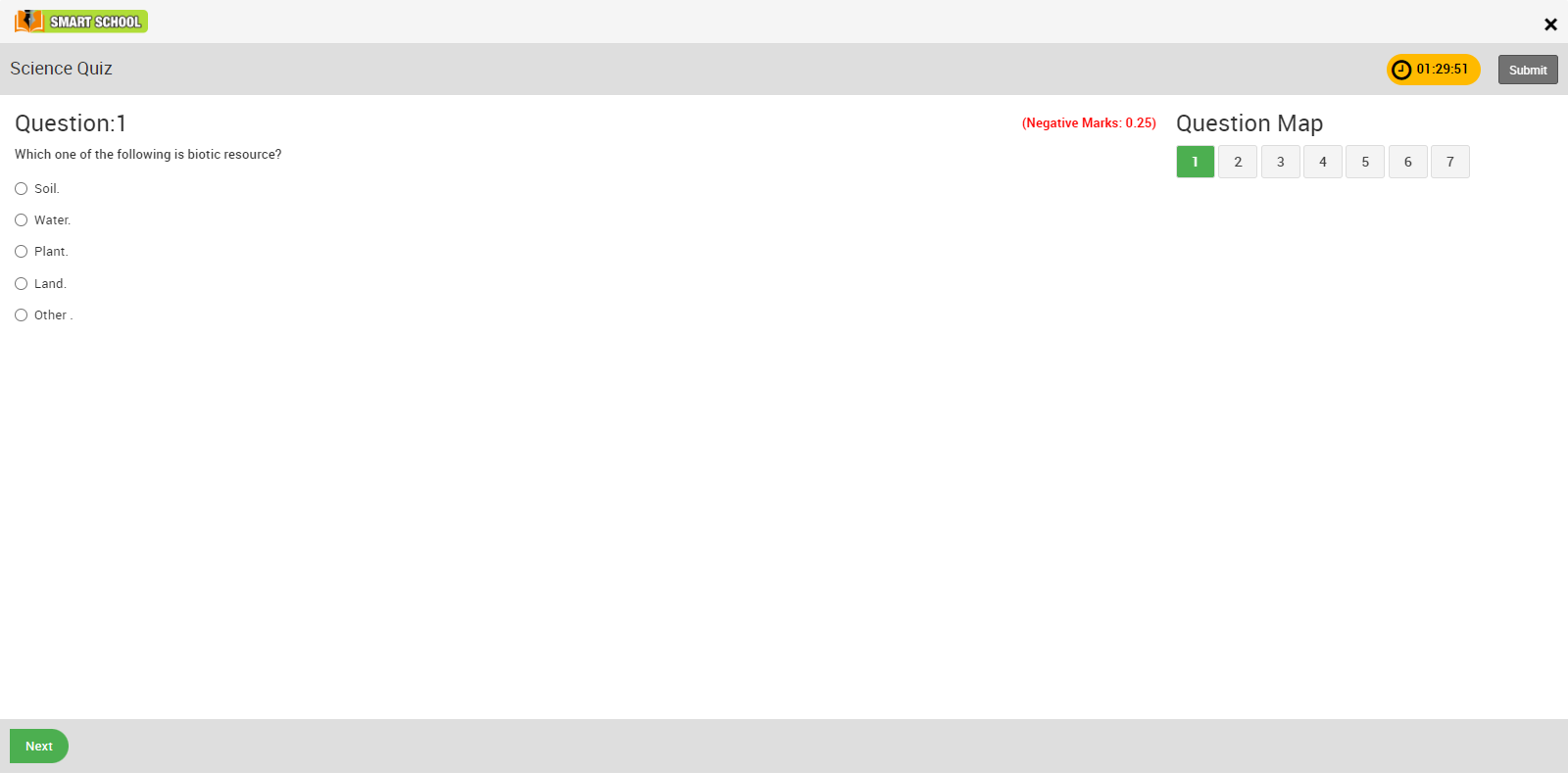
After attempting all the questions you can submit the exam by clicking on Submit button showing at the top right corner of the page, confirmation model will be open to ensuring to submit the exam.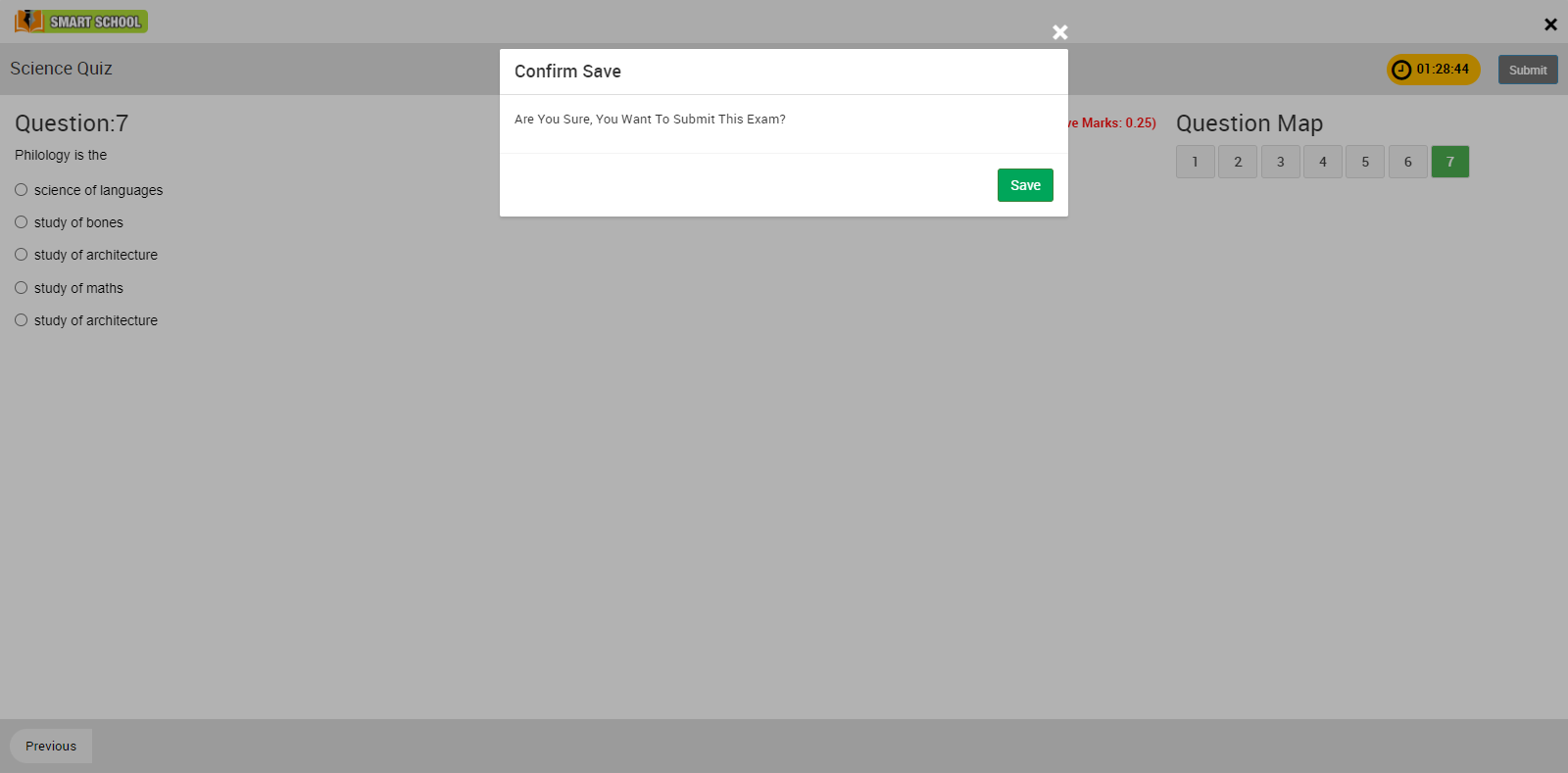
Click on Save button, your exam will be save successfully.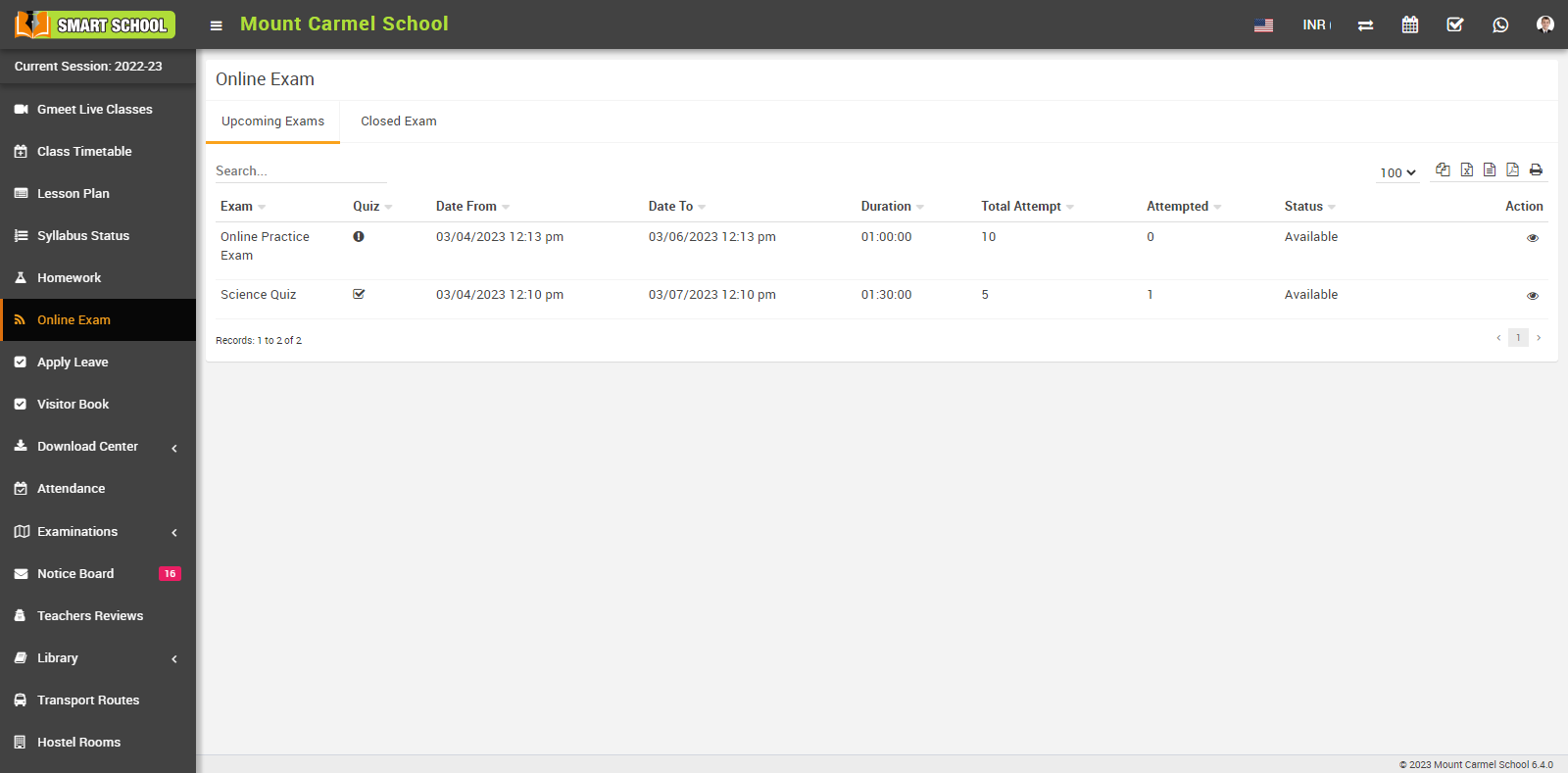
In Closed Exams, student can see those exam list whose exam dates are passed. In this page you can also see Exam Name, Quiz (In quiz result will be display to student immediately just after exam submission (descriptive question type will be disabled), Date From, Date To, Duration, Total Attempt, Attempt, Status and Action.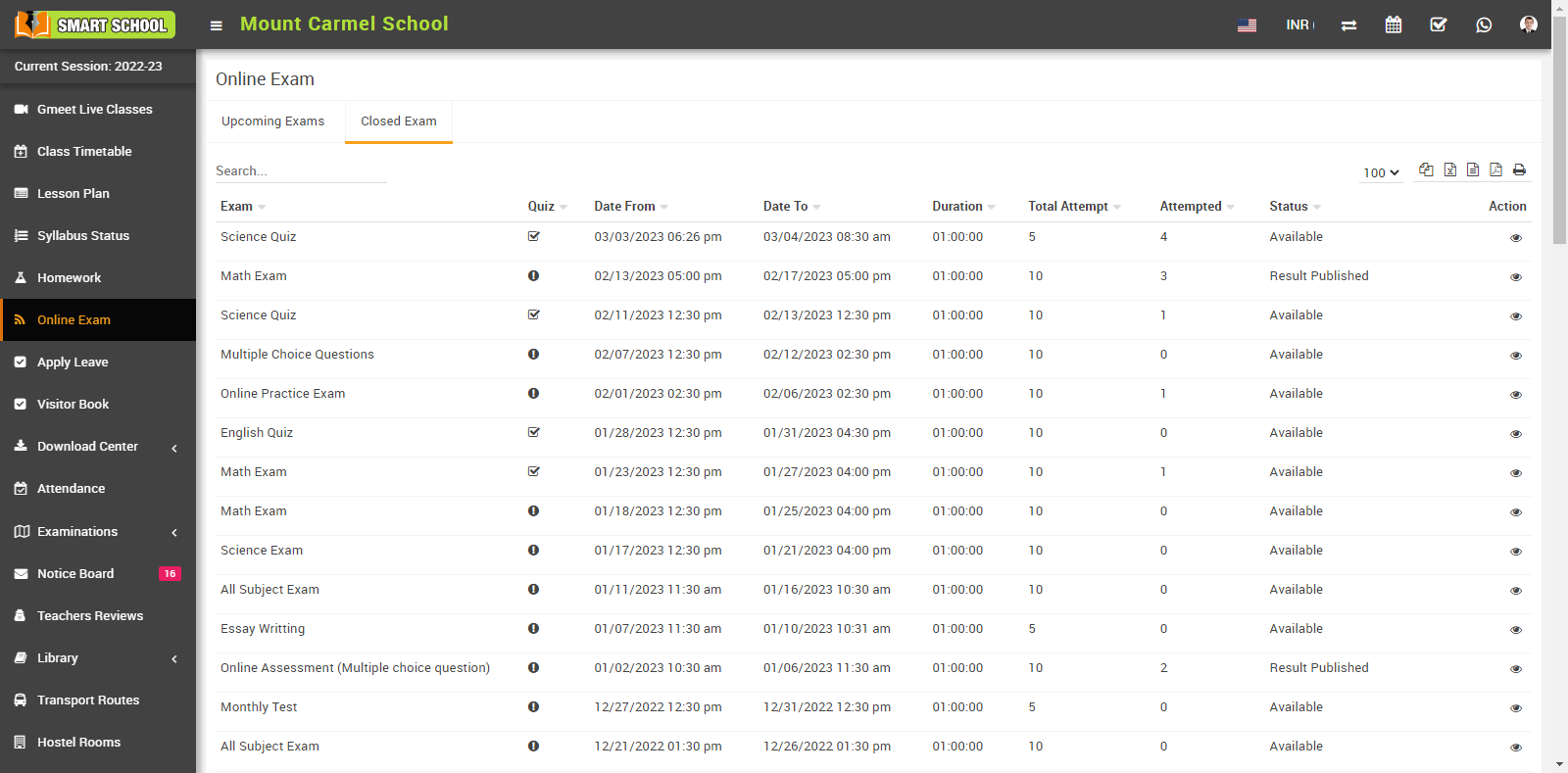
In Action column you can see view icon showing, simply click on view icon, online exam page will be open.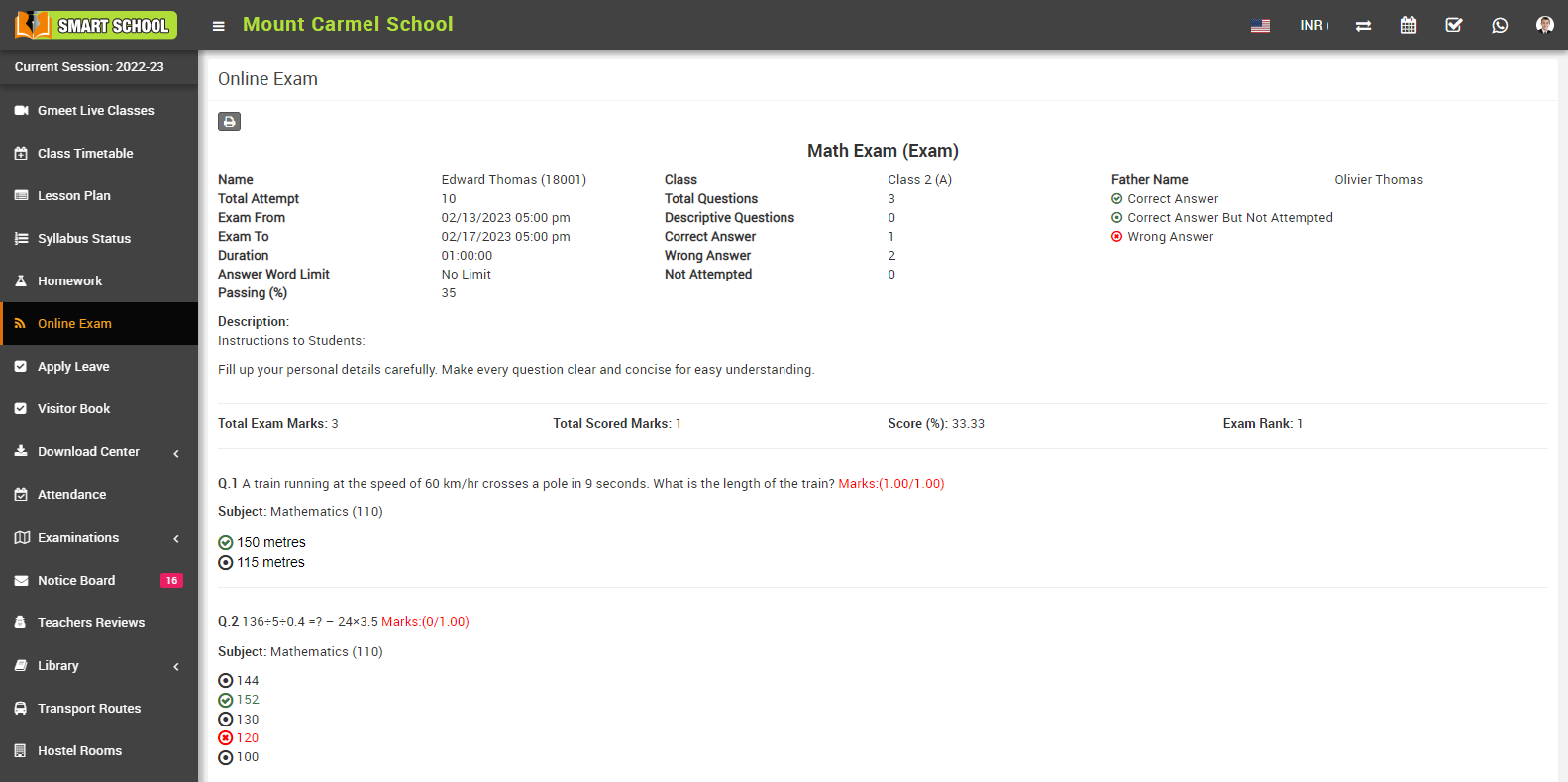
In closed exam list, you can see submitted exam or those exam whose exam date passed. In submitted exam you can see Exam Result as Total Exam Marks, Total score, Score percentage, Exam Rank and below you can see the question and their marked answers as well as its correct answer.
How to apply Leave?
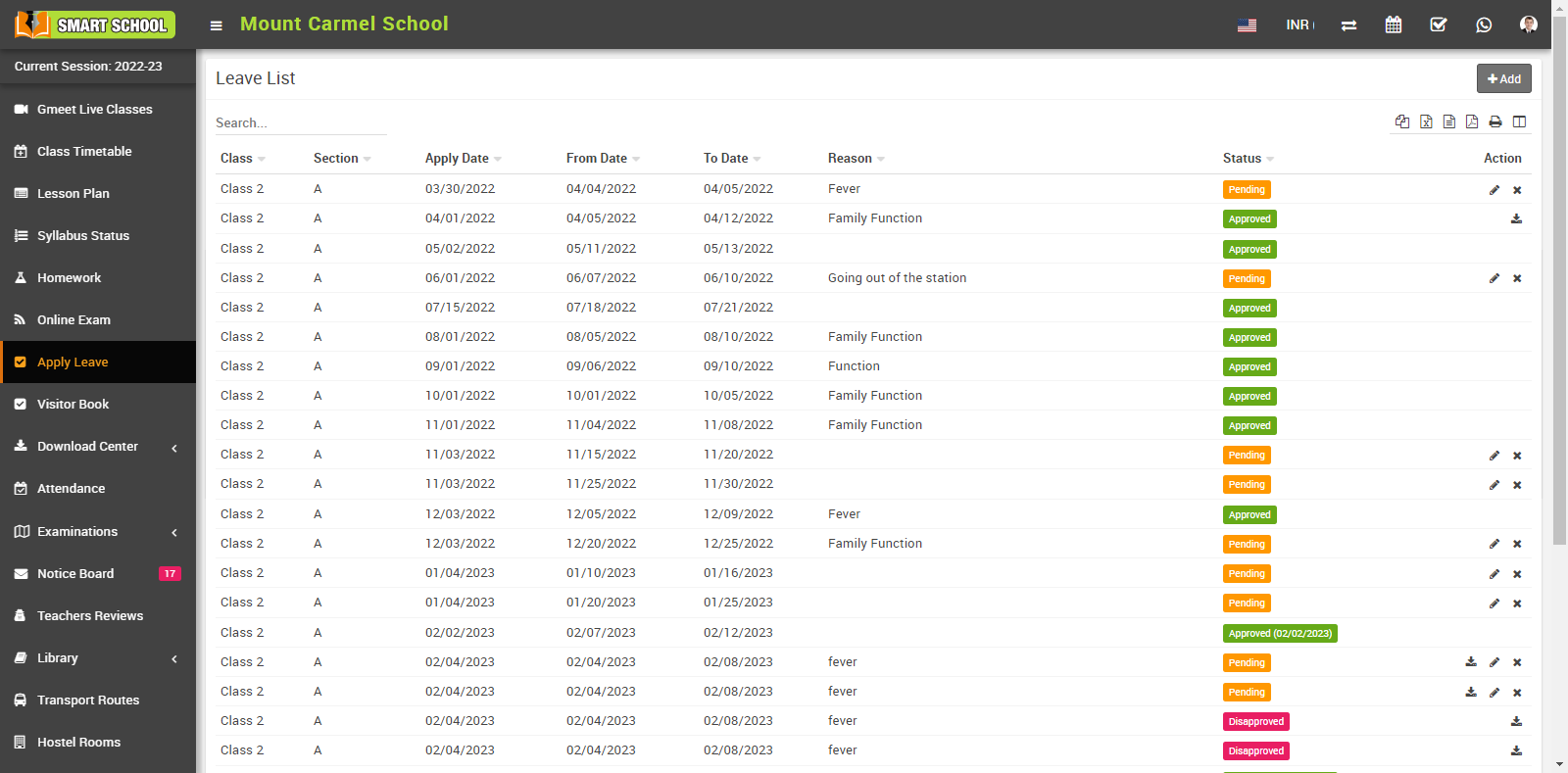
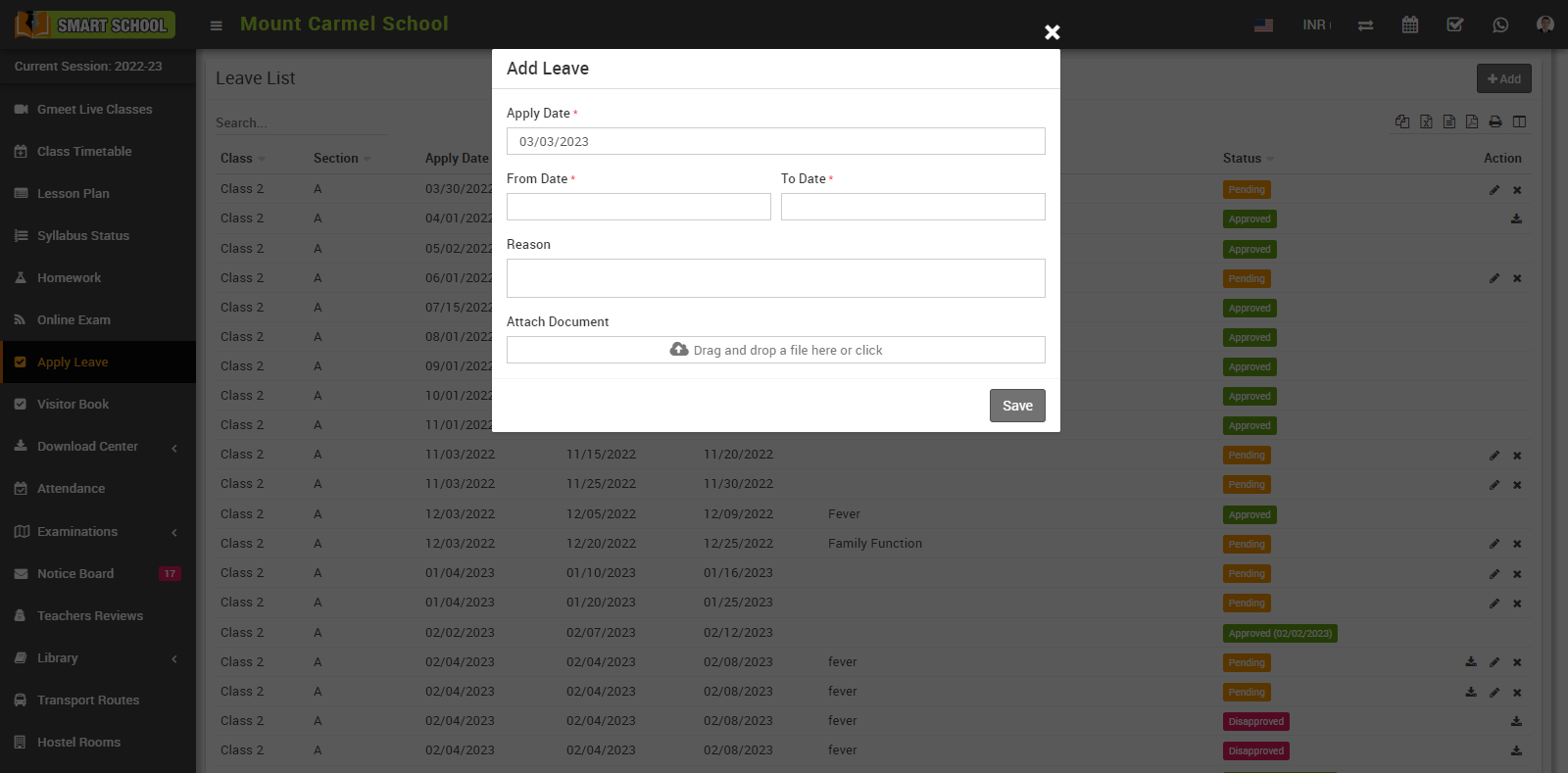
then click on Add button showing at top right corner in the leave list page, clicking of this button Add Leave modal will be open. Here select Apply Date, Class, From Date, To Date, Reason, Attach Document and then click on Save button. You can view this added record in the Leave List page.
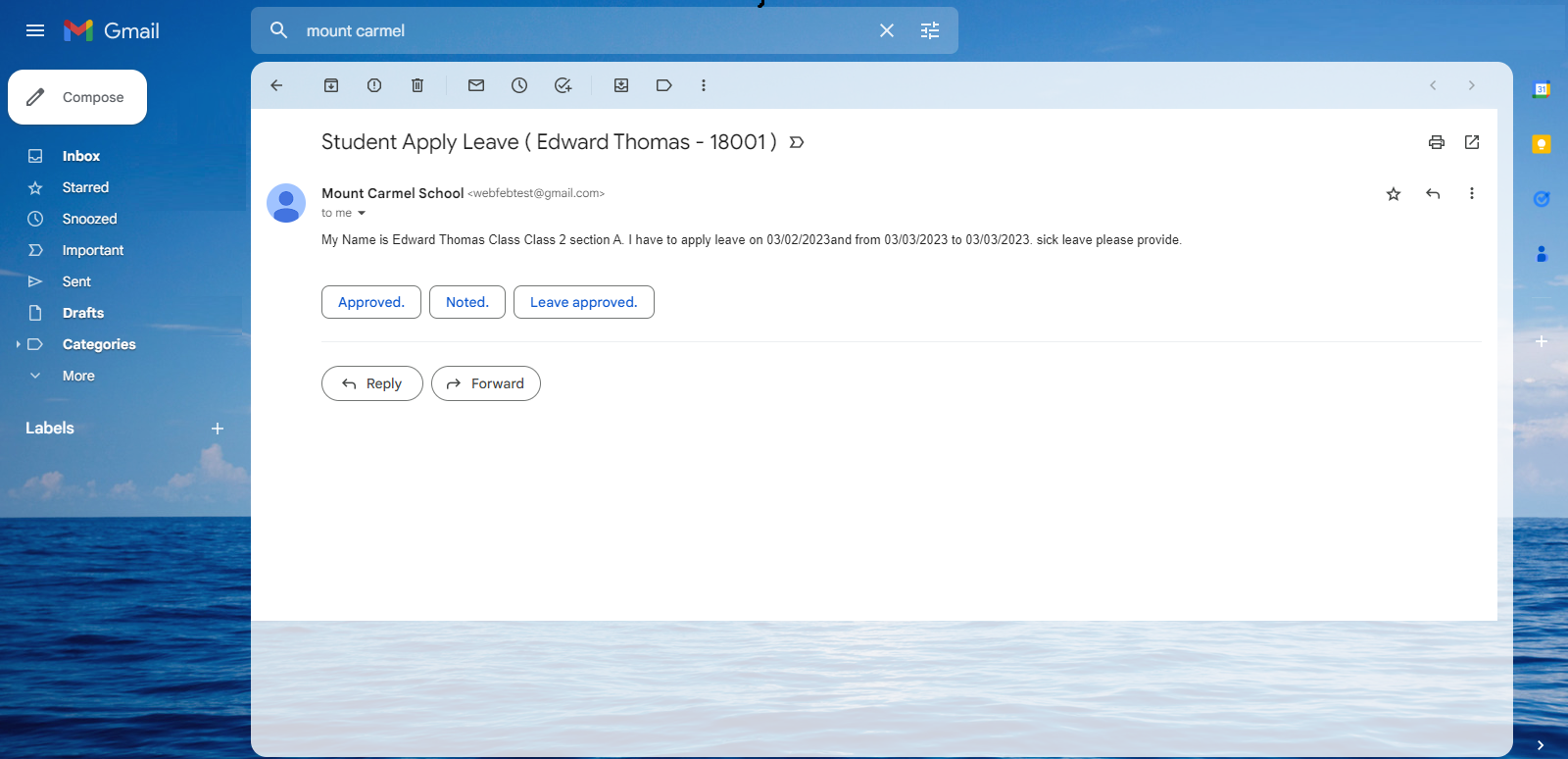
Once the student applies for leave, a notification email will be sent simultaneously to their class teacher to make them aware of their absence.
And student can see added leave in the Leave List page with status.
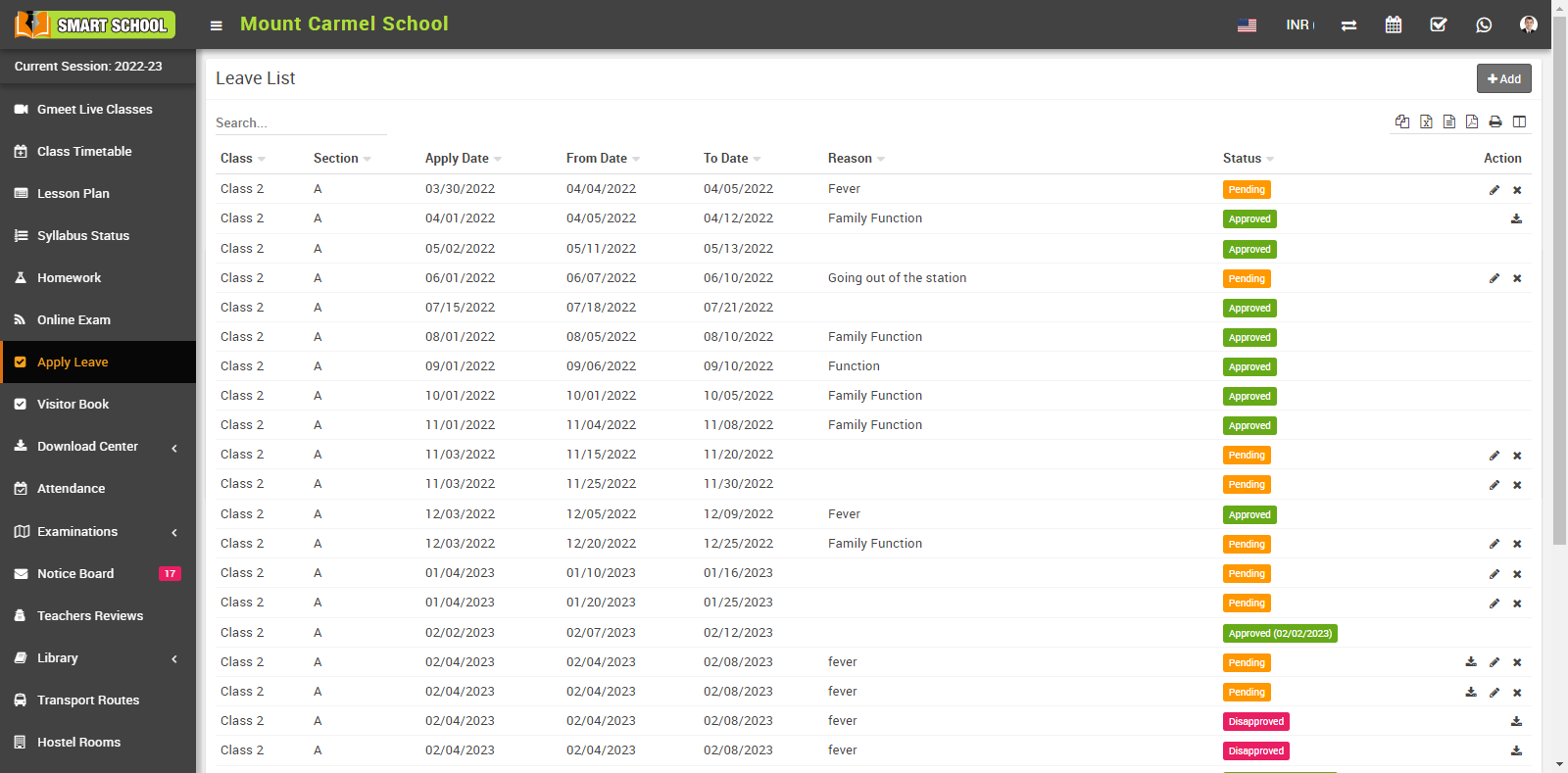
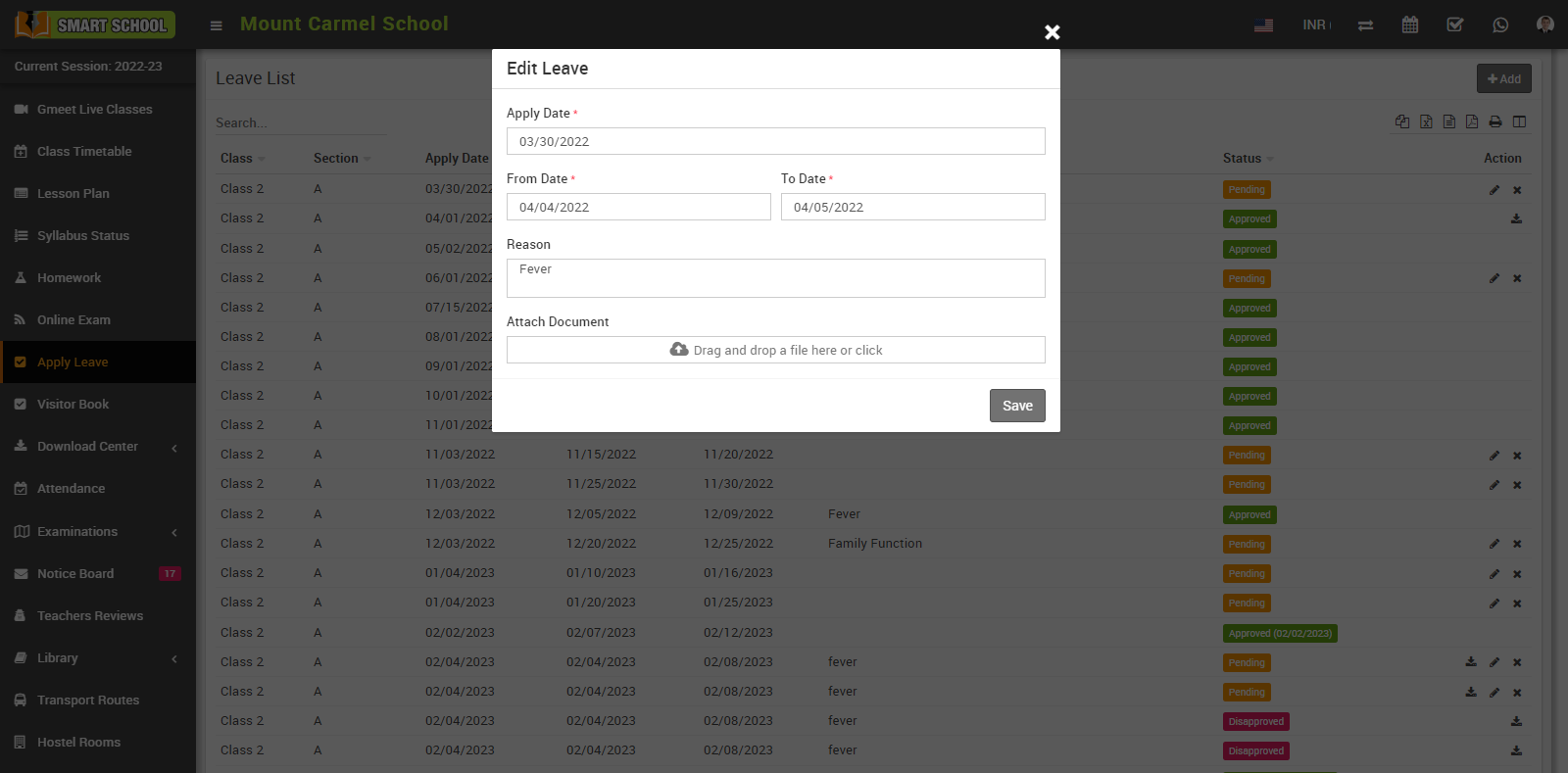
If student want to apply leave simply go to click on Edit icon showing at the Action column edit leave model will be open, now here update the details and click on Save button student applied leave update successfully.
To delete apply leave, click on Delete icon showing in the Action column, confirmation model will be open.
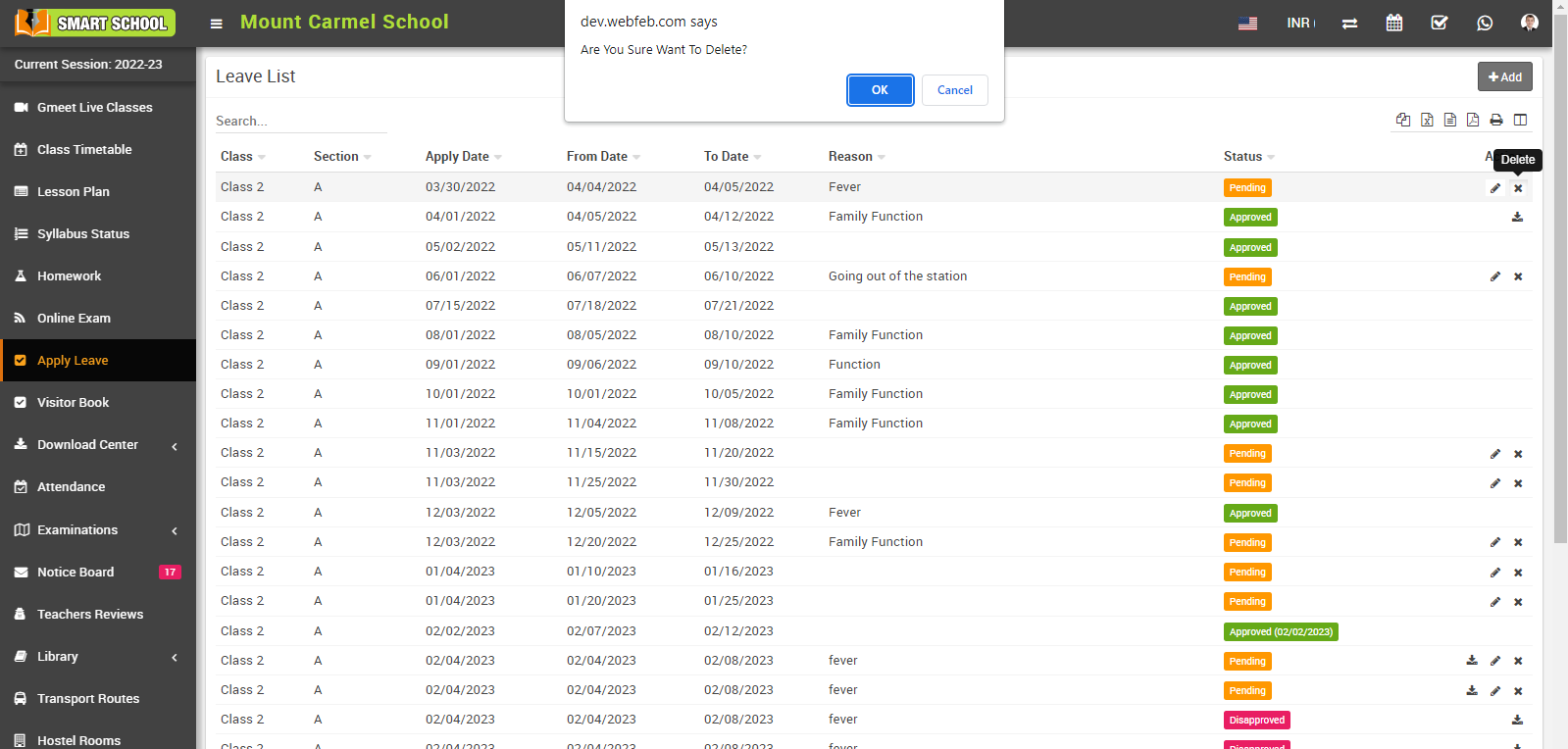
Now click on the OK button, applied leave will be delete successfully.
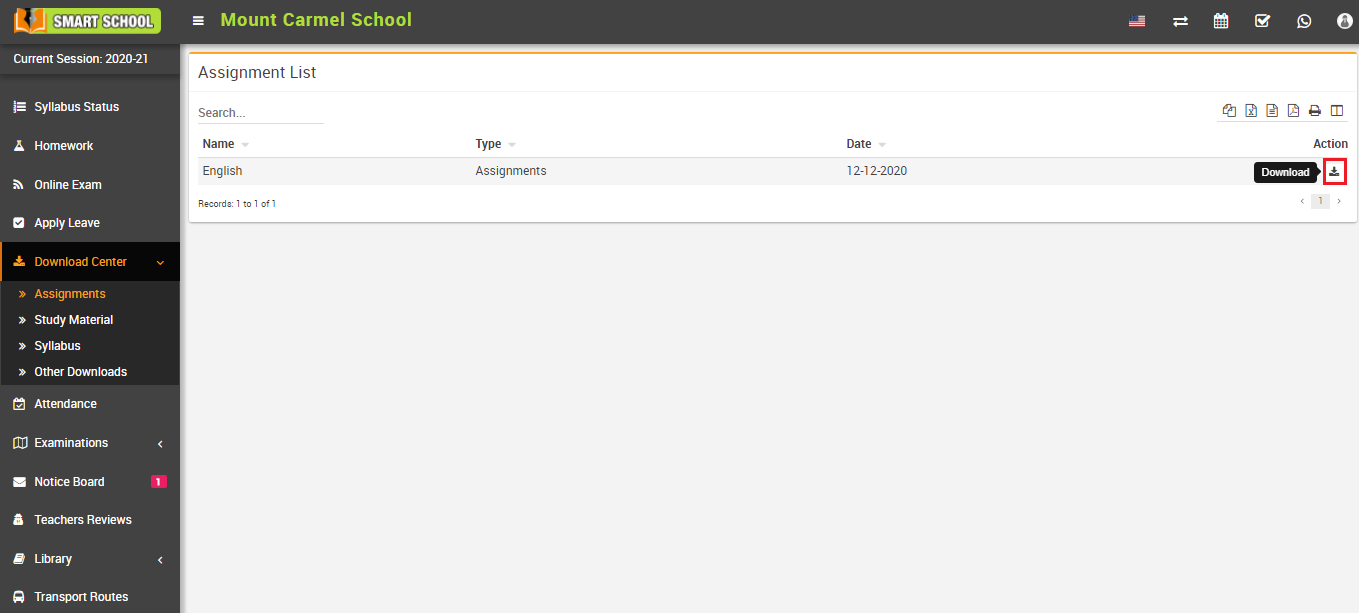
How to download uploaded Assignment?
How to check student (day wise) monthly Attendance?
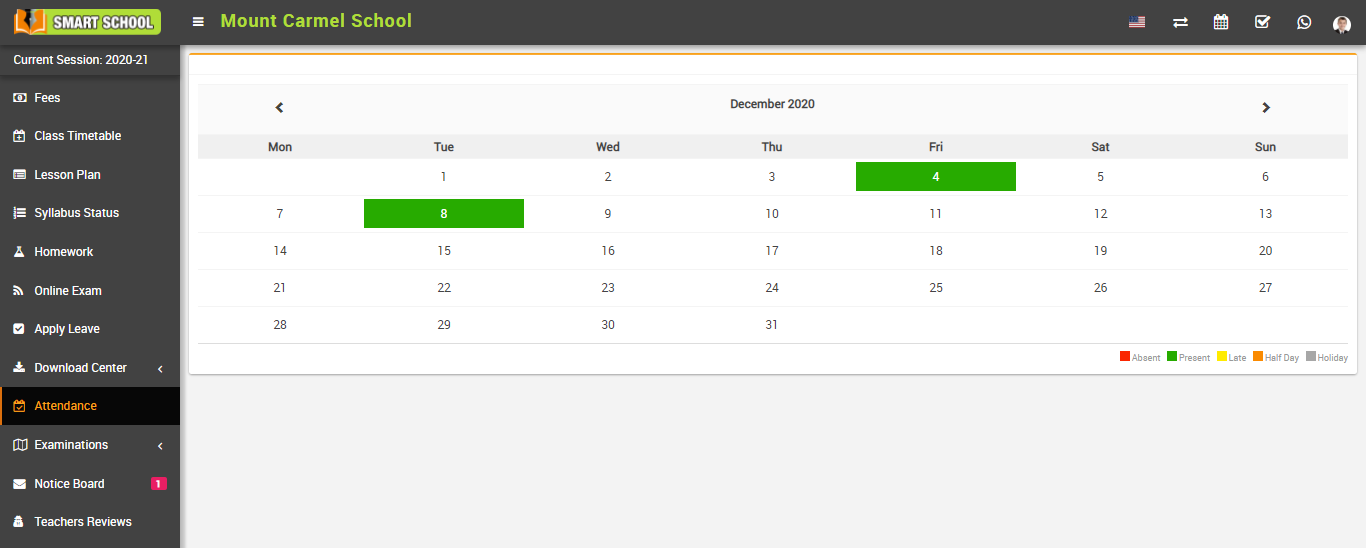
Note - If type of attendance is selected Period wise (from admin side), then you will see Period Wise Attendance not Day Wise Attendance .
How Student can check Exam Schedule?
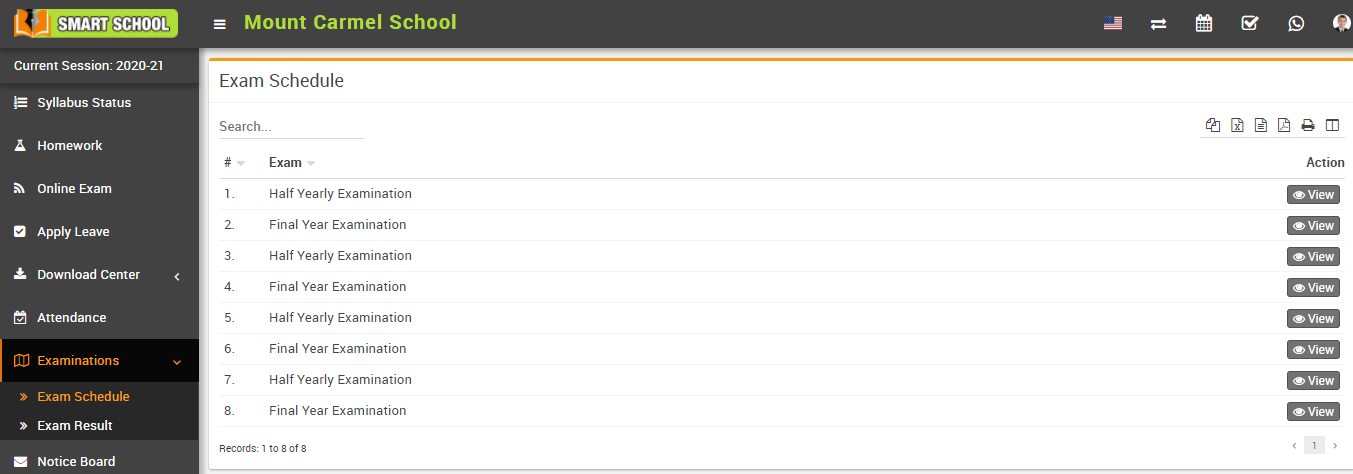
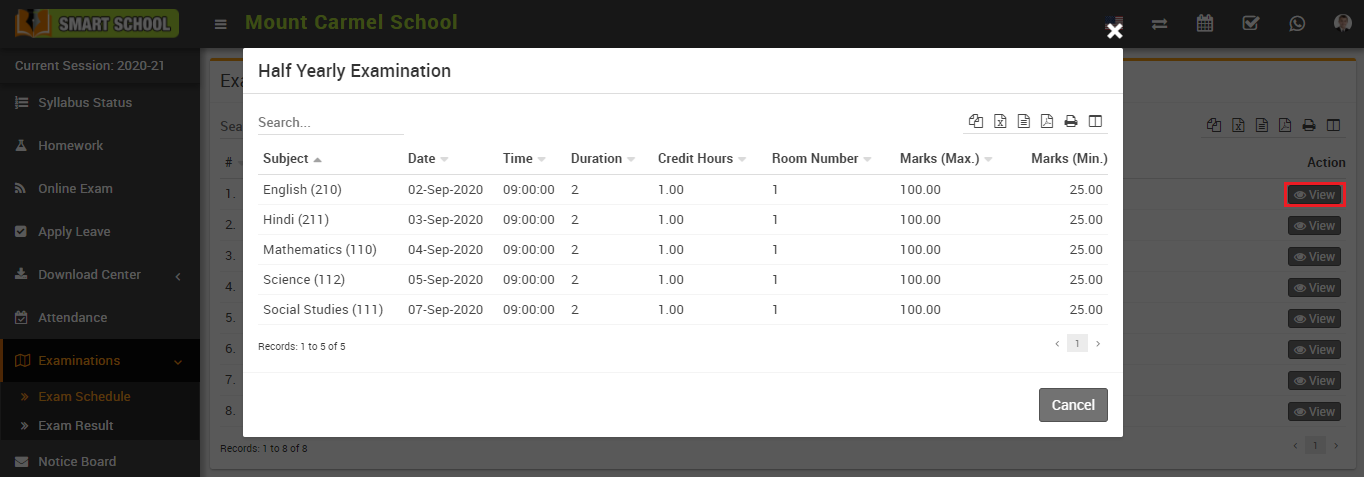
To view exam schedule click on View icon present at Action column in exam schedule page, at click of this icon Examination modal will be open. Here you can see exam schedule details.
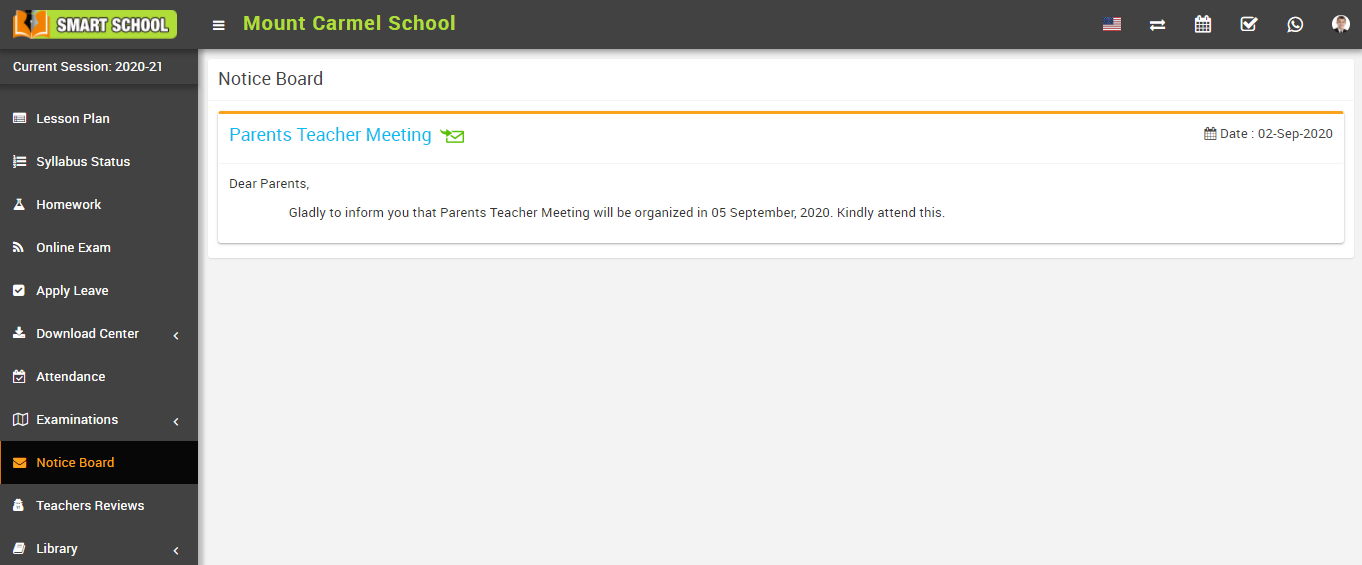
How student can view message in Notice Board?
How to add teacher 's review?
To add teacher review, go to sidebar menu and click on Teacher Review link then click on Add icon present in Rate column in the teacher reviews page, at click of this icon Rate modal will be open.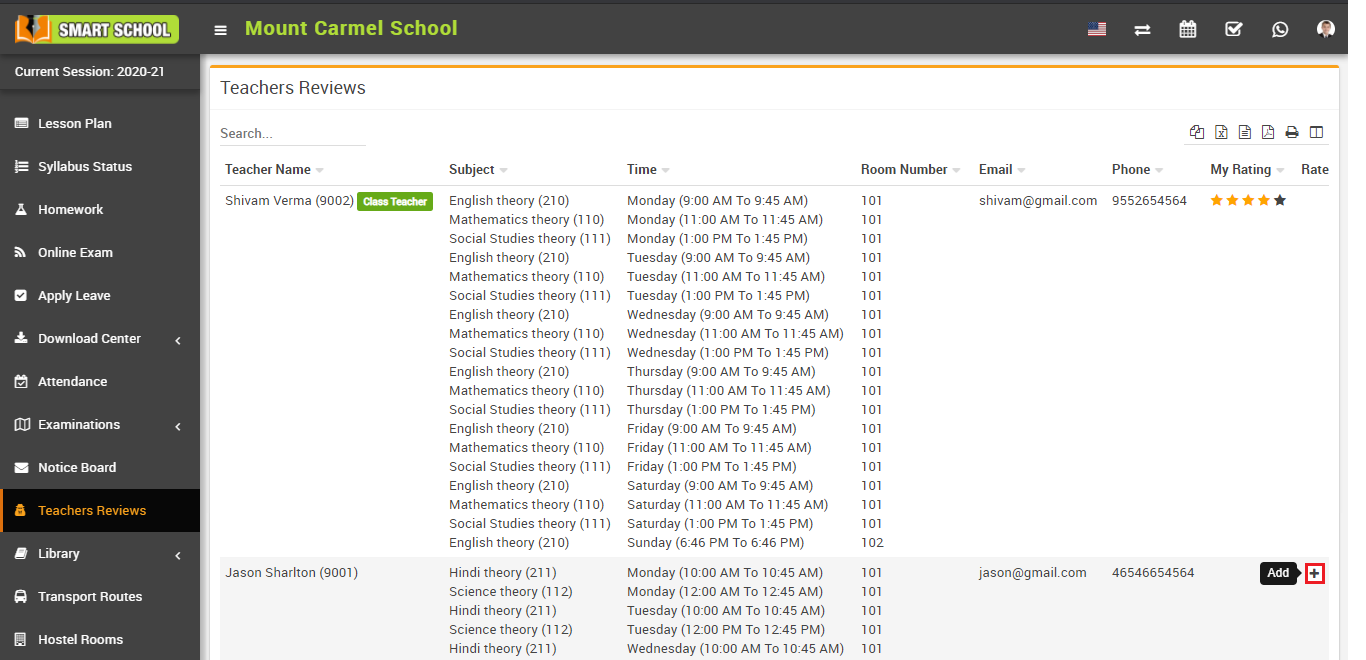
Here add Rating and enter Comment and then click on Save button.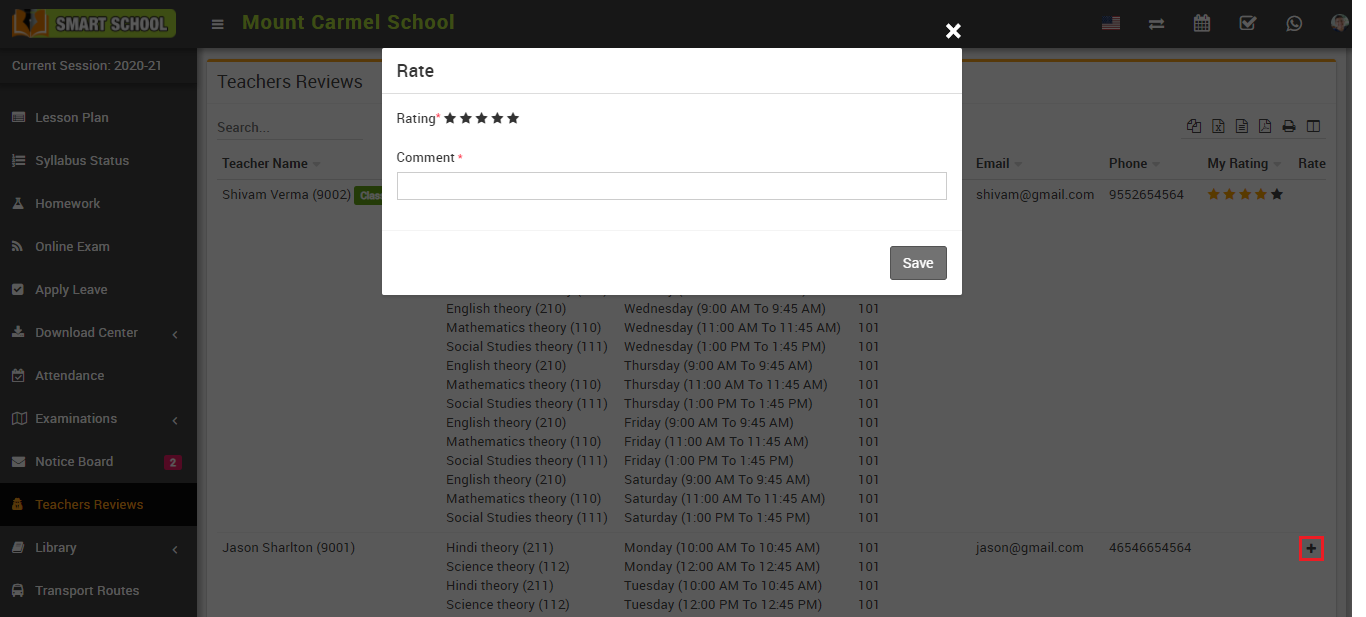
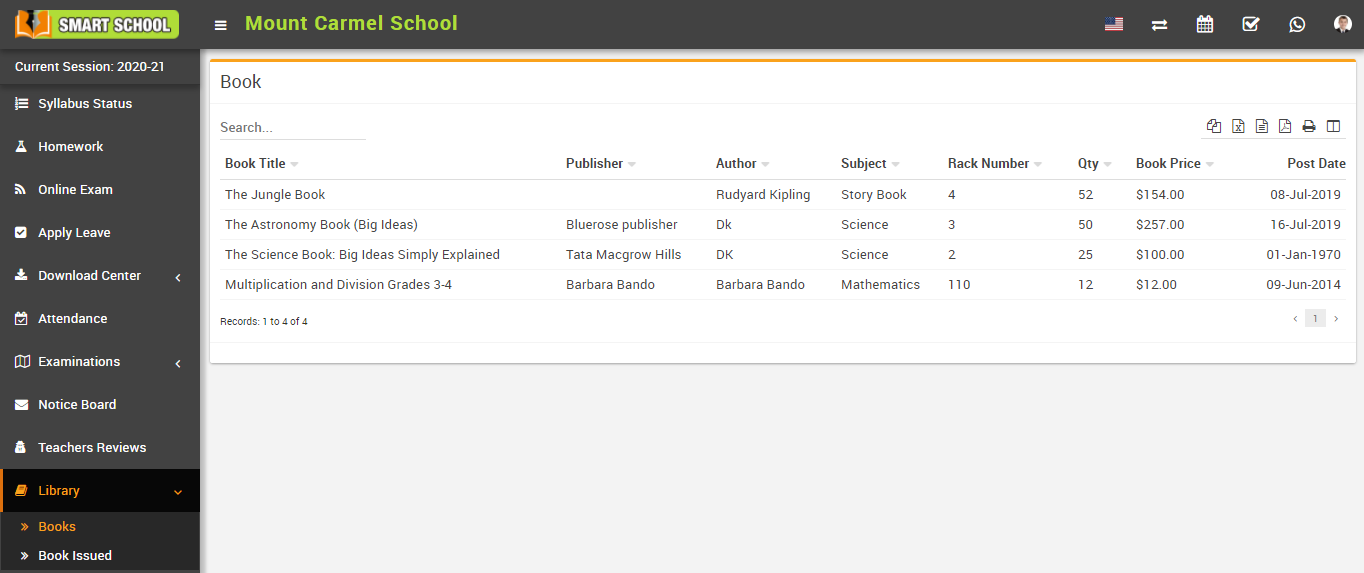
How to view Books list in Library?
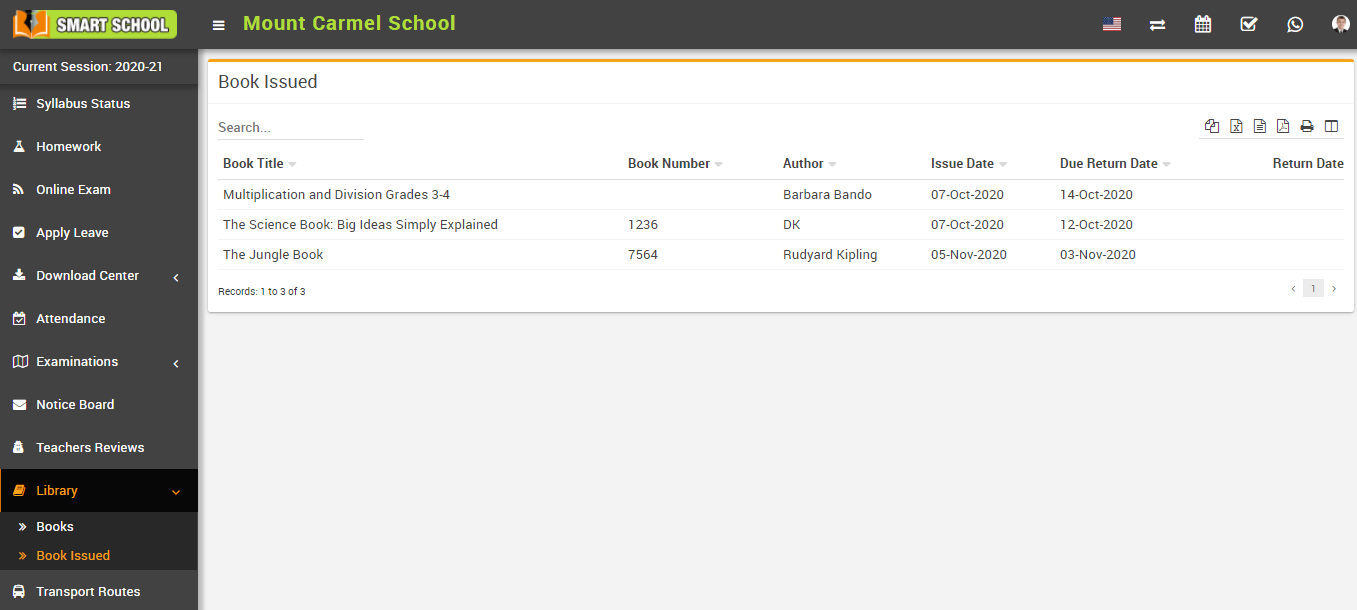
To view issued book list, go to sidebar menu and click on Library > Book Issued, here student can see all the book that has been issued to him/her. Student can search any book by entering Book Title, Book Number, Author, Issue Date, Due Return Date and Return Date.
How to view Transport Routes list?
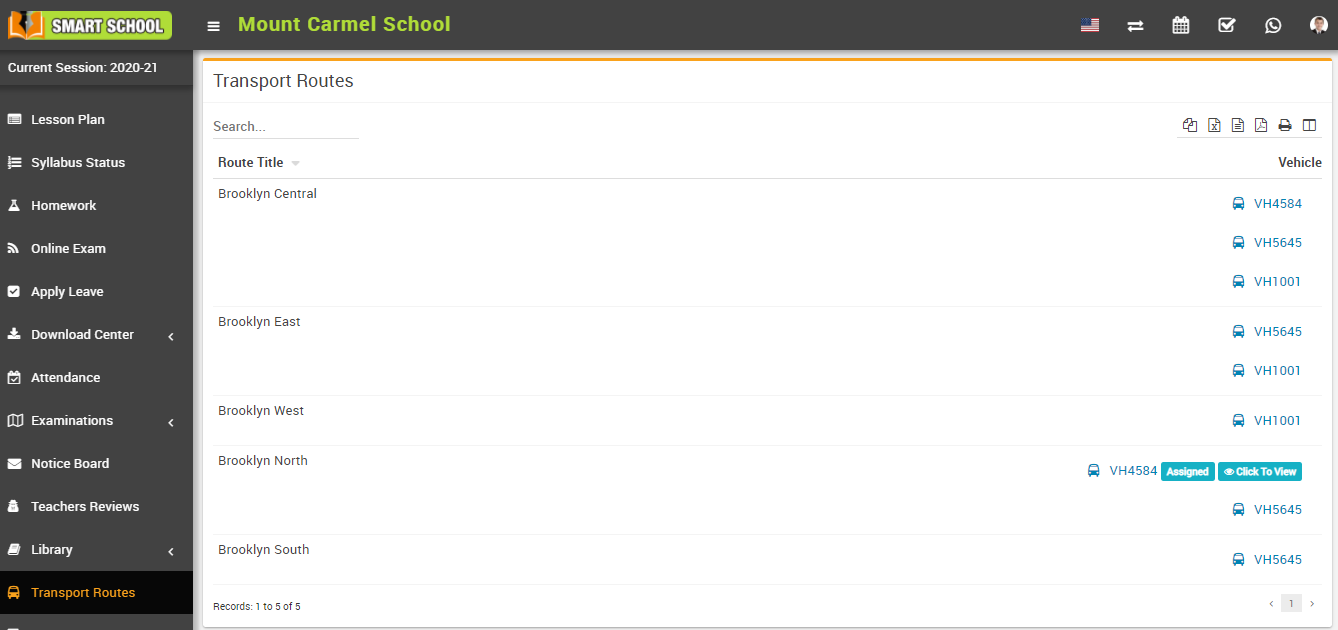
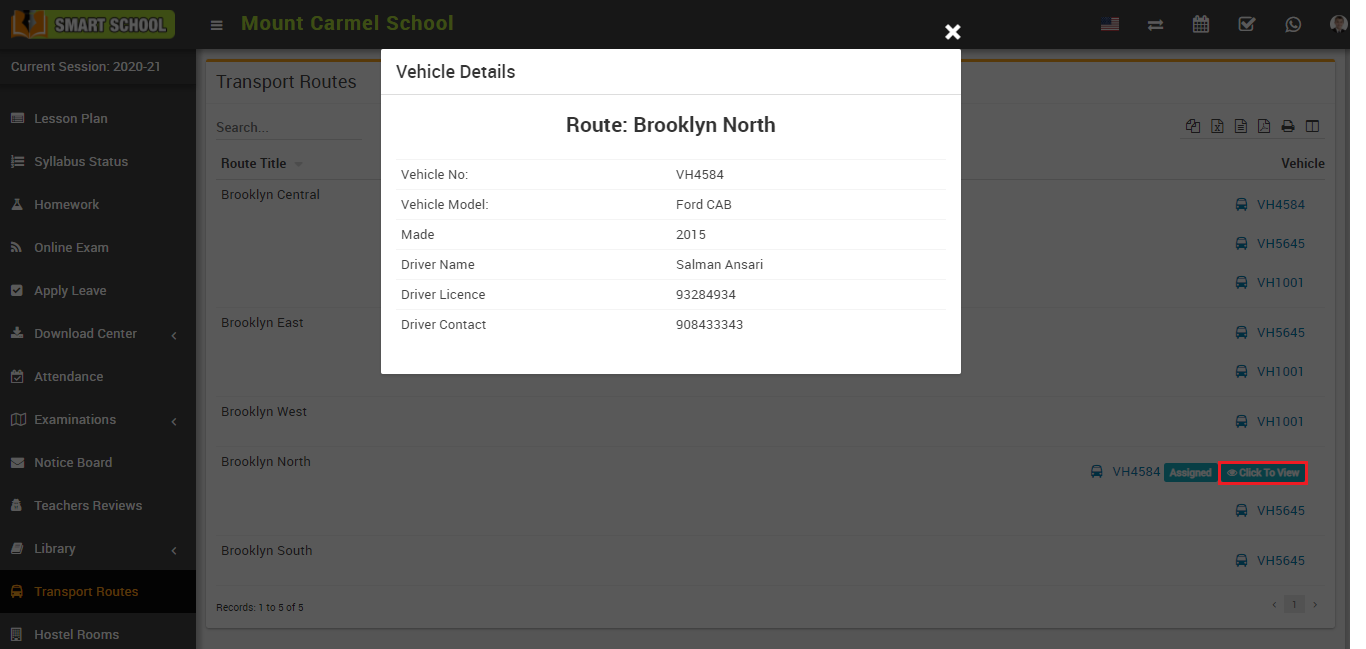
To view assigned vehicle, click on Click To View button present at Vehicle column in the transport routes page, at click of this button Vehicle Details modal will be open. Here student can see vehicle details like Vehicle No, Vehicle Model, Made, Driver Name, Driver Licence, Driver Contact.
How to view Hostel Rooms?