About QR Code Attendance
About QR Code / Barcode Attendance
QR Code / Barcode Attendance : To each Student and Staff assigned a unique QR code / Barcode that represents their identity. These QR Code / Barcode can be generated from the certificate module of our smart school and these code usually contains information about the individual, such as a unique identifier.
- QR code / Barcode are seamlessly integrated into the student and staff ID cards additionally, individuals can conveniently access their QR codes / Barcodes through their dedicated student and staff profiles.
- To mark attendance, an organizer or instructor uses a QR code scanner.
- Student and Staff present their QR Code / Barcode to be scanned upon entry.
- The scanner reads the code, and attendance data is recorded in the system.
- Attendance records are updated in real-time, providing accurate and timely information.
- This data accessed by administrators for tracking and reporting purposes.
- Administrators gain seamless access to this data, empowering them for comprehensive tracking and insightful reporting.
How to disabled the auto attendance and mark the attendance of student and staff using QR Code / Barcode?
To disabled the auto attendance, Go to the QR Code Attendance > Setting.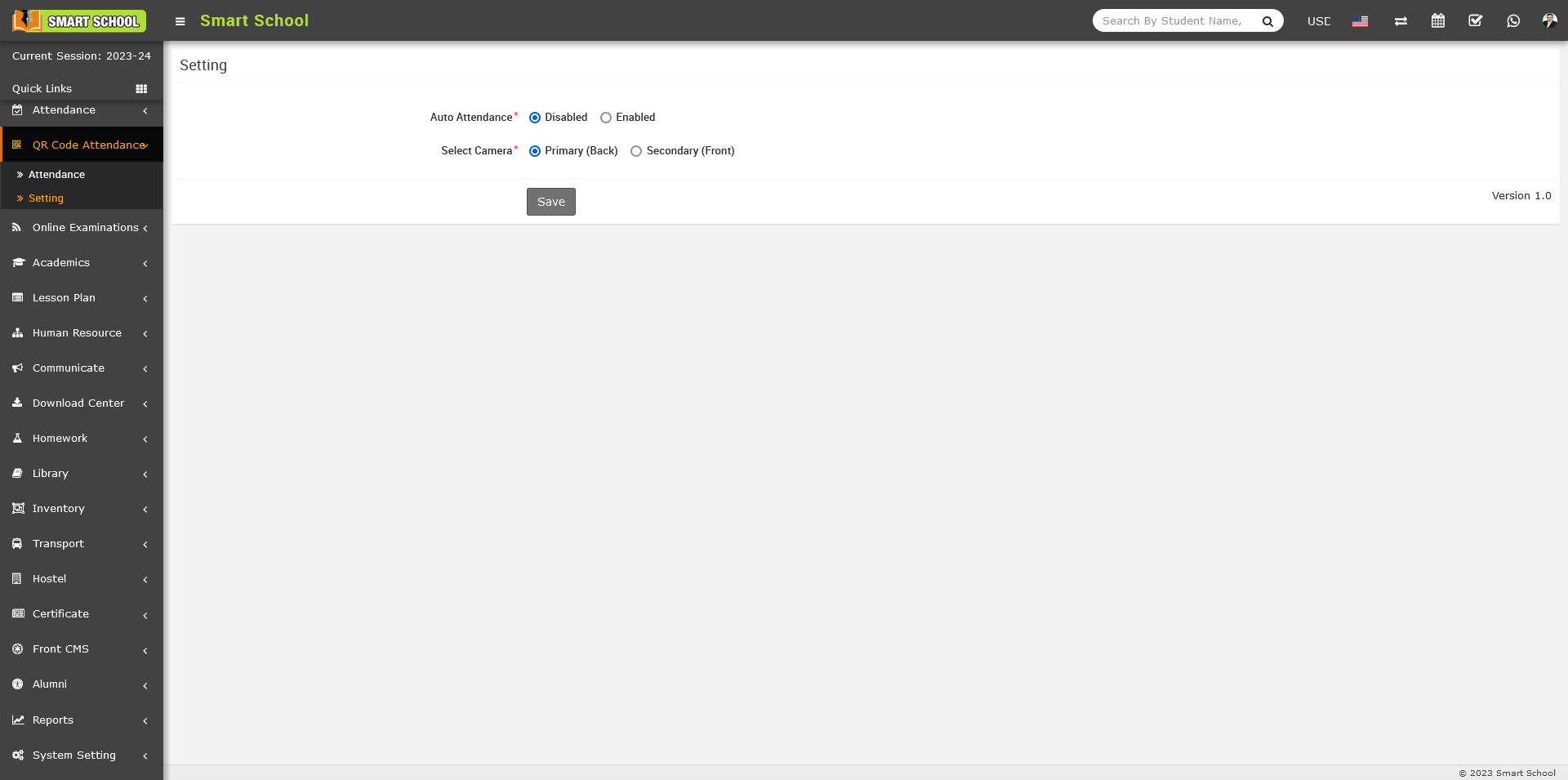
On the right side setting page will be open, here you can see the Auto Attendance Disabled and Enabled option available. Simply click on disabled option and auto attendance will be disabled now you are not able to mark the attendance automatically.
Now see how it’s work, simply go to the QR Code Attendance > Attendance. Here, you can see QR Code Attendance page will be open, on this page you can see one scanner is open.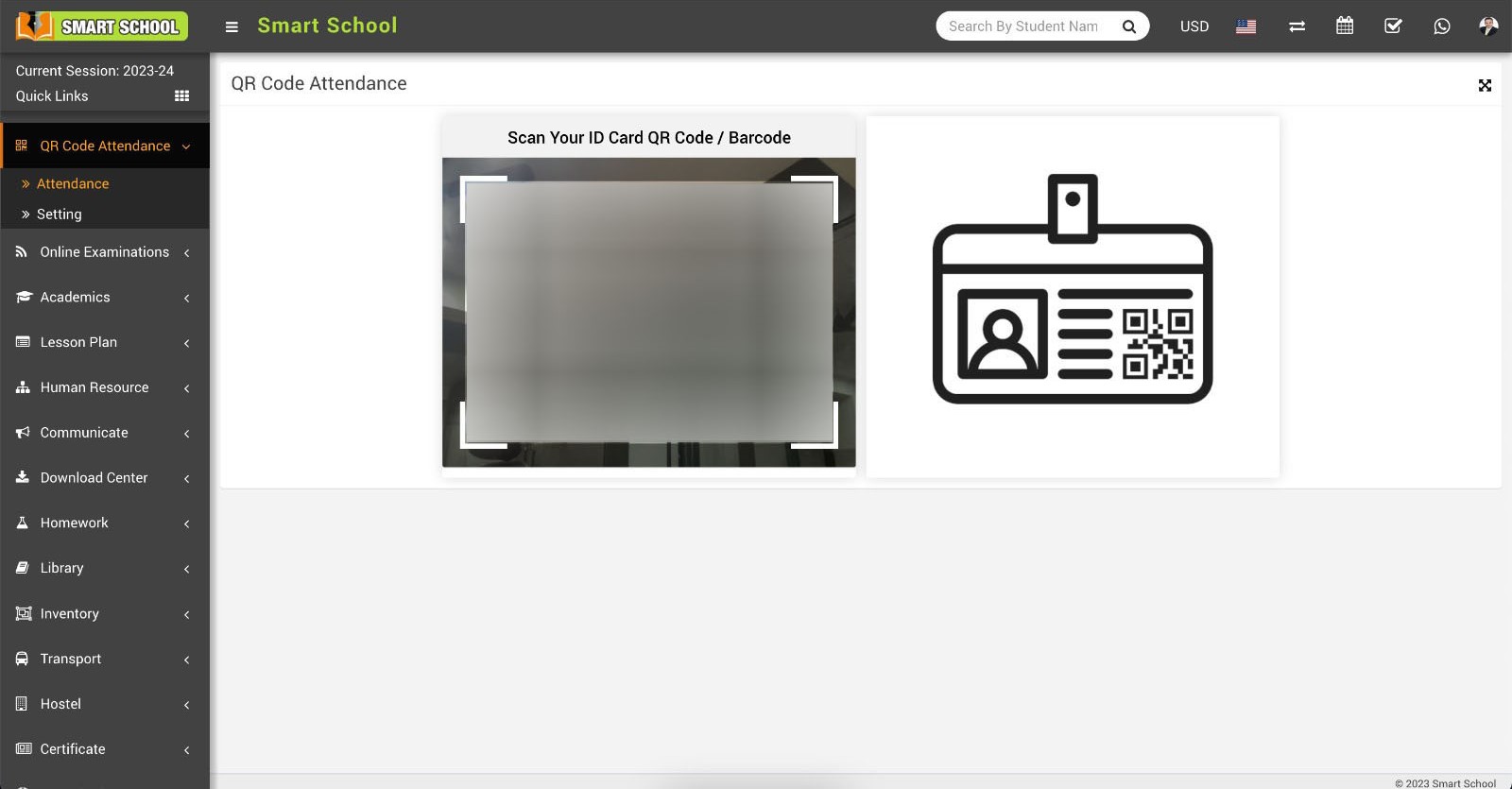
Now you are ready for mark the attendance, simply take student and staff id card in which QR Code / Barcode is already displayed, just show the ID card in front of scanner and scanner will scan the QR Code / Barcode then manual option for mark the attendance will be show in same page.
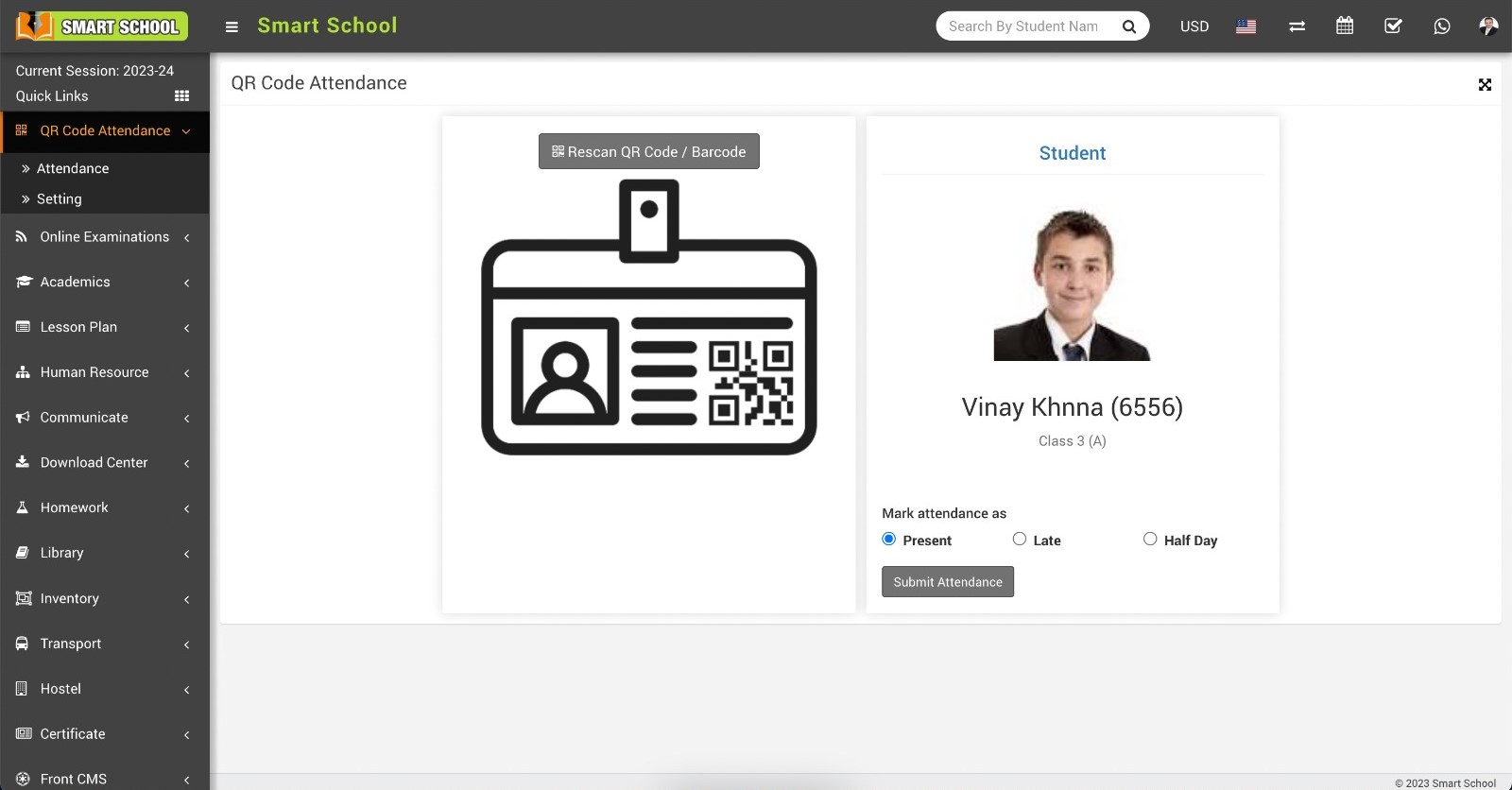
Now, you can view some details of the student, such as the student's image, name, class, section, and admission number and below, you can see the attendance options are available, simply mark the attendance as Present, Late, or Half Day , this depends on the time of attendance and click on the Submit Attendance button, attendance will be submit successfully and message also displayed on the screen.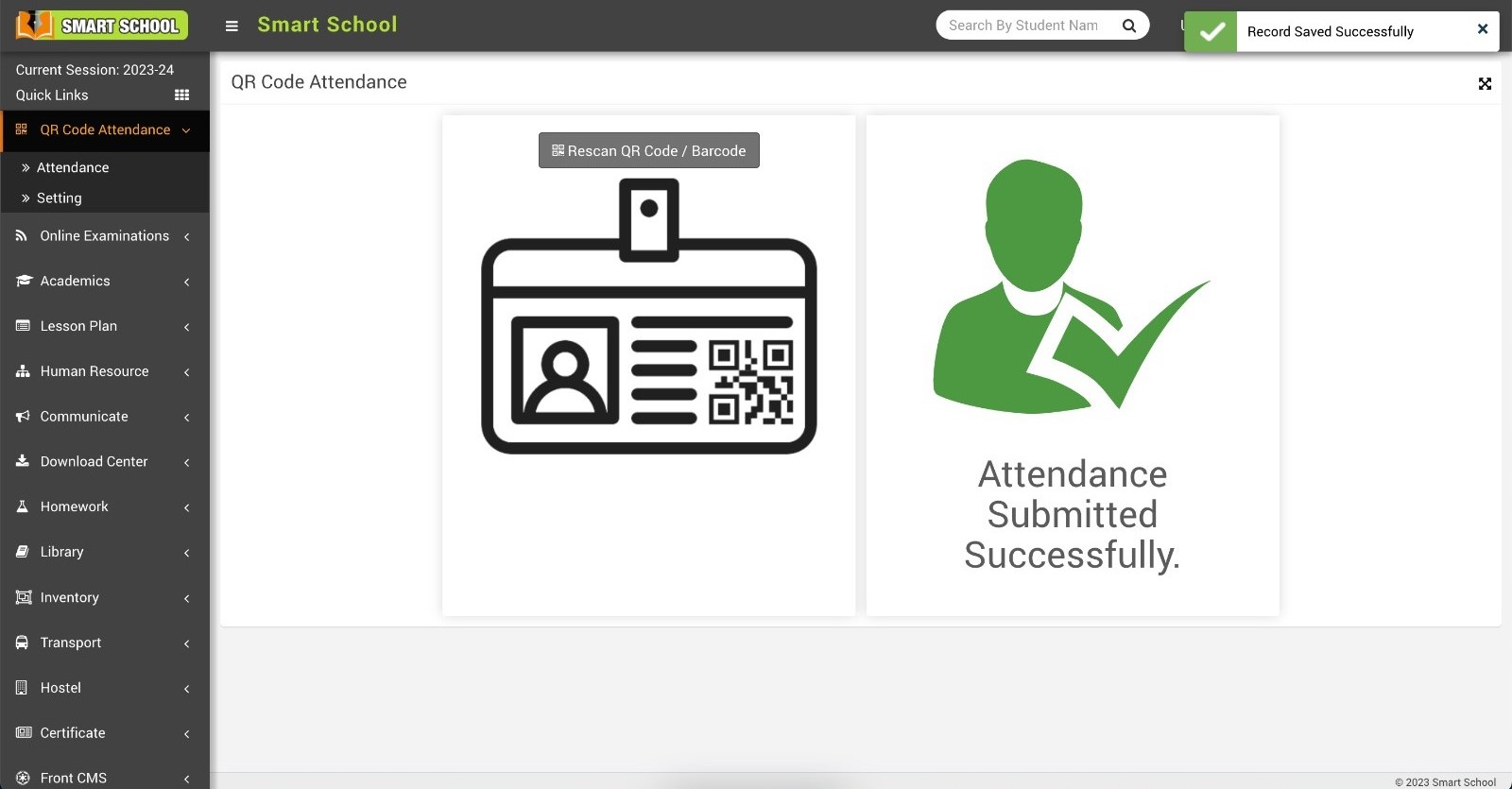
If you wish to rescan the same ID card of the student or staff member, click on the Rescan QR Code / Barcode button located at the top. The scanner will open, proceed to scan the ID card. This time, a message will be displayed that Attendance Has Been Already Submitted as Present, Late, or Half Day.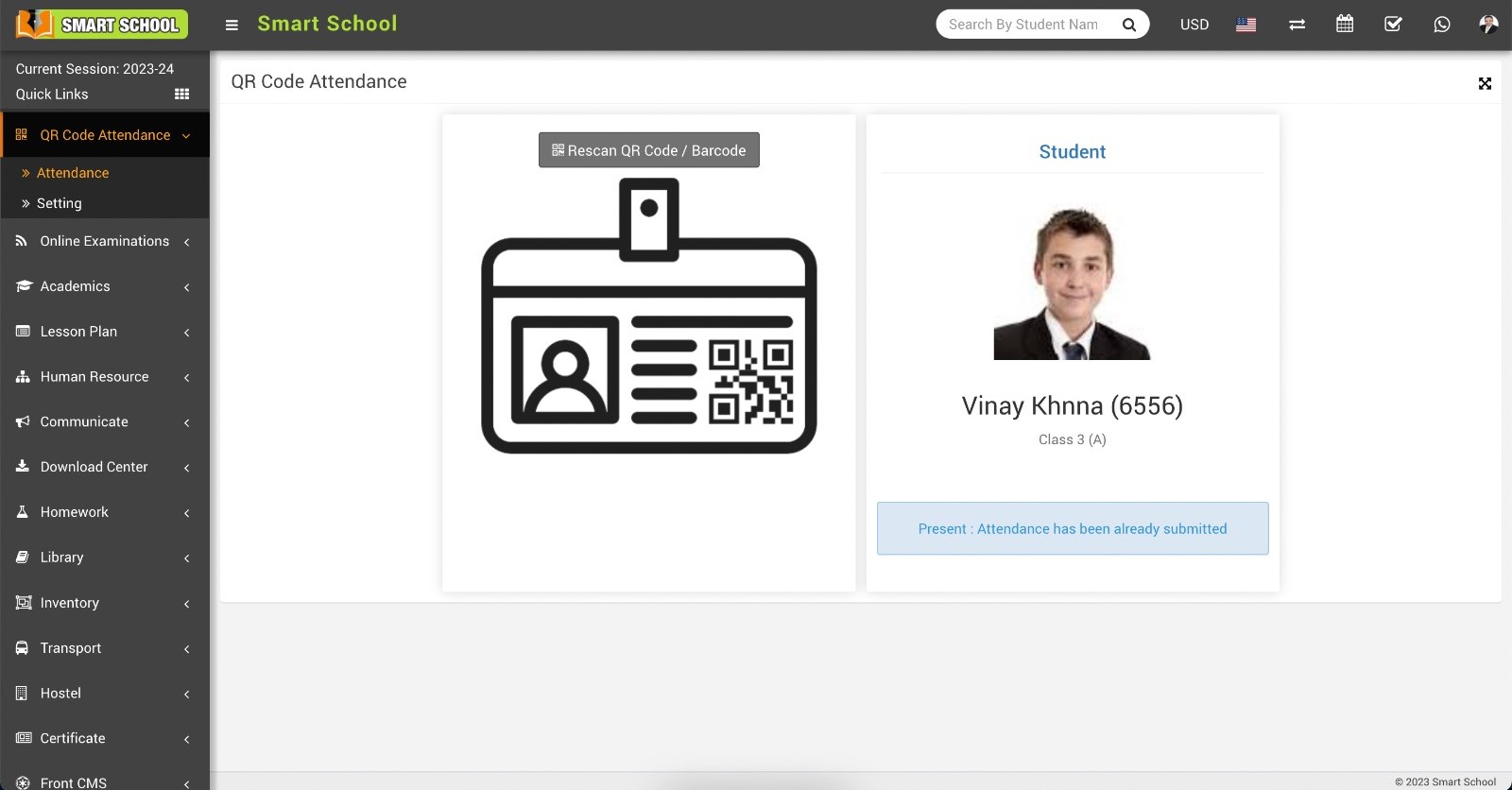
Now rescane staff Id card
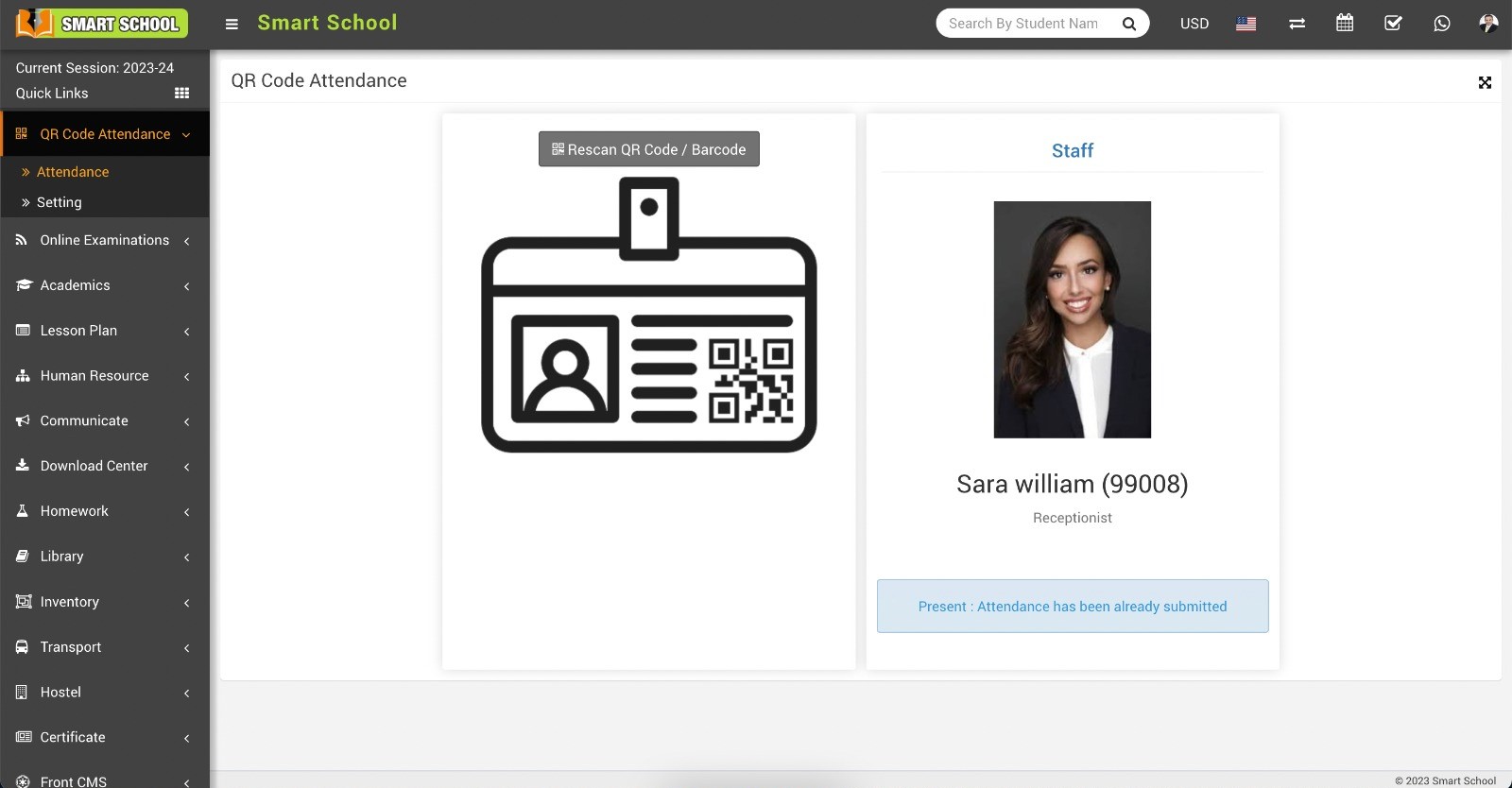
To verify the attendance which you marked using QR Code/Barcode of student, simply go to the Attendance > Student Attendance.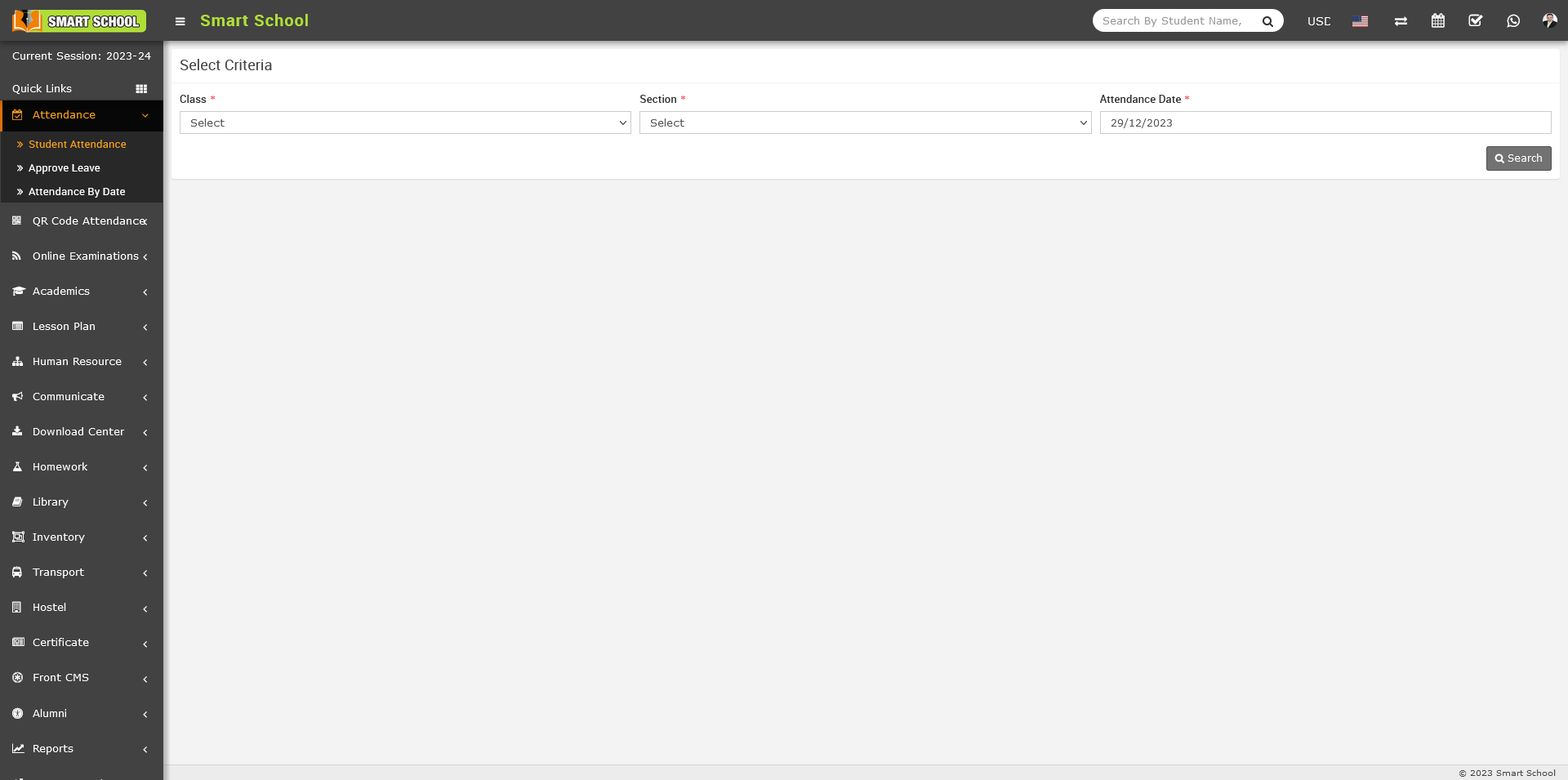
Simply, search the student attendance you marked by scanned the QR Code / Barcode, select the Class, Section, and Attendance Date then, click on the Search button, then student list along with their attendance will be displayed below and in the source column show the type of attendance here we marked the attendance through the QR Code/Barcode 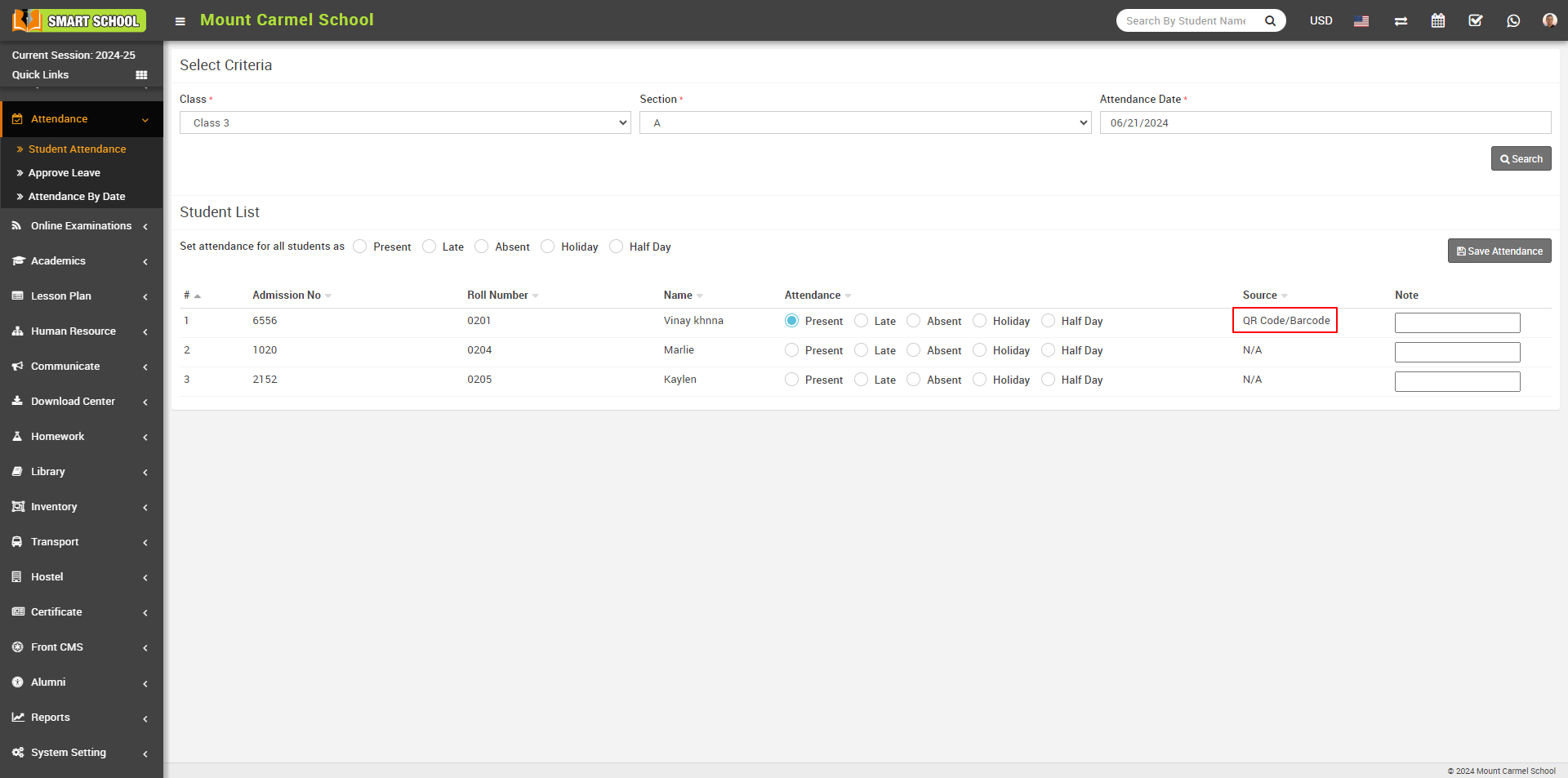
On this page, you can verify the attendance of the student whose ID card was scanned, and the attendance status will be displayed, indicating whether the student was Present, Late, Or Half-Day. Here you can also varify the time and source of the attendance.
Same process apply to verify the attendace of the staff, simply go to the Human Resource > Staff Attendance.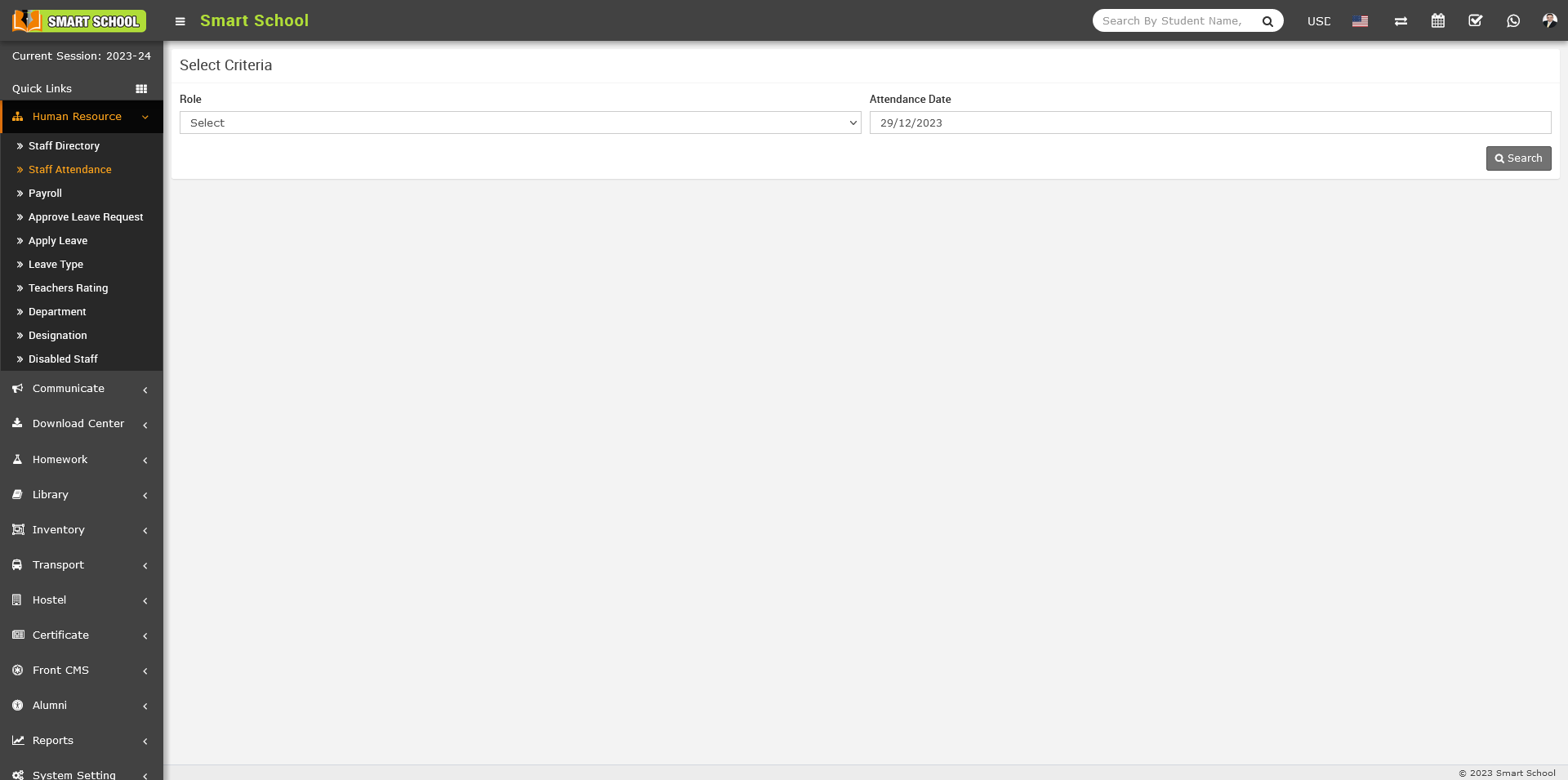
Here search the Role of the staff and select the Attendance Date then click on the search button the attendance will be display below and in the source column show the type of attendance here we marked the attendance through the QR Code/Barcode 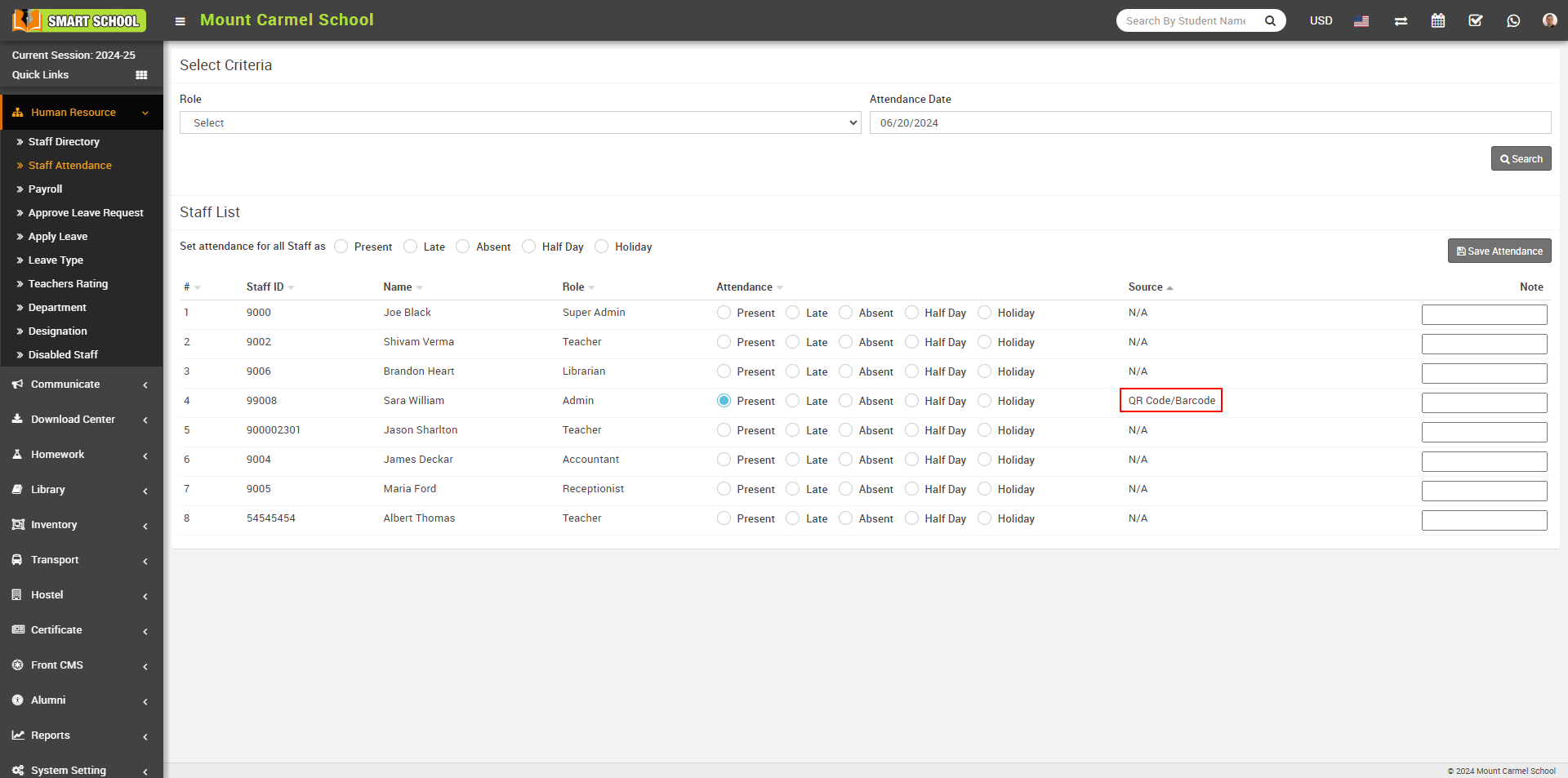
On this page, you can verify the attendance of the staff whose ID card was scanned, and the attendance status will be displayed, indicating whether the staff was Present, Late, Or Half-Day. You can also varify the Date and Source of the attendance on this page.
How to enable the auto attendance and mark the attendance of student and staff using QR Code / Barcode?
To Enabled the auto attendance, Go to the QR Code Attendance > Setting. When you click on the Setting button, on the right side setting page will be open, here you can see the Auto Attendance Disabled and Enabled option available.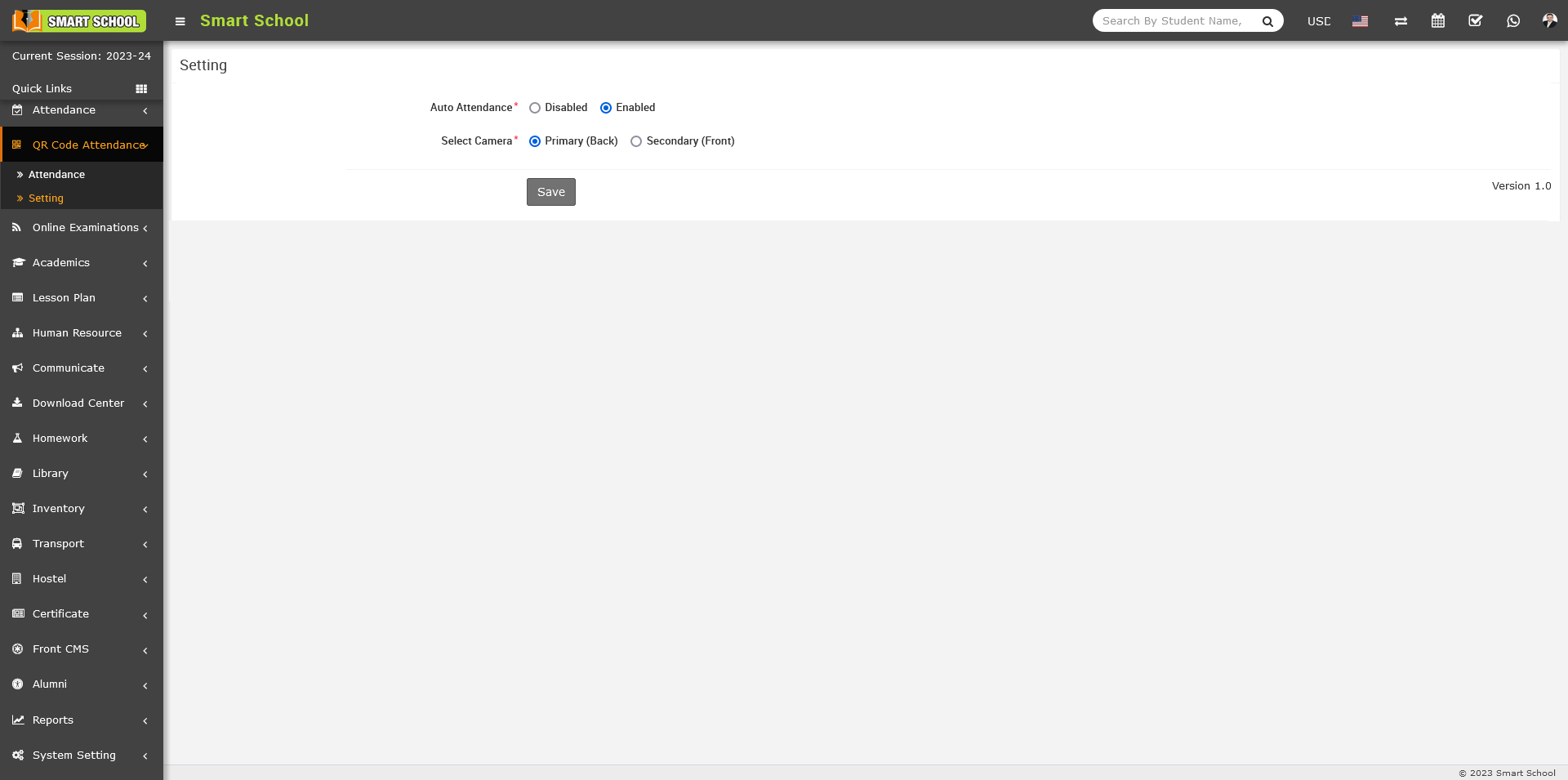
Simply click on Enabled and you are able to mark the attendance automatically, just scan the QR code and attendance will be marked.
Now see how it’s work, simply go to the QR Code Attendance > Attendance.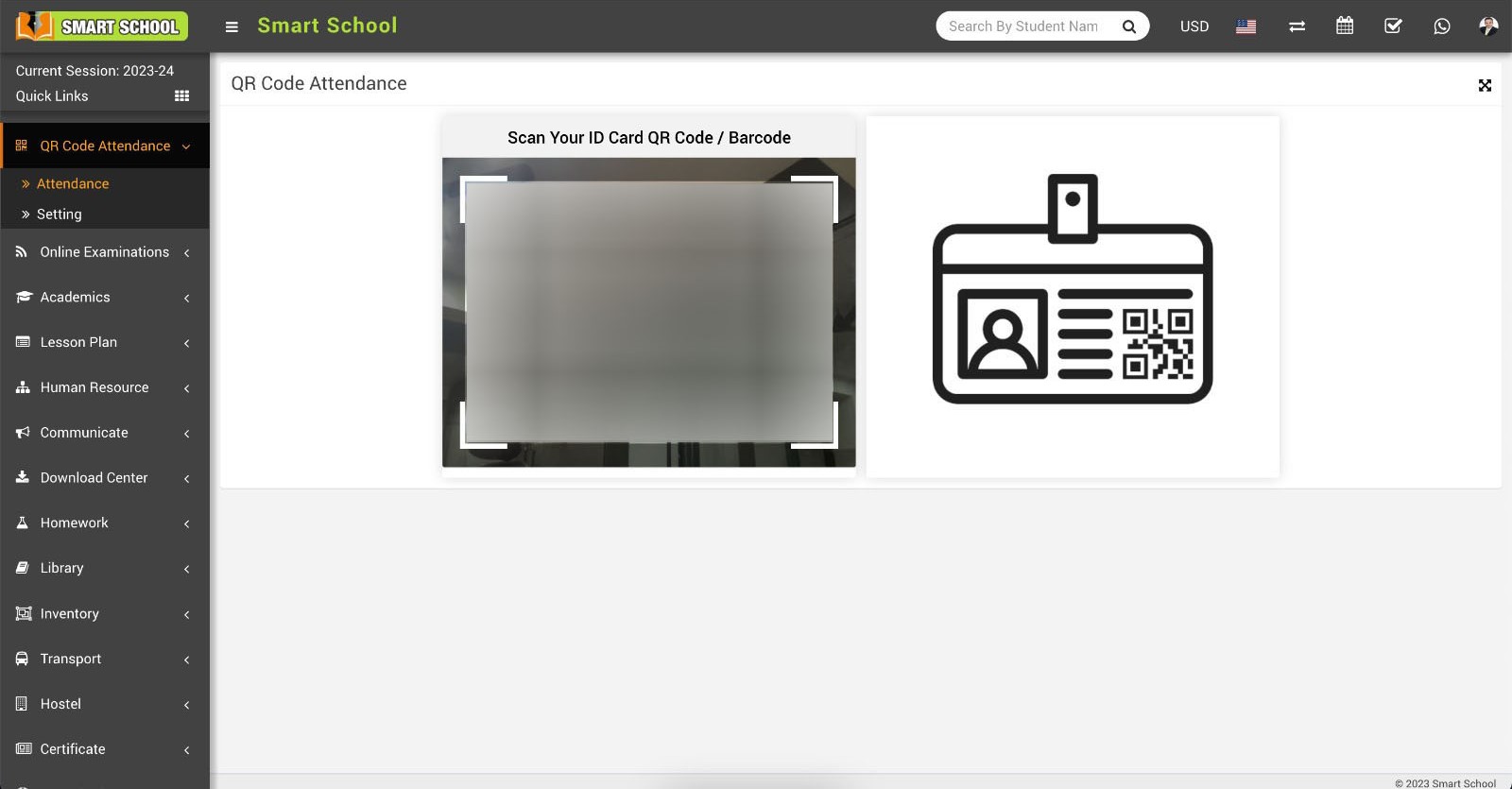
Here, you can see QR Code Attendance page will be open, on this page you can see the scanner will be open and now you are ready to mark the attendance, simply take student and staff id card in which QR Code / Barcode is already displayed, just show the ID card in front of scanner and scanner will scan the QR Code / Barcode and attendance marked automatically and message will be show as Attendance Submitted Successfully. 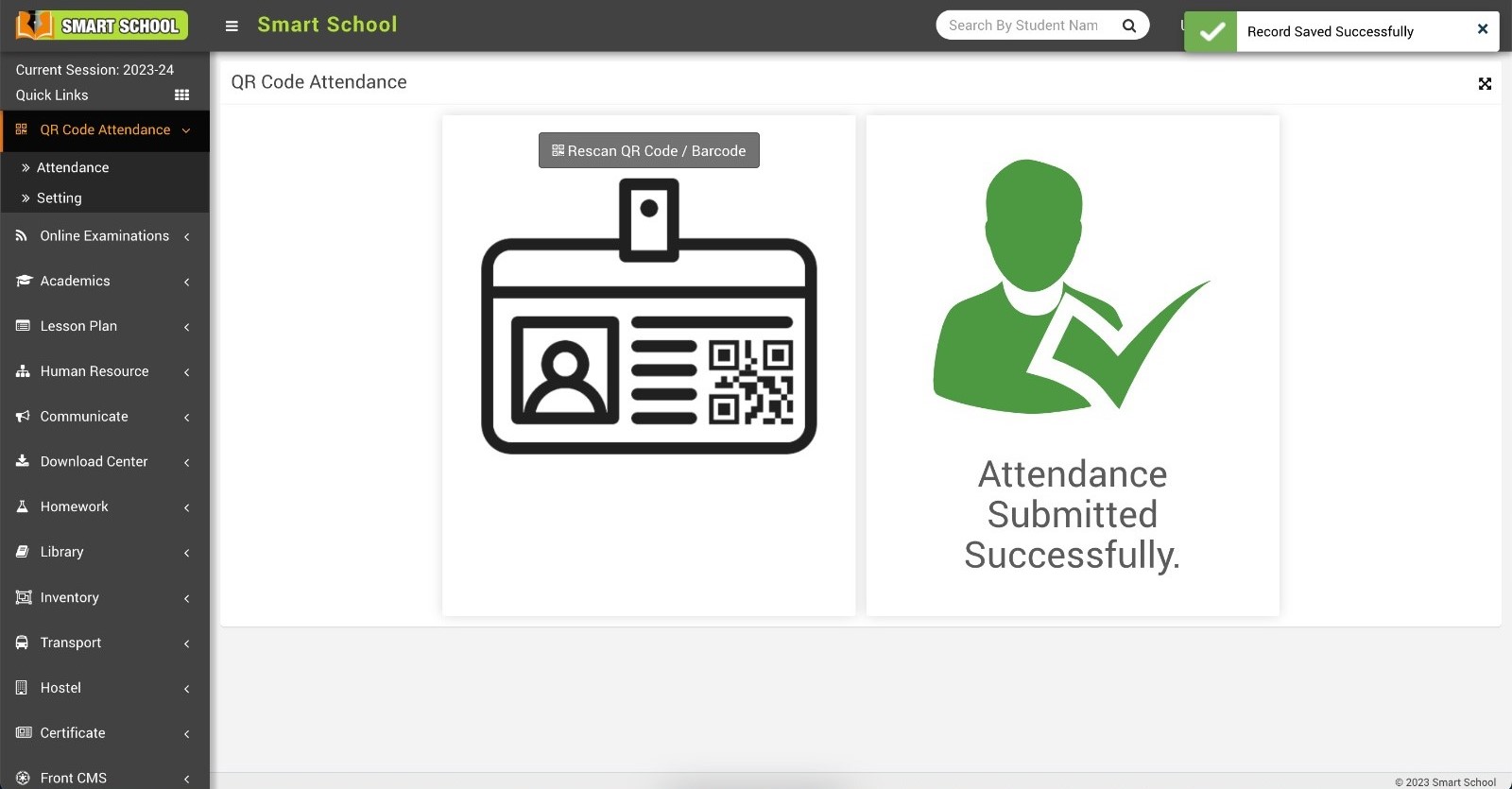
Note: - When you scan the QR Code/Barcode to mark attendance, the scanner will automatically reopen for scanning the QR Code/Barcode until you close the page. After marking attendance, the scanner will take approximately five seconds and reopen for scanning.
If you wish to rescan the same ID card for a student or staff member, click on the Rescan QR Code / Barcode button located at the top. The scanner will open, proceed to scan the ID card. This time, a message will be displayed that attendance has been already submitted as Present, Late, or Half Day, reflecting the previous marking.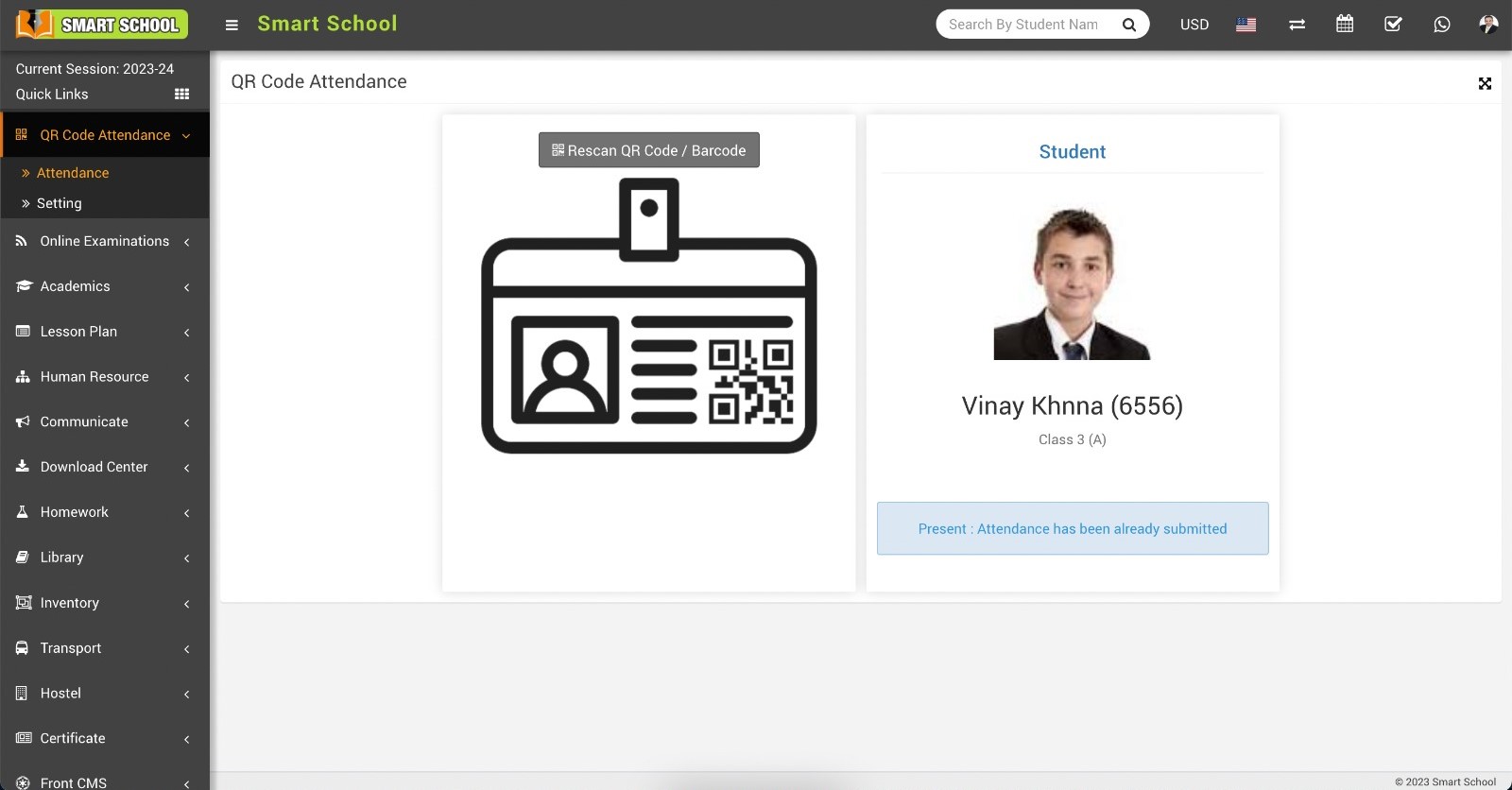
and for the staff while rescanning their staff id card.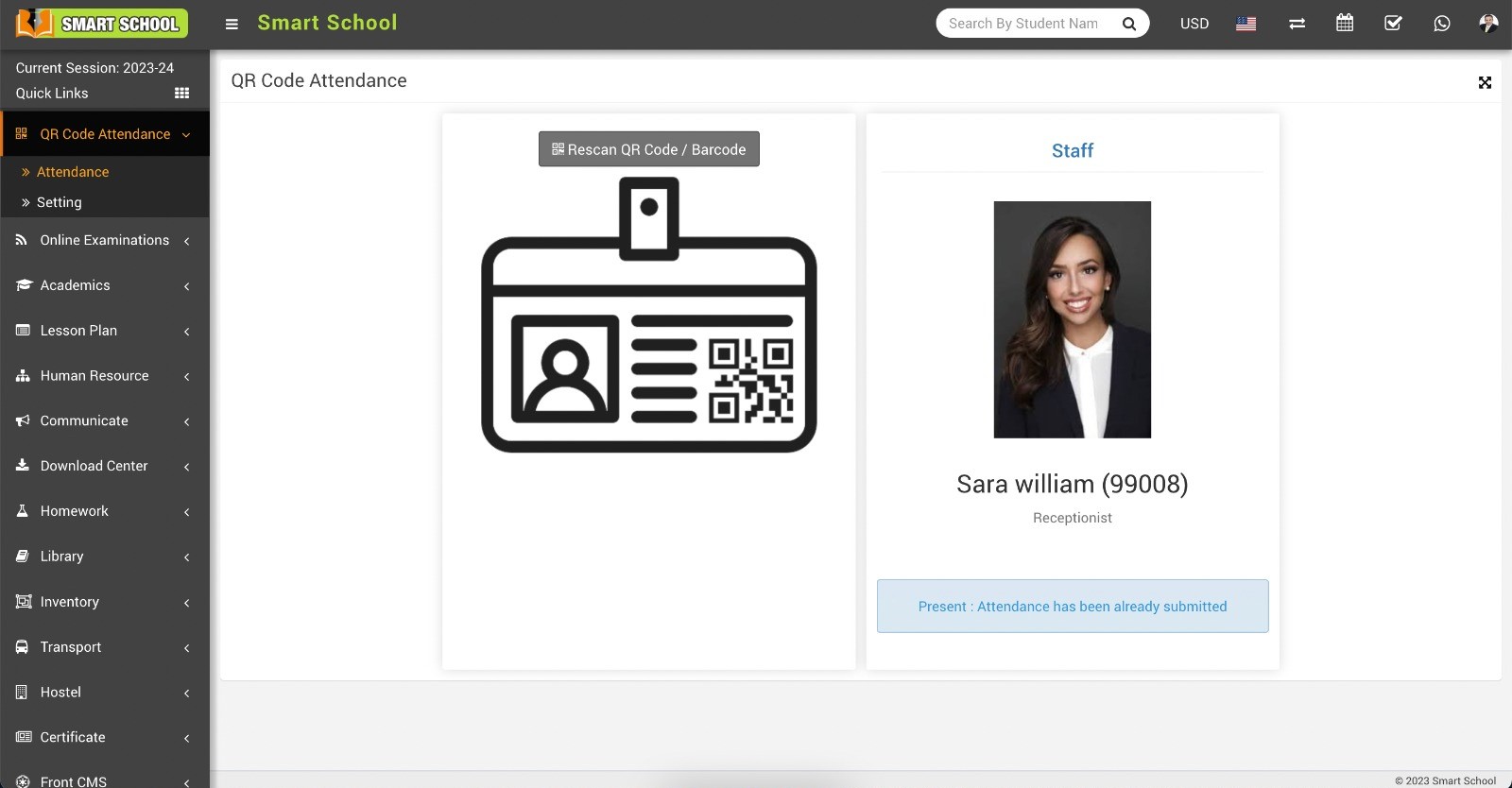
To verify the attendance marked for student, simply go to the Attendance > Student Attendance.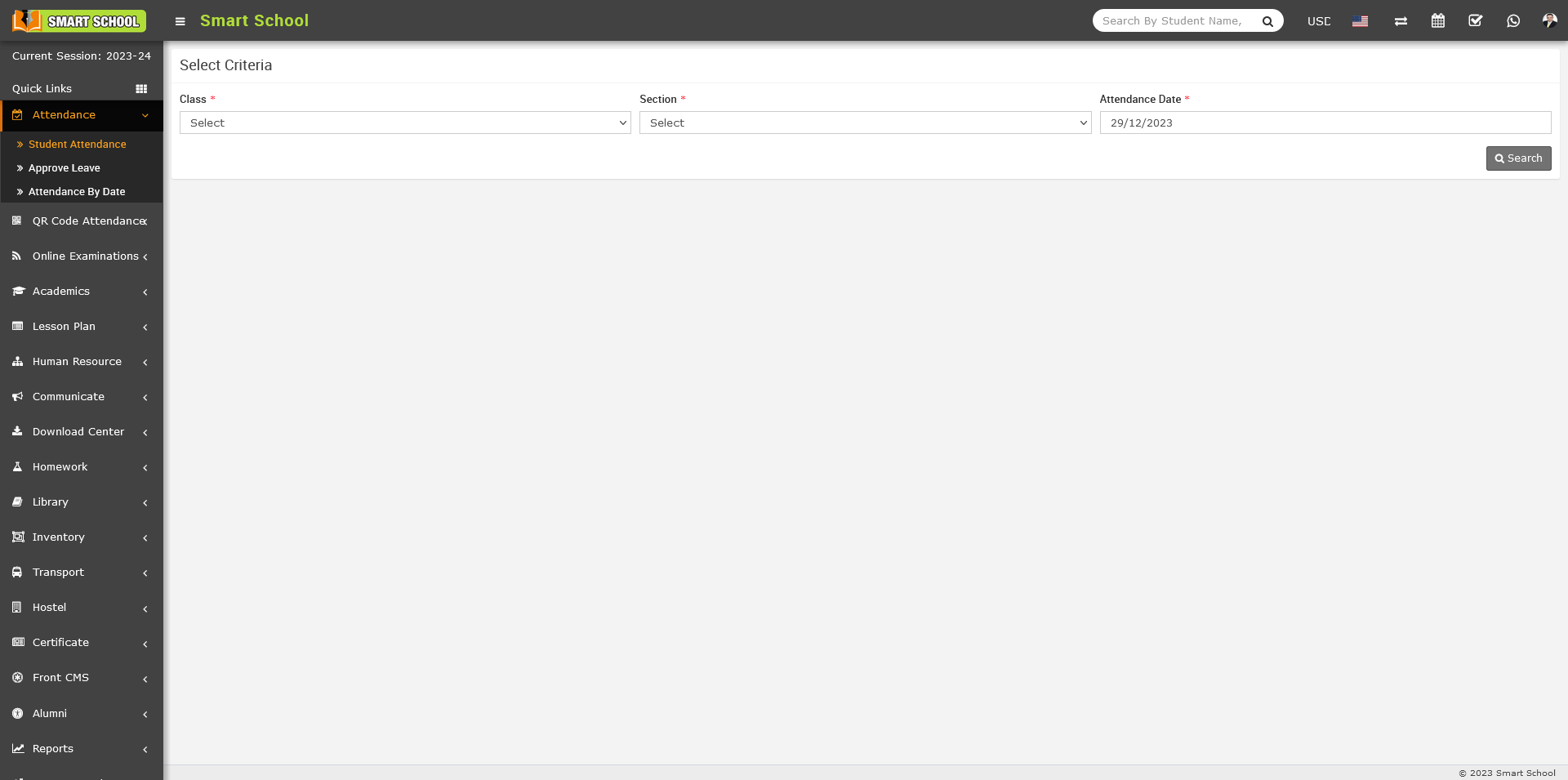
Here, search for the student whose attendance you marked by scanning the QR Code/Barcode. Now, select the Class, Section, and Attendance Date then, click on the Search button, and the attendance will be displayed below.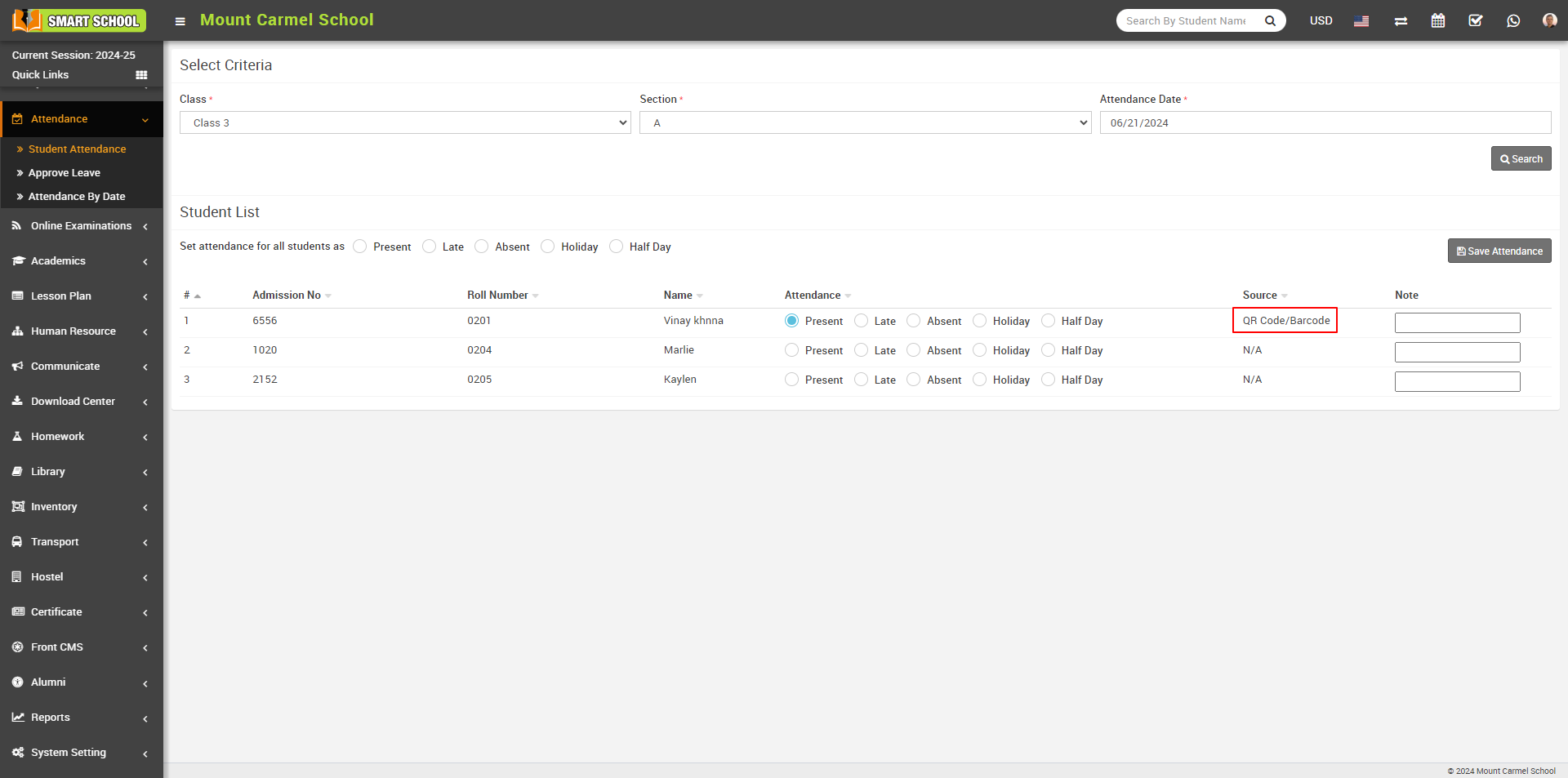
On this page, you can verify the attendance of the student whose ID card was scanned, and the attendance status will be displayed, whether the student was Present, Late, or Half-Day. you can also see the attendance date and source of the attendance in which way its marked.
To verify the attendace of the staff, simply go to the Human Resource > Staff Attendance.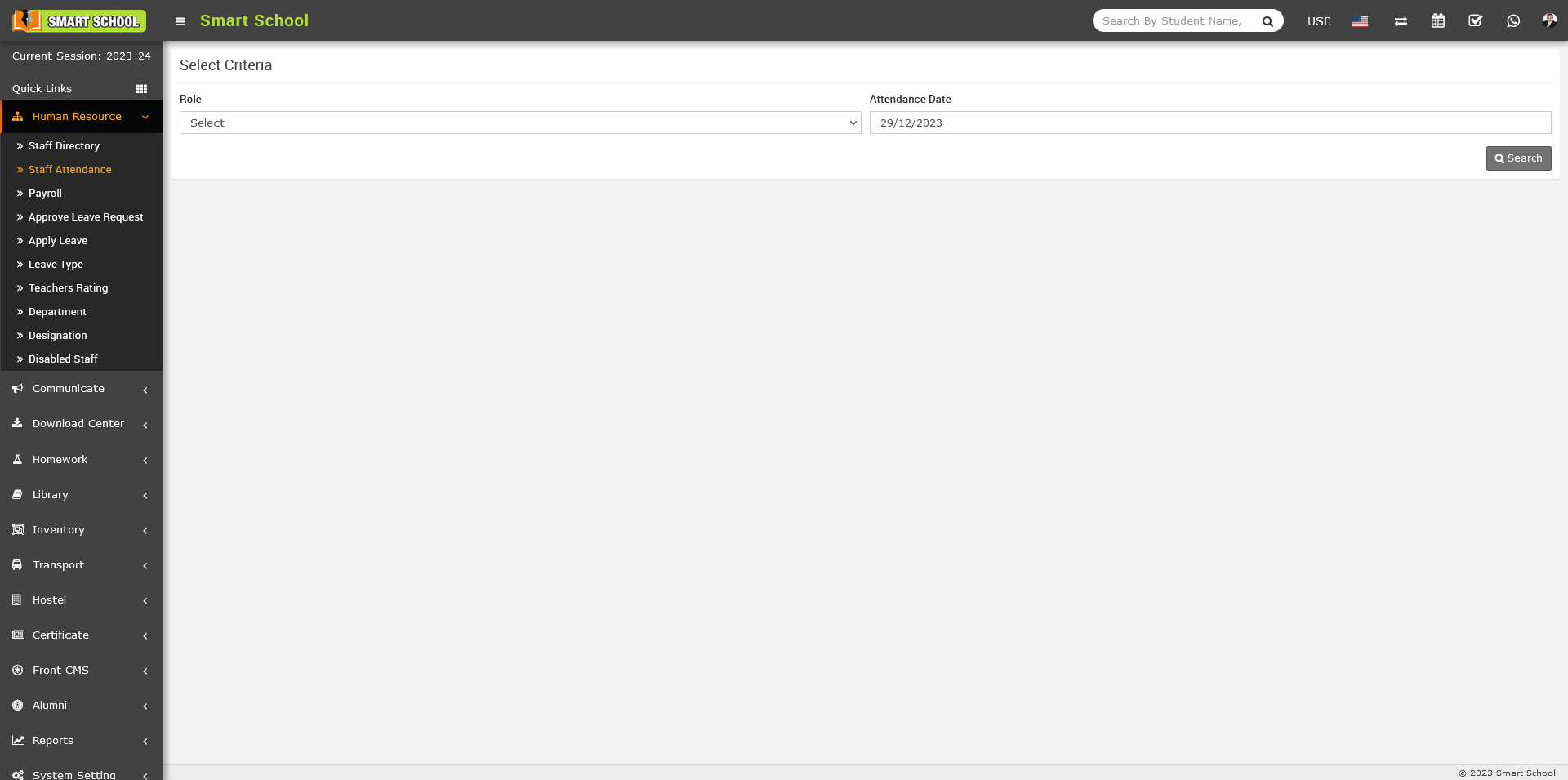
Here search the role of the staff and select the attendance date then click on the search button the attendance will be display below.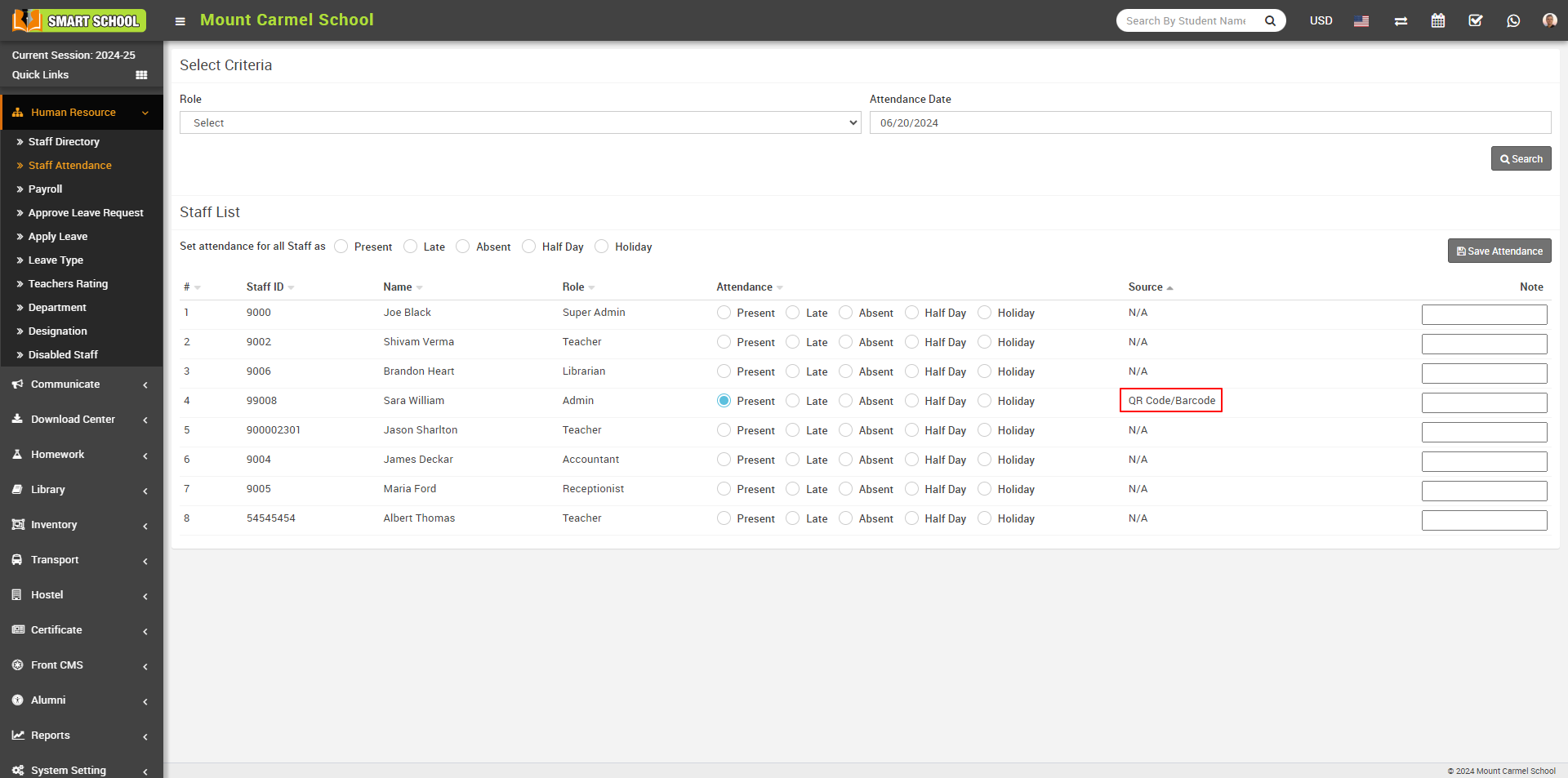
On this page, you can verify the attendance of the staff whose ID card was scanned, and the attendance status will be displayed, indicating whether the staff was Present, Late, or Half-Day.
How to check staff day wise attendance report?
To check the staff day wise attendance, go to Reports > Attendance.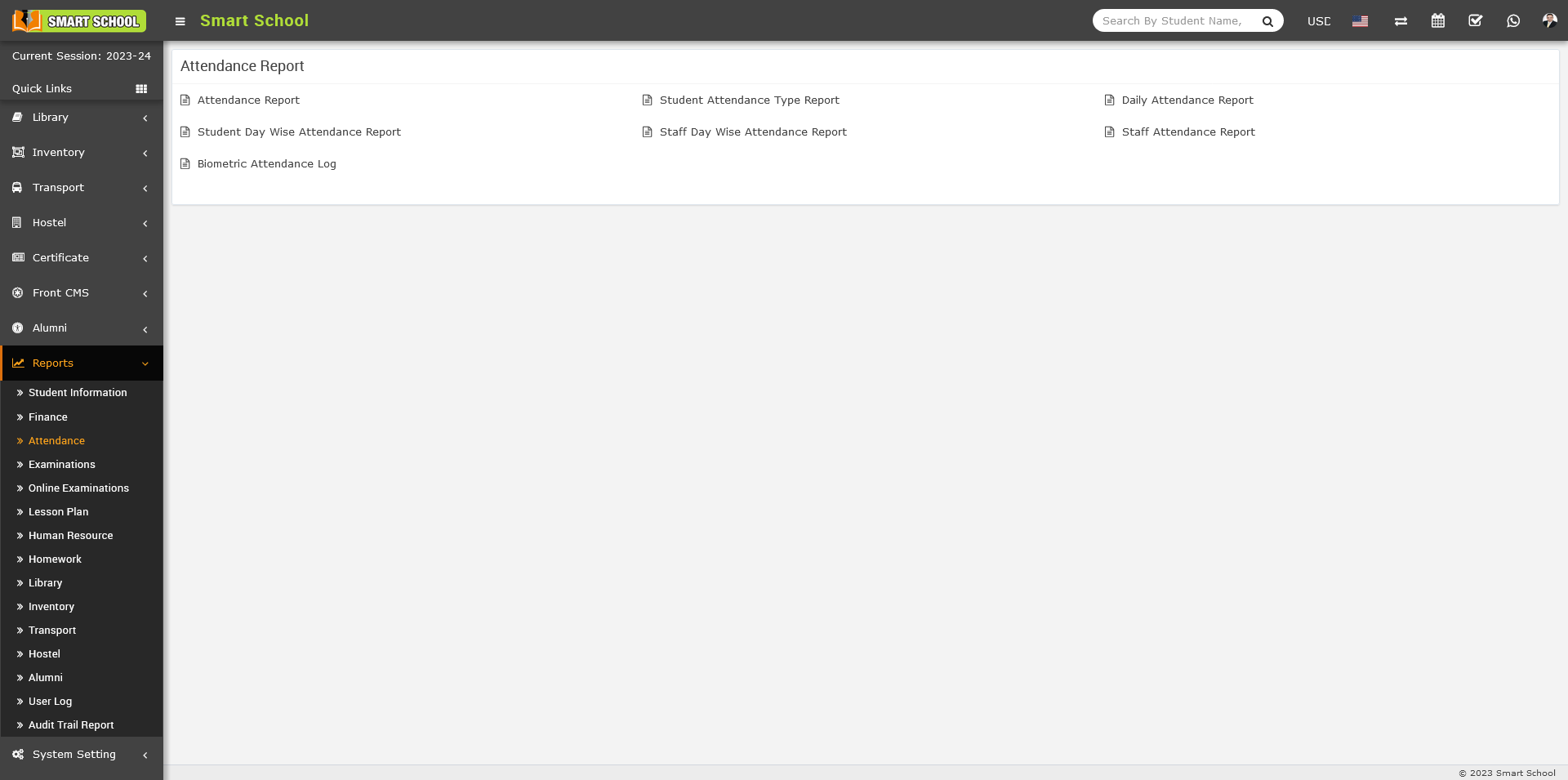
On the right side you can see the multiple attendance reports are showing and one of them staff day wise attendance report is available, simply click on Staff Day Wise Attendance Report, search criteria will be open in below.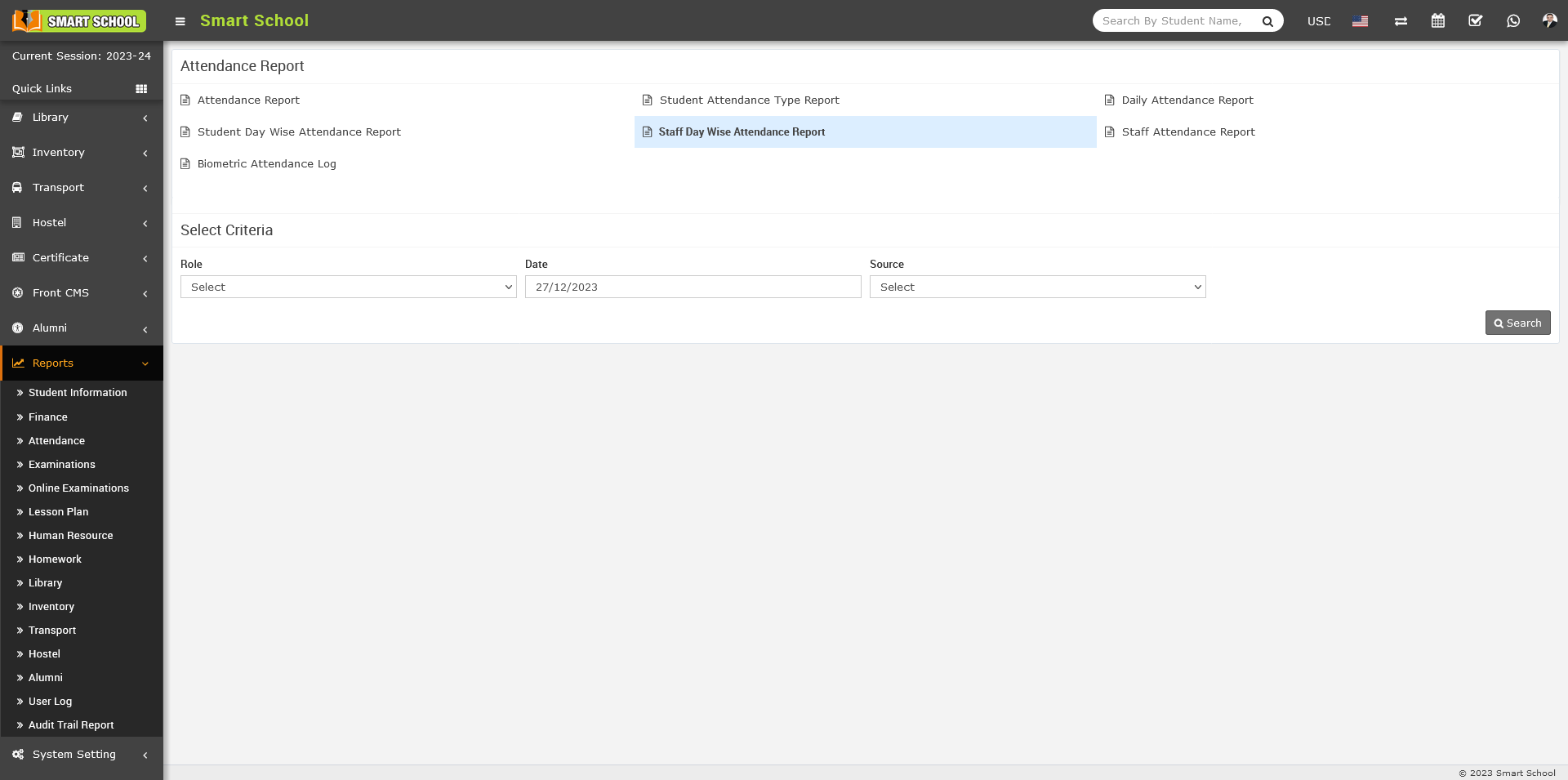
Note : - If you disabled the QR Code / Barcode / Biometric Attendance from the System Setting > General Setting > Attendance Type, Date, IP Address and Agent column will be remove from the report and if you keep enabled these column will be show in the report.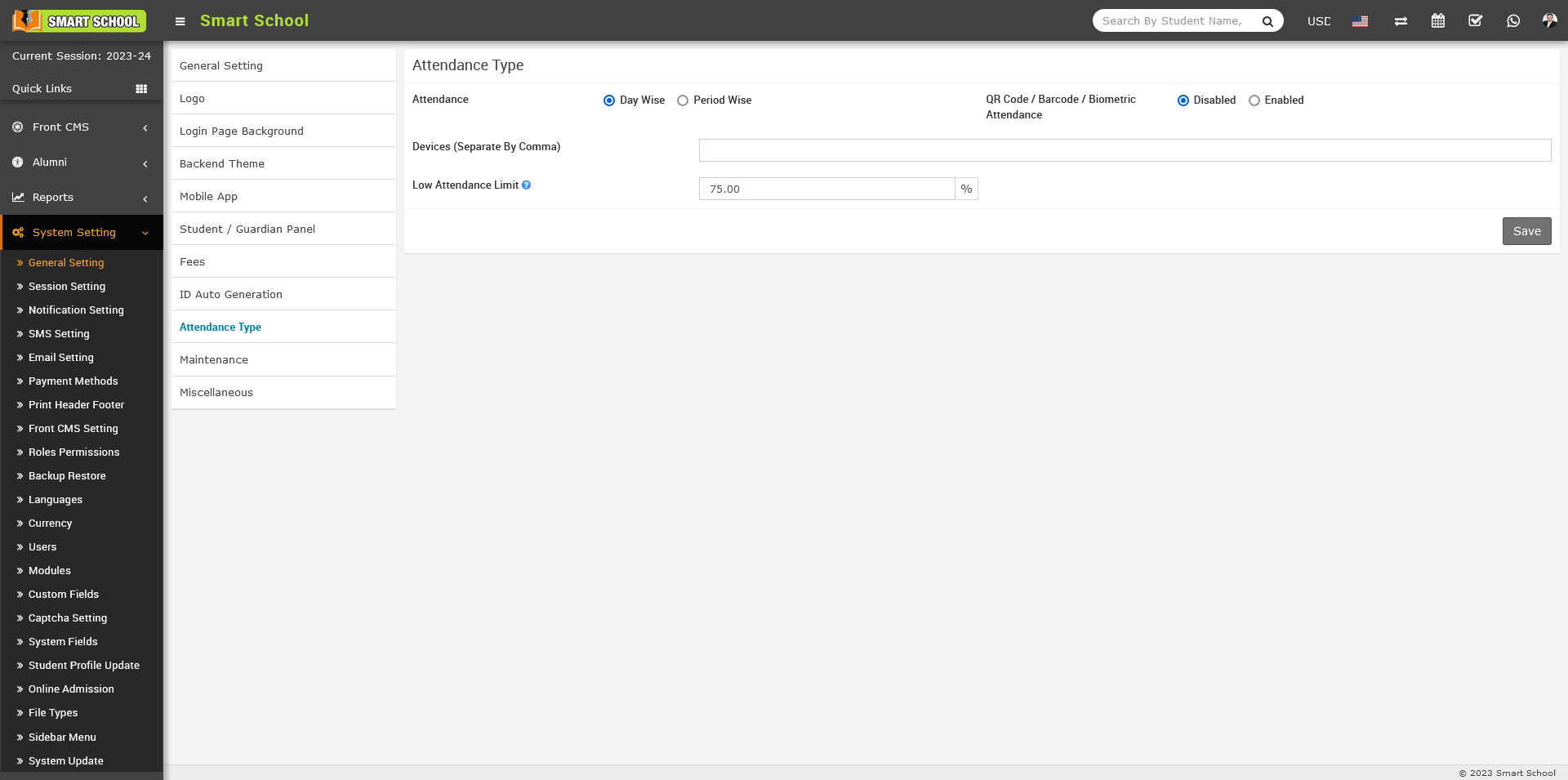
If you do not select any criteria and directly click on Search, all staff details will be displayed in below and when you select the specific role, then specific role details will be show in below.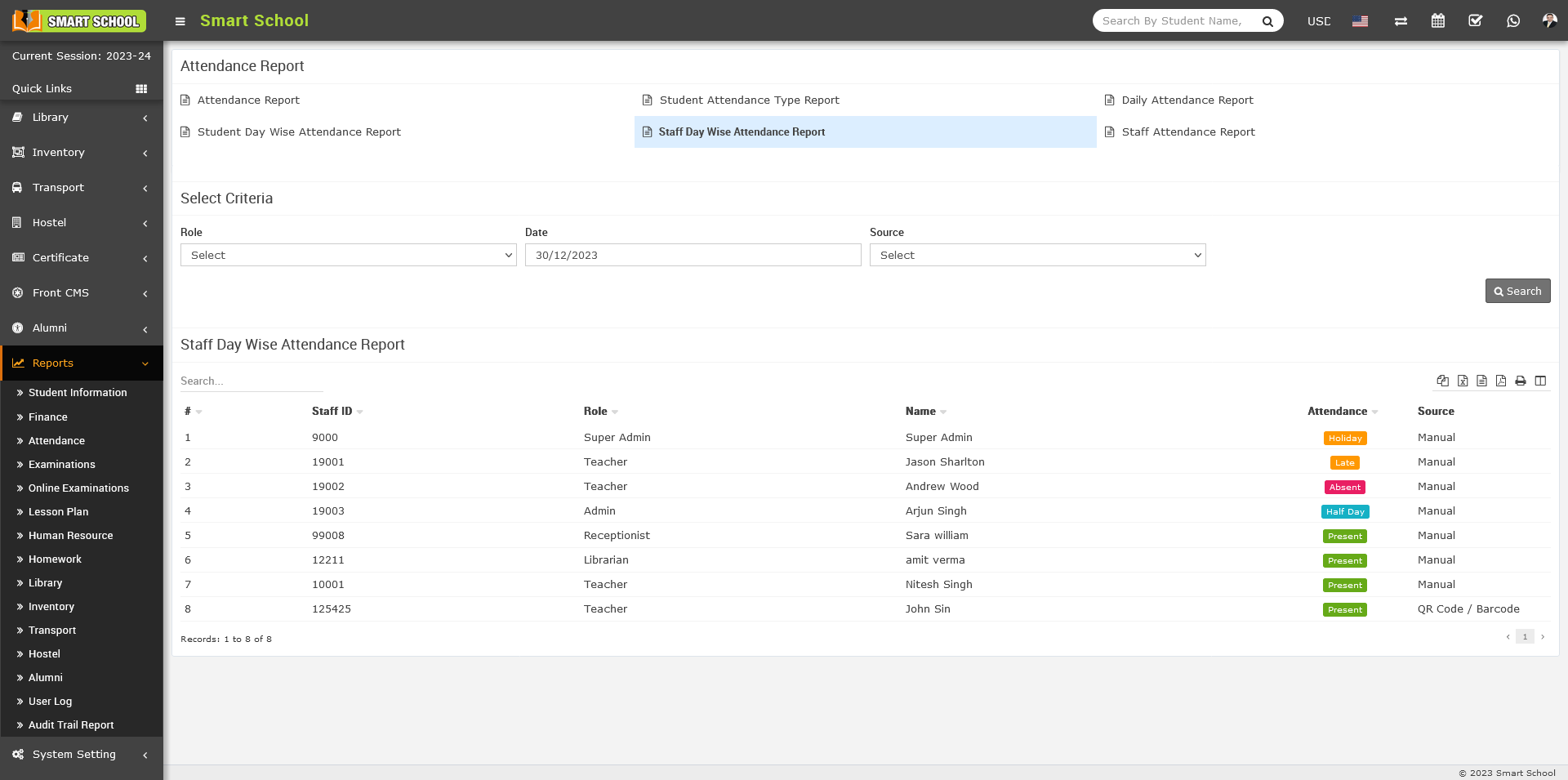
Here, you can see the first option is Role, when you click on role, staff role list will be open, select one role whose you want to see the attendance report and select the attendance date and source, here source you can get three option Manual, QR Code / Barcode.
When you select the source as Manual, the attendance marked through the Human Resource > Staff Attendance module, so these kind of all attendance will be displayed in this report.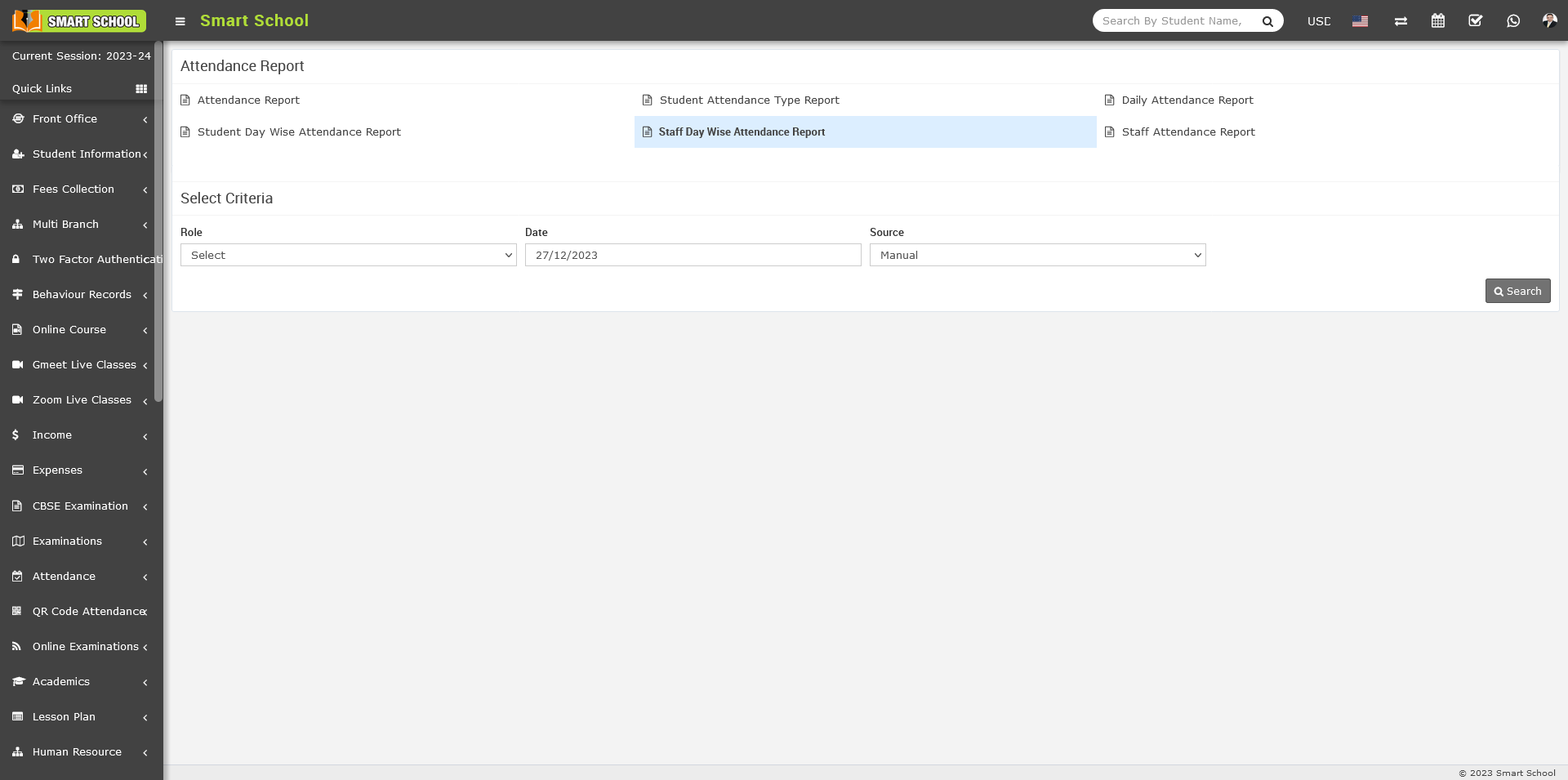
After select the Role, Date and Source as Manual, then click on search button, report will be show in below.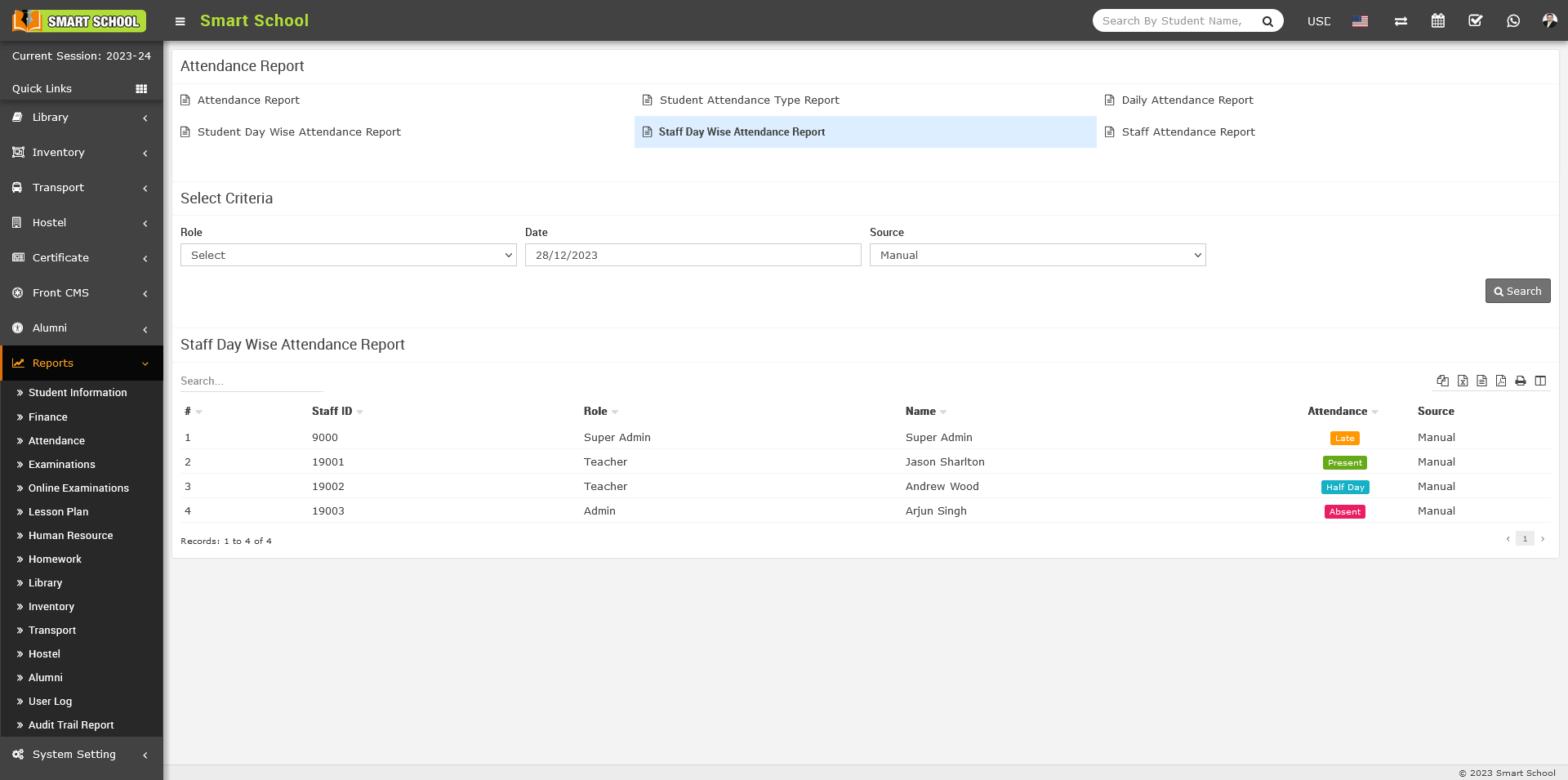
In this report, you can view the Staff ID, Role, Staff Name, Attendance Status, Date and IP Address, Agent, Source column, indicating the method used to attendance has been marked. In the Attendance column, you will see the attendance status, such as Present, Absent, Half Day, Late, or Holiday.
When you select source as QR Code / Barcode, the attendance marked through the QR Code / Barcode will be displayed in the report.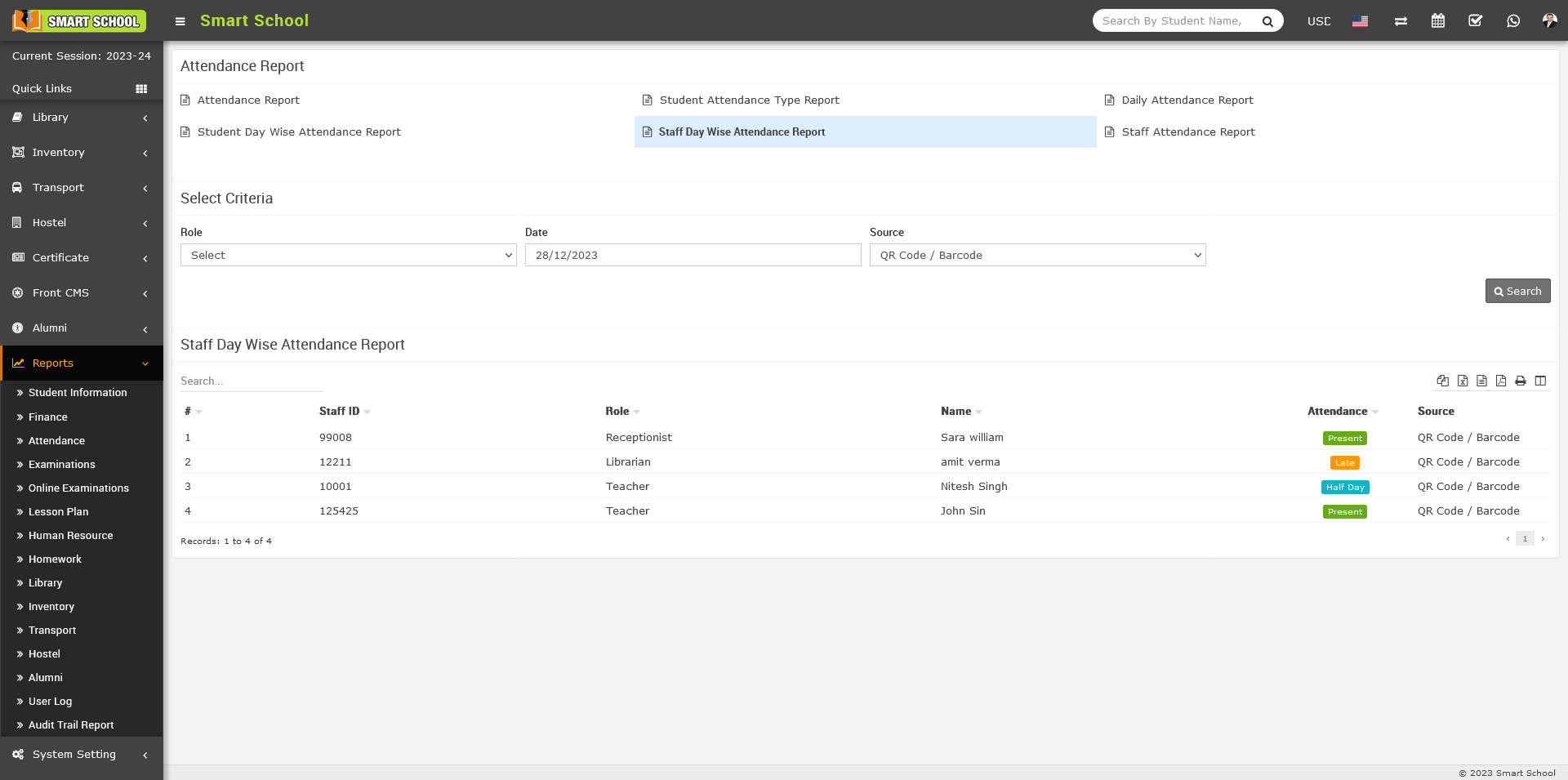
Note : - In QR Code / Barcode Attendance, Absent and Holiday as attendance status will not be show in the Attendance column on the staff day wise attendance report.
When you select the source as Biometric, the attendance marked through the Biometric device will be displayed in the report.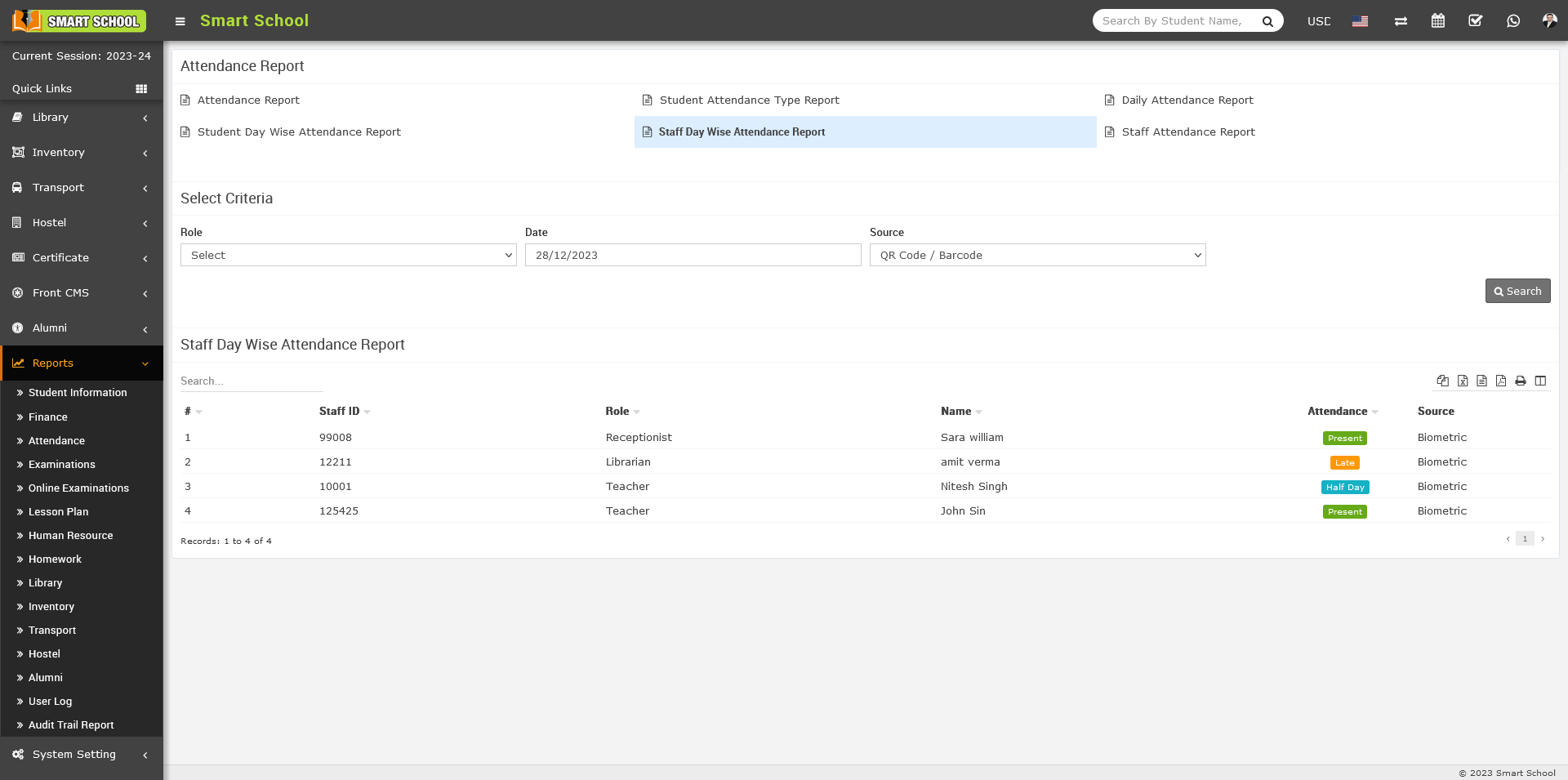
Here, you can view the Role, Staff Name, Attendance Status, Date, Source, IP Address and Agent details are displayed, In the Attendance column, you will see the attendance status, such as Present, Half Day, Late.