About Online Admission?
The Online Admission module offers Smart School applicants a uniform platform for filling their applications form online and pay their fee. This module supports various feature such as – Online Payment Gateway, auto SMS, and auto Email for student admission application and confirmation of admission.
In this module student's can fill their details and can review their filled details along with their form status, payment status and print their online admission Fees receipt.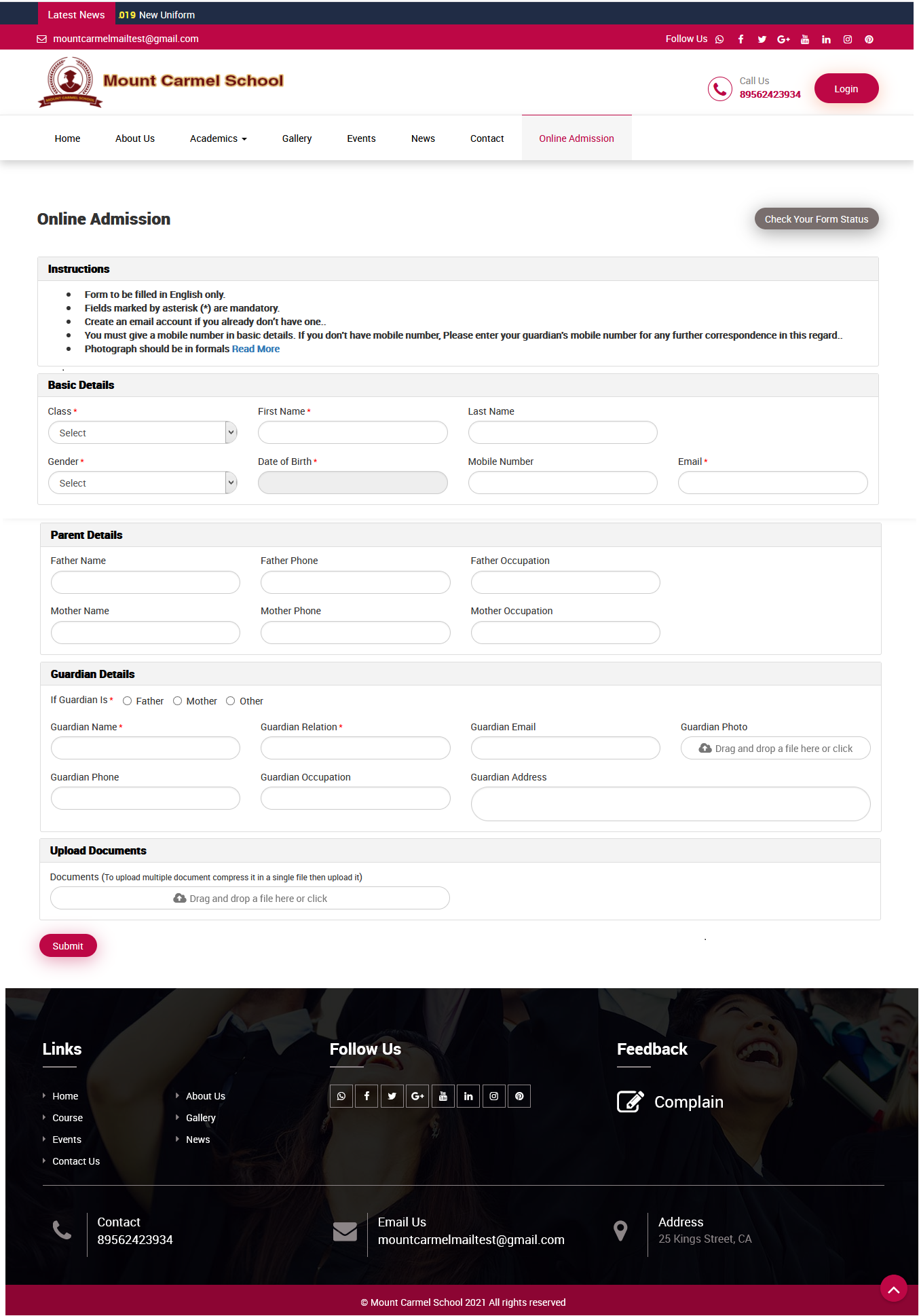
How to manage online admission setting?
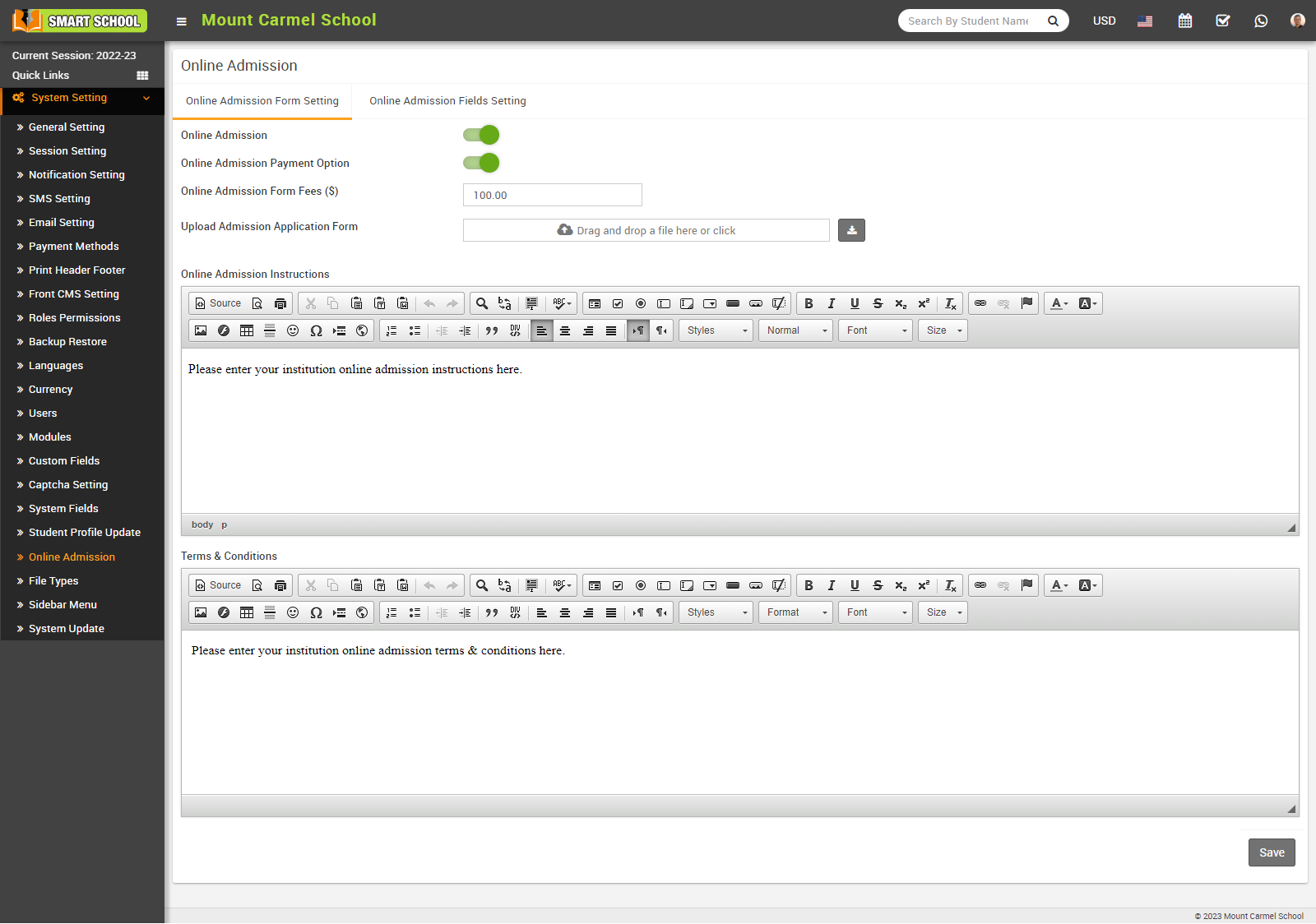
To manage online admission setting, login from Superadmin/Admin panel then go to System Setting > Online Admission Setting, this will redirect you in the online admission setting page.
Here you can manage Online Admission Form Setting and Online Admission Fields Setting.
1. Online Admission Form Setting -
In this module, you can see the online admission and online admission payment option toggle buttons showing, and they should be enabled and below you can set the fees for the online admission form.
In Online Admission Form Setting, you can view Upload Admission Application Form by using drag and drop tab as well as you can download the admission form by click on download icon which is showing in beside of drag and drop tab.
After successfully submitting the online admission form, you can download it from the front site of your smart school. Look for the "Download Application Form" button located right above it.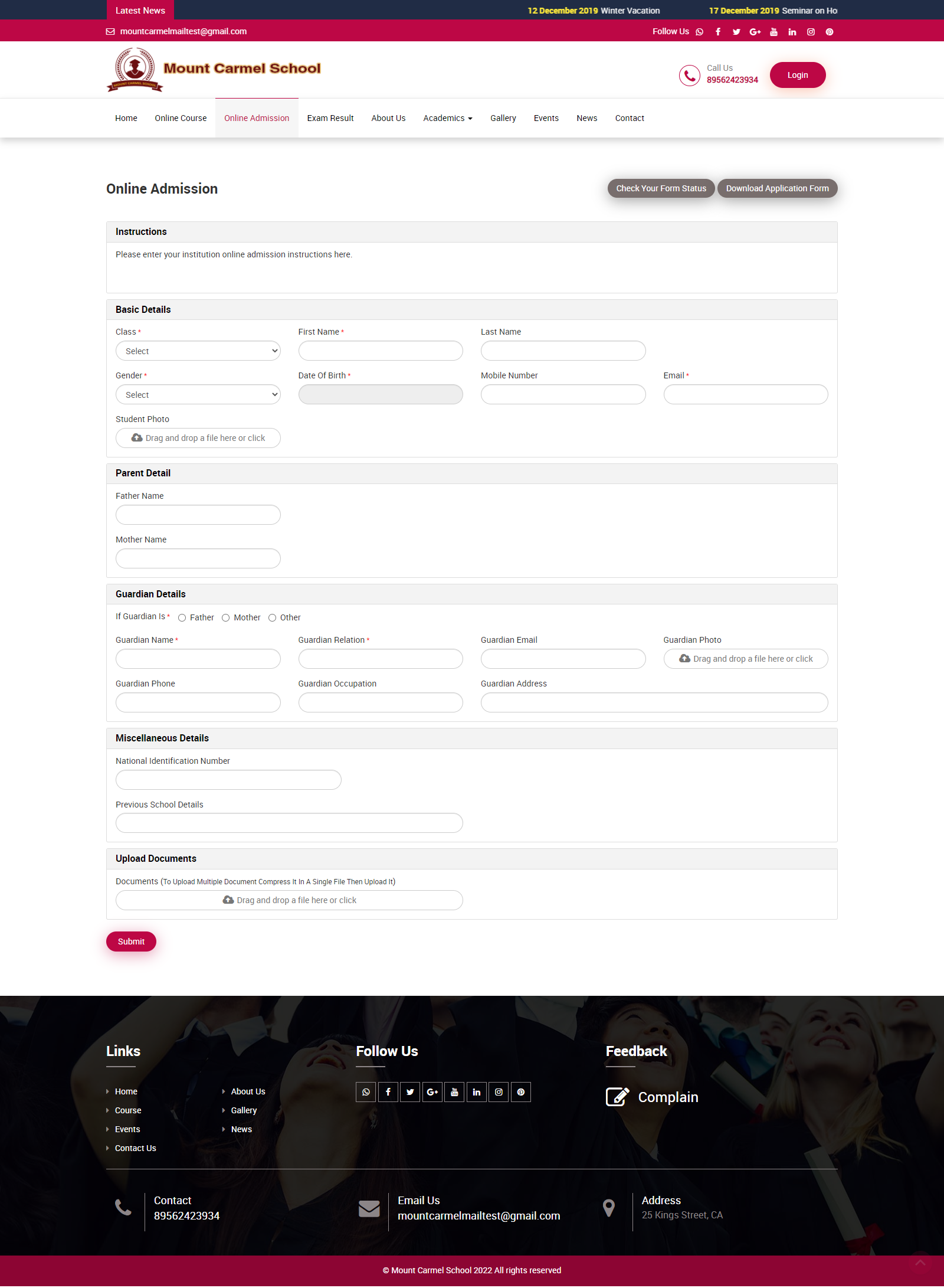
Online Admission - Online Admission module will be disabled by default. You have to enable it by checking Online Admission option then you have to enable it from Main Menu also.
For this Go to Front CMS > Menus, then click on the + icon of Main Menu, this will redirect you in Add Menu Item page, here you will see all menu item list.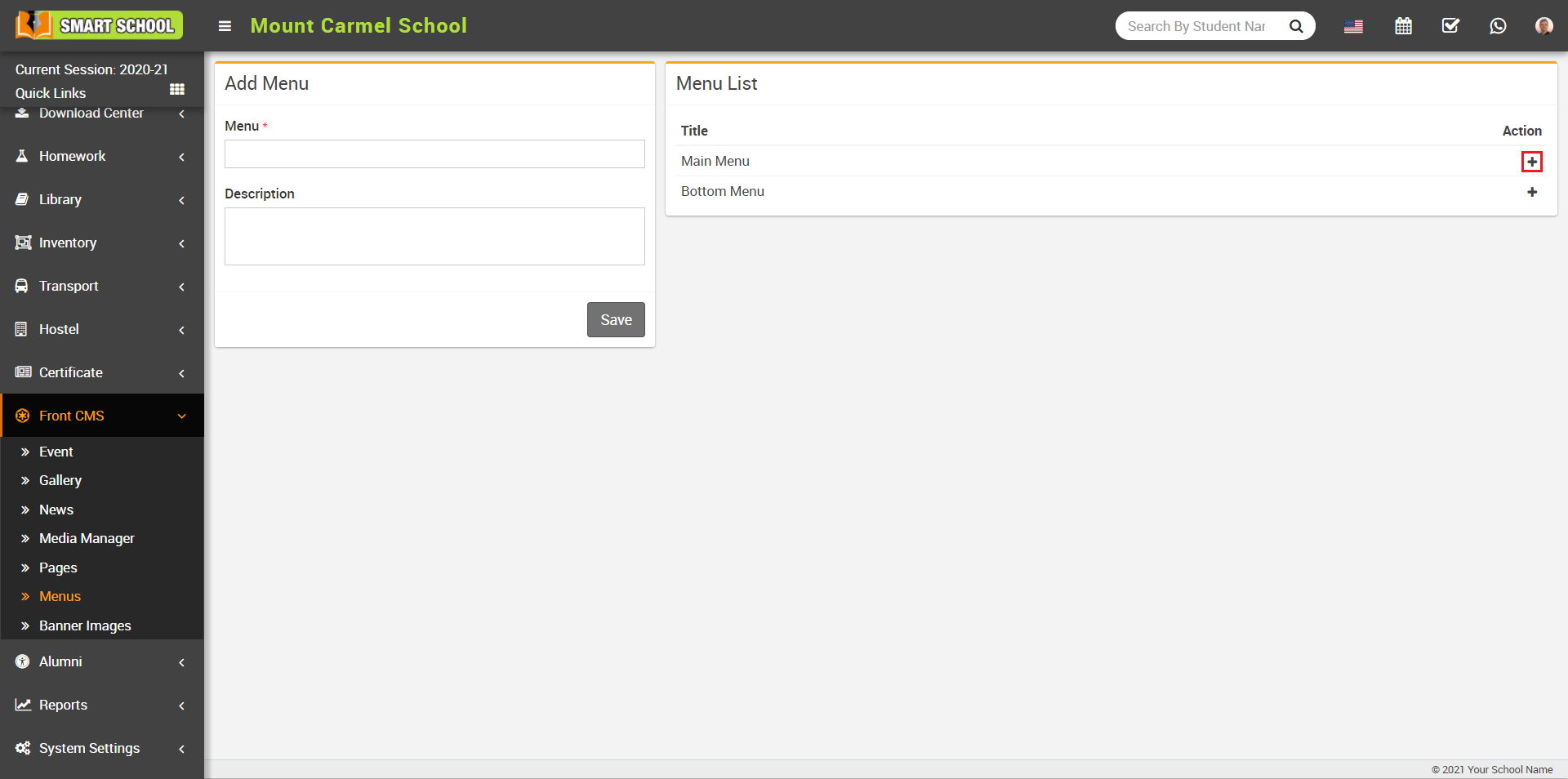
Now click on the Edit icon of ONLINE ADMISSION then enter Menu Item and External URL Address like yourdomain/online_admission and then click on the Save button.
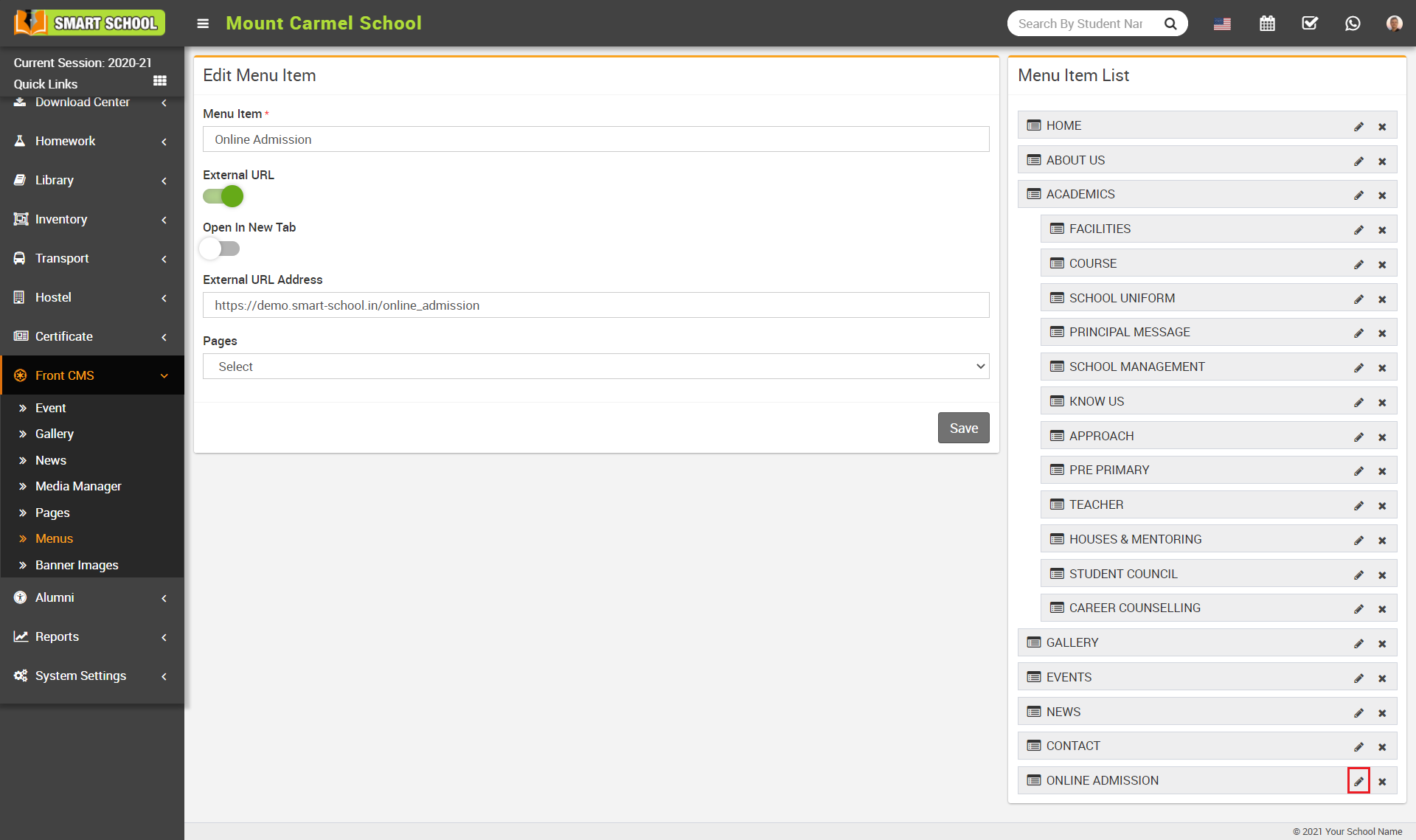
Note - You can also use Online Admission module without using Front CMS, for this use URL yourdomain/online_admission.
Online Admission Payment Option - If you want to allow student to pay their admission fees online then you can enable Online Admission Payment option in your Smart School. After enabling payment option you need to enter Online Admission Form Fees.
Online Admission Instructions - To provide form Instructions enter Online Admission Instructions, this will be visible on front side admission form.
Online Admission Terms & Conditions- To provide terms & conditions enter Online Admission Terms & Conditions, this will be visible on front side admission form.
Once the above setting (Online Admission, Online Admission Payment Option,Online Admission Instruction, Online Admission Terms & Conditions) is completed then finally click on the Save button.
2. Online Admission Fields Setting -
To add more fields (system Fields or custom fields) in your online admission form, click on the Online Admission Fields Setting tab, here some system fields are available, check those fields which you want to enable in your online admission form.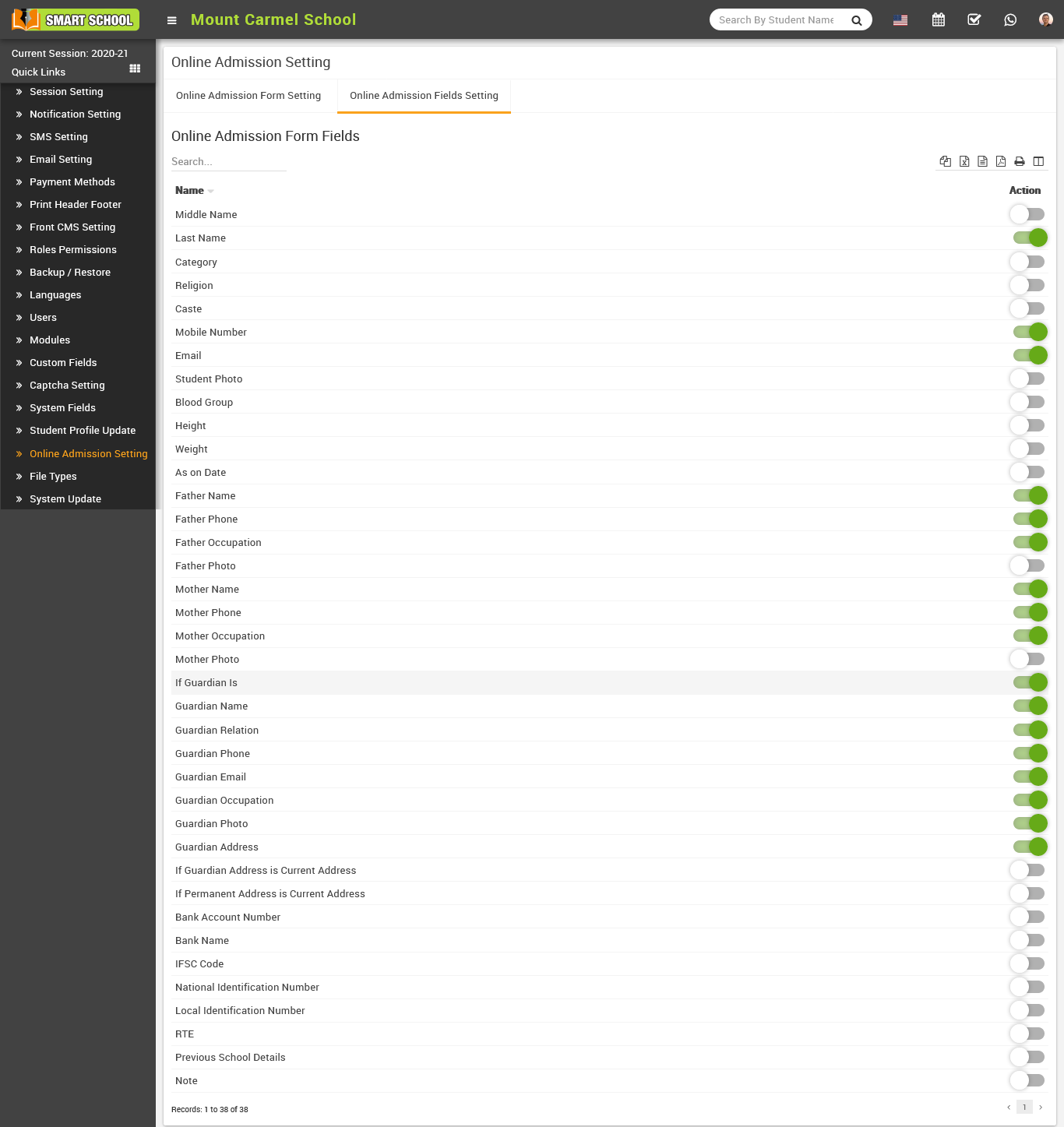
You can also enable custom fields from here. For this create custom fields from System Settings > Custom Fields (by default custom field will be disabled) then check custom field to make visible in your online admission form.
How to fill online admission form?
To fill online admission form, go to smart school domain then click on the Online Admission tab then fill Basic Details ( Class, First Name, Last Name, Gender, Date of Birth, Mobile Number, Email) Parent Details (Father Name, Father Phone, Father Occupation, Mother Name, Mother Phone, Mother Occupation) Guardian Details (If Guardian is ,Guardian Name, Guardian Relation, Guardian Email, Guardian Photo, Guardian Phone, Guardian Occupation, Guardian Address) and select needed Documents and then click on the Submit button.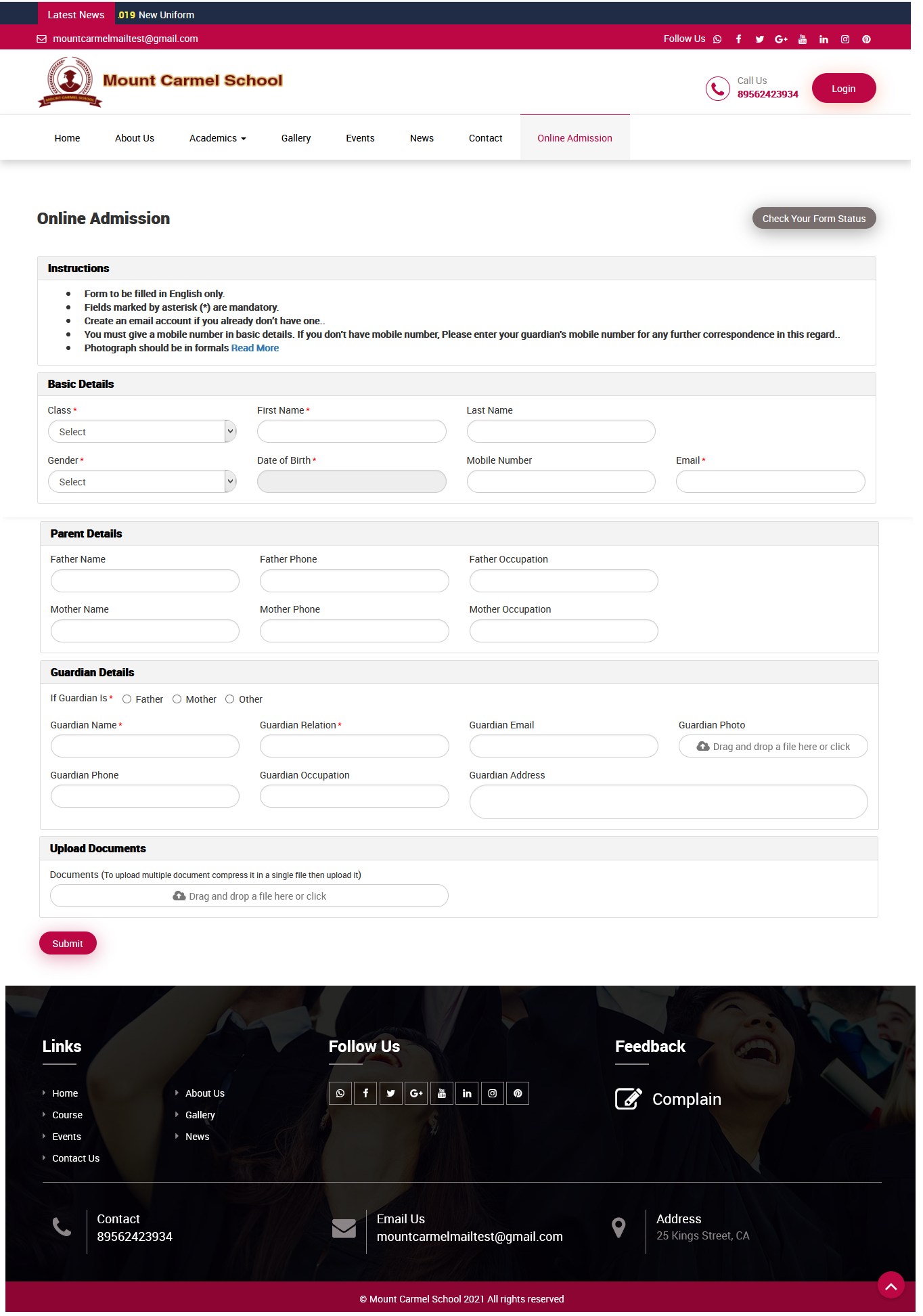
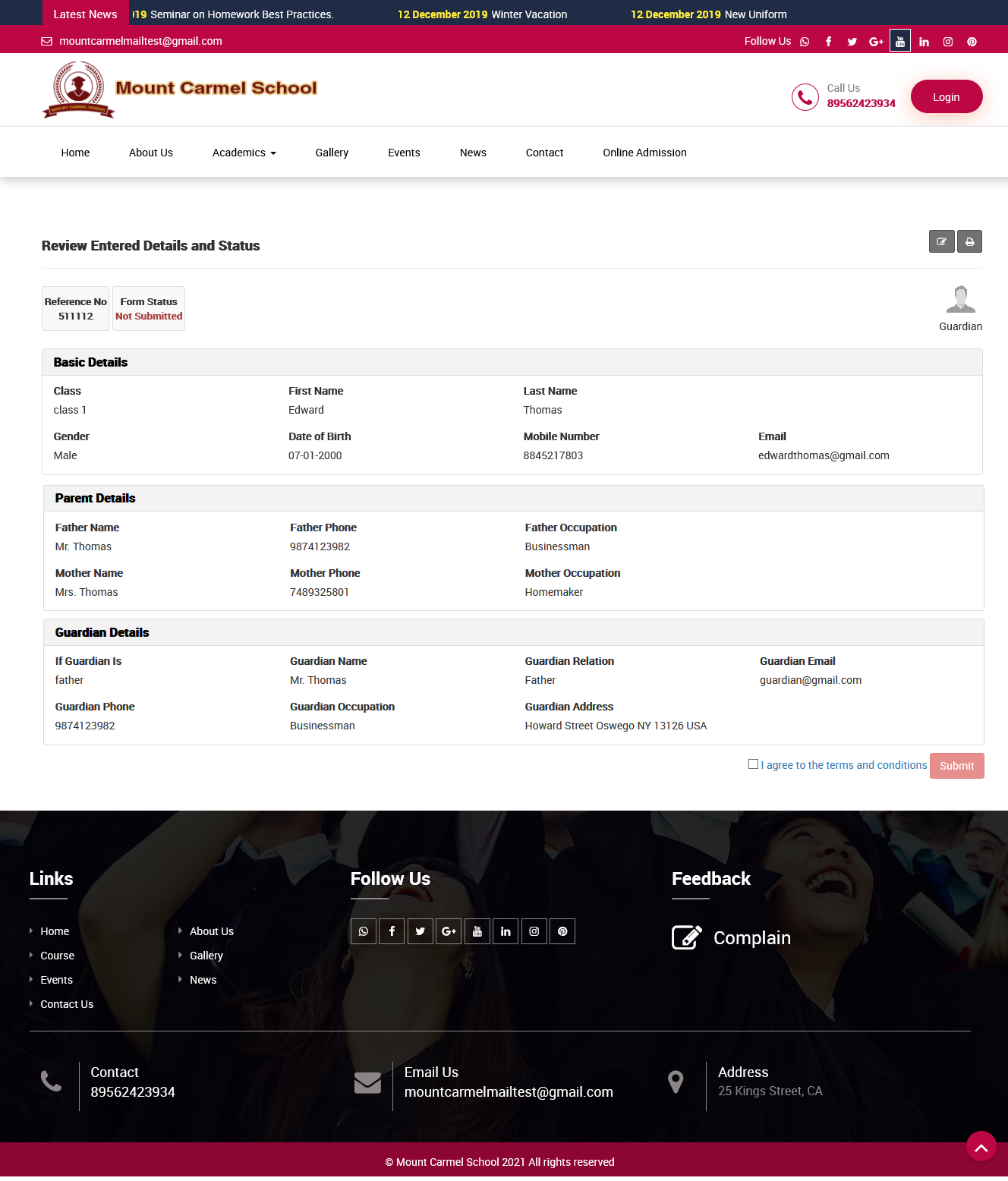
After submitting form, this will redirect you in Online Admission Review Details page where you can check your details what you have filled previously.
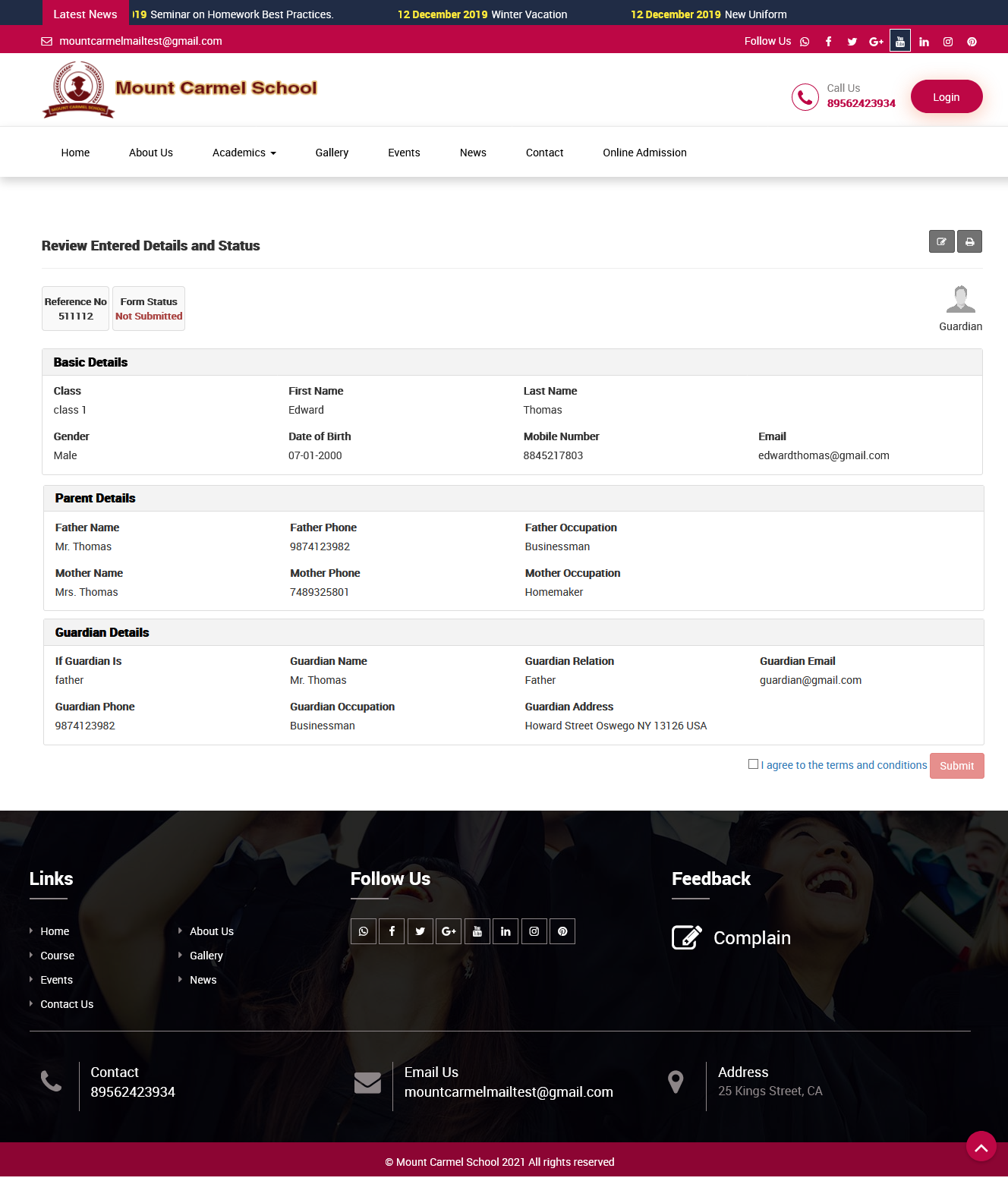
To submit admission form click on the Term & Condition and then click on the Submit button.
If online payment option is enable from admin side then you will see Pay button instead of Submit button.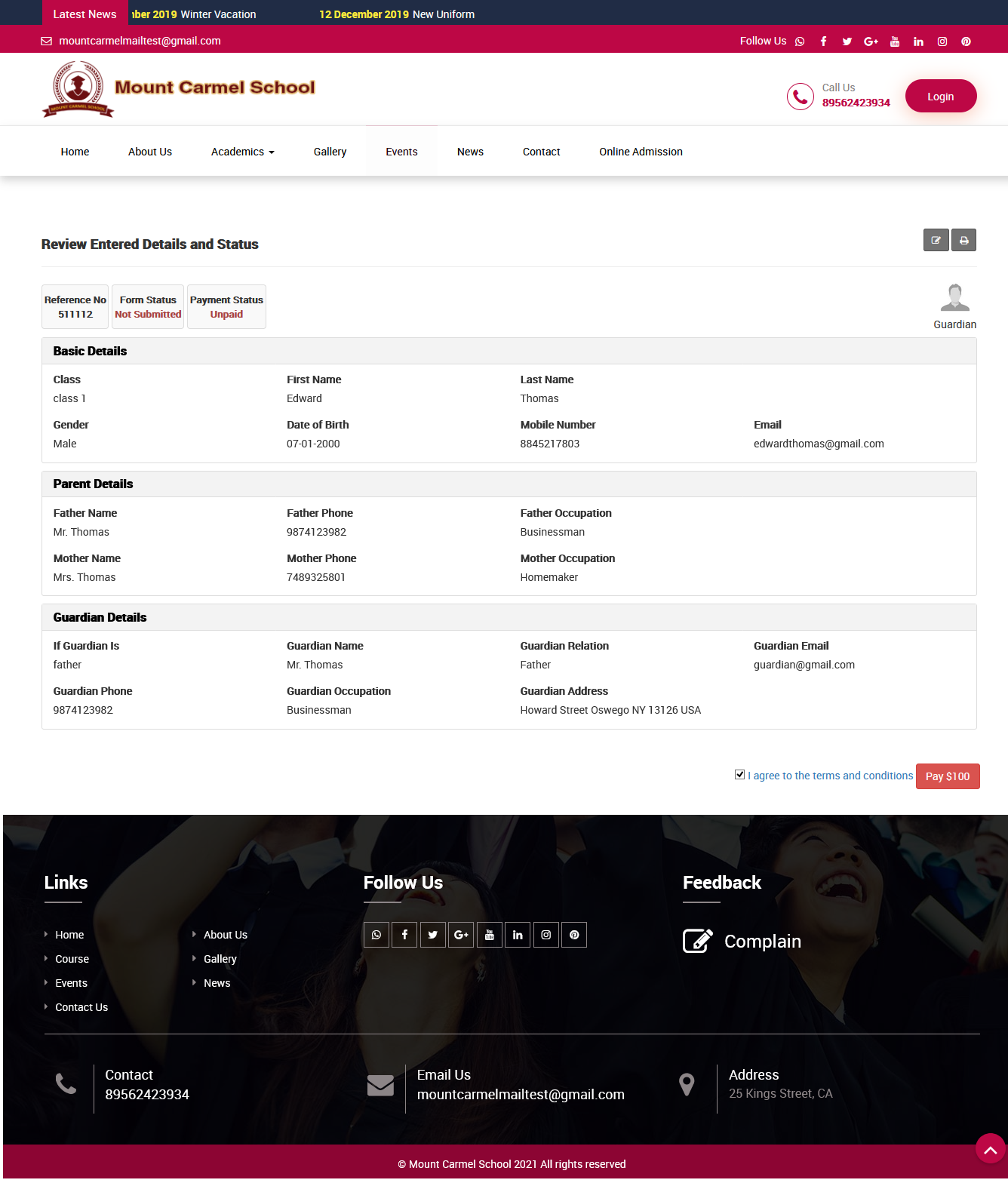
To check terms and condition, click on the "I agree to the terms and conditions" link, by clicking on this link a modal will open where you can check terms and conditions of online admission. 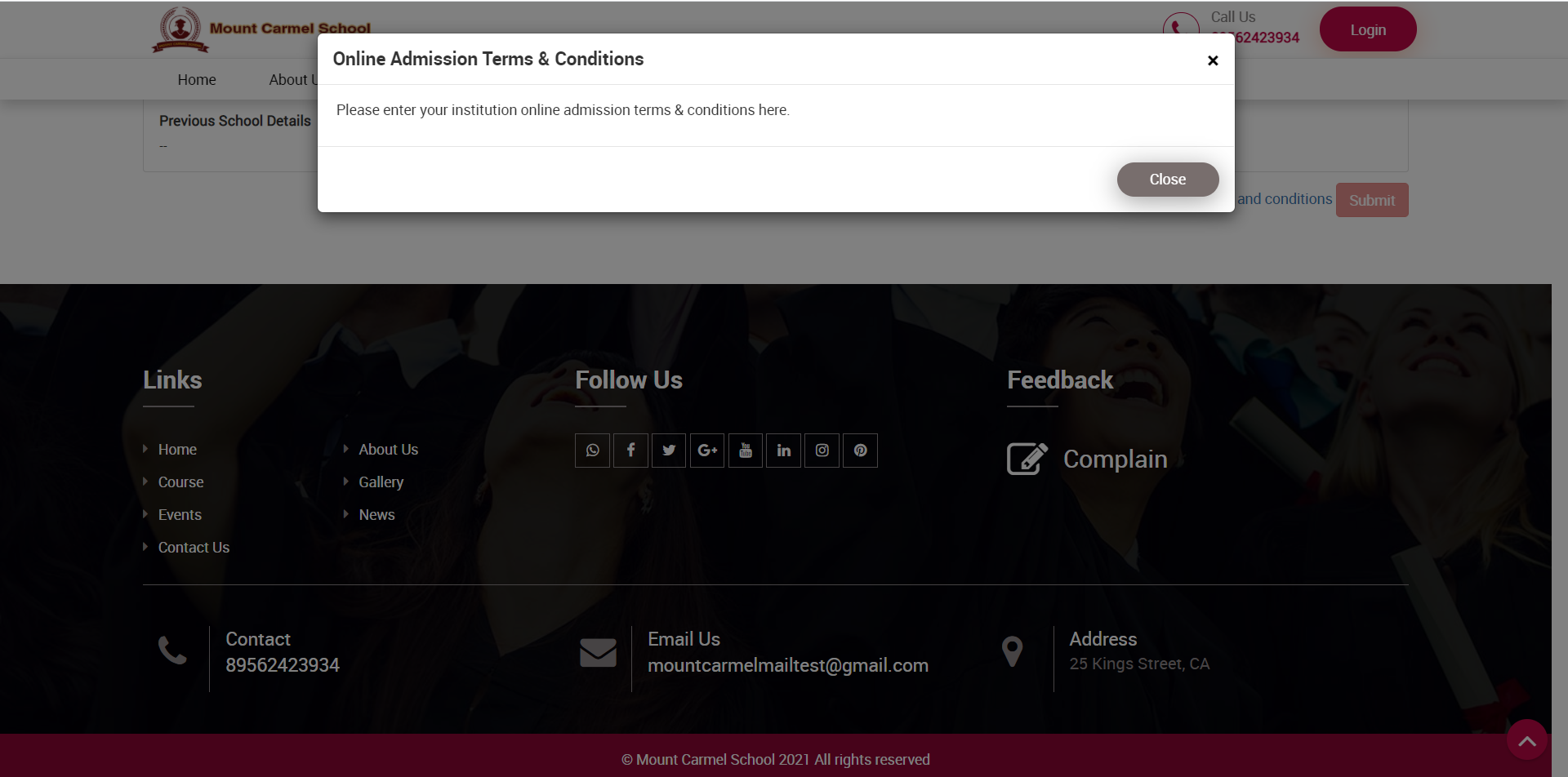
To make payment, click on the Pay button this will redirect you in payment gateway page from there you can pay online admission form fees by filling all necessary payment details.
Once your transaction will be successful you will be redirected to the success page then click on the Payment Status button to check form status.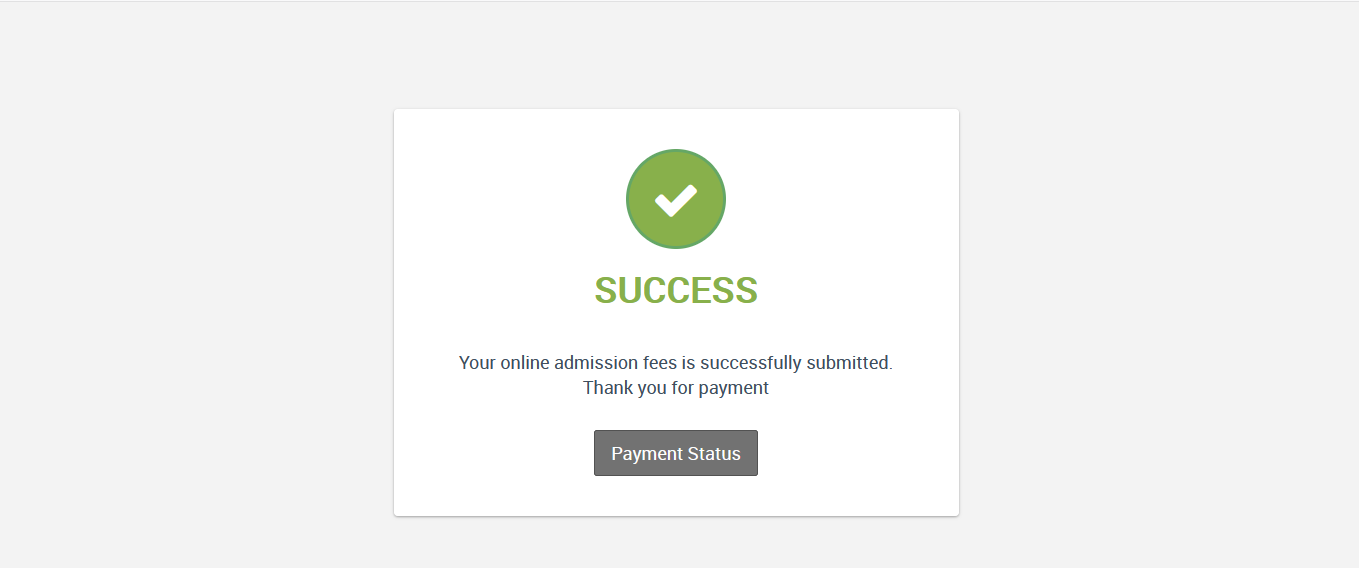
At click of this button you will redirect to the Online Admission Review Details page, here you can check your form status will be changed from Not-submitted to Submitted, Payment Status from Unpaid to Paid with Transaction Id.
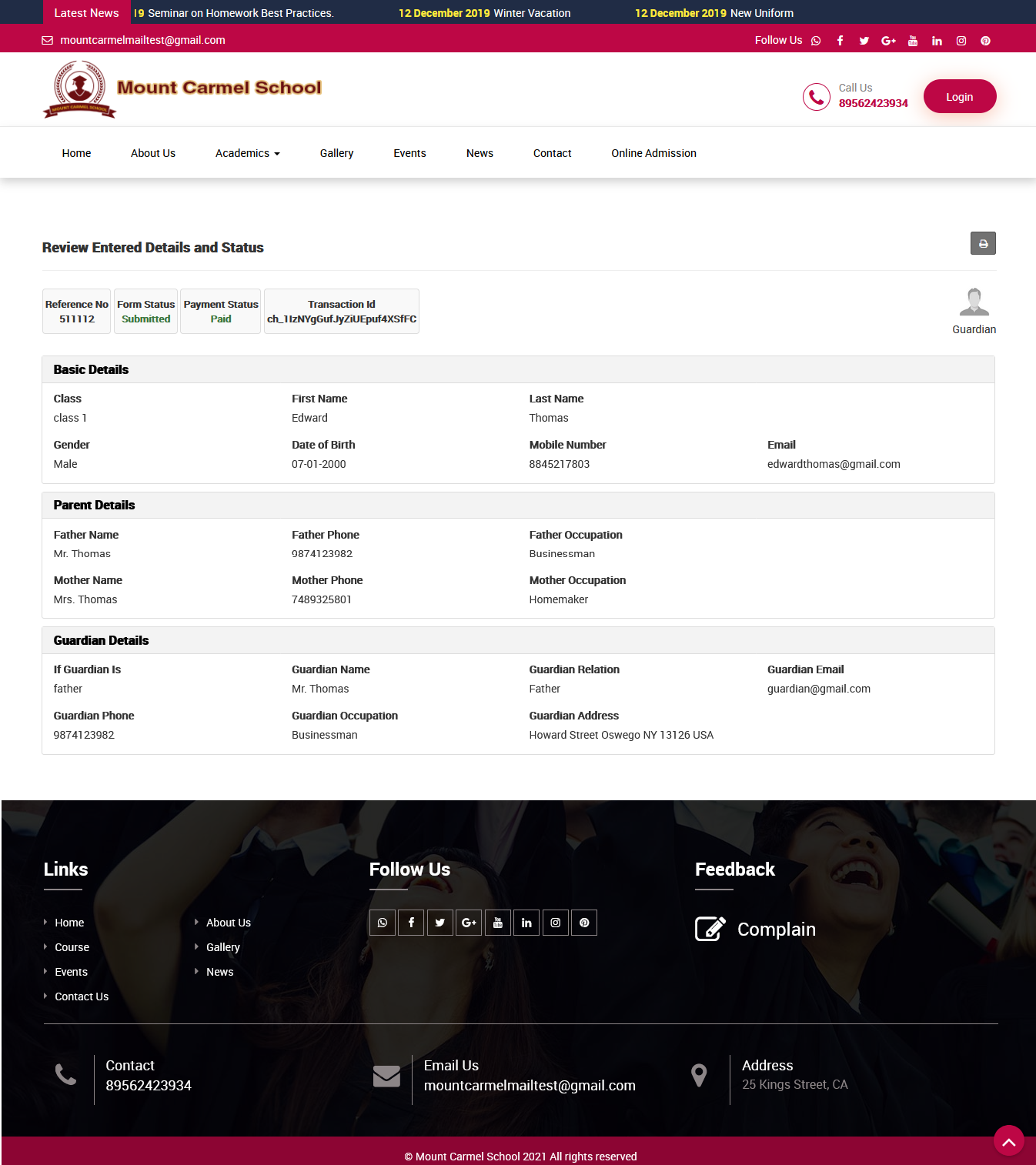
To edit admission form detail click on the Edit icon present in the top of the Online Admission Review Details page, this will redirect you in the Edit page, here update the records and then click on the Edit & Save button.
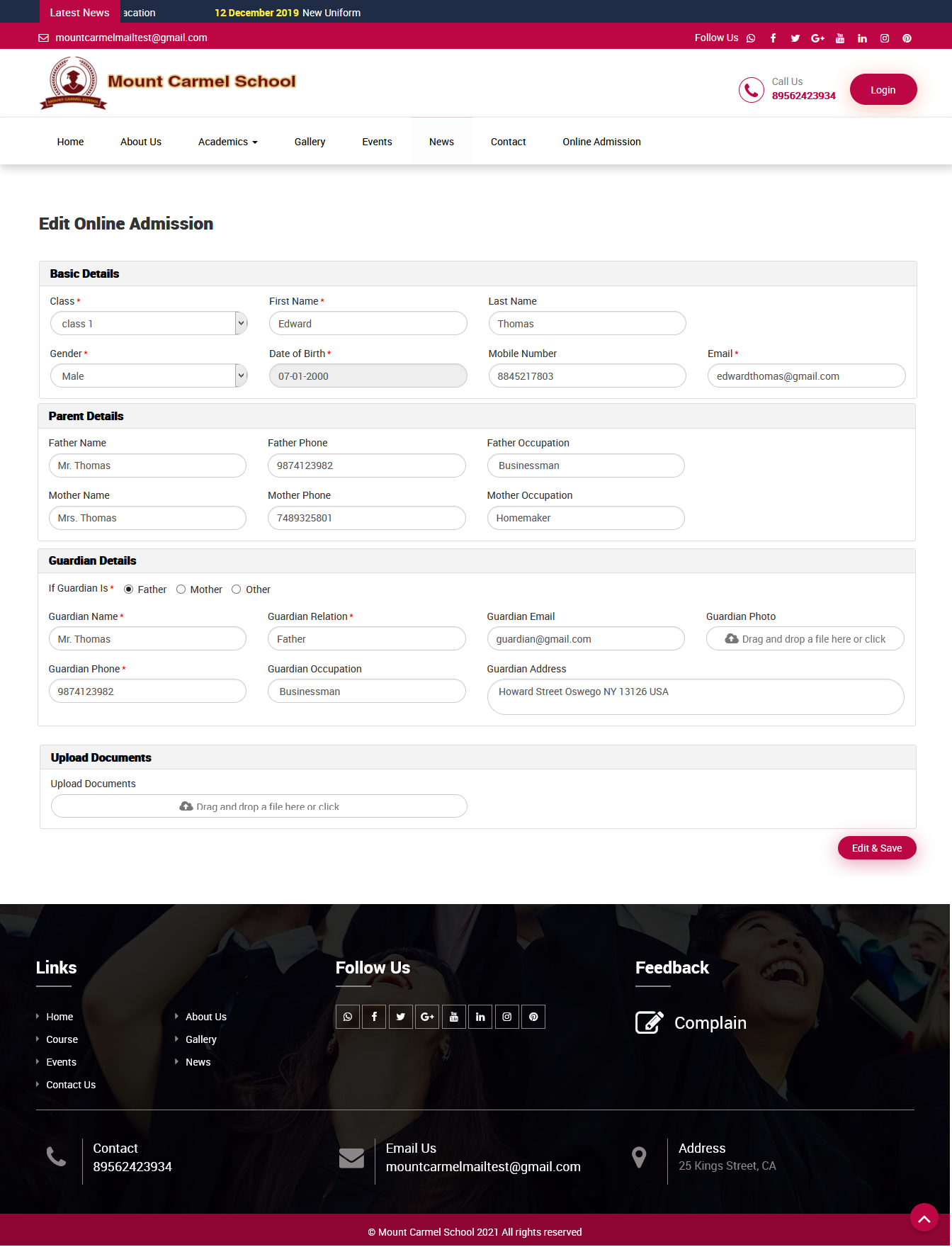
Note - You can edit the form only till then your form is not submitted once form is submitted or payment is done then you will not be able to edit form details.
How to review online admission form details?
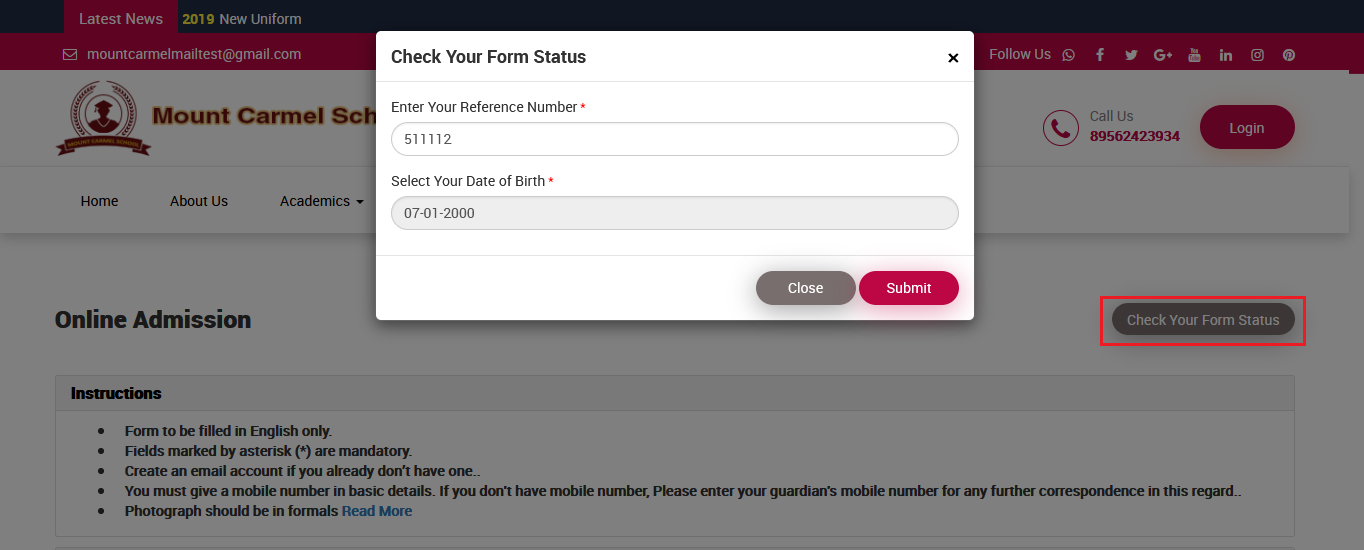
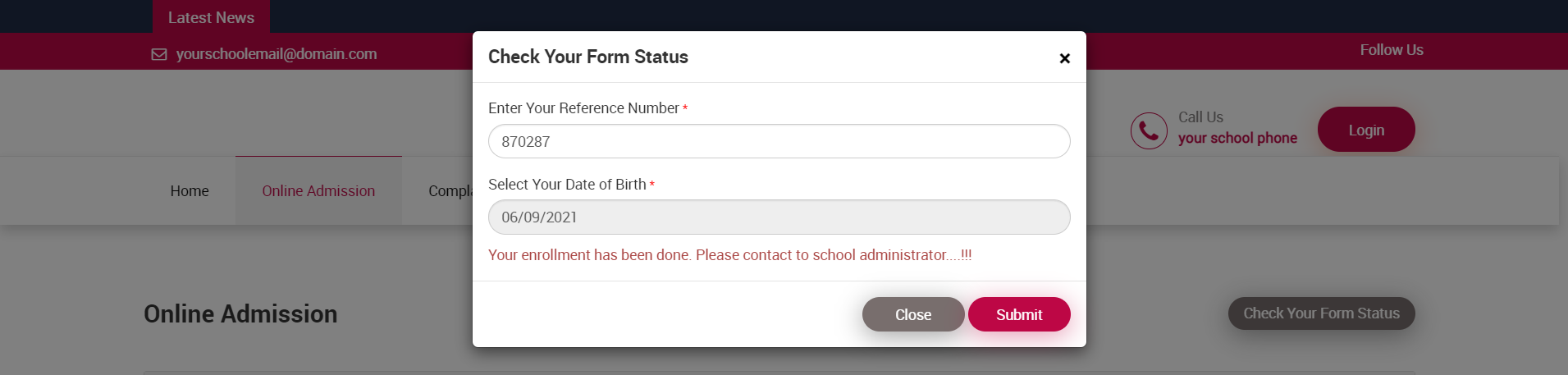
Note - Once your enrollment has been done from admin side, you will not be able to check your review details, if you are trying to do this then you will get an error message "Your enrollment has been done. Please contact to school administrator....!!!" . You have to contact to Smart School administrator for further communication.
How to print online admission form receipt?
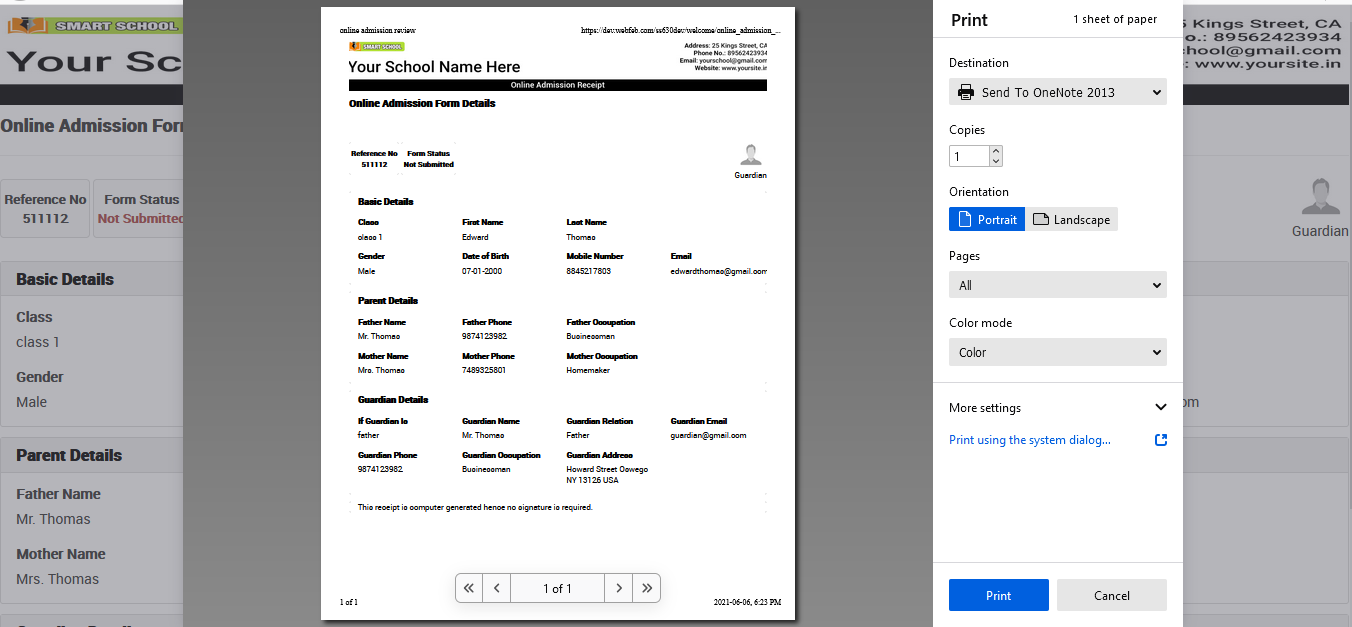
To print online admission form receipt, go to Online Admission Review Details page and then click on the Print icon present on the top of the page.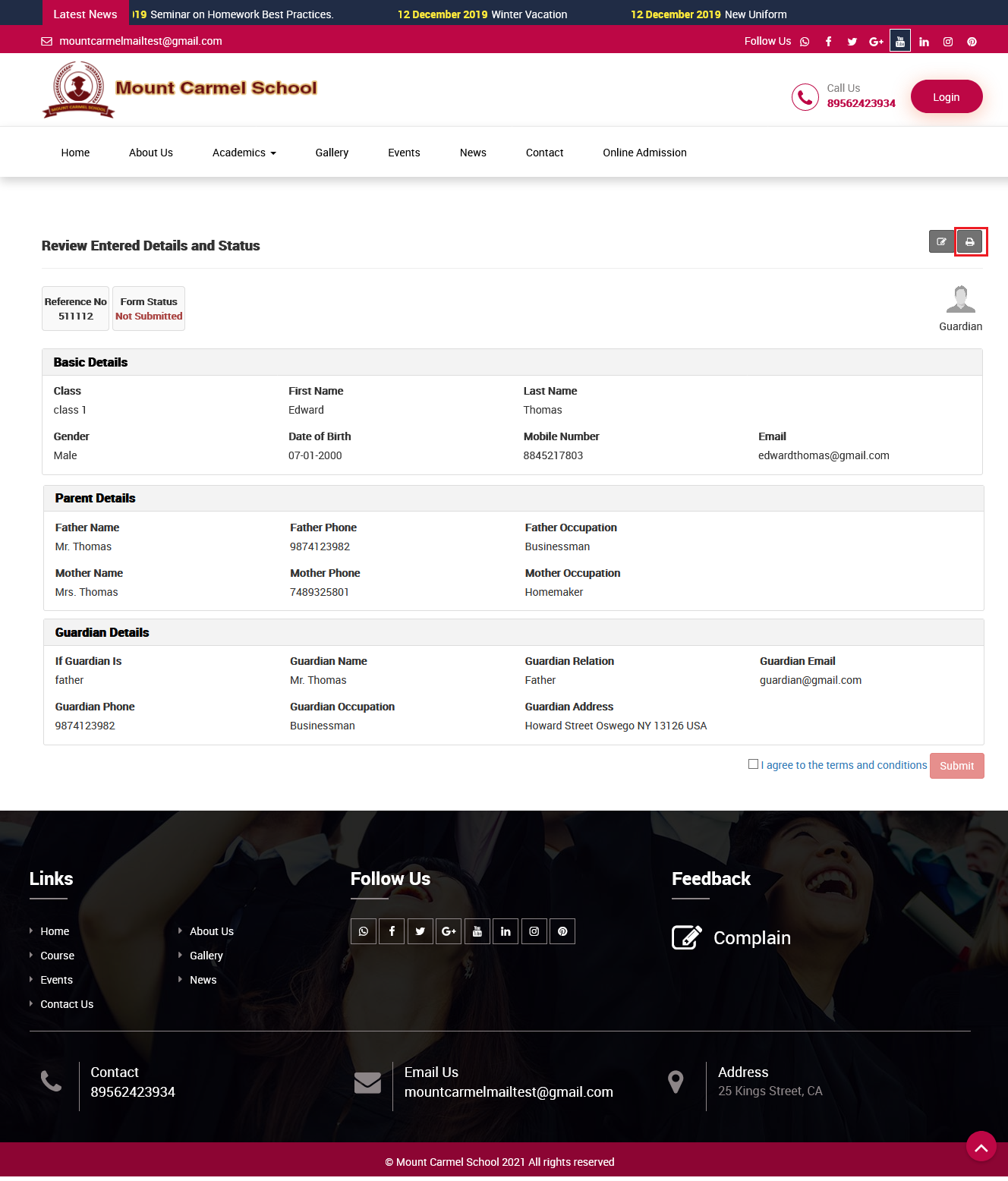
How to check online admission student list?
To check online admission student list, login from Superadmin/Admin panel then go to Student Information > Online Admission, here you can see online admission student’s details like Reference No, Student Name, Class, Father Name, Date of Birth, Gender, Category, Form Status, Payment Status.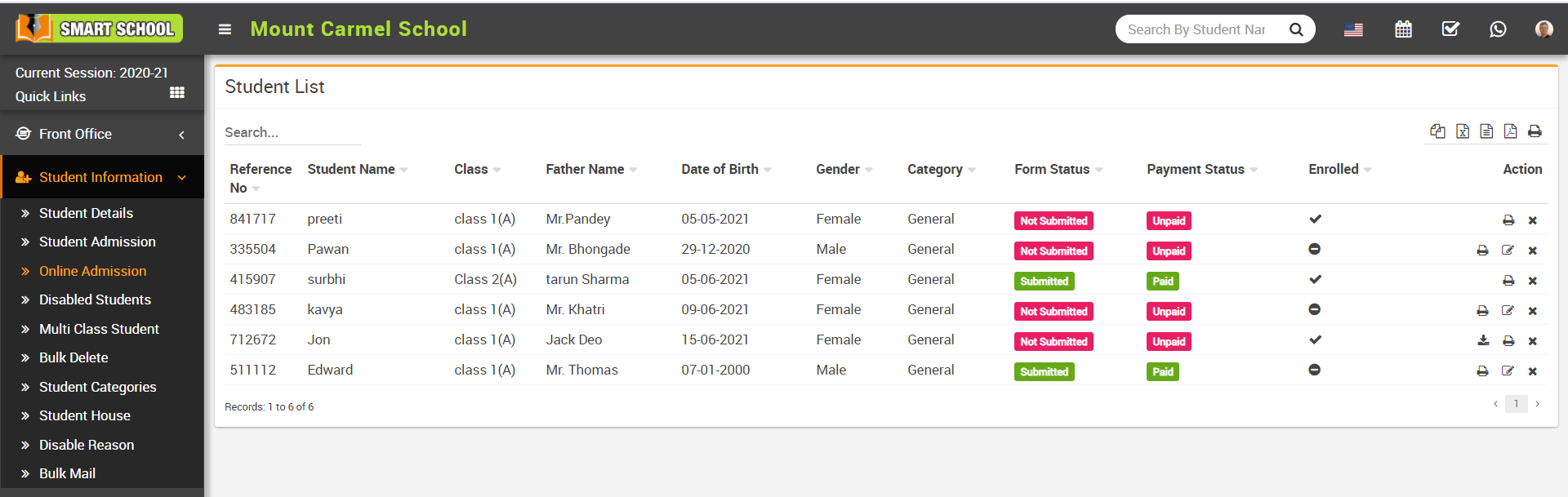
To print student's details click on the Print icon present in the Action column, this will redirect you in the Online Admission Review Details page, here click on the Print icon.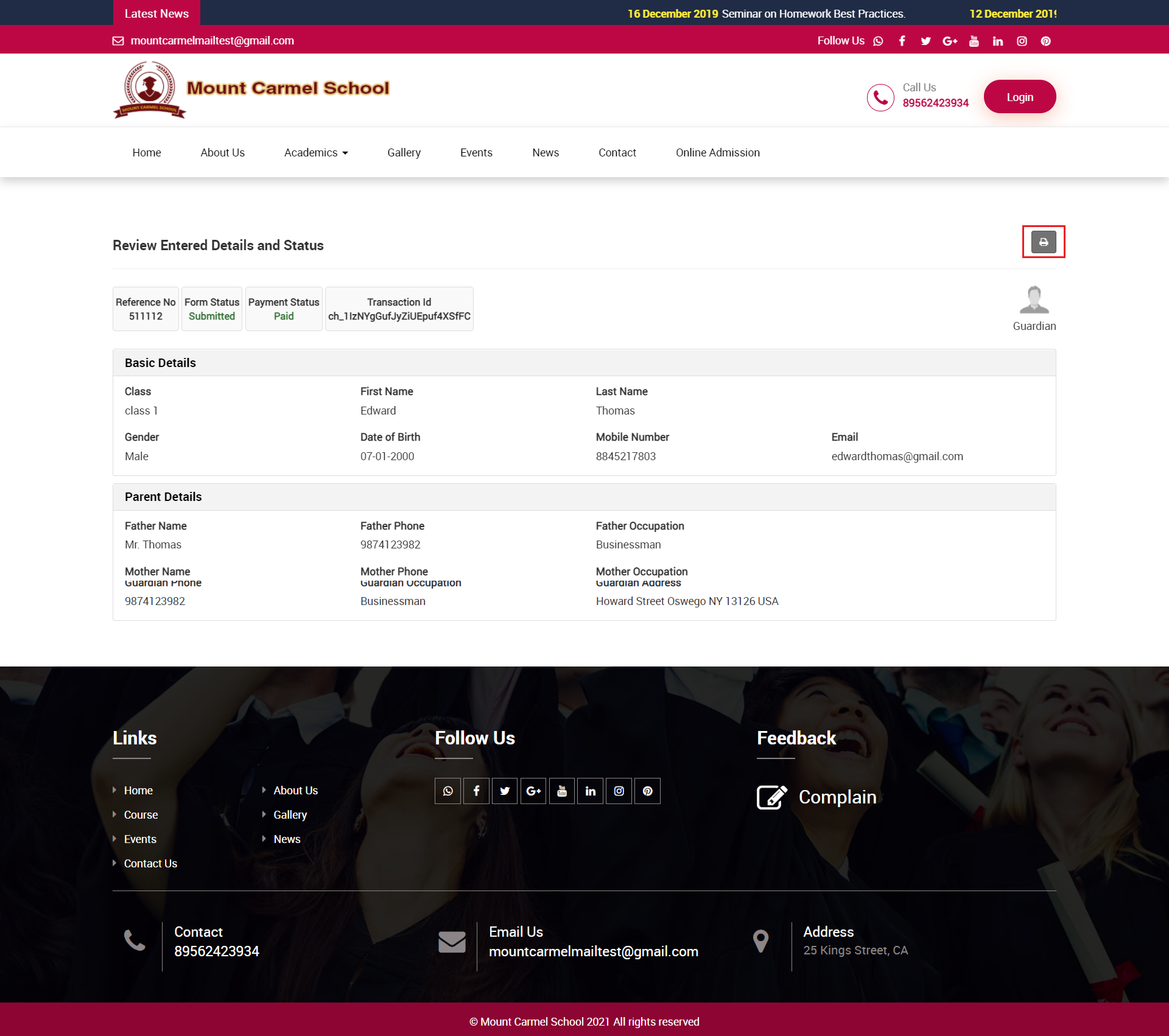
Note - If you check student's review details from superadmin/admin panel then you can not edit student's details from student review details page.
Edit Online Student Details -
To edit online student detail click on the Edit icon present on the Action column, this will redirect you in edit page where you can update student details.
If you want to enroll student then click on the Save And Enroll button otherwise click on the Save button present in the below of the page.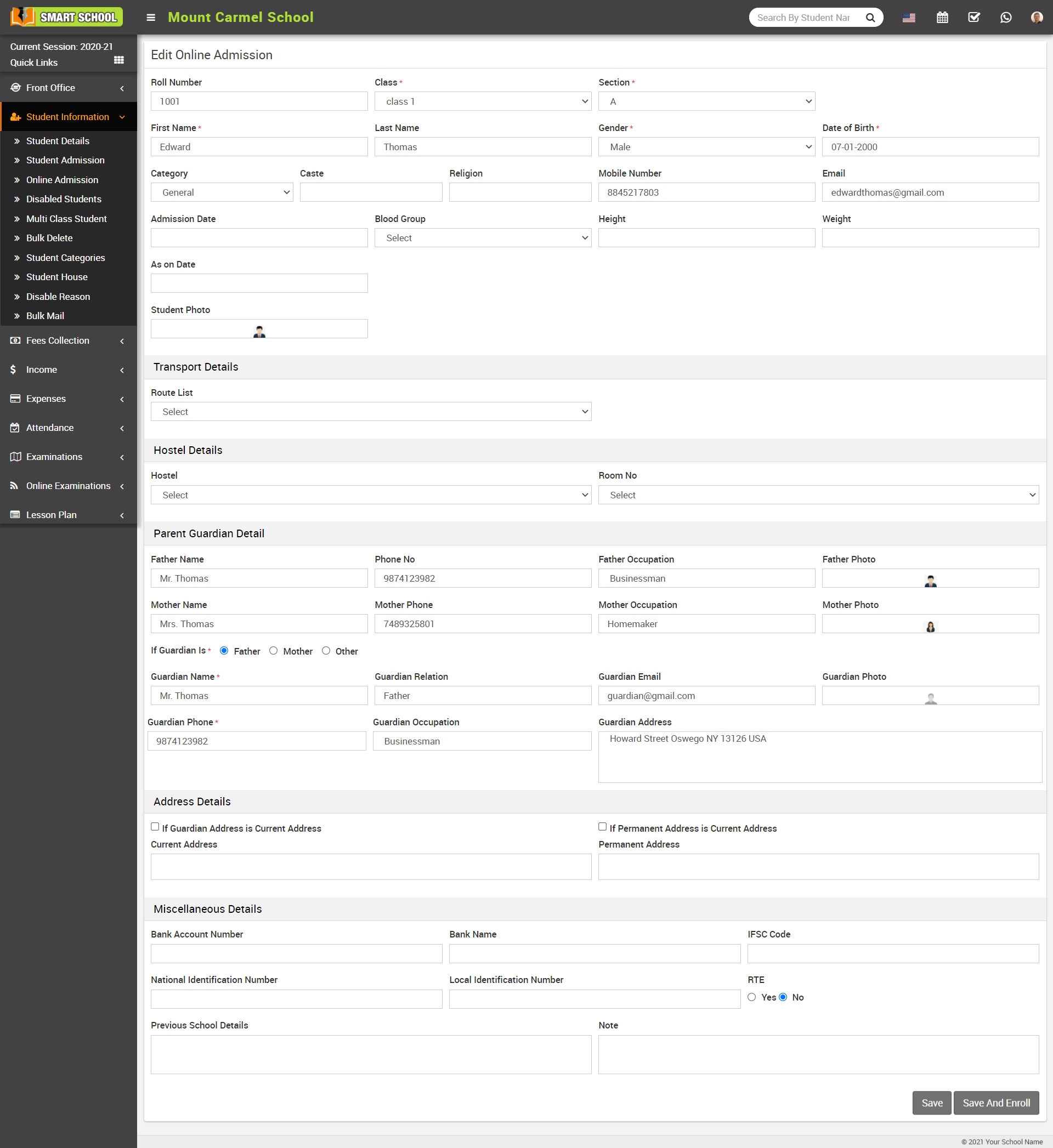
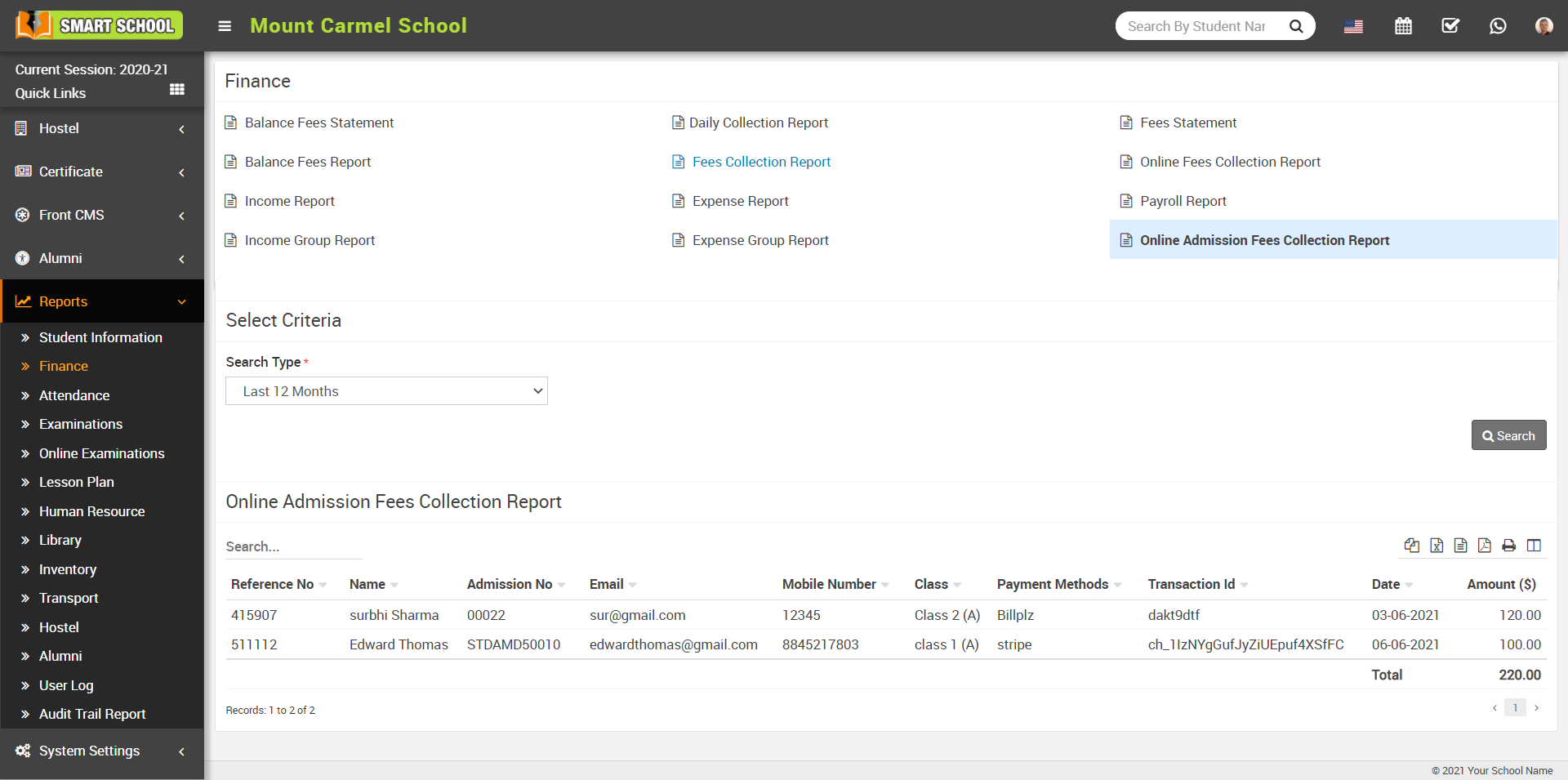
How to check online admission fees collection report?