About Multi Branch
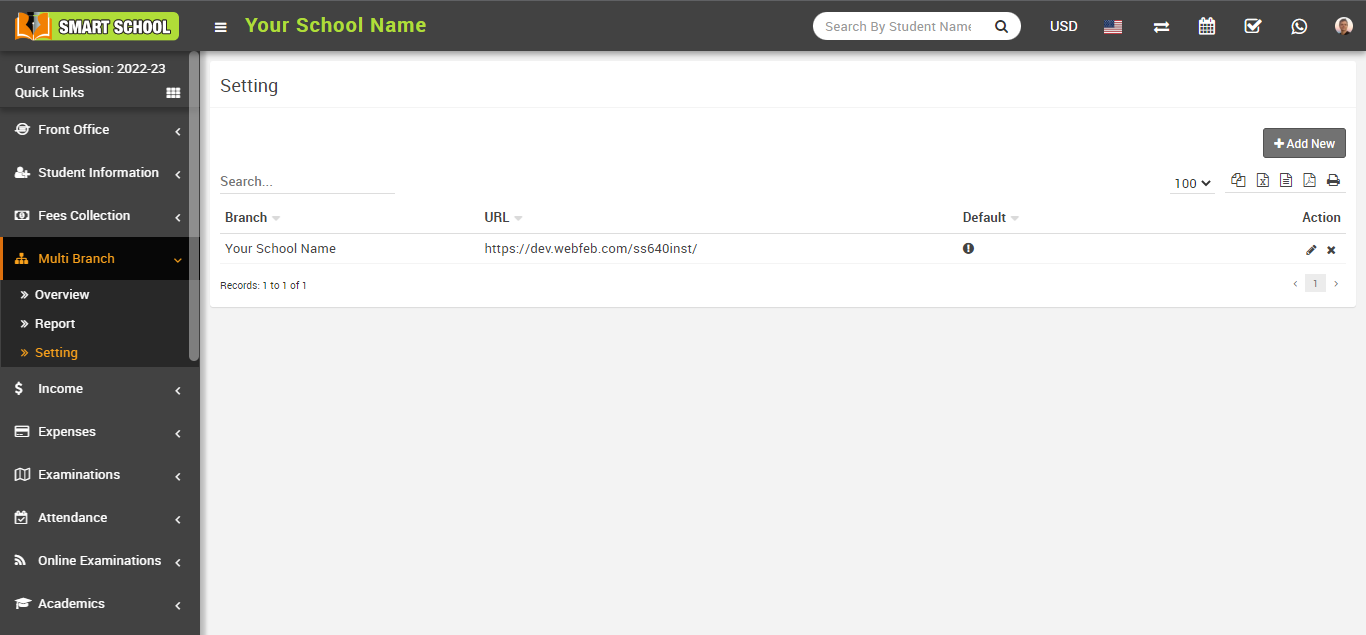
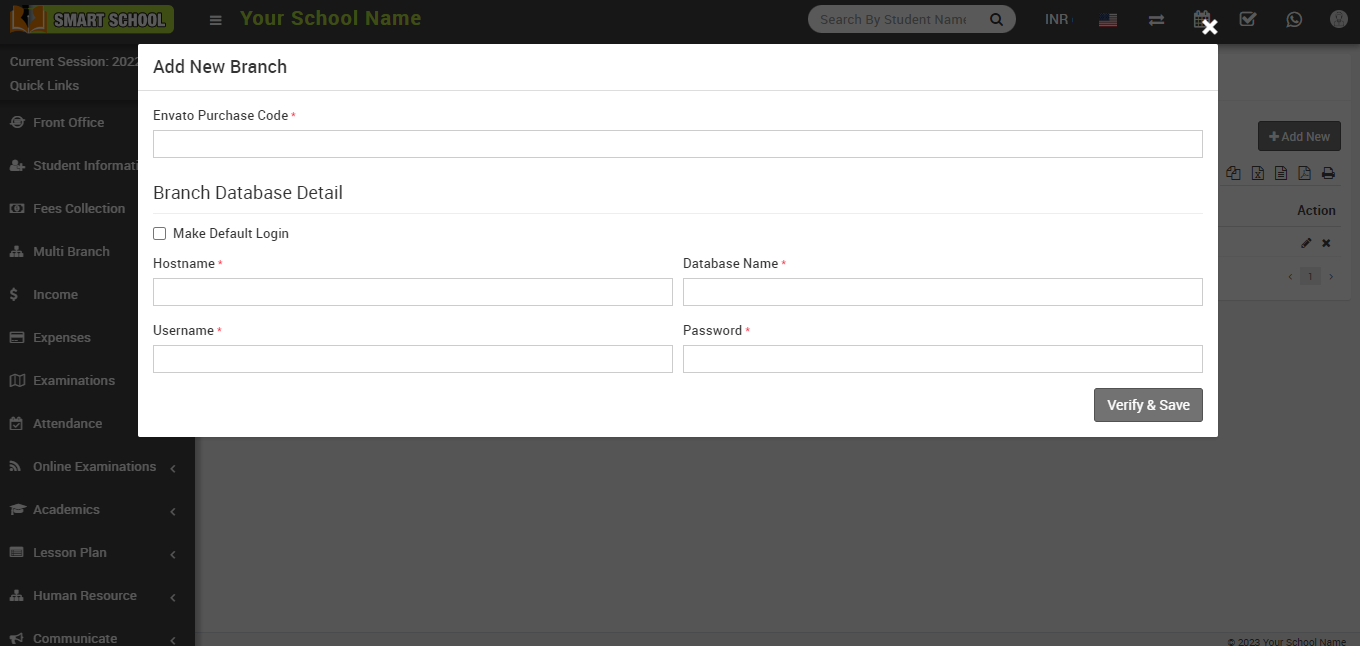
How to add the new branch in Smart School home branch?
Note: (1) When you add the new branch in your Smart School, database Username and Password must be same for the all branches including home branch database.
(2) If any addons are installed in your other branches but they are not installed in your home branch then these addons will not be available in your home branch (with multi branch addon) while accessing other branches data.
Once a branch is created, you will see the details of the New Multi Branch.
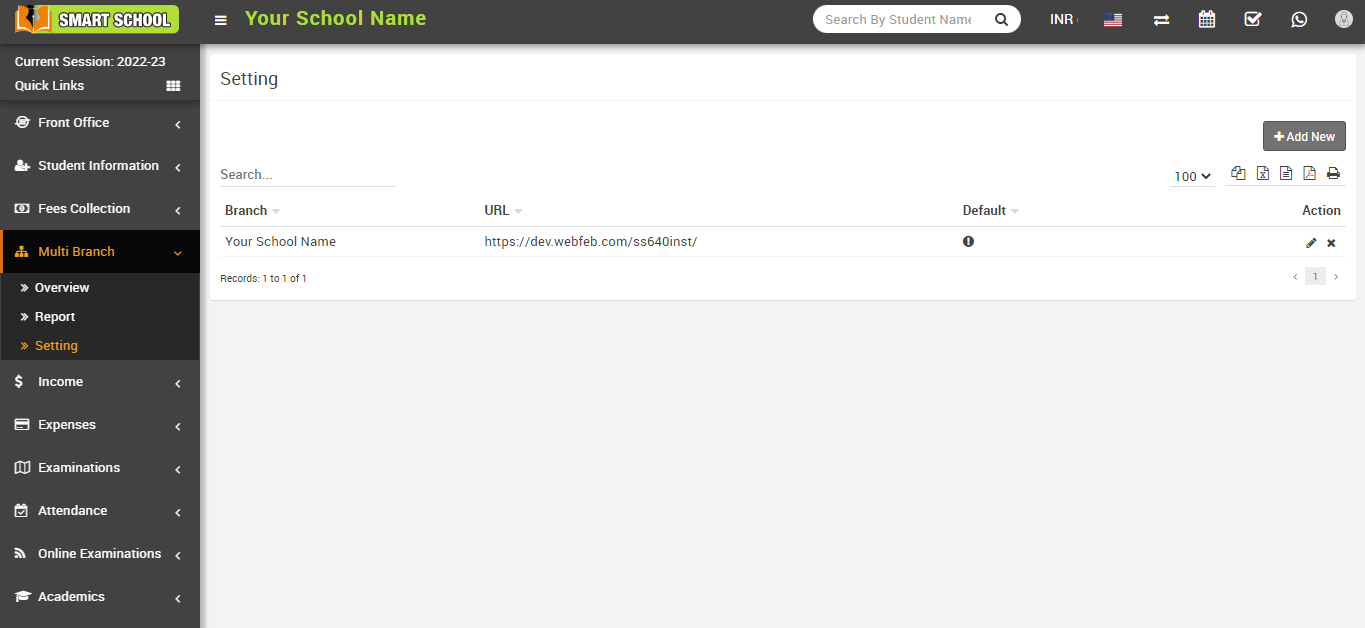
Note: Please check your Smart School main branch and sub branch, Base Url and File Upload Path are entered correctly in your General Settings > File Upload Path. After saving general setting please once logout then relogin so changes will be come in effect.
How to edit a branch?
To Edit a branch, click on the Setting button, at the click of this button, an Edit Detail modal will be opened, now click on the Edit icon present in the left corner, an Edit Branch modal will be opened here, update the detail and then click on the Verify & Save button present in the bottom right corner.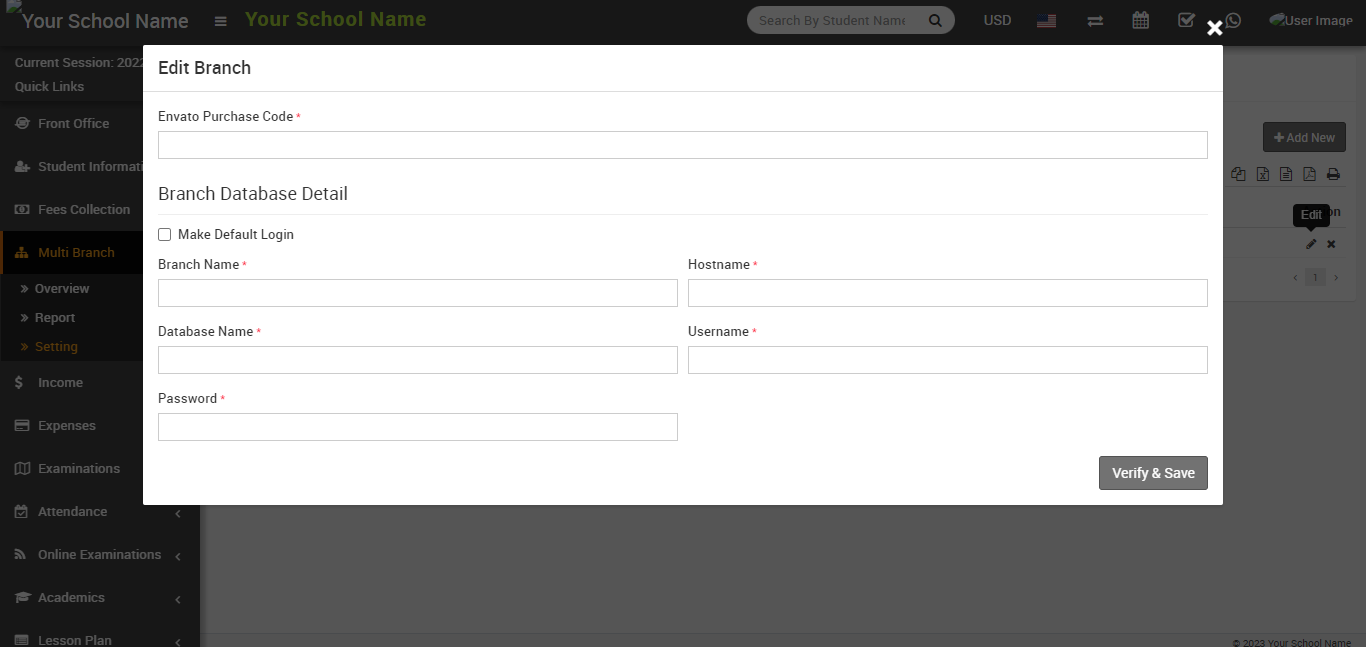
How to delete the branch?
To Delete Branch, click on the Cross icon in the right corner, after clicking on Cross icon, Delete confirmation modal will be open then click on OK button, branch will be deleted successfully. 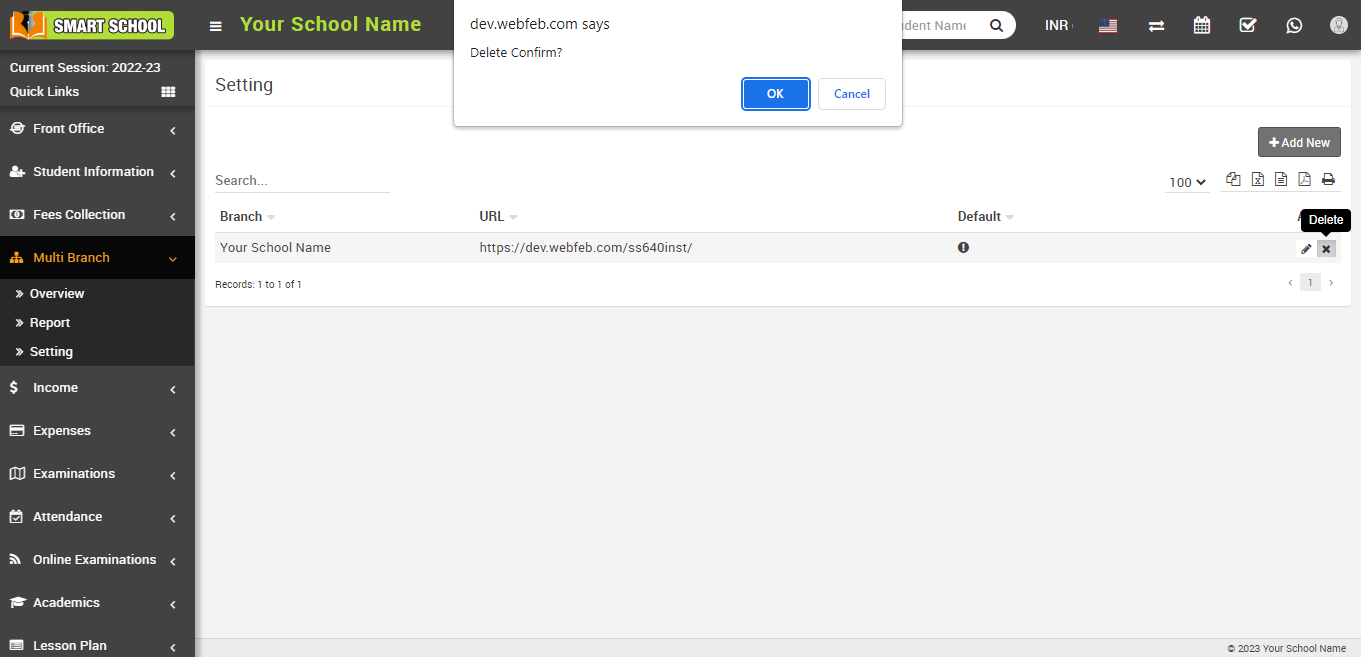
How to switch the branch?
To switch branches, click the Switch Branch icon in the upper right corner. 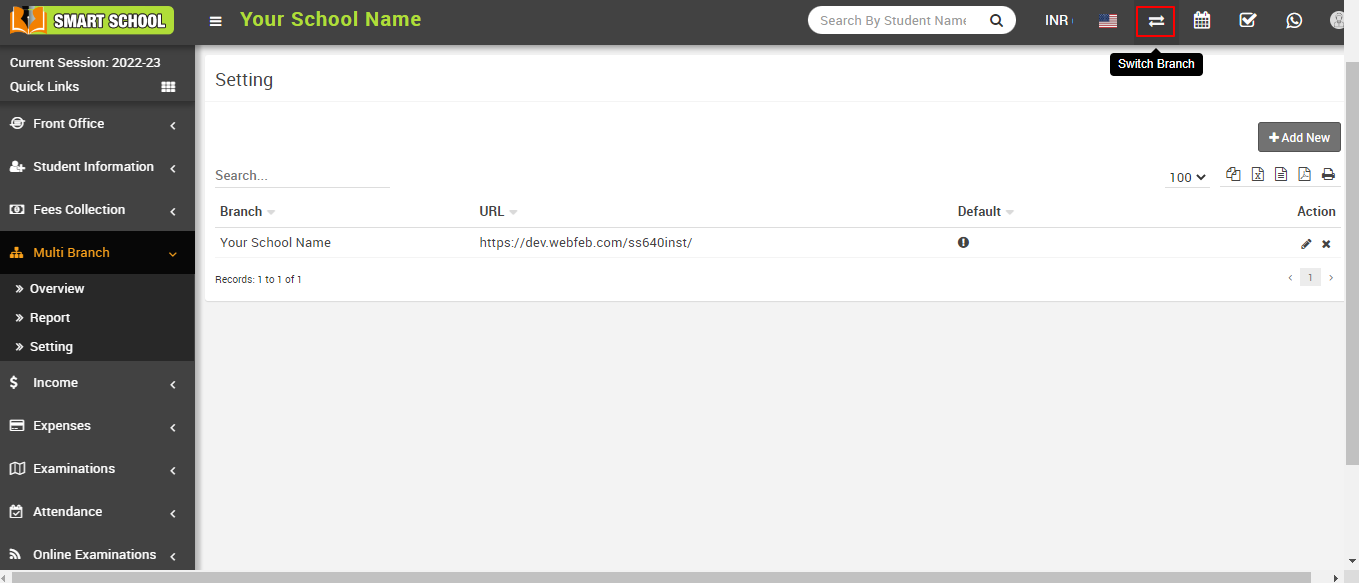
The Switch Branch modal will now appear, and you can change the branch by clicking on the radio button, then click on the Update button, which is located in the below. 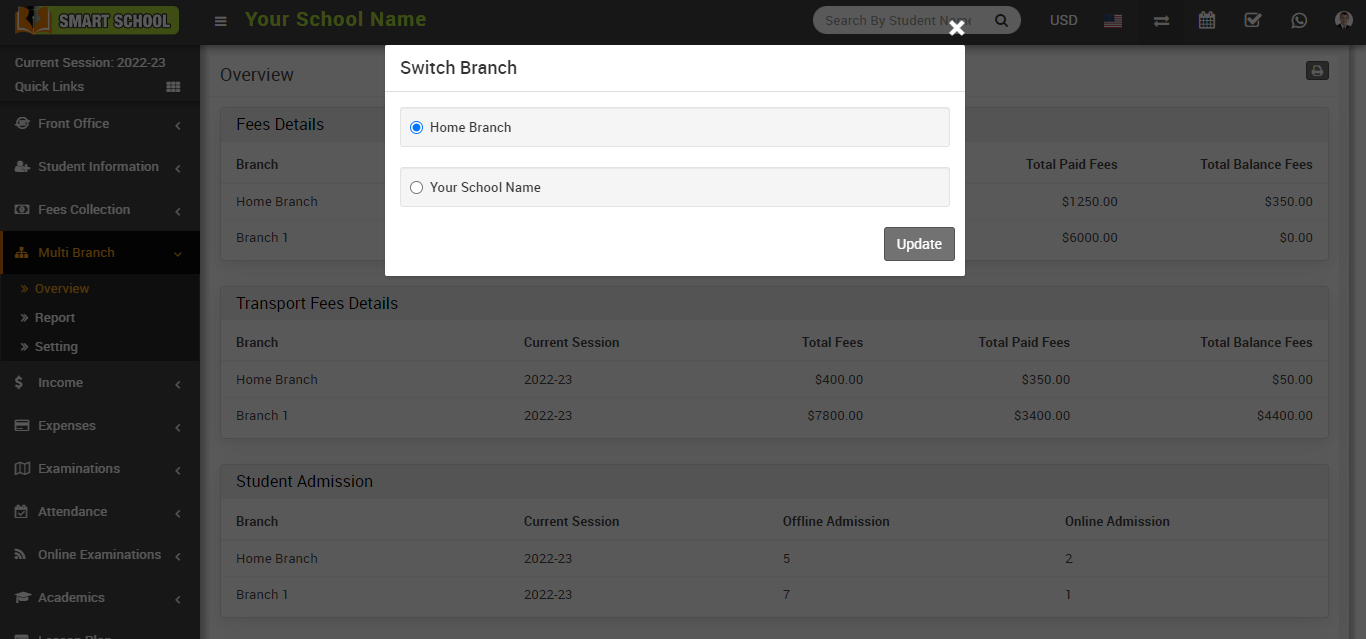
How to check Multi Branch overview?
In the Multi Branch Overview, you can check all the details of your different branches with the help of different modules. Please click on the Multi Branch button in the left side bar to access the Overview page, then select the first option, Overview, the Overview page will now be displayed. 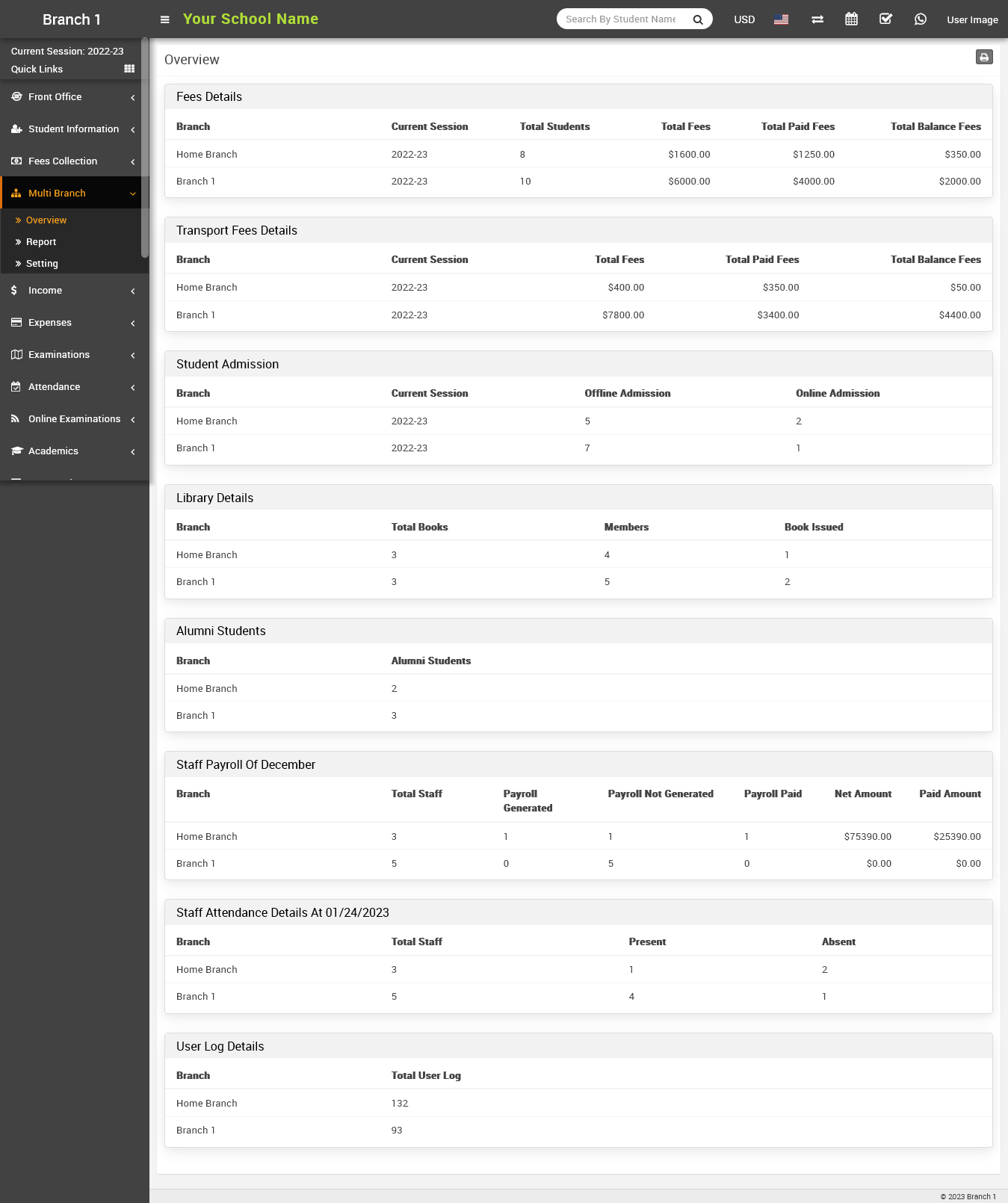
The Overview page displays table level details for various modules, such as Fees Details > Transportation Fees Details > Student Admission > Library Details > Alumni Students > Staff Payroll of Previous Month > Staff Attendance Details at the Current Date > User Log Details. These modules will all provide you with branch specific information. 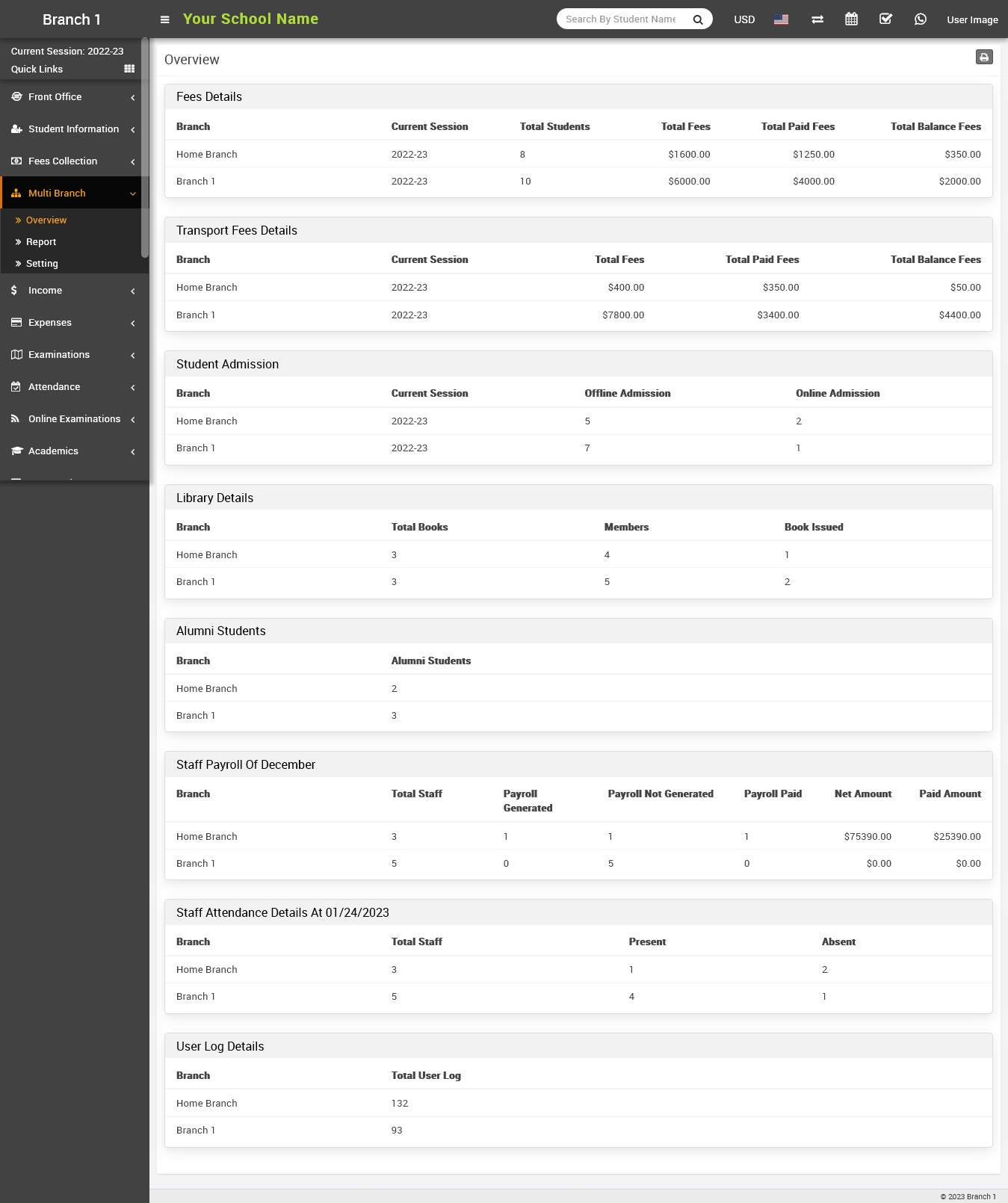
Fees Details: In Fees Details, here you can see the different columns under Branch. Current Session > Total Students > Total Fees > Total Paid Fees > Total Balance Fees.
In the Fees Details table, you can see in the first column how many other branches of your school are open in the second column, the current session, in the third column, the total number of students studying in your other branches, in the fourth column, the total fees in different branches, in the fifth column, the total paid fees in your other branches; and in the last column, the total balance.
Tra Transport Fees Details: In Transport Fees Details, here you can see the different columns under Branch > Current Session > Total Fees > Total Paid Fees > Total Balance Fees.
In the Transport Fees Details table, you can see how many other Branches are running out of your school in the first column, the Current Session in the second column, the Total Fees in other branches in the third column, the Total Fees Paid in other branches in the fourth column, and the Total Balance Fees remaining in other branches in the last column.
Student Admission: In Student Admission Details, here you can see the different columns for branch, current session, offline admission, and online admission.
In the Student Admission table you can check in first column, how many other branches of your school are running; in the second column, you can check the Current Session, in the third column, you can check how many students took the Offline Admission in your other branches; and in the fourth column, you can check how many students took the Online Admission in your other branches.
Library Details: In Library Details, here you can see the different columns of Branch > Total Books > Members > Book Issued.
In the Library Details table, you can see how many other branches your school runs in the first column; the total number of books available in your other branches in the second column; the number of members in your other branches in the third column and the number of books issued in your other branches in the fourth column.
Alumni Students: In Alumni Students, here you can see the different column of Branch > Alumni Students.
In the Alumni Students table, you can check in the first column how many other branches of your school are running, and in the Alumni Students second column, you can check the count of how many students have studied in your other branches.
Staff Payroll of the Previous Month: The Staff Payroll of the Previous Month table displays the following columns: Branch > Total Staff > Payroll Generated > Payroll Not Generated > Payroll Paid > Net Amount > Paid Amount. 
Staff Payroll Of Last Month table, you can check in the first column how many other branches are running of your school, in the second column, you can check the count of Total Staff available separately in the other branches, in the third column, you can check the count of Payroll Generated for the staff, in the fourth column, you can check the count of Payroll Not Generated for the staff, and in the fifth column, you can check the count of Payroll Paid for the staff of your other branches and in the six column you can see the Net Amount of seperated branch and in the last column, you can see the Paid Amount of the staff of your other branches.
Staff Attendance Details At Current Date: In Staff Attendance Details at Current Date, here you can see the different columns of Branch > Total Staff > Present > Absent.
In Staff Attendance Details In the Current Date table, you can check in the first column how many other branches are running of your school, in the second column, you can check the count of how many Total Staff are available in other branches and in third column, you can check the count of how many staff are Present on the current date in your other branches and in forth column, you can check the count how many staff are Absent on the current date in your other branches.
User Log Details : In User Log Details, here you can see the count of Total User Log in different Branch 
How to check multi branch report?
To check the report, go to Multi Branch > Report, here you will see all multi branch reports.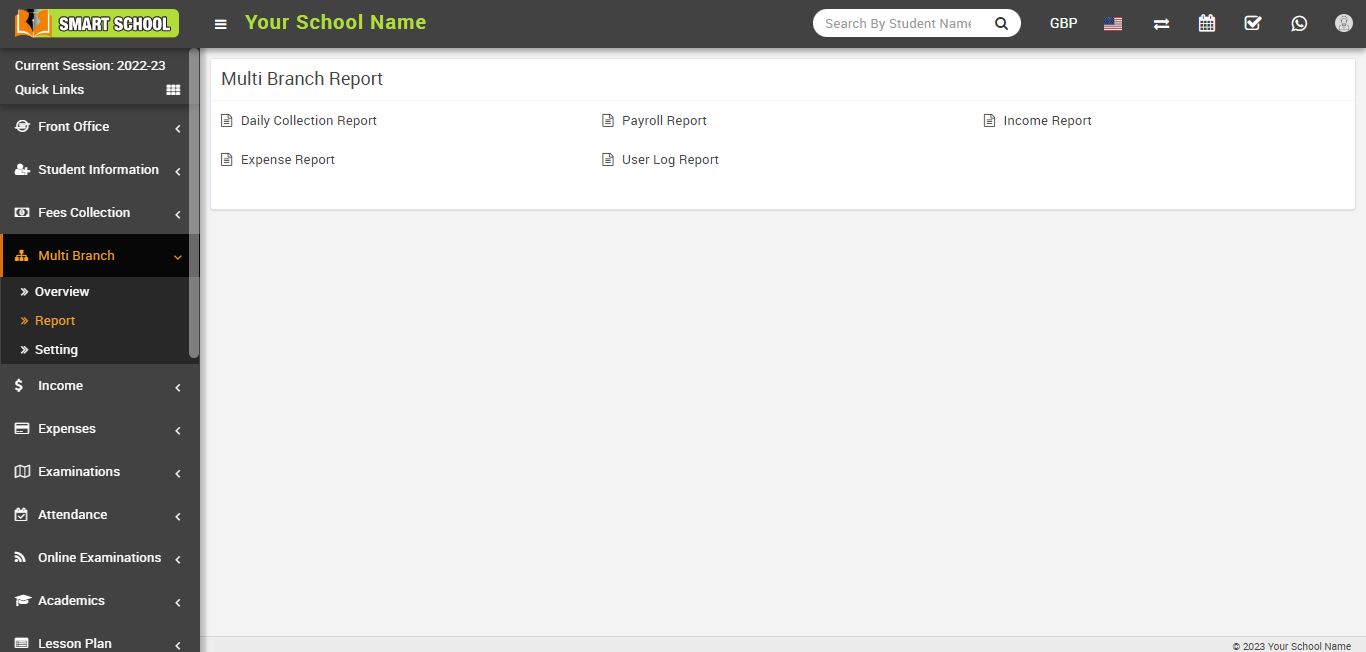
Now, you can check the reports of different modules such as the Daily Collection Report, Payroll Report, Income List, Expense List, Income Report, Expense Report, and User Log Report.
Daily Collection Report : To check the Daily Collection report, go to Multi Branch > Report. Here, select the date range for which you want to see the between dates report and click on the Search button.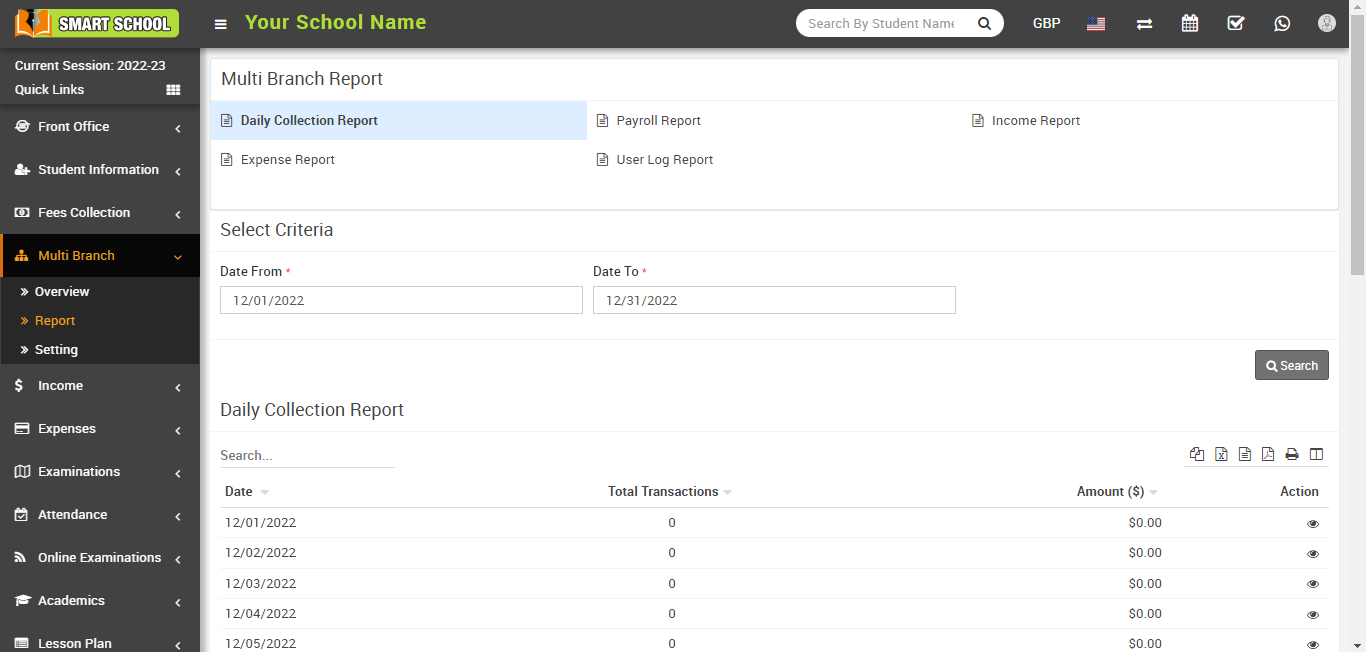
To check the Daily Collection Report, click on the View Collection icon from the Action column, at the click on View icon, the Daily Collection model will be open. Here you can see all the collections of your various branches.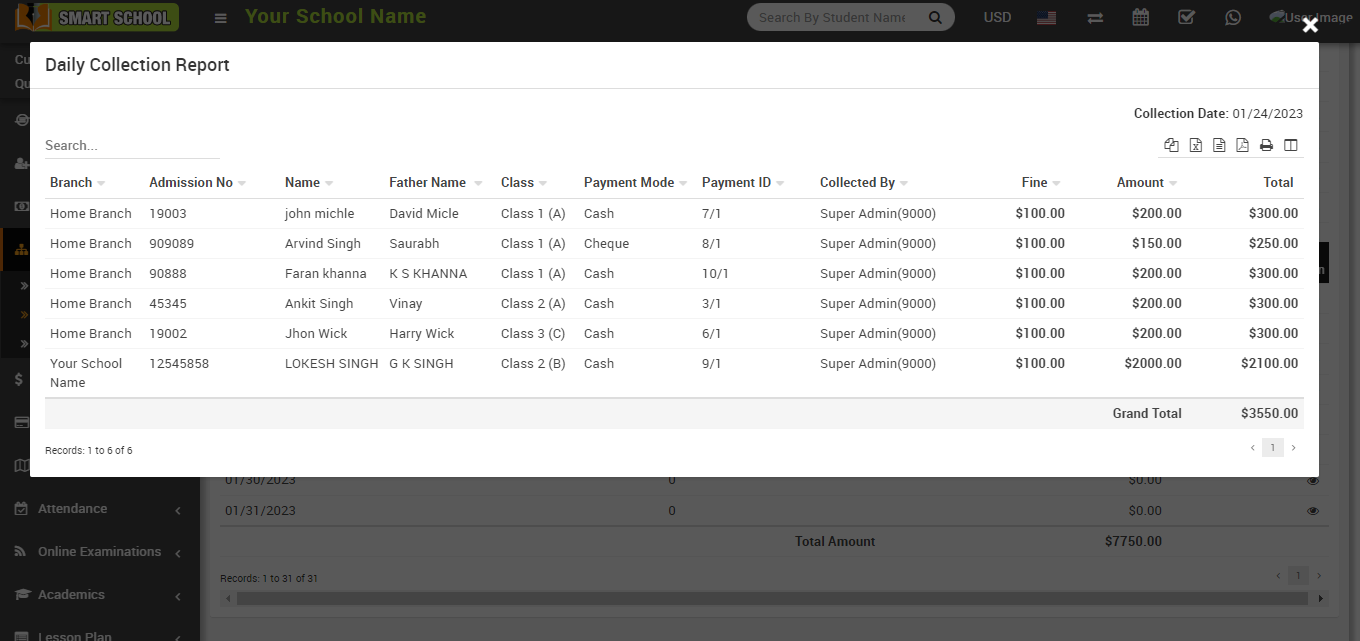
Payroll Report: To check the payroll report, go to Multi Branch > Report. The Payroll Report can be found here.
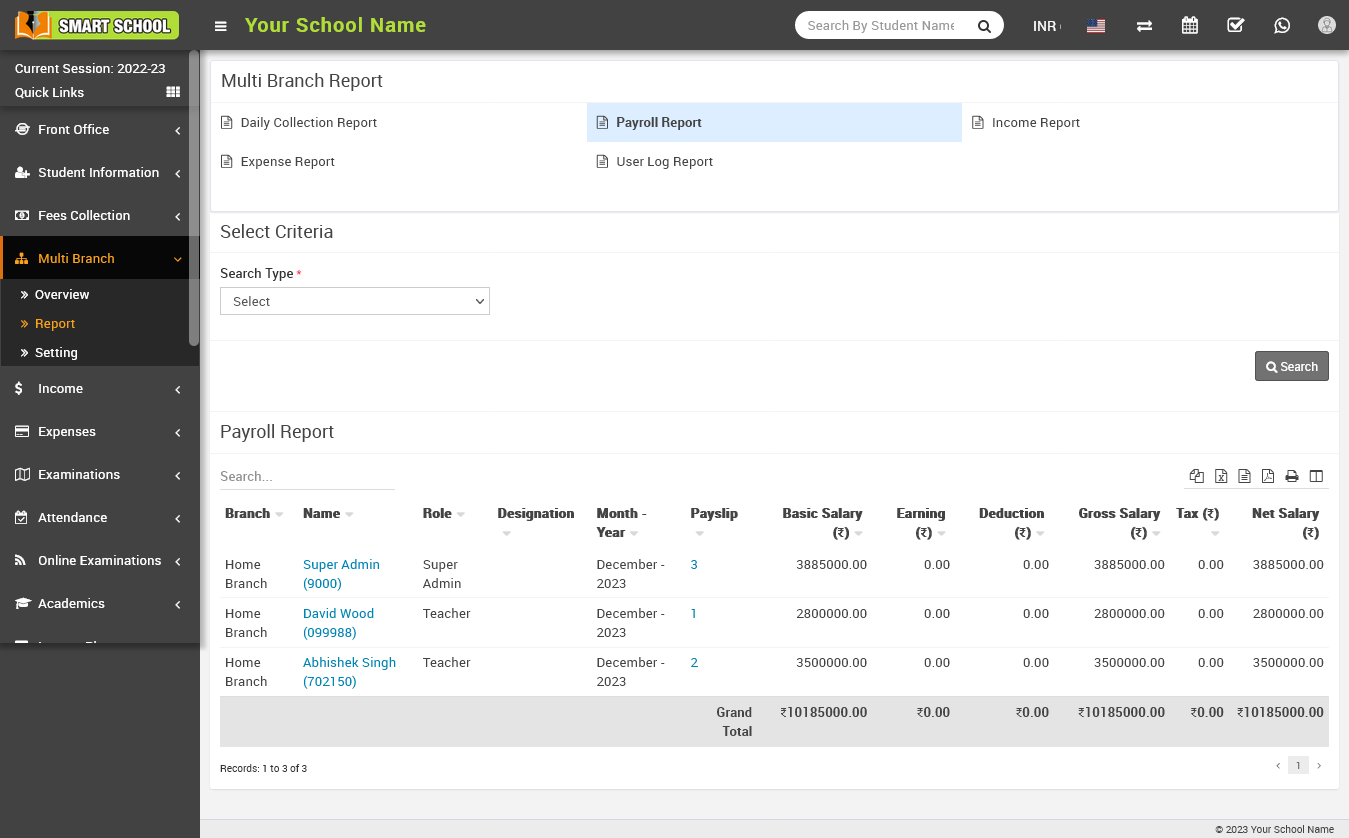
Now, you can select the duration for which you want to see it in the payroll report of your various branches and click on the Search button.
Income Report : To check the Income Report, go to Multi Branch > Report. Here you will see the Income Report link, click on it, and the report will open at the bottom, displaying the income of your various branches.
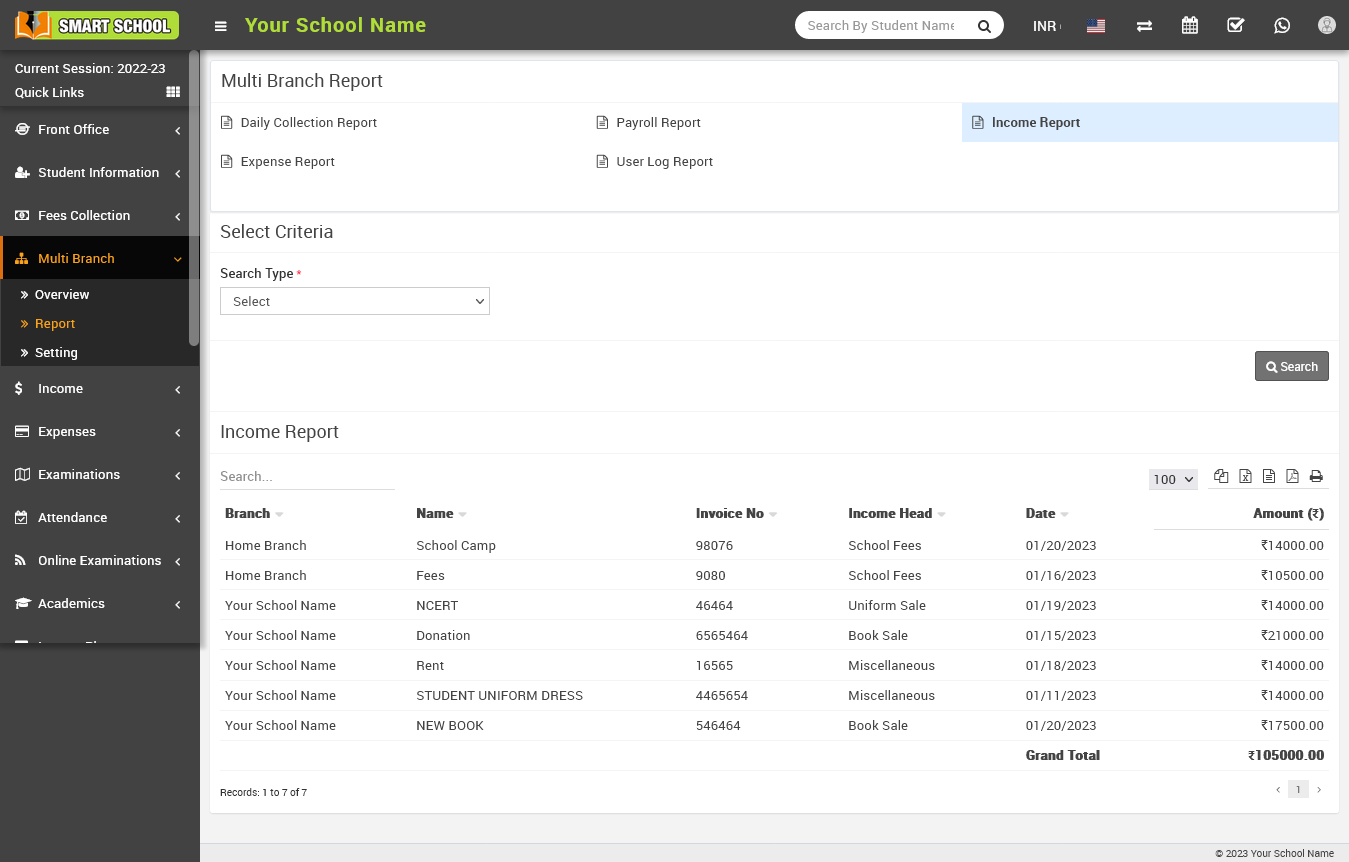
To check the income report duration wise, please select the search type, select the duration that you want to see in the report, and click on the search button. Now you will see the income report duration wise.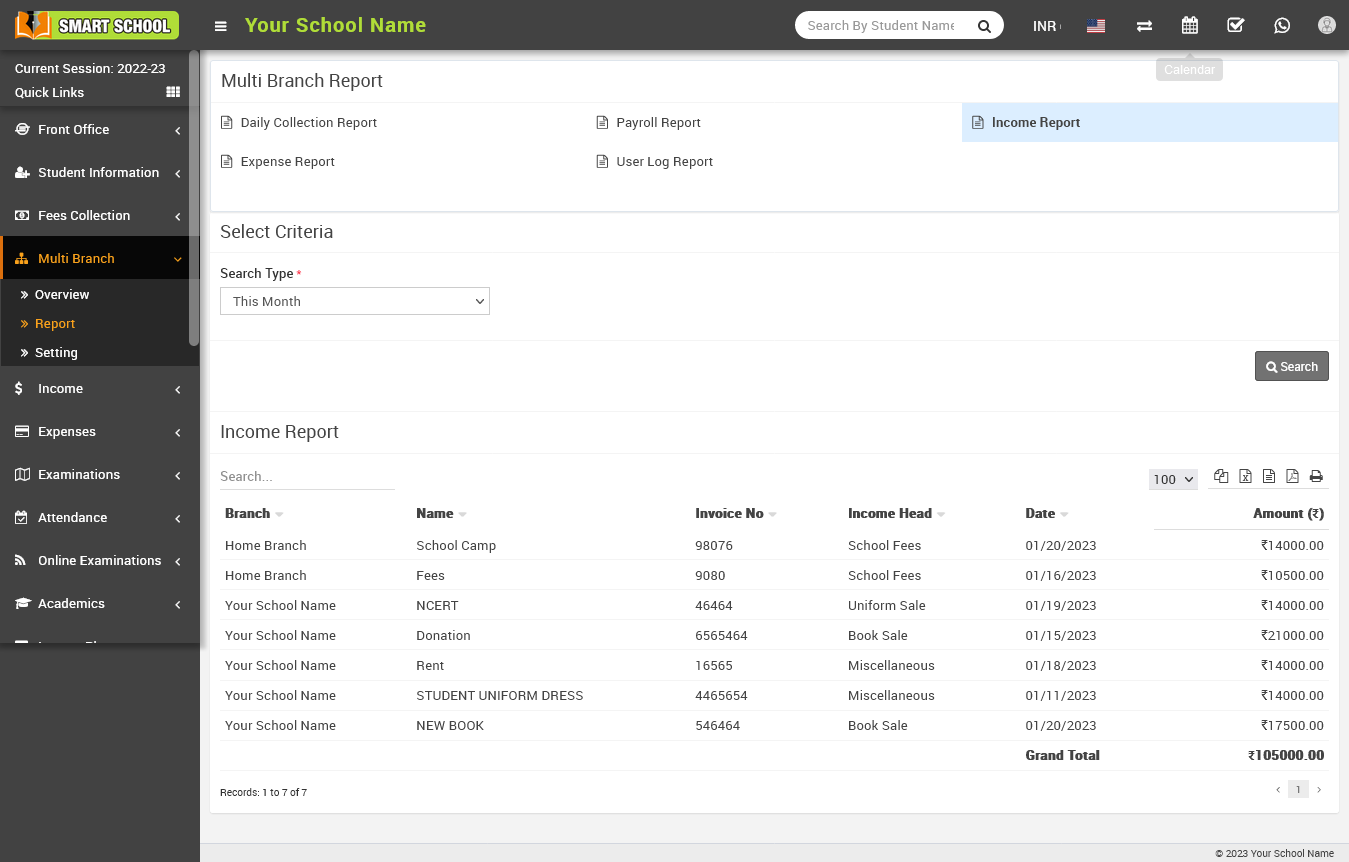
Expense Report : To check the expense report, go to Multi Branch > Report. Here you will see Expense Report. Now click on Expense Report. The report will open at the bottom, and you will see the expenses of your different branches.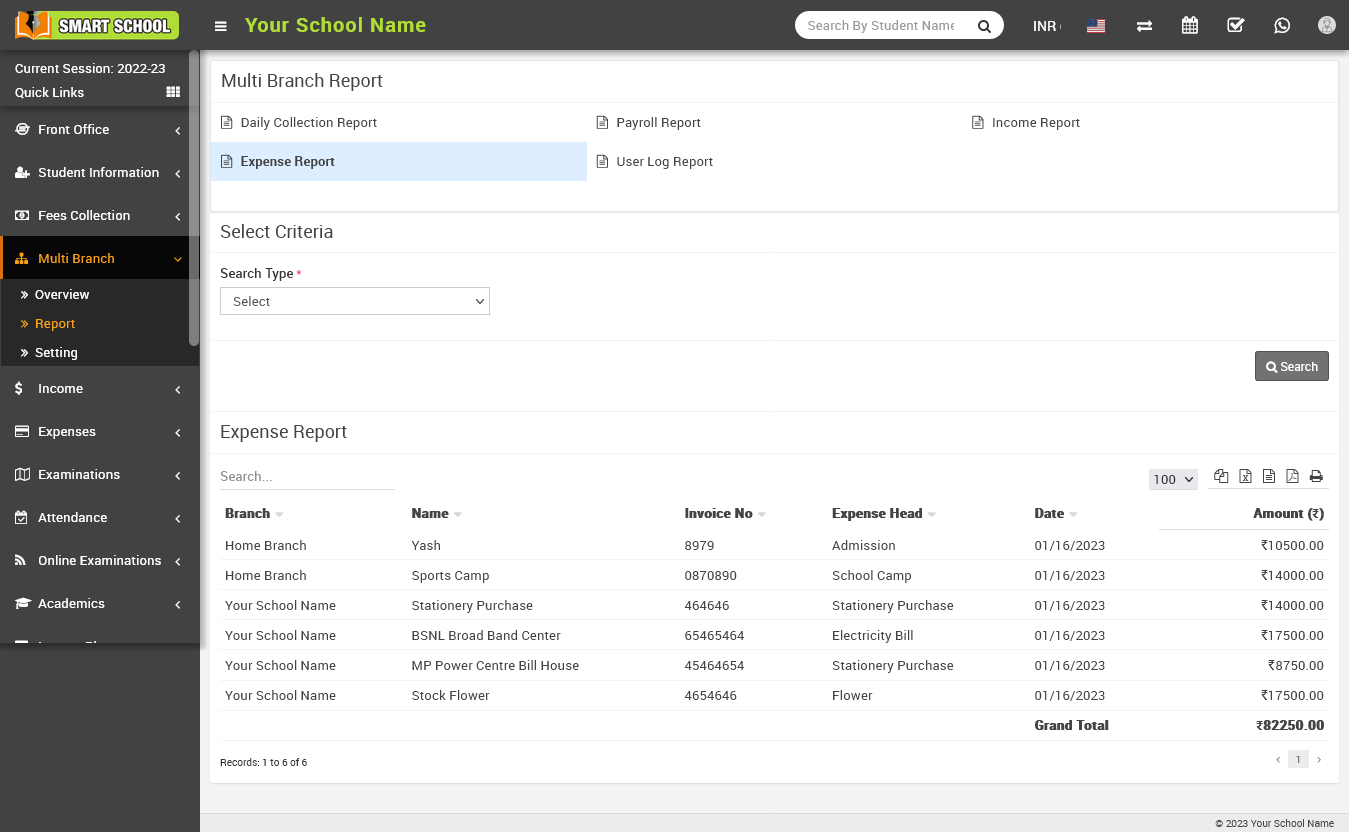
To check the Expense Report duration wise, please select the Search Type and select the duration which you want to see in the report and click on the Search, now you will see the list of Expense Report duration wise.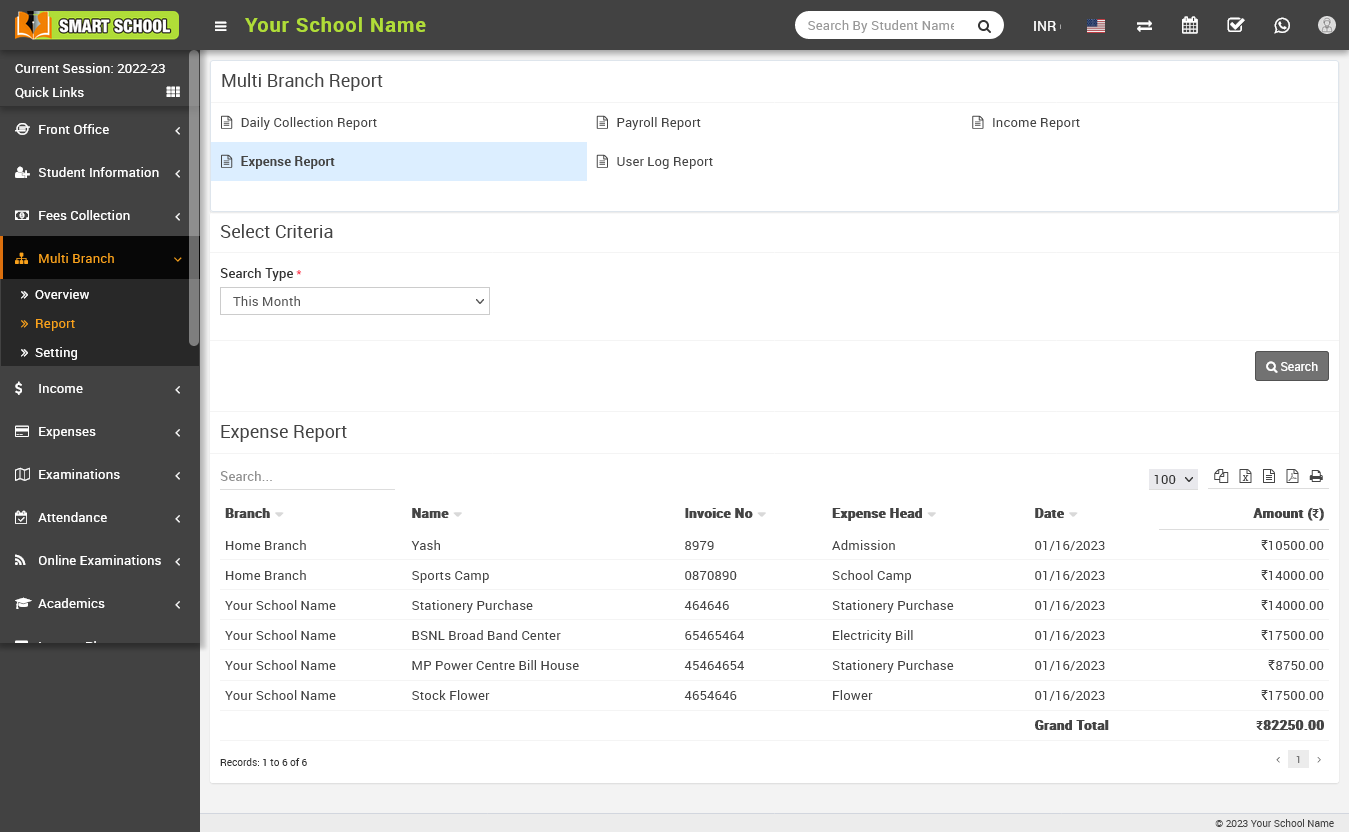
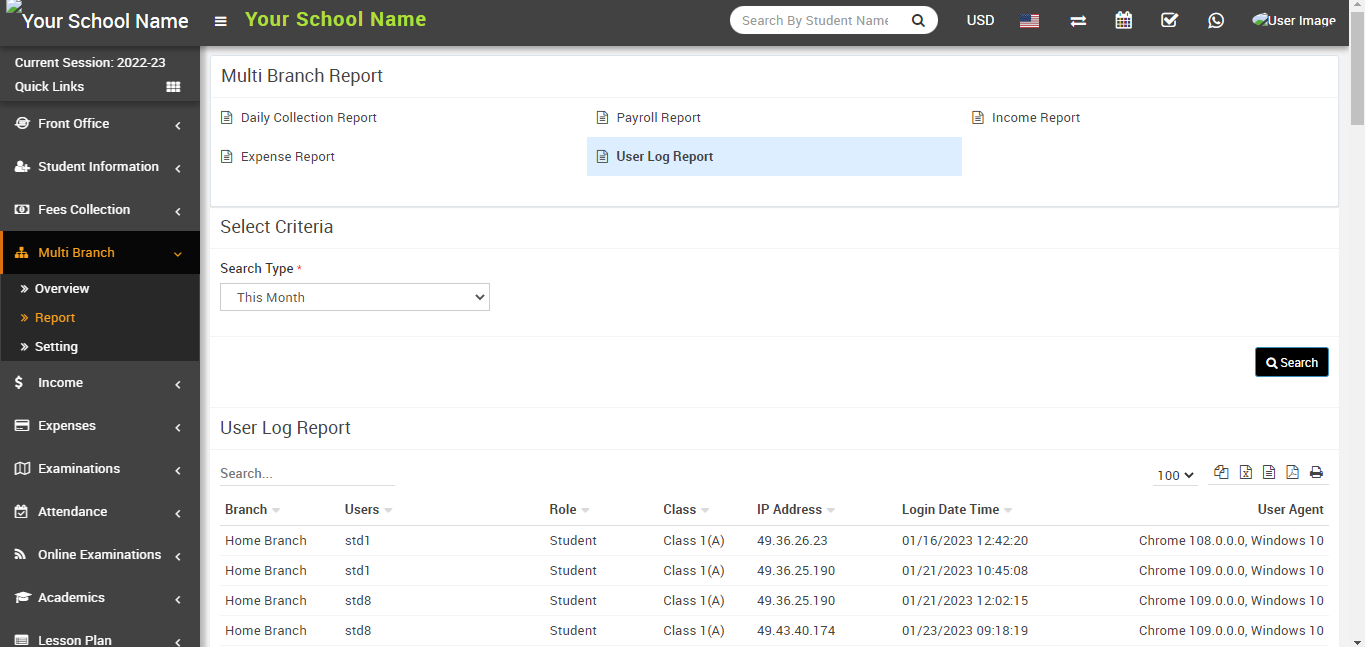
User Log Report : To check the User Log Report, go to Multi Branch > Report. Here you will see User Log Report. Now click on User Log Report. The report will open at the bottom, and you will see the list of users logged in to your different branches.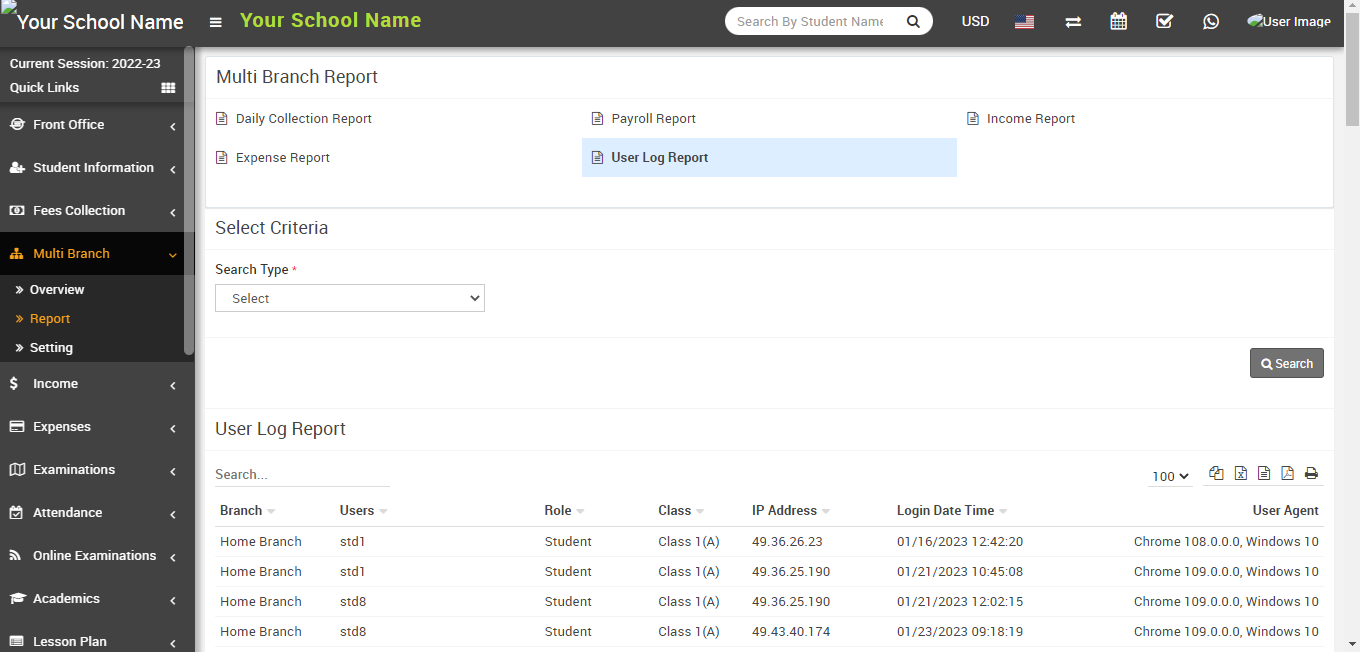
To check the User Log Report duration wise, please select the Search Type, select the duration that you want to see in the list, and click on the Search button. Now you will see the User Log Report duration wise.