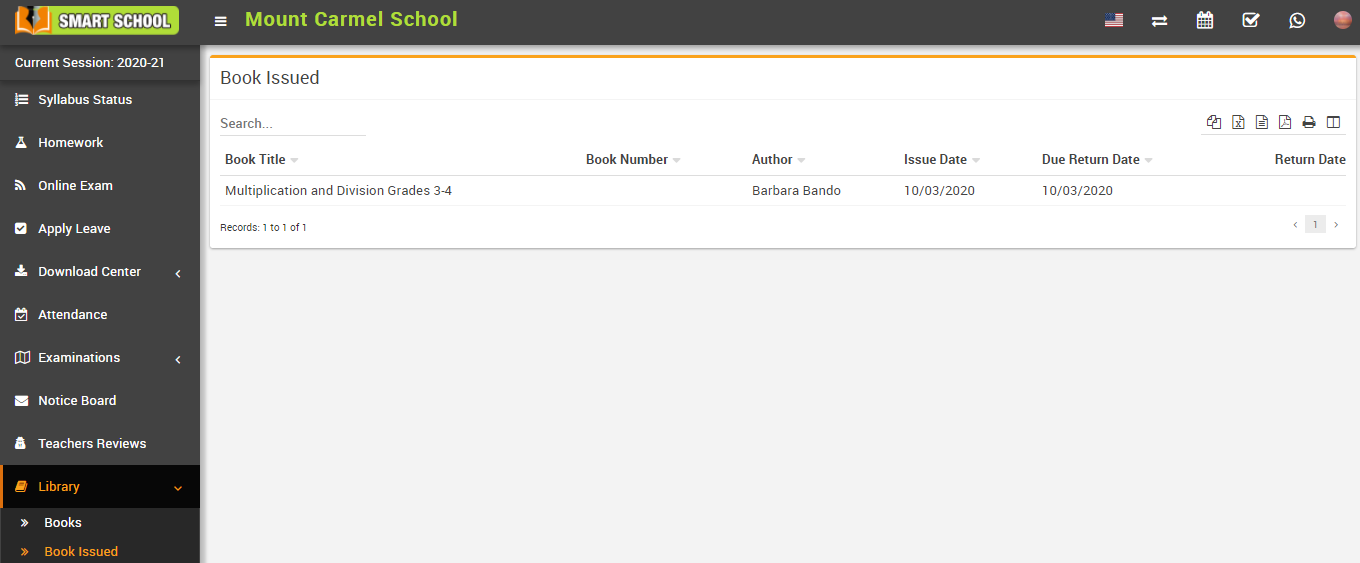
About Library
Library Module Workflow: First we have to Add Books in library then add import book and then view & search books in Book List. We can also check the availability for issue and return details of any book and check all the library reports and student can also check the book list.
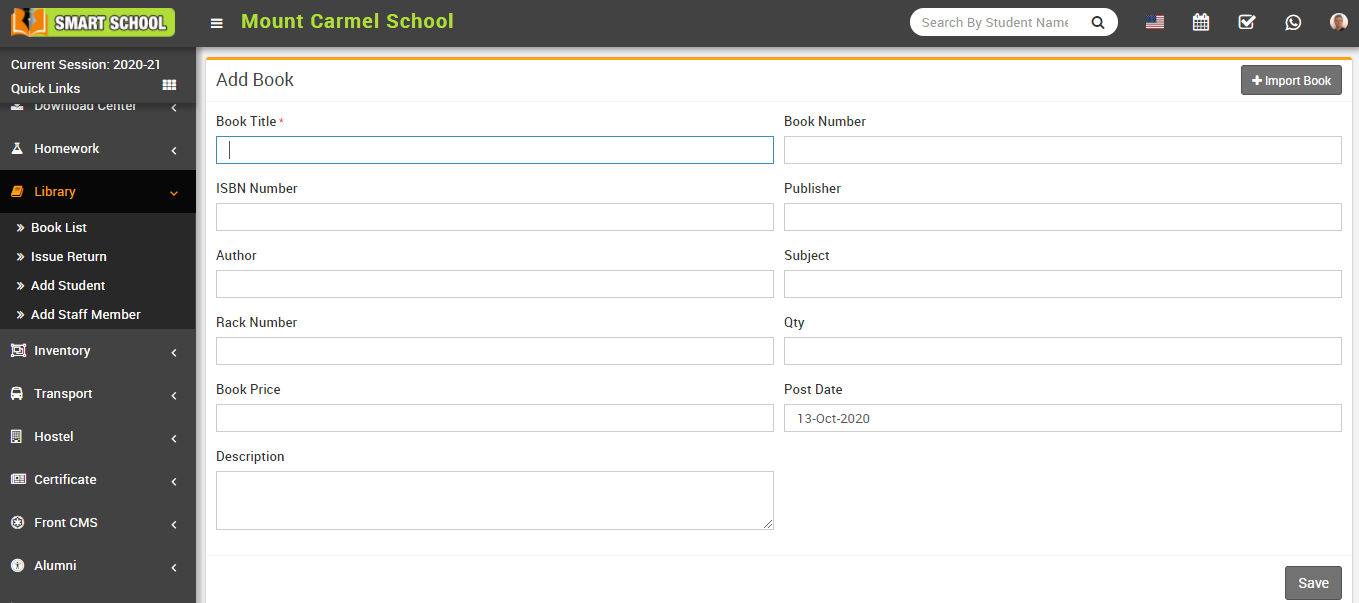
How to add Book?
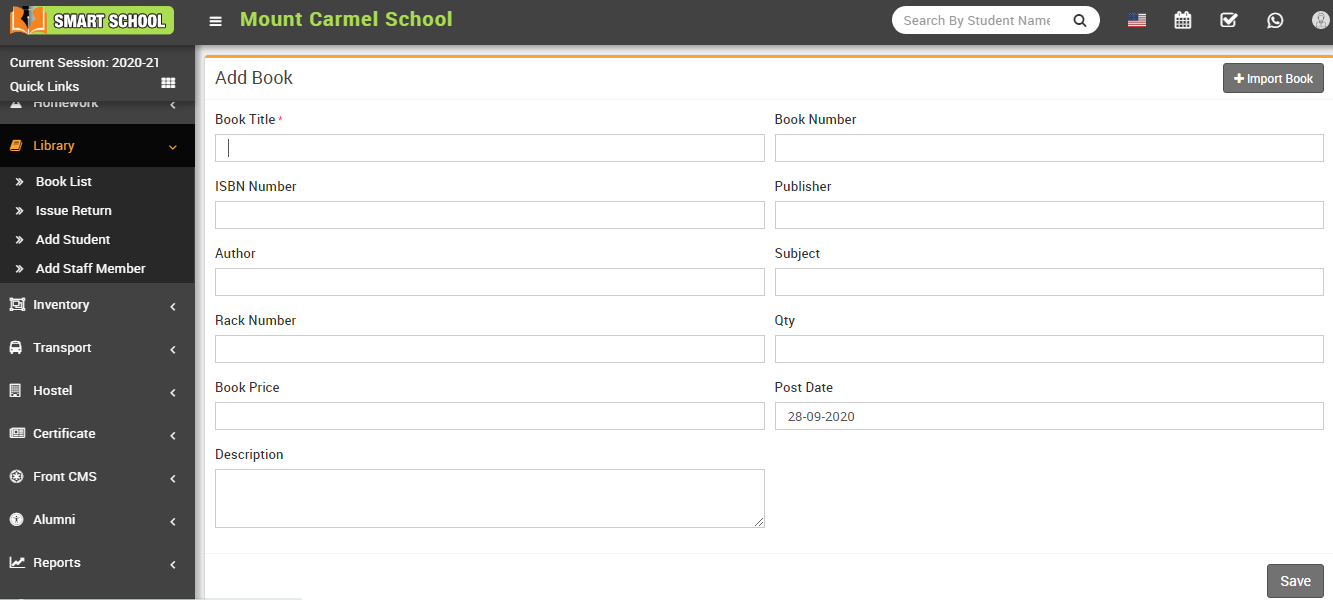
To edit book click on the Edit icon present in the book list and to delete the book click on the Delete icon present in the book list.
Here you can also add multiple books at the same time for this, you have to create a CSV file format. You can also download the sample file from top right corner by clicking on Download Sample Import File button and can change your file format accordingly. Then you have to select this CSV file on Select CSV File option and then click on the Import Book button.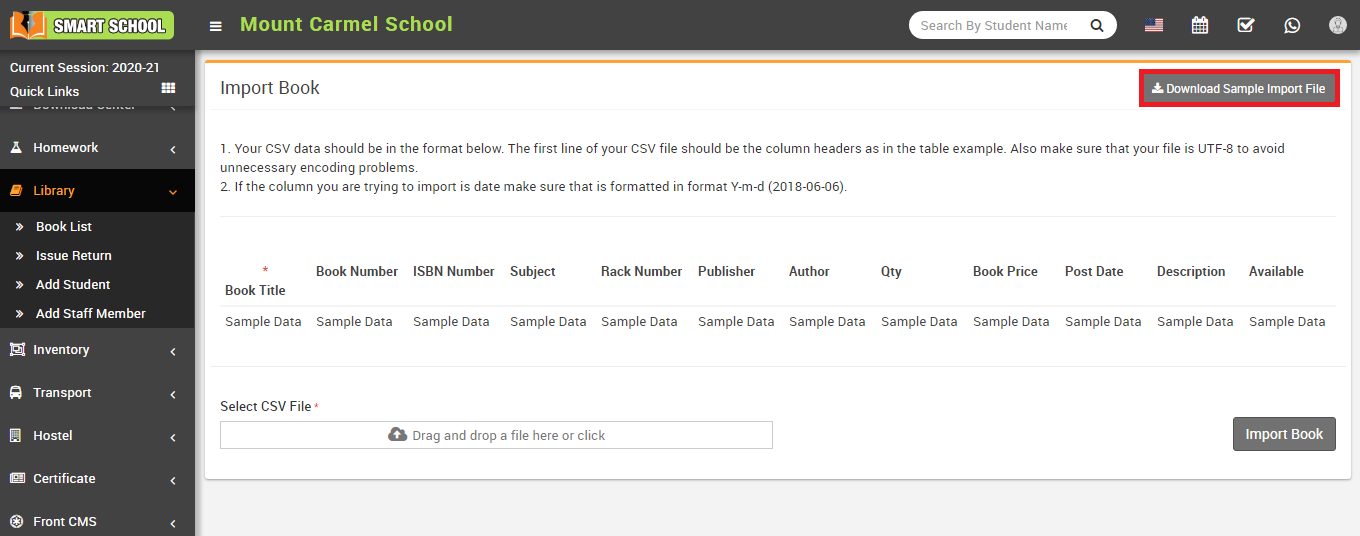
How to add student as Library Member?
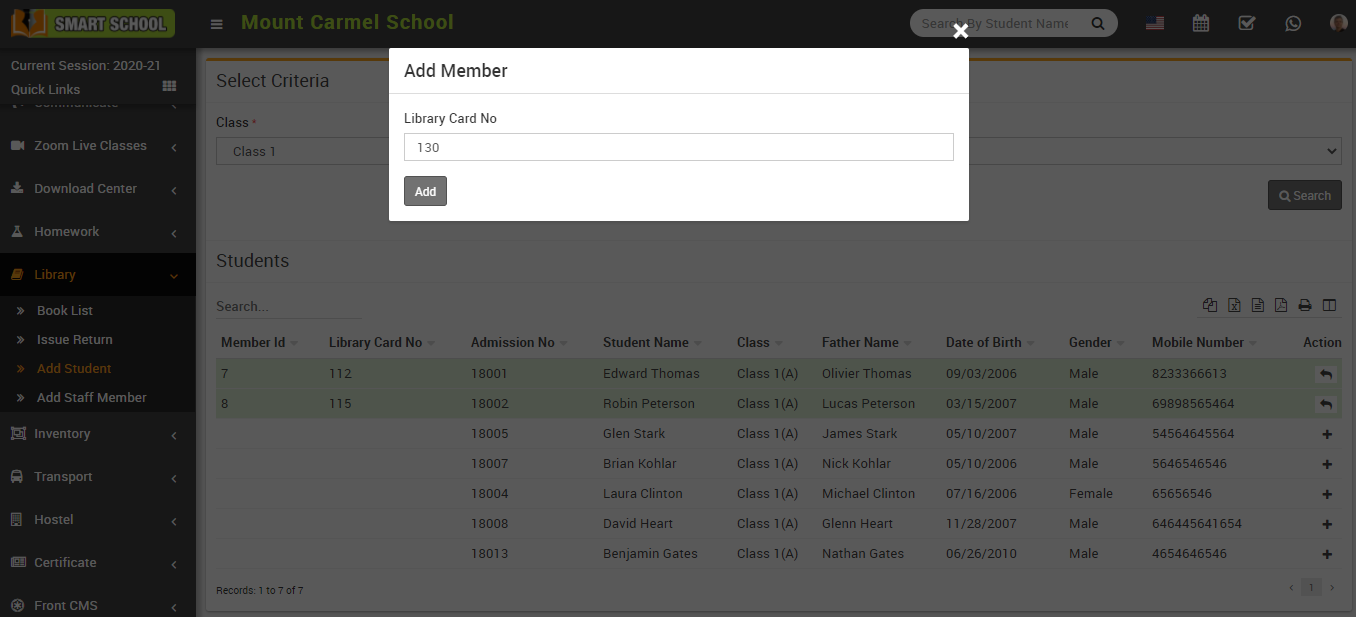
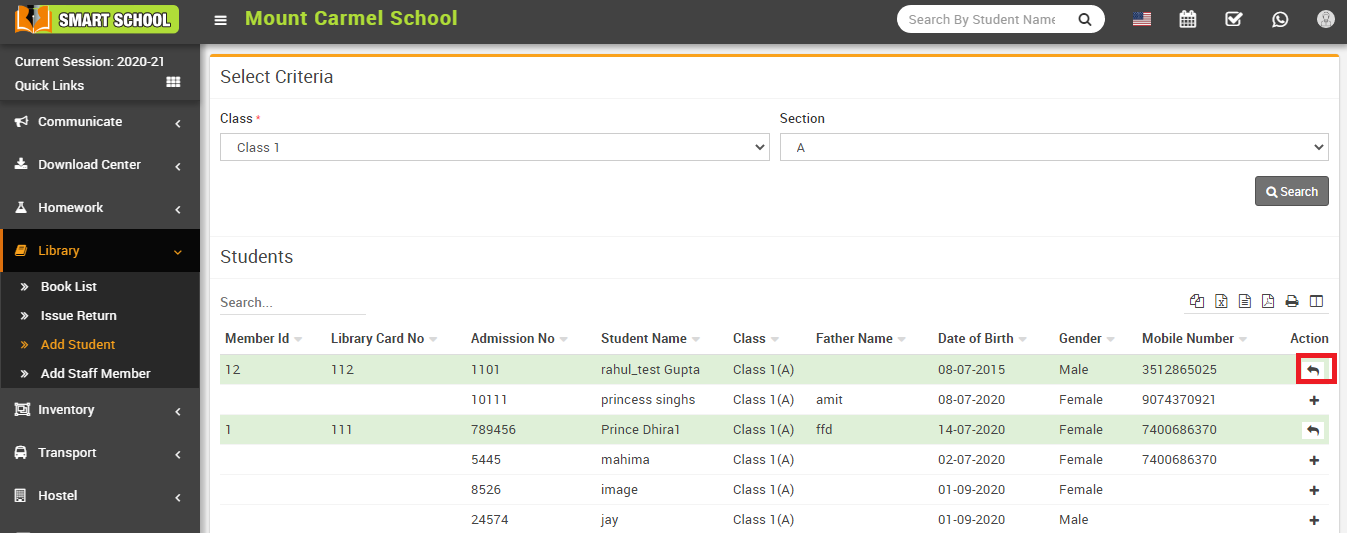
The added student will be shown in green color row in the student list. To remove student's membership click on the Surrender button present in Action column.
How to add staff member as Library Member?
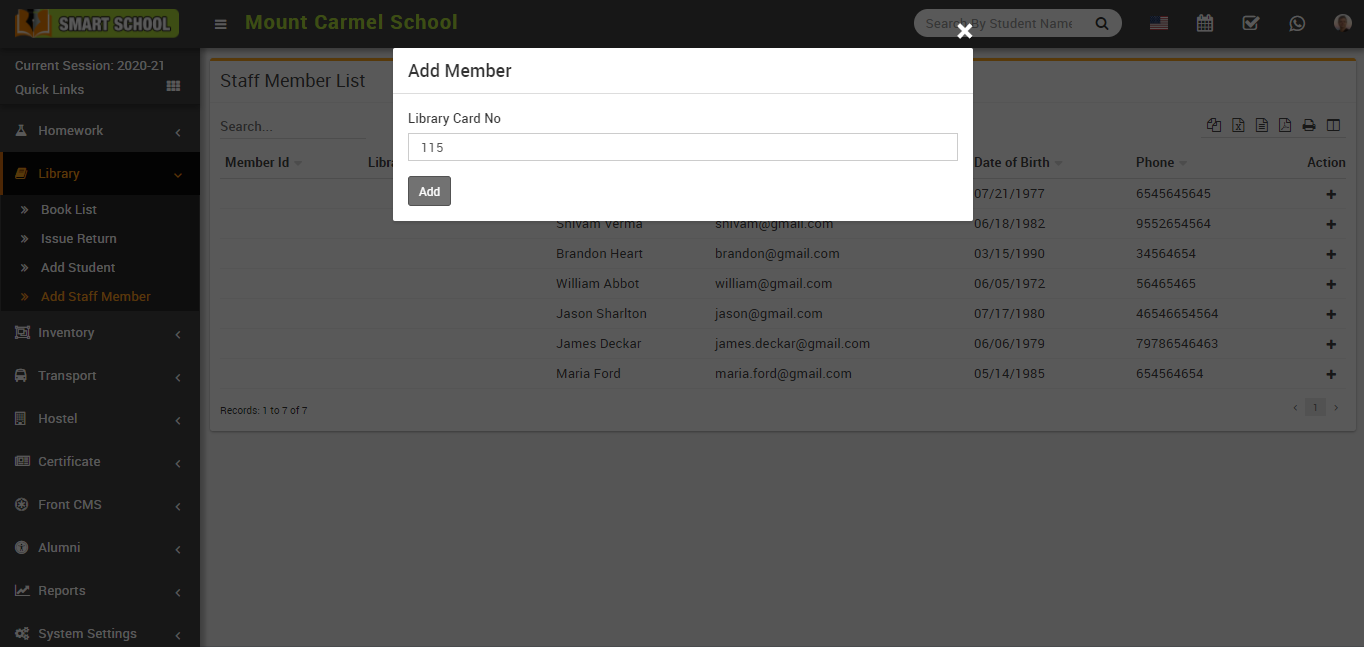
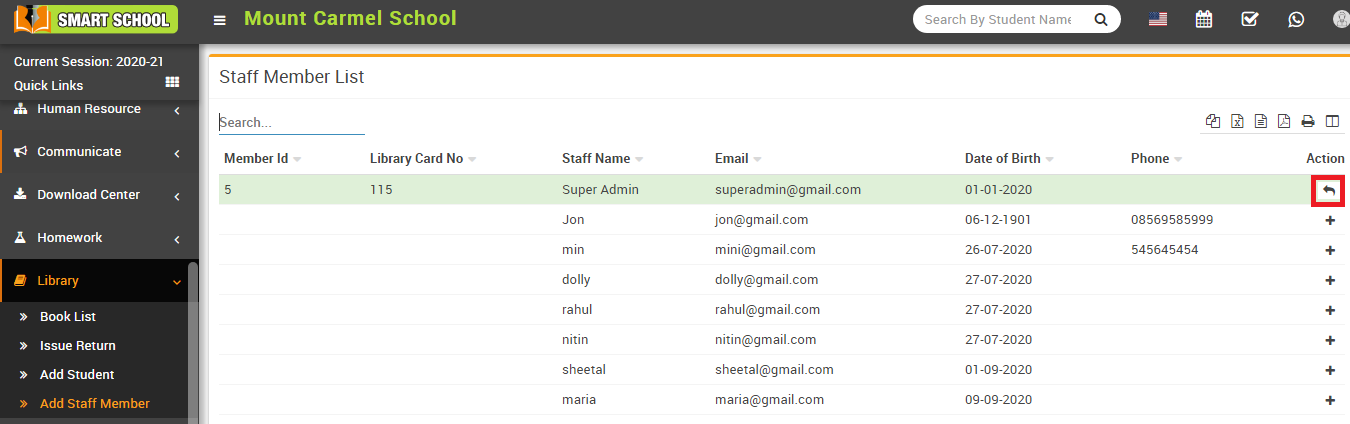
The added staff member will be shown in green color row in the staff member list. To remove staff membership click on the Surrender button present in Action column.
How to Issue/Return books?
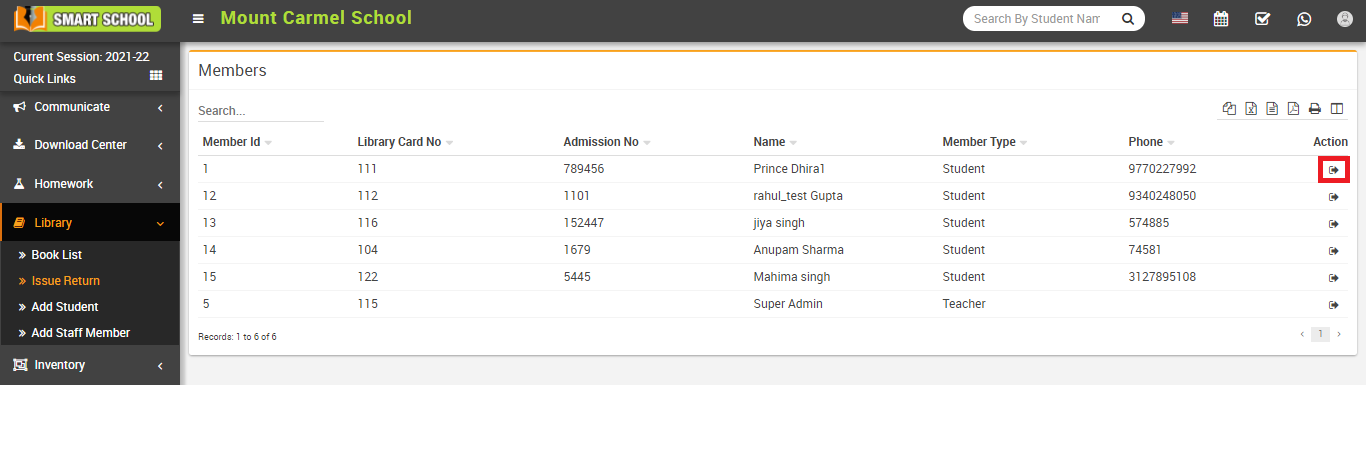
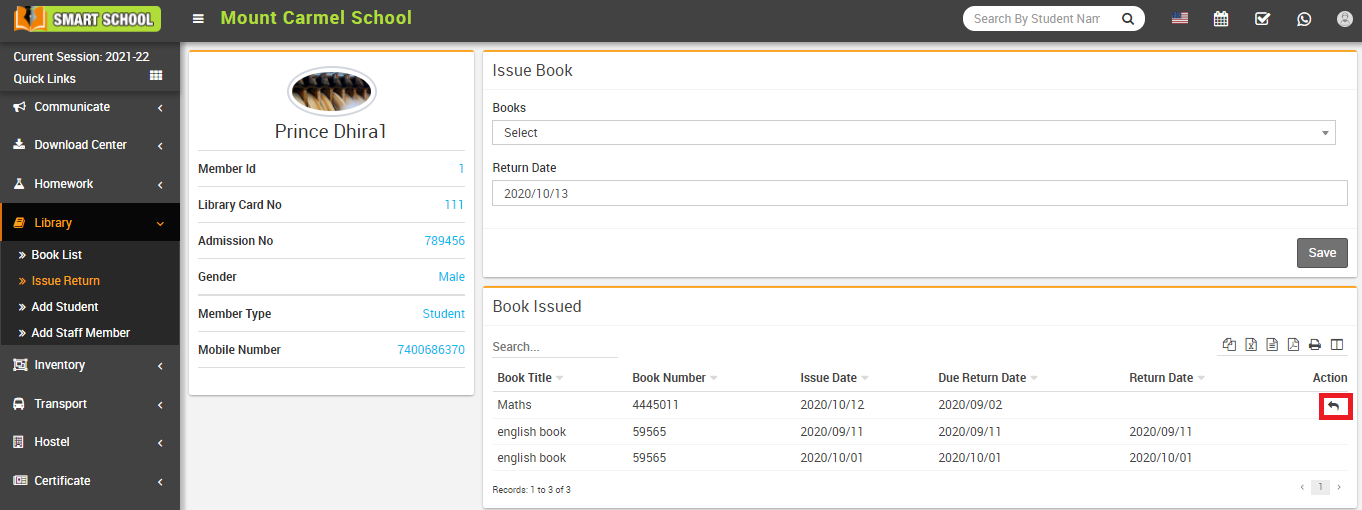
To issue book, go to the Issue Book Section and then select Book (as you select the book the available quantity of that book will show in the bottom of the select box) and Return Date then click on the Save button. The issued book will be show in Book Issued section.
To return Issued book, go to Book Issued section and then click on Return icon present in the Action column, at click of this icon it will ask you to confirm, after your confirmation book will be returned.
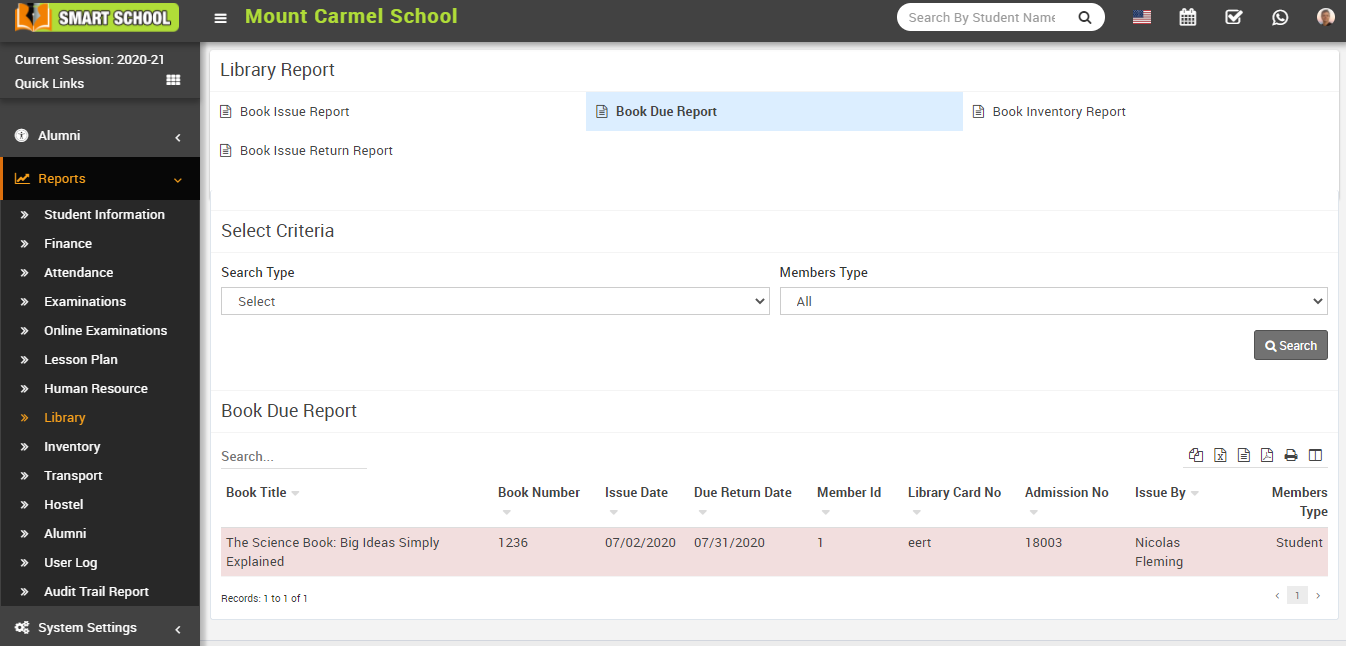
How to check Book Due Report?
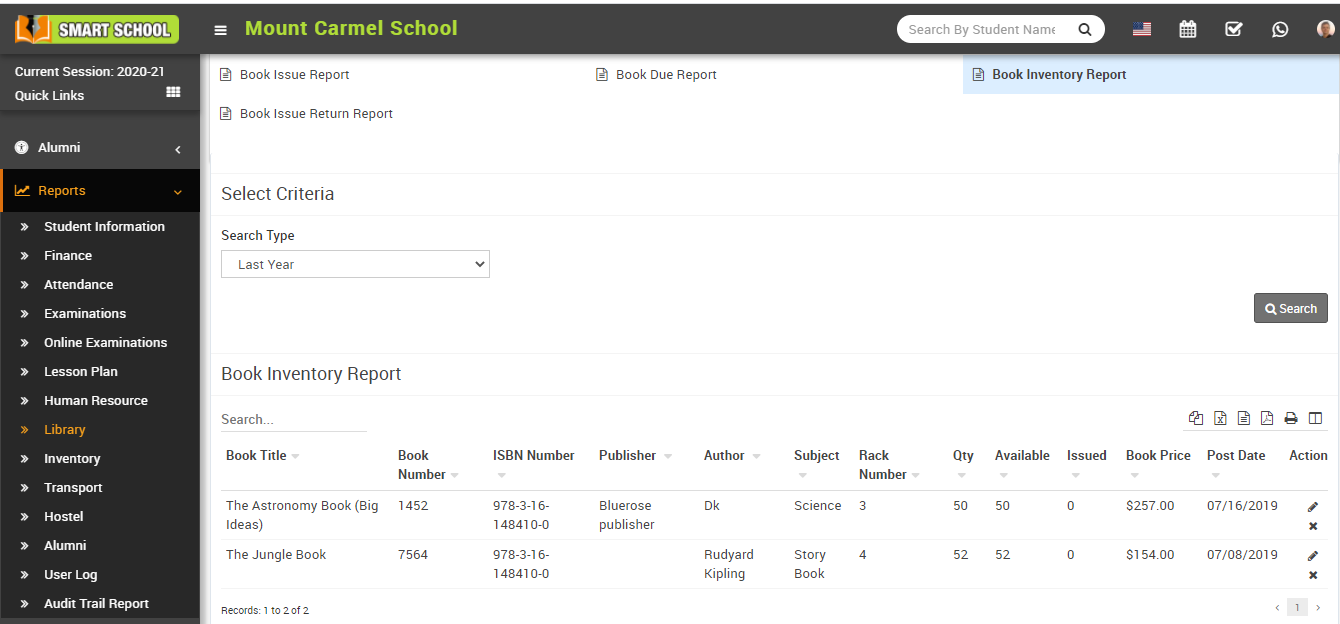
How to check Book Inventory Report?
To check book inventory report, go to Report > Library, click on Book Inventory Report. Here select Search Type then click on Search button. The list of searched records will be shown in the below of the page.
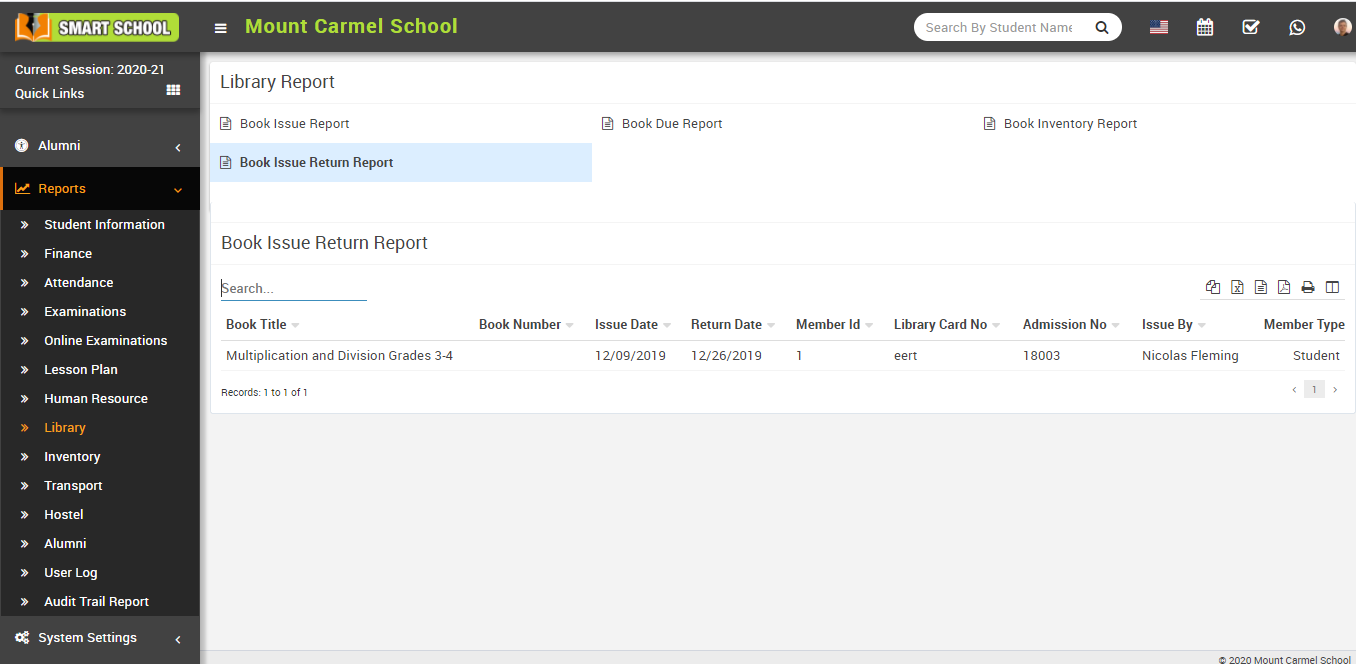
How to check Book Issue Return Report?
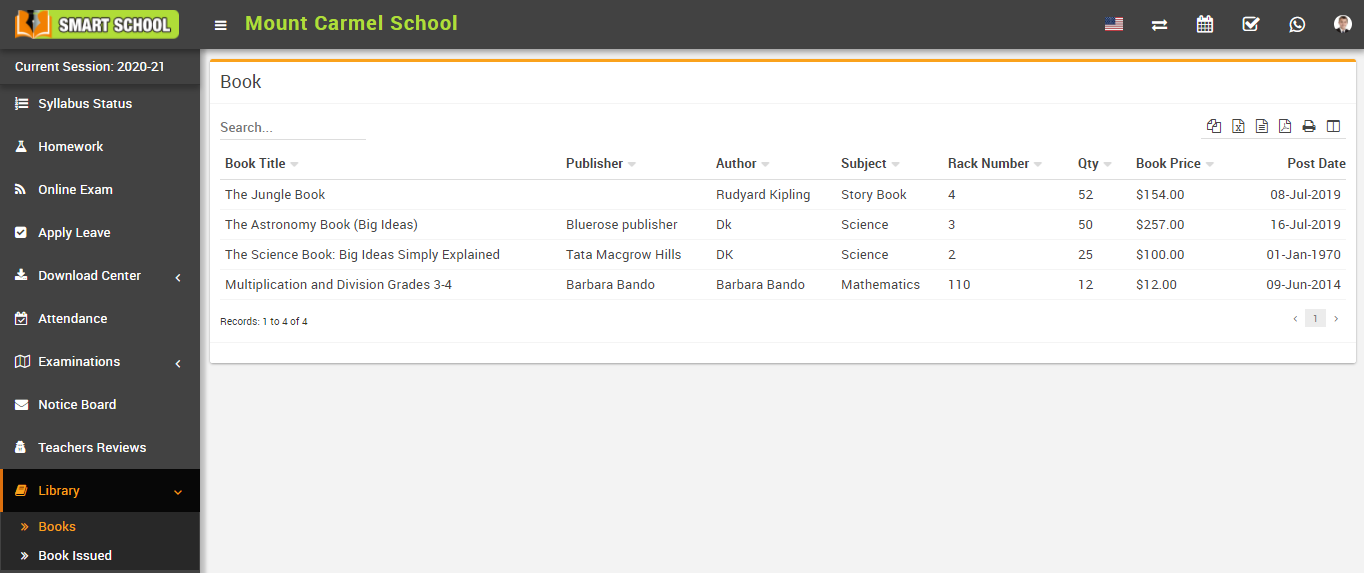
How student can view Book list?
How student can view Issued Book list?