Inventory

About Inventory


Inventory Module is used to maintain entire Inventory record including school uniforms, shoes, any specific book, notebook, sports asset and many more. The main purpose of this module is to make school equipment tracking easy.

Inventory Module Workflow: First we have to create our Item Category after that we will create Item Store then Item Supplier which will ensure us that who will be the supplier of that particular item. After that we will Add Item then Add Item Stock so that we will be aware about the quantity of the item then at last, we will Issue Items to any staff members and then you can check inventory reports.
About inventory image

How to create Item Category?


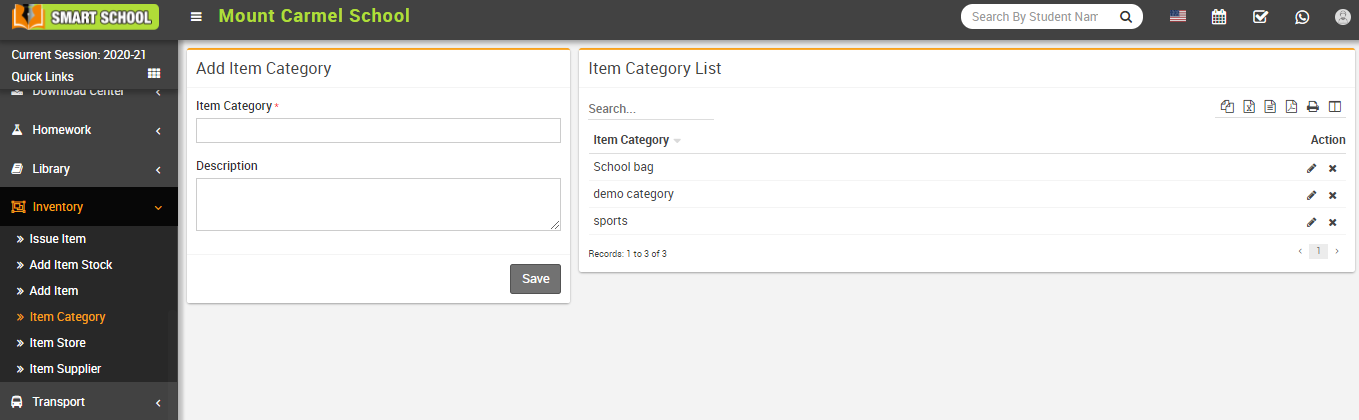
To create item category, go to Inventory > Item Category. Here enter Item Category and Description and then click on the Save button. You can view this added record in the Item Category List on the right side of the page.

Add item category image

To edit item category click on the Edit icon present in item category list and to delete the item category click on the Delete icon present in item category list.

How to add Item Store?
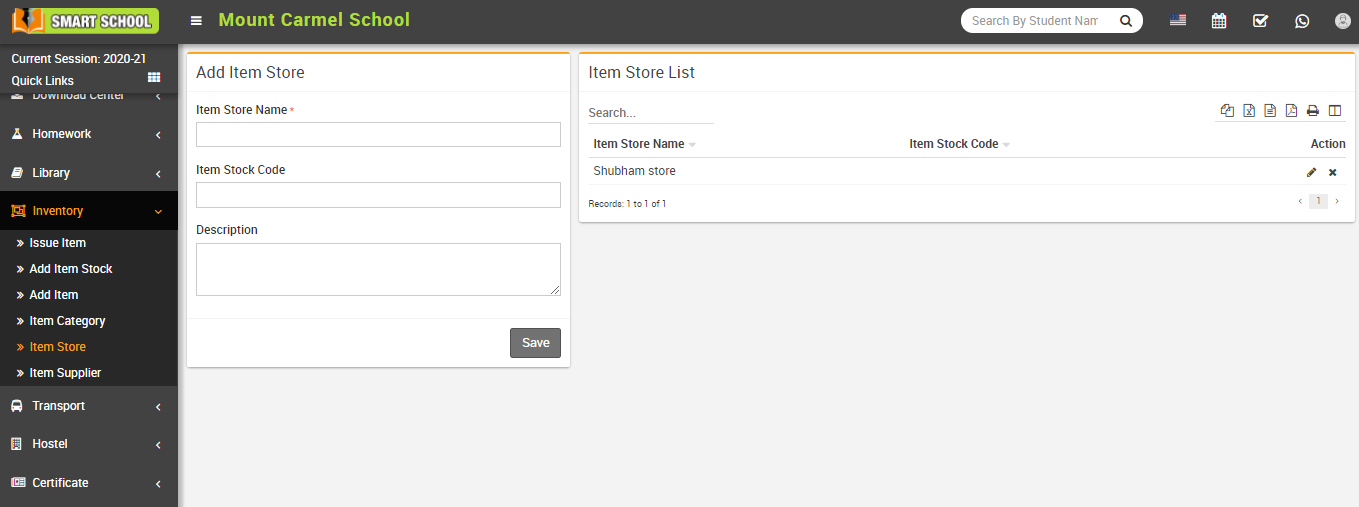

To add item store, go to Inventory > Item store, here enter Item Store Name, Item Stock Code and Description and then click on the Save button. You can view this added record in the Item Store List on the right side of the page.

Add item store image

To edit item store click on the Edit icon present in item store list and to delete the item store click on the Delete icon present in item store list.

How to add Item supplier?
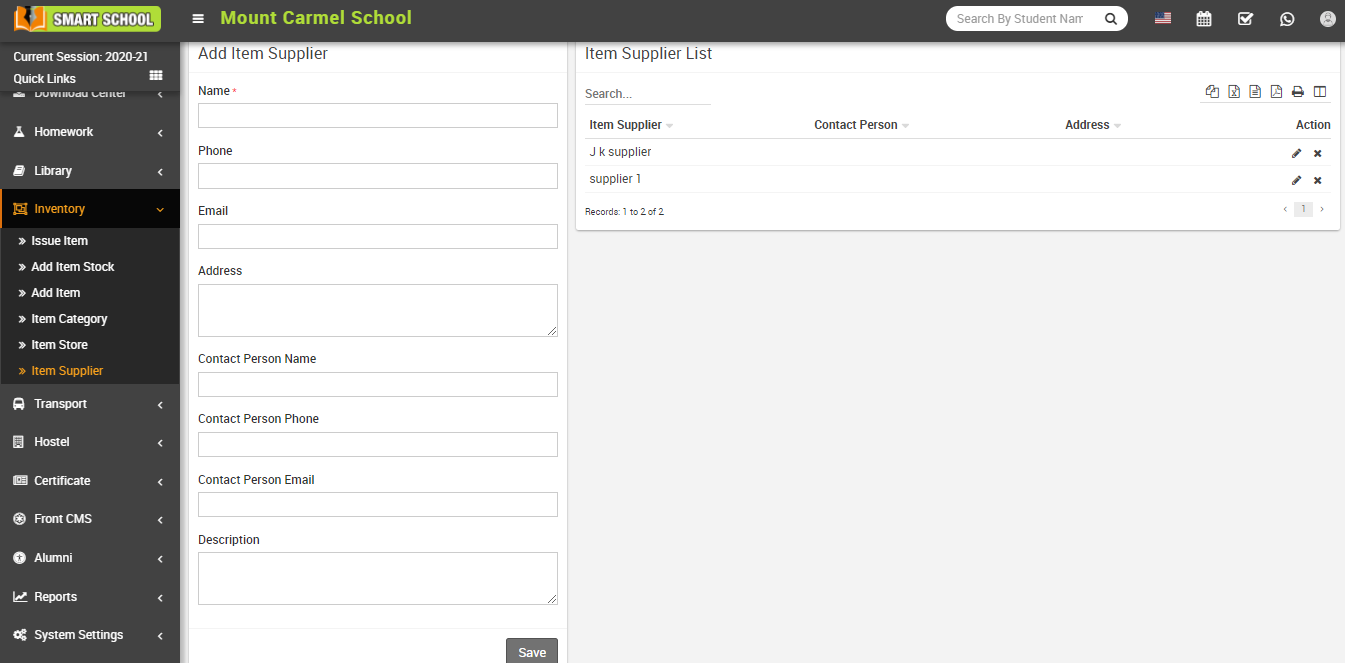

To add item supplier, go to Inventory > Item Supplier, here enter Name, Phone, Email, Address, Contact Person Name, Contact Person Phone, Contact Person Email and Description and then click on Save button. You can view this added record in the Item Supplier list on the right side of the page.

Add item supplier image

To edit item supplier click on the Edit icon present in item supplier list and to delete item supplier click on the Delete icon present in item supplier list.

How to add Item?
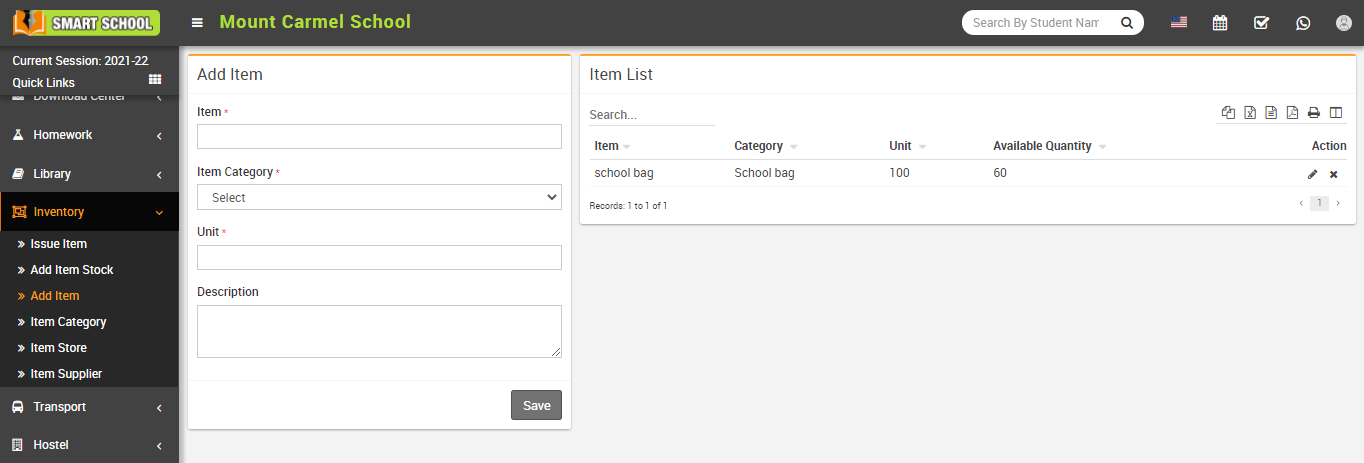

To add item, go to Inventory > Add Item, here enter Item and select the Item Category, Unit and Description and then click on Save button. You can view this added record in the Item list on the right side of the page.

Add item image

To edit item click on the Edit icon present in the item list and to delete item click on the Delete icon present in item list.

How to add Item Stock?
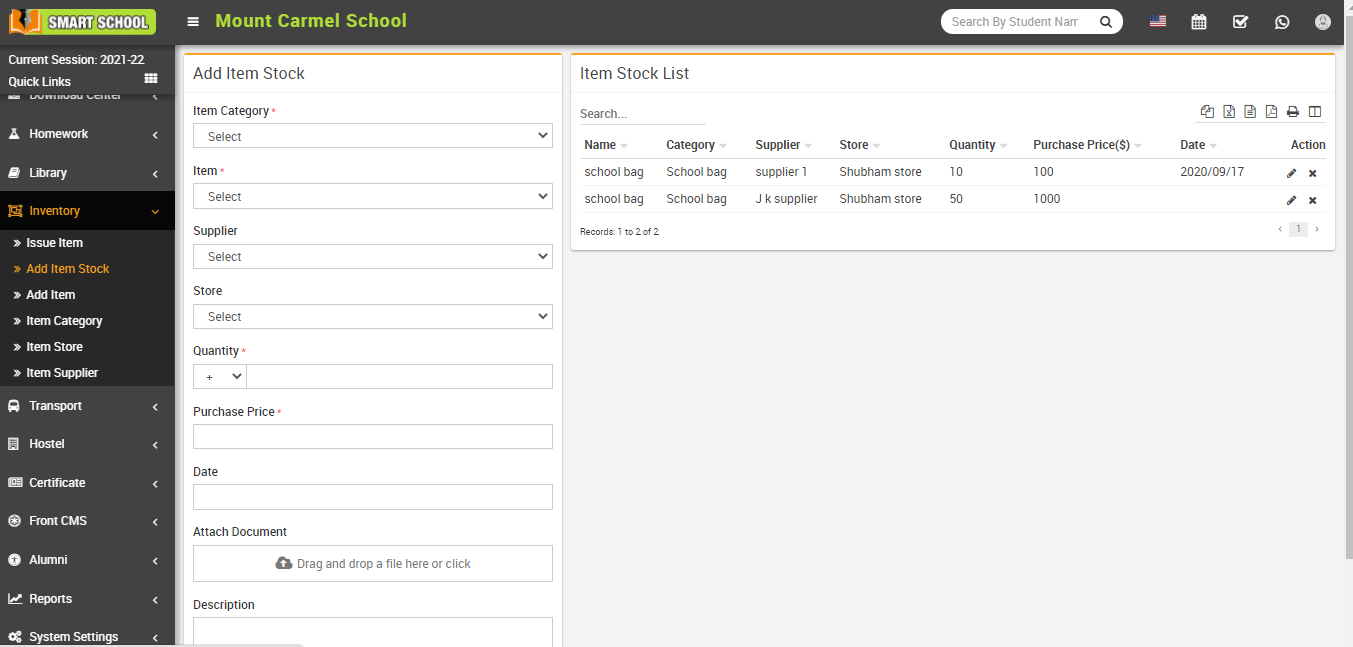

To add item stock, go to Inventory > Add Item Stock, here select the Item Category, Item, Supplier, Store and enter Qunatity, Purchase Price, Date, Attach Document and Description and then click on Save button. You can view this added record in Item stock list on the right side of the page.

Add item stock image

To edit item stock click on the Edit icon present in the item stock list and to delete item stock click on the Delete icon present in the item stock list.

How to Issue Item?
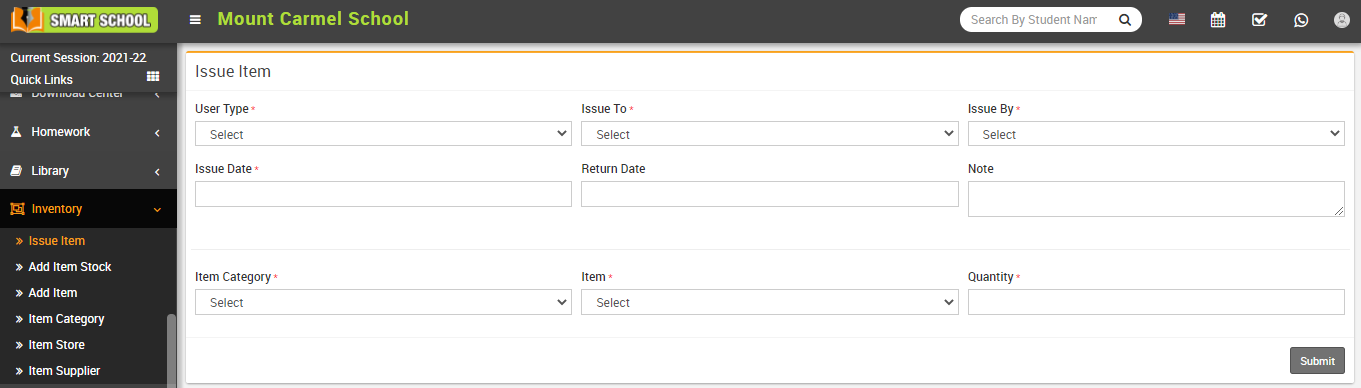

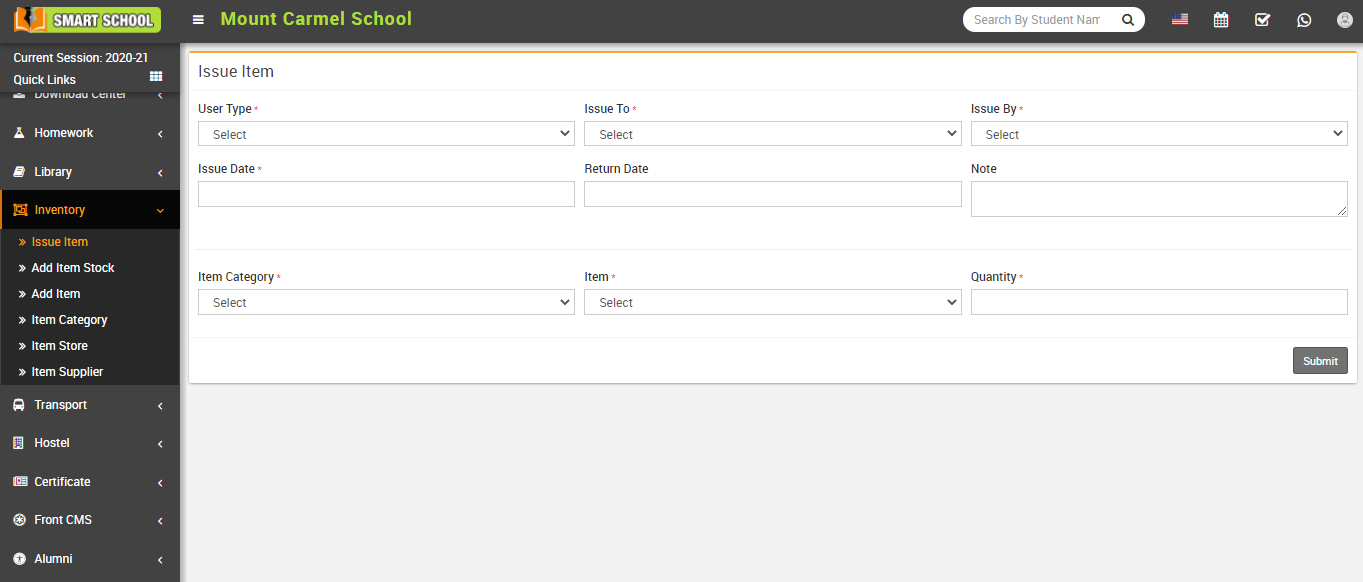
To issue item, go to Inventory > Issue Item click on the Issue Item button present at the top right corner of the issue item page. Here select the User Type, Issue To, Issue By and enter the Issue Date, Return Date, Note and select the Item Category, Item and enter Available Quantity and then click on Submit button. You can view this submitted record in Issue Item page.

Issue item image

To return an item click on Click to Return button from Status column, at click of this button Confirm Return model will open then click on the Return button, at click of this button it will ask you to confirm, after your confirmation item will be returned.
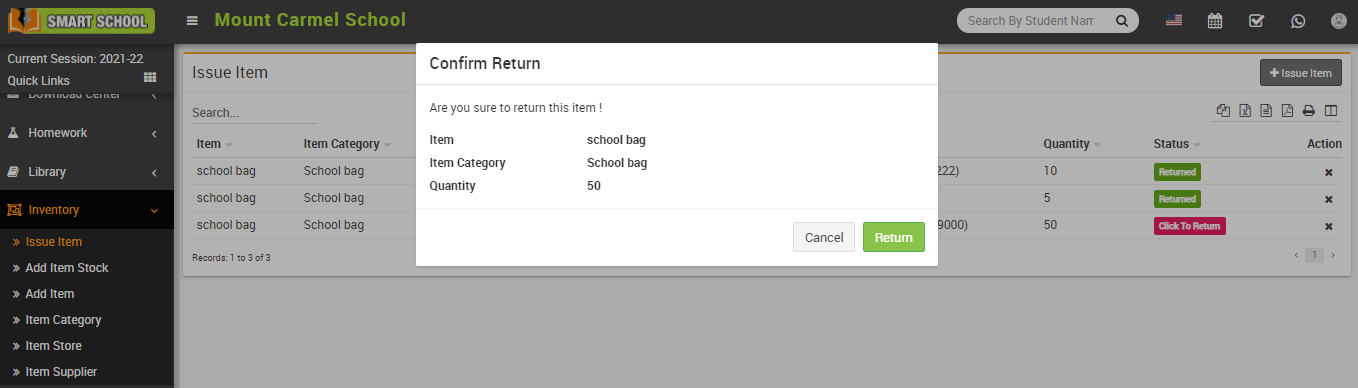
Issue item confirm return image

To delete a returned item, click on the Delete icon present in the column. At click of delete icon it will ask you to confirm, after your confirmation returned item will be deleted.

How to check Stock Report?
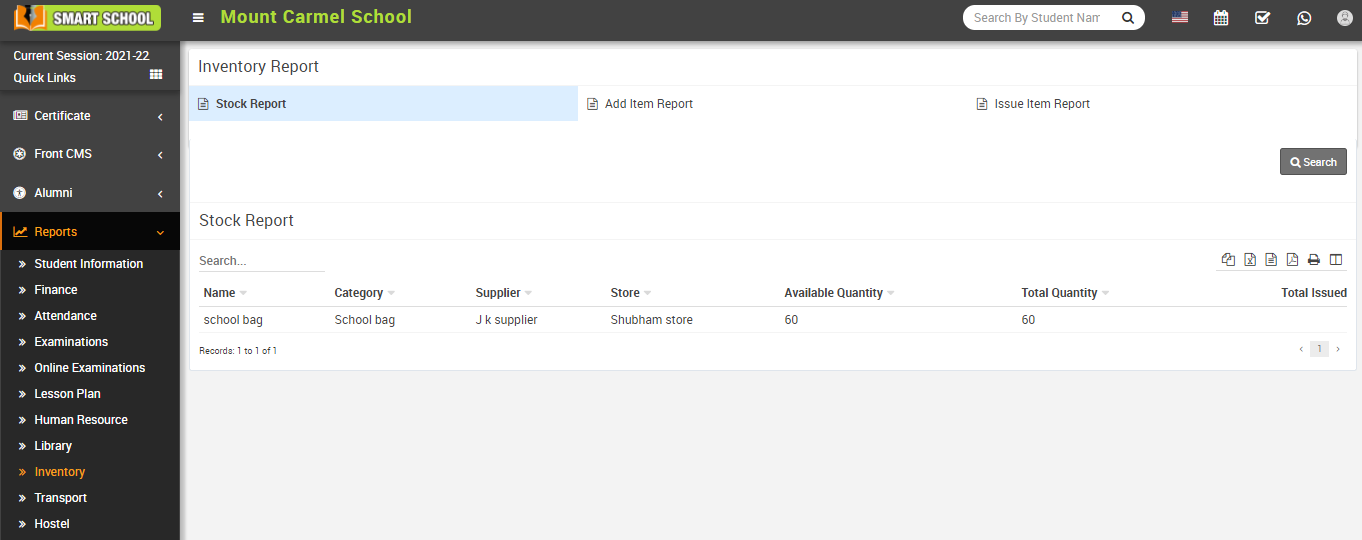

To check stock report, go to Report > Inventory click on Stock Report, here you can check stock list. You can also search specific by entering item Name, Category, Supplier, Store, Available Quantity (is for available to issue any employees), Total Quantity (is sum of all quantity is available on store) and Total issued (sum of all issued product to employees).

stock report image

How to check add Item Report?


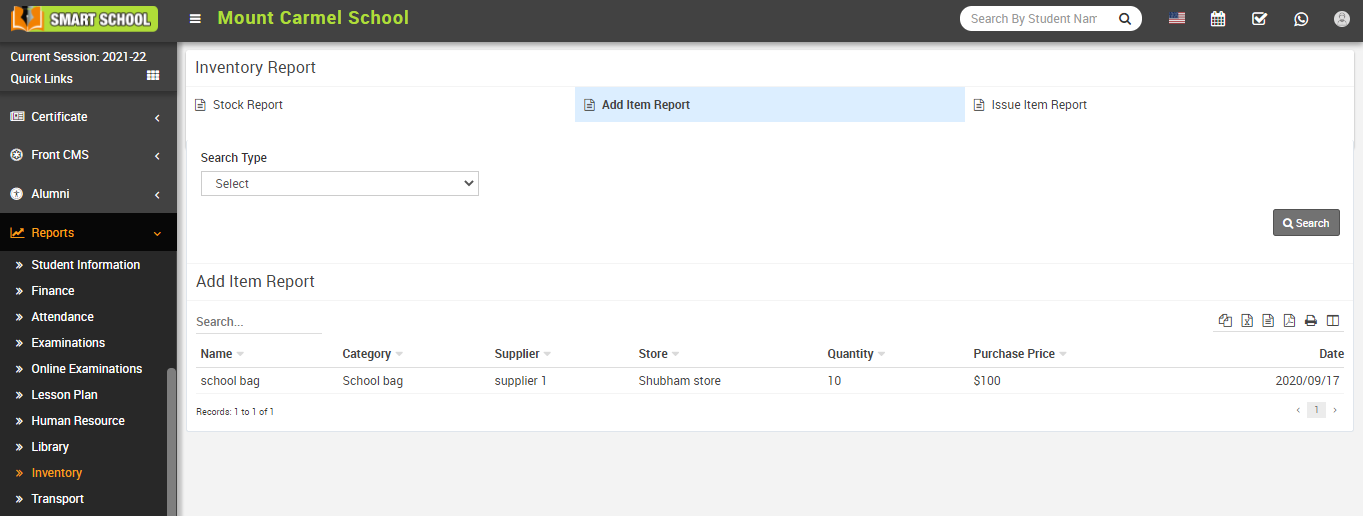
To check add item report, go to Report > Inventory, click on Add Item Report, here you will see all the added item list. You can also filter the record of different time range for this select the Search Type and click on Search button. The list of searched records will be shown in the below of the page.

Add item report

How to check Issue Item Report?


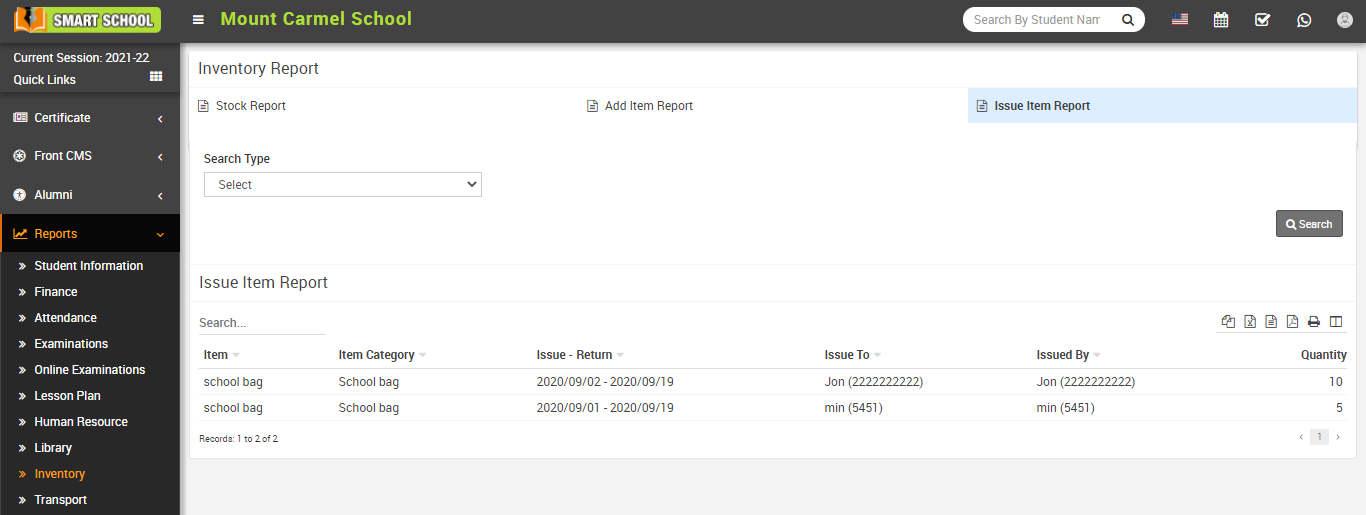
To check issue item report, go to Report > Inventory click on Issue Item Report, here you will see all the issued item list. To search record select the Search Type and click on Search button. The list of searched records will be shown in the below of this page.

issue item report

Did you find this article useful?

  • General Overview

    Before start using Smart School consider a general scenario of typical school of class 1 to 12th, ea...
  • Miscellaneous

    About Chat In Chat System, staff can chat with other staff members and student can also chat w...
  • System Settings

    How to add the addons on Smart School?  Sun, 23 Mar, 2025 ArticlesSystem Settings Addons Ma...
  • Academics

    About Academics This module is used to maintain entire class timetable and teacher timetable.A...
  • CBSE Examination

    About CBSE Examination This examination adopts a distinct approach to assessing students, encomp...