About Homework
Homework is a set of tasks assigned to students by their teachers to be completed outside of regular class time. These tasks are intended to reinforce learning and help students practice skills they have learned in class. Homework can include reading assignments, writing assignments, math problems, research projects, and other types of activities. The amount and type of homework assigned can vary greatly depending on the teacher and the subject being taught.
Homework Module Workflow: Teachers can create homework for their Class-Section after creating homework teachers can evaluate homework for class-section students that who completed homework or who did not.
Homework List, you can see Upcoming Homework tab and Closed Homework tab.
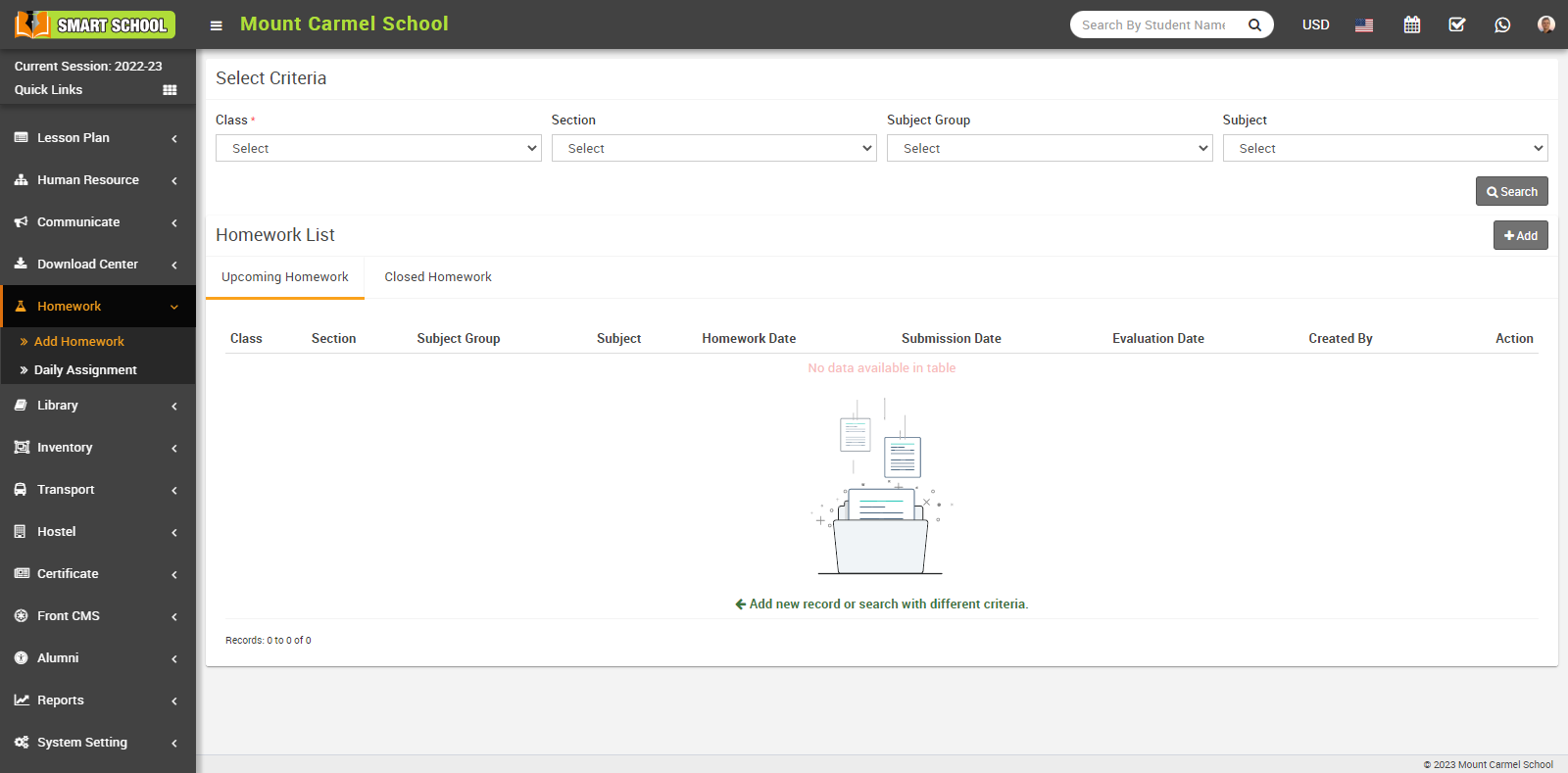
In Upcoming Homework, You can view upcoming homework whose date would be current date and whose submission date is determined by the teacher when he wants to keep the submission date. These homework would be show in upcoming homework.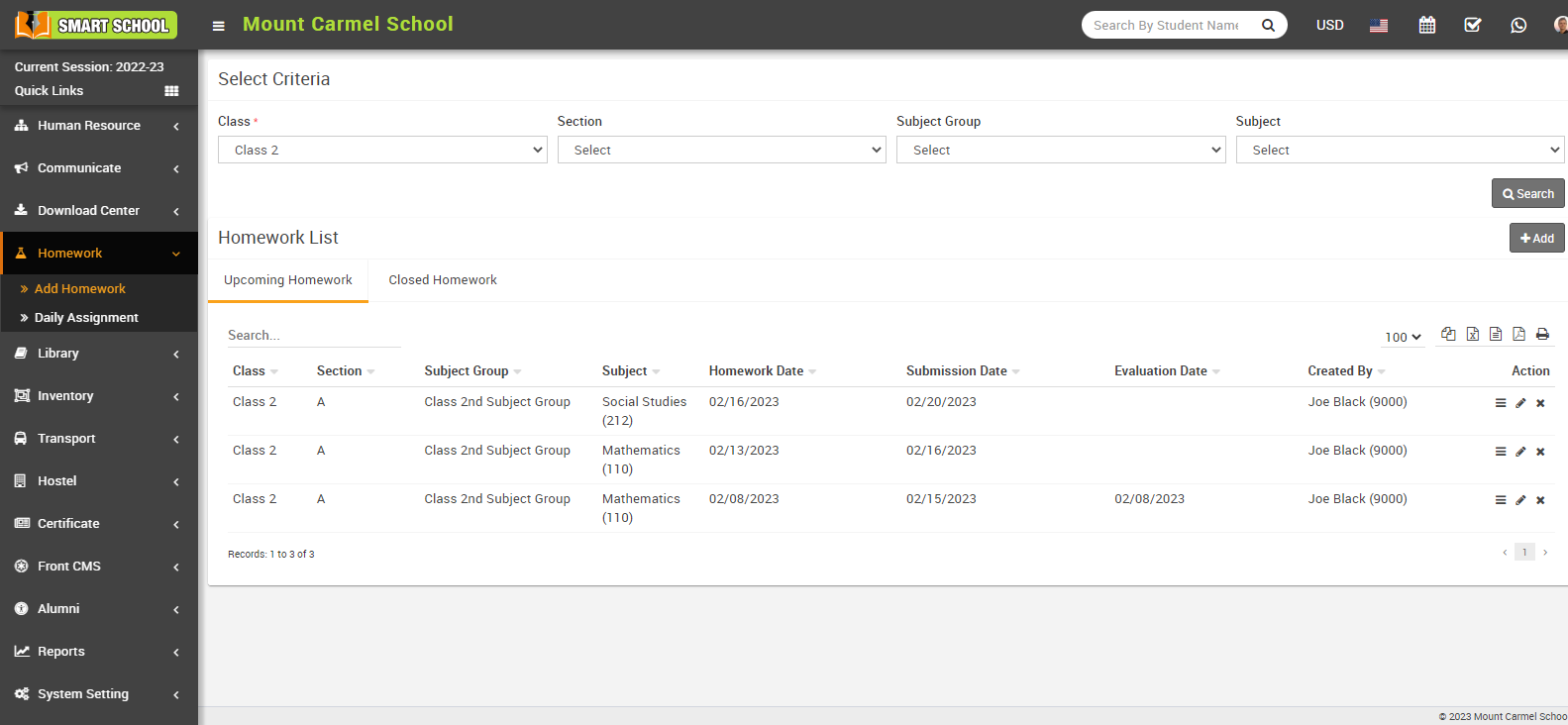
In closed homework, you can view those homework, whose present date and submission date has been passed out, submission date means as If student fails to meet the submission deadline and the homework due date has been passed, the homework would displayed in closed homework and another condition, if teacher does not keep submission date and homework present date has been passed so homework would be show in closed homework.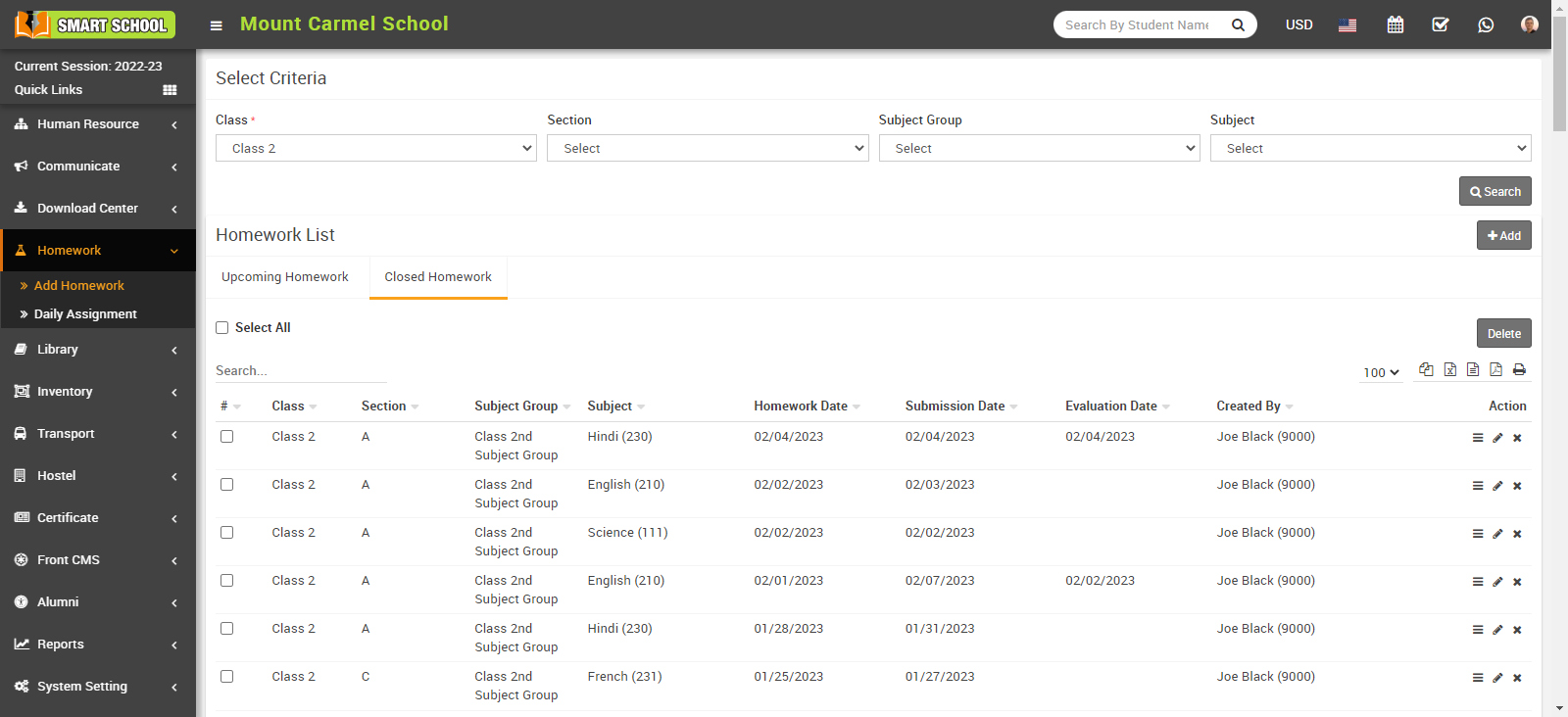
How to add Homework?
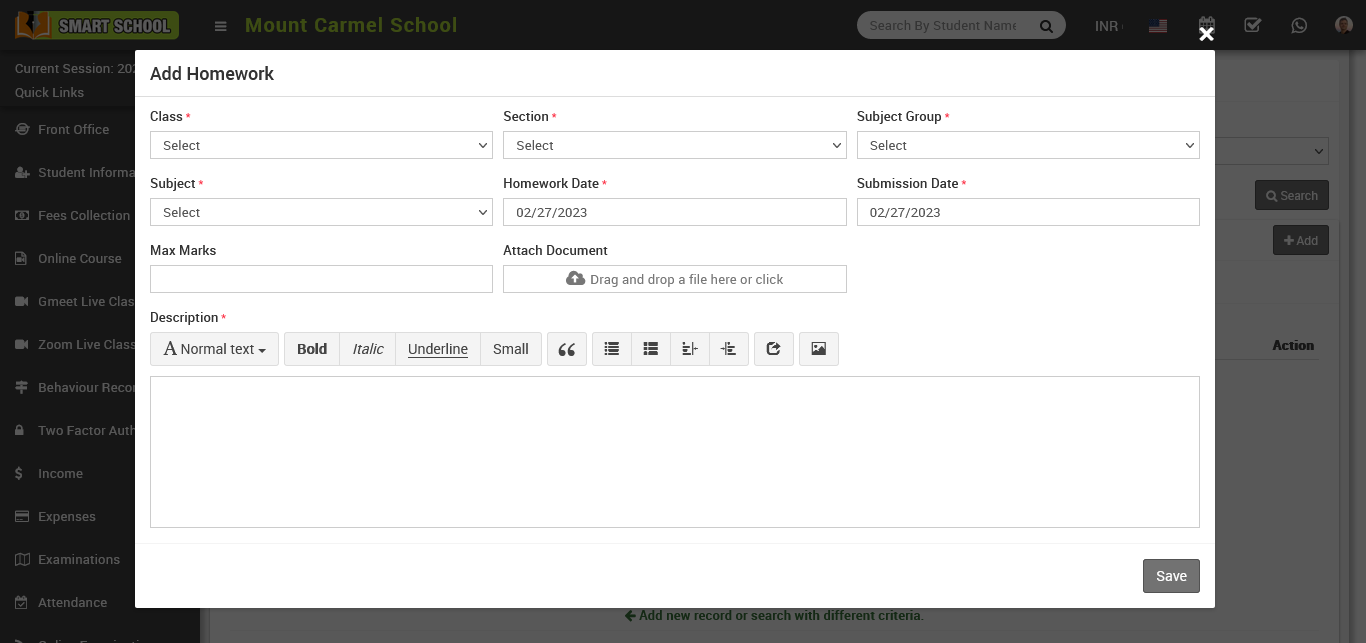
Now, search the homework that you recently saved. Go to "Homework" > "Add Homework," enter the class, section, subject group, and subject, and then click the "Save" button. The homework that you recently saved will show up in your Upcoming Homework. Now click on the "evaluation" icon, which is showing in the Action column.
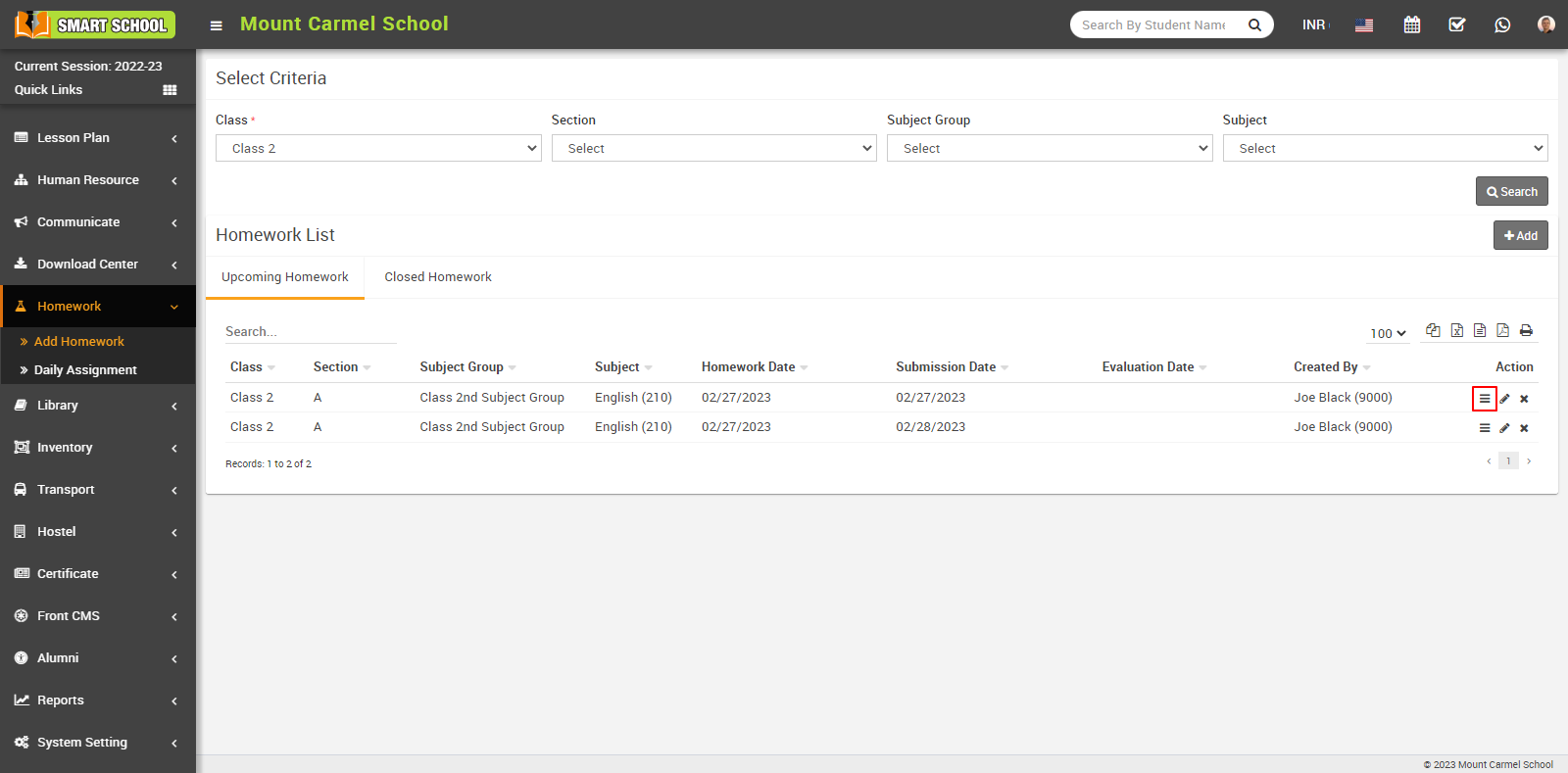
and the "evaluation homework model" will be open. You can see the maximum marks in the evaluation model that you set when you created this homework here.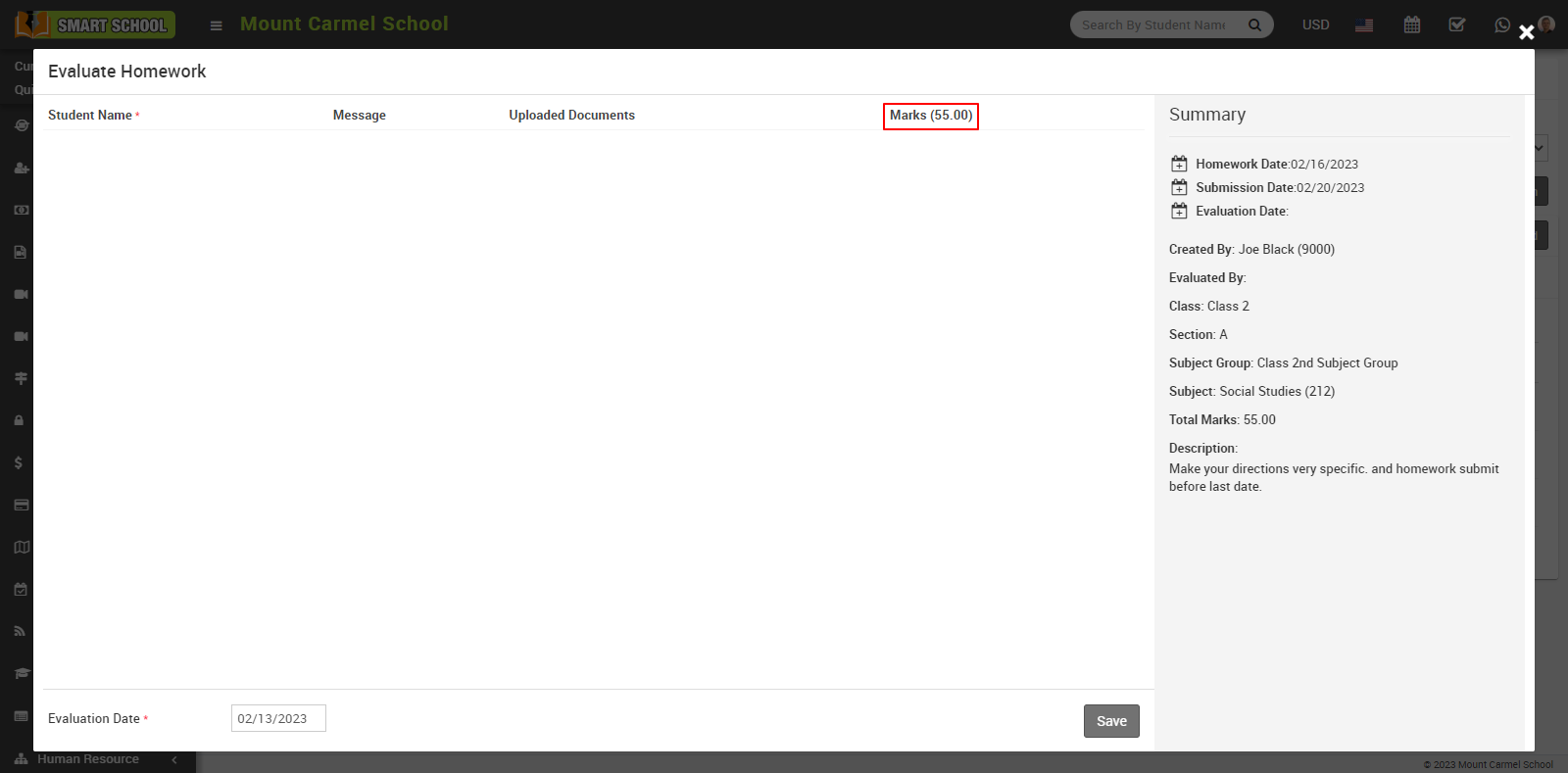
If you do not fill in the Maximum Marks at the time of creating homework, in the Evaluation Homework modal, there will be a blank in place of the Maximum Marks.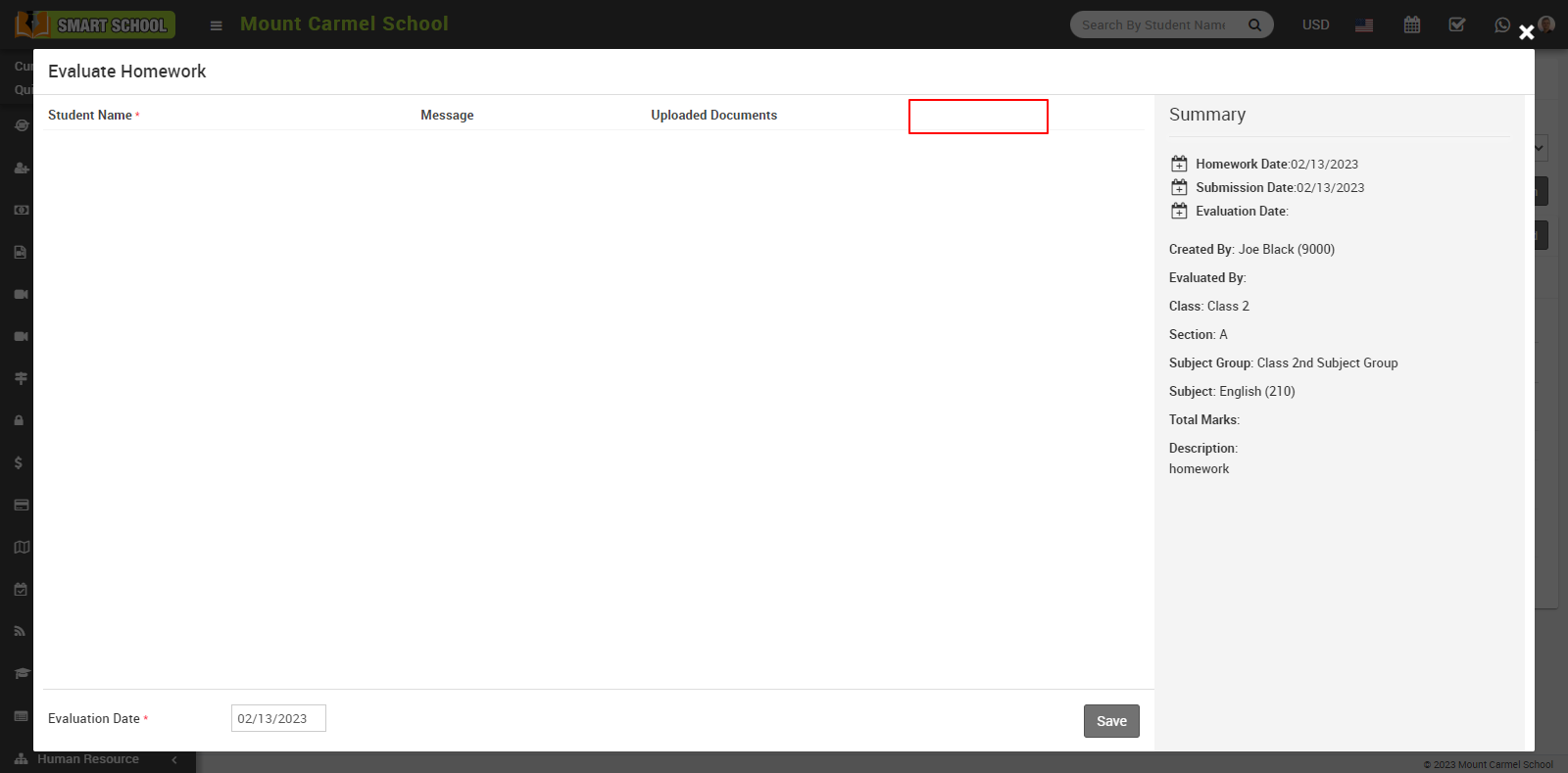
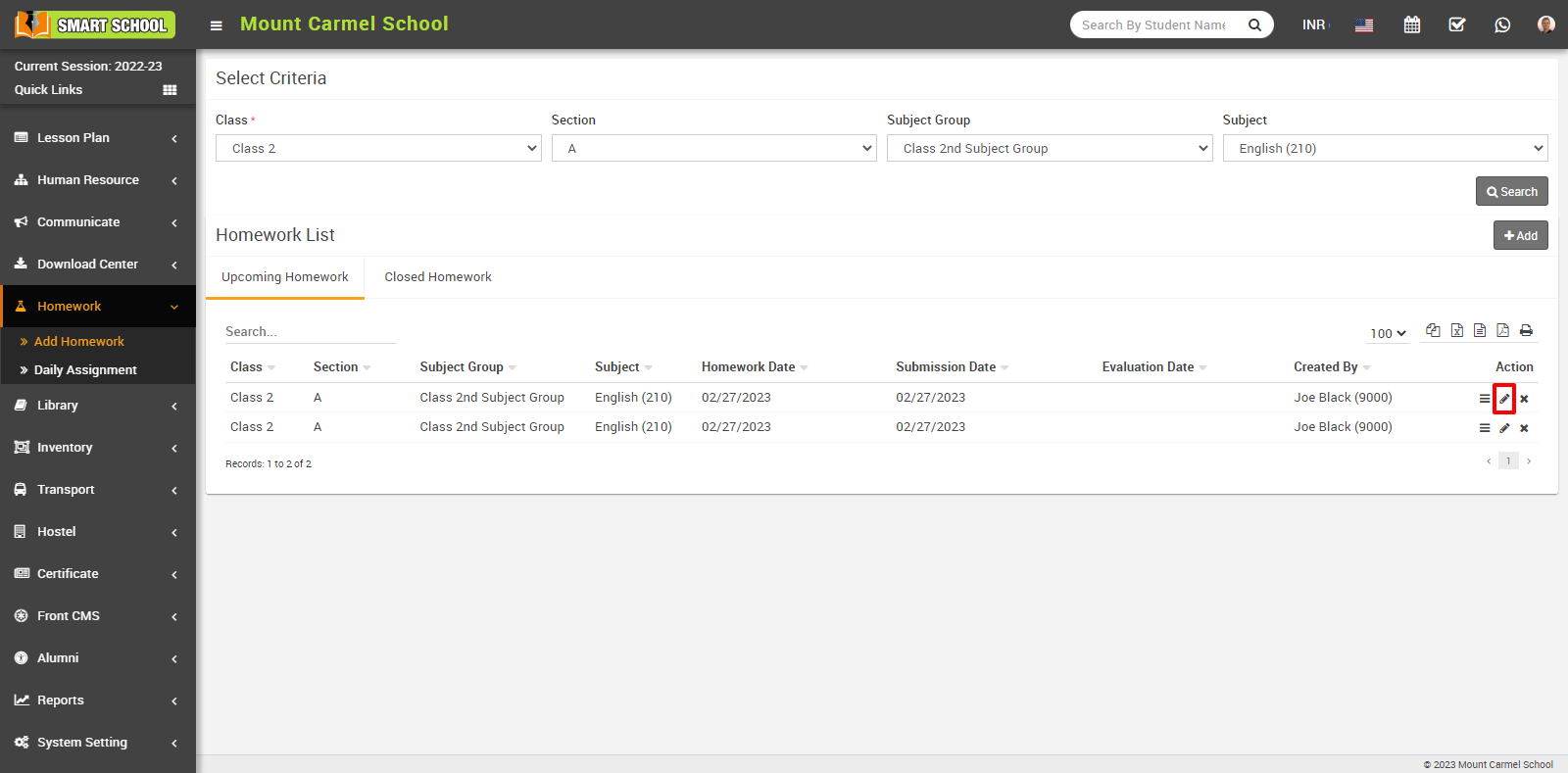
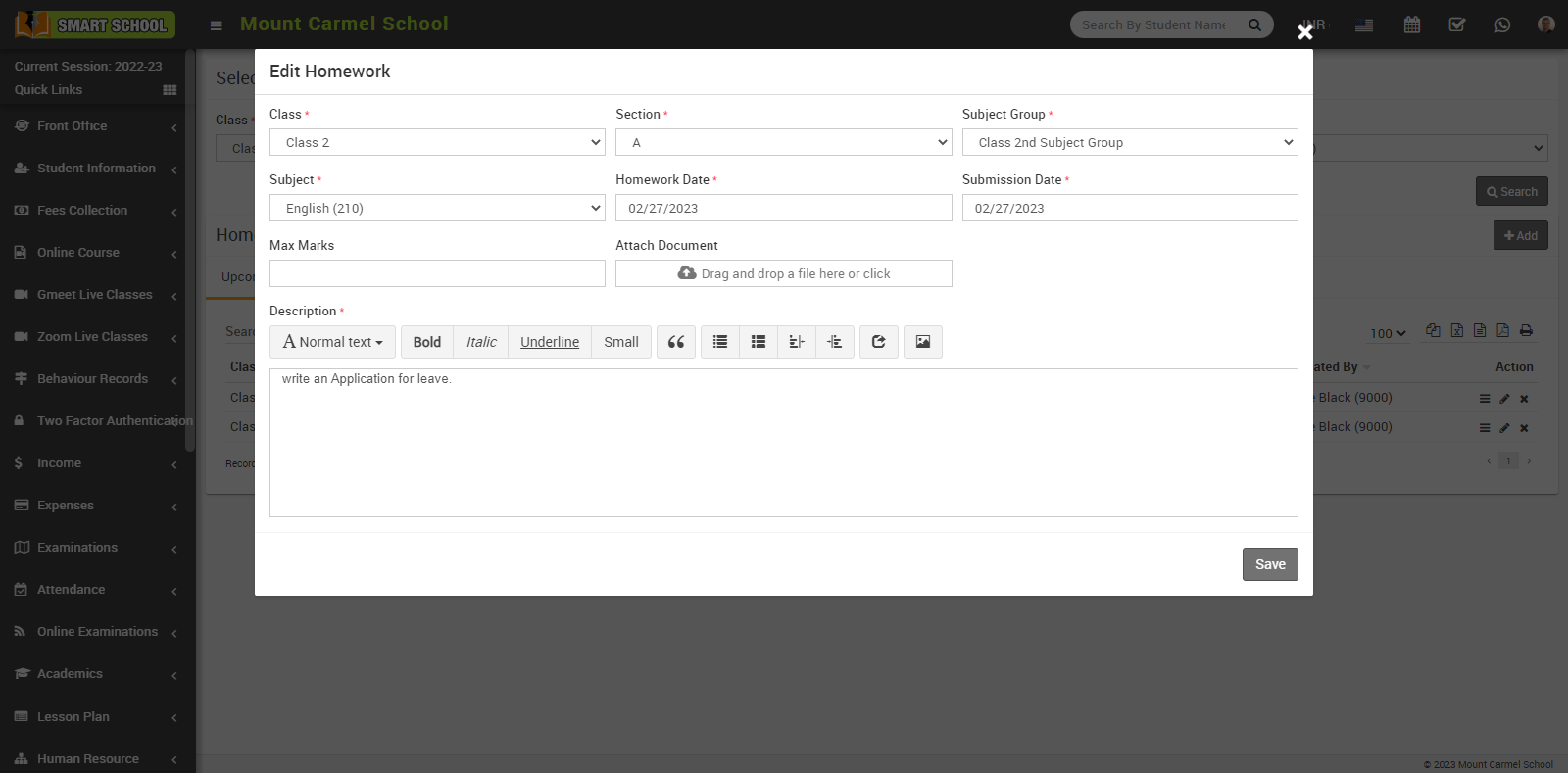
edit model will be open here you can update the details of your homework and click on Save button, your update will be saved successfully.
To delete the homework click on the Delete icon showing in the action column,
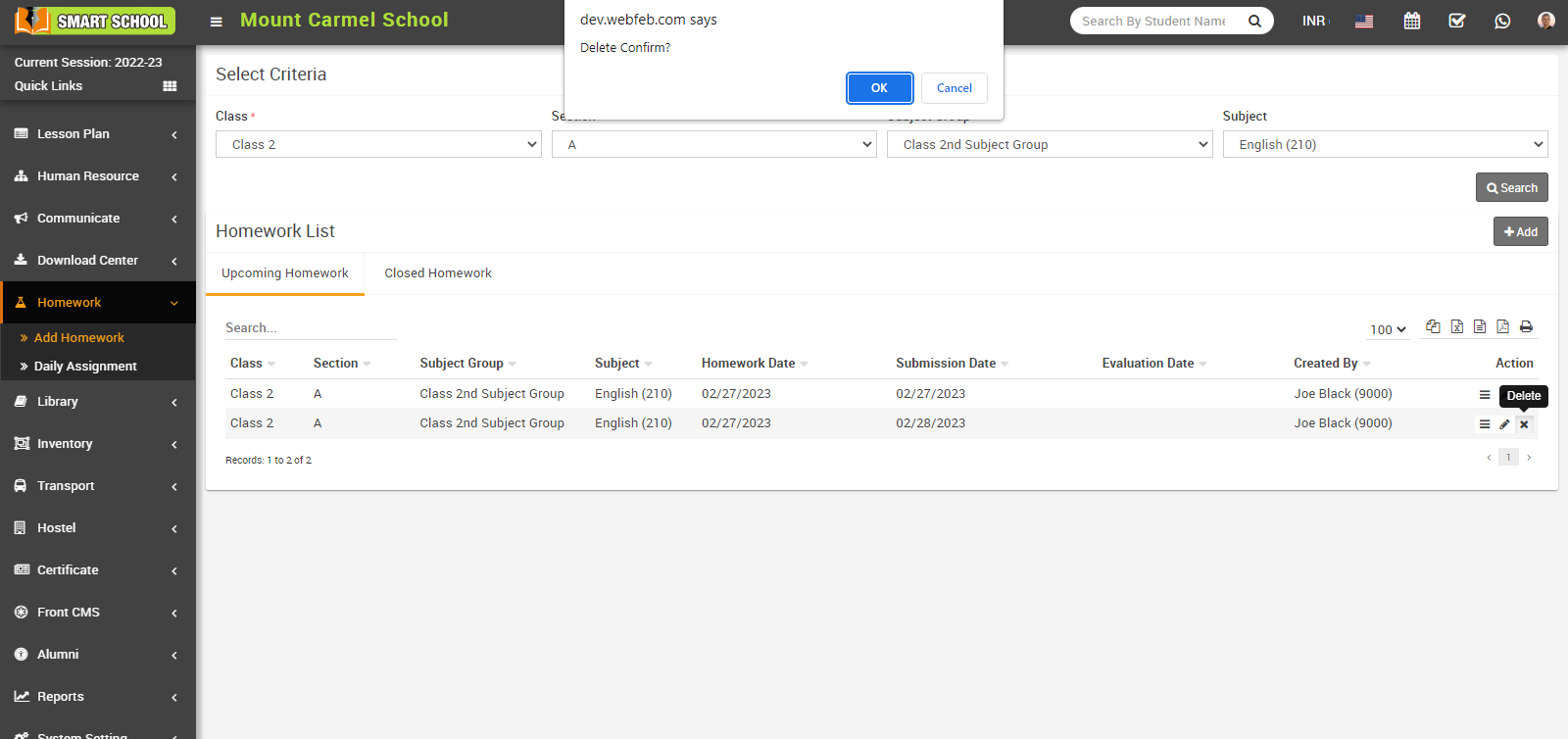
Delete confirmation model will be open now click on ok button your homework will delete successfully.
How to Evaluate Homework?
Once student submit his Homework, to view his submitted homework, go to Homework > Add Homework, select the Class, Section, Subject Group and Subject and click on the Search button. The homework list will be open. Here you can see the submitted homework showing in yellow colour in student panel.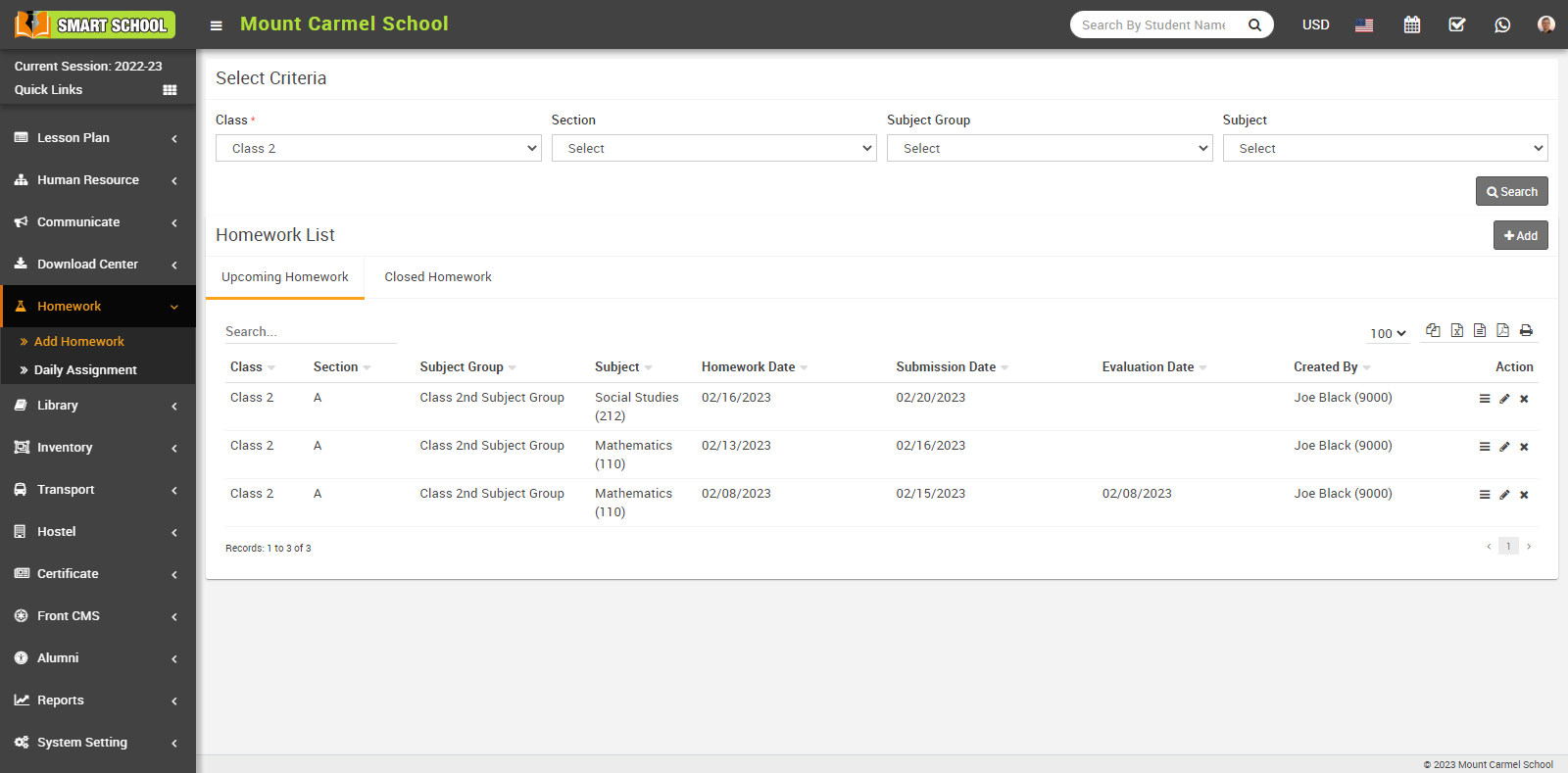
In Action column, you can see the evaluation icon showing, now click on that icon, Evaluate Homework model will be open. Here you can view Student Name, Message, Uploaded Documents and Summary, Homework Date, Submission Date, Evaluation Date, Created By, Evaluated By, Class, Section, Subject Group, Subject, Total Marks, Description and Evaluation Date.
To evaluate homework, first check the checkbox next to the student's name, then fill in the marks, add a note about the homework, enter the evaluation date in the left below, and click the save button.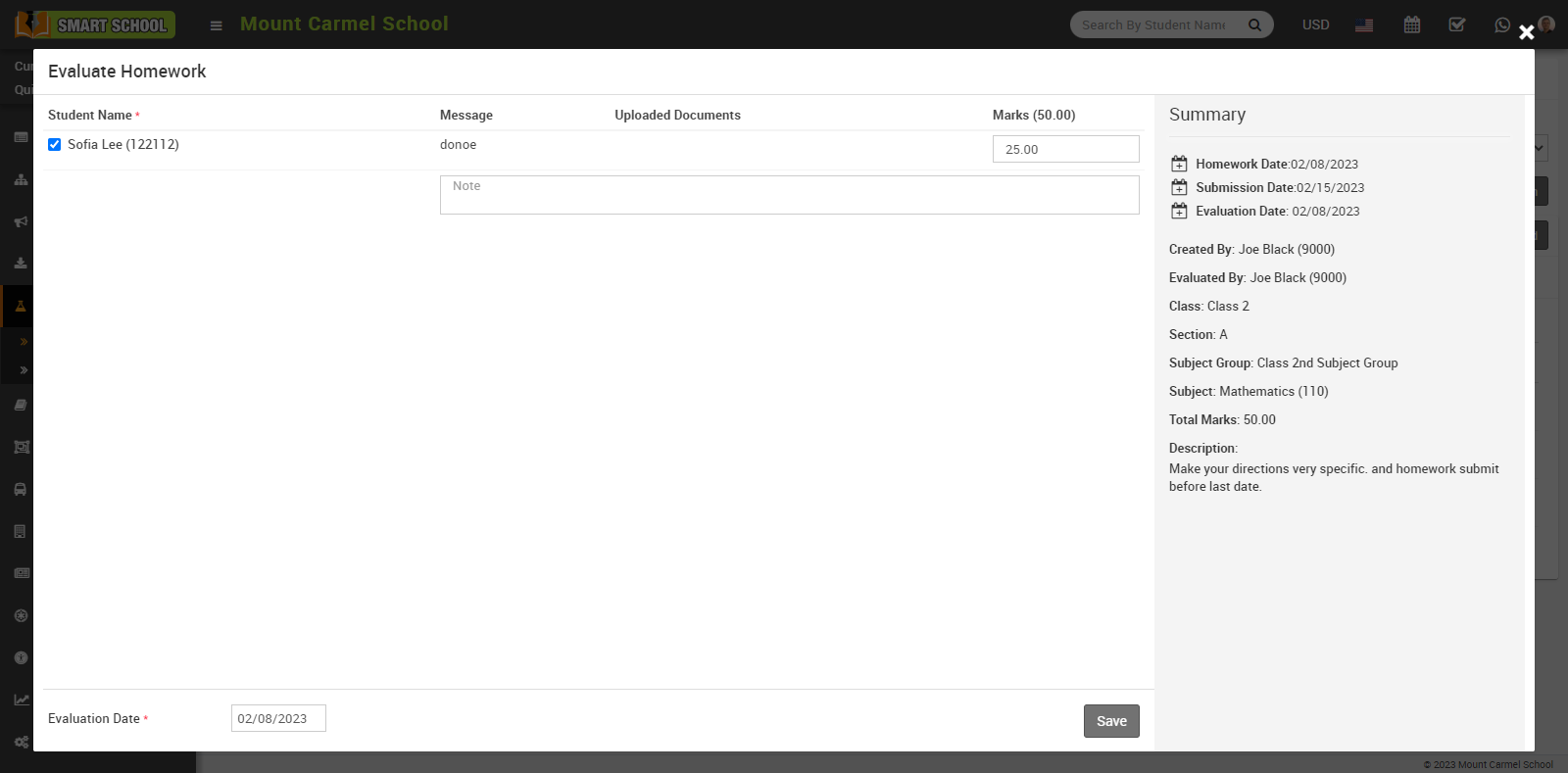
Now in student panel, go to the homework, here you can view the Status of homework which will show Evaluated in green colour.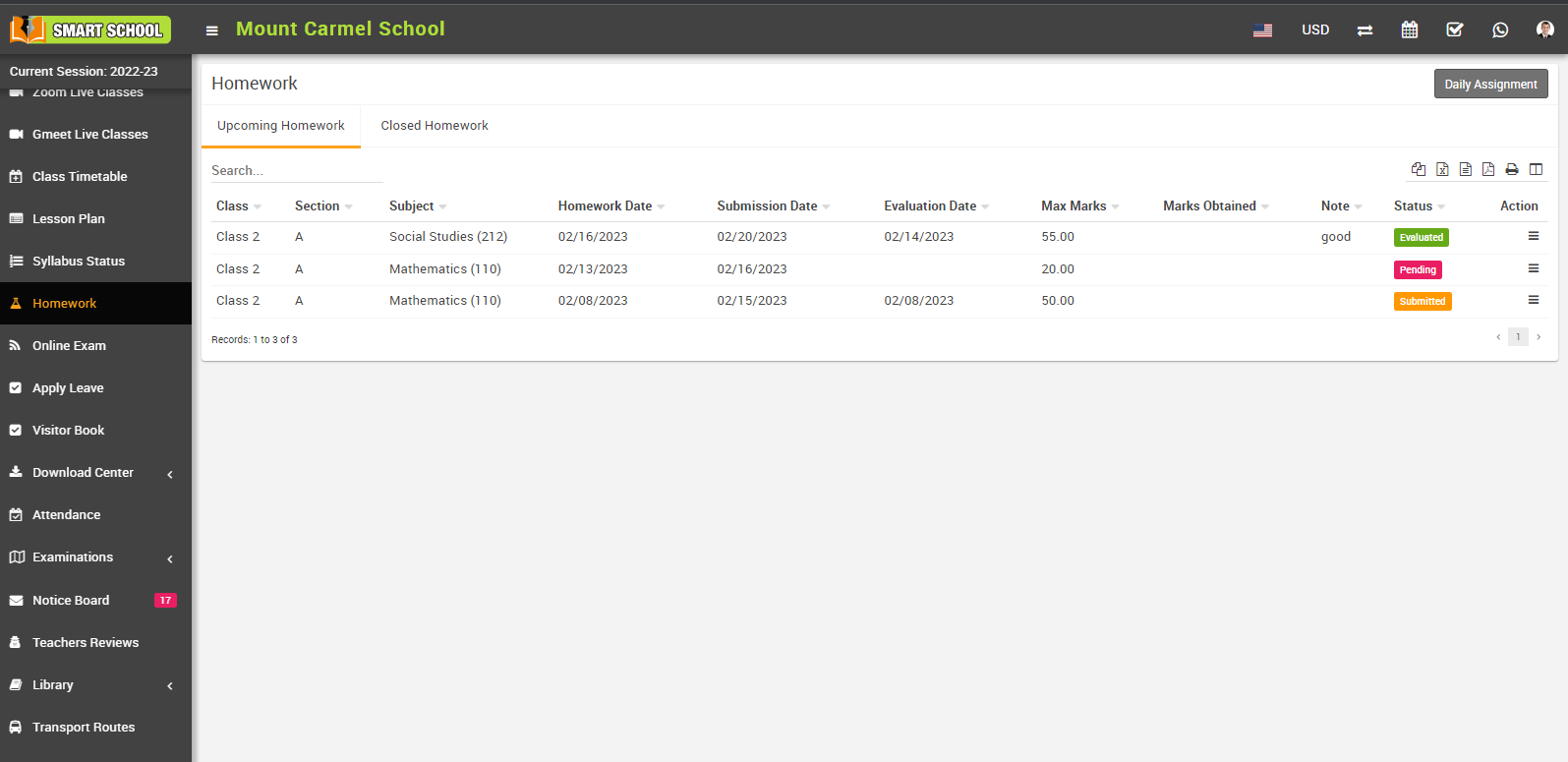
How to check Daily Assignment Report?
To check daily assignment report, go to Report > Homework, click on Daily Assignment Report.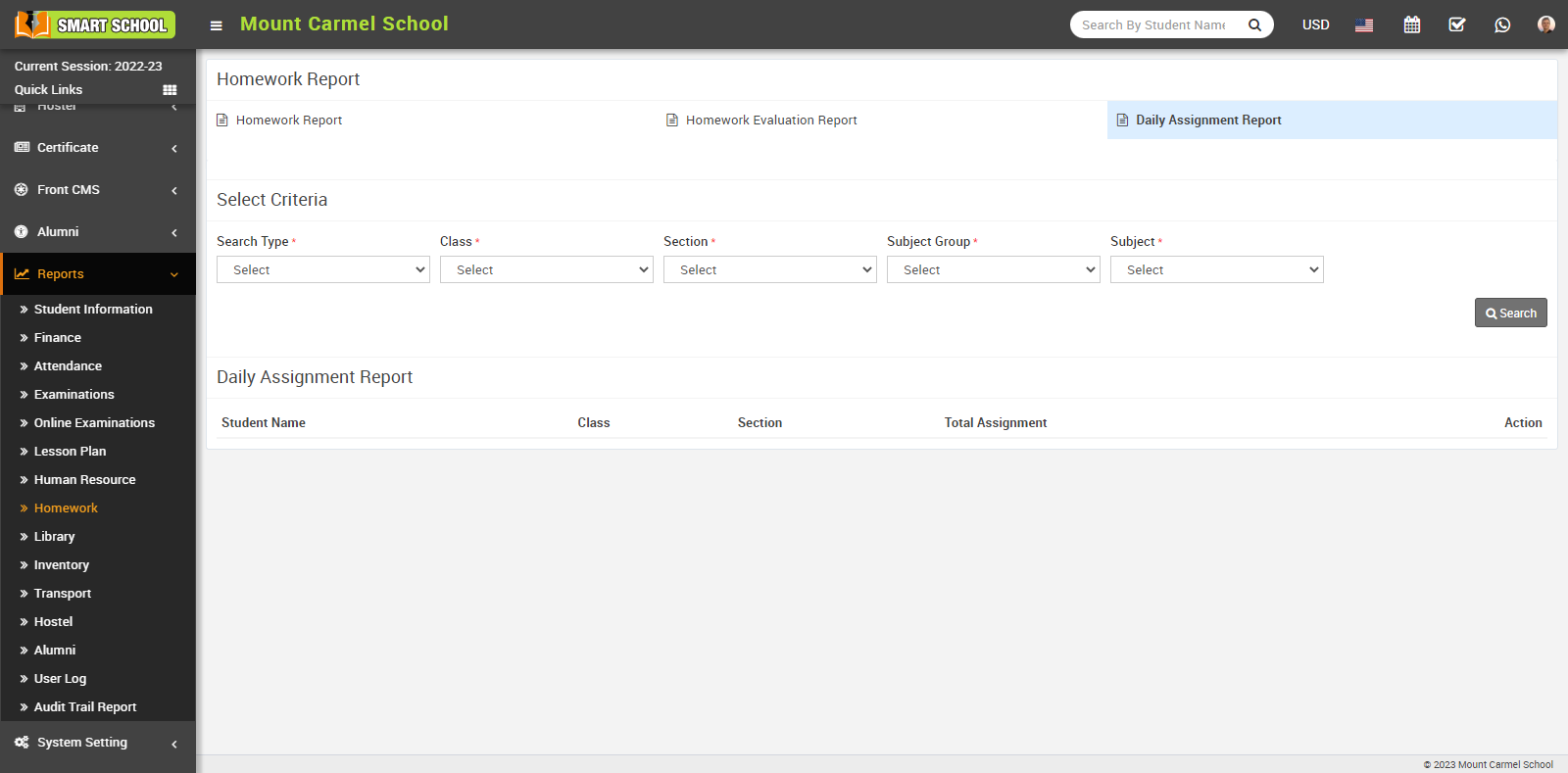
Now select the Search Type, Class, Section, Subject Group, Subject and click on the Search button. The daily assignment report will be show below.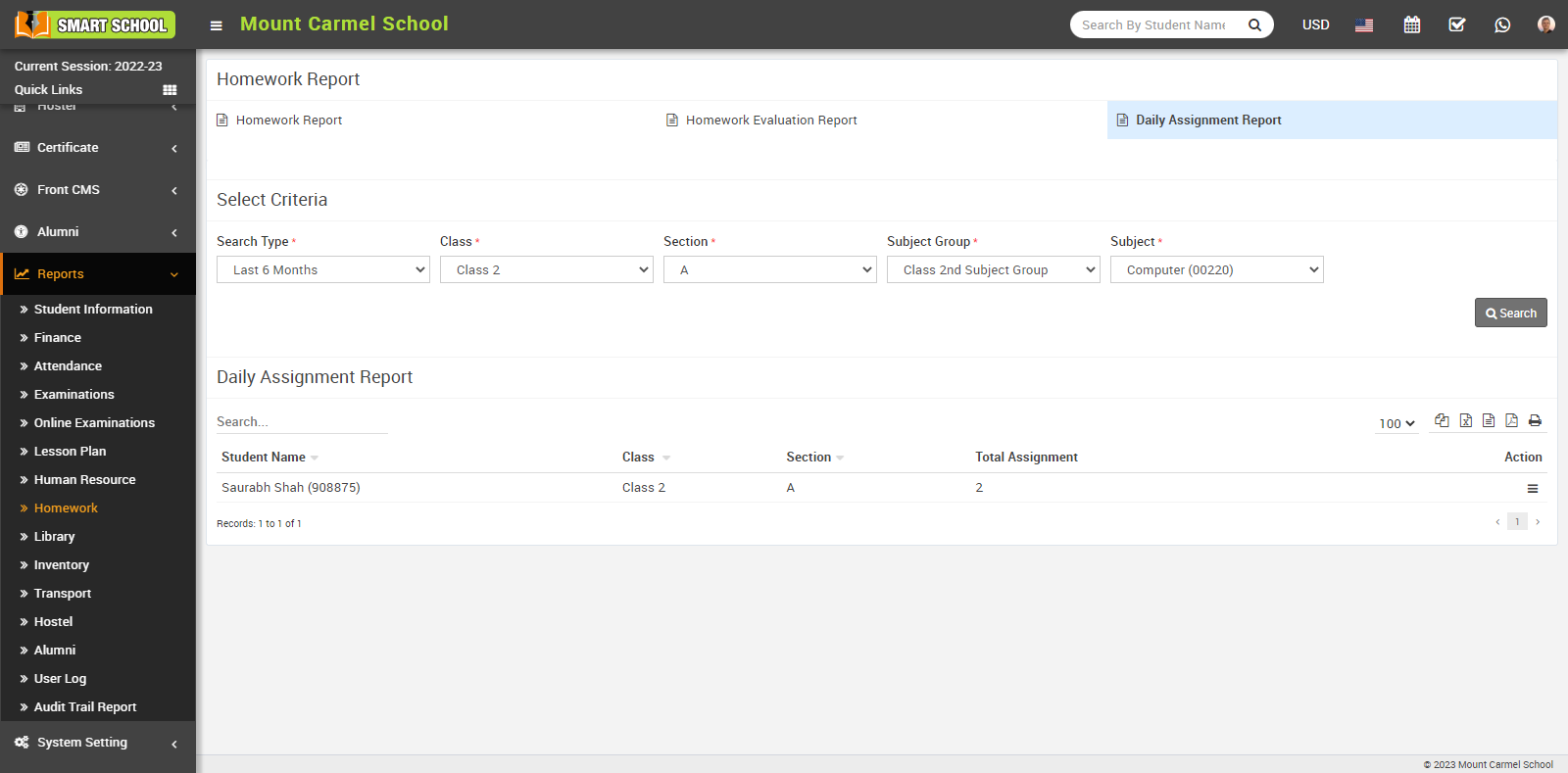
In this list you can view Student Name with his admission number, Class, Section and in Total Assignment, you can see that how much assignment assigned to the student.
To view the Daily Assignment Report in Details, simply click on the view option showing in the Action column. The daily assignment detail model will be opened.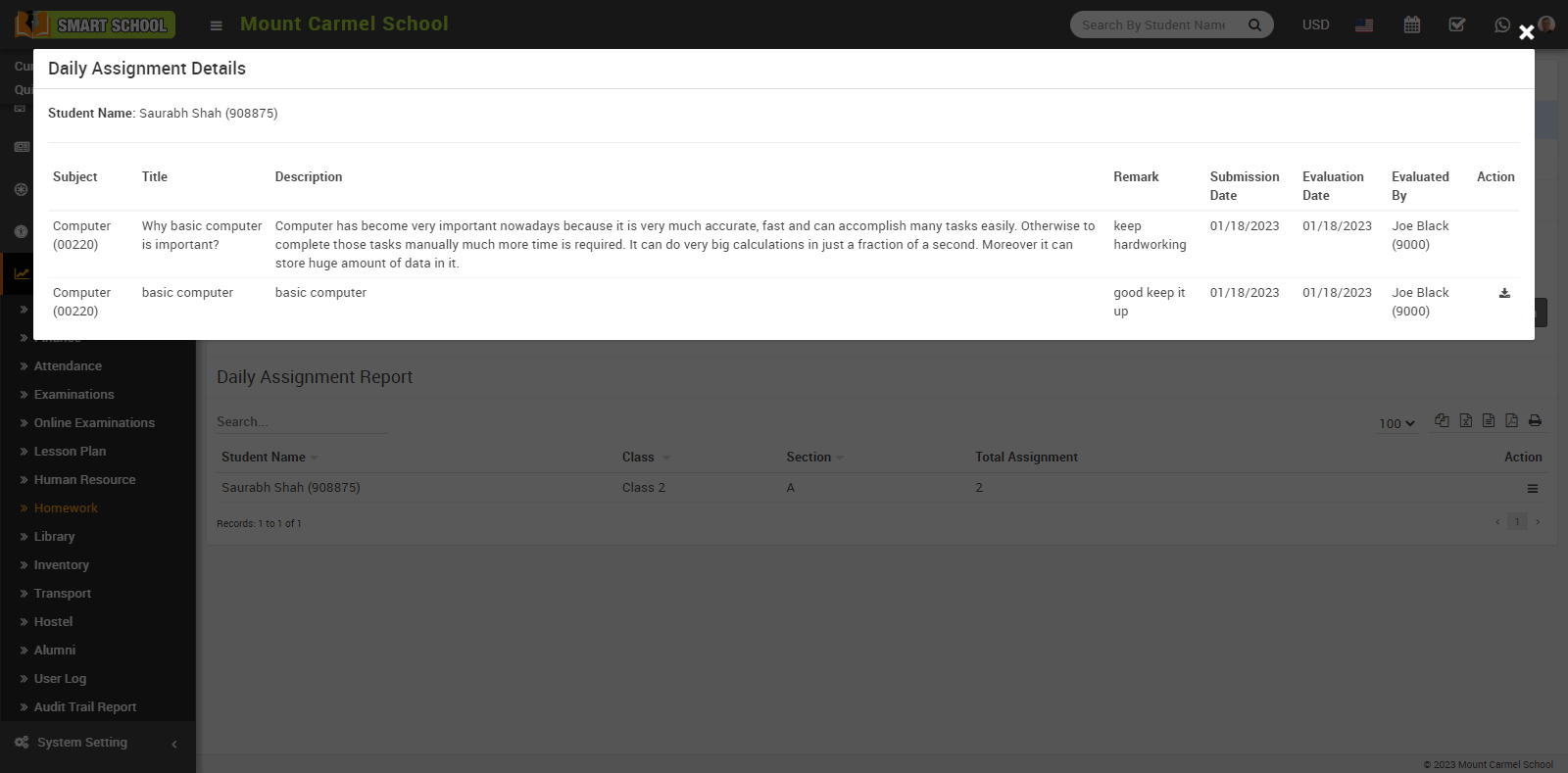
And now you can view Student Name, Subject, Title, and Description about the assignment and in Remark, the teacher can add a remark about the assignment, as well as Submission Date, Evaluation Date, and Evaluated By. In Action column, you can see a download icon showing, from where you can download the evaluated assignment.
How to check Homework Evaluation Report?
To check Homework Evaluation Report, go to Report > Homework, click on Homework Evaluation Report.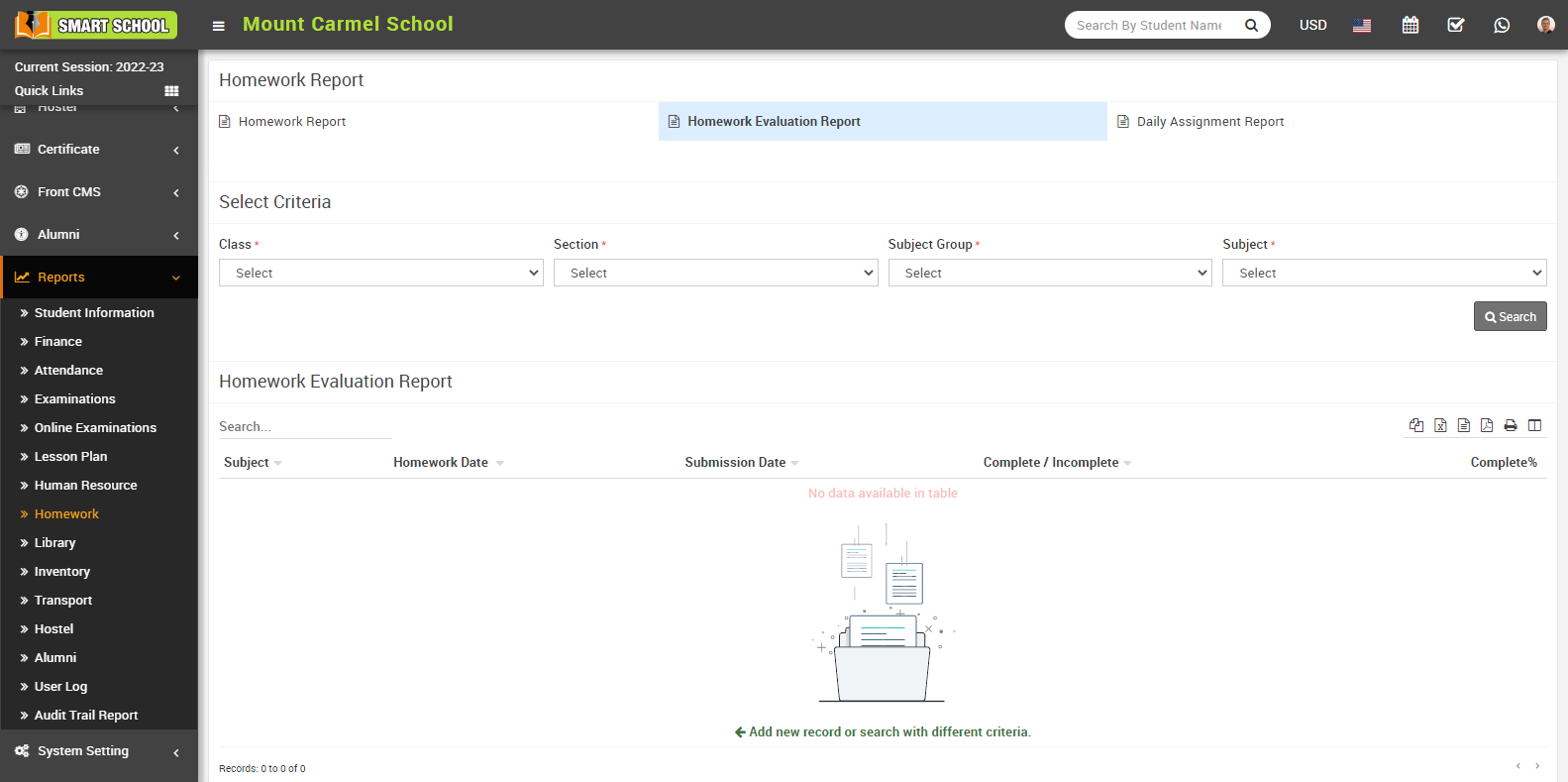
Now select Class, Section, Subject Group and Subject and then click on Search button. The homework evaluation report for above search will be show in below.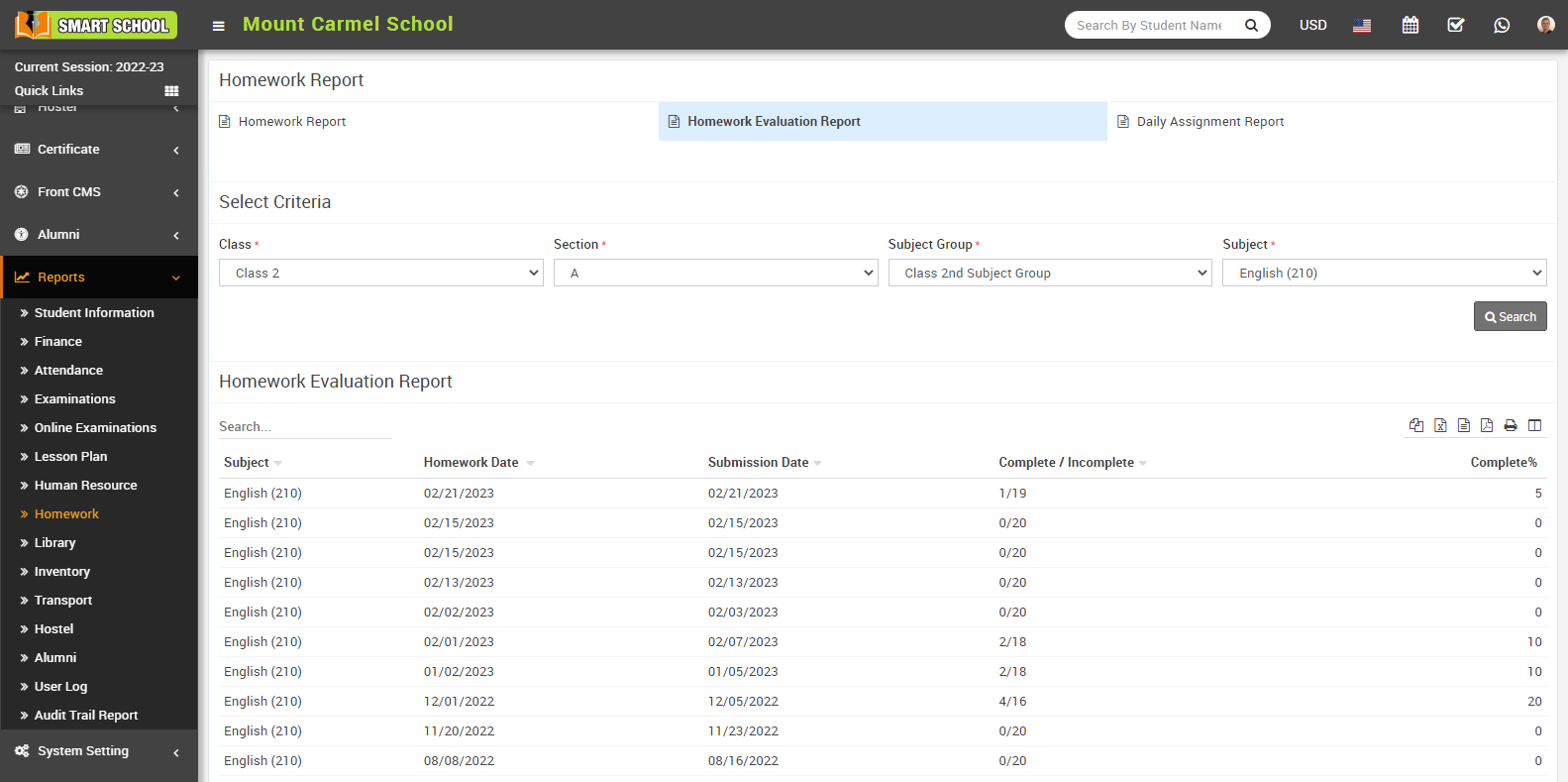
How to check Homework report?
To check the homework report, go to Report > Homework.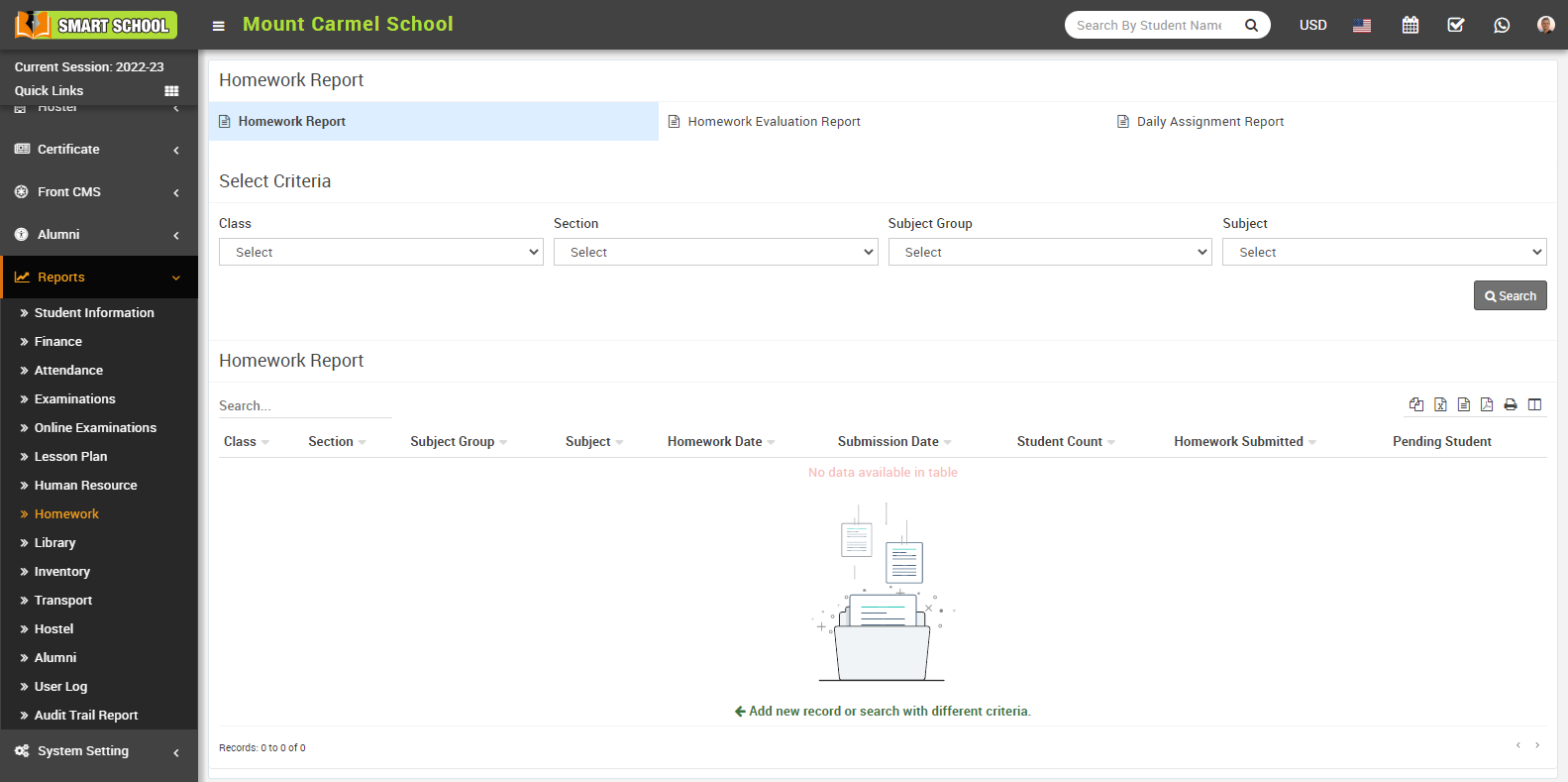
Here select Class, Section, Subject Group and Subject and click on the Search button. The homework report for above search will be show in below.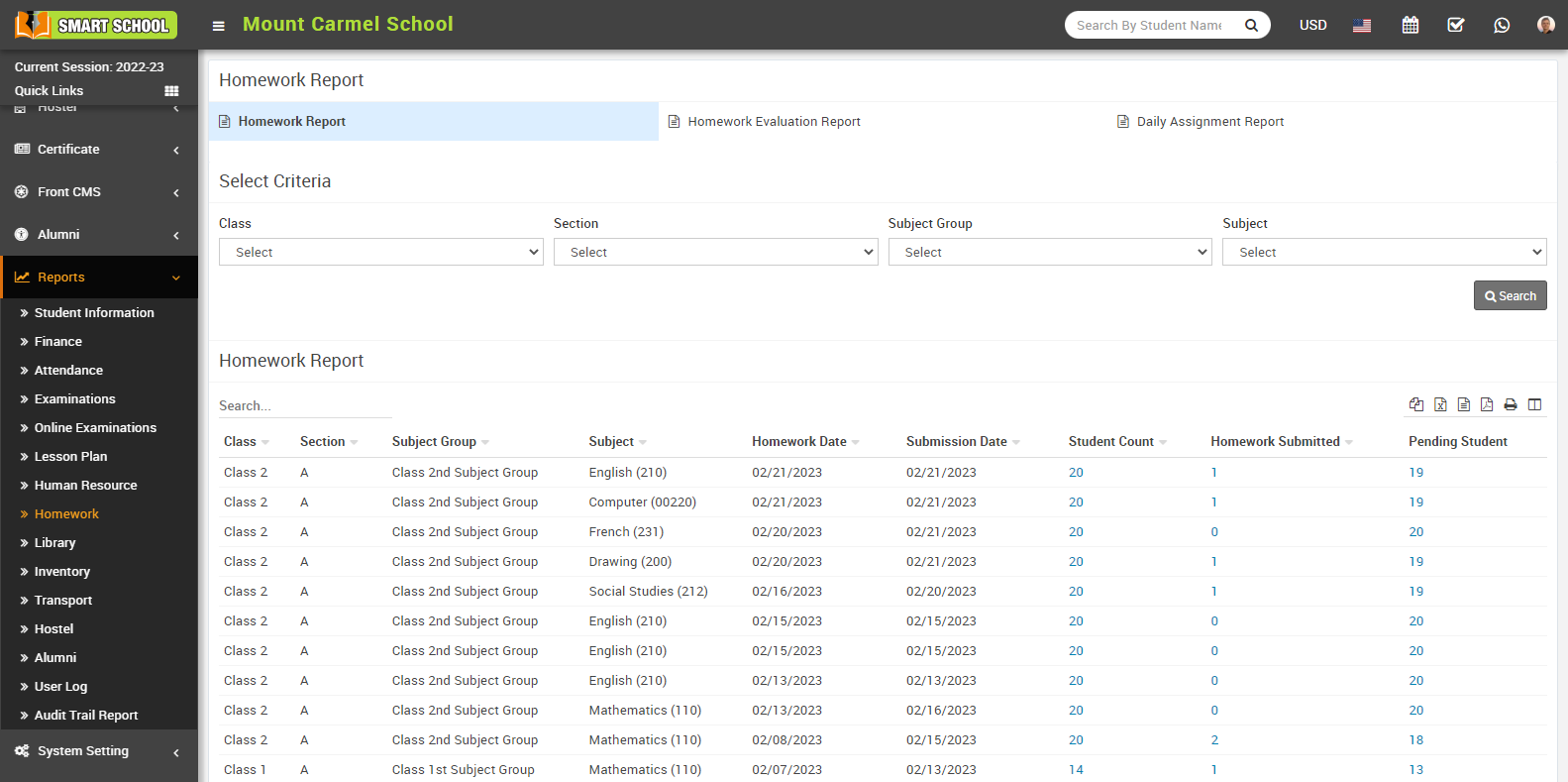
In this report, you can see the student class, section, subject group, and subject and homework date: In this column, you can see the date when homework was assigned to the students in that class and section. Submission Date, in this column, shows the dates when students submit their homework.
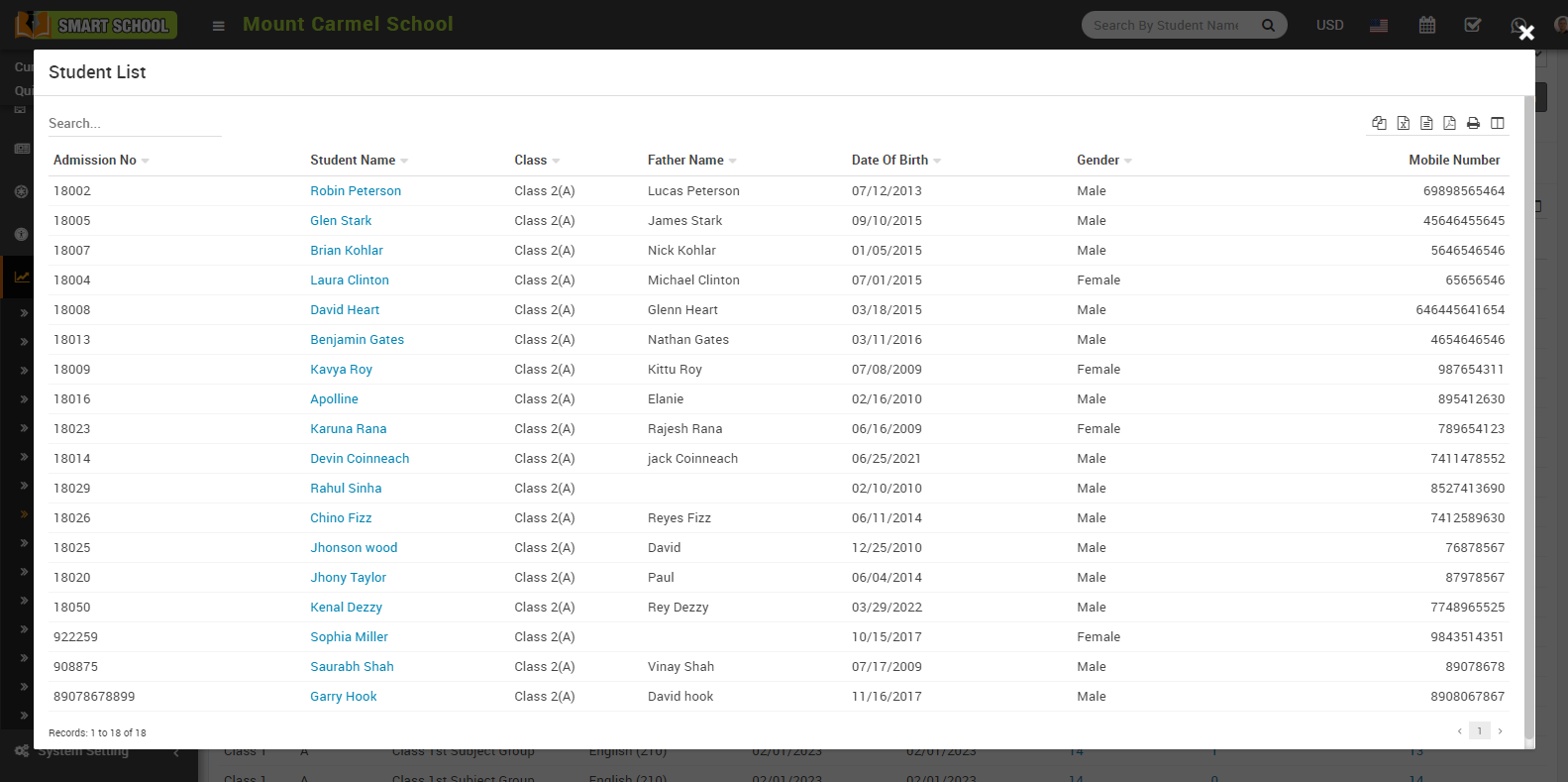
Student Count, in this column, shows the count of students who were assigned homework by the teacher. Simply click on the number in the student count column to open a student list with all of the students' information, including their admission number, student name, class, father's name, date of birth, gender, and mobile number. 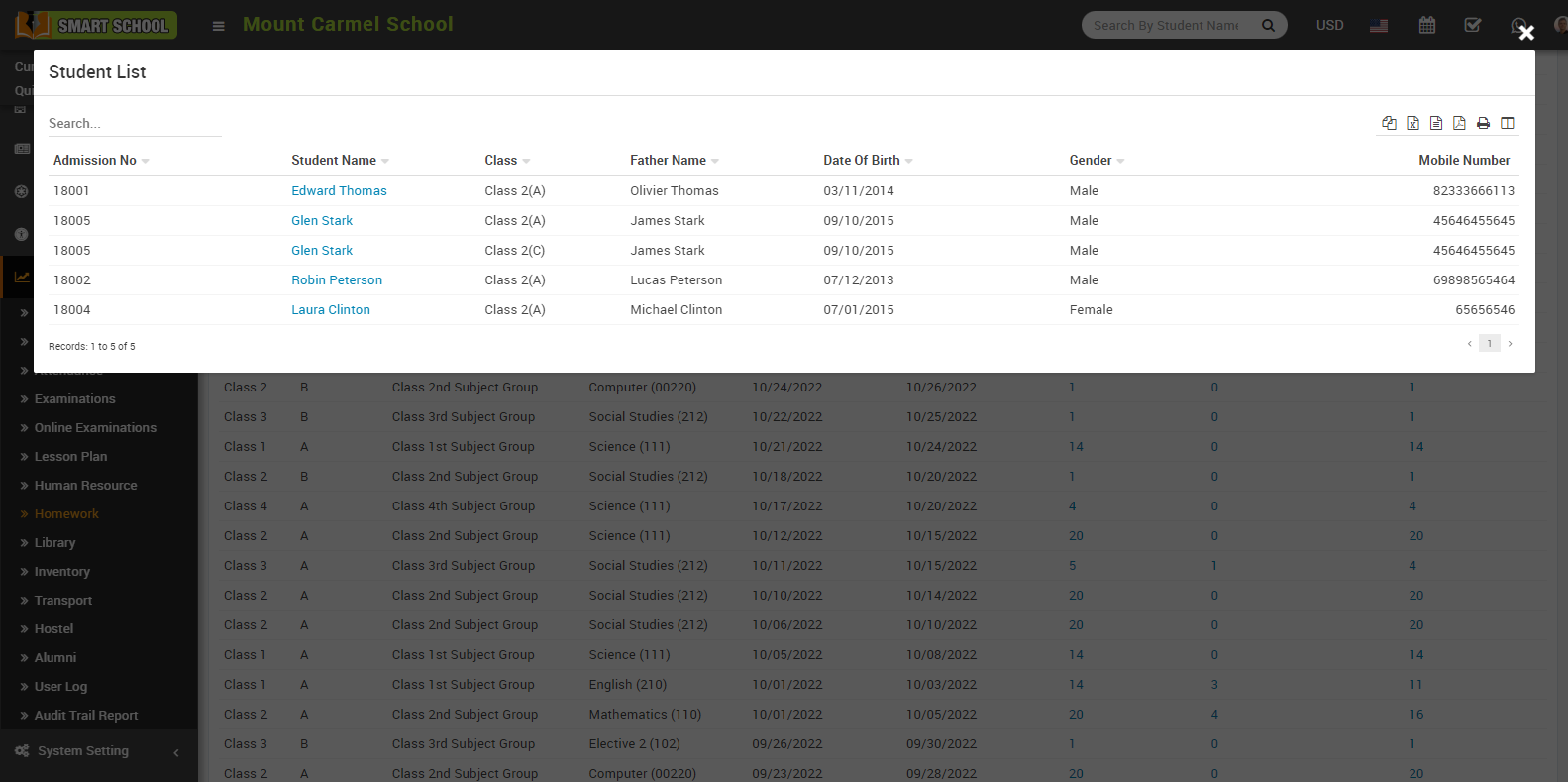
Homework Submitted: This column displays the number of students who have submitted their homework. Simply click on the number in the homework submitted column to open a student list with all of the students' information, including their admission number, student name, class, father's name, date of birth, gender, and mobile number. 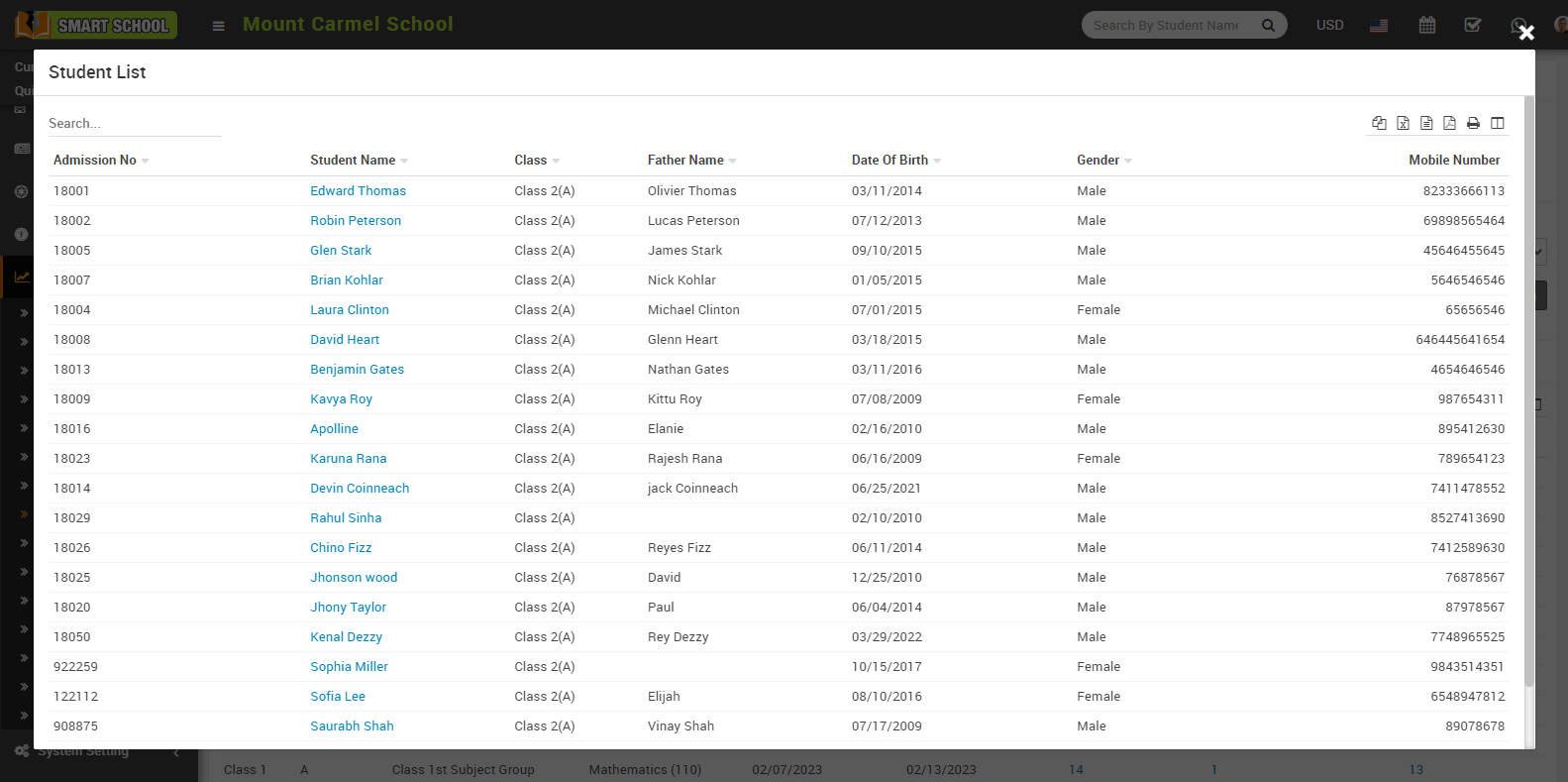
Pending student: Display the number of students who have not completed their homework. Simply click on the number in the pending student column to open a student list with all of the students' information, including their admission number, student name, class, father's name, date of birth, gender, and mobile number.