About Gmeet Live Classes
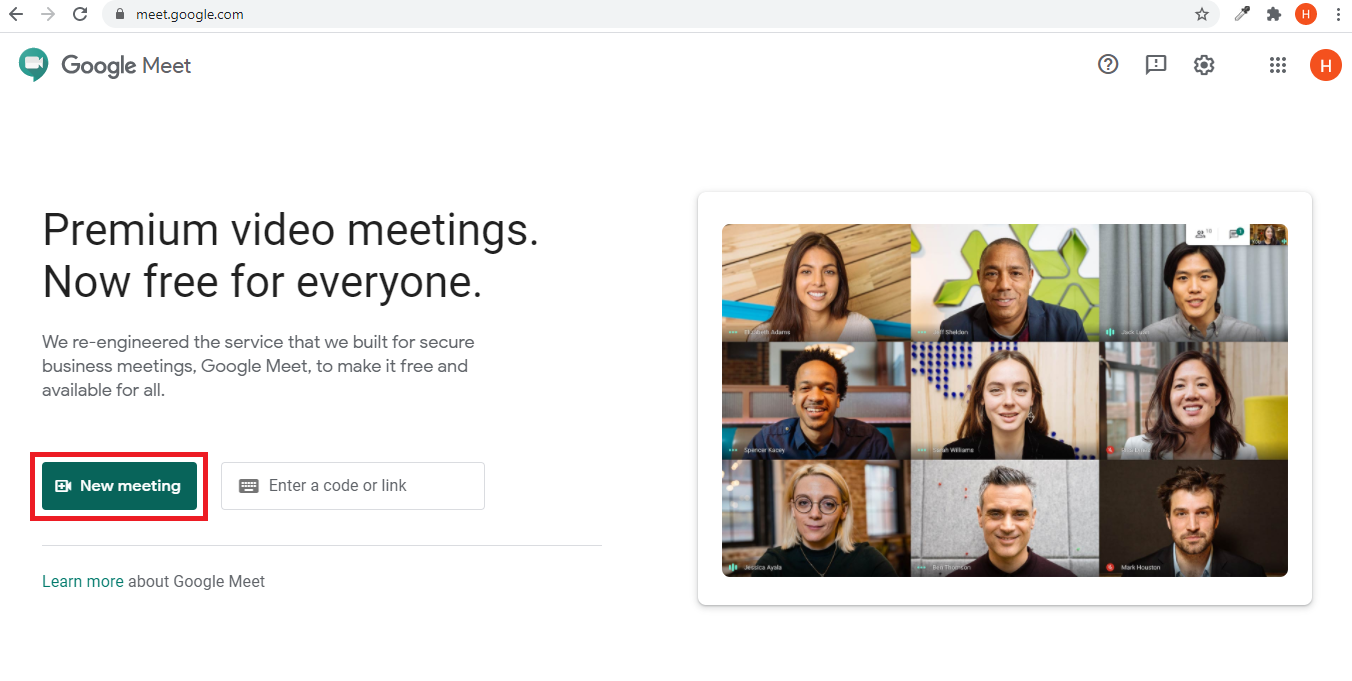
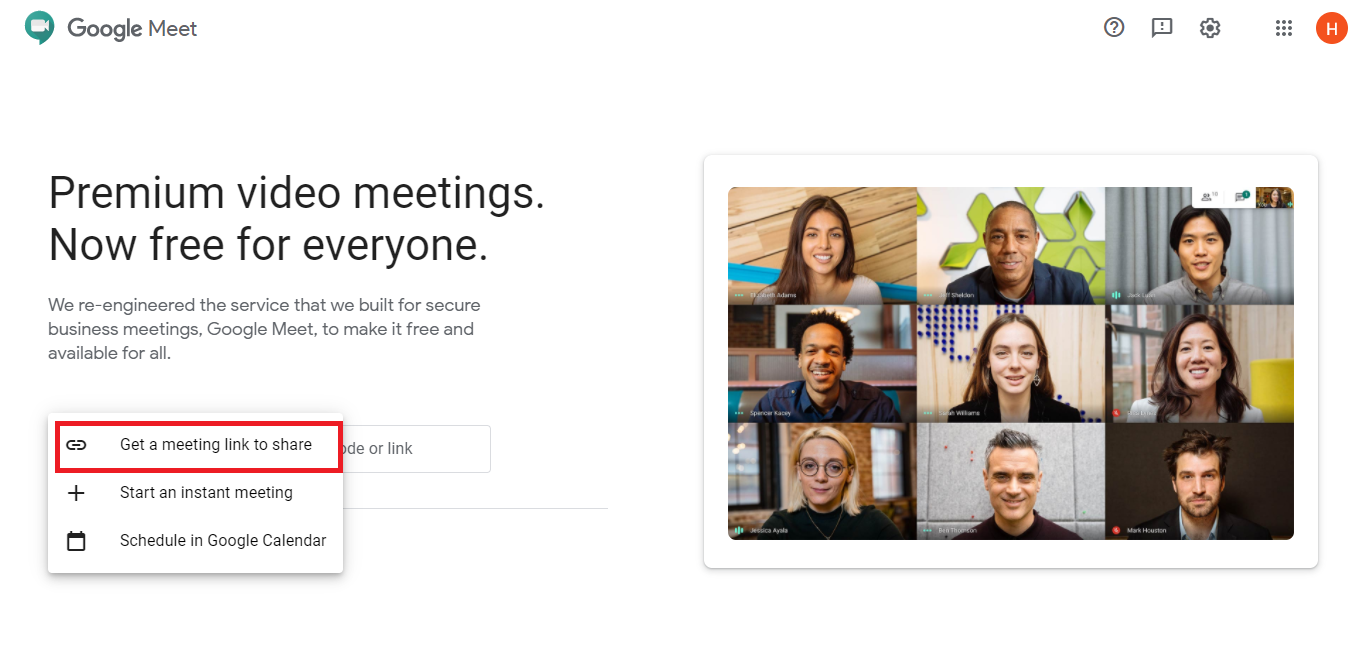
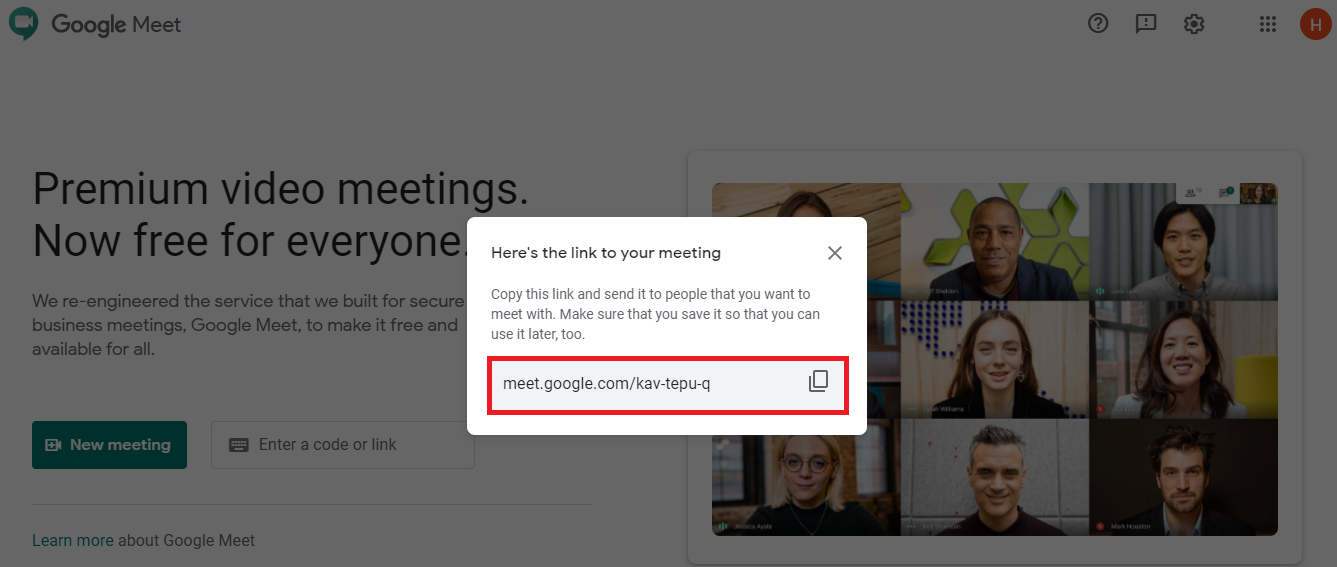
As Google Meet currently does not provide any API/SDK for creating meetings directly (https://support.google.com/meet/thread/63731528?hl=en) so to create Gmeet Live Class or Meeting in Smart School you should create google meet meeting manually from http://meet.google.com/new . After creating meeting, just copy meeting URL and enter in Smart School Gmeet add Live Class or Meeting.
Google Meet Live Class Workflow: Superadmin/Admin/Teacher needs to get Google meeting link from Google Account and use this meeting URL when adding Live class or Live meeting then student can join live class or staff can join meeting further we can check join report.
Note: Google Meet Live Class is Smart School addon so to use it you should purchase separately and install it in your Smart School.
How to get Gmeet URL?
How to create Gmeet Live Class?
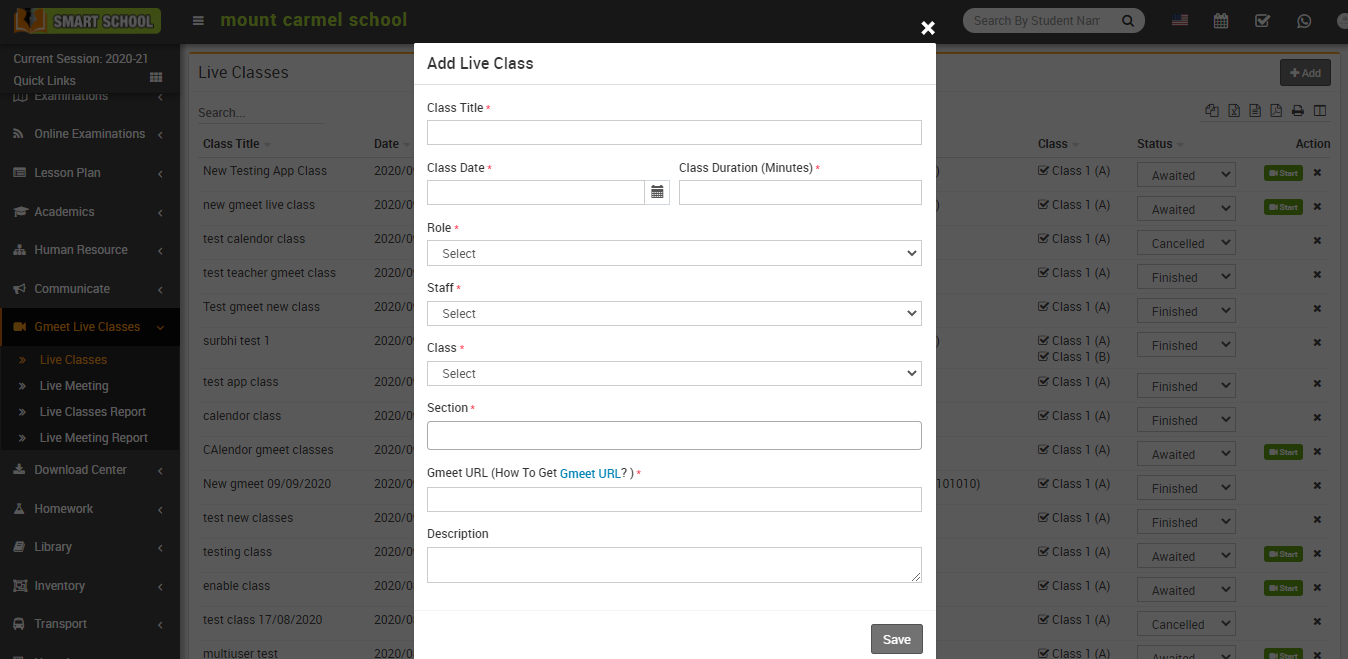
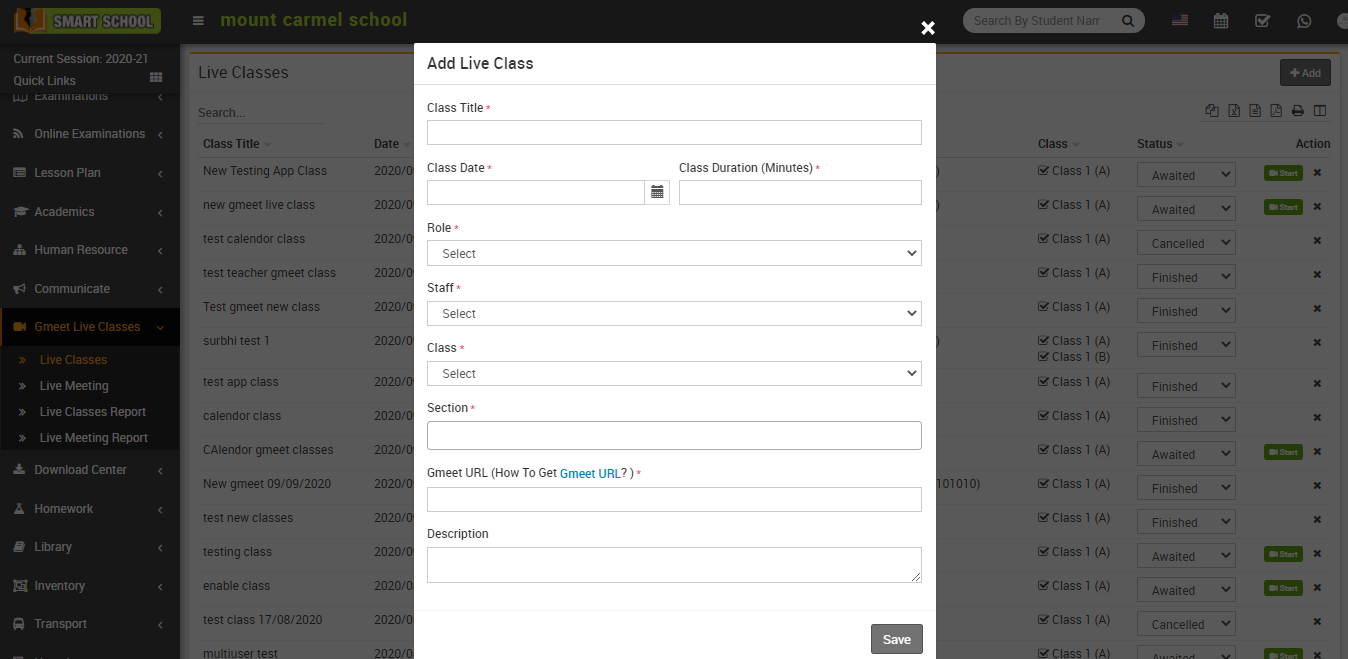
To create gmeet live classes, go to Gmeet Live Classes > Live Classes then click on Add button present at the top right corner of the live classes page. Here enter the Class Title, Class Date, Class Duration, Role, Staff, Class, Section (you can add multiple sections so these section's students can join live class together), Gmeet URL and Description and then click on Save button. The saved record will appear in live classes page.
If Use Google Calendar Api is Enabled from Gmeet Setting then you need to sign in your Gmail account before adding Gmeet Live Classes and if you check this option Disabled then you need to enter your Gmeet URL while creating Gmeet Live Classes.
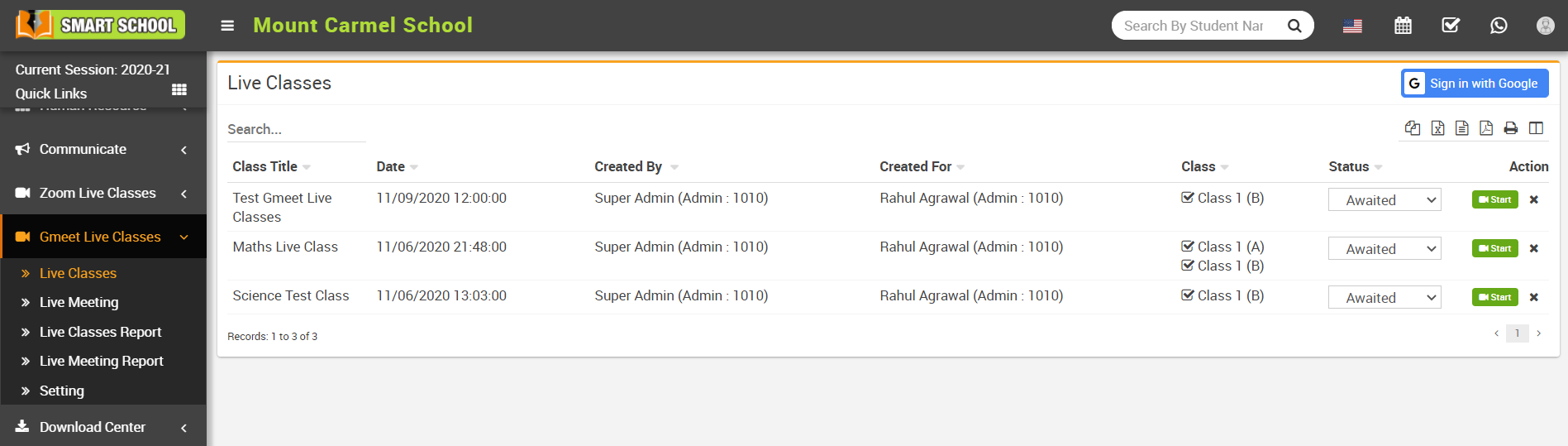
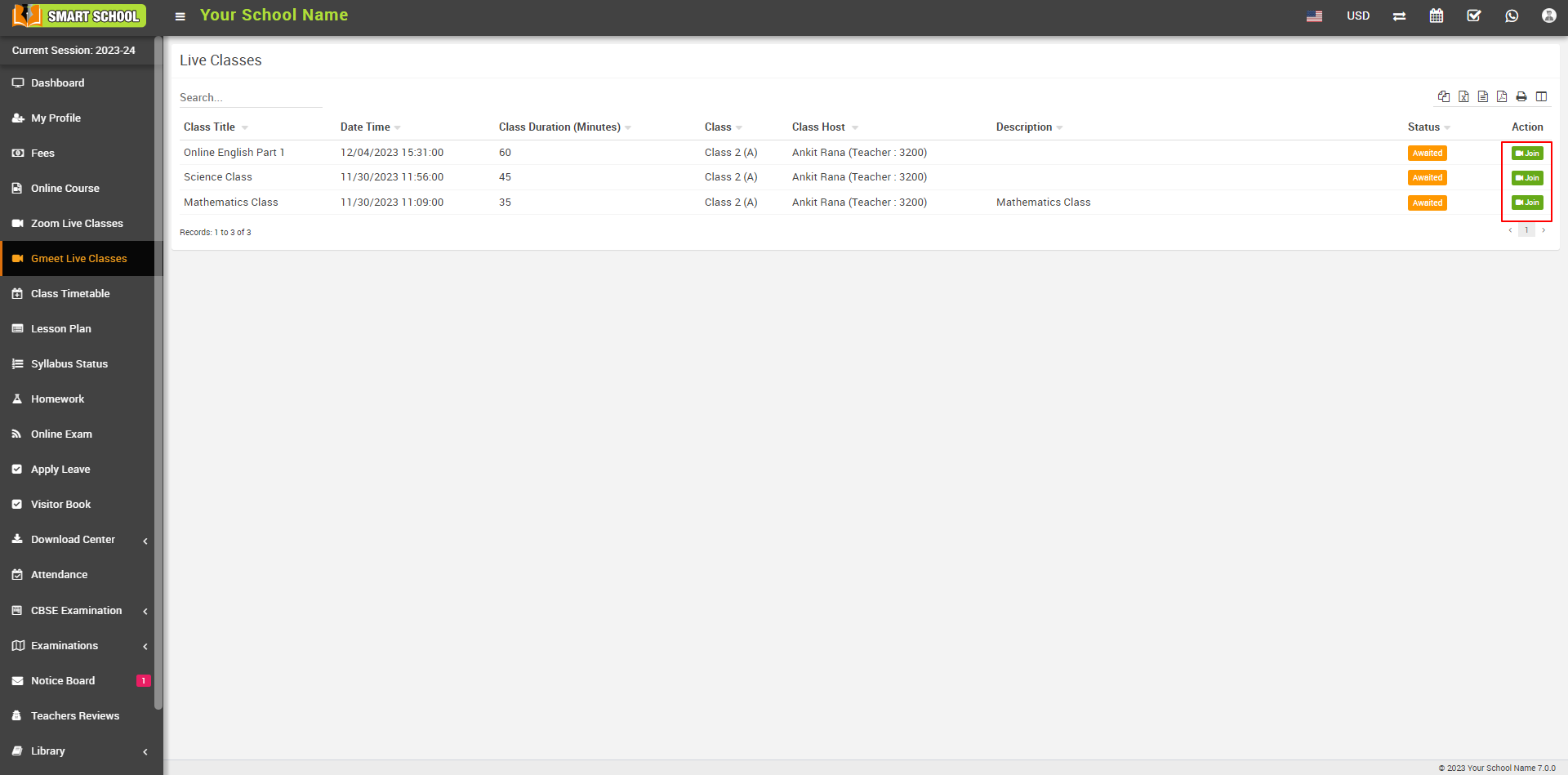
To start live class click on the Start button present in the Action column. At click of this button control will redirect to google meet window.
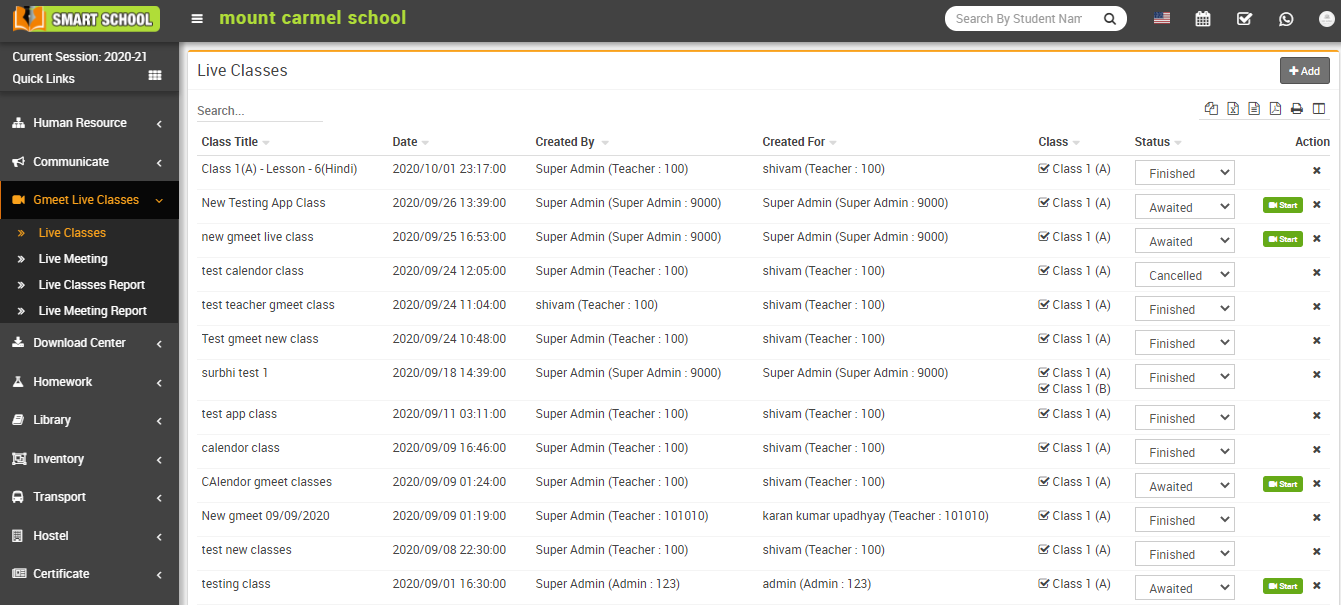
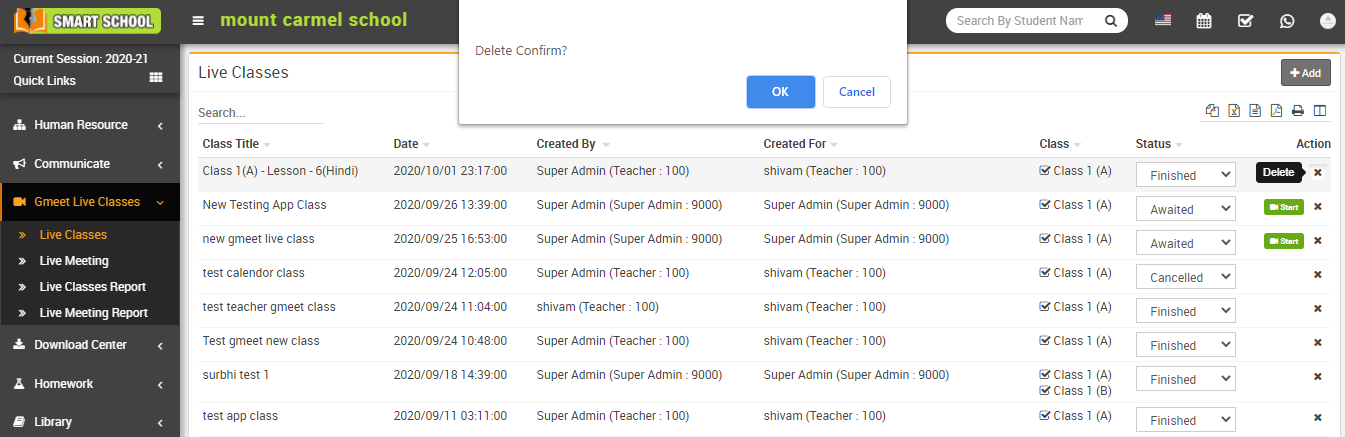
To delete a class, click on the Delete icon present in the Action column. At click of delete icon it will ask you to confirm, after your confirmation class will be deleted.
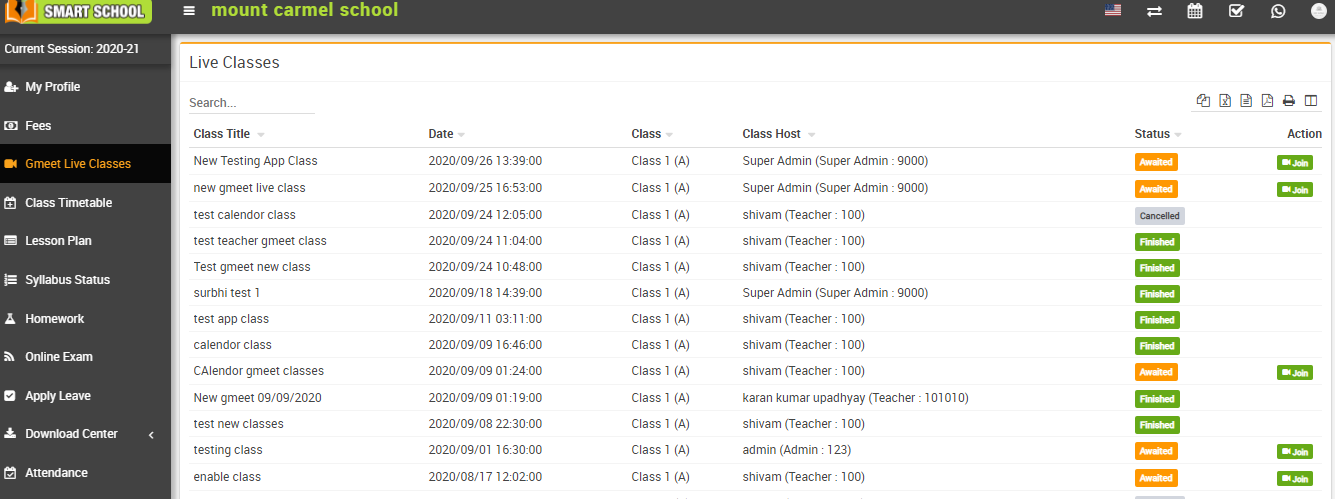
How to join Gmeet Live Class?
How to check Gmeet Live Class Report?
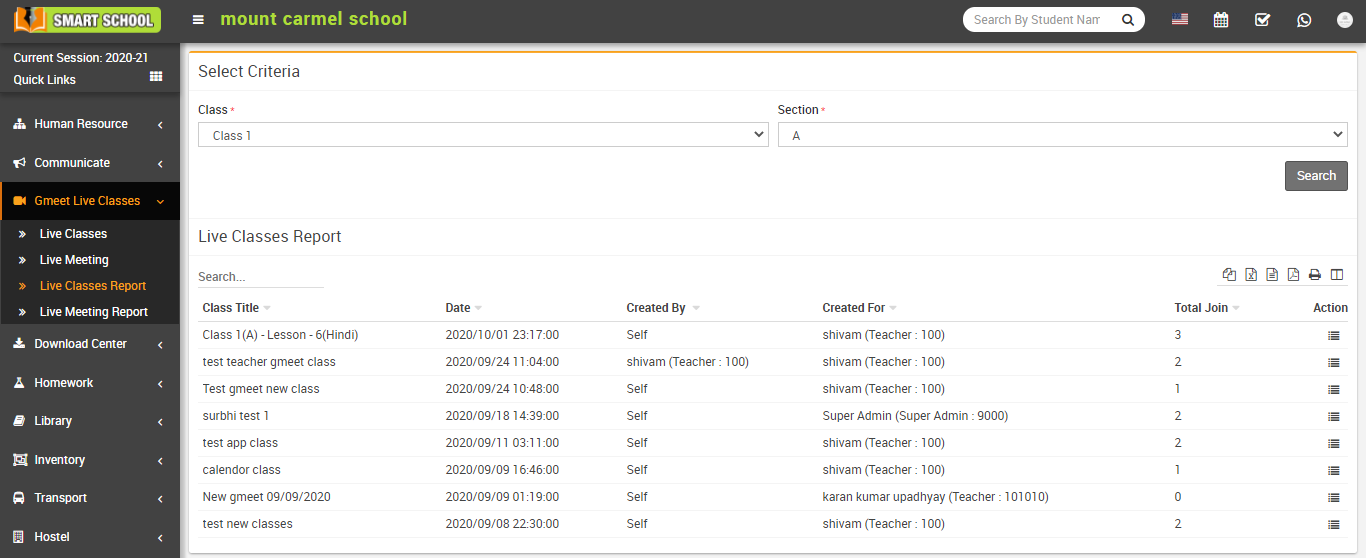
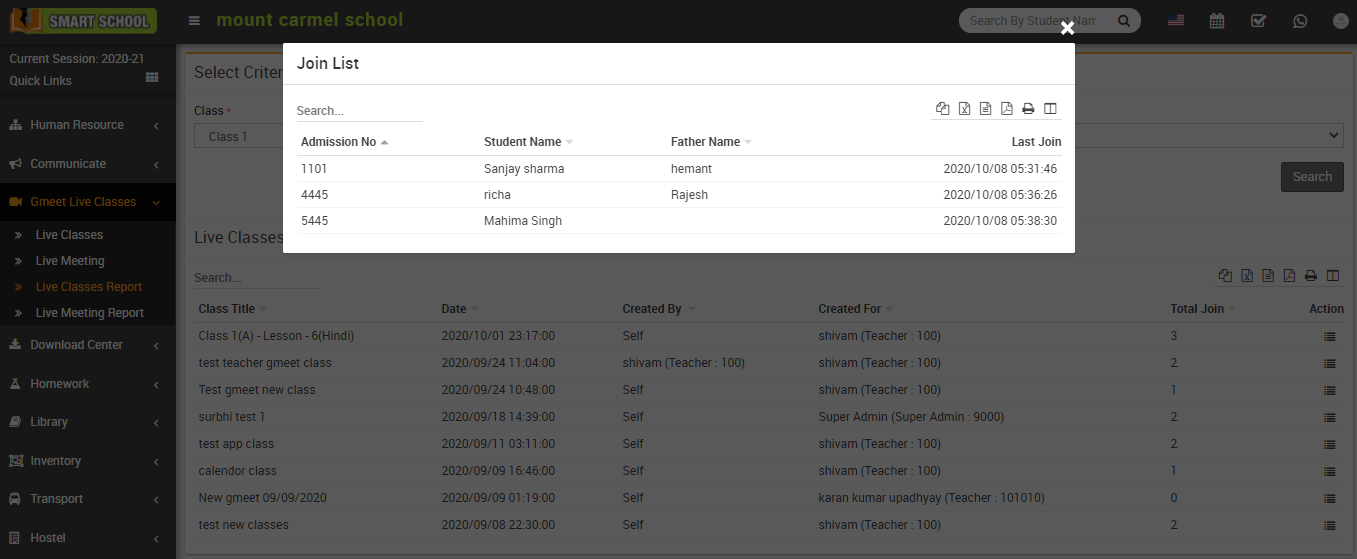
To check join student list in a Live Class Report, click on the View icon from Action column at click of this icon join list model will open. Here you can see all the join list.
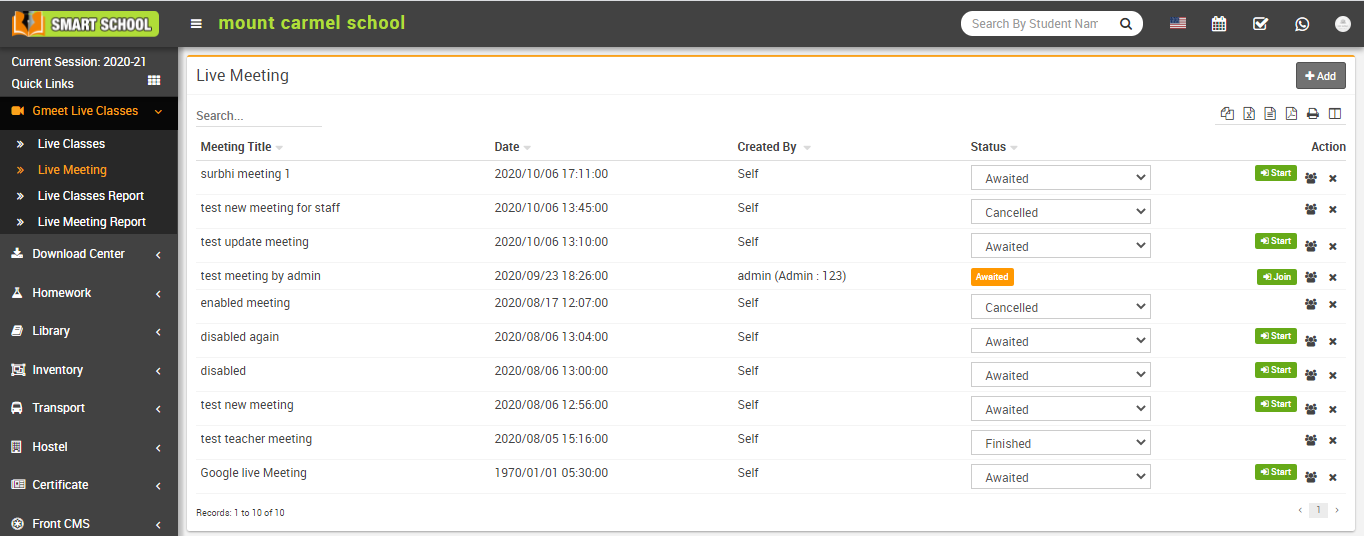
How to create Gmeet Live Meeting?
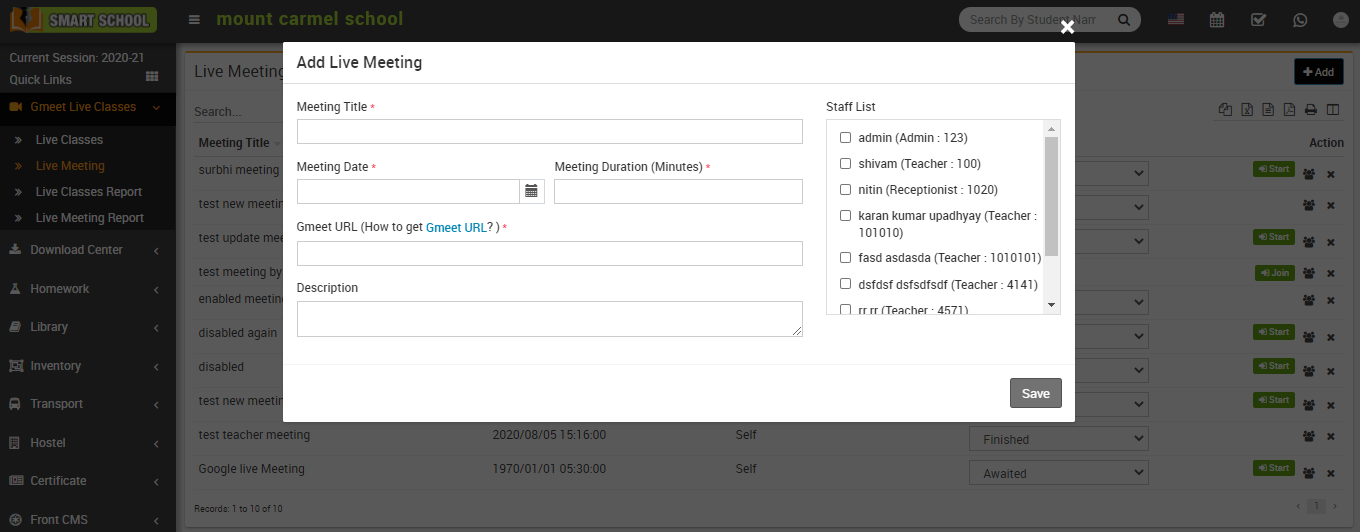
If Use Google Calendar Api is Enabled from Gmeet Setting then you need to sign in your Gmail account before adding Gmeet Live Meeting and if you check this option Disabled then you need to enter your Gmeet URL while creating Gmeet Live Meeting.
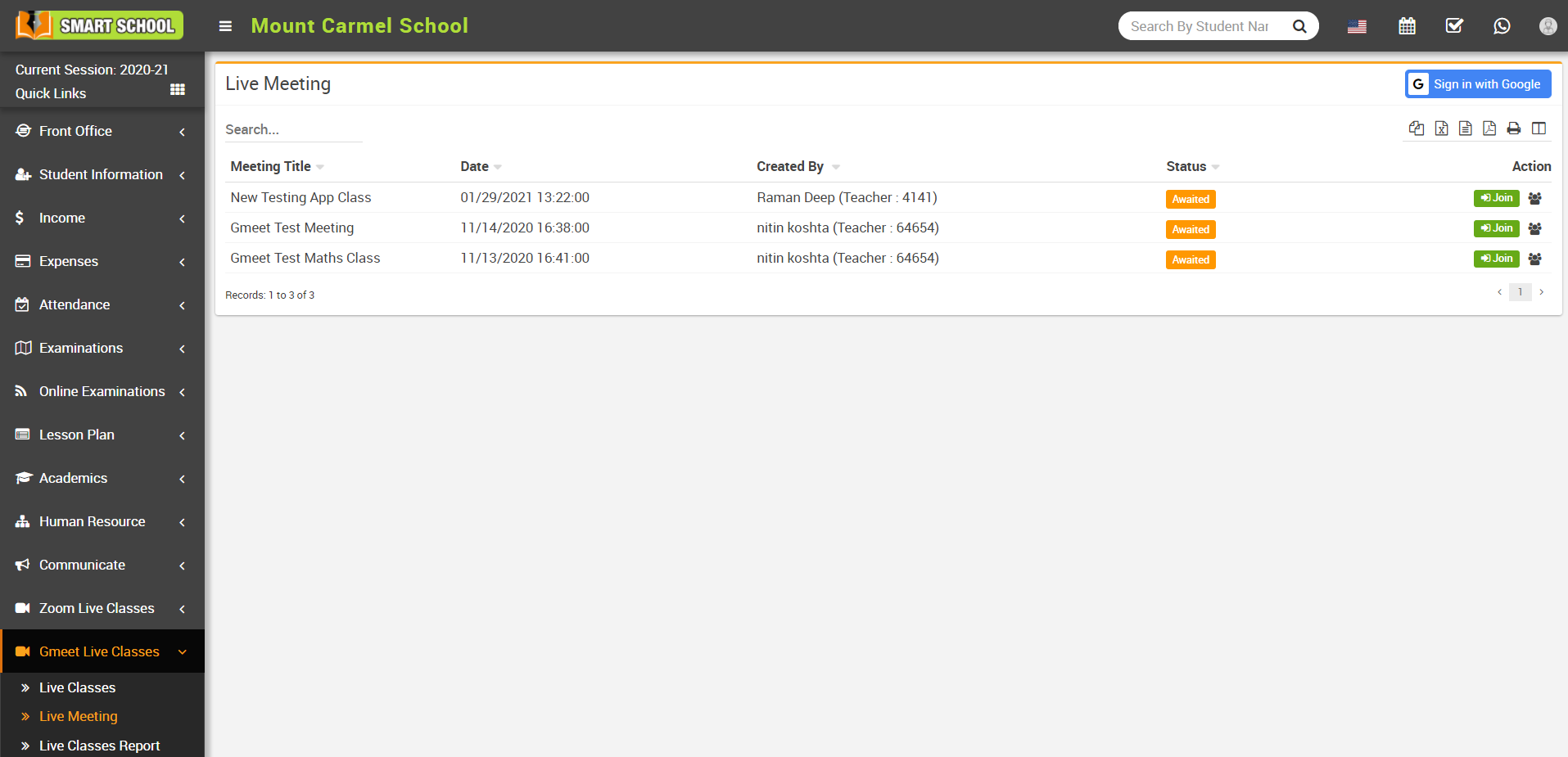
To start live meeting, click on the Start button present in the Action column. At click of this button control will redirect to Google meet window and the meeing will start.
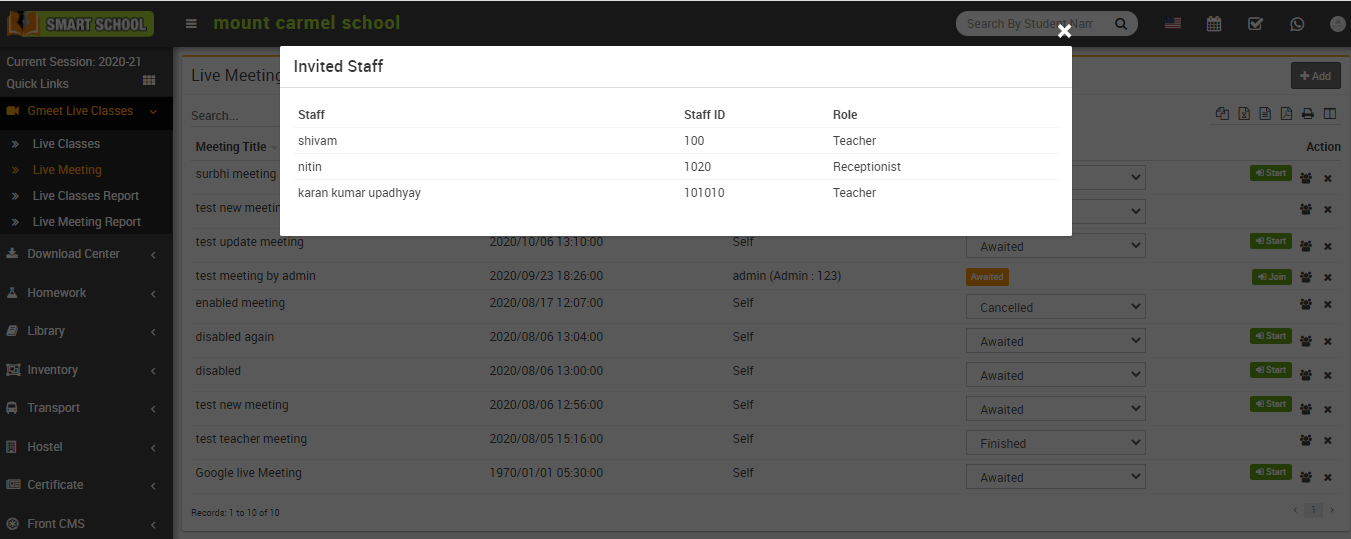
To view the Invited staff in a live meeting, click on the Invited staff icon from Action column at click of this icon Invited staff model will open. Here you can see all the invited staff list.
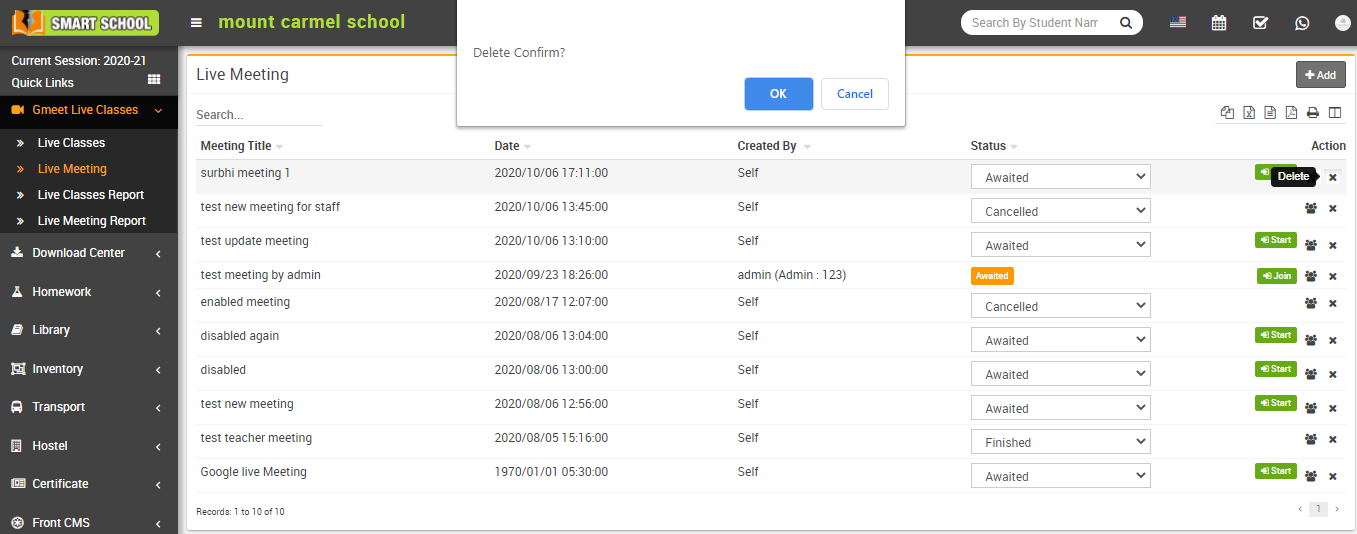
To delete a meeting, click on the Delete icon present in the Action column. At click of this delete icon it will ask you to confirm, after your confirmation meeting will be deleted.
How to join Gmeet Live Meeting?
How to check Gmeet Live Meeting report?
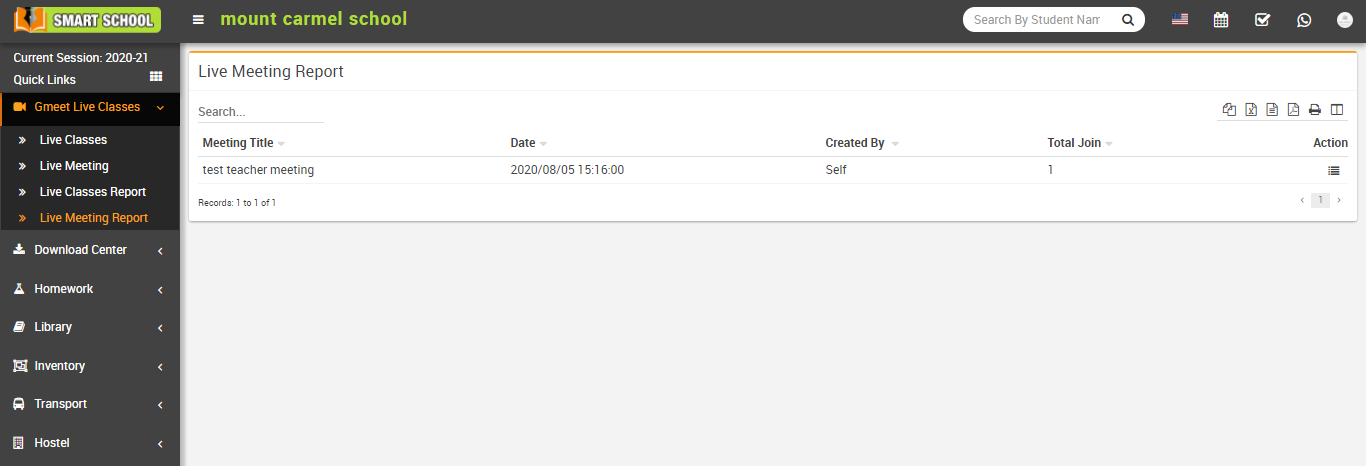
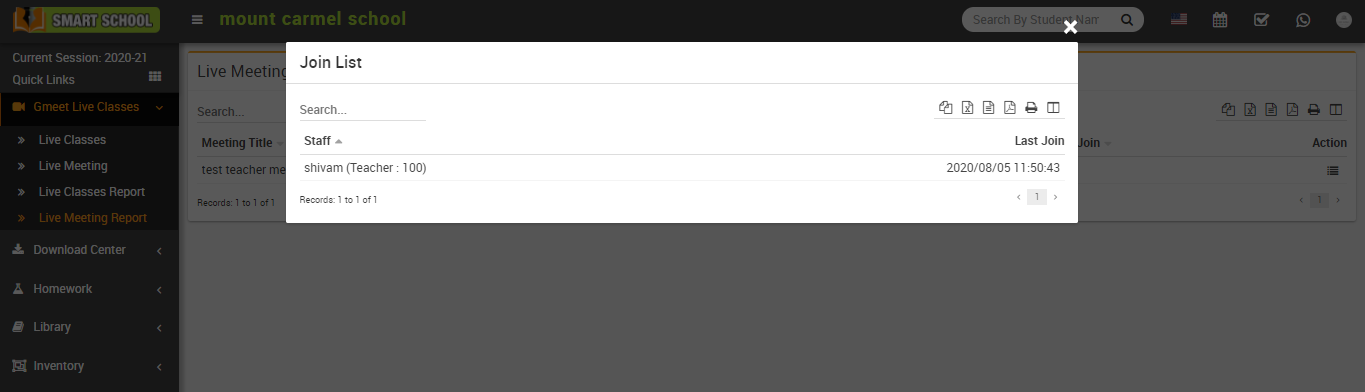
To check join list in a Live Meeting Report, click on the View icon from Action column at click of this icon join list model will open. Here you can see all the join list.
How to configure Gmeet Live Class?
To configure Gmeet live Class, go to Gmeet Live Classes >> Setting, then enter API Key and API Secret (to get API Key and API Secret follow https://smart-school.in/article/how-to-get-gmeet-api-key-and-secret-key link) and select Use Google Calendar Api Enable/Disable (if you select this option Enabled then you need to sign in your Gmail account before adding Gmeet Live Classes or Meeting and if you check this option Disabled then you need to enter your Gmeet URL while creating Gmeet Live Classes or Meeting) and then click on the Save button.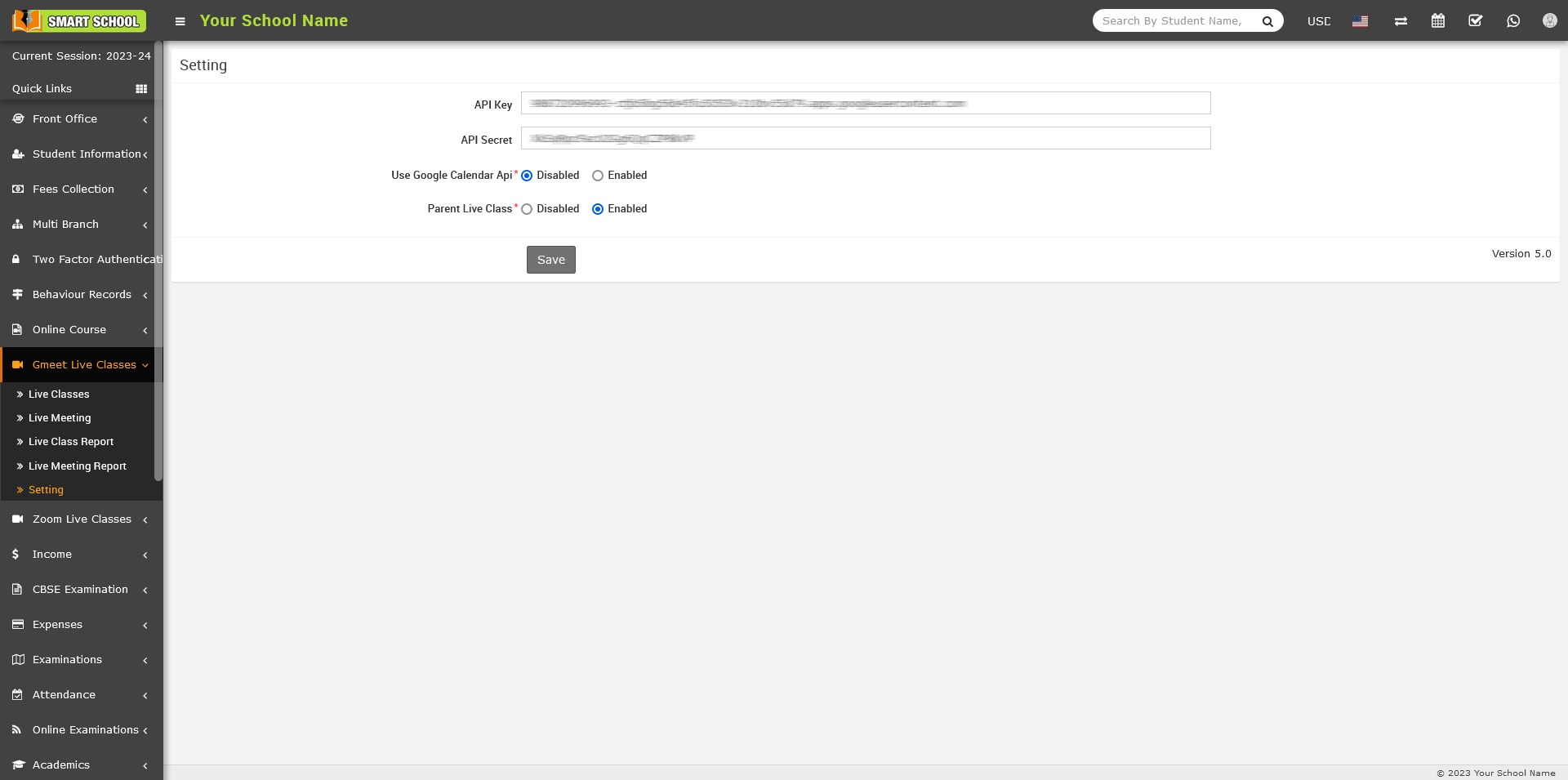
How to get Gmeet API Key and Secret Key?
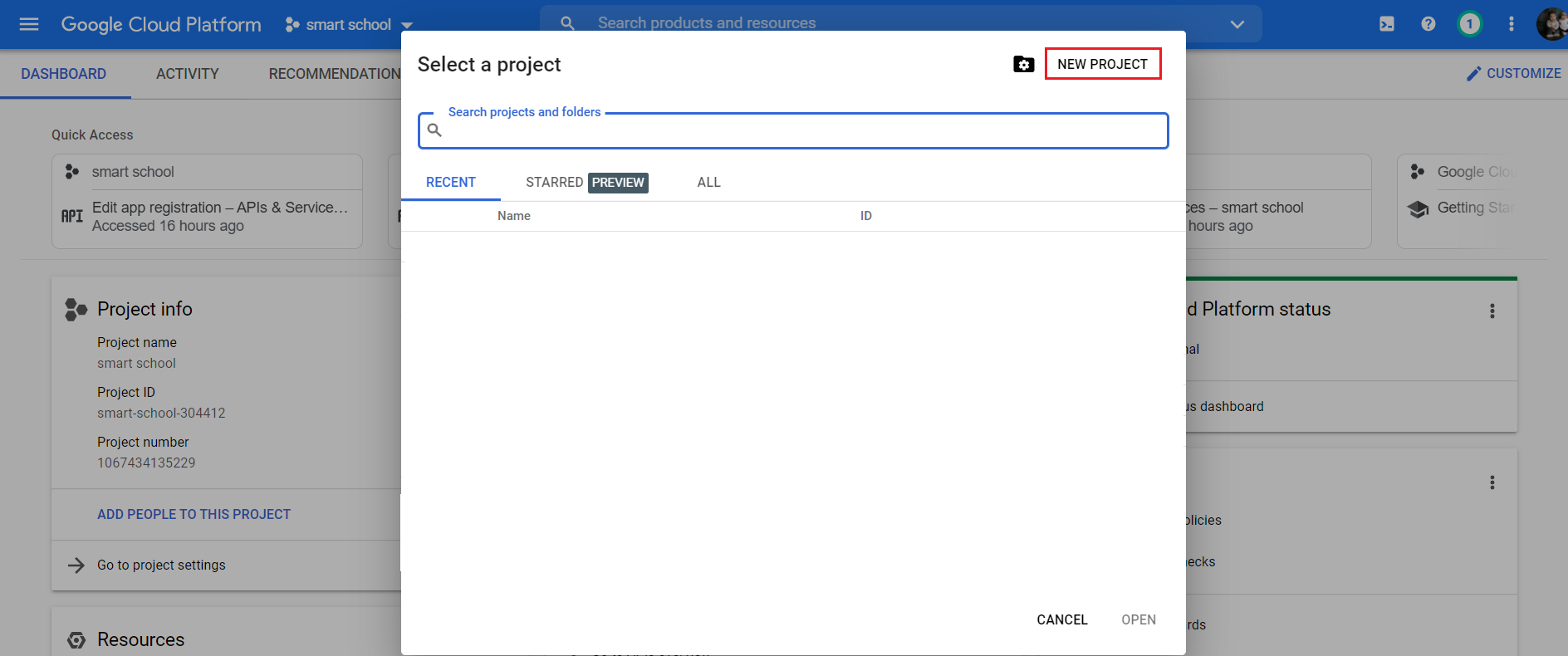
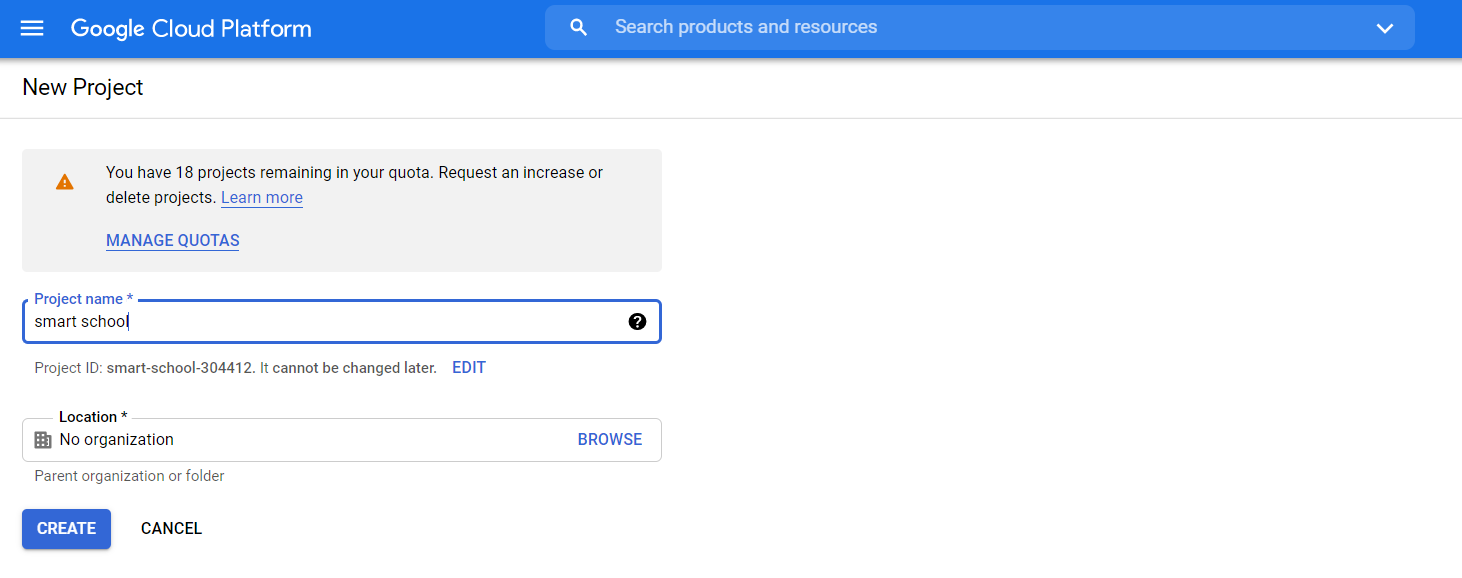
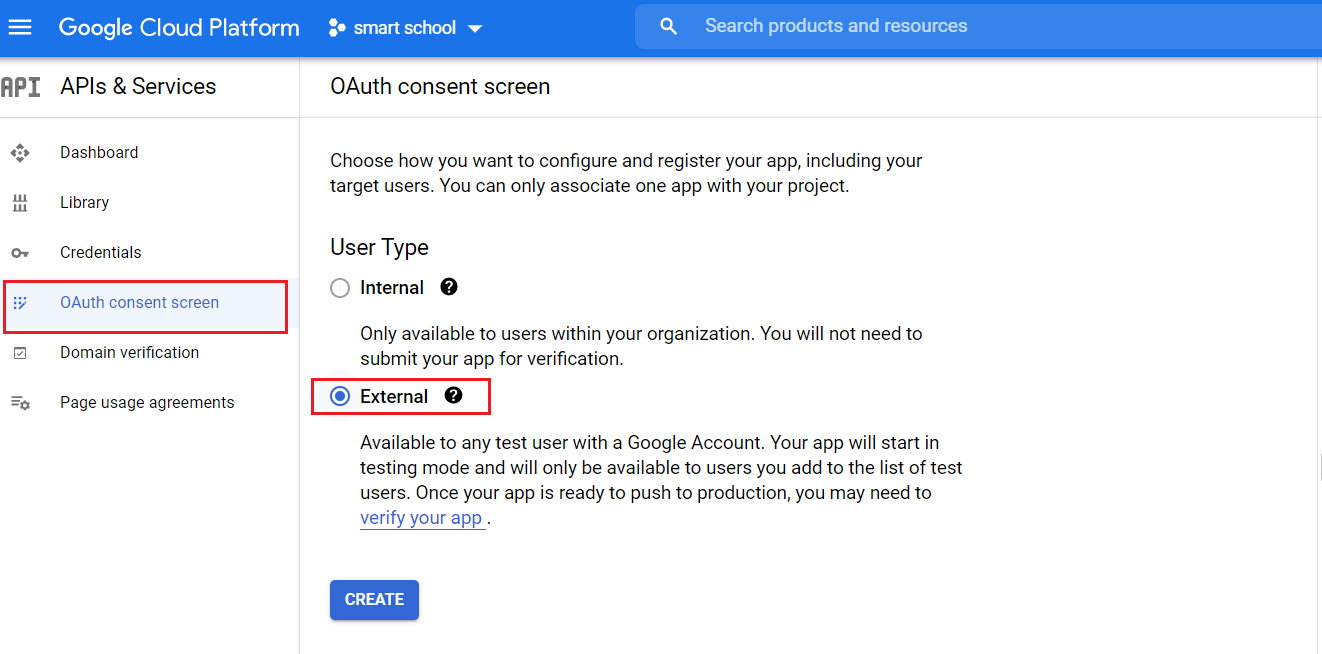
Once project is created, go to the dashboard page and click on the OAuth consent screen link and then choose User type External and then click on the Create button.
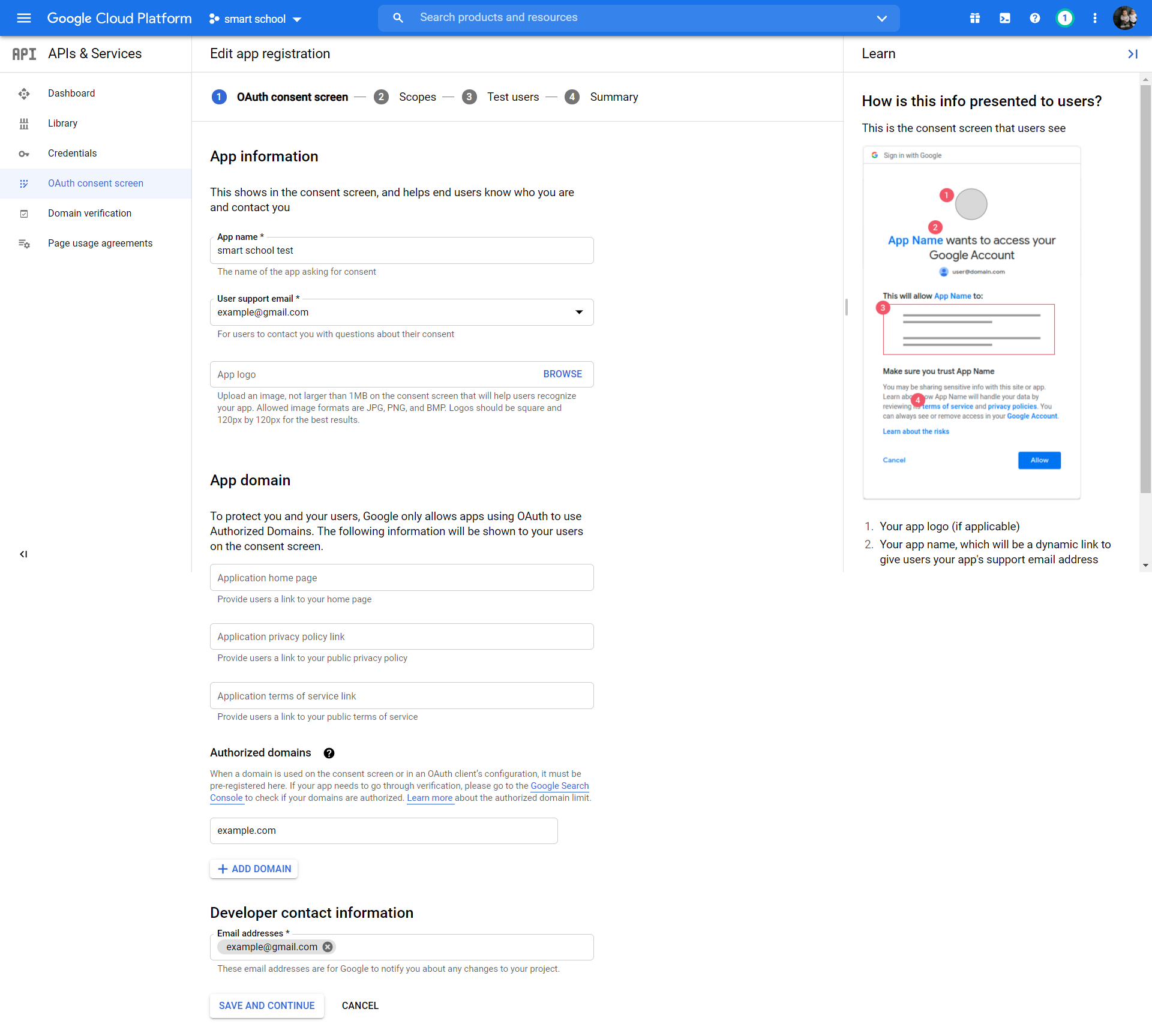
Now provide your App information App name, User support email, Authorized domains, Developer contact information and then click on the Save and Continue button.
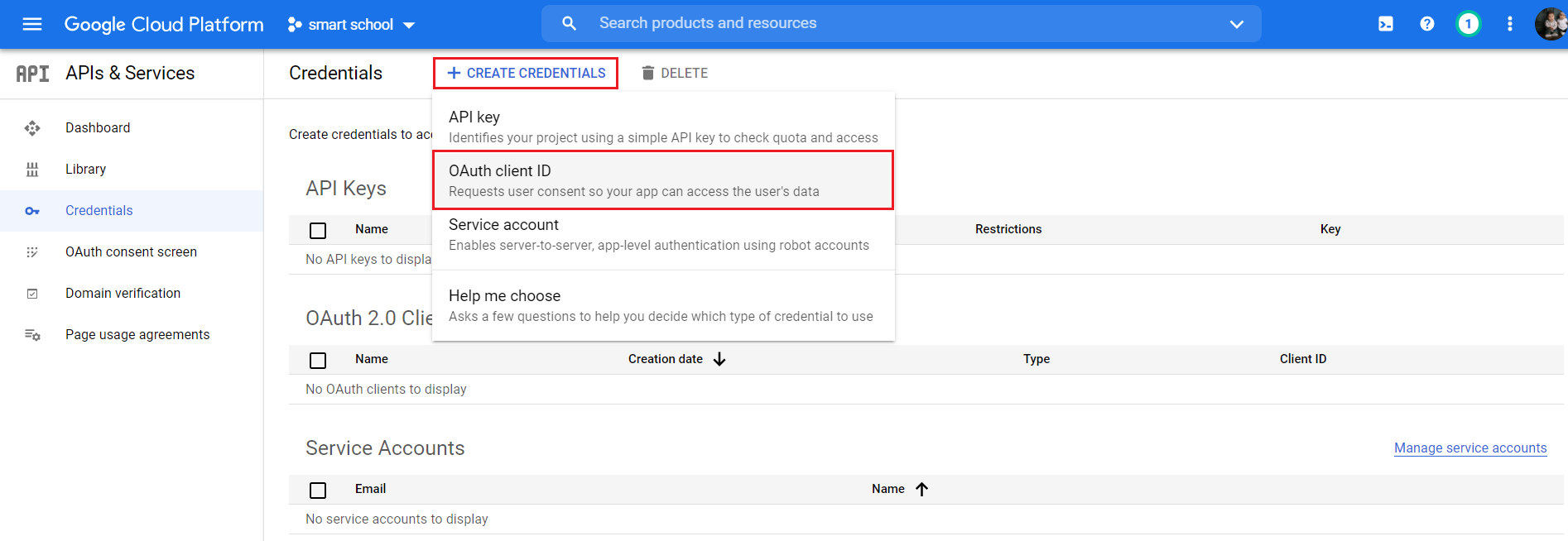
After saving App information, click on the Credentials link then choose 0Auth Client ID option from CREATE CREDENTIALS.
Now create 0Auth Client ID, for this select Application type and provide Authorized redirect URIs and then click on the Create button.
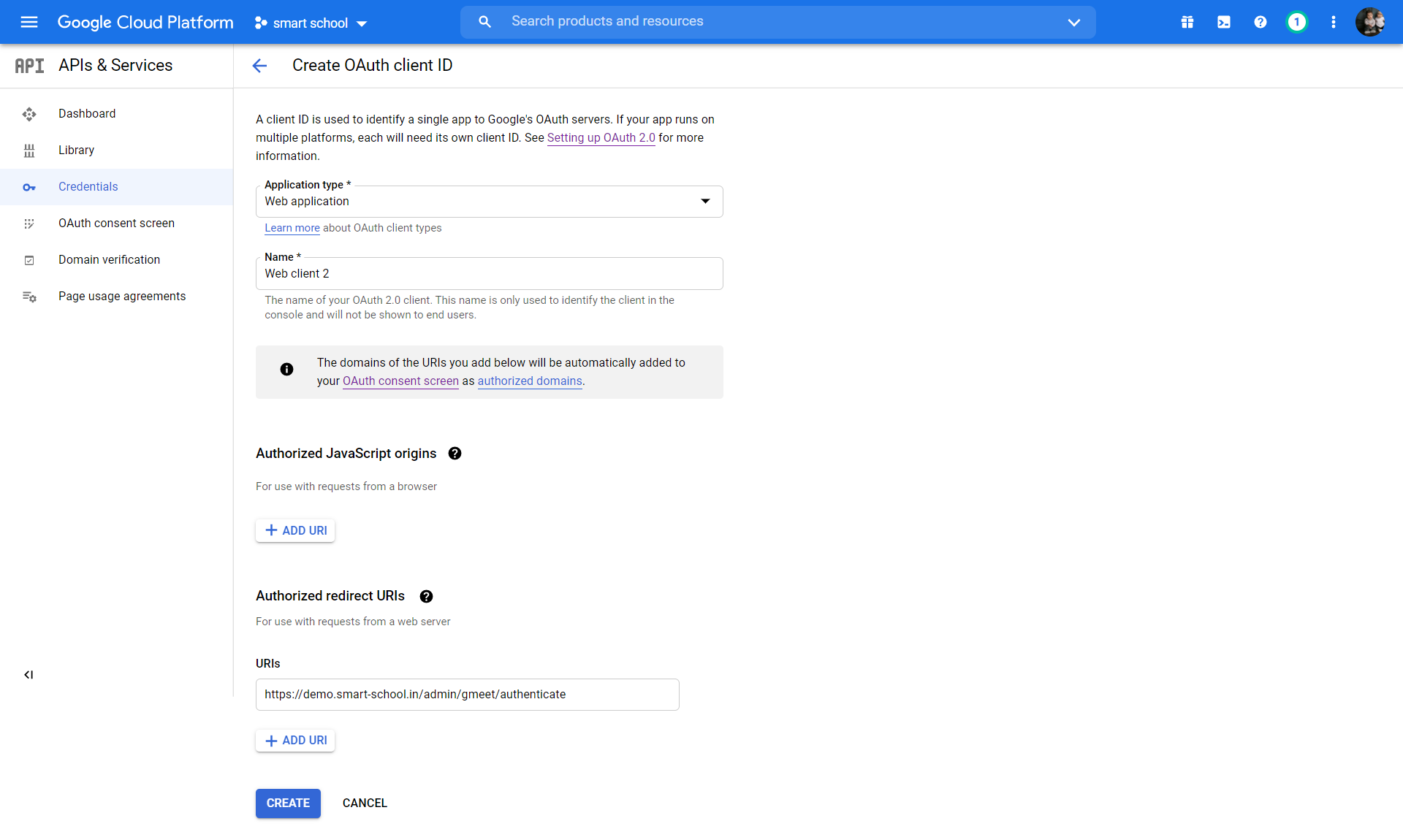
Note: Google Gmeet only supports https based URL, so if you provide http instead of https in URL then you will get " Invalid redirect : This app has a publishing status of 'In production.' URI must use https:// as the scheme " error, so you must use https (https://demo.smart-school.in/admin/gmeet/authenticate) URL.
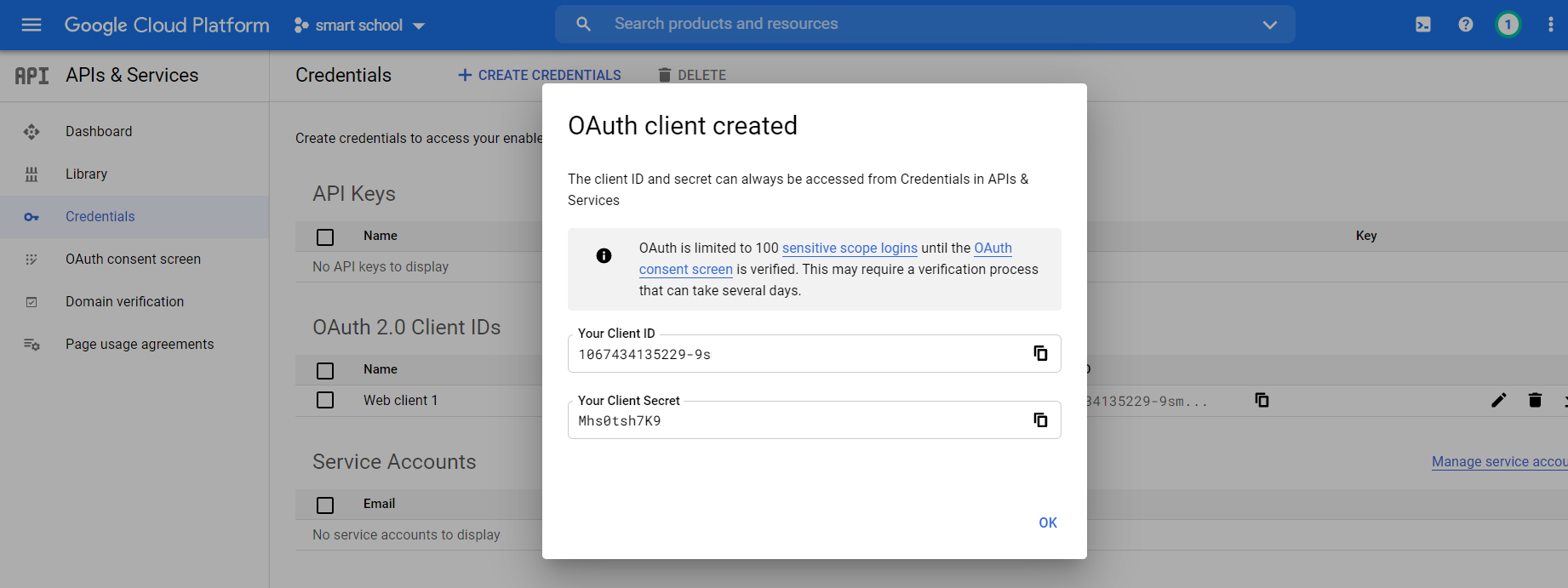
Once you click on the Create button, your Client ID will be created and you will get Client ID and Secret Key.
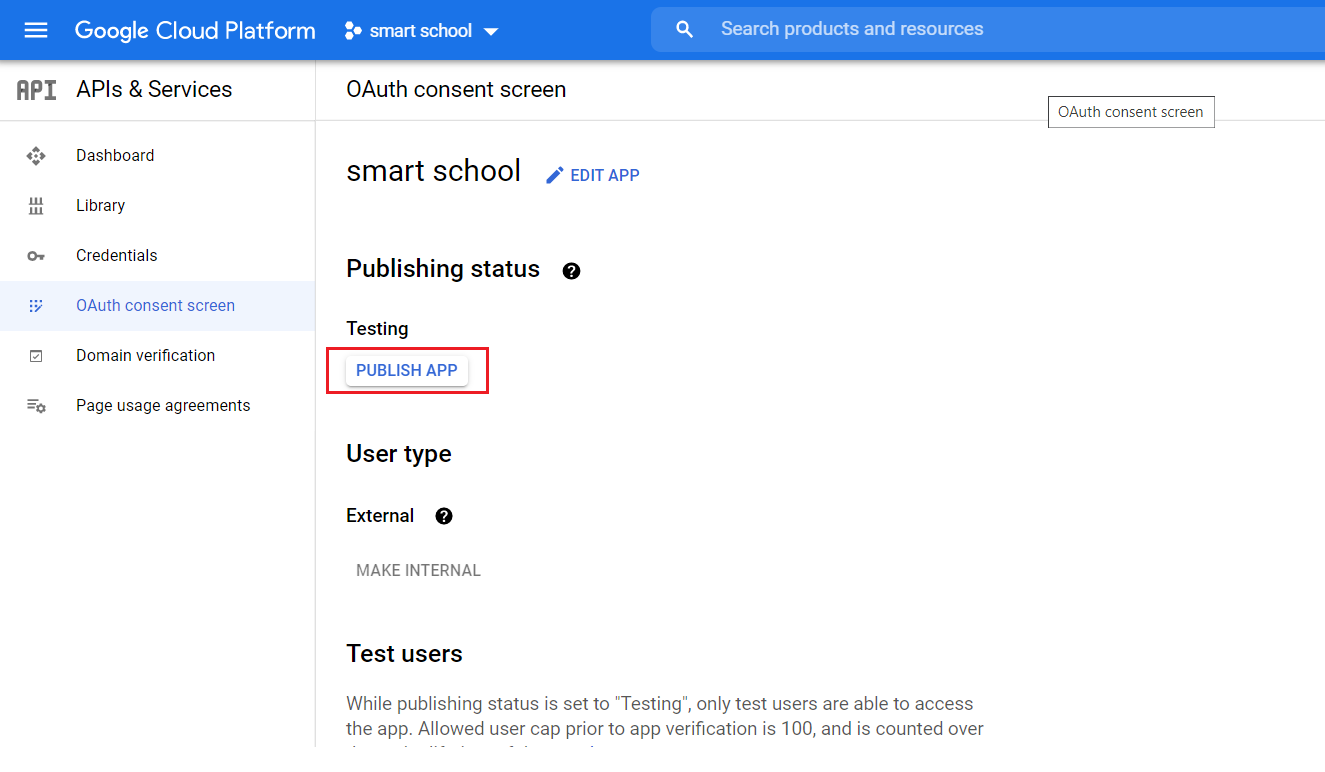
Now go to the 0Auth consent screen and then publish your app by clicking on PUBLISH APP button.
Now enter your Client ID and Secret Key on your Gmeet setting page and check Use Google Calendar Api option Enabled and then click on the Save button.
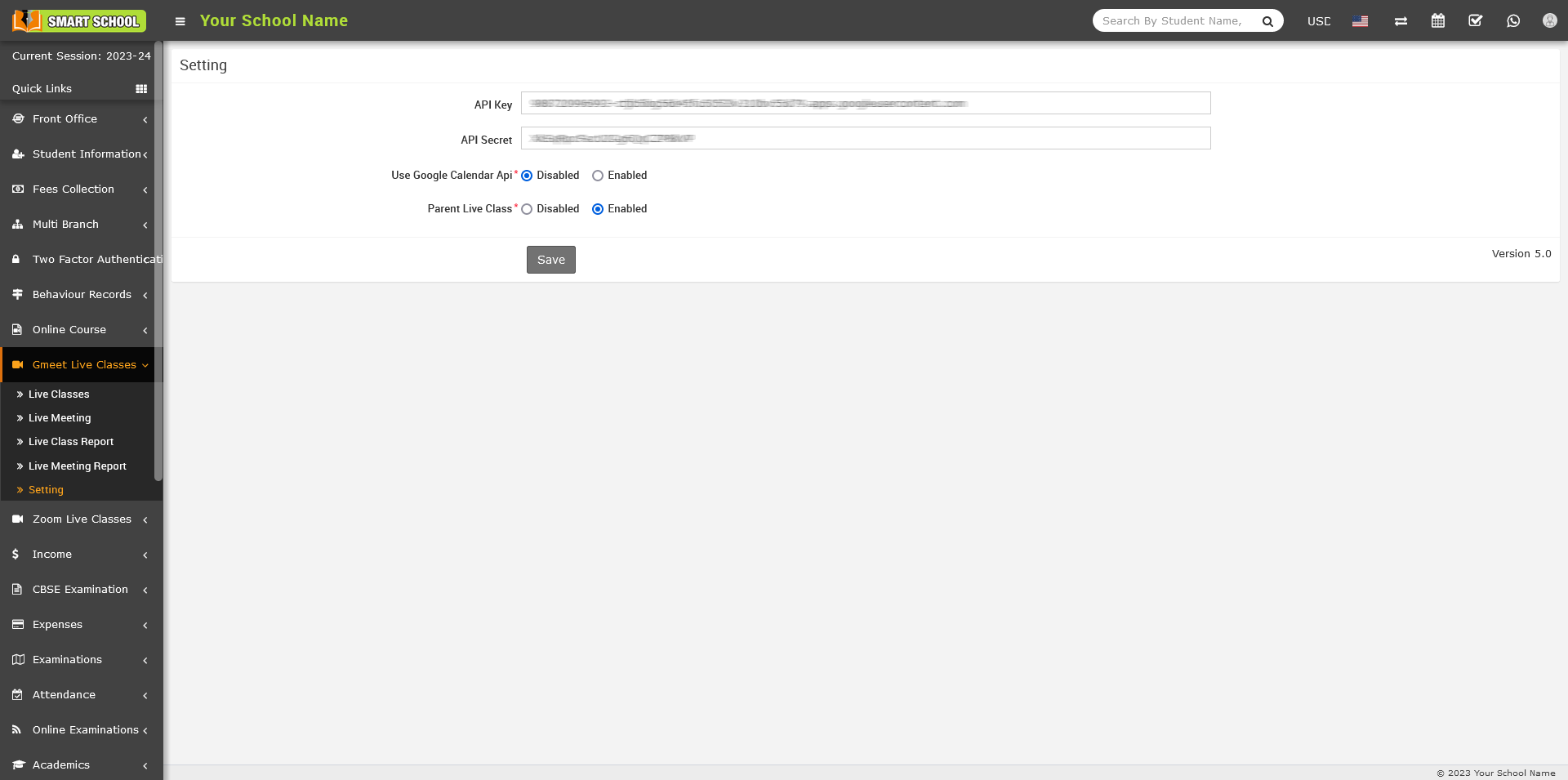
How to enabled / disabled the parent for gmeet live classes?
To enabled and disabled the parent from the zoom live classes, Go to the Gmeet Live Classes > Setting.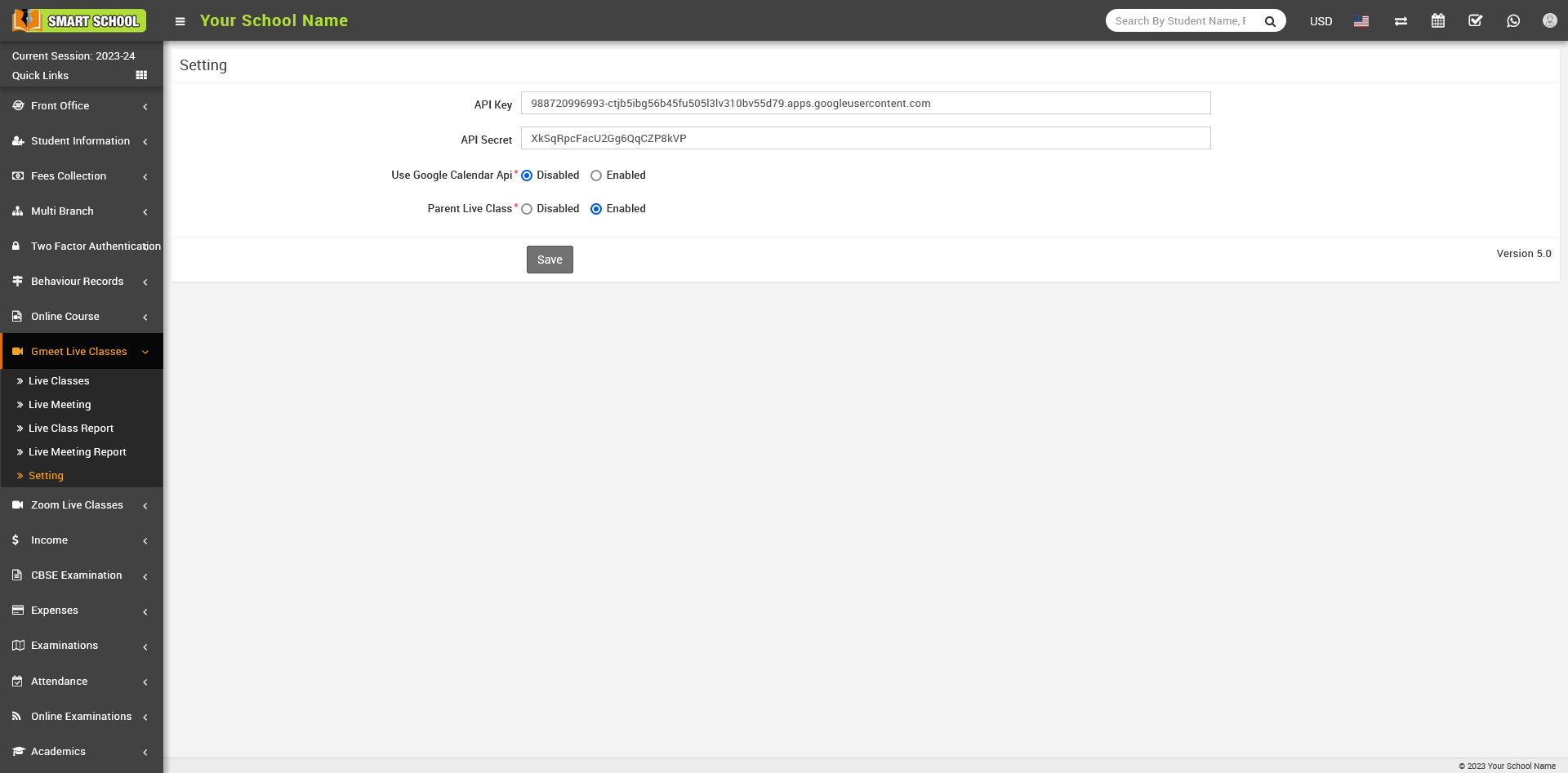
On this page, you can find the Parent Live Class option, which can be Enabled or Disabled by the superadmin. When the superadmin disables the live class option, parents will not be able to join the live class.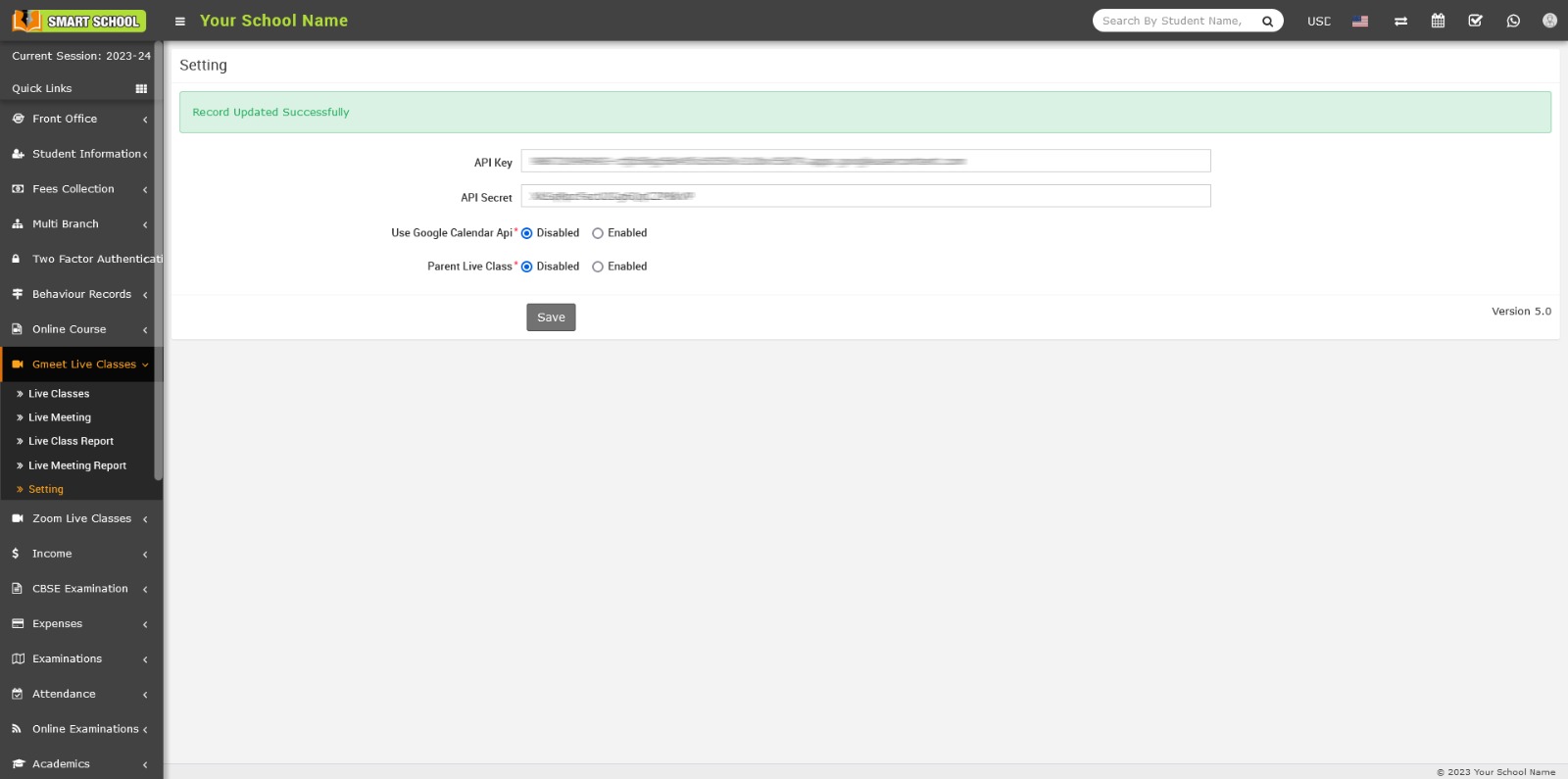
The Join button will not be shown in the Gmeet Live Class module at the parent side.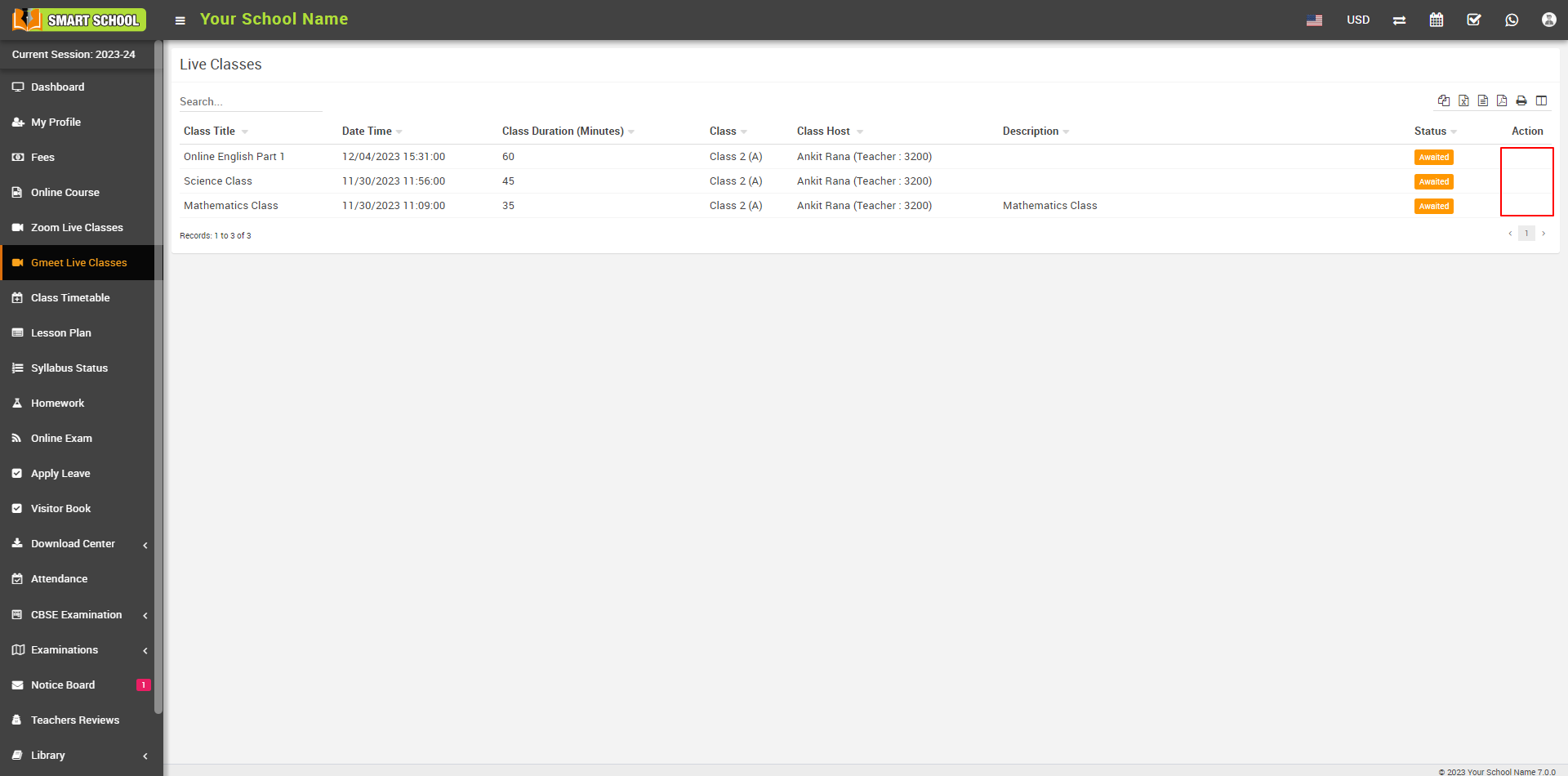
Conversely, when the superadmin enables the live class option, parents will be able to join the live class.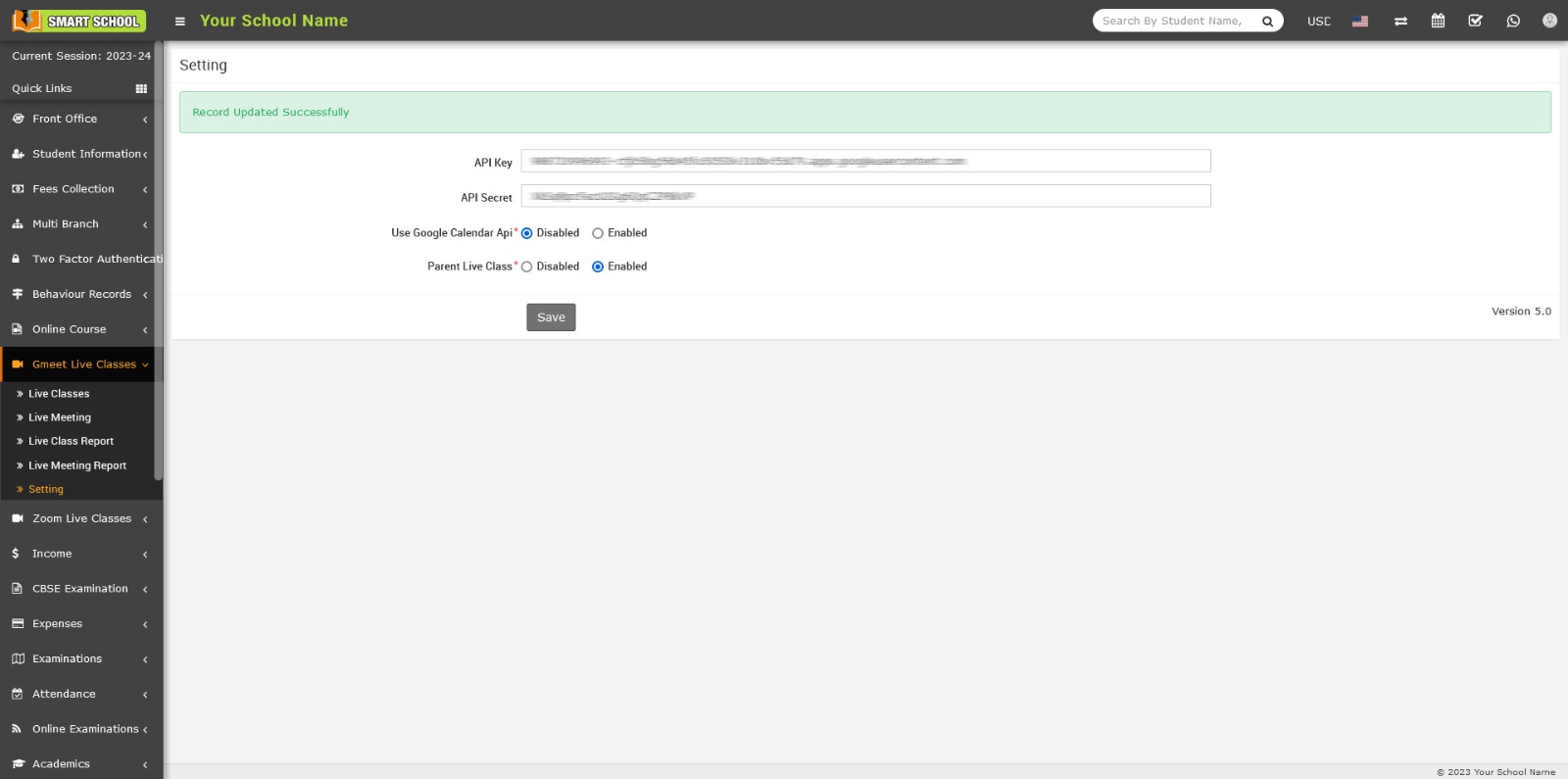
The live class Join button will be shown in Zoom Live Class module at the parent side.