Expenses

About Expense


This module is used for all school related expenses. Expense is the cost of operations that a incurs to generate revenue. We can record all the expenses done in our school include payments to electricity bill, telephone bill, miscellaneous bills etc depreciation.

Expense module workflow: Before Adding expense, you will have to add expense head and then you can add expense then later you can search expense and check expense reports.
Expense about image

How to add Expense Head?


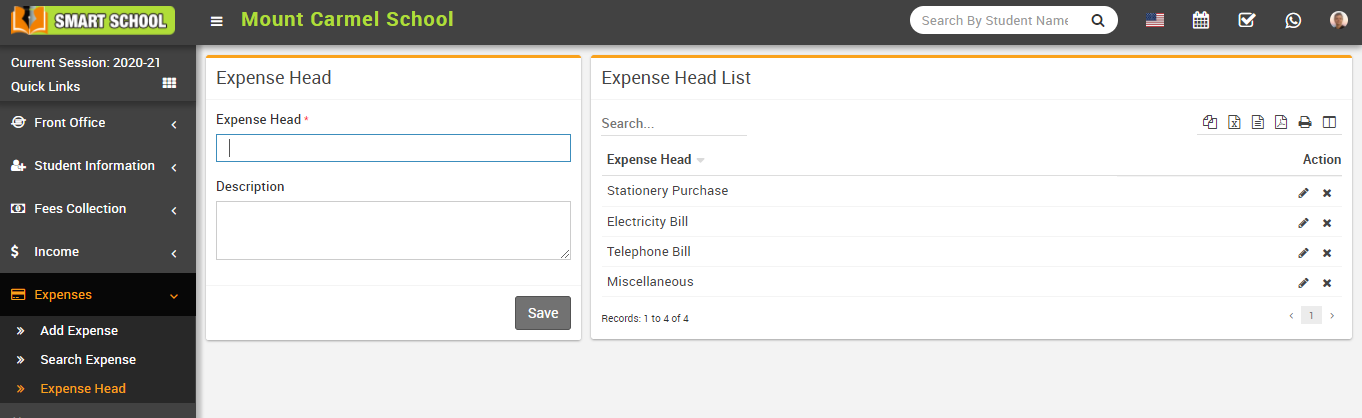
To add expense head, go to Expense > Expense Head, here enter Expense Head and Description and then click on Save button, you can view this added record on the right side in the Expense head list.

Add expense head image

To edit expense head, click on the Edit icon present in the expense head list and to delete the expense head click on the Delete icon present in the expense head list.

How to add Expense?
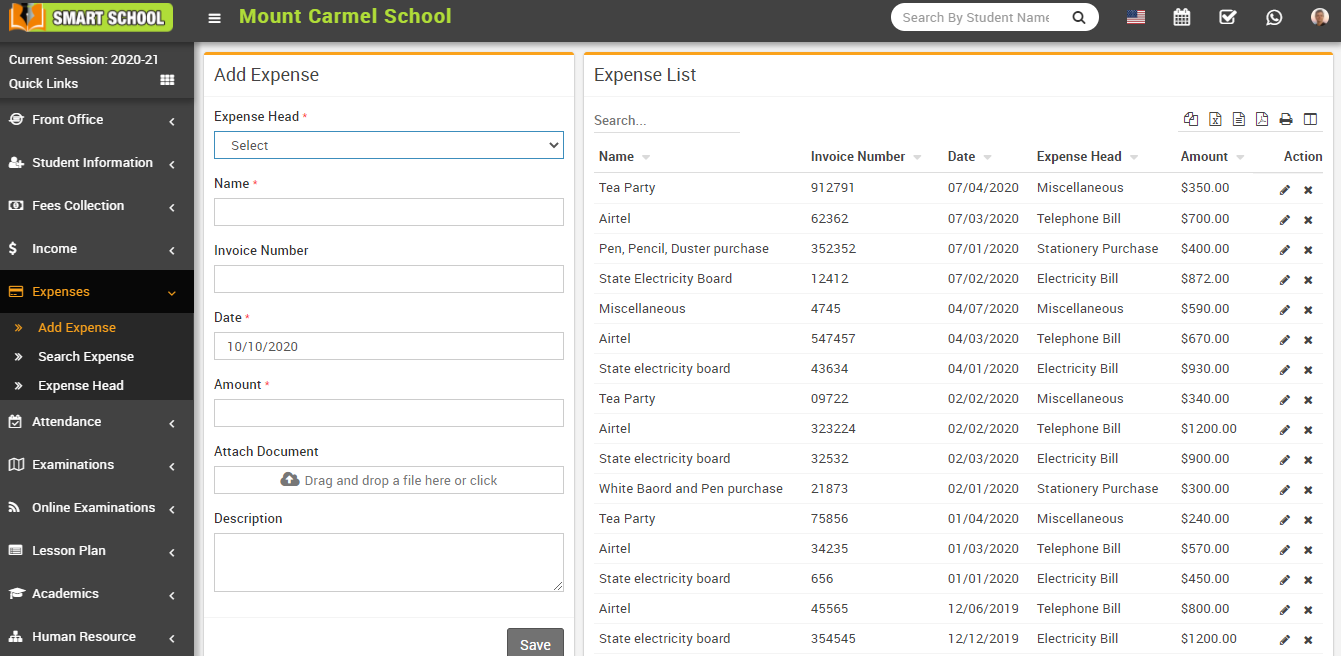

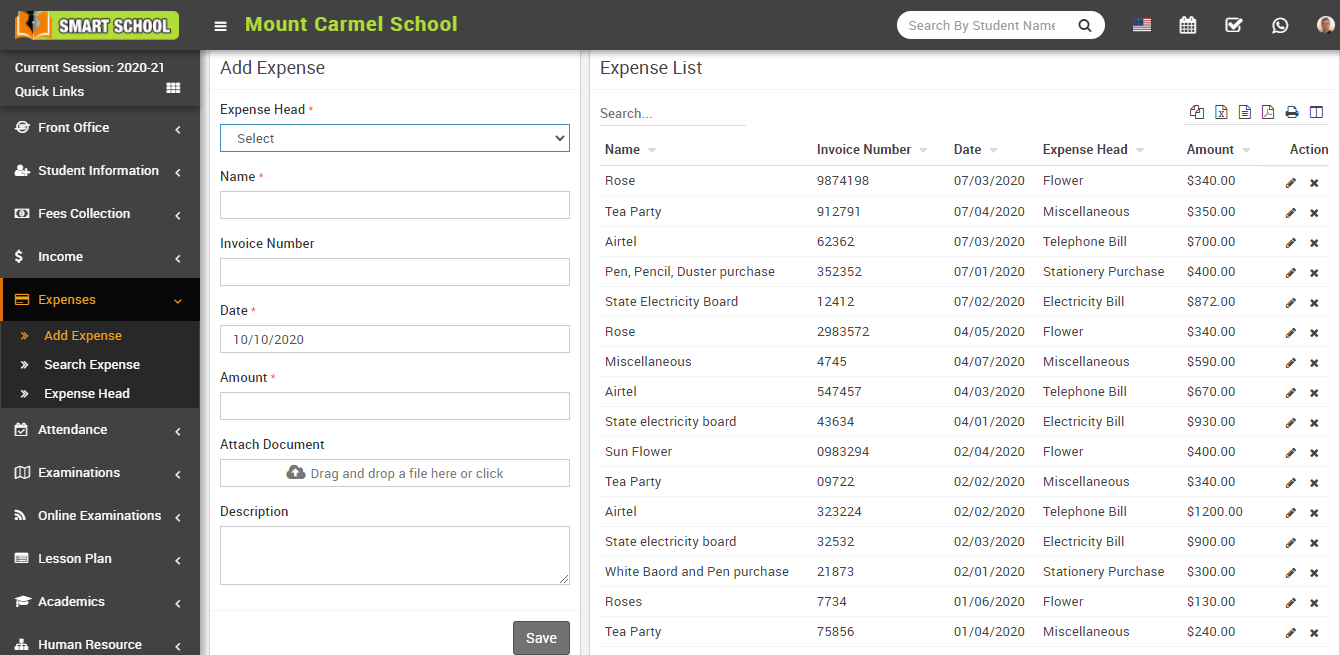
To add expense go to Expenses > Add Expense, here select Expense Head and enter Name, Invoice Number, Date, Amount, Attach Document, Description and then click on the Save button. The saved record will appear on the right side in the Expense list.

Add expense image

To edit expense click on the Edit icon present in the expense list and to delete expense click on the Delete icon present in the expense list.

How to Search Expense?
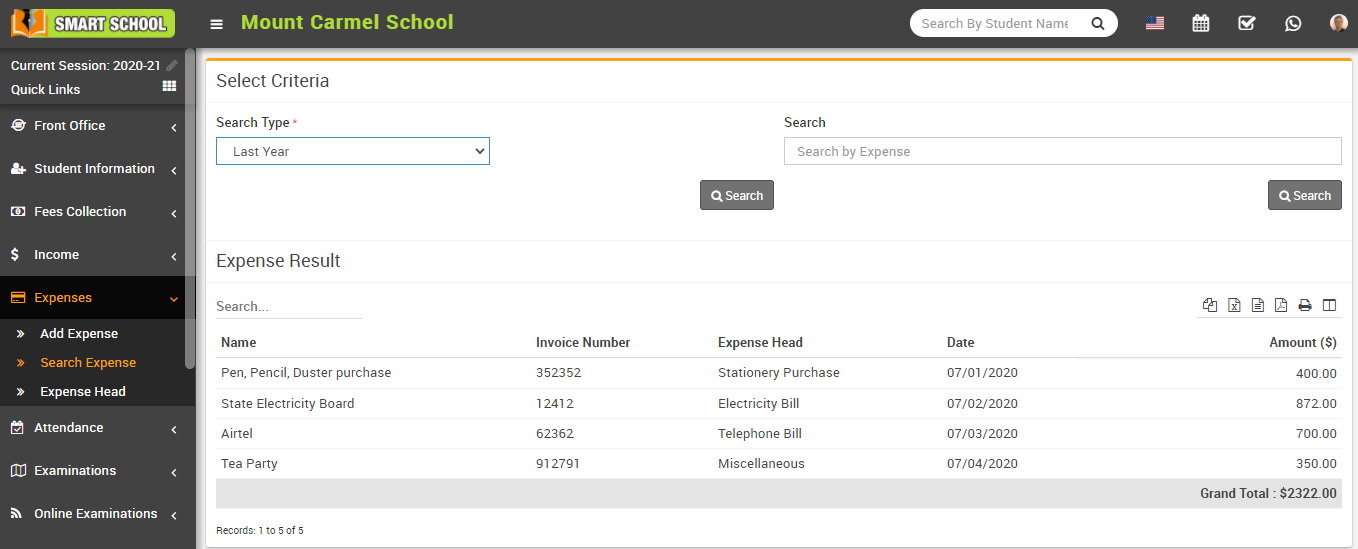

To search the expense, go to Expenses > Search Expense and then select Search Type and click on Search button. You can also search the record by expense, for this enter the expense title in the Search by Expense textbox and then click on the Search button. The list of searched records will be shown in the below of the page.

Search expense image

How to check Expense Report?


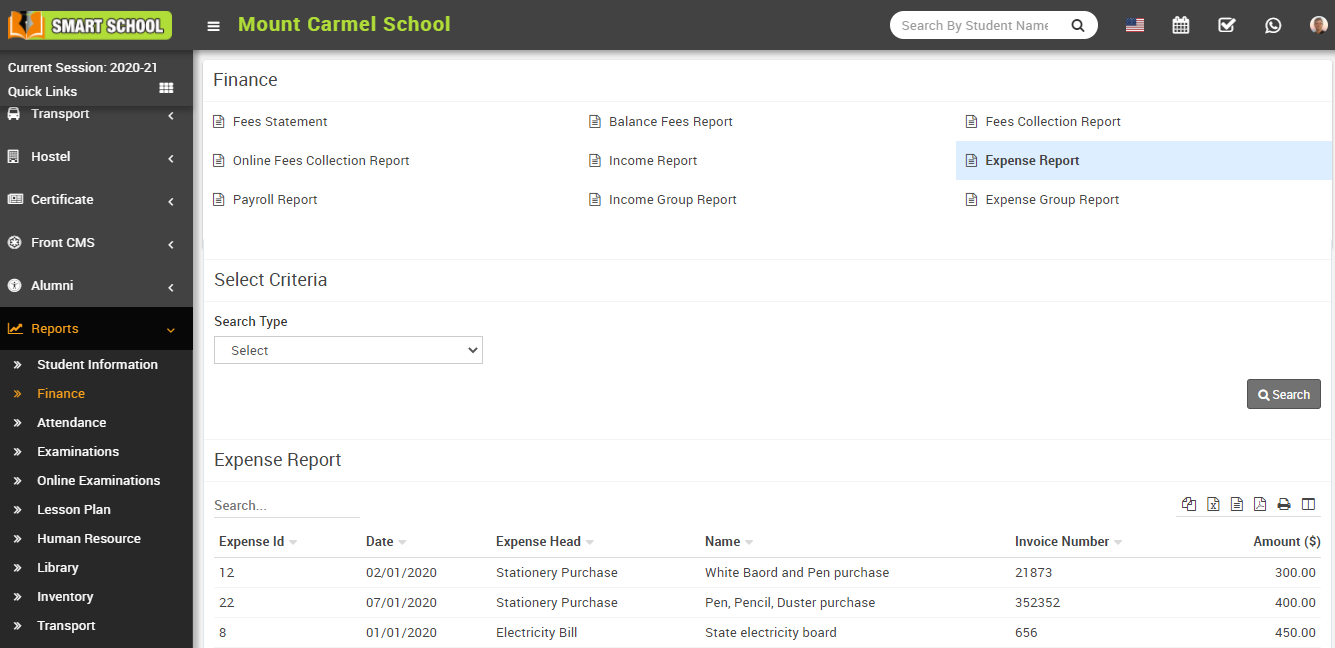
To check Expense Report, go to Report > Finance > Expense Report, now select the Search Type and click on Search button. The list of searched records will be shown in the below of the page.

Expense report image

How to check Expense Group Report?


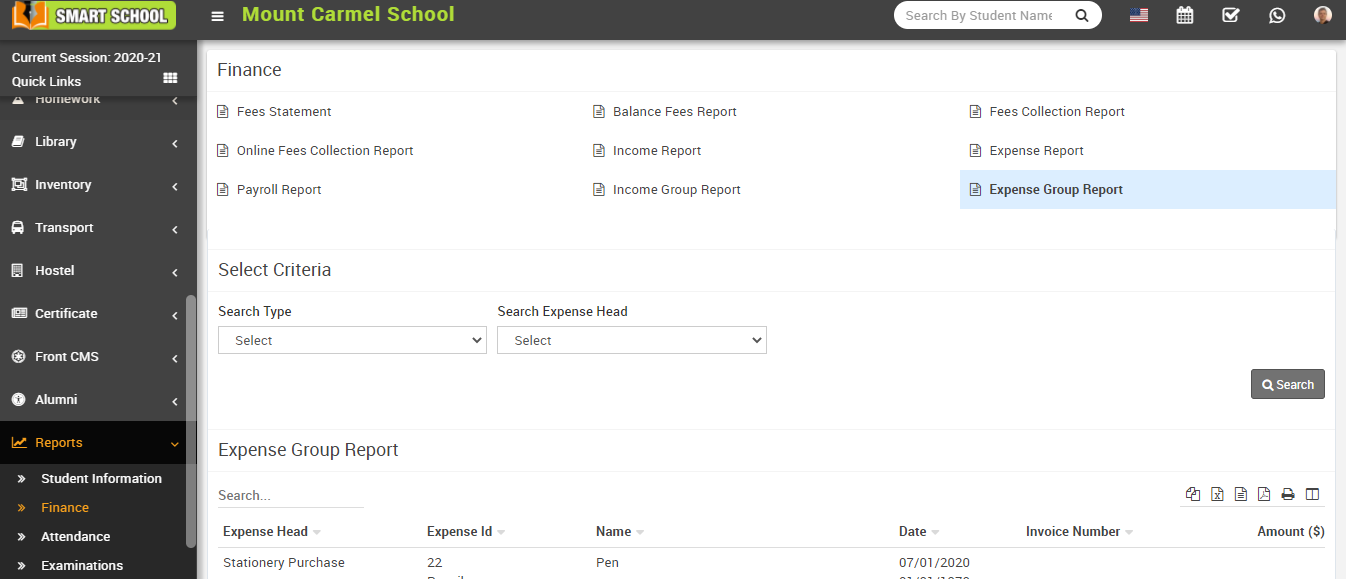
To check Expense Group Report, go to Report > Finance > Expense Group Report, now select the Search Type and Search Expense Head and Click on the Search button. The list of searched records will be shown in the below of the page.

Expense group report image

Did you find this article useful?

  • General Overview

    Before start using Smart School consider a general scenario of typical school of class 1 to 12th, ea...
  • Miscellaneous

    About Chat In Chat System, staff can chat with other staff members and student can also chat w...
  • System Settings

    How to add the addons on Smart School?  Sun, 23 Mar, 2025 ArticlesSystem Settings Addons Ma...
  • Academics

    About Academics This module is used to maintain entire class timetable and teacher timetable.A...
  • CBSE Examination

    About CBSE Examination This examination adopts a distinct approach to assessing students, encomp...