About Communicate
Communicate module workflow- First of all, we will send the message or email by notice board and then the sent message can be checked on the notice board or Email/ SMS log.
How to post new message in Notice Board?
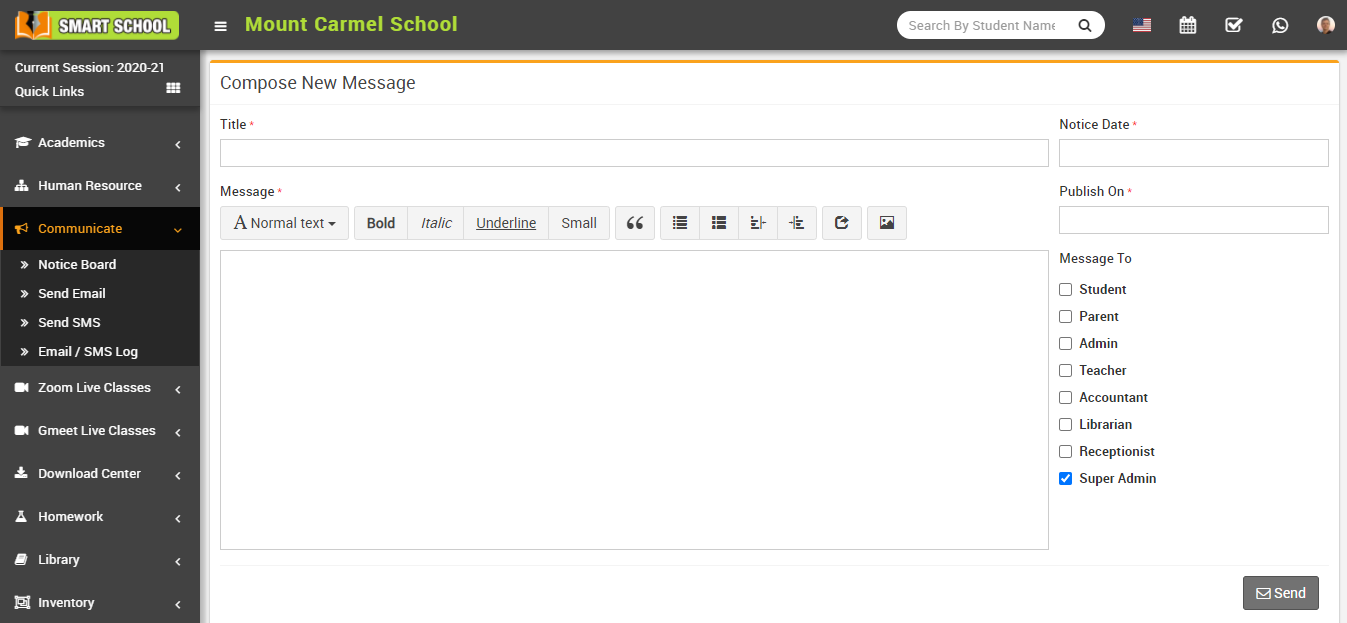
Now, click on Post New Message button showing at top right corner in the notice board page, at click of this button it will redirect you in the Compose New Message page.
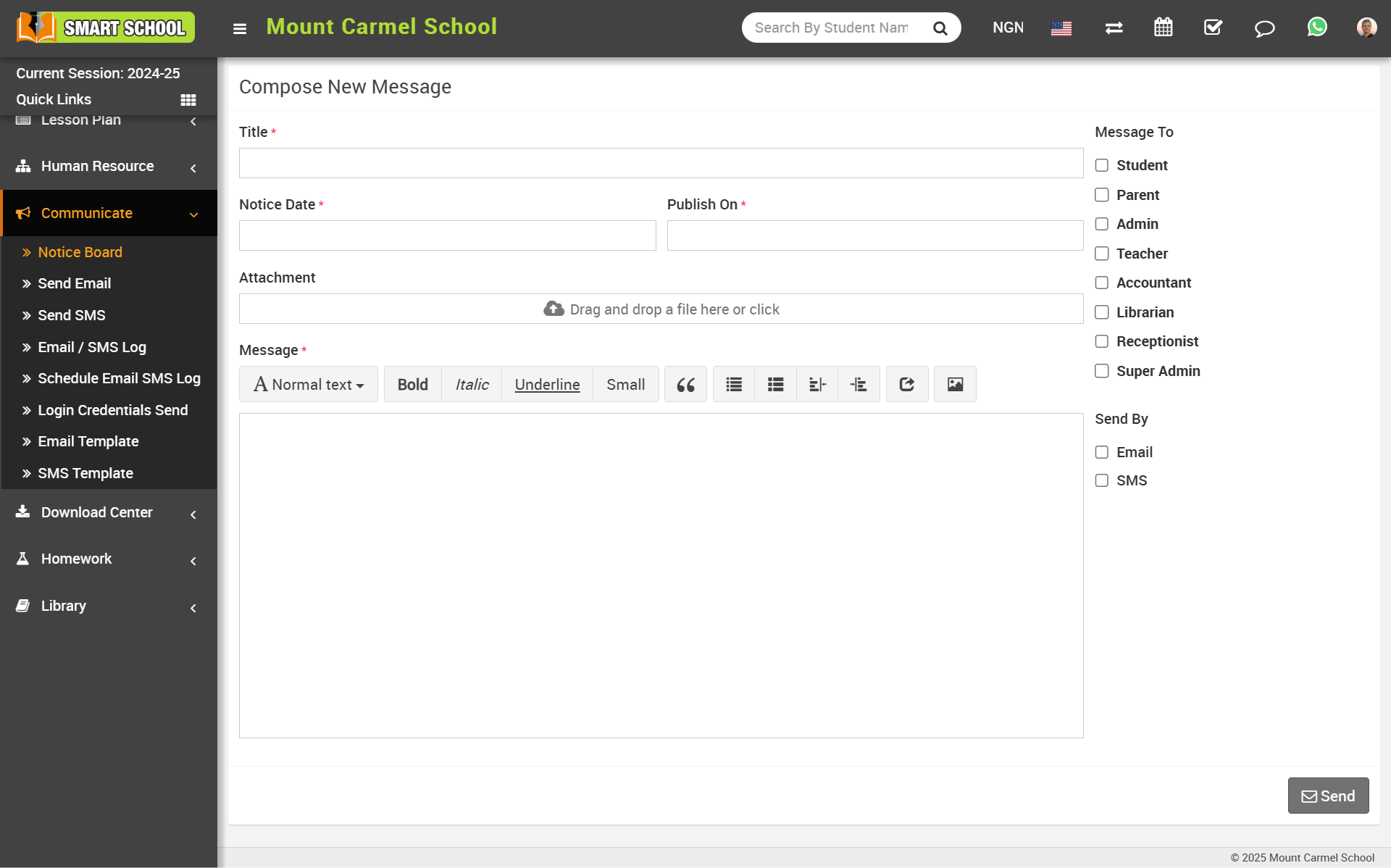
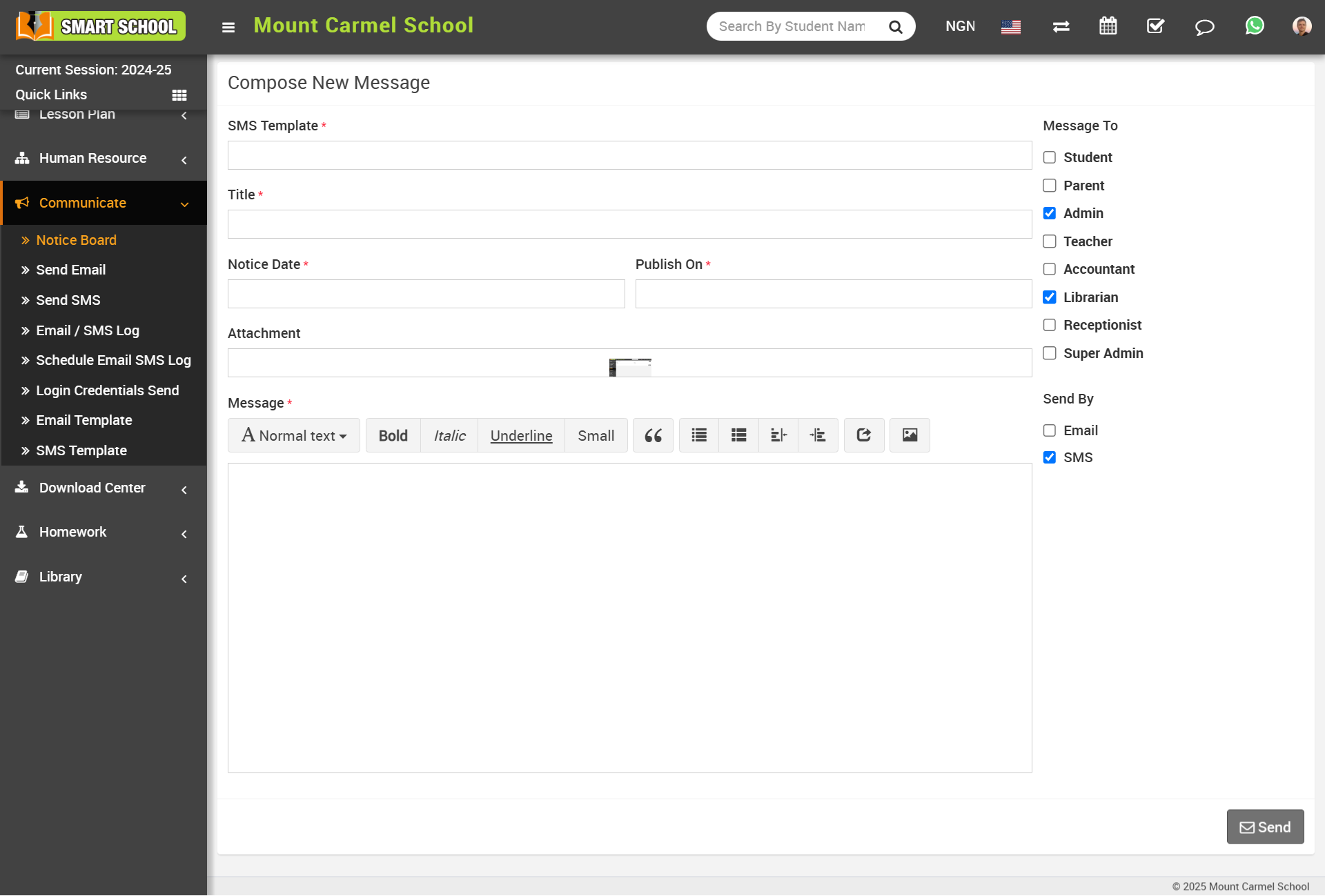
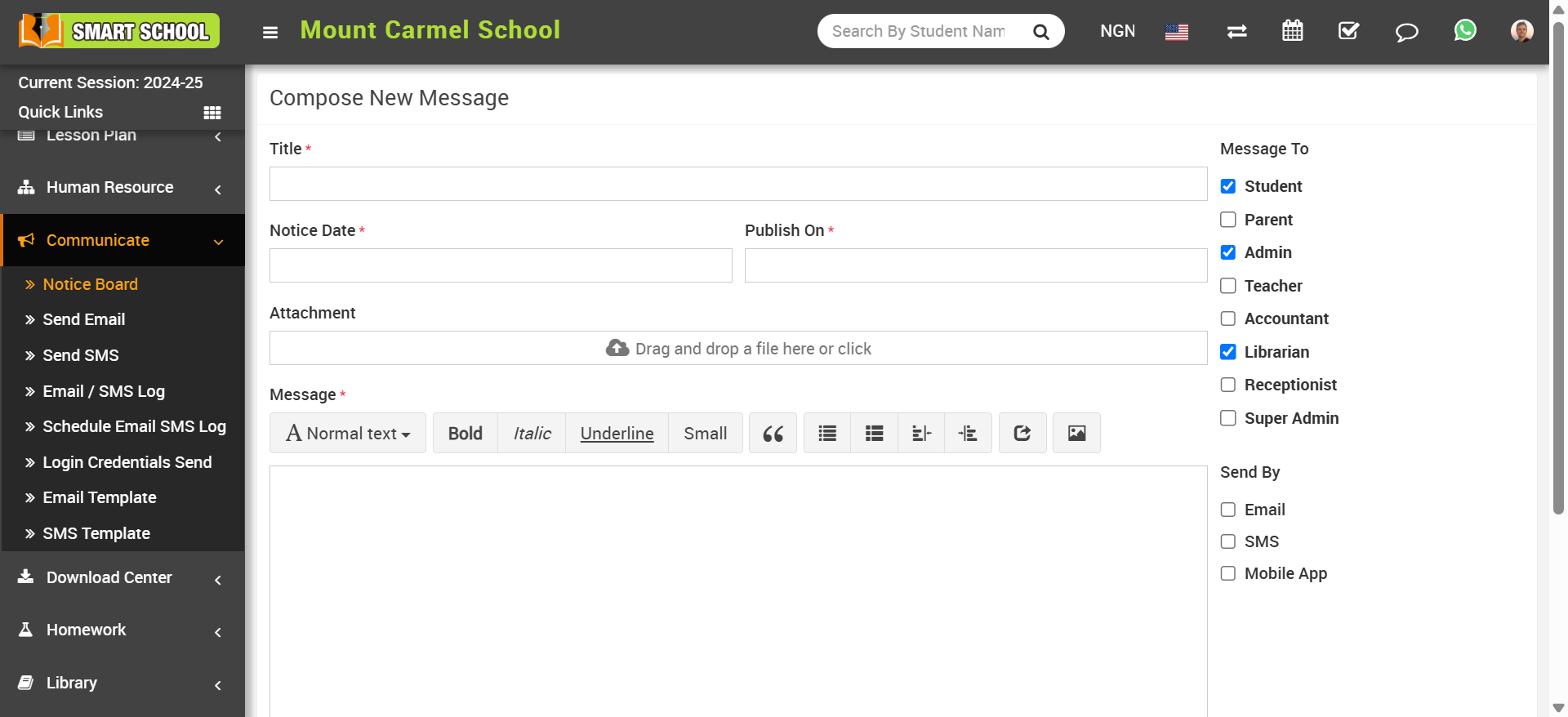
Enter the details such as Title, Message, Notice Date, Publish On, Attachment File, and Message To (select recipients). If you want to send this message via Email and SMS, simply select the options and click the 'Save' button. The selected recipients will receive the message along with an Email and SMS notification.
When you select the SMS in below SMS Template field will be appear on the compose message board
If you select 'Student' as the recipient, the Mobile App Notification field will also appear below.
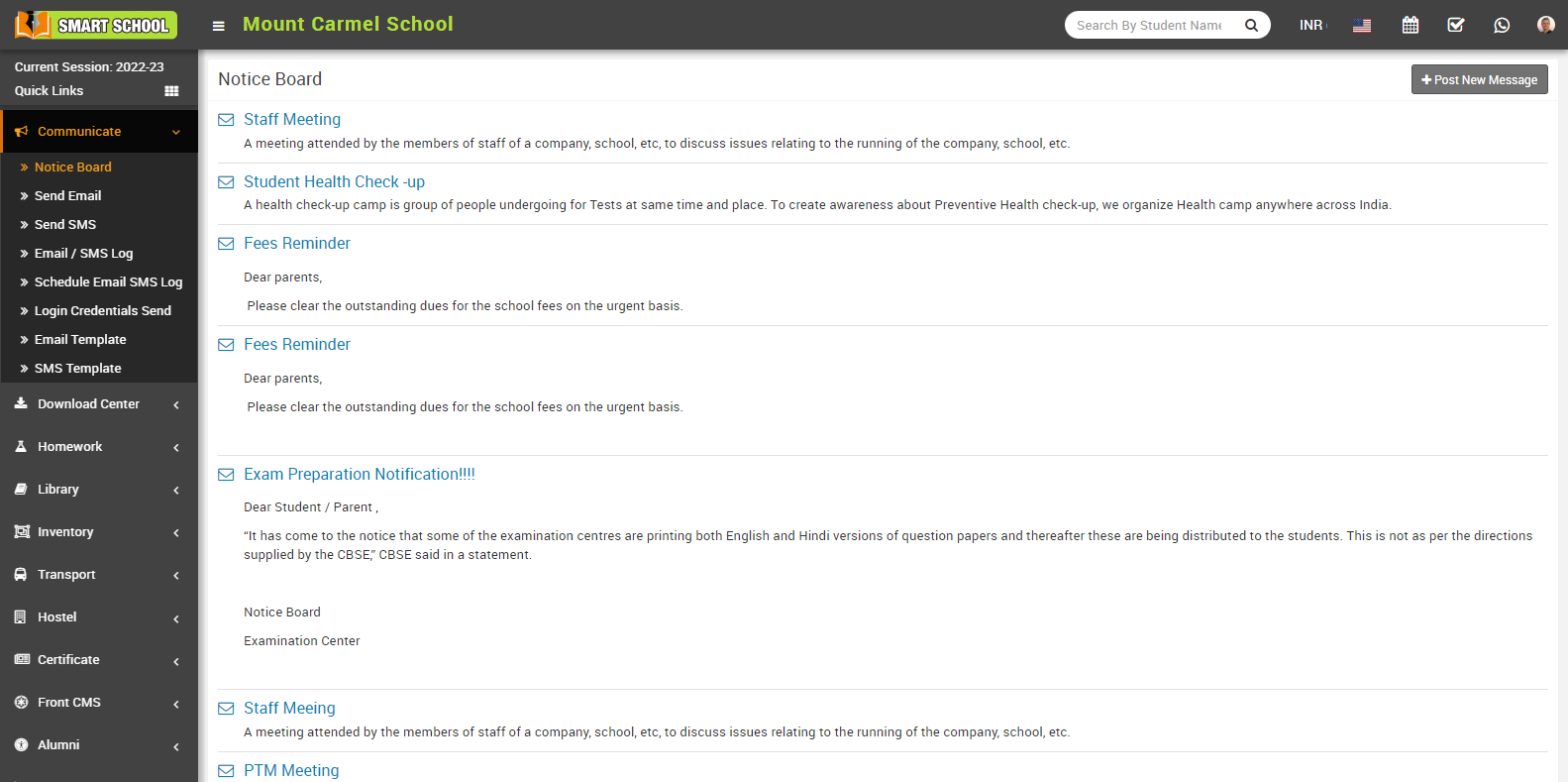
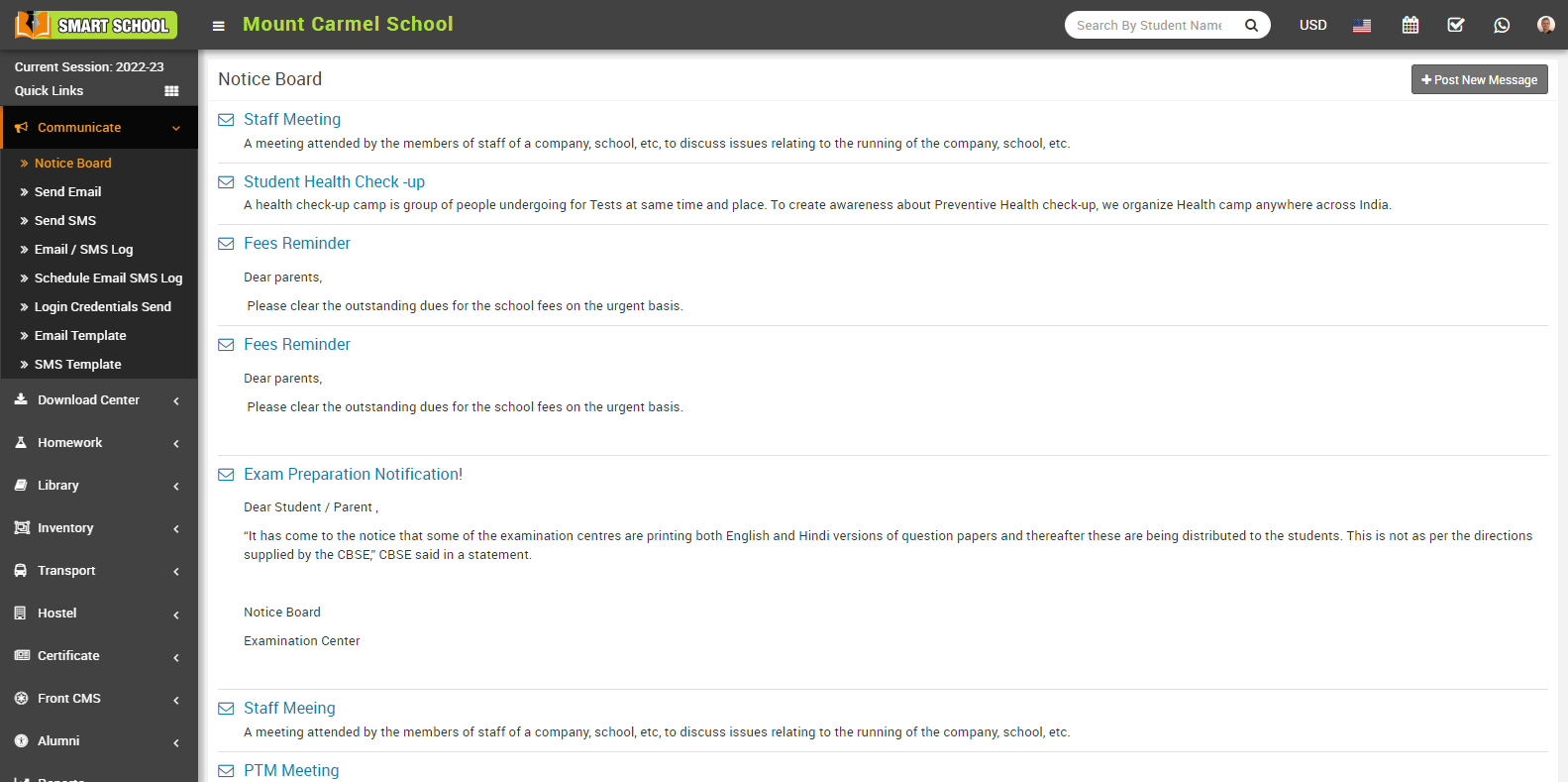
After saved the message, here you can view posted message in the notice board page.
If you want to see the file that you uploaded as an attachment, go to the notice board and click on the message that you sent; the model page will open from the right side; here you can see the download attachment with the download icon; by clicking on this, you can download the file that you uploaded in the post-new message.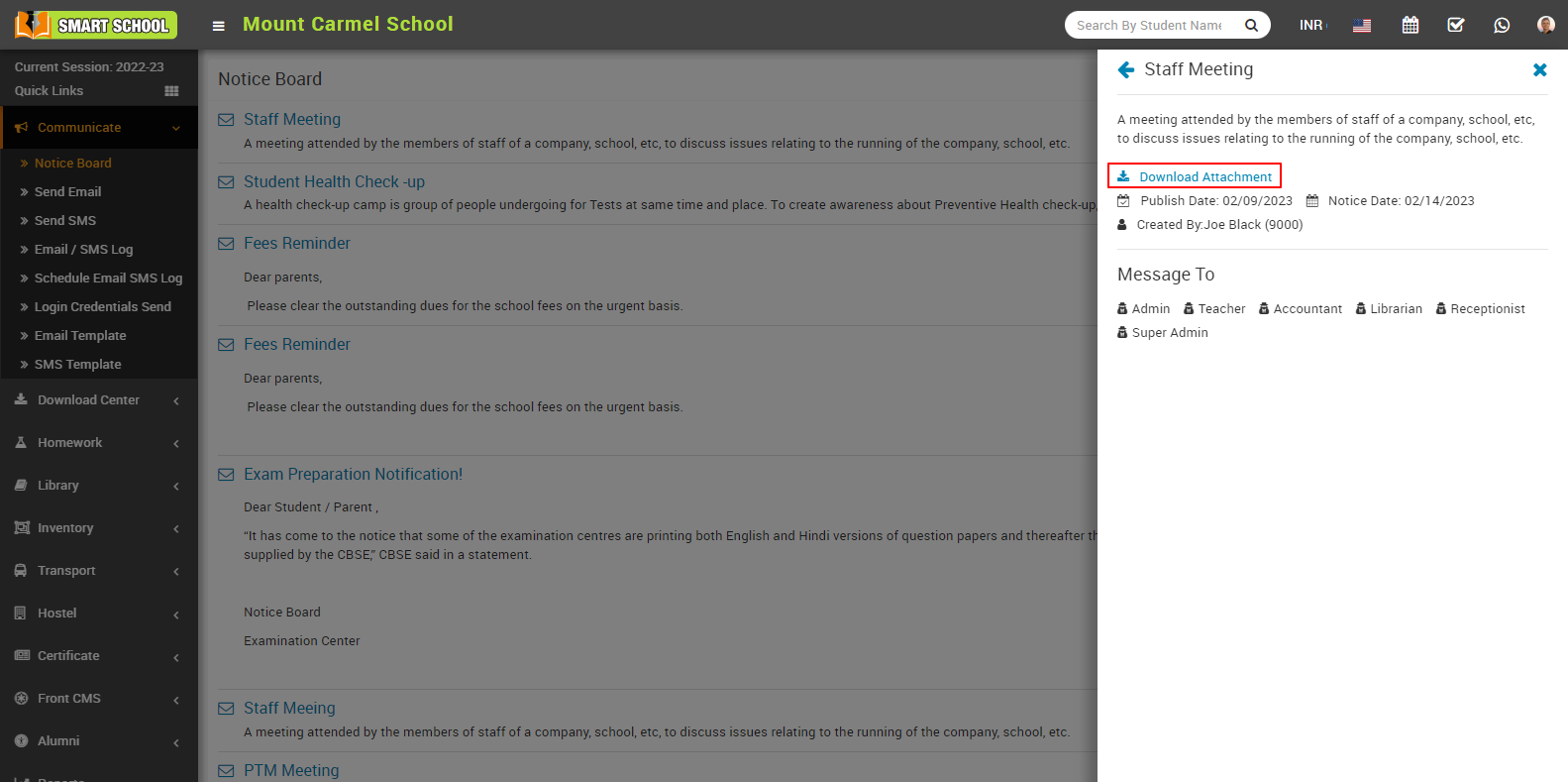
To edit posted message click on Edit icon and to delete posted message Delete icon present in notice board page.
How to Send Email?
Now, schedule email feature also available in next to the send now button at below, if you want to sent your email later you can use this feature overall a scheduled email is an email that is composed and then set to be sent at a specific time and date in the future. Instead of sending the email immediately after composing it, the sender can choose a later time for the email to be delivered.
Send Email to Group-
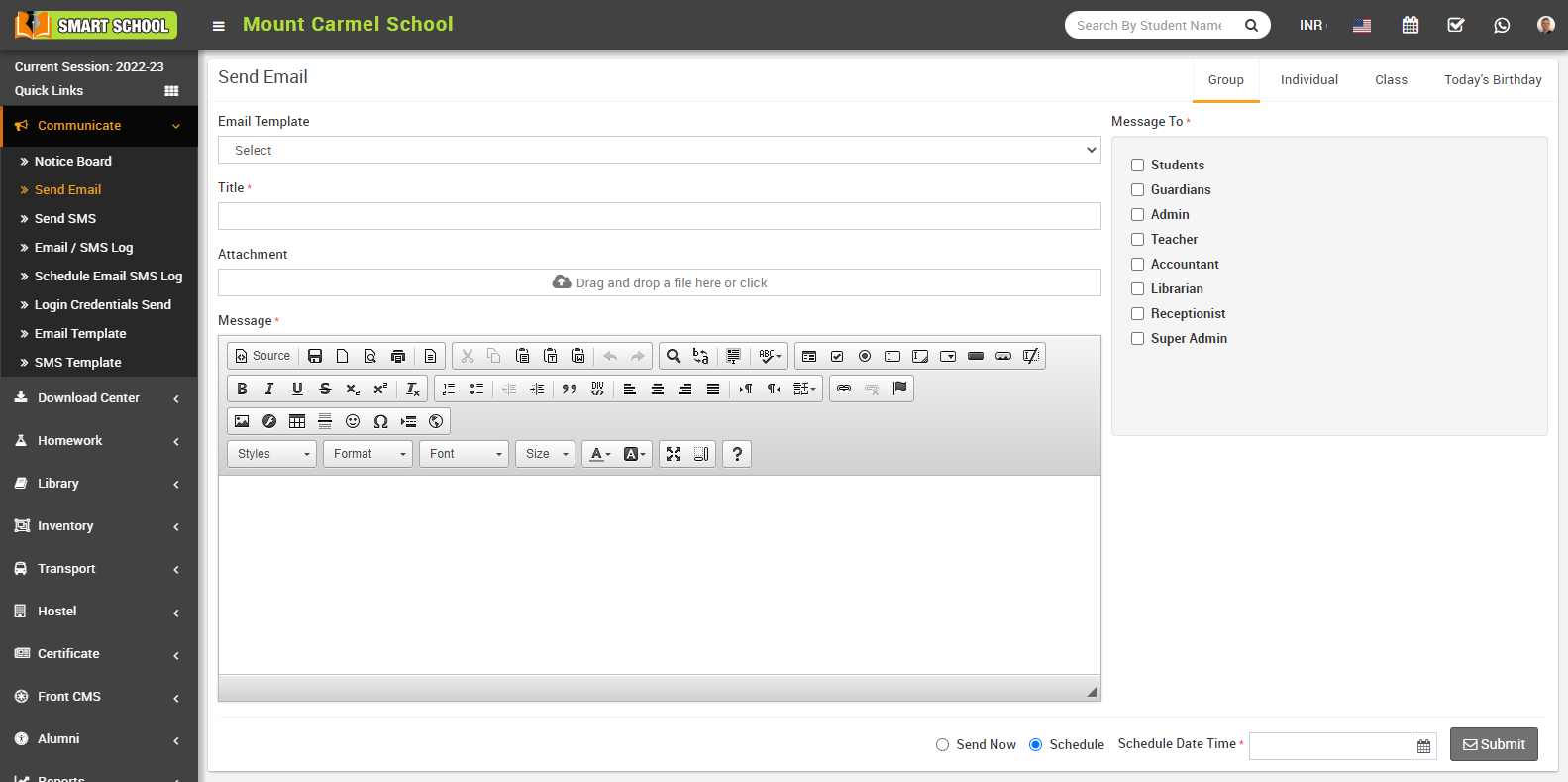
To send email to group (Student's, Guardian, Admin), click on the Group tab present at top right corner of the page then enter the details message Select Email Template, Title, Attachment, Message and select the Message To (Student, Guardian and Admin) and then click on Send or Schdule button.
Send Email to Individual-
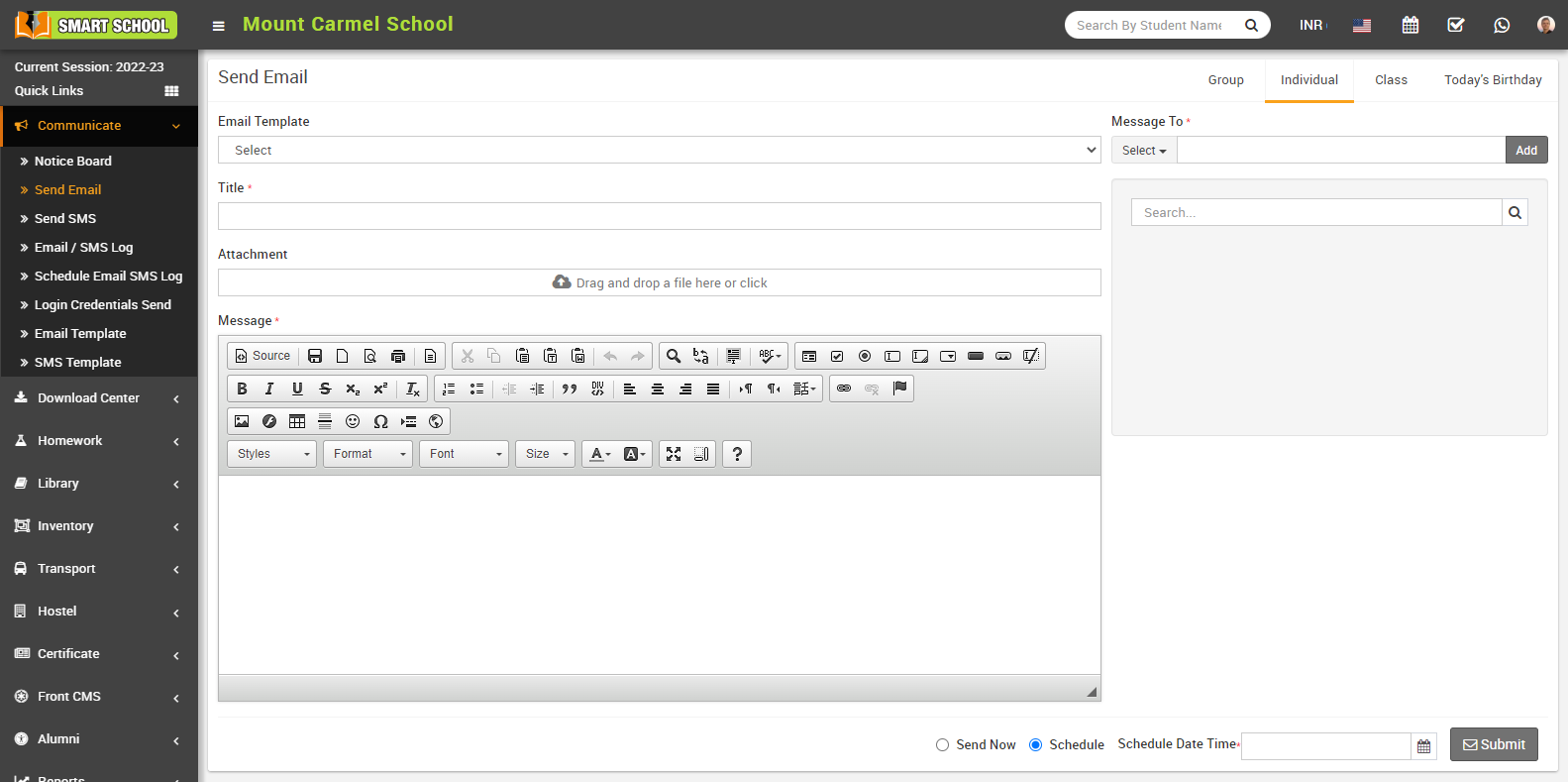
To send individual email, click on the Individual tab present at top right corner of the page then enter the details message Email Template, Title, Attachment, Message and select Message To (Select the group of the person to whom you want to send email and then search for the member name in the textbox and to add more students click on the add button) and then click on Send or Schdule button.
Send Email to Class-
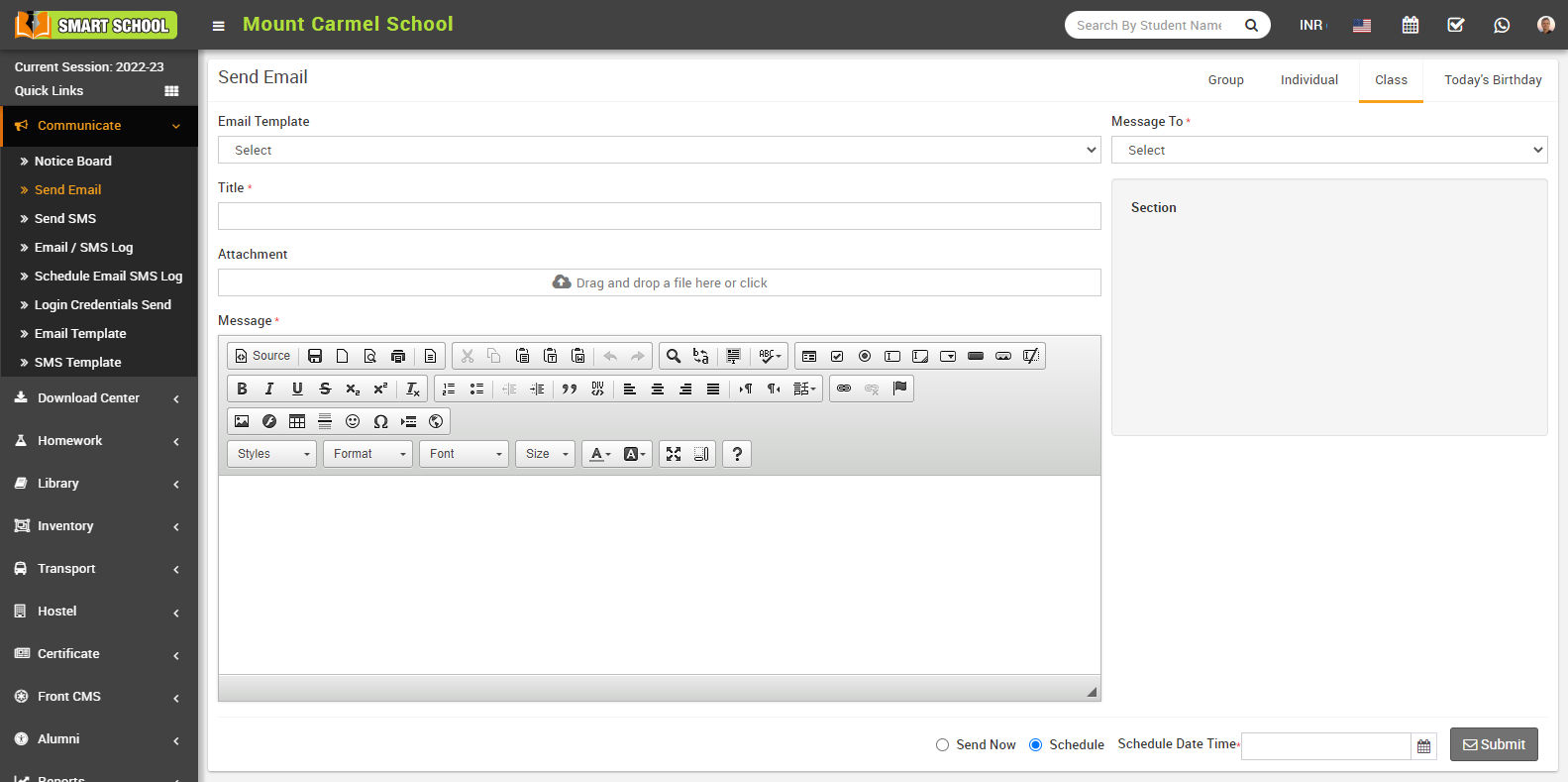
To send email class, click on the Class tab present at top right corner of the page then enter the details message Email Template, Title, Attachment, Message and select Message To (Select class here) and Section (Here you can select multiple sections) and then click on Send or Schdule button.
Send Email to Today's Birthday-
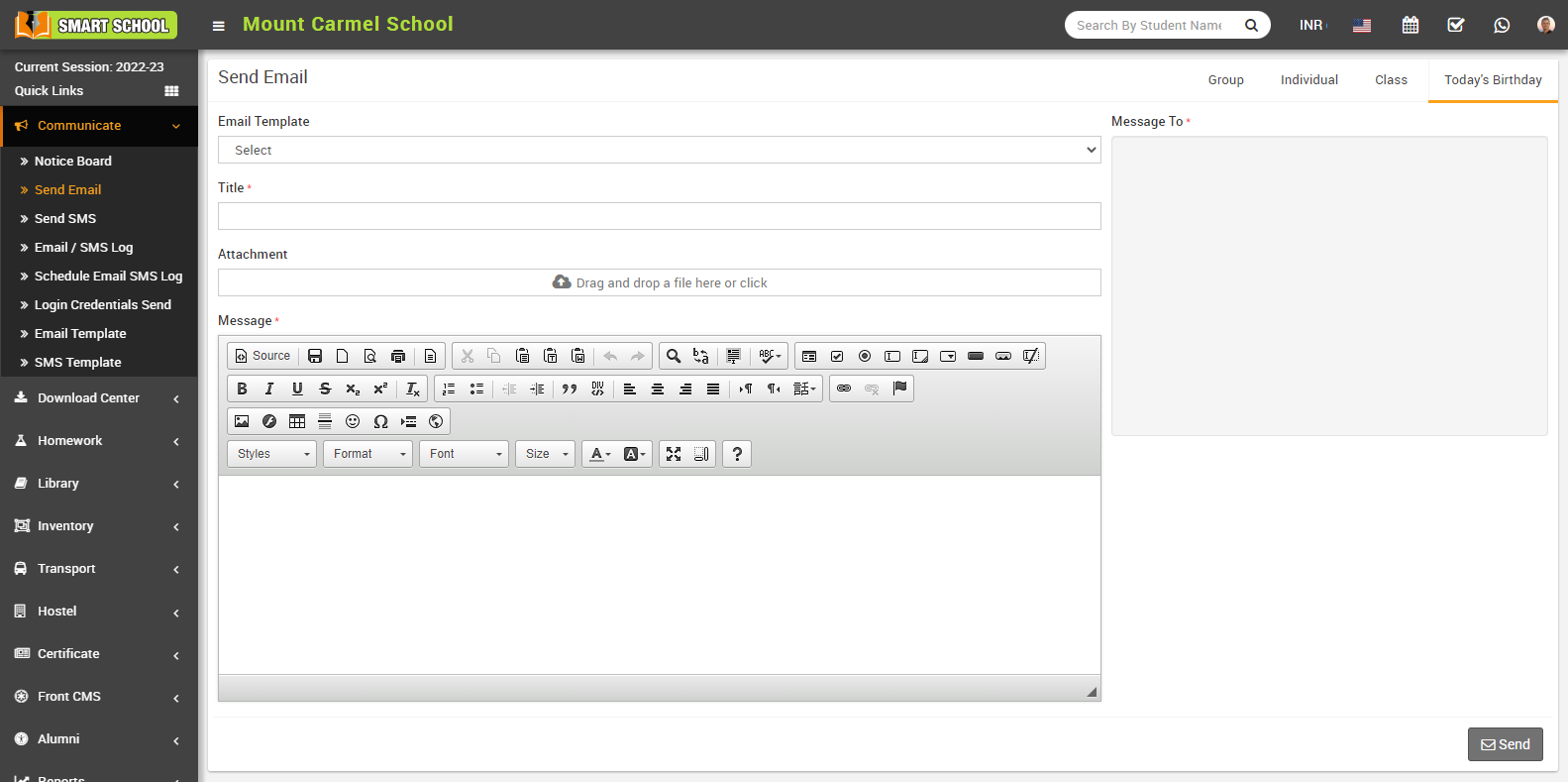
To send birthday email to all those students, click on the Today's Birthday tab present at top right corner of the page then enter the details message Email Template, Title, Attachment, Message and Message To and then click on Send or Schdule button.
How to Send SMS?
Now, Schedule SMS feature also available in next to the send button at below, if you want to sent your sms later you can use this feature overall A schedule SMS (Short Message Service) is a feature that allows you to set a time and date for a text message to be sent at a later time. This means that instead of sending a message immediately, you can schedule it to be sent at a more convenient time for the recipient or when it is more likely to be read.
Send SMS to Group-
To send SMS to Group (Student's, Guardian, Admin), click on the Group tab present at top right corner of the page then enter the details message SMS Template, Title, Send Through, Message and select Message To (student, Guardian and admin) and then click on Send or Schdule button and click on submit button
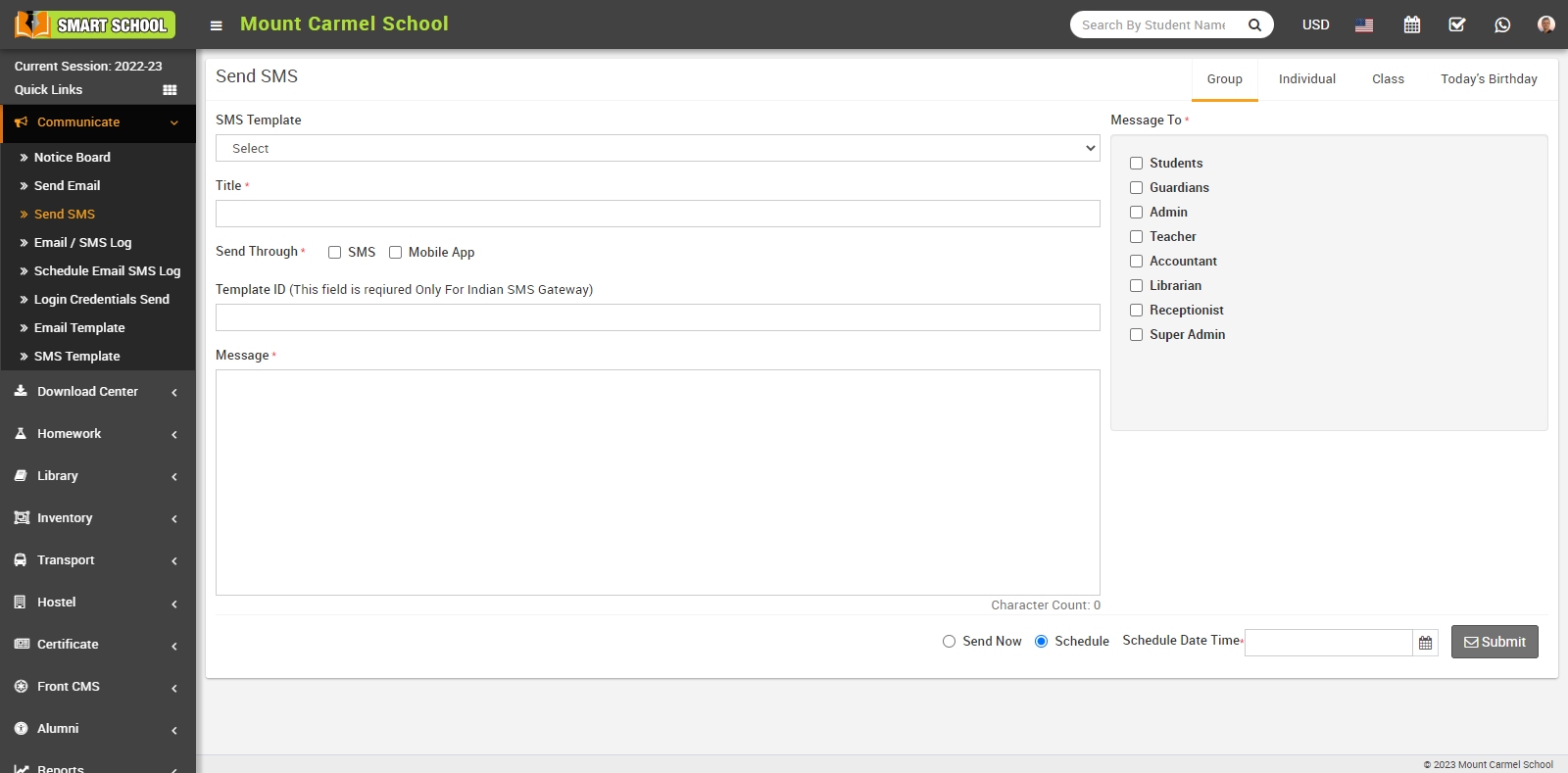
Send SMS to Individual-
To send SMS individual, click on the Individual tab present at top right corner of the page then enter the details message SMS Template, Title, Send Through, Message and select Message To (Select the group of the person to whome you want to send email and then search for the member name in the textbox and to add more students click on the add button) and then click on Send or Schdule button and click on submit button
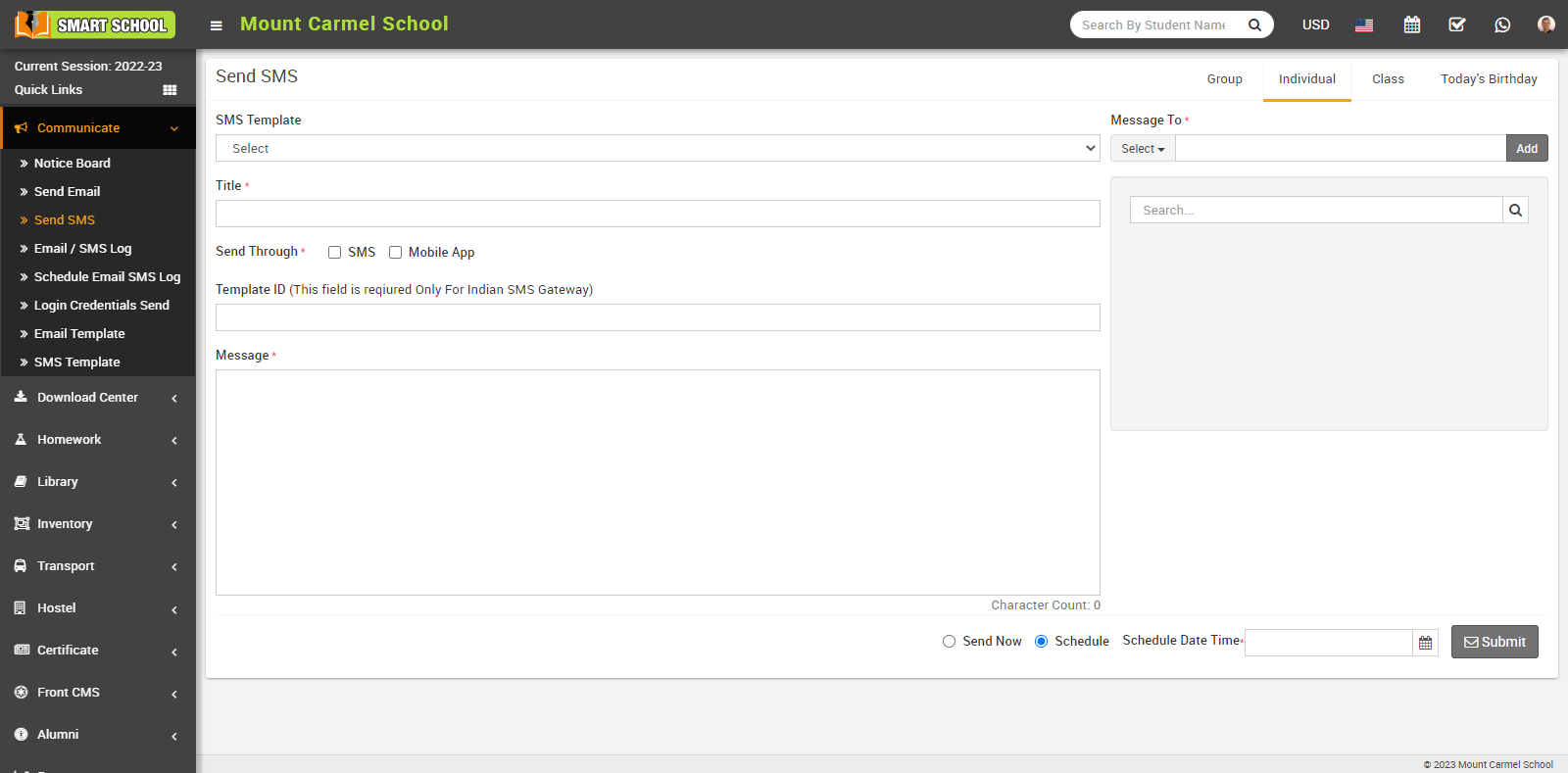
Send SMS to Class-
To send SMS class, click on the Class tab then enter the details message SMS Template, Title, Attachment, Message and select Message To and Section (Here you can select multiple sections) and click on Send or Schdule button and click on submit button.
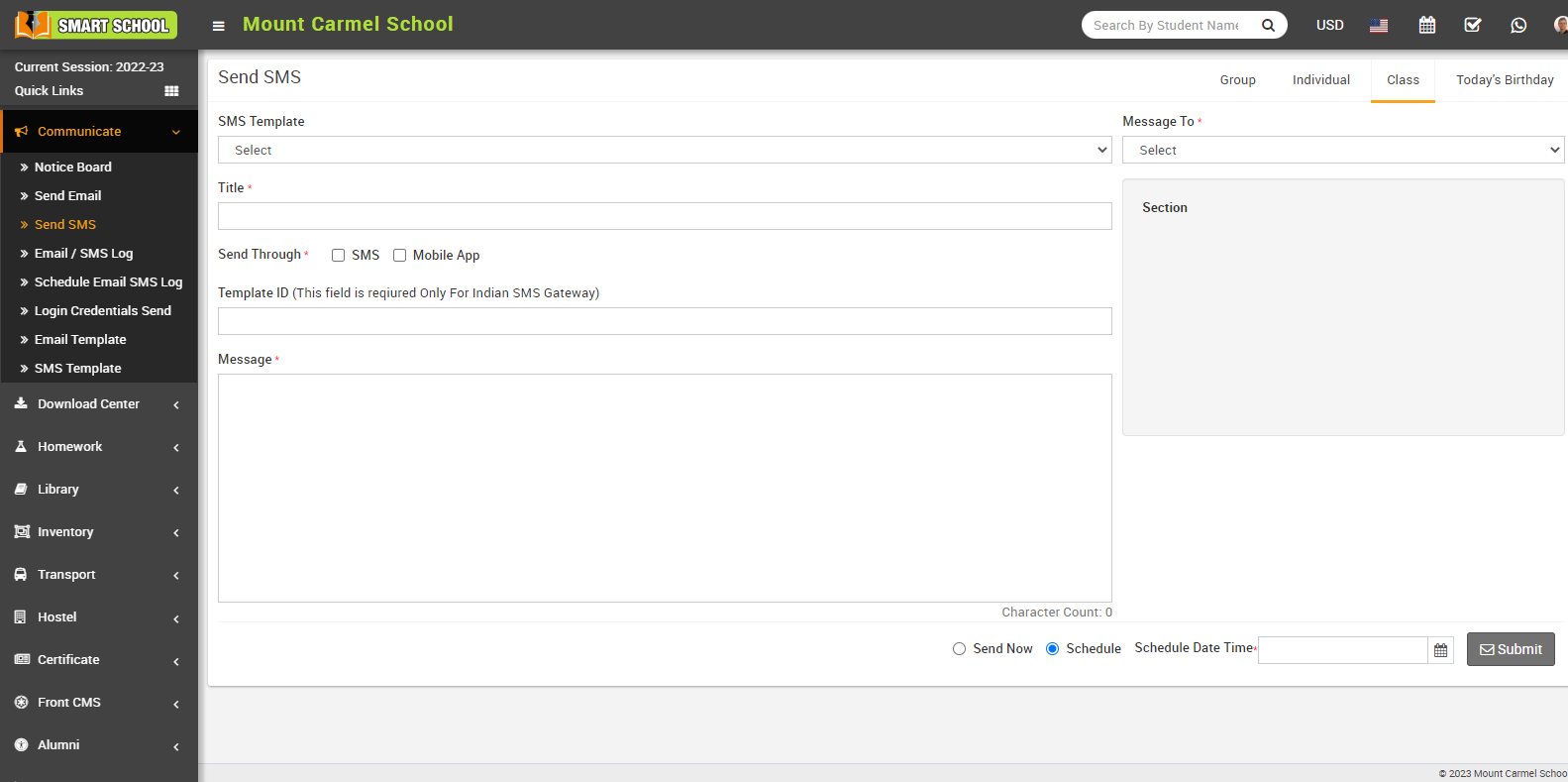
Send SMS to Today's Birthday-
To send SMS today's birthday, click on the Today's Birthday tab present at top right corner of the page then enter the details message SMS Template, Title, Send Through, Message and Message To and click on Send or Schdule button and click on submit button.
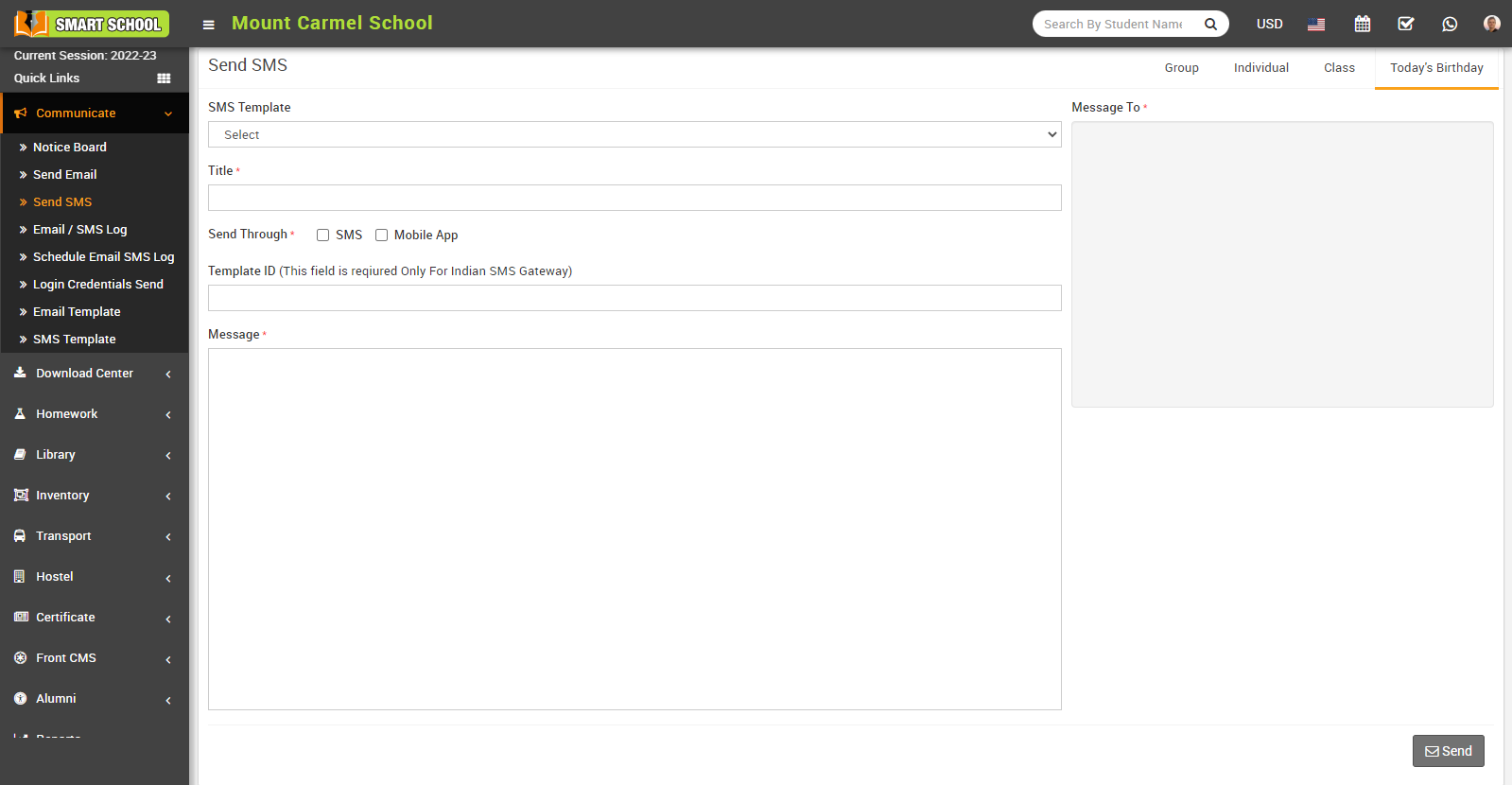
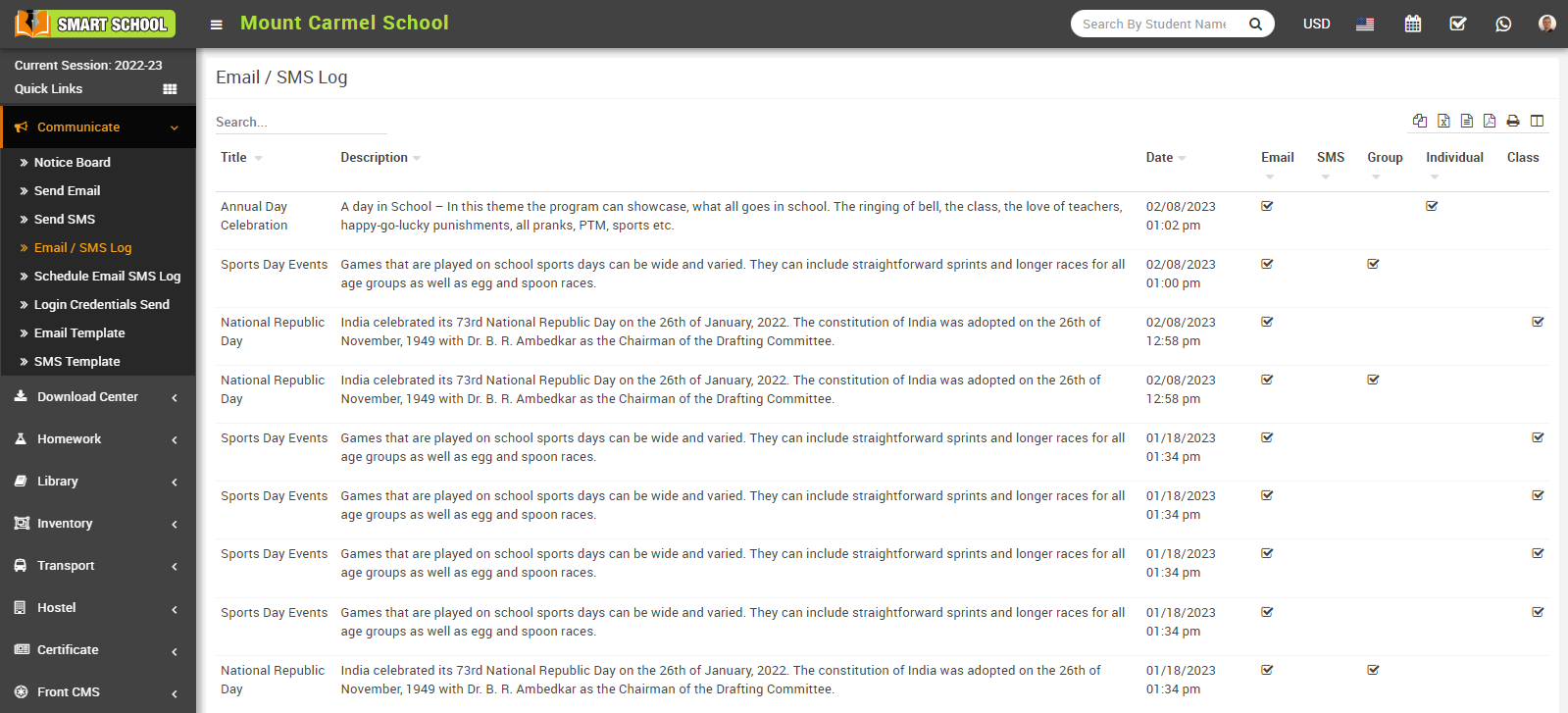
How to view Email / SMS Log?
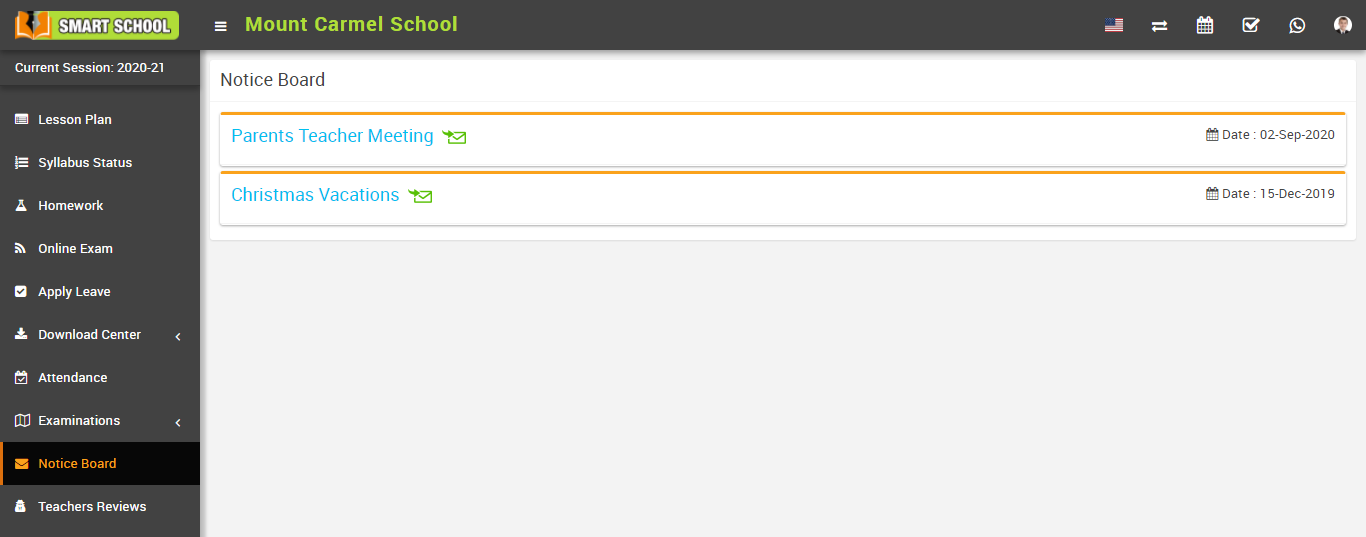
How student can view Notice Board?
How to create Email Template?
To create Email template, go to Communicate > Email Template, here you can view email template list.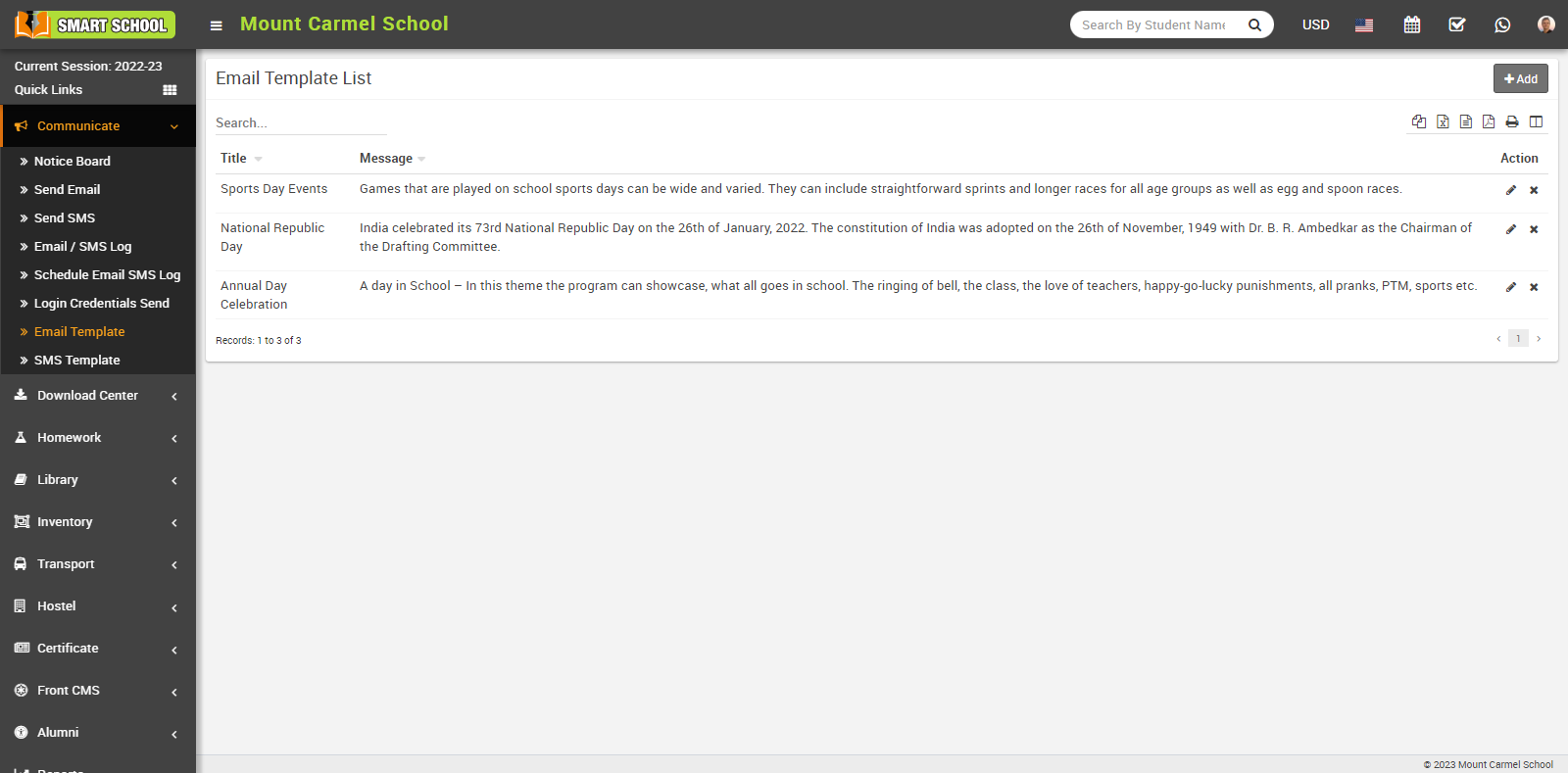
To add new email template, click on the +Add button showing at top right corner, add email template model will be open.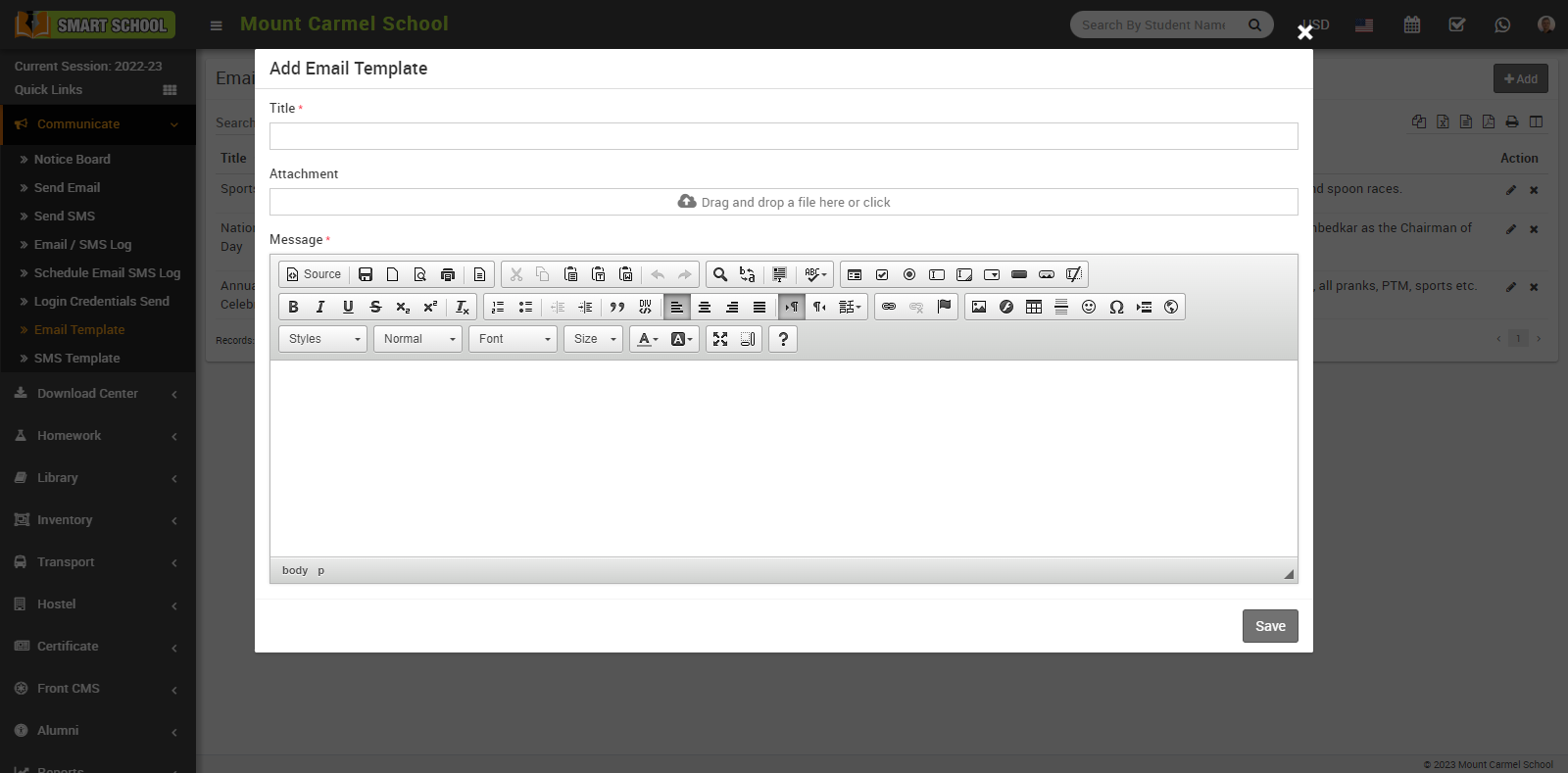
Now, mention the Title for email template, and select the file for Attachment and create the message then click on the Save button, so that new email template will added successfully and you can view in Email Template List.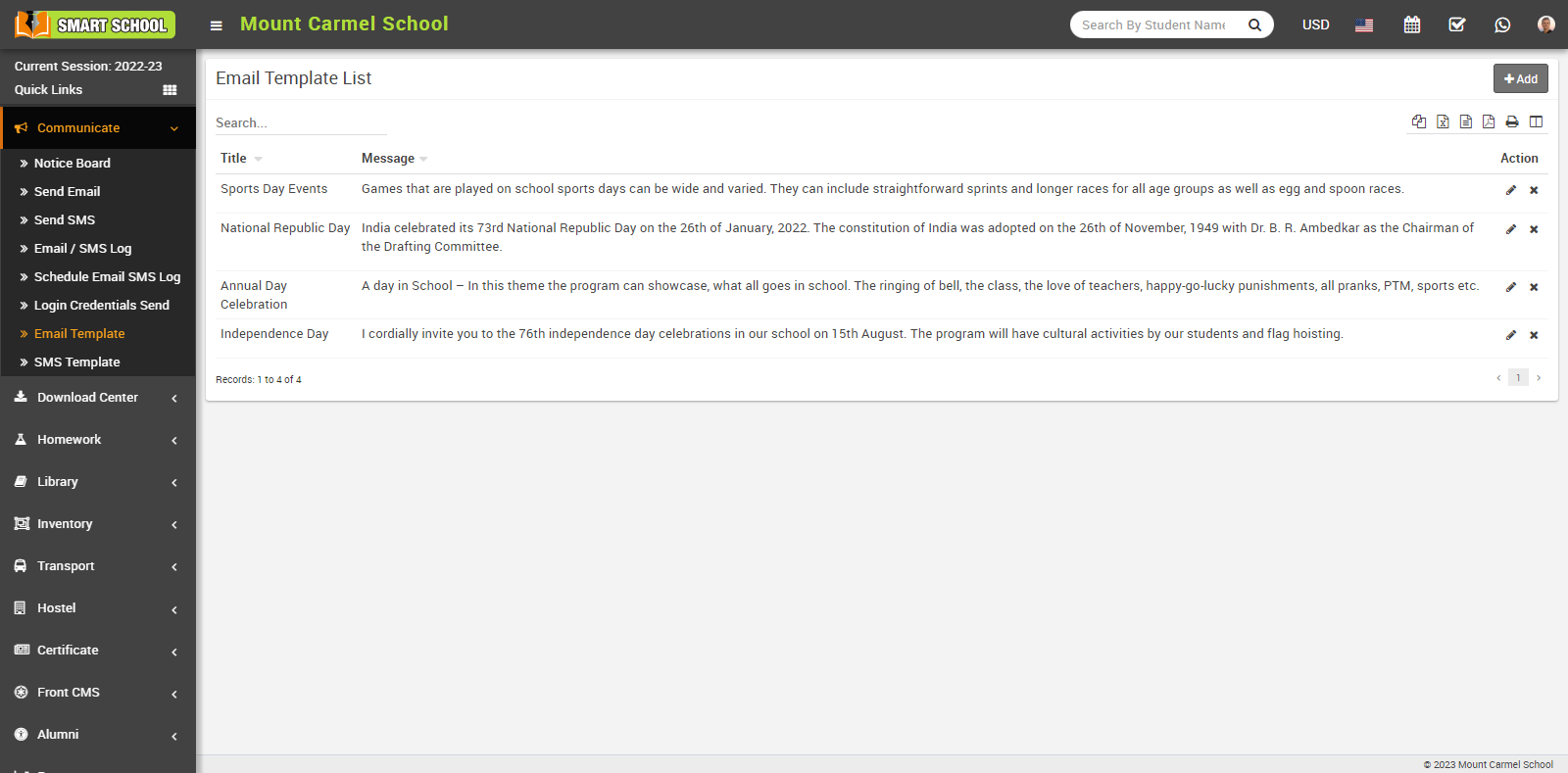
To edit the template, you just need to click on Edit icon which is showing at the Action column, edit email template model will be open.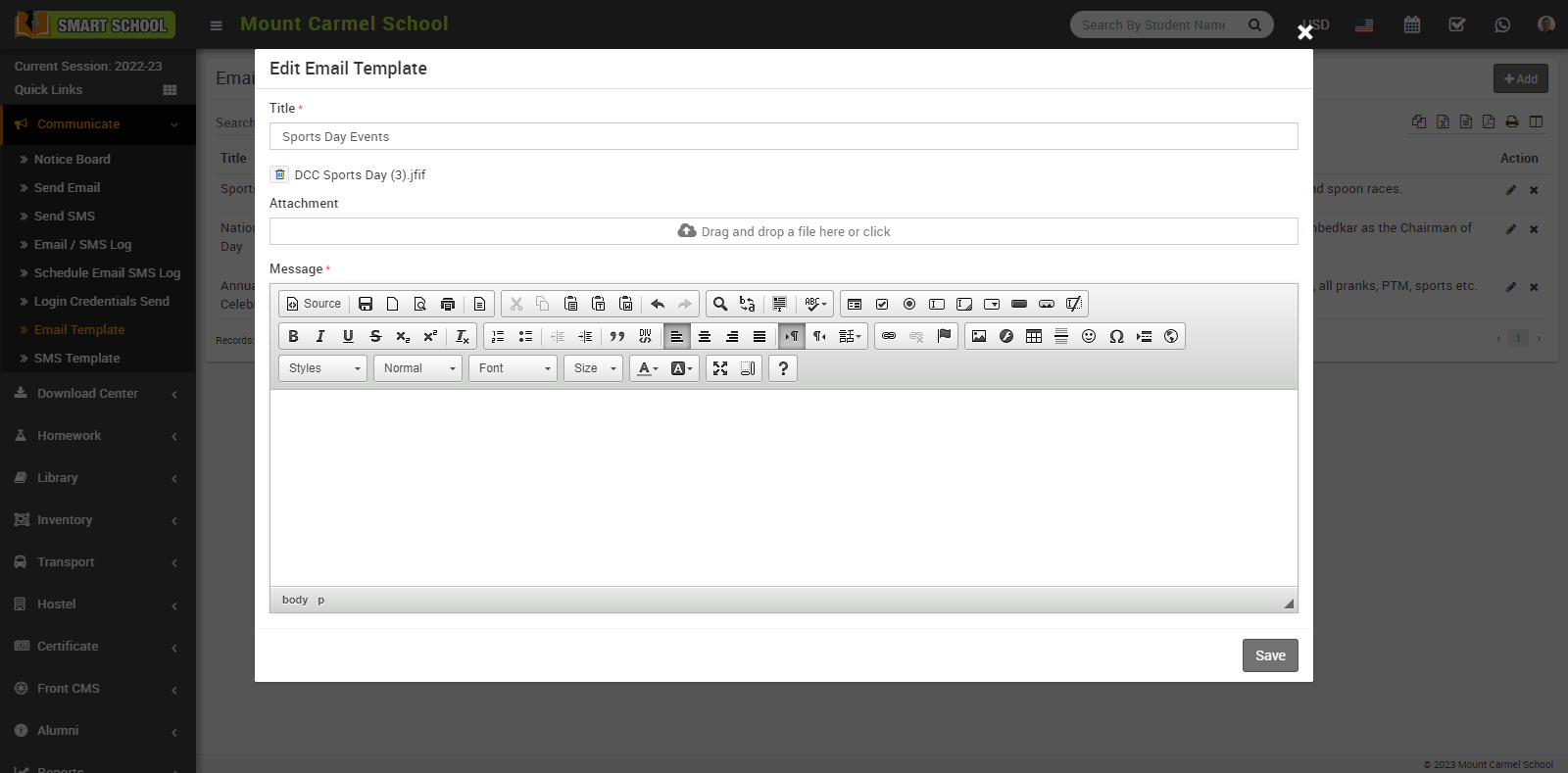
Now simply update the details and click on save button, your update will be save successfully in email template list.
To delete the template, simply click on Delete icon showing in Action column, delete confirmation model will be open.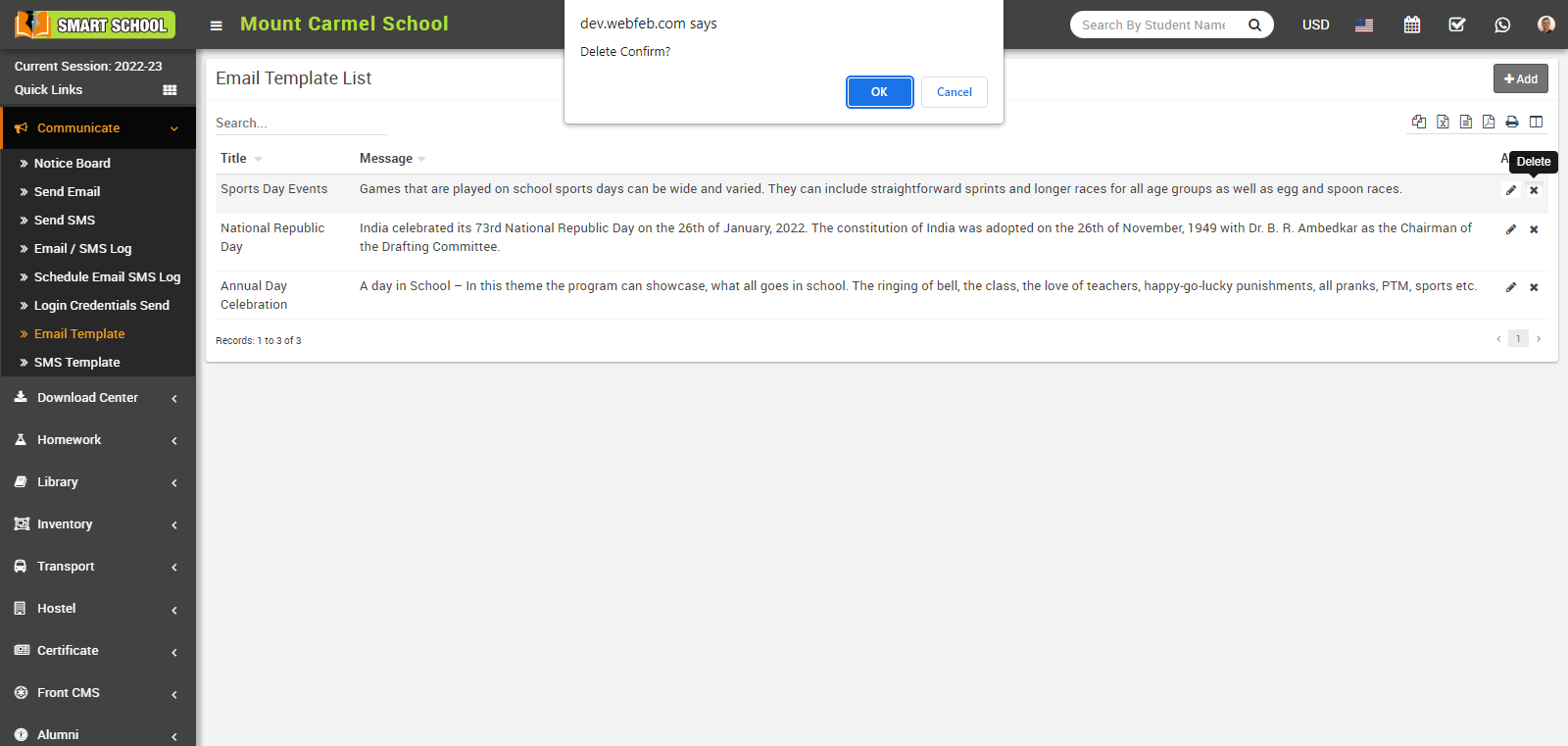
Now click on Ok button, email template will be delete successfully from the email template list
How to create SMS Template?
To create SMS template, go to Communicate > SMS Template, here you can view SMS template list.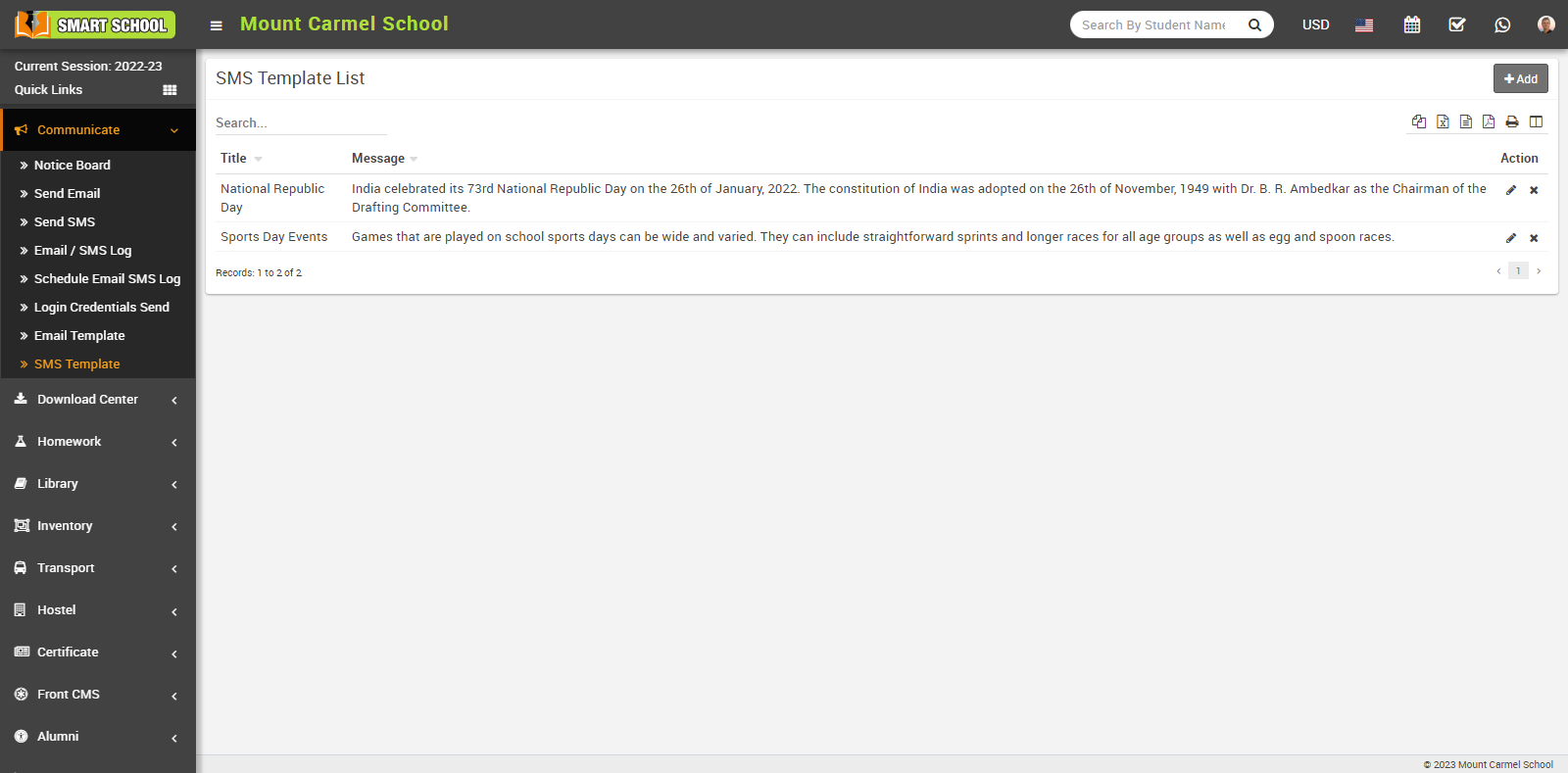
To add new SMS template, click on the +Add button showing at top right corner, add SMS template model will be open.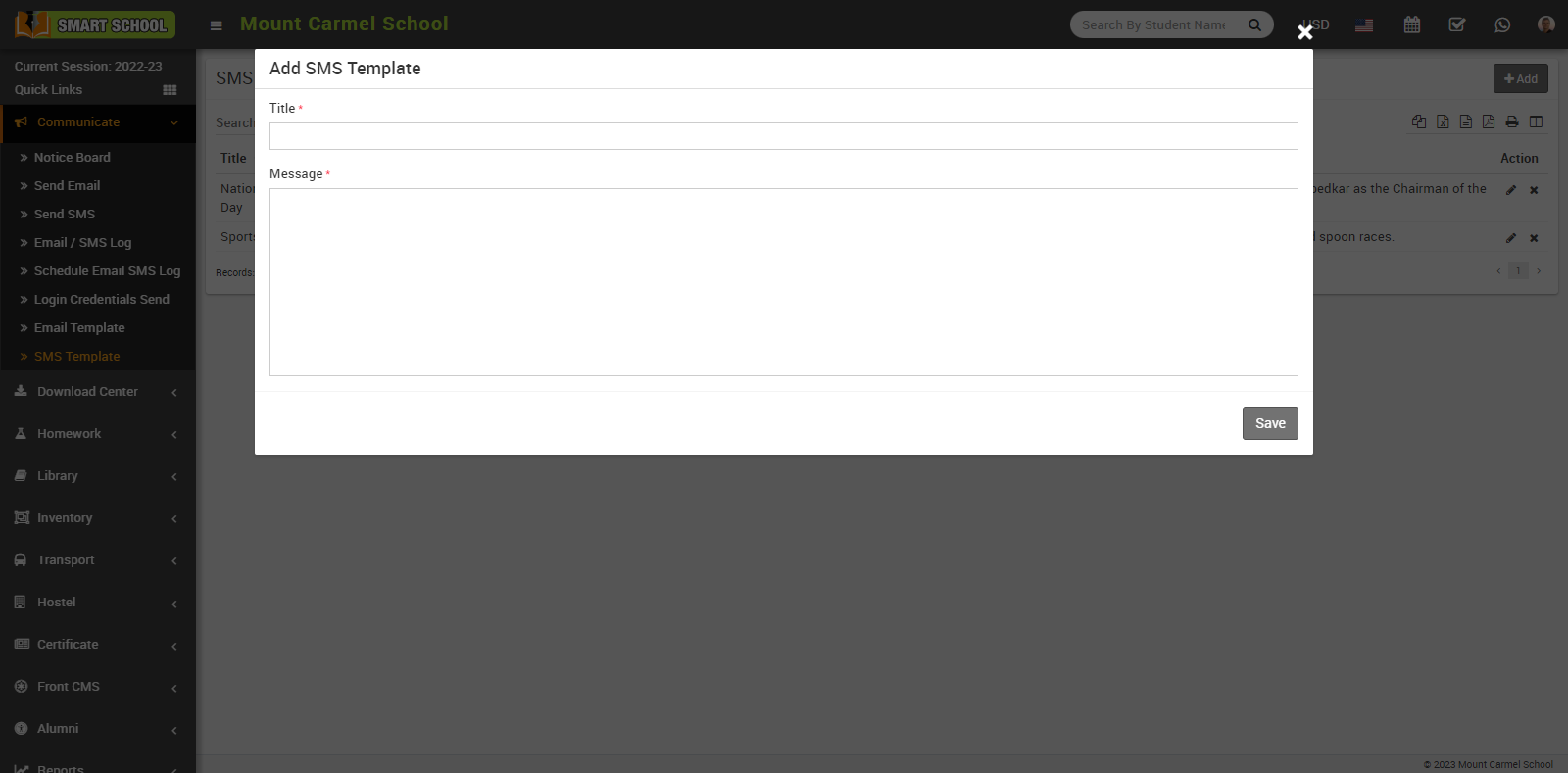
Now, mention the Title for SMS template and create the message then click on the Save button, so that new SMS template will added successfully and you can view in SMS Template List.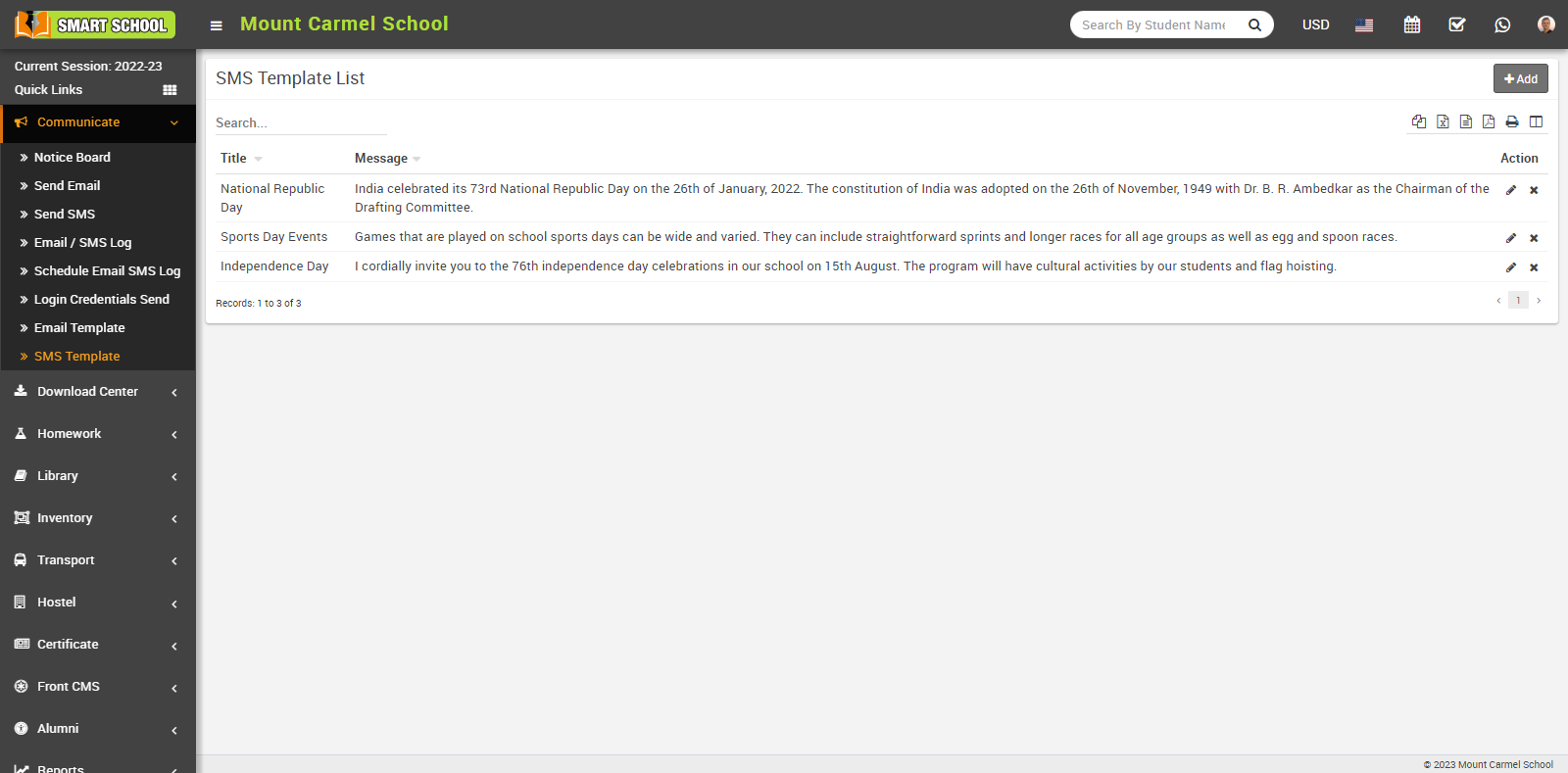
To edit the template, you just need to click on Edit icon which is showing at the action column, edit SMS template model will be open.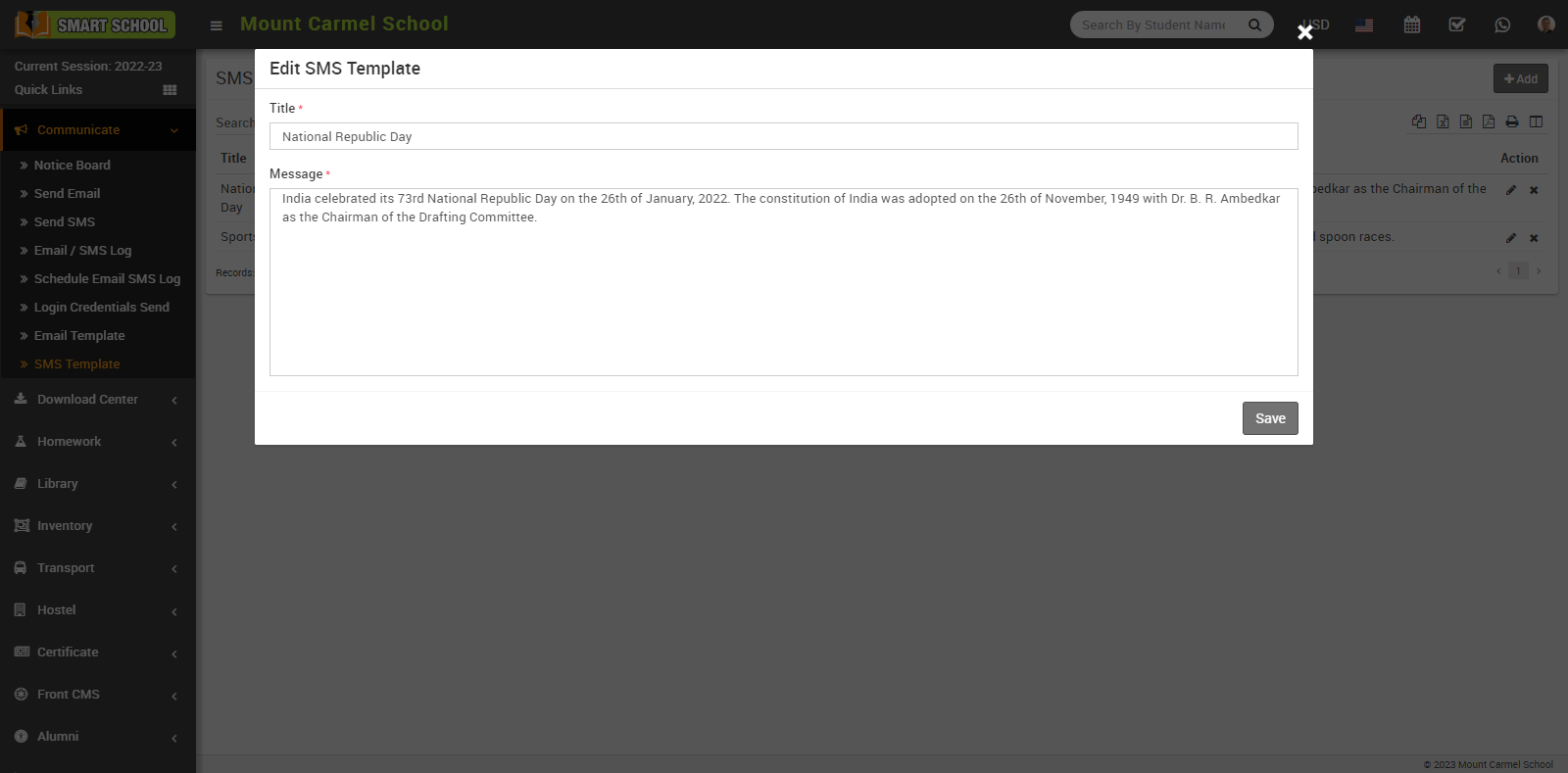
Now simply update the details and click on save button, your update will be save successfully in SMS template list.
To delete the template, simply click on Delete icon showing in action column, delete confirmation model will be open.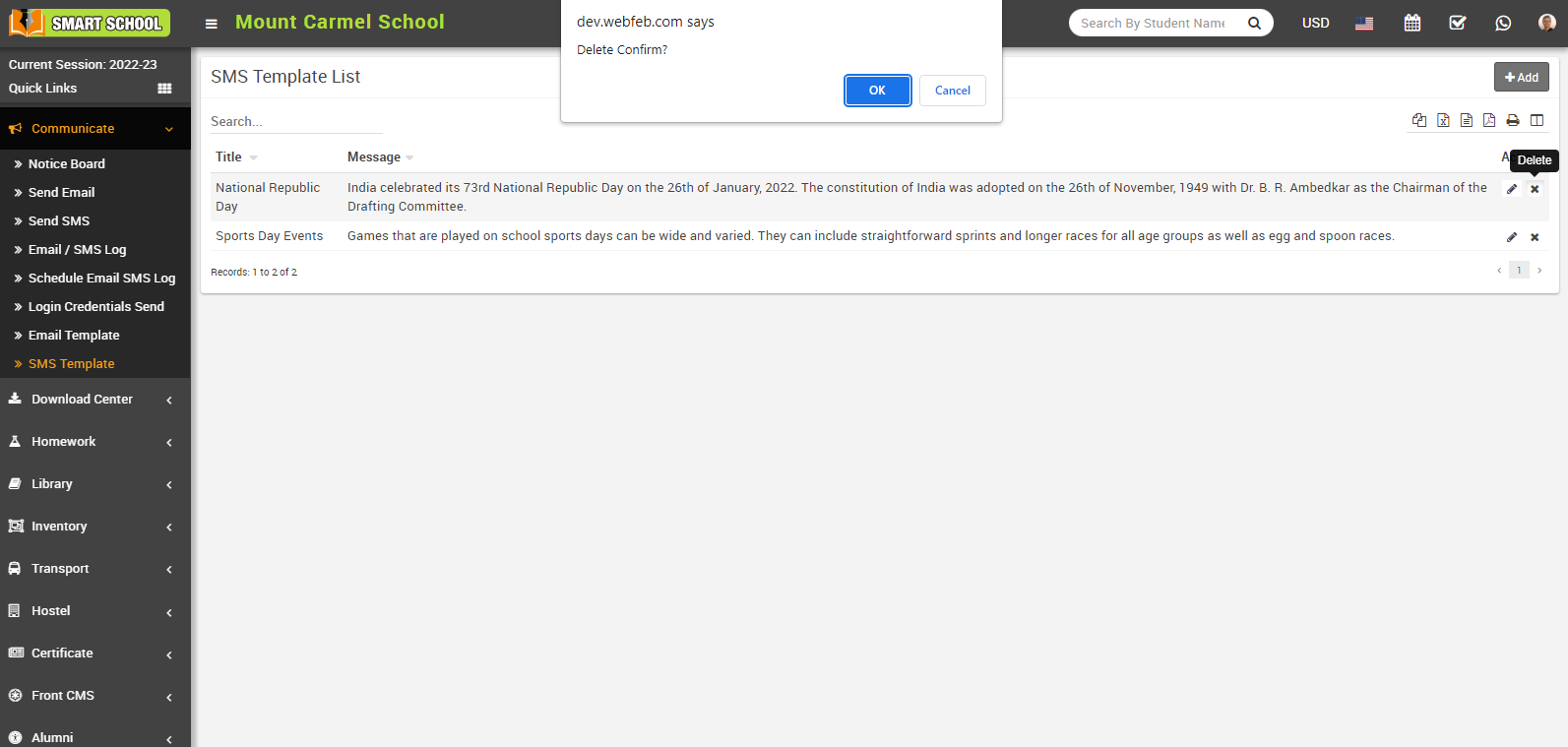
Now click on Ok button, SMS template will be delete successfully from the SMS template list.
How to view Login Credentials Send?
To login credentials send, go to Communicate > Login Credentials Send and select Class, Section then click on Search button. 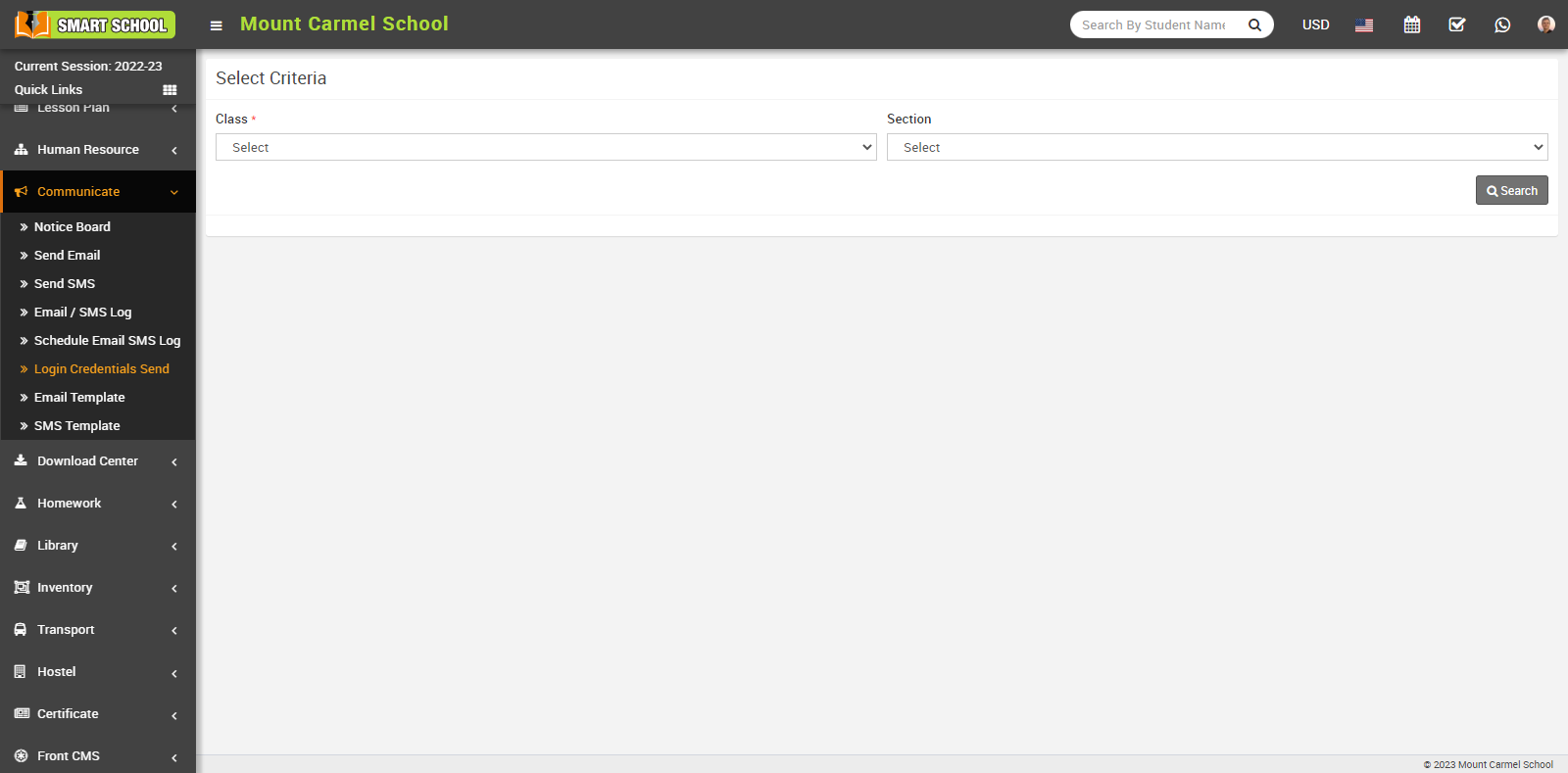
After click on the search student list with their detials as Admission No, Student Name, Class, Section, Date of Birth, Gender, Mobile Number will be appear in below.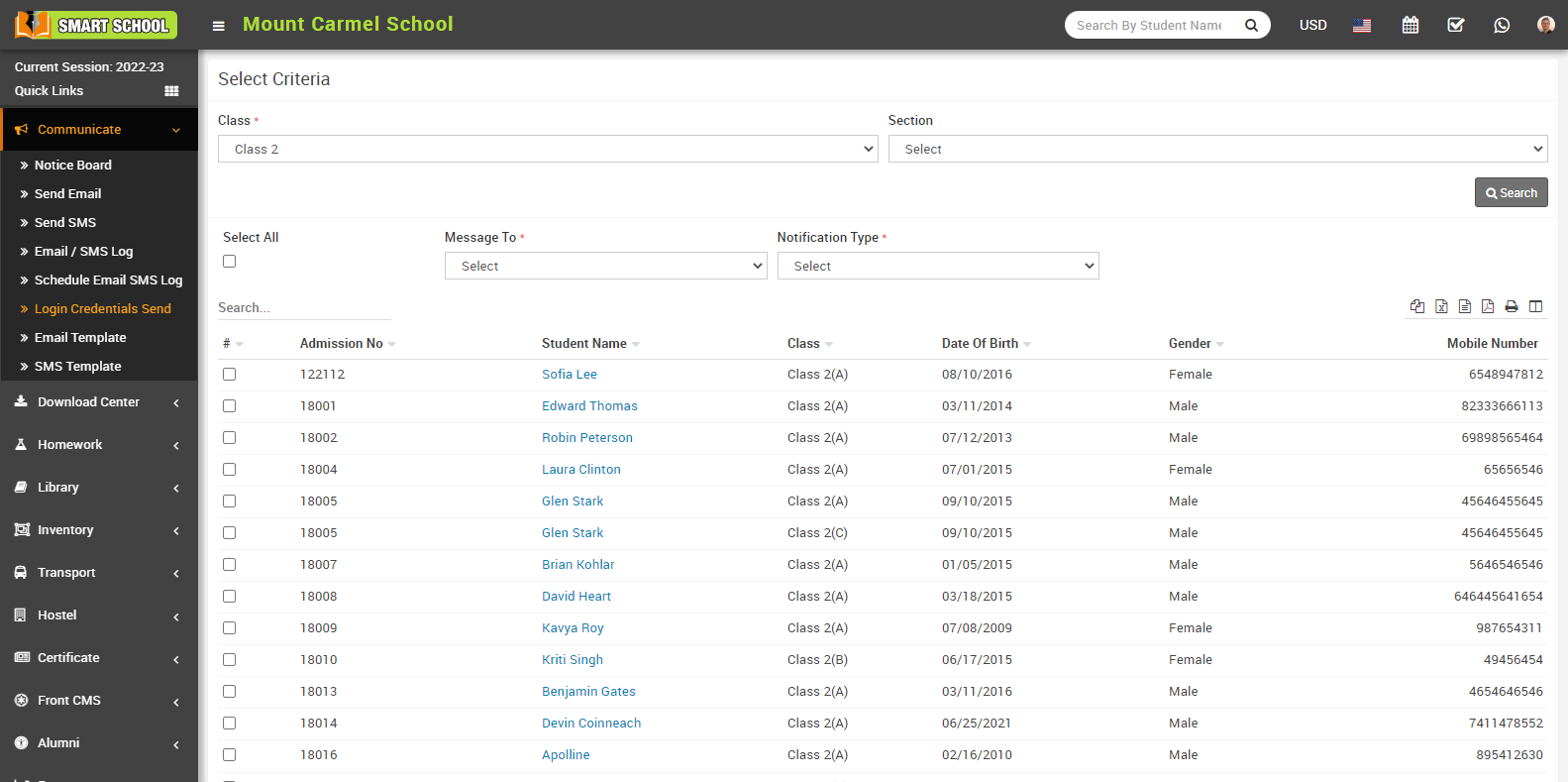
With the help of login credential send feature, you can send student admission number, login id and password to the student as well as his parent. In this feature, you need to set the “manage to” and “notification type” tab, when click on manage to tab, drop down will be open, on this drop down you can see student parent and both option is available, just you need to select the one of them.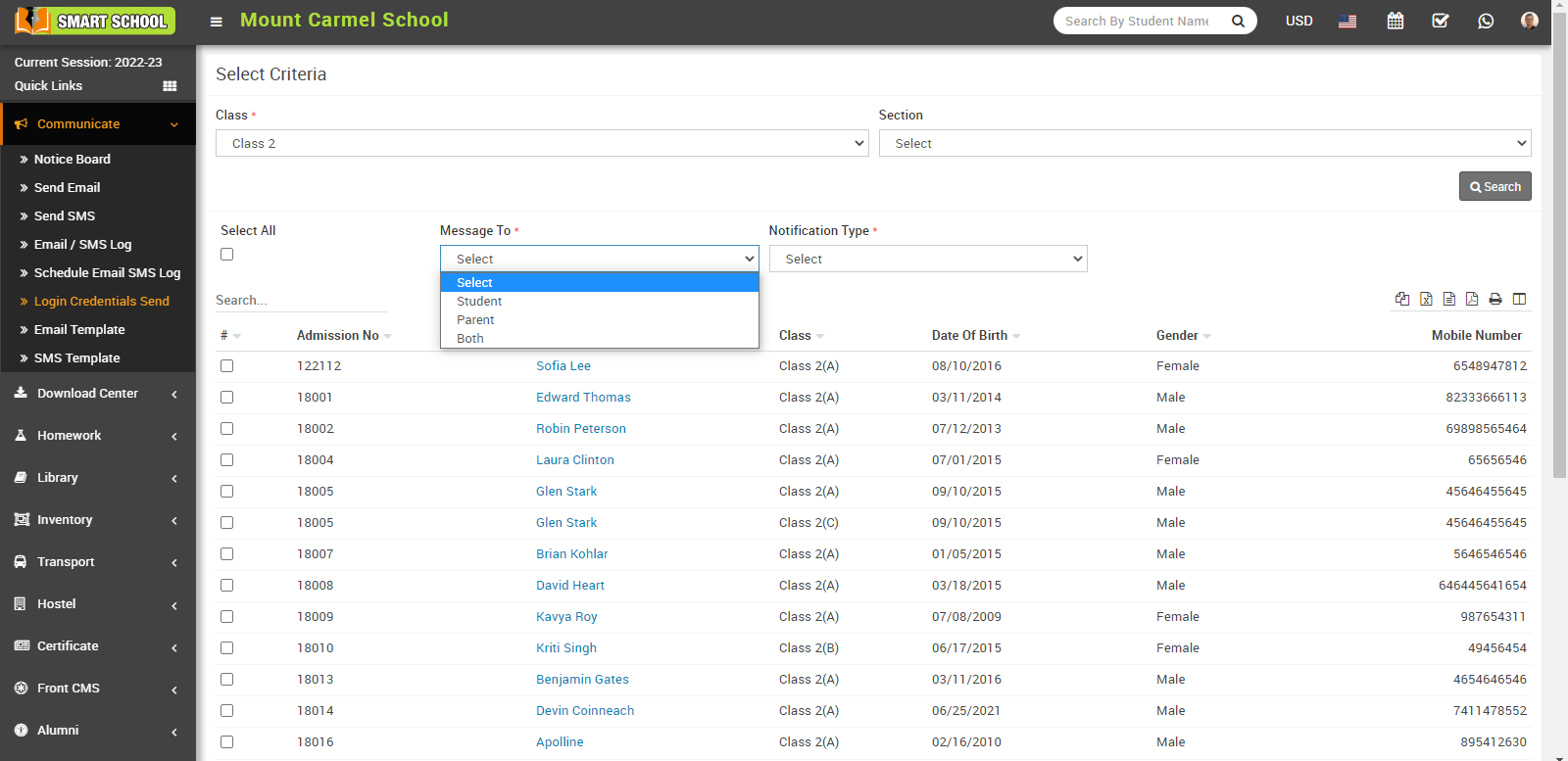
Now click on notification type tab drop down will be open, here you can see student admission, login credential and both option available, please select one option.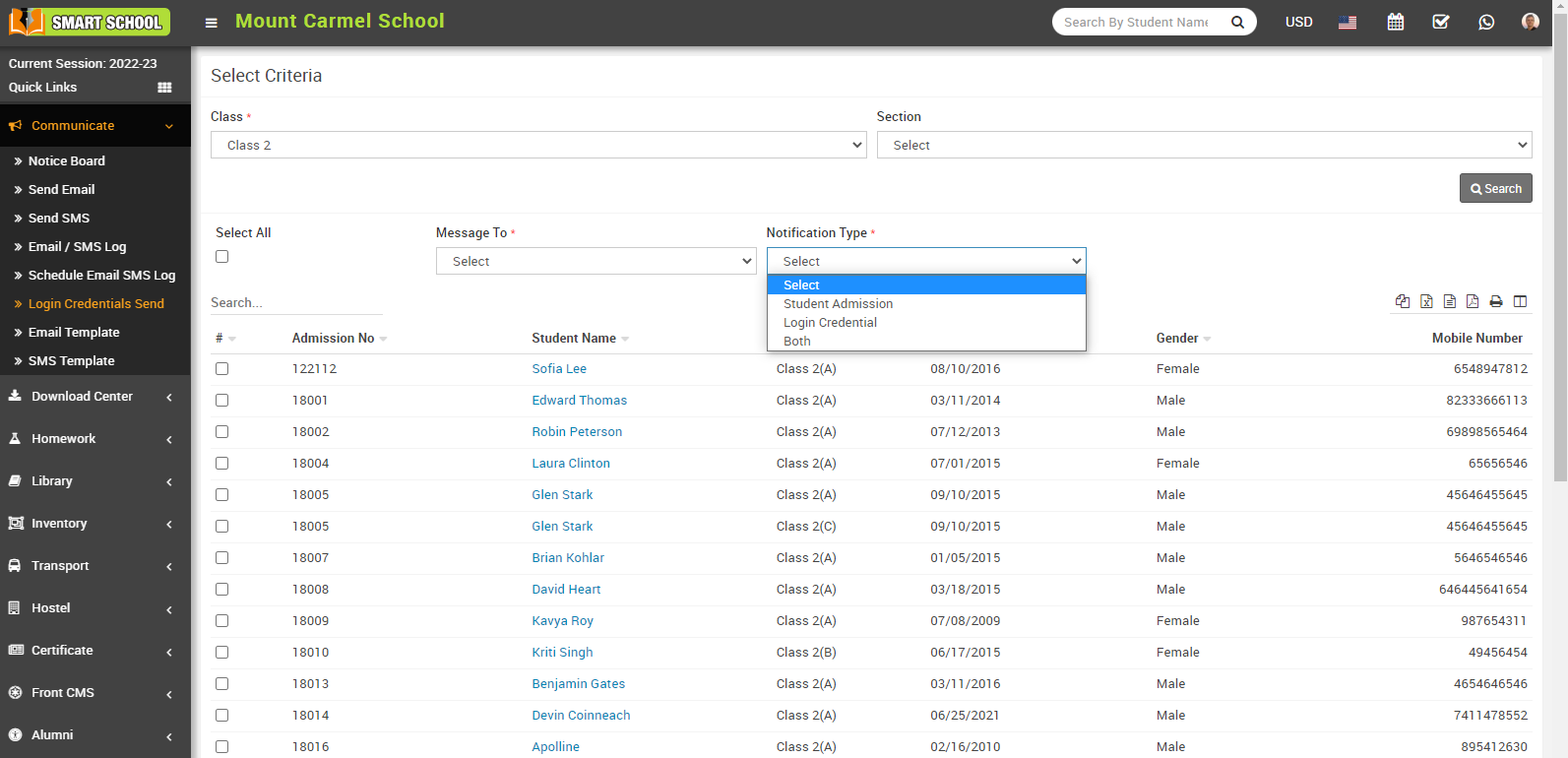
Now, you can see the student list showing in below, if you want to send credential of all student, please check the select all option which is showing left middle or send credential some student, you just need to check the checkbox which is showing in next to the student name and click on send button, showing in right below corner. Your credential will be successfully send to the student or parent or both, depends what you select at above and student or parent will receive credentials in their register email address.
How to view Schedule Email SMS Log?
A schedule email, SMS log, or log of scheduled messages refers to a record or list of messages that have been scheduled to be sent via email or SMS (Short Message Service) at a specific time or date. This log helps to track and manage scheduled messages, allowing administrators or marketers to see when messages were sent, when they are scheduled to be sent, and whether they were delivered successfully. The log may also include additional information such as recipient list, message content, and status updates, making it a valuable tool for tracking the success of communication campaigns and ensuring that messages are sent to the right people at the right time.
To view the Schedule Email SMS Log, go to Communicate > Schedule Email SMS Log; here you can view the entire Schedule Email SMS Log.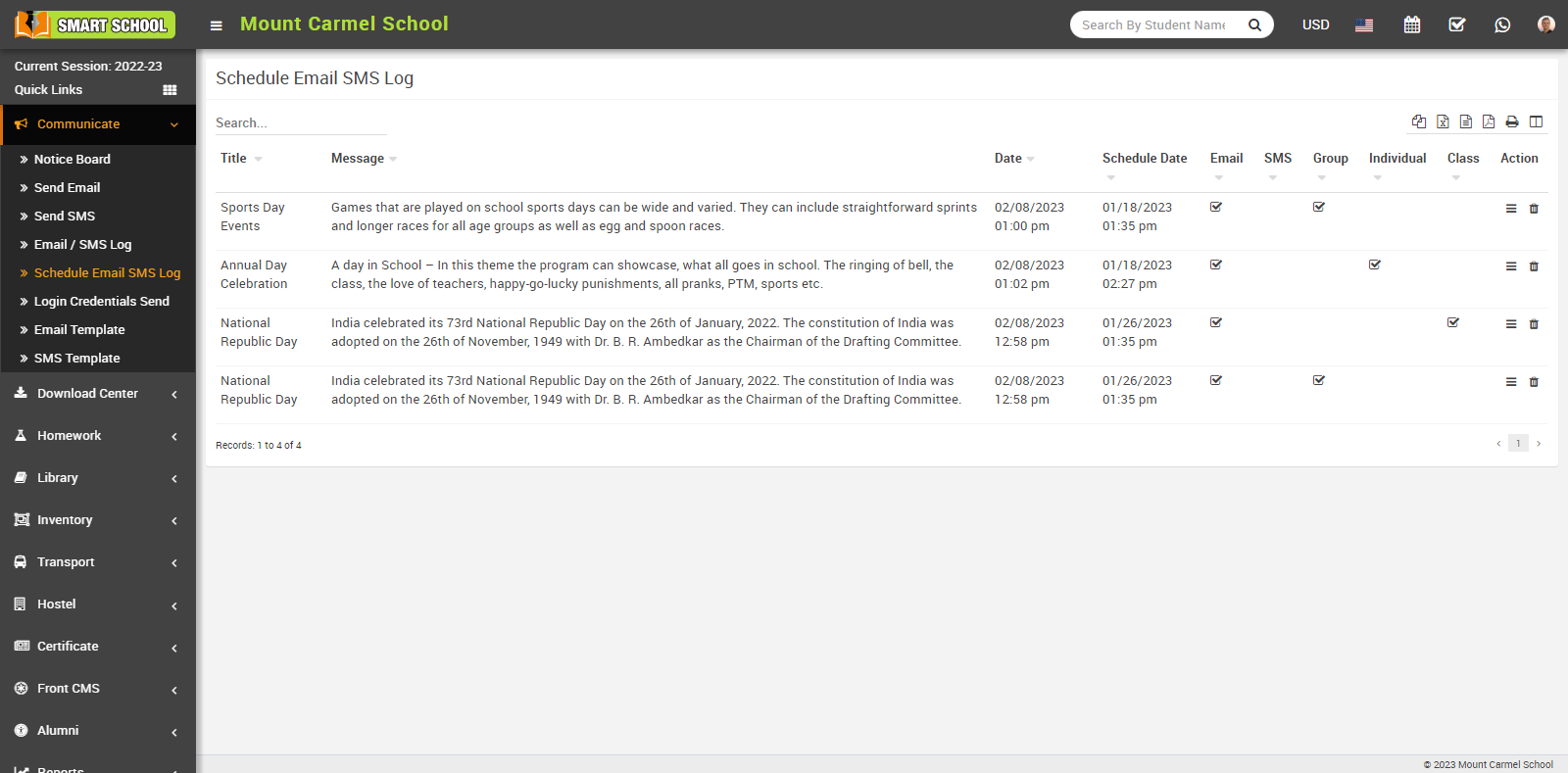
In the Action column, you can view, edit, or delete the scheduled email and SMS logs. Click on the "View" option in the action column to view or edit.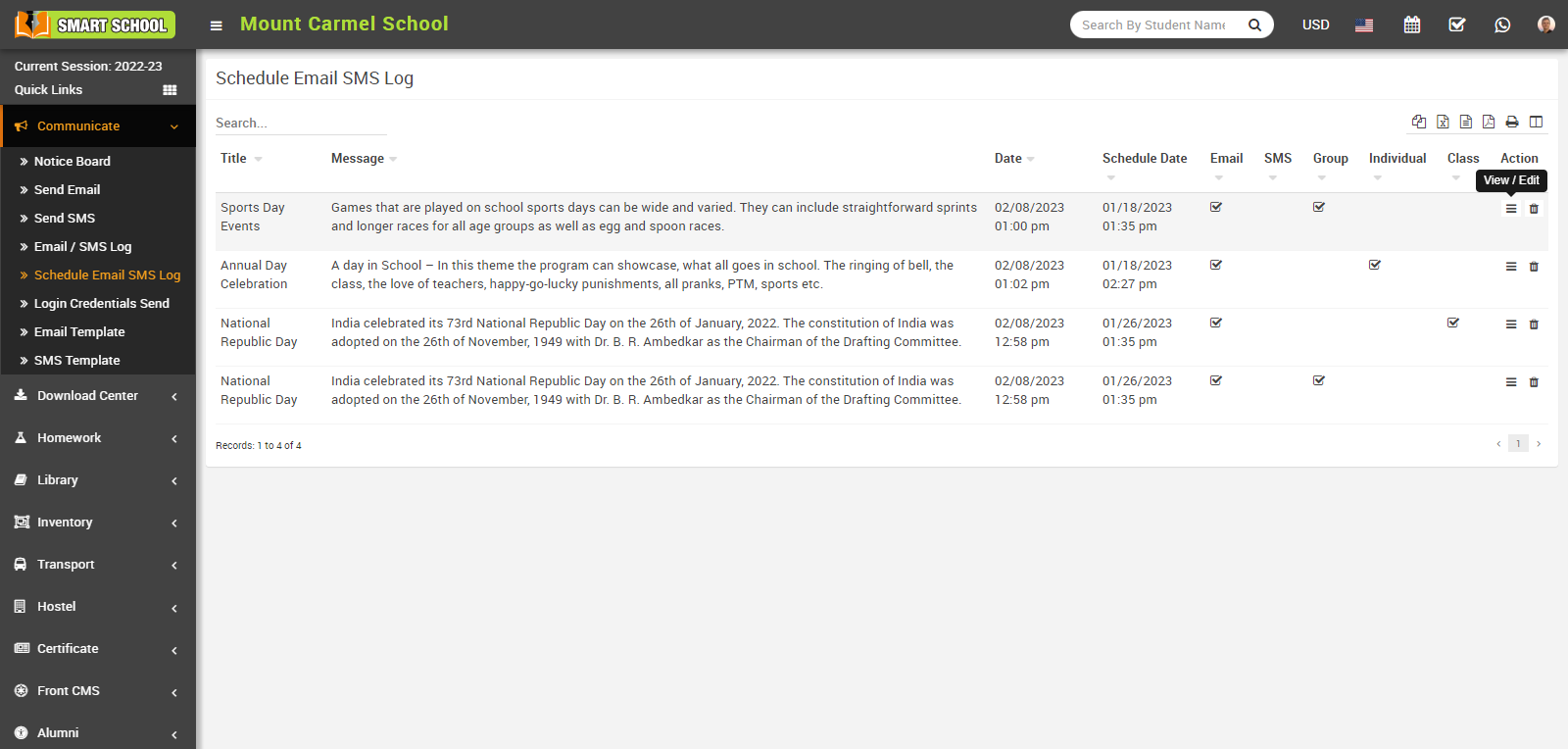
Here you can edit the Schedule Email and SMS Log; click on Schedule Date and Time to edit a date and time; then click on the Submit button. Your schedule email sms will be updated.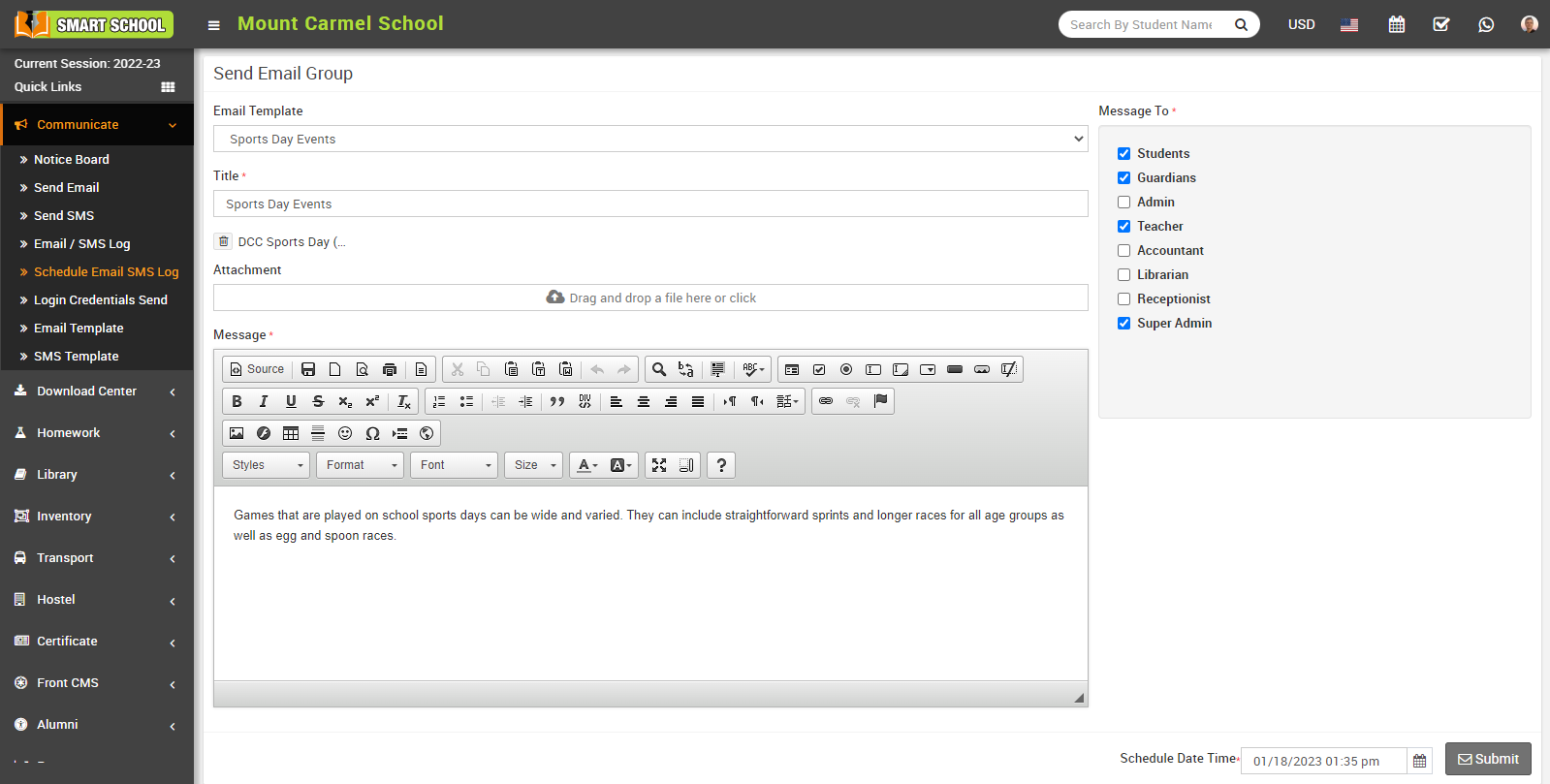
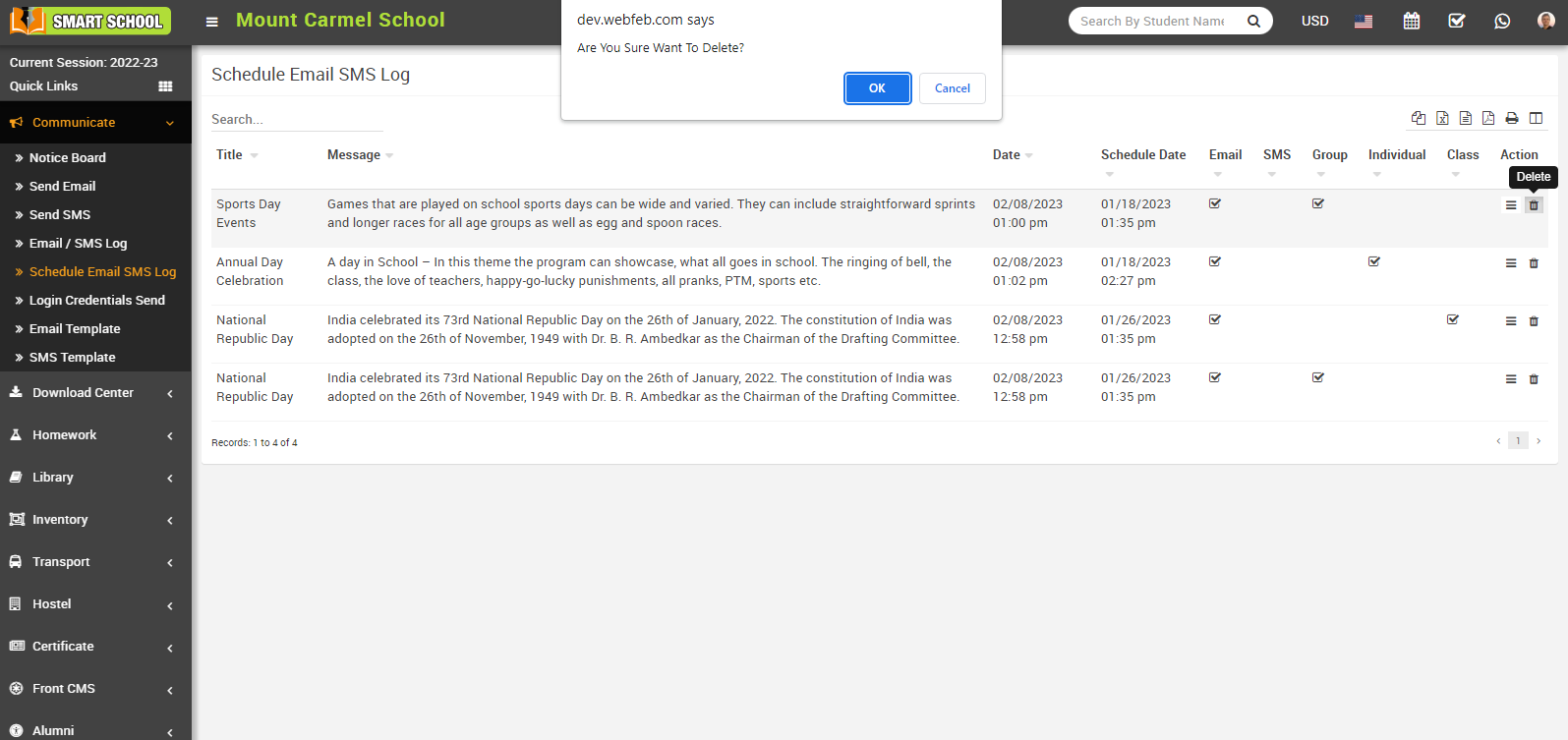
To Delete them, simply click on the Delete icon in the Action column, and your schedule email sms will be successfully deleted.