What is payment accounts in S-Keub?
Payment accounts are like for example bank account. You can transfer money from one payment account to another, deposit cash in payment account, pay to a supplier, or deposit the amount received from a customer here.
Enabling Payment account
- Go to Settings ->Business Settings -> Modules
- Enable payment ‘Account’ option
- Save it.
- After saving you will see the “Payment accounts” option will be visible in the left navigation bar.
Payment account type & sub-type
- Go to Payment accounts -> List accounts -> Account Types
- Account type: to add an account type click on Add button and enter the name of the account type and submit. Keep the Parent account type unselected.
- Sub-Account type: To add a sub-account type click on Add button, enter the name of the sub-account type and select the Parent-account-type.
- When creating an account you can select the account type as per your need.
Creating Payment accounts
- To create a payment account, Go to Payment Accounts -> List Accounts, click on Add button
- Fill in all the details like name, account number, Account type, opening balance, Account details & notes.
- Account Details: Here you can add any additional account details, like for example UPI ID, SWIFT code, BIN number, etc which vary depending on the accounts.
Transferring funds between Payment accounts:
You can transfer funds between the payment accounts.
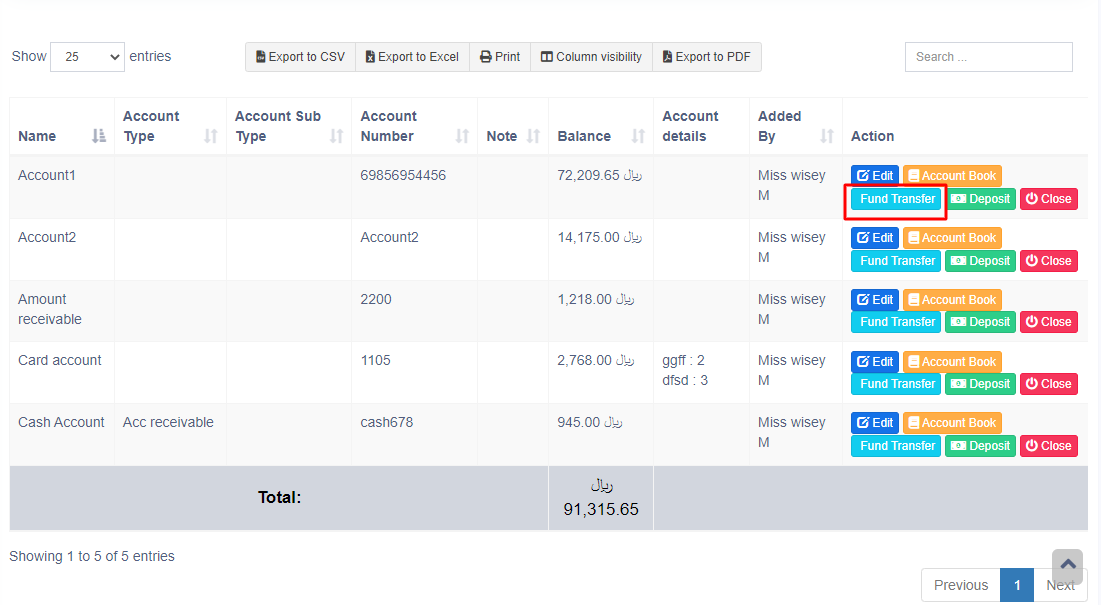
In the Payment Accounts -> List Accounts, click on fund transfer.
Setting default payment accounts for payment methods
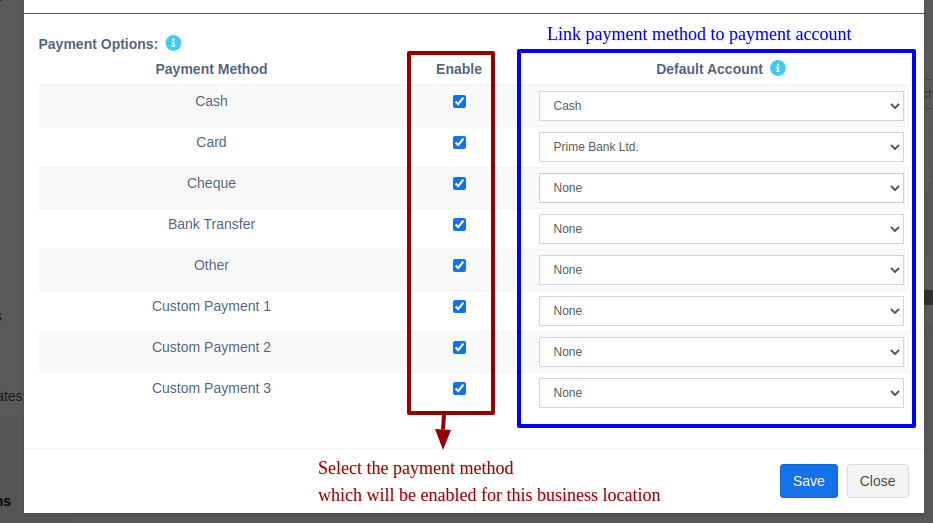
In Add/Edit business location you can select the default payment account for each payment method.
If the payment account is linked then when adding a payment for sales/purchase/expense, on selecting the payment method the payment account will be automatically selected.